20. Timers
In programming, timers are used to measure time intervals and trigger actions or events after a specified delay (single-shot) or at regular intervals. They enable task scheduling, such as updating GUI elements or polling resources, without blocking the main execution flow.[^1]
In Qt, timers are integrated with the application’s event loop. They allow non-blocking time-based operations, ensuring responsive GUI applications. Qt provides several timer facilites:
QObject.startTimer(): A low-level method on any QObject to start a timer with a millisecond interval.QBasicTimer: A lightweight wrapper around a timer ID fromstartTimer().QTimer: A high-levelQObjectsubclass with millisecond precision (up to 24 days range) which emits atimeout()signal.QChronoTimer: A drop-in replacement forQTimerbut with nanosecond precision and larger ranges (up to 292 years).
The following two timer classes do not integrate with the Qt event loop:
QElapsedTimer: A stopwatch for measuring elapsed time.QDeadlineTimer: Represents a deadline for timeouts in blocking functions.
The one you will be using most of the time is QTimer. Here are its most important methods:
| Method | Description |
|---|---|
start(int msec) |
Starts or restarts the timer with a timeout of msec milliseconds |
start() |
Starts or restarts the timer with the timeout specified in setInterval()
|
stop() |
Stops the timer |
setInterval(int msec) |
Sets the timeout interval in milliseconds |
interval() |
Returns the current interval in milliseconds |
isActive() |
Returns true if the timer is running, false otherwise |
setSingleShot(bool) |
Sets whether the timer fires only once (true) or repeatedly (false) |
isSingleShot() |
Returns true if the timer is single-shot |
timerId() |
Returns the timer’s ID, or -1 if the timer is not running |
remainingTime() |
Returns the remaining time in milliseconds before the timer times out |
setTimerType(Qt::TimerType) |
Sets the timer’s precision (Precise, Coarse, or VeryCoarse) |
timerType() |
Returns the timer’s type |
timeout |
Signal emitted when the timer times out |
singleShot(int msec, receiver, slot) |
Static method that creates a single-shot timer that calls a slot after msec milliseconds |
20.1 Single-Shot Timers
Qt’s single-shot timer is a feature of the QTimer class that allows developers to schedule a one-time event to occur after a specified delay, without the need for repeated intervals. It can be useful for tasks like delaying UI updates, handling asynchronous operations, or implementing timeouts in applications.
 |
You need to updata a label’s text one second after a button is clicked. |
To use a single-shot timer in your application:
 1 import sys
 2 from PySide6.QtCore import QTime, QTimer, Slot
 3 from PySide6.QtWidgets import (QApplication,
 4     QWidget, QPushButton, QLabel, QVBoxLayout)
 5
 6 class Window(QWidget):
 7
 8     def __init__(self):
 9
10         super().__init__()
11
12         layout = QVBoxLayout()
13         self.setLayout(layout)
14
15         # 1. Create the button object
16
17         self.button = QPushButton('Start timer')
18         self.button.clicked.connect(self.on_button_clicked)
19         layout.addWidget(self.button)
20
21         self.label = QLabel('Start the timer')
22         layout.addWidget(self.label)
23
24     # 2. Call the singleShot() class method
25
26     @Slot()
27     def on_button_clicked(self):
28         self.button.setDisabled(True)
29         self.label.setText('Waiting...')
30         QTimer.singleShot(1000, self.on_single_shot)
31
32     # 3. Set the label text after 1000ms
33
34     @Slot()
35     def on_single_shot(self):
36         current_time = QTime.currentTime()
37         text = f'Done! {current_time.toString("hh:mm:ss")}'
38         self.label.setText(text)
39         self.button.setEnabled(True)
40
41
42 if __name__ == '__main__':
43
44     app = QApplication(sys.argv)
45     main_window = Window()
46     main_window.show()
47     sys.exit(app.exec())
Create
QPushButtonandQLabelinstances, add them to the window layout, and connect the button’sclickedsignal to a slot.In the slot, call
QTimer.singleShot(), passing a 1000ms delay interval and theon_single_shot()method to execute after the delay.In
on_single_shot(), get the current time and display it in the label. This method executes with a one-second delay while keeping the GUI responsive.
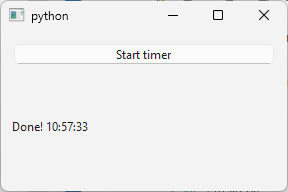
As singleSHot() is a class (static) method, you don’t create an instance of the QTimer class.
20.2 Starting and Stopping a Timer
Calling a timer’s start() method begins firing timeout() signals at specified intervals. Stopping a timer with stop() halts its operation, preventing further timeouts until it is restarted.
|
You are given the task of creating a simple application that counts elapsed seconds, allowing the user to start and stop the tracking as needed. |
To start or stop a timer:
 1 import sys
 2 from PySide6.QtCore import QTimer, Slot
 3 from PySide6.QtWidgets import (QApplication,
 4     QWidget, QPushButton, QLabel, QVBoxLayout)
 5
 6
 7 class Window(QWidget):
 8
 9     def __init__(self):
10
11         super().__init__()
12
13         self.counter = 0
14
15         layout = QVBoxLayout()
16         self.setLayout(layout)
17
18         # 1. Create the start and stop buttons.
19
20         self.start_button = QPushButton('Start timer')
21         self.start_button.clicked.connect(self.start_timer)
22         layout.addWidget(self.start_button)
23
24         self.stop_button = QPushButton('Stop timer')
25         self.stop_button.clicked.connect(self.stop_timer)
26         self.stop_button.setEnabled(False)
27         layout.addWidget(self.stop_button)
28
29         self.label = QLabel('0')
30         layout.addWidget(self.label)
31
32         # 2. Create the timer and set its interval
33
34         self.timer = QTimer()
35         self.timer.setInterval(1000)
36         self.timer.timeout.connect(self.on_timeout)
37
38     # 3. Start/stop the timer on buttons click
39
40     @Slot()
41     def start_timer(self):
42         self.start_button.setDisabled(True)
43         self.stop_button.setEnabled(True)
44         self.timer.start()
45
46     @Slot()
47     def stop_timer(self):
48         self.start_button.setEnabled(True)
49         self.stop_button.setDisabled(True)
50         self.timer.stop()
51
52     # 4. Update the display on timer timeout.
53
54     @Slot()
55     def on_timeout(self):
56         self.counter += 1
57         self.label.setText(str(self.counter))
58
59
60 if __name__ == '__main__':
61
62     app = QApplication(sys.argv)
63     main_window = Window()
64     main_window.show()
65     sys.exit(app.exec())
Create Start and Stop
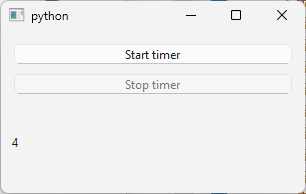
QPushButtons along with aQLabelthat displays the current number of elapsed seconds. Keep the count in an instance field namedcounterinitialized to0.Create a
QTimerobject and set its interval to 1000 milliseconds.-
When the Start timer button is clicked:
- Disable the Start button and enable the Stop button,
- Start the timer.
When the Stop timer button is clicked:
- Enable the Start button and disable the Stop button,
- Stop the timer.
Each time the timer’s timeout signal is emitted, increment
counterby one and update the label to show the new value.
20.3 Adjusting a Timer Interval
|
You need a timer that remains active through your application’s runtime, while allowing the user to adjust its interval without restarting the countdown. |
To adjust a timer’s interval withou restarting it:
 1 import sys
 2 from PySide6.QtCore import QTimer, Slot
 3 from PySide6.QtWidgets import (QApplication, QWidget,
 4     QLabel, QSpinBox, QVBoxLayout)
 5
 6
 7 class Window(QWidget):
 8
 9     def __init__(self):
10
11         super().__init__()
12
13         self.counter = 0
14         self.pending_interval = None
15
16         layout = QVBoxLayout()
17         self.setLayout(layout)
18
19         # 1. Create the spinbox and timer objects
20
21         self.spinbox = QSpinBox()
22         self.spinbox.setRange(200, 2000)
23         self.spinbox.setValue(1000)
24         self.spinbox.setSingleStep(100)
25         self.spinbox.valueChanged.connect(self.adjust_interval)
26         layout.addWidget(self.spinbox)
27
28         self.label = QLabel(str(self.counter))
29         layout.addWidget(self.label)
30
31         self.timer = QTimer()
32         self.timer.timeout.connect(self.on_timeout)
33
34         self.timer.start(self.spinbox.value())
35
36     # 3. On timeout, check if the user changed the spinbox value
37     #    and adjust the timer interval to sync them.
38     #    Also, perform timed tasks.
39
40     @Slot()
41     def on_timeout(self):
42
43         if self.pending_interval is not None:
44             self.timer.setInterval(self.pending_interval)
45             self.pending_interval = None
46
47         self.counter += 1
48         self.label.setText(str(self.counter))
49
50     # 2. When the spinbox value changes store it in a
51     #    member variable.
52
53     @Slot(int)
54     def adjust_interval(self, value):
55         self.pending_interval = value
56
57
58 if __name__ == '__main__':
59
60     app = QApplication(sys.argv)
61     main_window = Window()
62     main_window.show()
63     sys.exit(app.exec())
Create the spinbox and timer. In the main window’s
__init__(), create aQSpinBoxwith an initial value of 1000 ms, a range of 200-2000 ms, and a step of 100 ms. Connect itsvalueChanged()signal to a slot for handling value changes. Create aQTimer, connect itstimeout()signal to a slot, and start it with the initial interval.When the user changes the spinbox value, store that value in the
pending_intervalinstance variable.On the timer’s
timeout()signal, check ifpending_intervalis set. If it is, adjust the timer’s interval and resetpending_intervaltoNone. Also perform your application timer-related tasks (in this case, simply update the label).
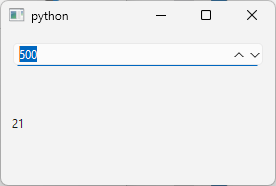
The intermediate pending_interval variable is necessary to avoid restarting the timer’s current countdown cycle when the spinbox value changes. Calling setInterval() directly on a running QTimer stops and restarts it, resetting the countdown to the new interval from that moment, which could delay or advance the next timeout() signal. By using pending_interval, we defer the change until the start of the on_timeout() slot (i.e., after the current interval has completed) ensuring the new interval only applies to future cycles without interrupting the ongoing one.
20.4 Countdown Timer
Countdown timers are designed to count down from a specified time interval to zero, signaling the end of a period or event. They operate by decrementing the time at regular intervals, often in seconds, and can trigger actions like notifications or program executions upon reaching zero.
|
You need to implement a simple countdown in your application. |
 1 import sys
 2 from PySide6.QtCore import QTimer, Slot
 3 from PySide6.QtWidgets import (QApplication, QWidget,
 4     QPushButton, QLabel, QSpinBox, QVBoxLayout)
 5
 6
 7 class Window(QWidget):
 8
 9     def __init__(self):
10
11         super().__init__()
12
13         # 1. Set the countdown variable with an initial value.
14         #    Add a spinbox to let the user adjust it.
15         #    Add a button for starting the countdown.
16         #    Create a timer.
17
18         self.counter = 5
19
20         layout = QVBoxLayout()
21         self.setLayout(layout)
22
23         self.spinbox = QSpinBox()
24         self.spinbox.setMinimum(1)
25         self.spinbox.setMaximum(10)
26         self.spinbox.setValue(self.counter)
27         self.spinbox.setSingleStep(1)
28         self.spinbox.valueChanged.connect(self.on_value_changed)
29         layout.addWidget(self.spinbox)
30
31         self.start_button = QPushButton('Start countdown')
32         self.start_button.clicked.connect(self.start_countdown)
33         layout.addWidget(self.start_button)
34
35         self.label = QLabel(str(self.counter))
36         layout.addWidget(self.label)
37
38         self.timer = QTimer()
39         self.timer.setInterval(1000)
40         self.timer.timeout.connect(self.on_timeout)
41
42     # 2. On the Start button click:
43     #    Set the counter value.
44     #    Disable the Start button.
45     #    Disable the spinbox.
46     #    Start the timer.
47
48     @Slot()
49     def start_countdown(self):
50         self.counter = self.spinbox.value()
51         self.label.setText(str(self.spinbox.value()))
52         self.start_button.setDisabled(True)
53         self.spinbox.setDisabled(True)
54         self.timer.start()
55
56     # 3. On timeout:
57     #    Decrement the counter
58     #    Set the label text
59     #    If the counter reaches zero, stop the timer
60
61     @Slot()
62     def on_timeout(self):
63         self.counter -= 1
64         self.label.setText(str(self.counter))
65         if self.counter == 0:
66             self.timer.stop()
67             self.start_button.setEnabled(True)
68             self.spinbox.setEnabled(True)
69
70     @Slot(int)
71     def on_value_changed(self, value):
72         self.counter = value
73         self.label.setText(str(self.counter))
74
75
76 if __name__ == '__main__':
77
78     app = QApplication(sys.argv)
79     main_window = Window()
80     main_window.show()
81     sys.exit(app.exec())
Add a
countervariable to your main class and set its initial value. Add a spinbox to let the user set the starting countdown value and a button to start the countdown. Also, create aQTimerand set its interval.On the Start button click, set
countervalue, disable the Start button and the spinbox, and start the timer.On the timer
timeout(), decrementcounter, update the label text, and ifcounterreaches zero, stop the timer and re-anable the button and the spinbox.
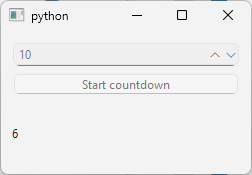
This ensures the countdown runs uninterrupted by disabling controls during operation, providing a basic countdown mechanism.
20.5 Stopwatch
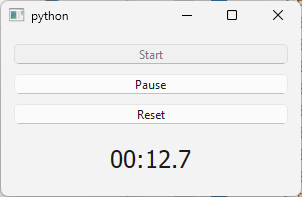
The previous example showed how to decrease a counter value at regular intervals, stopping the timer when the counter reaches zero. Conversely, you can also use a timer to increase a value periodically.
|
Your task is to create a simple stopwatch application with one-hundredth of a second (100ms) resolution and ‘Start’, ‘Pause’ and ‘Reset’ functionality. |
 1 import sys
 2 from PySide6.QtCore import QTimer, QTime, Slot, Qt
 3 from PySide6.QtGui import QFont
 4 from PySide6.QtWidgets import (QApplication, QWidget,
 5     QPushButton, QLabel, QVBoxLayout)
 6
 7
 8 class Window(QWidget):
 9
10     def __init__(self):
11
12         super().__init__()
13
14         # 1. Add a variable to track elapsed time.
15
16         self.elapsed_time = QTime(0, 0, 0, 0)
17
18         layout = QVBoxLayout()
19         self.setLayout(layout)
20
21         # 2. Add the start, pause and reset buttons
22
23         self.start_button = QPushButton('Start')
24         self.start_button.clicked.connect(self.start_stopwatch)
25         layout.addWidget(self.start_button)
26
27         self.pause_button = QPushButton('Pause')
28         self.pause_button.setDisabled(True)
29         self.pause_button.clicked.connect(self.pause_stopwatch)
30         layout.addWidget(self.pause_button)
31
32         self.reset_button = QPushButton('Reset')
33         self.reset_button.clicked.connect(self.reset_stopwatch)
34         layout.addWidget(self.reset_button)
35
36         self.label = QLabel(self.elapsed_time.toString('mm:ss.z'))
37         self.label.setAlignment(Qt.AlignmentFlag.AlignCenter)
38         self.label.setFont(QFont("Monospace", 18))
39         layout.addWidget(self.label)
40
41         # 3. Create the timer.
42
43         self.timer = QTimer()
44         self.timer.setInterval(100)
45         self.timer.timeout.connect(self.on_timeout)
46
47     @Slot()
48     def start_stopwatch(self):
49         self.start_button.setDisabled(True)
50         self.pause_button.setEnabled(True)
51         self.timer.start()
52
53     @Slot()
54     def pause_stopwatch(self):
55         self.timer.stop()
56         self.start_button.setEnabled(True)
57         self.pause_button.setDisabled(True)
58
59     @Slot()
60     def reset_stopwatch(self):
61         self.timer.stop()
62         self.elapsed_time = QTime(0, 0, 0, 0)
63         self.label.setText(self.elapsed_time.toString('mm:ss.z'))
64         self.start_button.setEnabled(True)
65         self.pause_button.setDisabled(True)
66
67     # 4. Update the time.
68
69     @Slot()
70     def on_timeout(self):
71         self.elapsed_time = self.elapsed_time.addMSecs(100)
72         self.label.setText(self.elapsed_time.toString('mm:ss.z'))
73
74
75 if __name__ == '__main__':
76
77     app = QApplication(sys.argv)
78     main_window = Window()
79     main_window.show()
80     sys.exit(app.exec())
Add an
elapsed_timeinstance variable to the main window. This is aQTimeobject initialized to zero hours, minutes, seconds and milliseconds.QTimeis convenient here because it providesaddMSecs()for easy time increments.-
Create the buttons. When the application starts, the ‘Start’ button is enabled and the ‘Pause’ button is disabled. The ‘Reset’ button is always enabled allowing reset at any time.
- Clicking ‘Start’ disables it, enables ‘Pause’ and starts the timer.
- Clicking ‘Pause’ disables it, enables ‘Start’ and stops the timer.
Create a
QTimer, set its interval to 100 milliseconds, and connect itstimeout()signal to a slot.Update the time. In the
on_timeout()slot, add the 100 ms toelapsed_timeusingaddMSecs(), then update a label to display the current time in the formatmm:ss.z(minutes:seconds.tenths).
This chapter focused on QTimer, the timer class you’ll use in the majority of your Qt code. The other timer facilities mentioned at the start of the chapter (the low-level QObject.startTimer() and its QBasicTYimer wrapper, the nanosecond-precision QChronoTimer, and the event-loop-independent QElapsedTimer and QDeadlineTimer) are covered in Chapter 31.