7. Text Widgets
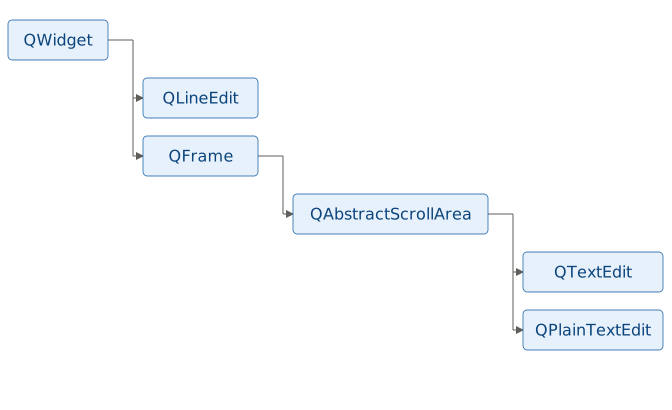
Buttons support binary input and numeric widgets support numerical input. Text widgets, on the other hand, allow the user to enter plain text or rich text. Qt provides three text input widgets:
QLineEdit- single-line plain-text editing,QTextEdit- provides multi-line rich text with Markdown and HTML[^1] support,QPlainTextEdit- multi-line plain-text with optional support for syntax coloring.
7.1 QLineEdit
QLineEdit provides a single-line plain-text editor. It supports the usual edit operations (copy, cut, paste, undo, redo) via standard keyboard shortcuts and a built-in context menu. You can restrict input length with setMaxLength(), validate input using a QValidator or input mask, and turn the widget into a password field by setting echoMode to EchoMode.Password.
The QLineEdit signals you are likely to use are:
| Signal | When Emitted |
|---|---|
textChanged(text) |
Any change to the text (user or programmatic) |
textEdited(text) |
Only when the user types, pastes, or deletes |
returnPressed() |
Enter/Return key is pressed |
editingFinished() |
Enter pressed or the line edit loses focus |
selectionChanged() |
Selected text changes |
inputRejected() |
A validator rejects the input |
 |
Your task is to build a wire transfer form for a finance application, adding a recipient name field that accepts only letters and warns the user about invalid input. |
To u se a line edit in your application:
 1 # The QLineEdit widget is a one-line text editor.
 2
 3 import sys
 4 from PySide6.QtCore import Slot
 5 from PySide6.QtGui import QRegularExpressionValidator
 6 from PySide6.QtWidgets import (QApplication,
 7     QWidget, QVBoxLayout, QLineEdit, QLabel)
 8
 9
10 class Window(QWidget):
11
12     def __init__(self):
13
14         super().__init__()
15         self.resize(240, 20)
16
17         layout = QVBoxLayout()
18         self.setLayout(layout)
19
20         # 1 - Create a line edit widget instance
21
22         self.name_edit = QLineEdit()
23         validator = QRegularExpressionValidator('^[a-zA-Z]*$')
24         self.name_edit.setValidator(validator)
25
26         self.message_label = QLabel()
27
28         # 3 - Connect the signals with the slots
29
30         self.name_edit.editingFinished.connect(self.on_editing_finished)
31         self.name_edit.inputRejected.connect(self.on_input_rejected)
32
33         layout.addWidget(QLabel('Enter recipient name:'))
34         layout.addWidget(self.name_edit)
35         layout.addWidget(self.message_label)
36
37     # 2 - Create methods to handle line edit signals.
38
39     @Slot()
40     def on_editing_finished(self):
41         self.message_label.setText(
42             f'Editing finished: {self.name_edit.text()}')
43
44     @Slot()
45     def on_input_rejected(self):
46         self.message_label.setText('Only letters allowed.')
47
48
49 if __name__ == '__main__':
50
51     app = QApplication(sys.argv)
52     main_window = Window()
53     main_window.show()
54     sys.exit(app.exec())
Create a
QLineEditobject for the recepient name, attach a regular expression validator that allows only letters, and add aQLabelto display feedback.Implement two slots, one to confirm the recipient name once editing finishes, and another to warn the user when an invalid character (a digit or a symbol that shouldn’t appear in a name) is rejected.
Connect the
editingFinished()andinputRejected()signal to the corresponding slots.

7.2 QTextEdit
QTextEdit is a widget for displaying and editing both plain text and rich text. It can handle large documents efficiently and can be used as an advanced WYSIWYG editor that support rich text formatting via HTML or Markdown. Internally, QtextEdit uses a QTextDocument object, which organizes content in a hierarchy of frames, blocks and fragments.
Commonly used QTextEdit signals include:
| Signal | Description |
|---|---|
textChanged() |
Emitted when document’s content changes |
cursorPositionChanged() |
Emitted when cursor position changes |
copyAvailable(yes) |
Emitted when the availability of copy changes |
redoAvailable(available) |
Emitted when redo becomes available/unavailable |
undoAvailable(available) |
Emitted when undo becomes available/unavailable |
selectionChanged() |
Emitted when current selection changes |
Note that textChanged() is emitted for both user edits and programmatic changes such as calling setPlainText(), setHtml(), or setMarkdown().
|
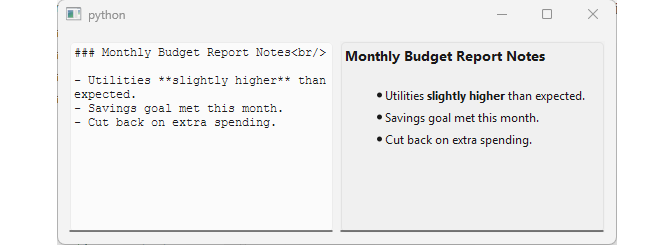
Your task is to let users attach comments to a monthly budget report, formatted with Markdown, and showing a live preview of how it will render. |
To use a text edit in your application:
 1 # The QTextEdit class provides a widget that is used
 2 # to edit and display both plain and rich text.
 3
 4 import sys
 5 from PySide6.QtCore import Slot
 6 from PySide6.QtGui import QFontDatabase
 7 from PySide6.QtWidgets import (QApplication,
 8     QWidget, QHBoxLayout, QTextEdit)
 9
10
11 class Window(QWidget):
12
13     def __init__(self):
14
15         super().__init__()
16
17         layout = QHBoxLayout()
18         self.setLayout(layout)
19
20         # 1. Create the source textedit instance
21
22         self.src_edit = QTextEdit()
23         self.src_edit.textChanged.connect(self.update_preview)
24
25         mono = QFontDatabase.systemFont(
26             QFontDatabase.SystemFont.FixedFont)
27         mono.setPointSize(9)
28         self.src_edit.setFont(mono)
29
30         # 2. Create the preview textedit instance
31
32         self.preview_edit = QTextEdit()
33         self.preview_edit.setReadOnly(True)
34         self.preview_edit.setStyleSheet('background-color: #f0f0f0;')
35
36         layout.addWidget(self.src_edit)
37         layout.addWidget(self.preview_edit)
38
39         self.src_edit.setText('### Monthly Budget Report Notes\n\n')
40
41     # 3. Implement the slot to preview the entered text
42
43     @Slot()
44     def update_preview(self):
45         markdown_text = self.src_edit.toPlainText()
46         self.preview_edit.setMarkdown(markdown_text)
47
48
49 if __name__ == '__main__':
50
51     app = QApplication(sys.argv)
52     main_window = Window()
53     main_window.show()
54     sys.exit(app.exec())
Create the source editor by instantiating a
QTextEditfor editing the report notes, using a monospace font for better allignment.Create the preview widget as a second
QTextEditthat will display the rendered notes, made read-only with a distinctive appearance.Implement the preview slot to and connect the signal. Get the source text edit’s contents as plain text and use
setMarkdown()to render it as Markdown in the preview text edit. By default,setMarkdown()uses the GitHub-flavored Markdown dialect.
Note that the initial setPlainText() call happens only after connecting the textChanged() signal, ensuring the slot runs immediately and the preview is rendered with the initial text.
7.3 QPlainTextEdit
QPlainTextEdit provides a widget optimized for editing and displaying plain text. Unlike QTextEdit, it does not support HTML or Markdown. A QPlainTextEdit document is composed of characters and blocks (paragraphs) separated by newline characters, with each block containing a sequence of characters with optional formatting.
|
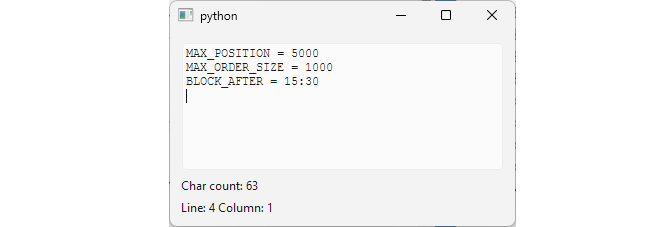
Your task is to add a risk rule editor to a finance application. Risk rules are stored as plain text and interpreted by the application’s rule engine. The editor uses a monospace font anf displays the current line, column, and total character count to help users edit and review rule definitions. |
To use a plain text edit in your application:
 1 # The QPlainTextEdit class provides a widget
 2 # that is used to edit and display plain text.
 3
 4 import sys
 5 from PySide6.QtCore import Slot
 6 from PySide6.QtGui import QFontDatabase, QTextCursor
 7 from PySide6.QtWidgets import (QApplication, QWidget,
 8     QVBoxLayout, QPlainTextEdit, QLabel)
 9
10
11 class Window(QWidget):
12
13     def __init__(self):
14
15         super().__init__()
16
17         layout = QVBoxLayout()
18         self.setLayout(layout)
19
20         # 1. Create the plain text edit widget
21         #     and set its font and wrap mode.
22
23         self.editor = QPlainTextEdit()
24         self.editor.setLineWrapMode(
25             QPlainTextEdit.LineWrapMode.NoWrap)
26         mono = QFontDatabase.systemFont(
27             QFontDatabase.SystemFont.FixedFont)
28         mono.setPointSize(9)
29         self.editor.setFont(mono)
30
31         # Labels displaying document stats.
32
33         self.charcount_label = QLabel()
34         self.position_label = QLabel()
35
36         layout.addWidget(self.editor)
37         layout.addWidget(self.charcount_label)
38         layout.addWidget(self.position_label)
39
40         # 3. Connect the signals to the slots
41         self.editor.textChanged.connect(self.update_char_count)
42         self.editor.cursorPositionChanged.connect(self.update_position)
43
44         self.editor.setPlainText(
45             'MAX_POSITION = 5000\n'
46             'MAX_ORDER_SIZE = 1000\n'
47             'BLOCK_AFTER = 15:30\n')
48         self.editor.moveCursor(QTextCursor.MoveOperation.End)
49
50     # 2. Get the underlying QTextDocument properties
51     #    Character count is directly available.
52     #    Cursor position needs to be calculated.
53
54     @Slot()
55     def update_char_count(self):
56         char_count = self.editor.document().characterCount()
57         self.charcount_label.setText(f'Char count: {char_count}')
58
59     @Slot()
60     def update_position(self):
61
62         cursor = self.editor.textCursor()
63         x = str(cursor.block().blockNumber() + 1)
64         y = str(cursor.positionInBlock() + 1)
65
66         self.position_label.setText(f'Line: {x} Column: {y}')
67
68
69 if __name__ == '__main__':
70
71     app = QApplication(sys.argv)
72     main_window = Window()
73     main_window.show()
74     sys.exit(app.exec())
Create a
QPlainTextEditobject, useQFontDatabaseto set its font to a generic monospace font, and disable line wrapping. Also add two labels to the window: one for character count and one for cursor position.Implement the slots to display text stats. In
update_char_count(), retrieve the character count directly from the editor’s underlyingQTextDocumentand display it in the label. AQTextDocumentalways contains at least one new line character, so an empty document will have the character count of 1. Inupdate_position(), use the editor’sQTextCursorto get the current block number and the cursor position within the block, then calculate the current line (block number + 1) and column (position within the block + 1).Connect the signals to the slots. Update the character count on
textChanged(), and update cursor position oncursorPositionChanged().
QTextDocument is the central part of the Scribe framework[^2], designed for representing and editing structured rich text documents. Representation is supported through document elements such as QTextBlock, QTextFrame, QTextTable and QTextList, and editing via the QTextCursor class. The framework also supports syntax highlighting.
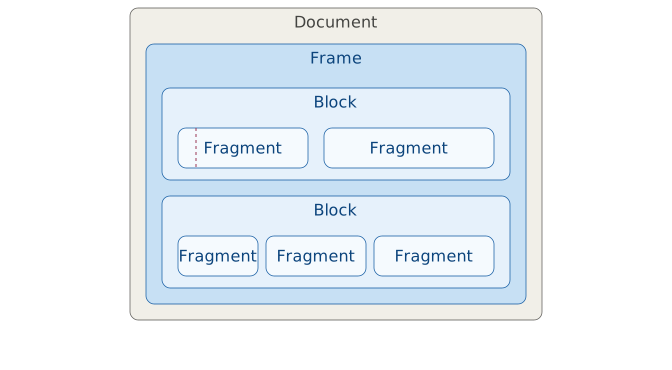
The vertical dashed line in the diagram is a QTextCursor.
In Chapters 5, 6, and 7, we have examined widgets suitable for representing primitive data types. In Chapters 8, 9, and 10 we cover widgets designed to represent composite data types, including lists, tables, and trees.