34. Processes
A process is the instance of a program that is being executed by one or many threads. The operating system keeps its processes separate and allocates the resources (memory, CPU time, file handles, network connections) they need. Each process runs in its own memory space, meaning one process cannot directly read or modify the memory of another process[^1].
Running external processes allows a program to delegate work to existing tools instead of reimplementing their functionality. Communicating between processes on the same computer typically happens through standard streams (stdin, stdout, stderr), pipes, sockets, or shared files. A parent process is a process that has created one or more child processes[^2].
In Qt, both creating external processes and communicating with them is handled by the QProcess class.
In this chapter we provide several examples of QProcess usage, starting with simple program execution and communicating via standard stream channels, before proceeding to setting a process environment, changing the process working directory, synchronous process execution, and terminating a running process.
34.1 Basic Process Execution
To start a process, create an object of this class and call its start() method:
1 process.start(program, arguments, mode)
where:
programis the executable name.argumentsis a list of command line arguments.modeis aQIODevice.OpenMode,ReadWriteby default.
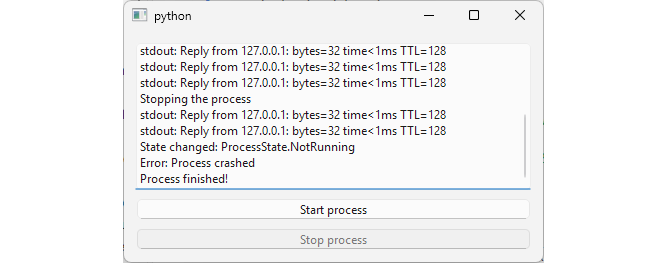
After creating a QProcess, it can be in one of three states:
| Constant | Value | Description |
|---|---|---|
QProcess::NotRunning |
0 | The process is not running. |
QProcess::Starting |
1 | The process is starting, but the program has not yet been invoked. |
QProcess::Running |
2 | The process is running and is ready for reading and writing. |
 |
You are building a system monitoring tool that runs external commands such as |
To start an external process:
 1 import sys
 2 import platform
 3 from PySide6.QtCore import QProcess, Slot
 4 from PySide6.QtWidgets import (QApplication, QWidget,
 5     QPushButton, QVBoxLayout, QTextBrowser)
 6
 7
 8 class Window(QWidget):
 9
10     def __init__(self):
11
12         super().__init__()
13
14         self.executable = 'ping'
15         if platform.system() == 'Windows':
16             self.arguments = ['google.com']
17         else:
18             self.arguments = ['google.com', '-c', '4']
19
20         self.log_widget = QTextBrowser()
21         self.button = QPushButton('Run Command')
22         self.button.clicked.connect(self.run_process)
23
24         layout = QVBoxLayout(self)
25         layout.addWidget(self.log_widget)
26         layout.addWidget(self.button)
27
28         # 1. Create a QProcess and connect its signals.
29
30         self.process = QProcess(self)
31         self.process.readyReadStandardOutput.connect(self.log_stdout)
32         self.process.readyReadStandardError.connect(self.log_stderr)
33         self.process.errorOccurred.connect(self.log_error)
34         self.process.stateChanged.connect(self.log_state_change)
35         self.process.finished.connect(self.log_finished)
36
37     # 2. Start the external process.
38
39     def run_process(self):
40         self.button.setDisabled(True)
41         self.log_widget.clear()
42         self.log_widget.append(f'Running process: {self.executable}')
43         self.log_widget.append(f'Argument(s): {self.arguments}')
44         self.process.start(self.executable, self.arguments)
45
46     # 3. Handle signals.
47
48     @Slot()
49     def log_stdout(self):
50         output = self.process.readAllStandardOutput().data().decode()
51         self.log_widget.append(f'stdout: {output}')
52
53     @Slot()
54     def log_stderr(self):
55         output = self.process.readAllStandardError().data().decode()
56         self.log_widget.append(f'stderr: {output}')
57
58     @Slot(QProcess.ProcessError)
59     def log_error(self, error):
60         self.log_widget.append(f'Error Code: {str(error)}')
61         self.log_widget.append(f'Error: {self.process.errorString()}')
62         self.button.setEnabled(True)
63
64     @Slot(QProcess.ProcessState)
65     def log_state_change(self, newState):
66         self.log_widget.append(f'State changed: {str(newState)}')
67
68     @Slot(int, QProcess.ExitStatus)
69     def log_finished(self, exitCode, exitStatus):
70         self.log_widget.append('Process finished!')
71         self.log_widget.append(f'Exit code: {exitCode}')
72         self.log_widget.append(f'Exit status: {str(exitStatus)}')
73         self.button.setEnabled(True)
74
75 if __name__ == '__main__':
76
77     app = QApplication(sys.argv)
78     window = Window()
79     window.show()
80     sys.exit(app.exec())
ping command line arguments are different between Windows and Unix derived operating systems, so check on which platform the program is running and set the arguments accordingly - on Windows just set the target (‘google.com’) as the command exits automatically after four pings. Otherwise, set the target, the switch to limit the number of packets (‘-c’), and the number of packets (‘4’).
-
Create a
QProcessobject and connect its signals to the slots:readyReadStandardOutput()is emitted when there is data available throughstdout.readyReadStandardError()is emitted when there is data available through the standard error channel,stderr.errorOccurred(), emitted when an error occurs with the process.stateChanged(), emitted when the state of the process changes.finished(), emitted when the process finishes. The difference between thereadyReadStandardError()anderrorOccurred()is thatreadyReadStandardError()is emitted when the process itself writes data to its error stream, whileerrorOccurred()is emitted when a process-level failure occurs, such as the executable not being found or the process crashing.
Start the external process. When the user clicks the ‘Run Command’ button, disable the button, clear the log widget (a
QTextBrowser), and callQProcess.start(), passing it the executable name (ping) and its command line arguments.-
Handle signals:
log_stdout()reads all standard output data, decodes it and appends the output to the log widget.log_stderr()reads all standard error data, decodes it and appends it to the log.log_error()appends the error code and error string to the log.log_state_change()logs process state changes.log_finished()logs the process exit status and enables the ‘Run Command’ so the process can be run again.
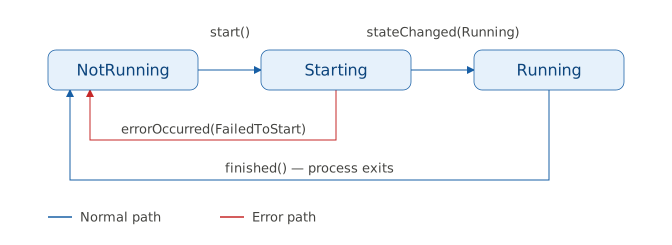
When you run the application the following window is shown:
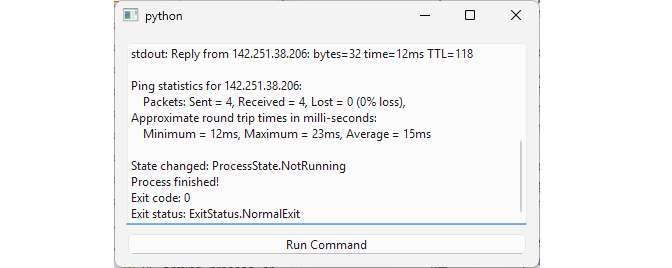
If the command runs successfully the log should look like this:
 1 Running process: ping
 2 Argument(s): ['google.com', '-c', '4']
 3 State changed: ProcessState.Starting
 4 State changed: ProcessState.Running
 5 stdout: ...
 6 ...
 7 State changed: ProcessState.NotRunning
 8 Process finished!
 9 Exit code: 0
10 Exit status: ExitStatus.NormalExit
The process state changes from Starting to Running, stdout is captured, the state changes to NotRunning and the process exits.
If there is an error in the QProcess setup, like
1 self.executable = 'nonexistent'
the output is different:
1 Running process: nonexistent
2 Argument(s): ['google.com', '-c', '4']
3 State changed: ProcessState.Starting
4 State changed: ProcessState.NotRunning
5 Error Code: ProcessError.FailedToStart
6 Error: Child process set up failed: execve: No such file or directory
The process state changes from Starting to NotRunning, and errorOccurred() is emitted with the FailedToStart error code.
If the executable exists, but you pass it an invalid command line argument:
1 self.arguments = ['google.com', '-c', 'invalid']
The output is:
 1 Running process: ping
 2 Argument(s): ['google.com', '-c', 'invalid']
 3 State changed: ProcessState.Starting
 4 State changed: ProcessState.Running
 5 stderr: /usr/bin/ping: invalid argument: 'invalid'
 6
 7 State changed: ProcessState.NotRunning
 8 Process finished!
 9 Exit code: 1
10 Exit status: ExitStatus.NormalExit
The process runs but the invalid argument causes the process to fail so it outputs a message through stderr and exits.
34.2 Providing Fixed Input to a Process
Some processes are interactive by nature: they prompt the user for input and proceed based on the responses. In such cases QProcess allows you to write data directly to a child process stdin, so you can feed predefined values programmatically as if a user had typed them.
|
You are building a GUI tool that needs to run an interactive Python script that prompts for a project name, author, and Python version and creates a Python project based on the entered values. Instead of prompting the user each time, you want to feed predefined values via stdin automatically. |
Suppose you have a third-party Python script that prompts the user for some values:
 1 import time
 2
 3 def step(msg):
 4     print(msg)
 5     time.sleep(0.2)
 6
 7 project_name = input()
 8 author_name  = input()
 9 python_ver   = input()
10
11 step(f'Creating project: {project_name}')
12 step(f'Author : {author_name}')
13 step(f'Python : {python_ver}')
14
15 dirs = [
16     project_name,
17     f'{project_name}/src/',
18 ]
19
20 step('\nCreating project directories...')
21 for d in dirs:
22     step(f'    {d}')
23
24 files = [
25     f'{project_name}/pyproject.toml',
26     f'{project_name}/.gitignore',
27     f'{project_name}/src/{project_name}/main.py',
28 ]
29
30 step('\nCreating files...')
31 for f in files:
32     step(f'    {f}')
33
34 step(f'\nCreating virtual env...')
35 step(f'    python{python_ver} -m venv {project_name}/.venv')
36 step('    Installing pip... done')
37 step('    Installing setuptools... done')
38
39 step(f'\nInitializing git repository...')
40 step(f'    git init {project_name}/')
41 step(f'    git -C {project_name}/ add .')
42 step(f'    git -C {project_name}/ commit -m "Initial commit"')
43
44 step(f'\nDone! To get started:')
45 step(f'    cd {project_name}')
46 step(f'    source .venv/bin/activate')
47 step(f'    pip install -e .[dev]')
Instead of typing responses at a terminal, you want to feed all inputs automatically via stdin. (The above script does nothing but prints strings to the terminal, simulating actual processing with time.sleep().)
To provide a fixed input to a process:
 1 import sys
 2 from PySide6.QtCore import QProcess
 3 from PySide6.QtWidgets import (QApplication, QWidget,
 4     QPushButton, QVBoxLayout, QTextEdit)
 5
 6
 7 with open('create_project.py', 'r') as file:
 8     script_text = file.read()
 9
10 input_args = [b'my_app\n', b'Joe\n', b'12\n']
11
12
13 class Window(QWidget):
14
15     def __init__(self):
16
17         super().__init__()
18
19         self.text_edit = QTextEdit()
20         self.text_edit.setReadOnly(True)
21         self.button = QPushButton('Run Command')
22         self.button.clicked.connect(self.run_command)
23
24         layout = QVBoxLayout(self)
25         layout.addWidget(self.text_edit)
26         layout.addWidget(self.button)
27
28         # 1. Create a QProcess and connect its signals.
29
30         self.process = QProcess(self)
31         self.process.readyReadStandardOutput.connect(self.on_stdout)
32         self.process.readyReadStandardError.connect(self.on_stderr)
33         self.process.errorOccurred.connect(self.on_error_occurred)
34         self.process.stateChanged.connect(self.on_state_changed)
35         self.process.finished.connect(self.on_finished)
36
37     # 2. Start the process.
38
39     def run_command(self):
40         self.button.setDisabled(True)
41         self.text_edit.clear()
42         self.process.start(sys.executable, ['-u', '-c', script_text])
43
44     def on_stdout(self):
45         output = self.process.readAllStandardOutput().data().decode()
46         self.text_edit.append(output.rstrip())
47
48     def on_stderr(self):
49         output = self.process.readAllStandardError().data().decode()
50         self.text_edit.append(output.rstrip())
51
52     def on_error_occurred(self):
53         self.text_edit.append(self.process.errorString())
54         self.button.setEnabled(True)
55
56     # 3. Write the predefined input values.
57
58     def on_state_changed(self, state):
59         if state == QProcess.ProcessState.Running:
60             for arg in input_args:
61                 bytes_written = self.process.write(arg)
62                 if bytes_written == -1:
63                     print(self.process.errorString())
64             self.process.closeWriteChannel()
65
66     def on_finished(self):
67         self.button.setEnabled(True)
68
69
70 if __name__ == '__main__':
71
72     app = QApplication(sys.argv)
73     window = Window()
74     window.show()
75     sys.exit(app.exec())
Create a
QProcessand connect its signals. Similarly to the previous example, connectreadyReadStandardOutput(),readyReadStandardError()anderrorOccurred()to the slots that log the child process output to aQTextEdit. ConnectstateChanged()toon_state_changed()which is responsible for feeding the predefined input values to the child process.Start the process. Use
QProcess.start()to run the Python executable, passing-uas the first argument followed by the script path. The-uflag forces stdout and stderr to be unbuffered. Python buffers stdout by default when it detects it is not attached to a real terminal - without it, all output would arrive in a single burst at process exit instead of line by line.Write the predefined input values. In
on_state_changed()check whether the process state isRunning, then useQProcess.write()to write each input value to the child process stdin. The values must bebytesobjects with a trailing newline (b'my_app\n',b'Joe\n',b'12\n'), matching what a user would type at a terminal. Eachinput()call in the child script reads the next line from the stdin buffer as it is needed - all values can be written upfront because the OS buffers them until they are consumed. Finally, callQProcess.closeWriteChannel()to signal EOF.
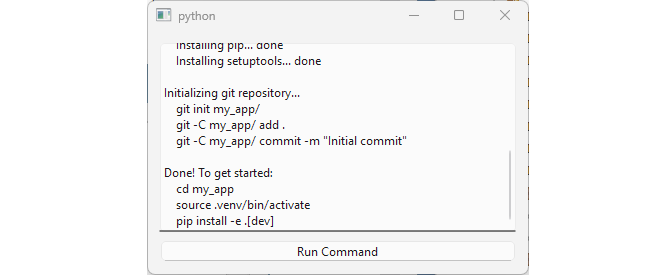
When you run the application and start the child process, the end result should look like this:
34.3 Handling Chunked Output: A Common Pitfall
Python, like many other languages, buffers its stdout differently depending on whether it is writing to a terminal or to a pipe. When stdout is connected to a real terminal, Python uses line buffering, flushing after each newline. When connected to a pipe, it uses block buffering, holding output until the buffer fills up or the process exits. When you launch a child process via QProcess, Qt sets up two pipes automatically: one connecting your application to the child process stdin, and another connecting the child’s stdout back to your application. This means that you can not expect the child process output to arrive in complete, newline-separated chunks.
|
You are creating a logging application that streams output from a long-running external command. Handle partial chunks to avoid displaying garbled or incomplete lines in your UI. |
You are dealing with a program that sends long strings to its stdout:
 1 import os
 2 import sys
 3 import time
 4
 5 text = (
 6     "This is a long demonstration sentence"
 7     " that will be split into arbitrary chunks"
 8     " without regard for newlines or word boundaries"
 9     " if you don't buffer the output." + os.linesep)
10 full_text = text * 5
11
12 for i in range(0, len(full_text), 20):  # 20-byte chunks
13     sys.stdout.write(full_text[i:i+20])
14     sys.stdout.flush()  # Trigger readyRead
15     time.sleep(0.1)
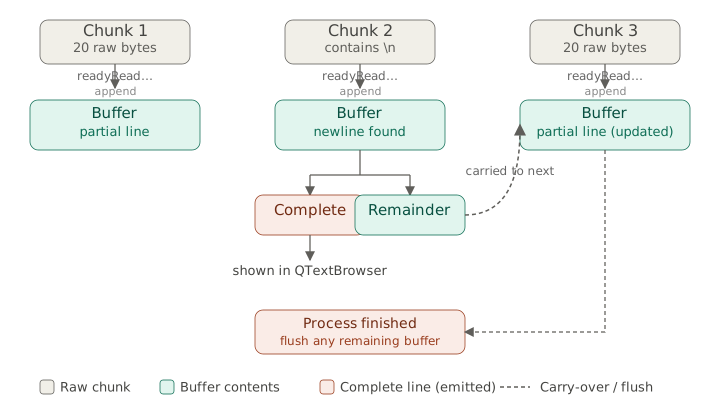
The full output is close to 800 characters spread across five repeated sentences. It deliberately splits its output into 20-byte chunks, calling sys.stdout.flush(), which forces readyReadStandardOutput() to be emitted on every chunk. When you read the output in the main application you need to buffer those chunks until you encounter a newline character and only then display the complete line.
To handle chunked output from an external process:
  1 import os
  2 import sys
  3 from PySide6.QtCore import QProcess
  4 from PySide6.QtWidgets import (QApplication, QWidget,
  5     QPushButton, QVBoxLayout, QTextEdit)
  6
  7
  8 with open('subprocess_script.py', 'r') as file:
  9     subprocess_script = file.read()
 10
 11 class Window(QWidget):
 12
 13     def __init__(self, parent=None):
 14
 15         super().__init__(parent)
 16
 17         self.buffer = ''
 18
 19         self.text_edit = QTextEdit(readOnly=True)
 20         self.text_edit.setLineWrapMode(QTextEdit.LineWrapMode.NoWrap)
 21
 22         self.run_button_naive = QPushButton('Run - Naive Chunk Handling')
 23         self.run_button_naive.clicked.connect(self.run_process_naive)
 24
 25         self.run_button_buffered = QPushButton('Run with Buffering')
 26         self.run_button_buffered.clicked.connect(self.run_process_buffered)
 27
 28         layout = QVBoxLayout(self)
 29         layout.addWidget(self.text_edit)
 30         layout.addWidget(self.run_button_naive)
 31         layout.addWidget(self.run_button_buffered)
 32
 33         self.process = None
 34
 35     def set_buttons_enabled(self, enabled):
 36         self.run_button_naive.setEnabled(enabled)
 37         self.run_button_buffered.setEnabled(enabled)
 38
 39     def run_process_naive(self):
 40
 41         self.text_edit.clear()
 42         self.text_edit.append('Naive Chunk Handling\n\n')
 43         self.set_buttons_enabled(False)
 44
 45         self.process = QProcess(self)
 46         self.process.readyReadStandardOutput.connect(
 47             self.handle_stdout_naive)
 48         self.process.finished.connect(self.finished_naive)
 49         self.process.start(sys.executable, ['-c', subprocess_script])
 50
 51     def handle_stdout_naive(self):
 52         data = self.process.readAllStandardOutput()
 53         chunk = bytes(data).decode('utf-8', errors='replace')
 54         self.text_edit.append(chunk)
 55
 56     def finished_naive(self):
 57         self.text_edit.append('\nProcess Finished')
 58         self.set_buttons_enabled(True)
 59
 60     def run_process_buffered(self):
 61
 62         self.text_edit.clear()
 63         self.text_edit.append('Buffered Chunk Handling\n\n')
 64         self.set_buttons_enabled(False)
 65         # 1. Create a QProcess, connect the signals
 66         #    and run the child process.
 67
 68         self.buffer = ''
 69
 70         self.process = QProcess(self)
 71         self.process.readyReadStandardOutput.connect(
 72             self.handle_stdout_buffered)
 73         self.process.finished.connect(self.finished_buffered)
 74         self.process.start(sys.executable, ['-c', subprocess_script])
 75
 76     def handle_stdout_buffered(self):
 77
 78         # 2. Read the child process stdout data,
 79         #    decode it, and append it to the buffer
 80
 81         data = self.process.readAllStandardOutput()
 82         chunk = bytes(data).decode('utf-8', errors='replace')
 83         self.buffer += chunk
 84
 85         # 3. Check whether the buffer contains
 86         #    any complete lines and display them.
 87
 88         lines = self.buffer.split(os.linesep)
 89         for line in lines[:-1]:
 90             self.text_edit.append(line)
 91         self.buffer = lines[-1]
 92
 93     # 4. Flush any remaining content from the buffer.
 94
 95     def finished_buffered(self):
 96         if self.buffer:
 97             self.text_edit.append(self.buffer)
 98         self.text_edit.append('Process Finished')
 99         self.set_buttons_enabled(True)
100
101
102 if __name__ == '__main__':
103
104     app = QApplication(sys.argv)
105     win = Window()
106     win.show()
107     sys.exit(app.exec())
-
Create a
QProcessobject, connect the signals, and run the child process. When the user clicks the ‘Run with Buffering’ button:- Initialize an empty string buffer to accumulate incoming output chunks.
- Create a
QProcess. - Connect the
readyReadStandardOutput()tohandle_stdout_buffered()andfinished()tofinished_buffered(). - Start the process.
Read the child process stdout data, decode it, and append it to the buffer. When new data is available, use
readAllStandardOutput()to read all currently available bytes, decode from UTF-8, and append the result to the buffer string.Check whether the buffer contains any complete lines and display them. Split the buffer on
os.linesep. Every element except the last one is a complete line so you append it to the text box and discard it. Keep the last element in the buffer, as it is a partial line that has not yet been terminated by a newline.When the child process finishes, flush any remaining content from the buffer. If the buffer is not empty, after the process exits, append it to the text edit as there won’t be any further output from the child process.
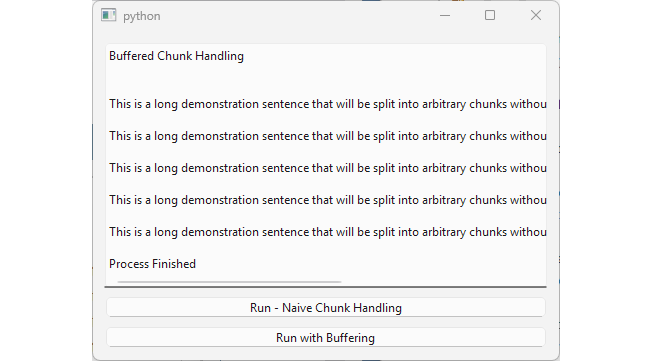
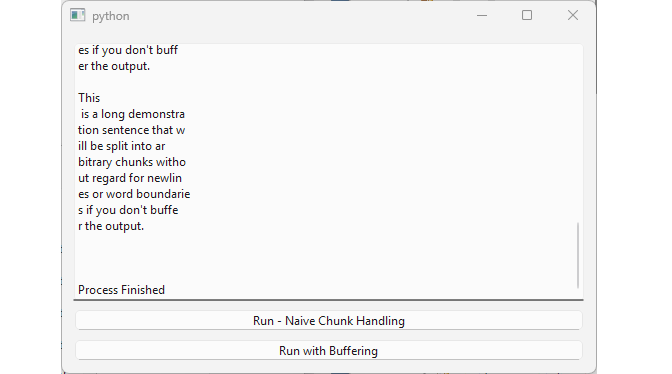
For comparison, running the same child process without buffering produces output like this, where each readyReadStandardOutput() signal delivers a raw 20-byte chunk, splitting sentences at arbitrary boundaries:
34.4 Interactive Process Communication
The previous two sections covered one-directional communication - feeding a process predefined input or reading its output as it arrives. Some processes, however, are designed to stay alive and accept input repeatedly, responding to each command before waiting for the next one. Communicating with such a process requires keeping the write channel open and writing to stdin on demand, in response to user actions.
|
You are developing an embedded Python REPL inside your Qt application. |
To establish interactive process communication:
  1 import sys
  2 from html import escape
  3 from PySide6.QtWidgets import (QApplication, QVBoxLayout,
  4     QWidget, QLineEdit, QTextBrowser)
  5 from PySide6.QtCore import QProcess
  6
  7
  8 class Window(QWidget):
  9
 10     def __init__(self, parent=None):
 11
 12         super().__init__(parent)
 13         layout = QVBoxLayout(self)
 14
 15         self.output_browser = QTextBrowser()
 16         layout.addWidget(self.output_browser)
 17
 18         self.input_line = QLineEdit()
 19         self.input_line.setPlaceholderText(
 20             'Enter Python code and press Enter to execute it:')
 21         self.input_line.returnPressed.connect(self.send_input)
 22         self.input_line.setEnabled(False)
 23         layout.addWidget(self.input_line)
 24
 25         self.stdout_buffer = ''
 26         self.stderr_buffer = ''
 27
 28         # 1. Create the process,
 29         #    connect the signals, and start it.
 30
 31         self.process = QProcess(self)
 32         self.process.started.connect(self.on_started)
 33         self.process.errorOccurred.connect(self.on_error_occurred)
 34         self.process.readyReadStandardOutput.connect(self.handle_stdout)
 35         self.process.readyReadStandardError.connect(self.handle_stderr)
 36
 37         self.process.start(sys.executable, ['-u', '-i', '-q'])
 38
 39     def on_started(self):
 40
 41         self.output_browser.append(
 42             'Embedded Python repl ready.\n'
 43             'Type Python code and press Enter.\n')
 44         self.input_line.setEnabled(True)
 45         self.input_line.setFocus()
 46
 47     def on_error_occurred(self):
 48         self.output_browser.append(
 49             '<font color="red">Failed to start Python</font>')
 50
 51     # 2. Send user input to the process.
 52
 53     def send_input(self):
 54
 55         if self.process.state() != QProcess.ProcessState.Running:
 56             return
 57
 58         command = self.input_line.text()
 59         self.output_browser.append(f'>>> {command}')
 60         self.process.write((command + '\n').encode())
 61         self.input_line.clear()
 62
 63     # 3. Handle the process output.
 64
 65     def handle_stdout(self):
 66
 67         data = self.process.readAllStandardOutput().data()
 68         text = data.decode('utf-8', errors='replace')
 69         self.stdout_buffer += text
 70         while '\n' in self.stdout_buffer:
 71             line, remainder = self.stdout_buffer.split('\n', 1)
 72             self.stdout_buffer = remainder
 73             self.output_browser.append(line.rstrip('\r'))
 74
 75     def handle_stderr(self):
 76
 77         data = self.process.readAllStandardError().data()
 78         text = data.decode('utf-8', errors='replace')
 79         self.stderr_buffer += text
 80         while '\n' in self.stderr_buffer:
 81             line, remainder = self.stderr_buffer.split('\n', 1)
 82             self.stderr_buffer = remainder
 83             stripped_line = line.rstrip('\r')
 84             self.output_browser.append(
 85                 f'<font color="red">{stripped_line}</font>')
 86
 87     # 4. Terminate the process
 88
 89     def closeEvent(self, event):
 90
 91         if self.process.state() == QProcess.ProcessState.Running:
 92             self.process.write(b'exit()\n')
 93             self.process.waitForFinished(100)
 94             if self.process.state() == QProcess.ProcessState.Running:
 95                 self.process.kill()
 96                 self.process.waitForFinished()
 97         super().closeEvent(event)
 98
 99
100 if __name__ == '__main__':
101
102     app = QApplication(sys.argv)
103     window = Window()
104     window.show()
105     sys.exit(app.exec())
-
Create the process object, connect the signals, and start the process. Add a
QLineEditto the main window to let the user send commands to the Python shell, and aQTextBrowserto display the shell output. ConnectQLineEdit.returnPressed()tosend_input(). ConnectreadyReadStandardOutput()andreadyReadStandardError()signals to the slots. Start the Python executable with the following flags:-uto force the stdout and stderr streams to be unbuffered.-ito enter interactive mode, keeping the shell alive and waiting for input.-qto suppress the copyright and version banner on startup. Once thestartedsignal is emitted, the Python interactive shell is ready to accept commands. Enable theQLineEditand give it focus.
Send user input to the process. In
send_input(), read the command fromQLineEdit.text(). Send the command to the process viaQProcess.write(), appending a newline to submit it, then clear the line edit.Handle the process output. In
handle_stdout()andhandle_stderr(), read and decode the available data and apply the same line-buffering technique from the previous section - accumulate chunks until a newline is found, then display the complete line. Display stderr output in red using an HTML<font>tag.Terminate the process cleanly. In
closeEvent(), if the process is still running, sendexit()to the shell and give it a short time to finish withwaitForFinished(). If it has not exited by then, callQProcess.kill()to terminate it before allowing the window to close.
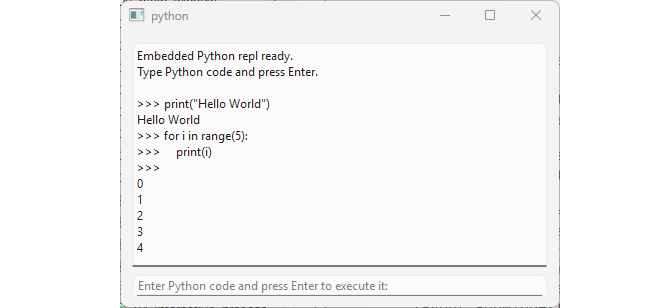
Note that communication is asynchronous in both directions. If you send the shell a long-running command, the UI remains responsive and you are still able to continue sending commands to it. Output lines appear in the text browser as they arrive rather than all at once when the command completes.
34.5 Setting Process Environment
By default, a child process launched via QProcess inherits the environment of the parent process. Sometimes this is not what you want - you may need to set additional environment variables or isolate the process from the parent’s environment entirely. QProcess lets you construct a custom environment and assign it to the process before it starts.
|
You are building a tool that lets the user run Qt applications with a different style and scale factor. |
To set the process environment:
 1 import sys
 2 from PySide6.QtCore import QProcess, QProcessEnvironment
 3 from PySide6.QtWidgets import (QApplication, QWidget,
 4     QPushButton, QVBoxLayout, QCheckBox, QTextEdit)
 5
 6 class Window(QWidget):
 7
 8     def __init__(self):
 9
10         super().__init__()
11
12         # 1. Get the system environment.
13
14         self.env = QProcessEnvironment.systemEnvironment()
15
16         self.executable = sys.executable
17         self.arguments = 'testapp.py'
18
19         self.style_checkbox = QCheckBox('Override style (Windows)')
20         self.scale_checkbox = QCheckBox('Change scale factor (1.5x)')
21         self.button = QPushButton('Run Test App')
22         self.output = QTextEdit()
23         self.output.setReadOnly(True)
24
25         self.style_checkbox.checkStateChanged.connect(
26             self.update_environment)
27         self.scale_checkbox.checkStateChanged.connect(
28             self.update_environment)
29         self.button.clicked.connect(self.run_process)
30
31         layout = QVBoxLayout(self)
32         layout.addWidget(self.style_checkbox)
33         layout.addWidget(self.scale_checkbox)
34         layout.addWidget(self.button)
35         layout.addWidget(self.output)
36
37         self.process = QProcess(self)
38
39         self.process.readyReadStandardOutput.connect(self.log_output)
40         self.process.readyReadStandardError.connect(self.log_output)
41         self.process.errorOccurred.connect(
42             lambda: print(f'Error: {self.process.errorString()}'))
43         self.process.finished.connect(
44             lambda: self.button.setEnabled(True))
45
46     # 2. Update environment variables.
47
48     def update_environment(self):
49
50         if self.style_checkbox.isChecked():
51             self.env.insert('QT_STYLE_OVERRIDE', 'windows')
52         else:
53             self.env.remove('QT_STYLE_OVERRIDE')
54         if self.scale_checkbox.isChecked():
55             self.env.insert('QT_SCALE_FACTOR', '1.5')
56         else:
57             self.env.remove('QT_SCALE_FACTOR')
58
59         # 3. Apply the environment to the process.
60
61         self.process.setProcessEnvironment(self.env)
62
63     def run_process(self):
64         self.button.setDisabled(True)
65         self.output.clear()
66         self.output.append(f'Running process: {self.executable}\n')
67         self.process.start(self.executable, [self.arguments])
68
69     def log_output(self):
70         stdout = self.process.readAllStandardOutput().data().decode()
71         stderr = self.process.readAllStandardError().data().decode()
72         if stdout:
73             self.output.append(f'stdout: {stdout}\n')
74         if stderr:
75             self.output.append(f'stderr: {stderr}\n')
76
77
78 if __name__ == "__main__":
79
80     app = QApplication(sys.argv)
81     window = Window()
82     window.show()
83     sys.exit(app.exec())
Get the system environment.
QProcessEnvironmentholds the set environment variables that can be passed to the child process. Use itssystemEnvironment()static method to obtain a copy of the current process environment. Add two checkboxes to the main window: one to override the Qt style toWindows, and one to set the scale factor to 1.5.-
Update environment variables when the checkboxes change. A process environment is a set of
key=valuepairs. UseQProcessEnvironment.insert()to set a variable andQProcessEnvironment.remove()to clear it:- Insert
QT_STYLE_OVERRIDE=windowswhen the style checkbox is checked, remove it when unchecked. - Insert
QT_SCALE_FACTOR=1.5when the scale checkbox is checked, remove it when unchecked.
Apply the environment to the process. Call
QProcess.setProcessEnvironment()to assign the environment before starting the process.
With this the user is able to launch the child Qt application with a different style and scale factor.
We are using this simple PySide6 demo for testing the application:
 1 import sys
 2 import os
 3 from PySide6.QtWidgets import (
 4     QApplication, QWidget, QVBoxLayout, QLabel, QPushButton
 5 )
 6
 7 class SimpleStyleTest(QWidget):
 8
 9     def __init__(self):
10
11         super().__init__()
12
13         layout = QVBoxLayout(self)
14         layout.addWidget(QLabel('<h2>Qt Widgets Style Test</h2>'))
15         layout.addWidget(QLabel(
16             f'<b>Current style:</b> {QApplication.style().objectName()}'
17         ))
18         override = os.environ.get('QT_STYLE_OVERRIDE', 'Not set')
19         layout.addWidget(QLabel(
20             f'<b>QT_STYLE_OVERRIDE:</b> {override}'
21         ))
22         layout.addWidget(QLabel(''))
23
24         layout.addWidget(QLabel('Standard buttons:'))
25         layout.addWidget(QPushButton('Button 1'))
26         layout.addWidget(QPushButton('Button 2'))
27
28         disabled = QPushButton('Disabled Button')
29         disabled.setEnabled(False)
30         layout.addWidget(disabled)
31
32         layout.addStretch()
33
34
35 if __name__ == '__main__':
36
37     app = QApplication(sys.argv)
38     window = SimpleStyleTest()
39     window.show()
40     sys.exit(app.exec())
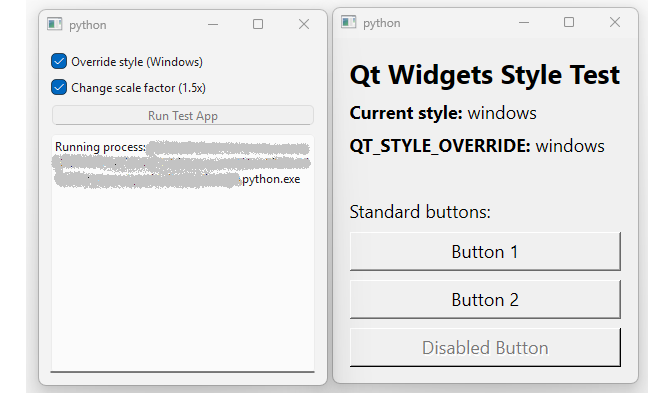
When you change the environment variables from the main application and run it, the test app should reflect the changes - appearing with the Windows style when the style checkbox is checked, rendered at 1.5x size when the scale checkbox is checked, or both at once if both are checked.
34.6 Synchronous Process Execution
All the previous examples in this chapter use asynchronous process execution: start a process, connect signals and let the event loop handle the rest. Sometimes, however, you want to wait for a process to finish before proceeding. Common scenarios include:
- Checking for external tool availability - verifying that
git,ffmpeg, or some other dependency is present before your application continues. - Sequential operations - step B depends on the output or exit code of step A.
- Short fast operations - the process is known to complete in milliseconds.
All of the above can also be achieved asynchronously, but synchronous execution trades UI responsiveness for simpler code.
|
You are building a utility that quickly checks for presence of external tools such as |
To execute a process synchronously:
 1 import sys
 2 from PySide6.QtCore import QProcess
 3 from PySide6.QtWidgets import (QApplication, QWidget,
 4     QPushButton, QVBoxLayout, QTextEdit)
 5
 6
 7 CMD = 'git'
 8 ARGS = ['--version']
 9
10 class Window(QWidget):
11
12     def __init__(self):
13
14         super().__init__()
15
16         self.text_edit = QTextEdit()
17         self.text_edit.setReadOnly(True)
18         self.button = QPushButton('Check Git')
19         self.button.clicked.connect(self.run_command)
20
21         layout = QVBoxLayout(self)
22         layout.addWidget(self.text_edit)
23         layout.addWidget(self.button)
24
25         self.process = QProcess(self)
26         self.process.readyReadStandardOutput.connect(self.on_stdout)
27         self.process.readyReadStandardError.connect(self.on_stderr)
28         self.process.errorOccurred.connect(self.on_error_occurred)
29         self.process.finished.connect(self.on_finished)
30
31     def run_command(self):
32
33         self.button.setDisabled(True)
34         self.text_edit.clear()
35
36         # 1. Start the process and wait for it to start.
37
38         self.process.start(CMD, ARGS)
39         ret_val = self.process.waitForStarted()
40         if ret_val:
41             self.text_edit.append('Git found, checking version...')
42
43             # 2. Wait for the process to finish.
44
45             self.process.waitForFinished()
46             self.text_edit.append('Proceeding with Git operations.')
47         else:
48             self.text_edit.append('Git not found.')
49             self.button.setEnabled(True)
50
51     def on_stdout(self):
52         output = self.process.readAllStandardOutput().data().decode()
53         self.text_edit.setText(output.strip())
54
55     def on_stderr(self):
56         output = self.process.readAllStandardError().data().decode()
57         self.text_edit.setText(output.strip())
58
59     def on_error_occurred(self):
60         self.text_edit.setText(f'Error: {self.process.errorString()}')
61         self.button.setEnabled(True)
62
63     def on_finished(self):
64         self.button.setEnabled(True)
65
66 if __name__ == "__main__":
67
68     app = QApplication(sys.argv)
69     window = Window()
70     window.show()
71     sys.exit(app.exec())
Start the process and wait for it to start. Call
QProcess.start()to launch the process, then immediately callQProcess.waitForStarted().QProcess.start()is not guaranteed to be synchronous - on Linux, process creation doesfork()andexec(), which makes it asynchronous, so the process may still be in theStartingstate by the timestart()returns. On Windows the transition toRunning(orNotRunning) may happen beforestart()returns, but this is not guaranteed either.waitForStarted()is a reliable way to know the process has either started or failed to start, regardless of the platform. If it returnsFalse, the process failed to start.Wait for the process to finish. Call
QProcess.waitForFinished()to block until the process exits. At this point the output is available and the exit code can be checked.
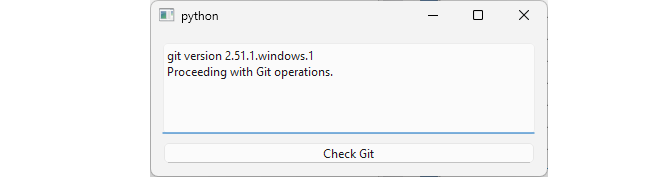
Note that both waitForStarted() and waitForFinished() block the event loop and the UI will become non-responsive while waiting. This is acceptable for fast operations like a version check, but for anything that might take more than that, the asynchronous approach is preferred.
34.7 Terminating Processes
A long-running child process may need to be stopped before it finishes normally, maybe if the user wants to cancel it or the process has hung. QProcess provides two ways to stop a running process:
QProcess.terminate()asks the process to stop gracefully. On Linux it sendsSIGTERM, giving the process a chance to clean up before exiting. On Windows it posts aWM_CLOSEmessage, which terminal processes likepingtypically ignore.QProcess.kill(). Kills the process, causing it to exit immediately. On Windows,kill()usesTerminateProcess, and on Linux, theSIGKILLsignal is sent to the process.
|
You are building a task manager that starts a long-running process (such as |
To terminate a running process:
 1 import sys
 2 import platform
 3 from PySide6.QtCore import QProcess
 4 from PySide6.QtWidgets import (QApplication, QWidget,
 5     QPushButton, QVBoxLayout, QTextBrowser)
 6
 7 class Window(QWidget):
 8
 9     def __init__(self):
10
11         super().__init__()
12
13         if platform.system() == 'Windows':
14             self.executable = 'ping'
15             self.arguments = ['-t', '127.0.0.1']
16         else:
17             self.executable = 'ping'
18             self.arguments = ['127.0.0.1']
19
20         self.log_widget = QTextBrowser()
21         self.start_button = QPushButton('Start process')
22         self.start_button.clicked.connect(self.start_process)
23
24         self.stop_button = QPushButton('Stop process')
25         self.stop_button.clicked.connect(self.stop_process)
26         self.stop_button.setEnabled(False)
27
28         layout = QVBoxLayout(self)
29         layout.addWidget(self.log_widget)
30         layout.addWidget(self.start_button)
31         layout.addWidget(self.stop_button)
32
33         self.process = QProcess(self)
34         self.process.readyReadStandardOutput.connect(self.log_stdout)
35         self.process.readyReadStandardError.connect(self.log_stderr)
36         self.process.errorOccurred.connect(self.log_error)
37         self.process.stateChanged.connect(self.log_state_change)
38         self.process.finished.connect(self.log_finished)
39
40     # 1. Start the process and track its state.
41
42     def start_process(self):
43         self.start_button.setDisabled(True)
44         self.log_widget.clear()
45         self.log_widget.append(f'Running process: {self.executable}')
46         self.log_widget.append(f'Argument(s): {self.arguments}')
47         self.process.start(self.executable, self.arguments)
48         self.stop_button.setEnabled(True)
49
50     def stop_process(self):
51         self.stop_button.setEnabled(False)
52         self.log_widget.append('Stopping the process')
53
54         # 2. Try to terminate the process gracefully.
55
56         self.process.terminate()
57
58         # 3. If necessary, kill the process.
59
60         if not self.process.waitForFinished(2000):
61             self.process.kill()
62             self.process.waitForFinished()
63         self.start_button.setEnabled(True)
64
65     def log_stdout(self):
66         output = self.process.readAllStandardOutput().data().decode()
67         self.log_widget.append(f'stdout: {output.strip()}')
68
69     def log_stderr(self):
70         output = self.process.readAllStandardError().data().decode()
71         self.log_widget.append(f'stderr: {output}')
72
73     def log_error(self):
74         self.log_widget.append(f'Error: {self.process.errorString()}')
75         self.start_button.setEnabled(True)
76         self.stop_button.setEnabled(False)
77
78     def log_state_change(self, newState):
79         self.log_widget.append(f'State changed: {str(newState)}')
80
81     def log_finished(self):
82         self.log_widget.append('Process finished!')
83         self.start_button.setEnabled(True)
84
85     # 4. Handle process termination on window close.
86
87     def closeEvent(self, event):
88         if self.process.state() == QProcess.ProcessState.Running:
89             self.stop_process()
90         super().closeEvent(event)
91
92
93 if __name__ == "__main__":
94
95     app = QApplication(sys.argv)
96     window = Window()
97     window.show()
98     sys.exit(app.exec())
Start the process and track its state.
Try to terminate the process gracefully. When the user clicks the ‘Stop’ button, call
QProcess.terminate()to request a graceful shutdown, then callwaitForFinished()with a short timeout to give the process a chance to exit cleanly.If necessary, kill the process. If
waitForFinished()returnsFalse, the process did not exit within the timeout. CallQProcess.kill()andwaitForFinished()to make sure the process has ended.Handle process termination on window close. Override
closeEvent()to apply the same pattern to make sure no orphaned child processes are left running after the application exits.