17. Object Trees and Ownership
QObjects are organized in trees: when you create an object with another object as a parent, the child is added to the parent’s children() list and automatically deleted when the parent is[^1]. There are several ways to set an object’s parent:
- Creating an object by passing the parent to its
__init__()method. - Using
QObject.setParent(). This methods allows changing an object’s parent after creation. - Adding a widget to a layout. When adding a widget to a
QLayout, the layout automatically reparents it to the layout’s owning widget. - Setting a scroll area’s widget with
QScrollArea.setWidget(). The widget becomes its child. - Adding a widget to a
QToolBoxwithaddItem()reparents it to the toolbox via a scrollview viewport. - Adding a widget to a
QSplitterwithaddWidget()reparents the widget to the splitter.
Note that Python objects also form tree hierarchies, but a Python parent-child relationship doesn’t imply a Qt parent-child relationship.
17.1 Parent-Child Relationships
 |
You are tasked with creating five Qt push buttons and displaying them in a window. |
 1 import sys
 2 from PySide6.QtWidgets import (QApplication,
 3     QWidget, QPushButton, QVBoxLayout)
 4
 5
 6 class Window(QWidget):
 7
 8     def __init__(self, parent=None):
 9
10         super().__init__(parent)
11
12         self.setObjectName('Main Window')
13         self.setMinimumHeight(150)
14
15         layout = QVBoxLayout()
16         self.setLayout(layout)
17
18         button1 = QPushButton('Button 1', self)
19         button2 = QPushButton('Button 2')
20         button3 = QPushButton('Button 3', self)
21         button4 = QPushButton('Button 4')
22         self.button5 = QPushButton('Button 5')
23
24         button3.clicked.connect(self.on_button3_clicked)
25
26         layout.addWidget(button2)
27         layout.addWidget(button3)
28
29         print('Button 1 parent: ', button1.parent().objectName())
30         print('Button 2 parent: ', button2.parent().objectName())
31         print('Button 3 parent: ', button3.parent().objectName())
32         print('Button 4 parent: ', button4.parent())
33         print('Button 5 parent: ', self.button5.parent())
34
35     def on_button3_clicked(self):
36         print('\nWindow members:')
37         for member in dir(self):
38             if member.startswith('button'):
39                 print(member)
40
41
42 if __name__ == '__main__':
43
44     app = QApplication(sys.argv)
45     main_window = Window()
46     main_window.show()
47     sys.exit(app.exec())
You create five QPushButton instances in the window’s __init__() method:
Create the first button and set the window as its parent. Omit adding it to the layout or as an instance member, leaving it as a local variable.
Create the second button without setting a parent. Add it to the layout (which reparents it to the window), but keep it as a local variable.
Create the third button, setting the window as its parent. Add it to the layout, but as local variable.
Create the fourth button as a local variable without setting a parent.
Create the fifth button as an instance member of the window class but without setting a Qt parent.

The program output is:
1 Button 1 parent:  Main Window
2 Button 2 parent:  Main Window
3 Button 3 parent:  Main Window
4 Button 4 parent:  None
5 Button 5 parent:  None
6
7 Window members:
8 button5
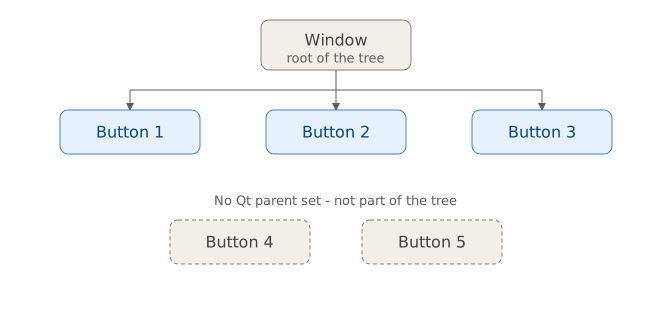
The first three buttons become the window’s child widgets (directly or via the layout) and appear on the screen. The first button displays in the top-left corner since it is not in the layout. None of these three buttons are instance members of the Window Python object.
The fourth button is neither part of the Qt object hierarchy nor a Python object member, so it goes out of scope (and is garbage-collected) when __init__() returns, and is never shown.
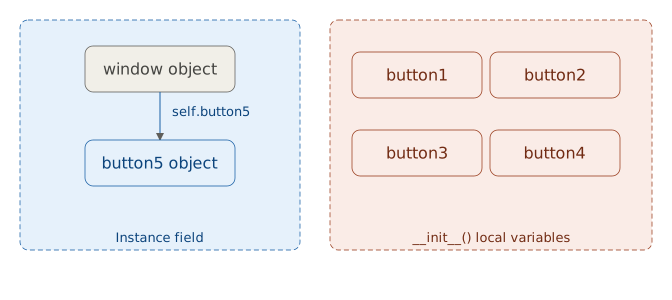
The fifth button is an instance member of the window object (preventing garbage collection) but not part of the Qt object hierarchy, so it is not shown in the window.
17.2 Reparenting Qt Objects
You may need to change a widget’s parent when it moves between containers (for example, when the user rearranges panels, switches tabs, or drags an item). setParent() lets you reparent the widget without destroying and recreating it.
|
You need to create two top-level Qt windows and switch a child widget between them on demand. |
To reparent a Qt object:
 1 import sys
 2 from PySide6.QtWidgets import (QApplication,
 3     QWidget, QLineEdit, QPushButton, QVBoxLayout)
 4
 5
 6 class Window(QWidget):
 7
 8     def __init__(self):
 9
10         super().__init__()
11
12         layout = QVBoxLayout()
13         self.setLayout(layout)
14
15         self.show_button = QPushButton('Show widgets')
16         self.show_button.clicked.connect(self.show_widgets)
17         layout.addWidget(self.show_button)
18
19         self.switch_button = QPushButton('Switch QLineEdit parent')
20         self.switch_button.clicked.connect(self.switch_parent)
21         self.switch_button.setDisabled(True)
22         layout.addWidget(self.switch_button)
23
24         # 1. Create two top-level windows
25
26         self.widget1 = QWidget()
27         self.widget1.setObjectName('Widget 1')
28         self.widget1.setLayout(QVBoxLayout())
29         self.widget1.setWindowTitle('Widget 1')
30         self.widget1.resize(200, 80)
31
32         self.widget2 = QWidget()
33         self.widget2.setObjectName('Widget 2')
34         self.widget2.setLayout(QVBoxLayout())
35         self.widget2.setWindowTitle('Widget 2')
36         self.widget2.resize(200, 80)
37
38         # 2. Create the child widget
39
40         self.edit = QLineEdit()
41         self.widget1.layout().addWidget(self.edit)
42
43     def show_widgets(self):
44         self.show_button.setDisabled(True)
45         self.switch_button.setEnabled(True)
46         self.widget1.show()
47         self.widget2.show()
48
49     # 3. Switch child widget parent on button click.
50
51     def switch_parent(self):
52
53         if self.edit.parent() == self.widget1:
54             self.edit.setParent(self.widget2)
55         else:
56             self.edit.setParent(self.widget1)
57
58         self.edit.parent().layout().addWidget(self.edit)
59         self.edit.setText(f' Parent: {self.edit.parent().objectName()}')
60
61
62 if __name__ == '__main__':
63
64     app = QApplication(sys.argv)
65     main_window = Window()
66     main_window.show()
67     sys.exit(app.exec())
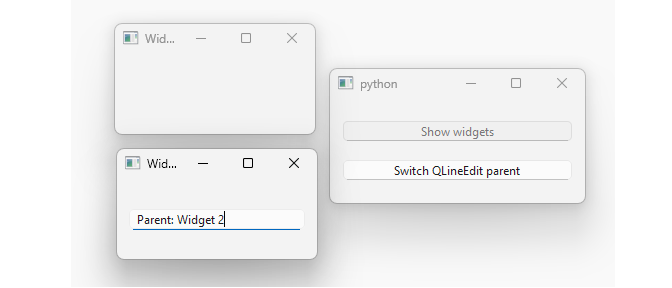
Create two top-level Qt Windows. On clicking the main window’s ‘Show widgets’ button show two
QWidgetobjects. Both are created without a parent which makes them top-level windows - if you close the main window, they remain visible and active.Create the child widget. Add a
QLineEditobject to the layout ofwidget1, the first top-level window.On clicking the ‘Switch parent’ button, reparent the line edit. Use
setParent()to assign the other top-level widget as its parent, and add it to its layout for visibility. The line edit displays its current parent’s object name.
17.3 Finding Qt Object Children
Qt lets you find an object’s children using these QObject methods:
findChild(type[, name[, options]]): Finds a single matching child.findChildren(type, pattern[, options]): Finds multiple children by regex pattern.findChildren(type[, name[, options]]): Finds multiple children by exact name.
with these parameters:
type: A PySide6 class such asQWidget,QLabel, orQCheckBox,name: The child’s object name, set viasetObjectName(). Defaults to an empty string so it must be set it explicitly for name-based searches (optional).pattern: AQRegularExpressioninstance for pattern matching.options: EitherQt.FindChildOptions.FindDirectChildrenOnlyorQt.FindChildOptions.FindDirectChildrenRecursively(optional).
|
You have a set of checkboxes in a group box and need to check them programmatically based on user input. |
To find a Qt object’s child objects:
 1 import sys
 2 from PySide6.QtCore import QRegularExpression, Qt
 3 from PySide6.QtWidgets import (QApplication, QWidget,
 4     QGroupBox, QCheckBox, QLineEdit, QPushButton, QVBoxLayout)
 5
 6
 7 class Window(QWidget):
 8
 9     def __init__(self):
10
11         super().__init__()
12
13         self.setObjectName('Main Window')
14
15         layout = QVBoxLayout()
16         self.setLayout(layout)
17
18         self.groupbox = QGroupBox()
19         gb_layout = QVBoxLayout()
20         self.groupbox.setLayout(gb_layout)
21         layout.addWidget(self.groupbox)
22
23         # 1. Create the checkboxes
24
25         self.checkbox1 = QCheckBox('checkbox1')
26         self.checkbox1.setObjectName('checkbox1')
27         gb_layout.addWidget(self.checkbox1)
28
29         self.checkbox2 = QCheckBox('checkbox2')
30         self.checkbox2.setObjectName('checkbox2')
31         gb_layout.addWidget(self.checkbox2)
32
33         self.checkbox3 = QCheckBox('checkbox3')
34         self.checkbox3.setObjectName('checkbox3')
35         gb_layout.addWidget(self.checkbox3)
36
37         self.find_button = QPushButton('Find child')
38         self.find_button.clicked.connect(self.find_widget)
39         layout.addWidget(self.find_button)
40
41         self.edit = QLineEdit()
42         layout.addWidget(self.edit)
43
44     def find_widget(self):
45
46         # 2. Find the checkboxes.
47
48         pattern = self.edit.text()
49         regexp = QRegularExpression(pattern)
50         children = self.groupbox.findChildren(QCheckBox, regexp)
51
52         # 3. Set the checkboxes state to checked
53
54         if len(children) > 0:
55             for child in children:
56                 child.setCheckState(Qt.CheckState.Checked)
57
58
59 if __name__ == '__main__':
60
61     app = QApplication(sys.argv)
62     main_window = Window()
63     main_window.show()
64     sys.exit(app.exec())
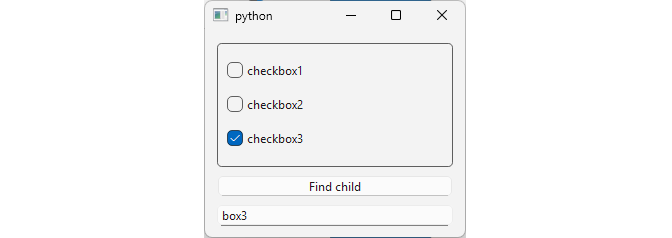
Create the checkboxes. Instantiate three
QCheckBoxobjects in aQGroupBoxand set an object name for each. Also, create aQLineEditfor user input and a button to start the search.Find the checkboxes. When the button is pressed, use the
QLineEdit’s text to create aQRegularExpressionand pass it tofindChildren().Update the checkboxes. Iterate over the found checkboxes and set each one’s check state to
Checked.
17.4 Manual Ownership Transfer
Sometimes you want to dynamically reconfigure a UI by moving a widget from one container to another. Simply calling setParent() or letting a new layout take ownership reparents the widget but does not automatically update its signal/slot connections or its internal state (enabled/disabled). You are responsible for migrating the behavior yourself so the widget works correctly in its new context.
|
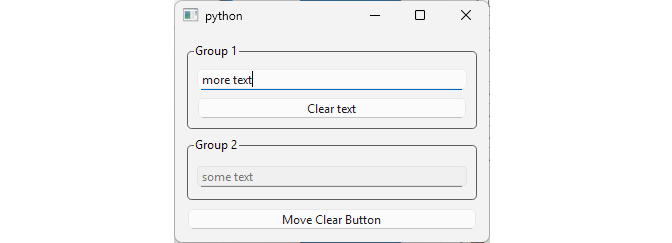
A ‘Clear’ button inside a group box clears its sibling |
We have two groupboxes, each containing a QLineEdit. A single ‘Clear’ button starts in Group 1 and clears its sibling lineedit. Clicking ‘Move the Button’ transfers the button to the other groupbox, and you must set it to clear its new sibling.
 1 import sys
 2 from PySide6.QtWidgets import (QApplication, QWidget,
 3     QGroupBox, QVBoxLayout, QPushButton, QLineEdit)
 4
 5
 6 class MainWindow(QWidget):
 7
 8     def __init__(self):
 9
10         super().__init__()
11
12         layout = QVBoxLayout(self)
13
14         self.group1 = QGroupBox('Group 1')
15         self.group1.setObjectName('Groupbox 1')
16         self.group1.setLayout(QVBoxLayout())
17         self.line_edit1 = QLineEdit()
18         self.group1.layout().addWidget(self.line_edit1)
19         layout.addWidget(self.group1)
20
21         self.clear_button = QPushButton('Clear text')
22         self.clear_button.clicked.connect(self.line_edit1.clear)
23         self.group1.layout().addWidget(self.clear_button)
24
25         self.group2 = QGroupBox('Group 2')
26         self.group2.setObjectName('Groupbox 2')
27         self.group2.setLayout(QVBoxLayout())
28         self.line_edit2 = QLineEdit()
29         self.line_edit2.setDisabled(True)
30         self.group2.layout().addWidget(self.line_edit2)
31         layout.addWidget(self.group2)
32
33         self.move_button = QPushButton('Move Clear Button')
34         layout.addWidget(self.move_button)
35         self.move_button.clicked.connect(self.move_widget)
36
37     def move_widget(self):
38
39         # 1. Adjust any state/side-effects
40
41         old_parent = self.clear_button.parent()
42
43         if old_parent == self.group1:
44             self.line_edit1.setDisabled(True)
45             self.line_edit2.setEnabled(True)
46             self.clear_button.clicked.disconnect(self.line_edit1.clear)
47             self.clear_button.clicked.connect(self.line_edit2.clear)
48             new_parent = self.group2
49         else:
50             self.line_edit2.setDisabled(True)
51             self.line_edit1.setEnabled(True)
52             self.clear_button.clicked.disconnect(self.line_edit2.clear)
53             self.clear_button.clicked.connect(self.line_edit1.clear)
54             new_parent = self.group1
55
56         # 2. Transfer ownership
57
58         new_parent.layout().addWidget(self.clear_button)
59
60
61 if __name__ == '__main__':
62
63     app = QApplication(sys.argv)
64     window = MainWindow()
65     window.show()
66     sys.exit(app.exec())
-
Update state and connections. Moving a widget does not affect existing signal-slot connections. Our button’s
clickedis still connected to the same lineedit’sclear()slot. We have to:- Disconnect the old connection.
- Connect to the new lineedit.
- Update state (enable/disable the appropriate lineedit).
Transfer ownership. There is no need to remove the button from its original layout or use
setParent()to change its parent, as adding it to the new layout takes care of the both.
Now if you move the ‘Clear’ button from one groupbox to another, it will clear its sibling lineedit text correctly.
17.5 Automatic Deletion
Being part of the Qt object tree is what makes automatic deletion possible.: when a parent object is destroyed, Qt walks its children() list and deletes each one, cascading down through the whole subtree. This section demonstrates this with a custom label that reports its own destruction.
|
You need to demonstrate the Qt’s automatic deletion process. You create four custom labels and have each one anounce its own destruction. |
To observe Qt object deletion:
 1 import sys
 2 import time
 3 from PySide6.QtCore import Slot, Qt
 4 from PySide6.QtWidgets import (QApplication,
 5     QWidget, QLabel, QVBoxLayout)
 6
 7
 8 class MyLabel(QLabel):
 9
10     def __init__(self, text='', parent=None):
11
12         super().__init__(text, parent)
13         self.setObjectName(self.text())
14         self.destroyed.connect(MyLabel.on_destroyed)
15
16     def __del__(self):
17         print(f'__del__:      {self.objectName()}')
18
19     @Slot()
20     @staticmethod
21     def on_destroyed(obj):
22         print(f'destroyed():  {obj.objectName()}')
23
24
25 class Window(QWidget):
26
27     def __init__(self):
28
29         super().__init__()
30         # Force deletion on close
31         self.setAttribute(Qt.WA_DeleteOnClose, True)
32
33         self.setObjectName('MainWindow')
34         self.setMinimumHeight(150)
35
36         layout = QVBoxLayout()
37         self.setLayout(layout)
38
39         label1 = MyLabel('Label 1')
40         layout.addWidget(label1)
41
42         label2 = MyLabel('Label 2')
43         layout.addWidget(label2)
44
45         label3 = MyLabel('Label 3')
46
47         self.label4 = MyLabel('Label 4')
48
49         print('Label 1 parent:', label1.parent().objectName())
50         print('Label 2 parent:', label2.parent().objectName())
51         print('Label 3 parent:', label3.parent())
52         print('Label 4 parent:', self.label4.parent())
53
54         print('Window.__init__() end')
55
56     def closeEvent(self, event):
57         print('\nWindow close event\n')
58         QWidget.closeEvent(self, event)
59
60
61 if __name__ == '__main__':
62
63     app = QApplication(sys.argv)
64     main_window = Window()
65     main_window.show()
66     sys.exit(app.exec())
-
Create a
MyLabelsubclass ofQLabelthat reports its own destruction from two different points:__del__(), which runs when the Python object is deallocated.- The
destroyed()signal, which is emitted when the underlying Qt object is destroyed.MyLabelreimplements__del__()and connects its owndestroyed()signal to a static slot, logging both.
Create four custom labels:
label1andlabel2are added to the window’s layout, both becoming part of the Qt object tree.label3is a local variable with no Qt parent.label4is an instance member (self.label4) with no Qt parent. To make sure that the main window is destroyed when closed, set itsQt.WidgetAttribute.WA_DeleteOnCloseflag.Override
closeEvent()to print a marker to make it obvious when each deletion happens.
When you run the application, and then close the window, the output is:
 1 Label 1 parent: MainWindow
 2 Label 2 parent: MainWindow
 3 Label 3 parent: None
 4 Label 4 parent: None
 5 Window.__init__() end
 6 __del__:      Label 3
 7 destroyed():  Label 3
 8
 9 Window close event
10
11 __del__:      Label 1
12 destroyed():  Label 1
13 __del__:      Label 2
14 destroyed():  Label 2
15 destroyed():  Label 4
label3 is destroyed the moment __init__() returns. It was never added to the Qt object tree and never referenced anywhere but the local variable, so once that variable goes out of scope it is destroyed.
label and label2 survive until the window itself is destroyed. Closing the window triggers closeEvent(), and because of WA_DeleteOnClose, Qt then deletes the window’s C++ object, cascading through children() and deleting both labels in the order they were added.
label4 has no Qt parent, so the object tree deletion never reaches it. It is kept alive by the Python reference (self.label4) and is cleaned up once that reference disappears. Note the absence of __del__() call for label4 as it is not guaranteed that __del__() methods are called for objects that still exist when the interpreter exits.