4. Display Widgets
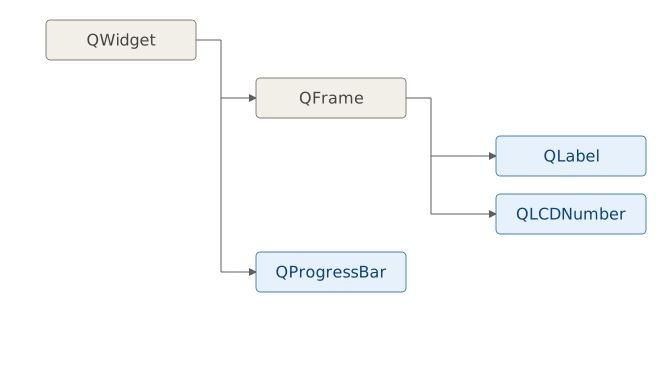
Display widgets are read-only widgets used solely to present information to the user. They cannot accept any form of user input. They include
QLabelfor text, images, and animations,QProgressBarfor showing task progress,QLCDNumberfor displaying number in an LCD-style,QTextBrowserfor read-only rich text with hyperlink support.
4.1 Displaying Text with QLabel
QLabel supports three text formats: plain text, Markdown, and rich text (rendered using a subset of HTML). The format is controlled via setTextFormat() which accepts one of the Qt.TextFormat constants:
| Value | Enum Constant | Description |
|---|---|---|
| 0 | PlainText |
Plain text |
| 1 | RichText |
Qt-supported HTML subset |
| 2 | AutoText |
Format automatically detected (default) |
| 3 | MarkdownText |
Markdown formatting |
 |
Your task is to build a simple account summary card displaying an account name, its type, and a short description. You also need to show the account balance in bold and overdraft warning in red. |
To display text using QLabel:
 1 import sys
 2 from PySide6.QtCore import Qt
 3 from PySide6.QtWidgets import QApplication, QWidget, QLabel, QVBoxLayout
 4
 5
 6 class Window(QWidget):
 7
 8     def __init__(self):
 9
10         super().__init__()
11
12         self.setWindowTitle('Account Summary')
13         self.resize(300, 120)
14
15         layout = QVBoxLayout()
16         self.setLayout(layout)
17
18         name = 'Current Account'
19         account_type = 'Checking'
20         description = 'Primary everyday spending account'
21         balance = 2450.00
22         overdrawn = True
23
24         # 1. Create QLabel objects.
25
26         name_label = QLabel(name)
27         name_label.setAlignment(Qt.AlignmentFlag.AlignCenter)
28         font = name_label.font()
29         font.setPointSize(12)
30         font.setBold(True)
31         name_label.setFont(font)
32
33         type_label = QLabel(f'Type: {account_type}')
34
35         desc_label = QLabel(description)
36         desc_label.setWordWrap(True)
37
38         balance_label = QLabel(f'Balance: **${balance:,.2f}**')
39
40         overdraft_label = QLabel()
41         if overdrawn:
42             overdraft_label.setText(
43                 '<span style="color: red;">'
44                 'Overdraft protection active'
45                 '</span>')
46
47         # 2. Optionally, set their text format.
48
49         balance_label.setTextFormat(Qt.TextFormat.MarkdownText)
50         overdraft_label.setTextFormat(Qt.TextFormat.RichText)
51
52         # 3. Add the objects to the layout.
53
54         layout.addWidget(name_label)
55         layout.addWidget(type_label)
56         layout.addWidget(desc_label)
57         layout.addWidget(balance_label)
58         layout.addWidget(overdraft_label)
59
60
61 if __name__ == '__main__':
62
63     app = QApplication(sys.argv)
64     window = Window()
65     window.show()
66     sys.exit(app.exec())
-
Create the
QLabelobjects:name_label. Displays plain text formatted via the font object. We retrieve the existing font withfont(), update its size and weight, then assign its back withsetFont().type_label. Displays plain text without additional formatting.desc_label. The account description may be long so we set the label’swordWrapproperty toTruewhich allows the label to flow across multiple lines instead of forcing the window wider.balance_label. Displays the balance as a bold string using the Markdown format.overdraft_label. Conditionally displays a red warning whenoverdrawnisTrue, using an HTML<span>with inline color style.
Set the text format explicitly for labels using Markdown and rich text content. The default
AutoTextpromotes the content toRichTextifQt.mightBeRichText()detects HTML-like tags - omittingsetTextFormat(Qt.TextFormat.MarkdownText)on a Markdown label causes the asterisks to render literally rather than as bold.Add the labels to the layout. Qt renders each label according to its assigned format when the window is shown.
When you run the application you should see a window like this:

resize(300, 150) sets a preferred starting size, but Qt will expand the window horizontally to accomodate the widest non-wrapping label. setFixedWidth(), on the other hand, locks the widnow which may cause longer text to be cut off.
4.2 Displaying Images with QLabel
QLabel can display static images, vector graphics, and animated GIFs using the following methods:
| Method | Description |
|---|---|
setPixmap() |
Displays a static image from a QPixmap |
setPicture() |
Displays a vector graphic from a QPicture |
setMovie() |
Displays an animated GIF or movie from a QMovie |
|
You are tasked with building a category icon panel that displays recognizable icons for each expense category (Housing, Online services, Utilities, and Groceries). Each icon should show its category name as a tooltip on hover. The Groceries category is loading data from a remote source, so display an animated spinner in its place until the data arrives. |
To display images in labels:
 1 import sys
 2 from PySide6.QtCore import QSize
 3 from PySide6.QtGui import QPixmap, QMovie
 4 from PySide6.QtWidgets import QApplication, QWidget, QLabel, QHBoxLayout
 5
 6
 7 class Window(QWidget):
 8
 9     def __init__(self):
10
11         super().__init__()
12         self.setWindowTitle('Account Categories')
13
14         layout = QHBoxLayout()
15         self.setLayout(layout)
16
17         # 1. Create QPixmap objects and a QMovie.
18
19         housing_pixmap = QPixmap('housing.png')
20         services_pixmap = QPixmap('online-services.png')
21         utilities_pixmap = QPixmap('utilities.png')
22
23         spinner_gif = QMovie('spinner.gif')
24         spinner_gif.setScaledSize(QSize(24, 24))
25
26         # 2. Create QLabel objects
27
28         housing_label = QLabel()
29         services_label = QLabel()
30         utilities_label = QLabel()
31         groceries_label = QLabel()
32
33         housing_label.setToolTip('Housing')
34         services_label.setToolTip('Online Services')
35         utilities_label.setToolTip('Utilities')
36         groceries_label.setToolTip('Groceries (loading...)')
37
38         # 3. Set the labels' images.
39
40         housing_label.setPixmap(housing_pixmap)
41         services_label.setPixmap(services_pixmap)
42         utilities_label.setPixmap(utilities_pixmap)
43         groceries_label.setMovie(spinner_gif)
44         spinner_gif.start()
45
46         layout.addWidget(housing_label)
47         layout.addWidget(services_label)
48         layout.addWidget(utilities_label)
49         layout.addWidget(groceries_label)
50
51
52 if __name__ == '__main__':
53
54     app = QApplication(sys.argv)
55     window = Window()
56     window.show()
57     sys.exit(app.exec())
Create the image objects. Load each PNG image into a
QPixmapby passing the file path to its constructor. For the Groceries category, create aQMoviefrom an animated GIF file and callsetScaledSize()to fix its display dimensions.Create a
QLabelfor each category. The labels are initially empty.Assign the image objects to the labels. For static images, call
setPixmap()with the correspondingQPixmap(). For the spinner, callsetMovie()with theQMovie()object, then callspinner_gif.start()to play the animation. Finally, callsetToolTip()on each label to show the category name on hover.setToolTip()is aQWidgetmethod available on every widget in Qt.
The running application should look like this:

4.3 Displaying LCD-like Numbers with QLCDNumber
QLCDNumber renders integers and floating point numbers in the style of a segmented LED display (the kind you would have seen on a digital alarm cock or a pocket calculator). It is included here as a curiosity: as the documentation states, QLCDNumber is the very oldest part of Qt, tracing its roots back to a BASIC program on the Sinclair Spectrum. That said, QLCDNumber still appears on the occasional dashboard widget, so its worth knowing it exists.
|
You are given the task of creating a transaction counter panel that displays the number of transactions logged this month as an LED-style number. |
To display a number with QLCDNumber:
 1 import sys
 2 from random import randint
 3 from PySide6.QtWidgets import (QApplication,
 4     QWidget, QLCDNumber, QVBoxLayout)
 5
 6
 7 class Window(QWidget):
 8
 9     def __init__(self):
10
11         super().__init__()
12         self.setWindowTitle('Transaction counter panel')
13
14         layout = QVBoxLayout()
15         self.setLayout(layout)
16
17         transaction_count = randint(0, 99)
18
19         # 1. Create a QLCdNumber.
20
21         self.lcd_number = QLCDNumber()
22         self.lcd_number.setFixedSize(250, 100)
23
24         # 2. Set the number of digits.
25
26         self.lcd_number.setDigitCount(2)
27
28         # 3. Pass the number to display().
29
30         self.lcd_number.display(transaction_count)
31         layout.addWidget(self.lcd_number)
32
33
34 if __name__ == '__main__':
35
36     app = QApplication(sys.argv)
37     window = Window()
38     window.show()
39     sys.exit(app.exec())
Create a QLCDNumber and call
setFixedSize()to give it a fixed width and height.Call
setDigitCount()to set the maximum number of digits the display can show. Here we pass2since the transaction count ranges from 0 to 99.Call
display()to set the value. It accepts an integer, a float, or a string representation of a number.
When you start the application, you should see this display:

4.4 Displaying Progress with QProgressBar
QProgressBar displays a value as a proportion of a defined range, filling the bar to reflect how that value relates to the whole. The “progress” in the name is a common use case but not a requirement - any value that has a meaningful minimum, maximum, and current position is a candidate: a budget consumed against a monthly limit, a CPU load against total capacity, or a downloaded file size against its total size.
|
You are tasked with building a budget utilization display for two expense categories. The Operating Expenses category has a monthly limit of $10,000, while the Capital Expenditure category range and current value cannot always be determined reliably due to network problems. |
To use a progress bar in your application:
 1 import sys
 2 from random import randint
 3 from PySide6.QtWidgets import (QApplication, QWidget,
 4     QProgressBar, QLabel, QVBoxLayout)
 5
 6
 7 class Window(QWidget):
 8
 9     def __init__(self):
10
11         super().__init__()
12
13         self.setWindowTitle('Budget Utilization')
14         self.resize(300, 120)
15
16         layout = QVBoxLayout()
17         self.setLayout(layout)
18
19         operating_expenses = randint(0, 10000)
20
21         # 1. Create a progress bar.
22
23         operating_expenses_bar = QProgressBar()
24
25         # 2. Set the value range.
26
27         operating_expenses_bar.setRange(0, 10000)
28
29         # 3. Set the current value.
30
31         operating_expenses_bar.setValue(operating_expenses)
32         operating_expenses_bar.setToolTip(
33             'Operating Expenses - monthly limit $10,000 '
34             f'- Currently ${operating_expenses:,.2f}')
35
36         capital_expenditure_bar = QProgressBar()
37         capital_expenditure_bar.setRange(0, 0)
38         capital_expenditure_bar.setToolTip(
39             'Capital Expenditure - syncing transactions...')
40
41         layout.addWidget(QLabel('Operating Expenses'))
42         layout.addWidget(operating_expenses_bar)
43         layout.addWidget(QLabel('Capital Expenditure'))
44         layout.addWidget(capital_expenditure_bar)
45
46
47 if __name__ == '__main__':
48
49     app = QApplication(sys.argv)
50     window = Window()
51     window.show()
52     sys.exit(app.exec())
Create a
QprogressBarfor each category.Set the value range with
setRange(). For the Operating Expenses bar pass0and10000to match the monthly budget limit. For the Capital Expenditure bar, pass0to both arguments. This causes the bar to be set to “undetermined state”, replacing the fill with pulsing animation.Set the current Operating Expenses bar value via
setValue(). Add tooltips to both bars, for the Operating Expenses bar showing the current value and for the Capital Expenditure bar showing a general message that the value cannot be fetched.
When you run the application you should see a window like this:

In this chapter we covered QLabel, a general-purpose display widget capable of showing text, images, and animated GIFs, alongside two specialized display widgets: QLCDNumber, for numeric LED-style displays, and QProgressBar, for representing a value as a propertion of a defined range. This does not mean that you are restricted to these widgets for displaying values - any Qt widget can be made display-only by setting its enabled property to False. You can also build your own custom widgets for more demanding applications.
Display widgets are passive by nature: they present the application output but accept no input from the user. The next chapter introduces buttons which, in addition to showing the application output, are capable of accepting boolean values from the user as input.