10. Tree Widgets
All the widget types we have examined so far accept flat data (i.e. data with only a single level of depth). Tree widgets, by contrast, are designed for hierarchical data structures such as file systems or organizational charts, where items can have parent-child relationships.
QTreeWidgetis a convenience class with built-in item management, allowing you to create and manipulate tree nodes directly.QTreeViewfollows Qt’s model/view architecture and works with a separate model. This enables dynamic updates and efficient handling of large datasets.QColumnViewdisplays a model using multipleQListViews, one for each level of the hierarchy.
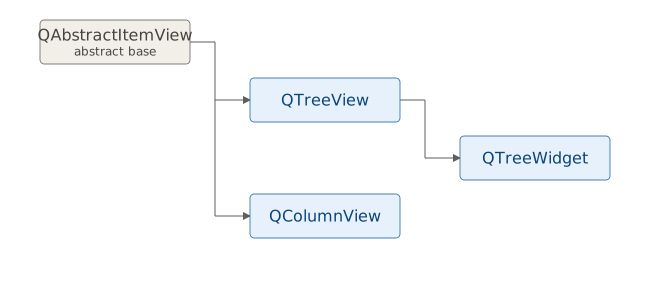
Their common features include expandable and collapsible nodes, drag-and-drop support, item editing, checkable items, and multi-column display for detailed item properties.
10.1 QTreeWidget
QTreeWidget is a convenience class that provides a standard tree widget with a classic item-based interface.[^1] It automatically creates and manages its own built-in model behind the scenes and uses QTreeWidgetItems as its tree nodes. Each QTreeWidgetItem represents a node in the tree. For top-level items, parent is the widget itself.
 |
Your finance application needs a settings screen with configuration options grouped into categories such as General and Notifications. |
To represent hierarchical configuration settings using a QTreeWidget:
 1 import sys
 2 from PySide6.QtCore import Slot, Qt
 3 from PySide6.QtWidgets import (QApplication, QWidget,
 4     QVBoxLayout, QTreeWidget, QTreeWidgetItem, QLabel)
 5
 6
 7 tree_data = (
 8     'Application Settings', '', [
 9         ('General', '', [
10             ('Application Name', 'Personal Finance Manager', []),
11             ('Version', '3.2.0', []),
12             ('Base Currency', 'USD', []),
13             ('Fiscal Year Start', 'January', []),
14             ('Round Transactions to Cents', True, []),
15             ('Default Account', 'Checking', []),
16         ]),
17         ('Notifications', '', [
18             ('Low Balance Alerts', True, []),
19             ('Low Balance Threshold', '$100.00', []),
20             ('Large Transaction Alerts', True, []),
21             ('Large Transaction Threshold', '$500.00', []),
22             ('Weekly Summary Email', False, []),
23             ('Recipient', 'john.doe@example.com', []),
24         ])])
25
26
27
28 class Window(QWidget):
29
30     def __init__(self):
31
32         super().__init__()
33
34         layout = QVBoxLayout()
35         self.setLayout(layout)
36
37         # 1. Create a QTreeWidget object
38         #    and set its column count.
39
40         self.tree = QTreeWidget()
41         self.tree.setColumnCount(2)
42         self.tree.setHeaderLabels(['Name', 'Value'])
43         self.tree.itemChanged.connect(self.save_settings)
44
45         # 2. Use the data store to add
46         #    the items to the tree widget.
47
48         self.tree.blockSignals(True)
49         self.build_tree(self.tree, tree_data)
50         self.tree.expandAll()
51         self.tree.blockSignals(False)
52
53         self.label = QLabel()
54
55         layout.addWidget(self.tree)
56         layout.addWidget(self.label)
57
58     def build_tree(self, parent, data):
59         name, value, children = data
60         item = QTreeWidgetItem(parent, [name, str(value)])
61         if len(children) == 0:
62             item.setFlags(item.flags() | Qt.ItemFlag.ItemIsEditable)
63         for child in children:
64             self.build_tree(item, child)
65         return item
66
67     # 3. Save the changes to the configuration.
68
69     @Slot(QTreeWidgetItem, int)
70     def save_settings(self, item, column):
71         name = item.data(0, Qt.ItemDataRole.DisplayRole)
72         value = item.data(1, Qt.ItemDataRole.DisplayRole)
73         print(f'{name} changed to : {value}. Saving...')
74
75
76 if __name__ == '__main__':
77
78     app = QApplication(sys.argv)
79     main_window = Window()
80     main_window.show()
81     sys.exit(app.exec())
-
Create a
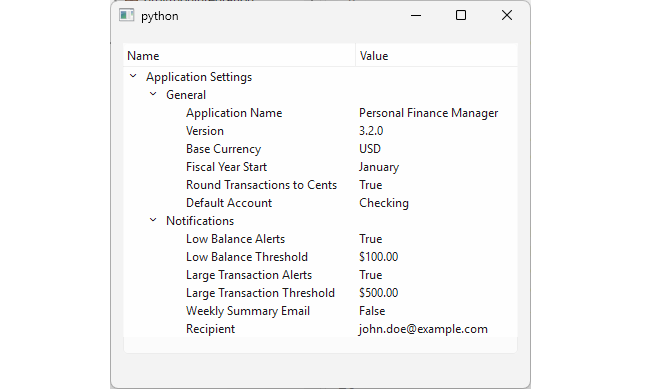
QTreeWidgetobject and set its column count. The default is 1 column, but for name-value pairs you need 2 columns. The data itself is stored in a nested Python tuple where each node follows the pattern(name, value, children):name- a string label.value- the setting’s value (string, bool, etc.)children- a list of child tuples in the same format, or[]for leaf nodes. The root node of the structure is ‘Application Settings’, which contains two category children (‘General’ and ‘Notifications’), each with leaf nodes representing the actual settings.
Populate the tree using a recursive
build_tree()helper method. This method takes a parent (either the tree widget itself or aQTreeWidgetItem) and the node data as parameters. It unpacks the tuple, creates aQTreeWidgetItem, and recursively adds any children. Qt item flags are used to make only the leaf nodes editable.Save the changes to the configuration. When the user edits a value, the
itemChanged()signal is emitted. Connect it to a slot that saves the updates configuration (here simulated).
When you run the application, you see an editable tree widget displaying the configuration hierarchy.
10.2 QTreeView
A QTreeView implements a tree representation of items from a model as part of Qt’s model-view architecture. Unlike QTreeWidget, it does not manage its own model so you need to supply one explicitly.[^2]
|
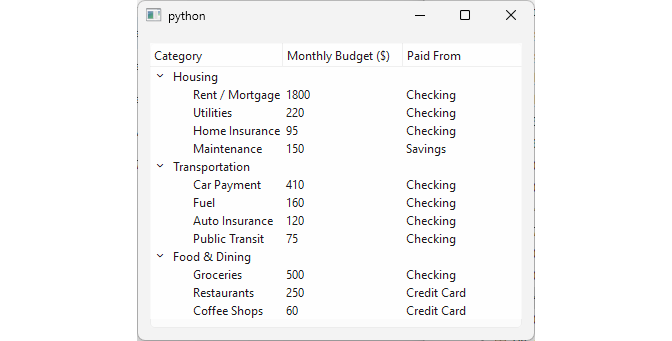
You need to display your monthly budget broken down by category, with columns for the budgeted amount and the account is paid from. |
To show a budget breakdown grouped by category using a QTreeView:
 1 import sys
 2 from PySide6.QtGui import QStandardItemModel, QStandardItem
 3 from PySide6.QtWidgets import (QApplication,
 4     QWidget, QVBoxLayout, QTreeView)
 5
 6 tree_data = [
 7     ('Housing', '', [
 8         ('Rent / Mortgage', '1800', 'Checking'),
 9         ('Utilities', '220', 'Checking'),
10         ('Home Insurance', '95', 'Checking'),
11         ('Maintenance', '150', 'Savings'),
12     ]),
13     ('Transportation', '', [
14         ('Car Payment', '410', 'Checking'),
15         ('Fuel', '160', 'Checking'),
16         ('Auto Insurance', '120', 'Checking'),
17         ('Public Transit', '75', 'Checking'),
18     ]),
19     ('Food & Dining', '', [
20         ('Groceries', '500', 'Checking'),
21         ('Restaurants', '250', 'Credit Card'),
22         ('Coffee Shops', '60', 'Credit Card'),
23     ])]
24
25
26 class Window(QWidget):
27
28     def __init__(self, parent=None):
29
30         super().__init__(parent)
31
32         layout = QVBoxLayout(self)
33
34         # 1. Create and populate the model.
35
36         self.model = QStandardItemModel()
37         self.model.setHorizontalHeaderLabels(
38             ['Category', 'Monthly Budget ($)', 'Paid From'])
39
40         root = self.model.invisibleRootItem()
41
42         for category_name, _, subcategories in tree_data:
43
44             category_row = [
45                 QStandardItem(category_name),
46                 QStandardItem(''),
47                 QStandardItem('')
48                 ]
49
50             root.appendRow(category_row)
51             category_item = category_row[0]
52
53             for subcat_name, budget, account in subcategories:
54                 category_item.appendRow([
55                     QStandardItem(subcat_name),
56                     QStandardItem(budget),
57                     QStandardItem(account),
58                 ])
59
60         # 2. Create the view.
61
62         tree_view = QTreeView()
63
64         # 3. Set the model as the view's model
65
66         tree_view.setModel(self.model)
67         tree_view.expandAll()
68         tree_view.resizeColumnToContents(0)
69
70         layout.addWidget(tree_view)
71
72
73 if __name__ == '__main__':
74
75     app = QApplication(sys.argv)
76     main_window = Window()
77     main_window.show()
78     sys.exit(app.exec())
Create and populate the model. Use a
QStandardItemModelwithQStandardItemobjects as tree nodes. Because the data has only two levels (category and subcategory) you can build the model directly in the main window’s__init__()without recursion.QStandardItemModelprovides an invisible root item (accessed viainvisibleRootItem()) that serves as the parent for top-level items. Add category items to the invisible root, then add subcategory items to their respective category parents.Create the
QTreeView.Set the model on the view with
setModel().
QStandardItemModel sits halfway between the fully hidden default tree model of QTreeWidget and a fully custom QAbstractItemModel subclas (covered in chapters 22 - 26):
QTreeWidget- model is completely hidden and you work only withQTreeWidgetItemobjects.QStandardItemModel- model is explicit and you own it, but it is still item-based (QStandardItemobjects), so you don’t need to implement the model interface yourself.QAbstractItemModel- you implement the model from scratch, mapping directly to your own data structures.
QStandardItemModel gives you the flexibility of the model/view split without the overhead of subclassing QAbstractItemModel. The tradeoff is that it stores data in QStandardItem objects internally, which can bel less efficient than a custom model.
10.3 Lazy-loading Trees
Lazy loading is a technique used to defer initialization of an object until it is needed[^3]. In Qt’s model-view architecture it is useful for fetching and displaying large lists, tables or trees with large or deep hierarchies, such as file systems: instead of loading every subdirectory at startup, child nodes are populated only when the user expands a parent node. This keeps the application responsive and reduces initial memory and CPU usage.
|
In your application, you need to let users browse the file system (for example, to locate a bank statement file or choose a folder for exported folders) without freezing the UI. You implement lazy loading in a |
To implement lazy loading with a QTreeView:
 1 import sys
 2 from pathlib import Path
 3 from PySide6.QtGui import QStandardItemModel, QStandardItem
 4 from PySide6.QtWidgets import (QApplication,
 5     QWidget, QVBoxLayout, QTreeView)
 6
 7
 8 class Window(QWidget):
 9
10     def __init__(self):
11
12         super().__init__()
13
14         layout = QVBoxLayout()
15         self.setLayout(layout)
16
17         # 1. Create a QTreeView and a QStandardItemModel.
18
19         tree = QTreeView()
20
21         home = Path.home()
22         home_item = QStandardItem('home')
23         home_item.setData(home)
24         placeholder = QStandardItem()
25         placeholder.setData('placeholder')
26         home_item.appendRow(placeholder)
27
28         self.model = QStandardItemModel()
29         self.model.invisibleRootItem().appendRow(home_item)
30
31         tree.setModel(self.model)
32
33         # 2. Connect the expanded() signal to a slot.
34
35         tree.expanded.connect(self.get_subdirectories)
36
37         layout.addWidget(tree)
38
39     # 3. Load subdirectories on demand.
40
41     def get_subdirectories(self, index):
42         parent = self.model.itemFromIndex(index)
43         if parent.rowCount() == 1:
44             if parent.child(0).data() == 'placeholder':
45                 parent.removeRow(0)
46                 print(parent.text())
47                 children = [d for d in parent.data().iterdir() if d.is_dir()]
48                 for child in children:
49                     item = QStandardItem(child.name)
50                     item.setData(child)
51                     placeholder_item = QStandardItem()
52                     placeholder_item.setData('placeholder')
53                     item.appendRow(placeholder_item)
54                     parent.appendRow(item)
55
56
57 if __name__ == '__main__':
58
59     app = QApplication(sys.argv)
60     main_window = Window()
61     main_window.show()
62     sys.exit(app.exec())
Create a
QTreeViewand aQStandardItemModel. Add a single top-level item representing the home directory (Path.home()). Attach a single placeholder child row to this item. The placeholder ensures the expand arrow is visible even though the real children have not yet been loaded.Connect the
expanded()signal of the tree view to a slot. This signal is emitted every time the user clicks the expand arrow on a node.In the
get_subdirectories()slot, check if the expanded item still contains the placeholder. If it does, remove the placeholder, read the real subdirectories from the filesystem usingPath.iterdir(), and create a newQStandardItemfor each subdirectory. Each new item also receives its own placeholder child so that it can be expanded later. Finally, add the new items to the parent.
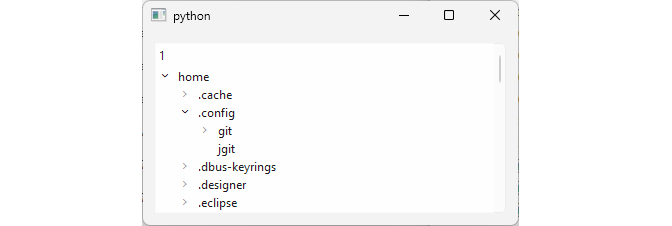
When you run the application, you see a tree view that initially shows only the home folder. As you expand each directory, its subdirectories are loaded on demand.
The placeholder technique shown above is a shortcut when you are still using QStandardItemModel. For larger trees or production code, Qt provides a built-in mechanism: the canFetchMore() and fetchMore() methods of QAbstractItemModel which we explore in Chapter 24.