21. Properties
Qt provides a property system that allows classes derived from QObject to declare properties using the QtCore.Property class. It enables dynamic access, introspection, and binding through Qt’s meta-object system. Qt’s properties are similar to Python’s native properties, making them less important in Python than in C++, but there are still situations where using Qt properties in PySide6 is necessary or recommended:
- When exposing PySide6 objects to QML, only Qt properties are visible.
- To animate custom widget attributes using
QPropertyAnimation, the target must be defined as a Qt property. - They are useful for conditional styling with Qt style sheets.
Properties can include read/write methods, notifications via signals and other options[^1]:
 1 Property(self, type: type,
 2          fget: Optional[Callable] = None,
 3          fset: Optional[Callable] = None,
 4          freset: Optional[Callable] = None,
 5          fdel: Optional[Callable] = None,
 6          doc: str = '',
 7          notify: Optional[PySide6.QtCore.Signal] = None,
 8          designable: bool = True,
 9          scriptable: bool = True,
10          stored: bool = True, user: bool = False,
11          constant: bool = False,
12          final: bool = False) -> PySide6.QtCore.Property
Although only the type parameter is not marked as optional, you should at minimum set type and fget to create a functional read-only property.
21.1 Declaring Basic Properties
PySide6 provides two ways of declaring properties:
- Passing all the arguments to
Property. - Using the
@Propertydecorator, which lets you split the property declaration into multiple parts.
 |
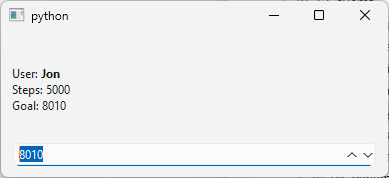
You are building a custom dashboard widget for a fitness tracking app that displays current user name, steps taken and a configurable daily steps goal. To provide clean access to this data, you create a subclass of QLabel with properties: user name as read-only (get value from the OS), steps taken from sensor data and daily goal as read-write (user-configurable). |
To create Qt properties in PySide6:
 1 from PySide6.QtCore import Property
 2 from PySide6.QtWidgets import QLabel
 3
 4
 5 # 1. Create a QObject subclass
 6
 7 class StepsLabel(QLabel):
 8
 9     def __init__(self, daily_goal=8000, parent=None):
10
11         super().__init__(parent)
12
13         # 2. Declare the backing attributes
14
15         self._user_name = self.load_user_name()
16         self._steps = 0
17         self._daily_goal = daily_goal
18         self.template_text = 'User: {}\nSteps: {}, Daily Goal: {}'
19
20         self.update_text()
21
22     def load_user_name(self):
23         # Simulate retrieving the current logged-in user.
24         return 'Jon'
25
26     # 3. Declare the properties.
27
28     @Property(str)
29     def userName(self):
30         return self._user_name
31
32     def steps(self):
33         return self._steps
34
35     def setSteps(self, steps):
36         if steps != self._steps:
37             self._steps = steps
38             self.update_text()
39
40     steps = Property(int, fget=steps, fset=setSteps)
41
42     @Property(int)
43     def dailyGoal(self):
44         return self._daily_goal
45
46     @dailyGoal.setter
47     def dailyGoal(self, daily_goal):
48         if daily_goal != self._daily_goal:
49             self._daily_goal = daily_goal
50             self.update_text()
51
52     def update_text(self):
53         self.setText(
54             f'User: <b>{self.userName}</b><br>'
55             f'Steps: {self.steps}<br>'
56             f'Goal: {self.dailyGoal}')
Create a
QObjectsubclass. SubclassQLabel, letting the caller optionally initialize it with thedaily_goalparameter.-
Declare the backing attributes. We need three fields:
self._user_name. Simulate getting the currently logged-in user name and assign it to this field.self._steps. This field is initialized with zero.self._daily_goal, initialized with thedaily_goalparameter.
-
Declare the properties. Declare a Qt property for each of the backing attributes:
- Use the
@Propertydecorator to declareuserNameas a read-only string property, returningself._user_name. Client code will not be able to modify it. - Declare a getter (
steps()) and setter (setSteps()) for the second property and usePropertyto create it. The property has the same name as the getter, i.e.steps. Note thatstepsis declared as a class-level attribute. - Use the
@Propertydecorator to declare thedailyGoalgetter anddailyGoalsetter separately.
 1 import sys
 2 from PySide6.QtWidgets import (QApplication,
 3     QWidget, QSpinBox, QVBoxLayout)
 4 from customwidgets import StepsLabel
 5
 6 class Window(QWidget):
 7
 8     def __init__(self):
 9
10         super().__init__()
11
12         layout = QVBoxLayout()
13         self.setLayout(layout)
14
15         self.steps_label = StepsLabel()
16         layout.addWidget(self.steps_label)
17
18         self.steps_label.steps = 5000
19
20         self.goal_spinbox = QSpinBox()
21         self.goal_spinbox.setMaximum(20000)
22         self.goal_spinbox.setValue(self.steps_label.dailyGoal)
23         self.goal_spinbox.valueChanged.connect(self.set_daily_goal)
24         layout.addWidget(self.goal_spinbox)
25
26     def set_daily_goal(self, goal):
27         self.steps_label.dailyGoal = goal
28
29
30 if __name__ == '__main__':
31
32     app = QApplication(sys.argv)
33     main_window = Window()
34     main_window.show()
35     sys.exit(app.exec())
Now, in the main window code, you can access all three properties using the familiar Python syntax.
1     def set_daily_goal(self, goal):
2         self.steps_label.dailyGoal = goal
21.2 Properties Notification and Reset
Beyond basic getters and setters, the Qt property system has built-in support for resetting properties - this lets you declare a method that restores a property to its default value with a QMetaProperty.reset() call. It also supports automatic property change notifications via signals, allowing client code to receive signals whenever the value of a property changes.
|
You are creating a theme selector widget for an application. The widget stores the current theme as a property (“Light”, “Dark”, or “System”). Other UI components should be notified of theme changes, and user should be able to restore the default theme. |
To create a resettable property that supports change notifications:
 1 from PySide6.QtCore import Property, Signal
 2 from PySide6.QtWidgets import QWidget, QComboBox, QVBoxLayout
 3
 4
 5 # 1. Create a QObject subclass
 6 #    and add a custom signal to it.
 7
 8 class ThemeSelector(QWidget):
 9
10     themeChanged = Signal(str)
11
12     def __init__(self, themes, parent=None):
13
14         super().__init__(parent)
15
16         self.themes = themes
17         self._default_theme = 'System'
18         self._theme = None
19
20         self.combo = QComboBox()
21         for theme_name in self.themes:
22             self.combo.addItem(theme_name)
23
24         self.combo.currentTextChanged.connect(self.setTheme)
25         self.setTheme(self._default_theme)
26
27         layout = QVBoxLayout(self)
28         layout.addWidget(self.combo)
29
30     # 2. Declare the getter and setter.
31
32     def getTheme(self):
33         return self._theme
34
35     def setTheme(self, value):
36         if value != self._theme:
37             self._theme = value
38             self.combo.setCurrentText(value)
39             self.themeChanged.emit(self.combo.currentText())
40
41     # 3. Declare the reset method
42
43     def resetTheme(self):
44         self.setTheme(self._default_theme)
45
46     # 4. Declare the property, setting the getter,
47     #    setter, reset method and notify signal,
48
49     theme = Property(
50         str,
51         fget=getTheme,
52         fset=setTheme,
53         freset=resetTheme,
54         notify=themeChanged
55     )
Create a
QObjectsubclass and add a custom signal to it. We create a class for selecting the application theme - it contains a single combobox where each item represents an available theme. The property backing attribute is_theme, initially set toNone. The signal,themeChanged, is emitted whenever the property value changes.Declare the property getter and setter. The property is named
themeand we declare its getter and setter the same way as in the previous section.Declare the property reset method.
resetTheme()setsthemeto its default value, contained in_default_theme.Declare the property itself, providing the getter, setter and reset methods, and the notify signal. The
themeproperty is a string and its setter emits the notify signal only when the new value is different from the property’s current value. The reset method simply calls the setter with the default theme name as the argument.
 1 import sys
 2 from PySide6.QtWidgets import (QApplication,
 3     QWidget, QPushButton, QVBoxLayout)
 4 from customwidgets import ThemeSelector
 5
 6
 7 THEMES = {
 8     'Light': ['#fcfcfc', '#333333'],
 9     'Dark': ['#2e3440', '#d8dee9'],
10     'System': ['#f0f0f0', '#000000'],
11     }
12
13 class Window(QWidget):
14
15     def __init__(self):
16
17         super().__init__()
18
19         layout = QVBoxLayout()
20         self.setLayout(layout)
21
22         self.theme_selector = ThemeSelector(THEMES)
23         layout.addWidget(self.theme_selector)
24
25         self.theme_selector.themeChanged.connect(self.apply_theme)
26         self.apply_theme(self.theme_selector.theme)
27
28         self.reset_button = QPushButton("Reset to Default")
29         self.reset_button.clicked.connect(self.reset_theme)
30         layout.addWidget(self.reset_button)
31
32         for i in range(5):
33             layout.addWidget(QPushButton(f'Widget {i}'))
34
35     def reset_theme(self):
36
37         # self.theme_selector.resetTheme()
38         meta = self.theme_selector.metaObject()
39         idx = meta.indexOfProperty('theme')
40         if idx != -1:
41             prop = meta.property(idx)
42             prop.reset(self.theme_selector)
43         else:
44             print('Property "theme" not found.')
45
46     def apply_theme(self, theme_name):
47
48         if not theme_name or theme_name not in THEMES:
49             return
50
51         colors = THEMES[theme_name]
52
53         QApplication.instance().setStyleSheet(
54             f'''
55             QWidget {{
56                 color: {colors[1]};
57                 background-color: {colors[0]};
58             }}
59             ''')
60
61
62 if __name__ == '__main__':
63
64     app = QApplication(sys.argv)
65     main_window = Window()
66     main_window.show()
67     sys.exit(app.exec())
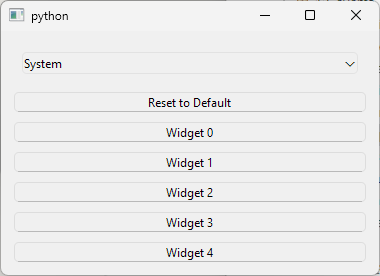
In the main window code, add the theme selector widget to the layout, providing it the available themes (‘Light’, ‘Dark’ and ‘System’). We also add a push button to reset the theme, and five push buttons to demonstrate the theme change effects. When the user selects a theme, themeChanged is emitted and the theme colors are applied using a stylesheet.
When the user presses the ‘Reset theme’ button, the theme property is set to its default value (‘System’). Instead of calling the reset method directly, this is done by calling QMetaProperty.reset().
21.3 Constant and Non-Stored Properties
The Qt property system supports both constant and non-stored properties. A constant property cannot have a setter method or a change notify signal. Marking a property as non-stored indicates that it doesn’t exist on its own but depends on other values and also indicates that it does not need to be saved when storing the object’s state.
|
You are building a user signup widget for a company portal. The widget uses a fixed email domain (@company.com) that applies to all users and never changes. Based on the user’s input, the widget automatically generates a username from the first and last name, and then forms the email address by combining that username with the company domain. |
To create constant and non-stored properties:
 1 from PySide6.QtCore import Property, Signal
 2 from PySide6.QtWidgets import (QWidget, QLineEdit,
 3     QLabel, QVBoxLayout)
 4
 5
 6 # 1. Subclass QWidget to create a custom widget.
 7
 8 class SignupWidget(QWidget):
 9
10     usernameChanged = Signal(str)
11
12     def __init__(self, parent=None):
13
14         super().__init__(parent)
15
16         self._firstname = ''
17         self._lastname = ''
18         self._domain = 'company.com'
19
20         self.fname_edit = QLineEdit()
21         self.lname_edit = QLineEdit()
22         self.email_label = QLabel()
23
24         self.fname_edit.editingFinished.connect(self.on_firstname_changed)
25         self.lname_edit.editingFinished.connect(self.on_lastname_changed)
26
27         layout = QVBoxLayout(self)
28         layout.addWidget(QLabel('First Name:'))
29         layout.addWidget(self.fname_edit)
30         layout.addWidget(QLabel('Last Name:'))
31         layout.addWidget(self.lname_edit)
32         layout.addWidget(QLabel('Email:'))
33         layout.addWidget(self.email_label)
34
35     @Property(str)
36     def firstname(self):
37         return self._firstname
38
39     @firstname.setter
40     def firstname(self, value):
41         value = value.strip()
42         if value != self._firstname:
43             self._firstname = value
44             self._update_email_label()
45             self.usernameChanged.emit(self.username)
46
47     @Property(str)
48     def lastname(self):
49         return self._lastname
50
51     @lastname.setter
52     def lastname(self, value):
53         value = value.strip()
54         if value != self._lastname:
55             self._lastname = value
56             self._update_email_label()
57             self.usernameChanged.emit(self.username)
58
59     # 2. Declare a constant property.
60
61     @Property(str, constant=True)
62     def domain(self):
63         return self._domain
64
65     # 3. Declare non-stored properties.
66
67     @Property(str, stored=False)
68     def username(self):
69         if self.firstname and self.lastname:
70             return f'{self.firstname}.{self.lastname}'
71         else:
72             return ''
73
74     @Property(str, stored=False)
75     def email(self):
76         if self.username:
77             return f'{self.username}@{self.domain}'
78         else:
79             return ''
80
81     def on_firstname_changed(self):
82         self.firstname = self.fname_edit.text()
83
84     def on_lastname_changed(self):
85         self.lastname = self.lname_edit.text()
86
87     def _update_email_label(self):
88         self.email_label.setText(self.email)
Subclass
QWidgetto create a custom widget. The company domain (‘company.com’) is constant so we just assign the string literal to a field. First and last name need to be provided by the user so we provide two line edits for their entry. Declare two properties,firstnameandlastnamewith getters and setters.Declare a constant property. The
domainproperty is declared as constant by setting the@Propertydecoratorconstantargument toTrue(the default isFalse).Declare non-stored properties. The
usernameandemailproperties are declared as non-stored by setting thestoredargument toFalseand their value is provided based onfirstname,lastnameanddomainvalues. Note that neitherusernamenoremailhave setters declared.
 1 import sys
 2 from PySide6.QtWidgets import (QApplication,
 3     QWidget, QVBoxLayout)
 4 from customwidgets import SignupWidget
 5
 6 class Window(QWidget):
 7
 8     def __init__(self):
 9
10         super().__init__()
11         layout = QVBoxLayout()
12         self.setLayout(layout)
13
14         self.signup_widget = SignupWidget()
15         self.signup_widget.usernameChanged.connect(
16             self.log_username_changes)
17         layout.addWidget(self.signup_widget)
18
19         # self.signup_widget.email = "This won't work."
20         # self.signup_widget.username = "This won't either."
21
22     def log_username_changes(self):
23         print(f'First Name: {self.signup_widget.firstname}')
24         print(f'Last Name: {self.signup_widget.lastname}')
25         print(f'Username: {self.signup_widget.username}')
26         print(f'Email: {self.signup_widget.email}')
27
28
29 if __name__ == '__main__':
30
31     app = QApplication(sys.argv)
32     main_window = Window()
33     main_window.show()
34     sys.exit(app.exec())
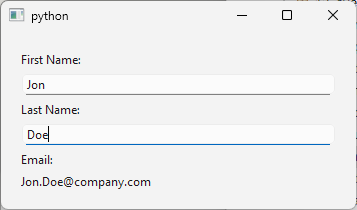
Now, when you enter the user’s first and last name, the email field is updated automatically:
21.4 Dynamic Properties for Validation-Based Styling
Qt allows you to attach dynamic properties to any object using QObject.setProperty() by specifying a property name and value. Python natively supports dynamic properties too, which might make this Qt feature seem redundant in PySide6 applications. However, Qt style sheets support conditional widget styling based on Qt property values[^2] and this is where dynamic properties become useful, allowing you to flexibly (re)style widgets by setting or updating their custom properties.
|
You are designing a user registration form featuring a QLineEdit field for email. To provide instant visual feedback, you set a dynamic property based on input validation (i.e., checking for valid email formats), and use Qt Style Sheets to apply the field borders, highlighting invalid entries in real-time. |
To use dynamic properties for conditional widget styling:
 1 import sys
 2 import re
 3 from PySide6.QtCore import Slot
 4 from PySide6.QtWidgets import (QApplication, QWidget, QVBoxLayout,
 5     QLabel, QLineEdit)
 6
 7
 8 class Window(QWidget):
 9
10     def __init__(self, parent=None):
11
12         super().__init__(parent)
13
14         self.pattern = \
15             r'^[a-zA-Z0-9._%+-]+@[a-zA-Z0-9.-]+\.[a-zA-Z]{2,}$'
16
17         layout = QVBoxLayout()
18         self.setLayout(layout)
19
20         layout.addWidget(QLabel('Email:'))
21
22         # 1. Add the widget to be styled.
23
24         self.email_edit = QLineEdit()
25         self.email_edit.textChanged.connect(self.validate_email)
26         layout.addWidget(self.email_edit)
27
28         self.status_label = QLabel()
29         layout.addWidget(self.status_label)
30
31         # 2. Set the style sheet.
32
33         self.setStyleSheet('''
34             QLineEdit { }
35             QLineEdit[isValid="true"] { border: 2px solid green; }
36             QLineEdit[isValid="false"] { border: 2px solid red; }
37         ''')
38
39     @Slot(str)
40     def validate_email(self, text):
41
42         print(f'isValid exists: {self.email_edit.property("isValid")}')
43
44         # 3. Set a dynamic property to trigger conditional widget styling.
45
46         if not text:
47             self.status_label.clear()
48             self.email_edit.setProperty('isValid', None)
49         else:
50             if re.fullmatch(self.pattern, text):
51                 valid = True
52                 self.status_label.setText('Valid!')
53             else:
54                 valid = False
55                 self.status_label.setText('Invalid email.')
56
57             self.email_edit.setProperty('isValid', valid)
58
59         self.email_edit.style().unpolish(self.email_edit)
60         self.email_edit.style().polish(self.email_edit)
61         self.email_edit.update()
62
63
64 if __name__ == '__main__':
65
66     app = QApplication(sys.argv)
67     main_window = Window()
68     main_window.show()
69     sys.exit(app.exec())
Add the widget that will be styled dynamically. Here, we need to style a line edit based on its text whenever it changes. The style changes are applied based on a simple regular expression pattern that checks if a string is a valid email address. Validation is performed when the text changes so we connect
textChanged()to a slot.-
Set the style sheet for it. This is where the conditional styling happens based on a custom property named
isValid:- If the line edit does not have a dynamic property with that name (
QLineEdit) no custom styling is applied and it is styled using the application style sheet. - If
isValidexists and is set totrue(QLineEdit[isValid='true']) its border color is set to green. - If
isValidexists and its value isfalse(QLineEdit[isValid='false']) its border is set to red.
Set a dynamic property value to trigger conditional widget styling. In the
validate_email()slot, check if the line edit contains empty text and if it is, remove theisValidproperty from the line edit object by setting it toNone. If the line edit contains text, validate it using Python’s regular expressions, and setisValidaccordingly. Finally, re-apply the style sheet by updating the line edit:
1 self.email_edit.style().unpolish(self.email_edit)
2 self.email_edit.style().polish(self.email_edit)
3 self.email_edit.update()
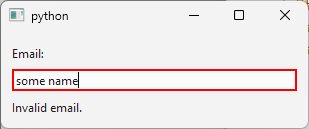
While the entered email address is invalid, the line edit has a red border:
21.5 Animating Custom Properties
The QPropertyAnimation class interpolates over Qt properties[^3], making it possible to animate Qt widgets.
|
You are building an animated system monitor widget for a desktop app. The widget needs to be updated periodically and reusable across several indicators (CPU, RAM). |
To animate a custom Qt property:
 1 from PySide6.QtCore import (QTimer, QPropertyAnimation,
 2     QEasingCurve, Property)
 3 from PySide6.QtWidgets import (QWidget, QProgressBar,
 4     QLabel, QVBoxLayout)
 5
 6
 7 BAR_QSS = '''
 8 QProgressBar {
 9     max-height: 12px;
10     background-color: #e0e0e0;
11     border: 1px solid #a0a0a0;
12 }
13 QProgressBar::chunk {
14     background-color: #4CAF50;
15 }
16 '''
17
18
19 # 1. Create a custom Qt widget and add a property to it.
20
21 class AnimatedBar(QWidget):
22
23     def __init__(self, data_function, label='Load',  parent=None):
24
25         super().__init__(parent)
26
27         self._value = 0.0
28         self._data_function = data_function
29         self._label_prefix = label
30
31         self.bar = QProgressBar()
32         self.bar.setRange(0, 100)
33         self.bar.setValue(0)
34         self.bar.setTextVisible(False)
35         self.bar.setStyleSheet(BAR_QSS)
36
37         self.status_label = QLabel(f'{self._label_prefix}: 0%')
38
39         layout = QVBoxLayout(self)
40         layout.addWidget(self.status_label)
41         layout.addWidget(self.bar)
42
43         # 2. Add a QPropertyAnimation object to the widget.
44
45         self.animation = QPropertyAnimation(self, b'value')
46         self.animation.setDuration(500)
47         self.animation.setEasingCurve(QEasingCurve.Type.OutBounce)
48
49         self.timer = QTimer(self)
50         self.timer.setInterval(1000)
51         self.timer.timeout.connect(self.refresh)
52         self.timer.start()
53
54     def getValue(self):
55         return self._value
56
57     def setValue(self, value):
58         if value != self._value:
59             self._value = value
60             self.bar.setValue(int(value))
61             self.status_label.setText(
62                 f'{self._label_prefix}: {int(value)}%')
63
64     value = Property(float, fget=getValue, fset=setValue)
65
66     def refresh(self):
67
68         # 3. Animate the property.
69
70         if self.animation.state() != QPropertyAnimation.State.Stopped:
71             self.animation.stop()
72         self.animation.setStartValue(self.value)
73         self.animation.setEndValue(self._data_function())
74         self.animation.start()
Create a custom Qt widget and add a property to it. Here, the custom
AnimatedBarwidget is capable of displaying any indicator in the range from 0 to 100 percent using a progress bar. It also contains a label to display the current indicator value in percent. Add a custom property namedvalueto the widget and in its setter method update the inner progress bar value and the label text.AnimatedBarneeds to be reusable so external code passes a function that provides indicator values to it (data_function).Add a
QPropertyAnimationobject to the widget.QProperyAnimation.__init__()accepts the target object and the target property’s name as parameters. Set the animation’s duration and easing curve type as well.Animate the property. The property is animated periodically so we use a
QTimerto call therefresh()slot, in which we set the animation start and end values and start it.
 1 import sys
 2 import psutil
 3 from PySide6.QtWidgets import QWidget, QVBoxLayout, QApplication
 4 from customwidgets import AnimatedBar
 5
 6
 7 class Window(QWidget):
 8
 9     def __init__(self):
10         super().__init__()
11         layout = QVBoxLayout()
12         self.setLayout(layout)
13
14         self.cpu_widget = AnimatedBar(
15             data_function=lambda: psutil.cpu_percent(interval=None),
16             label='CPU')
17
18         self.ram_widget = AnimatedBar(
19             data_function=lambda: psutil.virtual_memory().percent,
20             label='RAM')
21
22         layout.addWidget(self.cpu_widget)
23         layout.addWidget(self.ram_widget)
24
25 if __name__ == '__main__':
26
27     app = QApplication(sys.argv)
28     main_window = Window()
29     main_window.show()
30     sys.exit(app.exec())
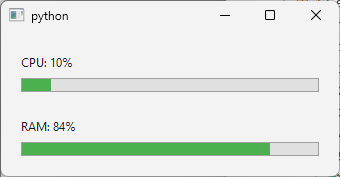
Now, when you start the application, it shows two bars that animate the machine CPU and memory values and are updated each second. Note that you don’t set the property value explicitly but by calling QPropertyAnimation.setEndValue().
21.6 Inspecting Properties with QMetaObject
Qt’s meta-object system lets you inspect both static and dynamic properties of any QObject at runtime.
|
You are building a property inspector widget for a desktop app. Given a target widget, the inspector lists all its static properties via QMetaObject followed by any dynamic properties. |
To inspect properties with QMetaObject:
 1 from PySide6.QtCore import Slot
 2 from PySide6.QtWidgets import QWidget, QPushButton, QTextEdit, QVBoxLayout
 3
 4
 5 # 1. Create the PropertyInspector subclass of QWidget.
 6
 7 class PropertyInspector(QWidget):
 8
 9     def __init__(self, target_widget, parent=None):
10
11         super().__init__(parent)
12
13         self.target = target_widget
14
15         self.inspect_button = QPushButton('Inspect Properties')
16         self.inspect_button.clicked.connect(self.inspect)
17
18         self.output = QTextEdit()
19         self.output.setReadOnly(True)
20
21         layout = QVBoxLayout(self)
22         layout.addWidget(self.inspect_button)
23         layout.addWidget(self.output)
24
25     # 2. Implement a method to inspect
26     #    the target object's properties.
27
28     @Slot()
29     def inspect(self):
30
31         self.output.clear()
32
33         # Static properties
34         meta = self.target.metaObject()
35         self.output.append('Static Properties:')
36         for i in range(meta.propertyOffset(), meta.propertyCount()):
37             try:
38                 prop = meta.property(i)
39                 value = prop.read(self.target)
40                 self.output.append(f'    {prop.name()}: {value}')
41             except Exception:
42                 self.output.append(f'    {prop.name()}: <unreadable>')
43
44         # Dynamic properties
45         self.output.append('\nDynamic Properties:')
46         for name in self.target.dynamicPropertyNames():
47             value = self.target.property(name.toStdString())
48             self.output.append(f'    {name.toStdString()}: {value}')
Create a widget that inspects and displays an object’s properties. The widget name is
PropertyInspectorand its__init__()accepts the target widget as a parameter. It has a button to inspect the target object’s properties and a read-only text edit to display the results.Implement a method to inspect the target object’s properties. The
inspect()slot retrieves the target’smetaObject(), loops frompropertyOffset()topropertyCount()to read static properties, then loops overdynamicPropertyNames()to read dynamic properties. Use a try/except block when reading values as some of them may not be readable from Python.Create a property inspector object and add it to the main window. The example uses a
QLineEditas the target widget, setting its object name and adding one dynamic property withsetProperty()so both static and dynamic properties are shown.
 1 import sys
 2 from PySide6.QtWidgets import QApplication, QWidget, QVBoxLayout, QLineEdit
 3 from customwidgets import PropertyInspector
 4
 5
 6 class Window(QWidget):
 7
 8     def __init__(self):
 9         super().__init__()
10         layout = QVBoxLayout()
11         self.setLayout(layout)
12
13         self.target_edit = QLineEdit()
14         self.target_edit.setObjectName('Test widget')
15         self.target_edit.setPlaceholderText(
16             'Widget to be inspected - enter text here.')
17         self.target_edit.setProperty('extraData', 'Runtime info')
18         layout.addWidget(self.target_edit)
19
20         # 3. Create a property inspector object.
21
22         self.inspector = PropertyInspector(self.target_edit)
23         layout.addWidget(self.inspector)
24
25 if __name__ == '__main__':
26
27     app = QApplication(sys.argv)
28     main_window = Window()
29     main_window.show()
30     sys.exit(app.exec())
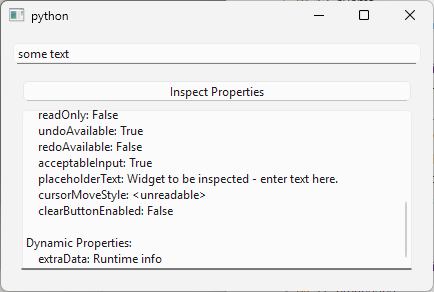
Now, when you start the application and click the ‘Inspect Properties’ button, the text edit shows every static property of the QLineEdit (objectName, text, placeholderText, etc.) followed by the dynamic property extraData that you added at runtime.