13. Dialogs
A dialog is a small window that presents information to the users and prompts them for a response. A dialog can be modal, in which case the user cannot continue without closing it, or modeless, where the user can continue work while the dialog is still open.[^1] Qt offers several standard dialogs while also letting developers create custom ones by subclassing the QDialog class.
Qt standard dialogs[^2]:
| Name | Description |
|---|---|
| QColorDialog | Dialog widget for choosing colors |
| QFileDialog | Dialog that allows users to select files or directories |
| QFontDialog | Dialog widget for selecting a font |
| QInputDialog | Convenience dialog to get a single value from the user |
| QMessageBox | Modal dialog for informing the user or for asking the user a question and receiving an answer |
| QProgressDialog | Feedback on the progress of a slow operation |
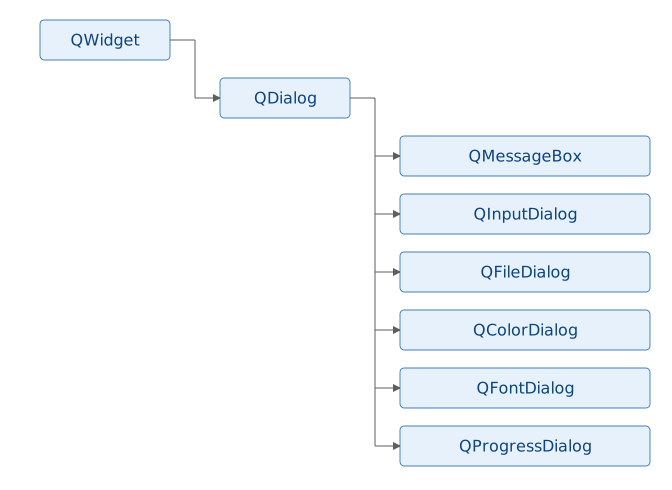
Most of the static convenience methods used in this chapter accept an explicit parent argument. The parent doesn’t have to be the application’s top-level window - you can use any QWidget, including the widget that triggered the dialog. Setting a dialog parent controls its initial placement on the screen and its lifetime.
13.1 Standard Message Dialogs with QMessageBox
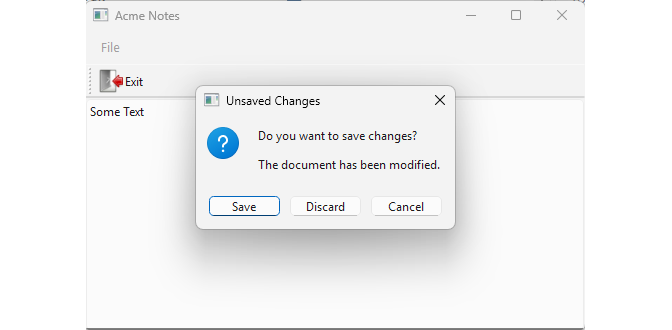
QMessageBox is a modal dialog for providing information to the user or asking a question and receiving an answer. A message box can display a text message, an icon and Qt’s standard buttons for accepting the user’s response[^3].
 |
You are building a simple note-taking application where users can save their notes. To confirm actions like discarding unsaved changes, you decide to use a standard message dialog to prompt the user before closing the window. |
To use a message box in your application:
 1 import sys
 2 from PySide6.QtCore import Qt
 3 from PySide6.QtGui import QAction, QIcon
 4 from PySide6.QtWidgets import (QApplication, QMainWindow,
 5     QTextEdit, QMessageBox)
 6
 7
 8 class Editor(QMainWindow):
 9
10     def __init__(self, parent=None):
11
12         super().__init__(parent)
13         self.setWindowTitle('Acme Notes')
14         self.resize(500, 300)
15
16         self.text_edit = QTextEdit()
17         self.setCentralWidget(self.text_edit)
18
19         exit_action = QAction(self)
20         exit_action.setText('Exit')
21         exit_action.setShortcut('Alt+X')
22         exit_action.setIcon(QIcon('./icons/exit.png'))
23         exit_action.triggered.connect(self.close)
24
25         menu_bar = self.menuBar()
26         file_menu = menu_bar.addMenu('&File')
27         file_menu.addAction(exit_action)
28         file_toolbar = self.addToolBar('File')
29         file_toolbar.addAction(exit_action)
30
31         file_toolbar.setToolButtonStyle(
32             Qt.ToolButtonStyle.ToolButtonTextBesideIcon)
33
34     def closeEvent(self, event):
35
36         if self.text_edit.document().isModified():
37
38             # 1. Create a messagebox object
39
40             msgbox = QMessageBox()
41
42             # 2. Set the object's properties
43
44             msgbox.setWindowTitle('Unsaved Changes')
45             msgbox.setIcon(QMessageBox.Icon.Question)
46             msgbox.setText('Do you want to save changes?')
47             msgbox.setInformativeText('The document has been modified.')
48             msgbox.setStandardButtons(
49                 QMessageBox.StandardButton.Save |
50                 QMessageBox.StandardButton.Discard |
51                 QMessageBox.StandardButton.Cancel)
52             msgbox.setDefaultButton(
53                 QMessageBox.StandardButton.Save)
54
55             # 3. Display the messagebox and take actions
56             #    based on its return value.
57
58             ret_val = msgbox.exec()
59             if ret_val == QMessageBox.StandardButton.Save:
60                 print('Saving the document')
61                 self.text_edit.document().setModified(False)
62                 event.accept()
63             elif ret_val == QMessageBox.StandardButton.Discard:
64                 print('Changes discarded.')
65                 event.accept()
66             else:
67                 print('Exit canceled')
68                 event.ignore()
69         else:
70             super().closeEvent(event)
71
72
73 if __name__ == '__main__':
74
75     app = QApplication(sys.argv)
76     editor = Editor()
77     editor.show()
78     sys.exit(app.exec())
Create a
QMessageBoxobject. In the example, we detect when the user attempts to close the application by overriding the main window’scloseEvent(). The document is stored in a text edit and we only show the message box if the document’sisModified()property is true.Set the message box properties. We set the title, icon, text, and informative text to provide additional information to the user. We also add three standard buttons,
Save,DiscardandCancel, and setSaveas the default.Display the message box using
exec(), making it modal, and handle the user response. The message box’s return value is one of the standard button enumeration values: if the user pressesSave, we simulate saving the document and set itsmodified()property to false; if the user pressesDiscardwe continue without saving the document; and if the user pressesCancelwe ignore the close event and the application remains open.
13.2 Input Dialogs with QInputDialog
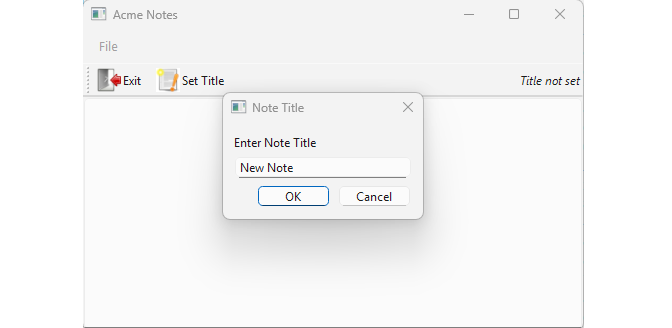
Whereas QMessageBox typically returns a QMessageBox.StandardButton value, QInputDialog can return single-line or multiline text, an integer, a double, or a string selected from a list.
|
In your note-taking app, users need to give each note a title. You opt for a simple input dialog to enter text, and set the opened note title. |
To use a QInputDialog in your application:
 1 import sys
 2 from PySide6.QtCore import Qt, Slot
 3 from PySide6.QtGui import QAction, QIcon
 4 from PySide6.QtWidgets import (QApplication, QMainWindow,
 5     QTextEdit, QInputDialog, QLabel, QWidget, QSizePolicy)
 6
 7
 8 class Editor(QMainWindow):
 9
10     def __init__(self, parent=None):
11
12         super().__init__(parent)
13         self.setWindowTitle('Acme Notes')
14         self.resize(500, 300)
15
16         self.note_title = ''
17         self.title_label = QLabel('<i>Title not set</i>')
18
19         self.text_edit = QTextEdit()
20         self.setCentralWidget(self.text_edit)
21
22         # 1. Provide a way for the user to invoke the dialog.
23
24         self.set_title_action = QAction(self)
25         self.set_title_action.setText('Set Title')
26         self.set_title_action.setIcon(QIcon('./icons/untitled.png'))
27         self.set_title_action.triggered.connect(self.set_note_title)
28
29         self.exit_action = QAction(self)
30         self.exit_action.setText('Exit')
31         self.exit_action.setShortcut('Alt+X')
32         self.exit_action.setIcon(QIcon('./icons/exit.png'))
33         self.exit_action.triggered.connect(self.close)
34
35         menu_bar = self.menuBar()
36         file_menu = menu_bar.addMenu('&File')
37         file_menu.addAction(self.exit_action)
38
39         file_toolbar = self.addToolBar('File')
40         file_toolbar.addAction(self.exit_action)
41         file_toolbar.addAction(self.set_title_action)
42
43         spacer = QWidget()
44         spacer.setSizePolicy(
45             QSizePolicy.Policy.Expanding,
46             QSizePolicy.Policy.Expanding)
47         file_toolbar.addWidget(spacer)
48
49         file_toolbar.addWidget(self.title_label)
50
51         file_toolbar.setToolButtonStyle(
52             Qt.ToolButtonStyle.ToolButtonTextBesideIcon)
53
54     @Slot()
55     def set_note_title(self):
56
57         # 2. Show the dialog.
58
59         note_title, ok = QInputDialog.getText(
60             self, 'Note Title', 'Enter Note Title')
61
62         # 3. Check the return values
63         #    and handle the user response.
64
65         if ok and note_title:
66             self.note_title = note_title
67             self.title_label.setText(f'Title: {note_title}')
68             self.set_title_action.setIcon(
69                 QIcon('./icons/has_title.png'))
70
71
72 if __name__ == '__main__':
73
74     app = QApplication(sys.argv)
75     editor = Editor()
76     editor.show()
77     sys.exit(app.exec())
Provide a way for the user to invoke the dialog. We create a
QActionand connect itstriggered()signal to theset_note_title()slot.-
Show the dialog. When the user triggers the action, display the input dialog using one of the
QInputDialog’s static methods:Method Description getDouble()Gets a floating point number from the user getInt()Gets an integer from the user getItem()Gets an item from a list getMultiLineText()Gets multi-line text input getText()Gets a single line of text In the example, the user needs to enter a string so we use
getText(). -
Check the return value and handle the user response.
getText()returns a tuple:1 (text, ok)textis the string the user entered.okwill be true if the user presses Ok and false if the user presses Cancel. Ifokis true, set the note title and update the action’s icon indicating the note has a title.
13.3 File Dialogs with QFileDialog
QFileDialog lets users select files or directories. The easiest approach is using one of its static methods[^4]:
| Method | Description |
|---|---|
getExistingDirectory() |
Select a directory |
getExistingDirectoryUrl() |
Select a directory (URL) |
getOpenFileContent() |
Open file and read content |
getOpenFileName() |
Select a single file to open |
getOpenFileNames() |
Select multiple files to open |
getOpenFileUrl() |
Select a file to open (URL) |
getOpenFileUrls() |
Select multiple files (URLs) |
getSaveFileName() |
Select a file name to save |
getSaveFileUrl() |
Select a file to save (URL) |
saveFileContent() |
Save content to file |
Behind the scenes, QFileDialog uses a platform-native file dialog if one is available, resulting in different appearance across platforms.
|
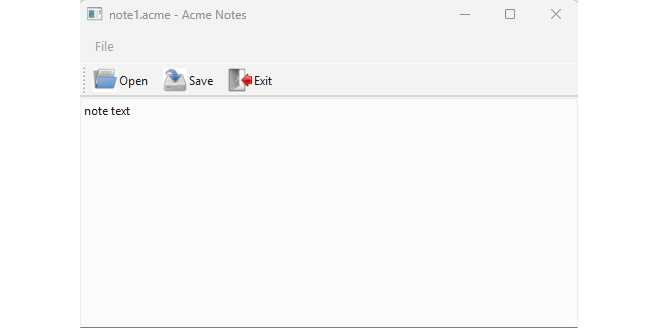
For a note-taking application, you need to let users open an existing file and save a new one. Implement a file dialog to handle file selection with options for filtering by file types. |
To use a file dialog in your application:
  1 import os
  2 import sys
  3 from PySide6.QtCore import Qt, Slot
  4 from PySide6.QtGui import QAction, QIcon
  5 from PySide6.QtWidgets import (QApplication, QMainWindow,
  6     QTextEdit, QFileDialog, QMessageBox)
  7
  8
  9 class Editor(QMainWindow):
 10
 11     def __init__(self, parent=None):
 12
 13         super().__init__(parent)
 14         self.setWindowTitle('Acme Notes')
 15         self.resize(500, 300)
 16
 17         self.current_file_name = ''
 18
 19         self.text_edit = QTextEdit()
 20         self.setCentralWidget(self.text_edit)
 21
 22         # 1. Provide a means for the user to display the dialog.
 23
 24         self.open_action = QAction(self)
 25         self.open_action.setText('Open')
 26         self.open_action.setShortcut('Ctrl+O')
 27         self.open_action.setIcon(QIcon('./icons/open.png'))
 28         self.open_action.triggered.connect(self.open_note)
 29
 30         self.save_action = QAction(self)
 31         self.save_action.setText('Save')
 32         self.save_action.setShortcut('Ctrl+S')
 33         self.save_action.setIcon(QIcon('./icons/save.png'))
 34         self.save_action.triggered.connect(self.save_note)
 35
 36         self.exit_action = QAction(self)
 37         self.exit_action.setText('Exit')
 38         self.exit_action.setShortcut('Alt+X')
 39         self.exit_action.setIcon(QIcon('./icons/exit.png'))
 40         self.exit_action.triggered.connect(self.close)
 41
 42         menu_bar = self.menuBar()
 43         file_menu = menu_bar.addMenu('&File')
 44         file_menu.addAction(self.open_action)
 45         file_menu.addAction(self.save_action)
 46         file_menu.addAction(self.exit_action)
 47
 48         file_toolbar = self.addToolBar('File')
 49         file_toolbar.addAction(self.open_action)
 50         file_toolbar.addAction(self.save_action)
 51         file_toolbar.addAction(self.exit_action)
 52
 53         file_toolbar.setToolButtonStyle(
 54             Qt.ToolButtonStyle.ToolButtonTextBesideIcon)
 55
 56         self.update_window_title()
 57
 58     def update_window_title(self):
 59         if self.current_file_name:
 60             print(self.current_file_name)
 61             title = os.path.basename(self.current_file_name)
 62             print(title)
 63         else:
 64             title = 'Untitled'
 65         self.setWindowTitle(f'{title} - Acme Notes')
 66
 67     # 2. Display the dialog.
 68
 69     @Slot()
 70     def save_note(self):
 71         note_contents = self.text_edit.document().toHtml()
 72         if self.current_file_name:
 73             try:
 74                 with open(self.current_file_name, 'w') as f:
 75                     f.write(note_contents)
 76                 self.text_edit.document().setModified(False)
 77             except Exception as e:
 78                 QMessageBox.warning(self,
 79                     'Save Error', f'Failed to save file: {str(e)}')
 80         else:
 81
 82             # 3. Inspect the return value and handle the user's response.
 83
 84             ret_value = QFileDialog.getSaveFileName(
 85                 self, 'Save Note', '.', 'Acme Files (*.acme)')
 86             if ret_value[0]:
 87                 file_name = ret_value[0]
 88                 if not file_name.endswith('.acme'):
 89                     file_name += '.acme'
 90                 try:
 91                     with open(file_name, 'w') as f:
 92                         f.write(note_contents)
 93                     self.current_file_name = file_name
 94                     self.text_edit.document().setModified(False)
 95                     self.update_window_title()
 96                 except Exception as e:
 97                     QMessageBox.warning(self,
 98                         'Save Error', f'Failed to save file: {str(e)}')
 99
100     @Slot()
101     def open_note(self):
102         ret_value = QFileDialog.getOpenFileName(
103             self, 'Open Note', '.', 'Acme Files (*.acme)')
104         if ret_value[0]:
105             file_name = ret_value[0]
106             try:
107                 with open(file_name, 'r') as f:
108                     contents = f.read()
109                 self.text_edit.setHtml(contents)
110                 self.current_file_name = file_name
111                 self.text_edit.document().setModified(False)
112                 self.update_window_title()
113             except Exception as e:
114                 QMessageBox.warning(self,
115                     'Open Error', f'Failed to open file: {str(e)}')
116
117 if __name__ == '__main__':
118
119     app = QApplication(sys.argv)
120     editor = Editor()
121     editor.show()
122     sys.exit(app.exec())
Give users a way to display the dialog. Create two
QActions, one for saving and one for opening a file. For both actions, set text, a shortcut and an icon. Connect each action’striggered()signal to a slot -save_note()for the save action andopen_note()for the open action.Display the dialog. In
open_note()we usegetOpenFileName(). Insave_note(), the file dialog is shown only if the note has not been already saved. For both dialogs set the title, the starting directory and the file filter.Use the return value to handle the user’s response.
getSaveFileName()returns a tuple:
1 (fileName, selectedFilter)
If the user presses Cancel, fileName is an empty string so we don’t need to do anything. If the user presses the Save button, we save the contents of the text edit into fileName.
Likewise, we use fileName to read the file contents into the text edit only if getOpenFileName() does not return an empty string.
13.4 Color Selection with QColorDialog
QColorDialog allows users to select colors. You typically use its getColor() static method to show it as a modal dialog[^5].
|
Users of your note-taking application want to be able to change their note text and background colors. You use a color dialog to allow selecting a color from a palette without building a custom color picker. |
To use a color dialog in your application:
 1 import sys
 2 from PySide6.QtCore import Qt
 3 from PySide6.QtGui import QAction, QIcon
 4 from PySide6.QtWidgets import (QApplication, QMainWindow,
 5     QTextEdit, QColorDialog)
 6
 7
 8 class Editor(QMainWindow):
 9
10     def __init__(self, parent=None):
11
12         super().__init__(parent)
13         self.setWindowTitle('Acme Notes')
14         self.resize(500, 300)
15
16         self.text_edit = QTextEdit()
17         self.setCentralWidget(self.text_edit)
18
19         self.exit_action = QAction(self)
20         self.exit_action.setText('Exit')
21         self.exit_action.setShortcut('Alt+X')
22         self.exit_action.setIcon(QIcon('./icons/exit.png'))
23         self.exit_action.triggered.connect(self.close)
24
25         # 1. Provide a method for users to display the dialog
26
27         self.fg_color_action = QAction(self)
28         self.fg_color_action.setText('Text Color')
29         self.fg_color_action.setIcon(QIcon('./icons/fgcolor.png'))
30         self.fg_color_action.triggered.connect(
31             self.set_foreground_color)
32
33         self.bg_color_action = QAction(self)
34         self.bg_color_action.setText('Background Color')
35         self.bg_color_action.setIcon(QIcon('./icons/bgcolor.png'))
36         self.bg_color_action.triggered.connect(
37             self.set_background_color)
38
39         menu_bar = self.menuBar()
40         file_menu = menu_bar.addMenu('&File')
41         file_menu.addAction(self.exit_action)
42
43         format_menu = menu_bar.addMenu('F&ormat')
44         format_menu.addAction(self.fg_color_action)
45         format_menu.addAction(self.bg_color_action)
46
47         file_toolbar = self.addToolBar('File')
48         file_toolbar.addAction(self.exit_action)
49         file_toolbar.setToolButtonStyle(
50             Qt.ToolButtonStyle.ToolButtonTextBesideIcon)
51
52         format_toolbar = self.addToolBar('Format')
53         format_toolbar.addAction(self.fg_color_action)
54         format_toolbar.addAction(self.bg_color_action)
55         format_toolbar.setToolButtonStyle(
56             Qt.ToolButtonStyle.ToolButtonTextBesideIcon)
57
58     # 2. Show the dialog.
59
60     def set_foreground_color(self):
61
62         char_format = self.text_edit.currentCharFormat()
63         initial_color = char_format.foreground().color()
64         color = QColorDialog.getColor(
65             initial_color, self, 'Set Text Color')
66
67         # 3. If the dialog returns a valid color
68         #    use it in your application.
69
70         if color.isValid():
71             if not self.text_edit.textCursor().hasSelection():
72                 self.text_edit.selectAll()
73             self.text_edit.setTextColor(color)
74
75     def set_background_color(self):
76
77         char_format = self.text_edit.currentCharFormat()
78         initial_color = char_format.background().color()
79
80         if char_format.background().style() == Qt.BrushStyle.NoBrush:
81             initial_color = Qt.GlobalColor.white
82
83         bg_color = QColorDialog.getColor(
84             initial_color, self, 'Set Background Color')
85         if bg_color.isValid():
86             if not self.text_edit.textCursor().hasSelection():
87                 self.text_edit.selectAll()
88             self.text_edit.setTextBackgroundColor(bg_color)
89
90
91 if __name__ == '__main__':
92
93     app = QApplication(sys.argv)
94     editor = Editor()
95     editor.show()
96     sys.exit(app.exec())
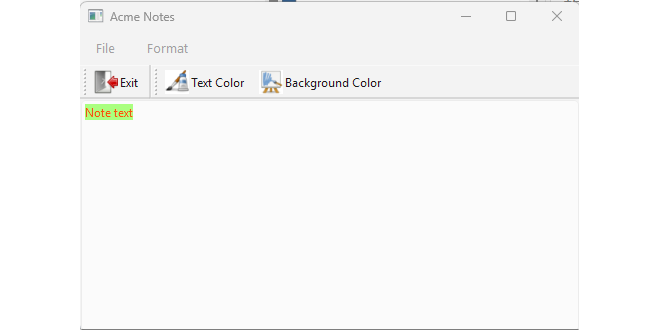
Provide a way for users to display the dialog. In the main window’s
__init__(), create actions for selecting the foreground and background colors. Connect the actions to the slots and add them to the main window’s menu bar and toolbar.Show the dialog. We want both dialogs to open with the current text colors.
foreground()andbackground()areQBrushobjects, so we extract their colors and use them as the dialogs’ initial colors.If the dialog returns a valid color use it in your application. Unlike
QInputDialogandQFileDialog,QColorDialogdoes not return a tuple - it always returns aQColorobject, so we need to check if itisValid()to confirm that the user pressed Ok.
13.5 Font Selection with QFontDialog
QFontDialog provides a dialog for selecting a font. It is created by invoking one of the static getFont() methods1:
getFont(parent)getFont(initial, parent, title, options)
|
You need to add font selection to your note-taking application’s formatting toolbar. You use a font dialog to let users choose family, style, size, and effects. |
To use a font dialog in your application:
 1 import sys
 2 from PySide6.QtCore import Qt, Slot
 3 from PySide6.QtGui import QAction, QIcon
 4 from PySide6.QtWidgets import (QApplication, QMainWindow,
 5     QTextEdit, QFontDialog)
 6
 7
 8 class Editor(QMainWindow):
 9
10     def __init__(self, parent=None):
11
12         super().__init__(parent)
13         self.setWindowTitle('Acme Notes')
14         self.resize(500, 300)
15
16         self.text_edit = QTextEdit()
17         self.setCentralWidget(self.text_edit)
18
19         self.exit_action = QAction(self)
20         self.exit_action.setText('Exit')
21         self.exit_action.setShortcut('Alt+X')
22         self.exit_action.setIcon(QIcon('./icons/exit.png'))
23         self.exit_action.triggered.connect(self.close)
24
25         # 1. Create an action to trigger the dialog.
26
27         self.font_action = QAction(self)
28         self.font_action.setText('Set Font')
29         self.font_action.setIcon(QIcon('./icons/font.png'))
30         self.font_action.triggered.connect(self.set_font)
31
32         menu_bar = self.menuBar()
33         file_menu = menu_bar.addMenu('&File')
34         file_menu.addAction(self.exit_action)
35
36         format_menu = menu_bar.addMenu('F&ormat')
37         format_menu.addAction(self.font_action)
38
39         file_toolbar = self.addToolBar('File')
40         file_toolbar.addAction(self.exit_action)
41         file_toolbar.setToolButtonStyle(
42             Qt.ToolButtonStyle.ToolButtonTextBesideIcon)
43
44         format_toolbar = self.addToolBar('Format')
45         format_toolbar.addAction(self.font_action)
46         format_toolbar.setToolButtonStyle(
47             Qt.ToolButtonStyle.ToolButtonTextBesideIcon)
48
49     # 2. Show the dialog to the user.
50
51     @Slot()
52     def set_font(self):
53
54         initial = self.text_edit.currentCharFormat().font()
55         ok, font = QFontDialog.getFont(initial, self, 'Choose Font')
56
57         # 3. If the user presses Ok, update the font.
58
59         if ok:
60             self.text_edit.setCurrentFont(font)
61
62
63 if __name__ == '__main__':
64
65     app = QApplication(sys.argv)
66     editor = Editor()
67     editor.show()
68     sys.exit(app.exec())
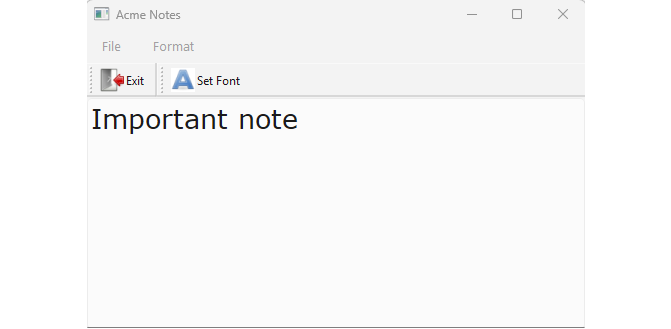
Create an action to trigger the dialog.
Show the dialog to the user. In
set_font(), we get the currentQFontfrom the text edit’scurrentCharFormat()and pass it togetFont()so the dialog opens with that font selected.If the user presses Ok, update the font.
getFont()returns a tuple where the first element,ok, is true if the user pressed Ok and false otherwise. The second element is aQFontobject representing the font the user selected.
13.6 Creating Custom Dialogs by Subclassing QDialog
Standard dialogs are straightforward to use - you display them using static methods and handle the result based on which button the user pressed. They are designed to fit most common use cases like showing messages, choosing colors, files and folders, fonts, and accepting user input. For more complex or custom dialogs, however, you can subclass the QDialog class and create your own.
QDialog is the base class of all the Qt standard dialogs, implementing the slots common to all of them:
| Slot | Description |
|---|---|
accept() |
Closes dialog with Accepted result |
done(int r) |
Closes dialog with specified result code |
exec() |
Shows dialog modally, returns result code |
open() |
Shows dialog non-modally |
reject() |
Closes dialog with Rejected result |
and their common methods:
| Method | Description |
|---|---|
isSizeGripEnabled() |
Returns if resize grip is enabled |
result() |
Returns the dialog’s result code |
setModal(bool) |
Sets whether dialog is modal |
setResult(int) |
Sets the dialog’s result code |
setSizeGripEnabled(bool) |
Enables/disables resize grip |
signals:
| Signal | Description |
|---|---|
accepted() |
Emitted when dialog is accepted |
finished(int) |
Emitted when dialog closes with result code |
rejected() |
Emitted when dialog is rejected |
and properties:
| Property | Description |
|---|---|
modal |
Whether dialog blocks input to other windows |
sizeGripEnabled |
Whether dialog has a resize grip |
The QDialogButtonBox class, commonly used with QDialog, automatically arranges standard buttons in a layout appropriate for the user’s desktop environment. For instance, Windows places the OK button before Cancel, while Gnome reverses this order.
|
For a user preferences panel in your application, you need a dialog with multiple input fields and buttons. Create a custom dialog subclass to organize these elements and handle acceptance/rejection. |
To create a custom Qt dialog:
 1 from PySide6.QtWidgets import (QDialog, QVBoxLayout,
 2     QCheckBox, QSpinBox, QLabel, QDialogButtonBox,
 3     QHBoxLayout)
 4
 5 # 1. Create a QDialog subclass.
 6
 7 class SettingsDialog(QDialog):
 8
 9     def __init__(self, settings, parent=None):
10
11         super().__init__(parent)
12         self.setWindowTitle('Settings')
13         self.setModal(True)
14
15         # 2. Add the child widgets to the dialog.
16
17         self.setLayout(QVBoxLayout())
18         self.settings = settings
19
20         self.autosave_checkbox = QCheckBox('Autosave Note')
21         self.autosave_checkbox.setChecked(
22             self.settings.value('autosave', True, type=bool))
23         self.autosave_checkbox.toggled.connect(self.toggle_interval)
24
25         self.autosave_interval_spinbox = QSpinBox()
26         self.autosave_interval_spinbox.setRange(1, 60)
27         self.autosave_interval_spinbox.setSuffix(' min')
28         self.autosave_interval_spinbox.setValue(
29             self.settings.value('interval', 10, type=int))
30         self.autosave_interval_spinbox.setEnabled(
31             self.autosave_checkbox.isChecked())
32
33         self.remember_last_checkbox = QCheckBox(
34             'Remember Last Edited Note')
35         self.remember_last_checkbox.setChecked(
36             self.settings.value(
37                 'remember_last', True, type=bool))
38
39         # 3. Add QDialogButtonBox to the dialog.
40
41         self.button_box = QDialogButtonBox(
42             QDialogButtonBox.StandardButton.Ok |
43             QDialogButtonBox.StandardButton.Cancel)
44
45         self.button_box.accepted.connect(self.accept)
46         self.button_box.rejected.connect(self.reject)
47
48         self.layout().addWidget(self.autosave_checkbox)
49         inner_layout = QHBoxLayout()
50         inner_layout.addWidget(QLabel('Autosave Interval:'))
51         inner_layout.addWidget(self.autosave_interval_spinbox)
52         self.layout().addLayout(inner_layout)
53         self.layout().addWidget(self.remember_last_checkbox)
54         self.layout().addWidget(self.button_box)
55
56     def toggle_interval(self, checked):
57         self.autosave_interval_spinbox.setEnabled(checked)
58
59     def save_settings(self):
60
61         self.settings.setValue('autosave',
62             self.autosave_checkbox.isChecked())
63         self.settings.setValue('interval',
64             self.autosave_interval_spinbox.value())
65         self.settings.setValue('remember_last',
66             self.remember_last_checkbox.isChecked())
67
68     def accept(self):
69         self.save_settings()
70         super().accept()
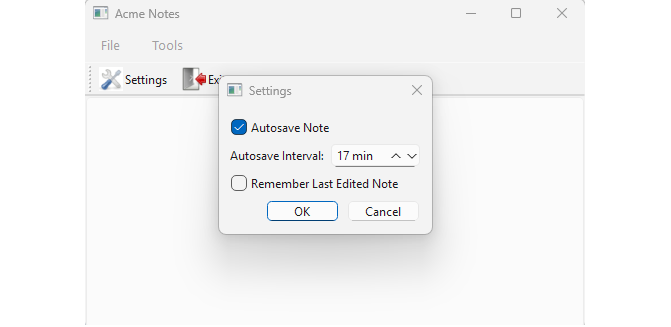
Create a
QDialogsubclass. We create a class namedSettingsDialog, set its window title and set it to be modal.-
Add the child widgets to the dialog. In the example, we create three widgets:
- A checkbox to set whether the application should auto-save the current note or not,
- A spinbox to set the auto-save interval,
- A checkbox to make the application reopen the last edited note. The spinbox is enabled only if the auto-save checkbox is checked and lets the user select values between one and sixty minutes.
Add
QDialogButtonBoxto the dialog. We want the application to have a native look on multiple platforms so we add a button box with the Ok and Cancel buttons. We also connect the button boxacceptedsignal toaccept()and therejectedsignal toreject(). The current widget values are saved to a .ini file usingQSettings.
 1 import sys
 2 from PySide6.QtCore import Qt, QSettings
 3 from PySide6.QtGui import QAction, QIcon
 4 from PySide6.QtWidgets import (QApplication,
 5     QMainWindow, QTextEdit)
 6 from settingsdialog import SettingsDialog
 7
 8 # 4. Use the dialog.
 9
10 class Editor(QMainWindow):
11
12     def __init__(self, parent=None):
13
14         super().__init__(parent)
15         self.setWindowTitle('Acme Notes')
16         self.resize(500, 300)
17
18         self.text_edit = QTextEdit()
19         self.setCentralWidget(self.text_edit)
20
21         self.settings = QSettings('./settings.ini',
22             QSettings.Format.IniFormat)
23
24         self.exit_action = QAction(self)
25         self.exit_action.setText('E&xit')
26         self.exit_action.setShortcut('Alt+X')
27         self.exit_action.setIcon(QIcon('./icons/exit.png'))
28         self.exit_action.triggered.connect(self.close)
29
30         self.settings_action = QAction(self)
31         self.settings_action.setText('&Settings')
32         self.settings_action.setIcon(QIcon('./icons/settings.png'))
33         self.settings_action.triggered.connect(self.show_settings)
34
35         menu_bar = self.menuBar()
36         file_menu = menu_bar.addMenu('&File')
37         file_menu.addAction(self.exit_action)
38
39         tools_menu = menu_bar.addMenu('&Tools')
40         tools_menu.addAction(self.settings_action)
41
42         file_toolbar = self.addToolBar('File')
43         file_toolbar.addAction(self.settings_action)
44         file_toolbar.addAction(self.exit_action)
45         file_toolbar.setToolButtonStyle(
46             Qt.ToolButtonStyle.ToolButtonTextBesideIcon)
47
48     def show_settings(self):
49         dialog = SettingsDialog(self.settings, self)
50         dialog.exec()
51
52
53 if __name__ == '__main__':
54
55     app = QApplication(sys.argv)
56     editor = Editor()
57     editor.show()
58     sys.exit(app.exec())
- Use the custom dialog in your application. In the main window, we create the settings action and, when it’s triggered, show our custom dialog so the user can edit the settings.
https://doc.qt.io/qt-6/qfontdialog.html↩︎