19. Events
In the Qt framework, events are objects derived from the QEvent class that represent things that have happened either within an application or as a result of outside activity and that require handling. Events are especially relevant for Qt widgets, as they allow widgets to react to changes such as mouse movements, keyboard presses, timers firing, or object deletion. The event system relies on Qt’s event loop, which processes queued events and dispatches them to the appropriate QObject receivers. Developers can customize event handling by reimplementing virtual event methods in subclasses, providing fine-grained control over application behavior. Common event types include QMouseEvent for pointer interactions, QKeyEvent for keyboard actions, and QPaintEvent for rendering updates[^1].
There are five ways events can be processed:
- Reimplementing type-specific event handler methods like
mousePressEvent(). - Reimplementing the
QObject.event()method. - Installing an event filter on the object.
- Installing an event filter on the
QCoreApplicationinstance. - Reimplementing the
QCoreApplication.notify()method[^2].
19.1 Event Handlers
A Qt class’s main event handler is the event() method. When an event occurs, this method receives a QEvent object representing it. Typically, it does not handle the event itself but instead calls the appropriate type-specific event handler. You can reimplement the base class’s event handler completely, in which case you must implement all handling yourself, or handle only certain event types and call the base class method for others.
 |
Whenever your application’s main window becomes visible on the screen, add it to the list of visible windows. When it becomes hidden, remove it from the list. Your additional task is to record and suppress key press events when the user presses the letter ‘q’. |
To use event handlers in your application:
 1 import sys
 2 from PySide6.QtCore import Qt, QEvent
 3 from PySide6.QtWidgets import (QApplication,
 4     QWidget, QLabel, QVBoxLayout)
 5
 6 class Window(QWidget):
 7
 8     def __init__(self):
 9
10         super().__init__()
11
12         self.resize(300, 200)
13         layout = QVBoxLayout()
14         self.setLayout(layout)
15
16         self.label = QLabel('Hello, events!')
17         self.label.setAlignment(Qt.AlignCenter)
18         layout.addWidget(self.label)
19
20     # Centralized event handler
21
22     def event(self, event):
23         if event.type() == QEvent.Type.KeyPress:
24             print(f'Intercepted key pressed: {event.text()}')
25             #return True
26         if event.type() == QEvent.Type.Show:
27             print('Intercepted show event')
28             #return True
29         return super().event(event)
30
31     # Specialized event handlers
32
33     # 1. Extend the keyPressEvent() method
34
35     def keyPressEvent(self, event):
36         if event.text() == 'q':
37             print(f'isAccepted: {event.isAccepted()}')
38             self.label.setText('q pressed')
39         else:
40             self.label.clear()
41             super().keyPressEvent(event)
42
43     # 2. Extend the showEvent() method
44
45     def showEvent(self, event):
46         self.label.setText('Added to visible windows list')
47         super().showEvent(event)
48
49     # 3. Extend the hideEvent() method.
50
51     def hideEvent(self, event):
52         self.label.clear()
53         print('Removed from visible windows list')
54         super().hideEvent(event)
55
56 if __name__ == '__main__':
57
58     app = QApplication(sys.argv)
59     main_window = Window()
60     main_window.show()
61     sys.exit(app.exec())
Reimplement the
keyPressEvent()method. To suppress the ‘q’ key presses, check ifevent.text()equals ‘q’. If it does, record it in a label. SinceQKeyEvent.isAccepted()isTrueby default, this suppresses the ‘q’ key presses. For all other key presses, call the base classkeyPressEvent().Reimplement the
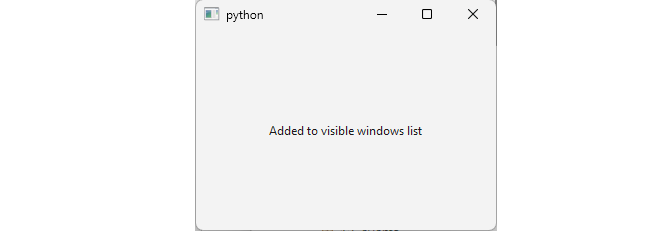
showEvent()method. Simulate adding the window to a visible windows list by recording the event in the label, then call the base classshowEvent().Reimplement the
hideEvent()method. When the window is hidden, the label is also hidden, so simulate removing the window from the visible windows list by printing a message. Then call the base classhideEvent()for further processing.
The event() method dispatches events to type-specific event handlers like showEvent() or keyPressEvent(). While you can use it to handle events directly, the documentation recommends using type-specific handlers instead. In the example, we intercept key press and show events in event() and print a message for each, then call the base class event() for further processing. You can also use event() to suppress events - if you uncomment the two return True statements, events never reach keyPressEvent() and showEvent().
19.2 Object Event Filters
In the previous section we saw how to intercept events by reimplementing a QObject’s event() method before the events reach the type-specific event handlers. Sometimes, however, you need to monitor or suppress events destined for objects that you cannot (or do not want to) subclass in order to reimplement event(). This is achieved by installing an event filter.
|
Your task is to log mouse press events for a group of buttons while completely suppressing clicks on one particular button. |
To use an event filter in your application:
 1 import sys
 2
 3 from PySide6.QtCore import QObject, QEvent
 4 from PySide6.QtWidgets import (QApplication,
 5     QWidget, QPushButton, QVBoxLayout)
 6
 7 # 1. Create a class and implement its eventFilter() method.
 8
 9 class MousePressFilter(QObject):
10
11     def eventFilter(self, watched, event):
12         if event.type() == QEvent.Type.MouseButtonPress:
13             print('Filter mouse press for: ', watched.objectName())
14             if watched.objectName() == 'button2':
15                 return True
16         return super().eventFilter(watched, event)
17
18
19 class Window(QWidget):
20
21     def __init__(self, parent=None):
22
23         super().__init__(parent)
24
25         layout = QVBoxLayout()
26         self.setLayout(layout)
27
28         button1 = QPushButton('Button 1')
29         button1.setObjectName('button1')
30         button2 = QPushButton('Button 2')
31         button2.setObjectName('button2')
32         button3 = QPushButton('Button 3')
33         button3.setObjectName('button3')
34
35         # 2. Create the event filter object.
36
37         event_filter = MousePressFilter(self)
38
39         # 3. Install the event filter for the target objects.
40
41         button1.installEventFilter(event_filter)
42         button2.installEventFilter(event_filter)
43         button3.installEventFilter(event_filter)
44
45         button1.clicked.connect(self.on_button_clicked)
46         button2.clicked.connect(self.on_button_clicked)
47         button3.clicked.connect(self.on_button_clicked)
48
49         layout.addWidget(button1)
50         layout.addWidget(button2)
51         layout.addWidget(button3)
52         layout.addStretch()
53
54     def on_button_clicked(self):
55         print('Button clicked: ', self.sender().objectName())
56
57
58 if __name__ == '__main__':
59
60     app = QApplication(sys.argv)
61     main_window = Window()
62     main_window.show()
63     sys.exit(app.exec())
- Create a class that inherits from
QObjectand reimplement itseventFilter()method. The signature is:
1 def eventFilter(self, watched: QObject, event: QEvent) -> bool
The watched parameter refers to the object receiving the event. In this example, we check for MouseButtonPress events, log them to the console, and return True for button2 to consume the event (preventing further processing, including the clicked() signal). For all other cases, we return the result of the base class implementation.
Instantiate the event filter object (in this case, a
MousePressFilterinstance namedevent_filter).Install the event filter on each target widget using
installEventFilter().
If you delete the watched object inside eventFilter(), you need to return True, otherwise the application might crash.
The output is:
1 Filter mouse press for:  button1
2 Button clicked:  button1
3 Filter mouse press for:  button2
4 Filter mouse press for:  button3
5 Button clicked:  button3
Consuming an event means stopping it from being processed further. The clicked() signal requires Qt to process both a mouse press and a mouse release on the button. By consuming the MouseButtonPress event in the filter, the button never receives the press event, so it can’t recognize a complete click action.

Event filters can be chained, meaning you can install multiple filters on the same object. When an event occurs, Qt calls the filters in reverse order of installation.
19.3 Application-Wide (Global) Event Filters
In the previous section, we installed an event filter on individual buttons. A global event filter, installed on the QApplication object, can intercept all events for all widgets in the application - including mouse events that would normally be ignored by disabled widgets.
|
You want users to be able to “click” disabled buttons (i.e., trigger their clicked signal) without re-enabling them visually or functionally. |
To implement a global event filter:
 1 import sys
 2
 3 from PySide6.QtCore import QObject, QEvent
 4 from PySide6.QtWidgets import (QApplication, QWidget,
 5     QPushButton, QVBoxLayout)
 6
 7
 8 # 1. Create the event filter class.
 9
10 class MousePressFilter(QObject):
11
12     def eventFilter(self, watched, event):
13         if event.type() == QEvent.Type.MouseButtonPress:
14             print('Filter mouse press for: ', watched.objectName())
15             if isinstance(watched, QPushButton):
16                 if not watched.isEnabled():
17                     watched.clicked.emit()
18                     return True
19         return super().eventFilter(watched, event)
20
21
22 class Window(QWidget):
23
24     def __init__(self):
25
26         super().__init__()
27
28         self.setObjectName('Main Window')
29
30         layout = QVBoxLayout()
31         self.setLayout(layout)
32
33         button1 = QPushButton('Button 1')
34         button1.setObjectName('button1')
35         button1.clicked.connect(self.on_button_clicked)
36
37         button2 = QPushButton('Button 2')
38         button2.setObjectName('button2')
39         button2.clicked.connect(self.on_button_clicked)
40         button2.setDisabled(True)
41
42         button3 = QPushButton('Button 3')
43         button3.setObjectName('button3')
44         button3.clicked.connect(self.on_button_clicked)
45
46         layout.addWidget(button1)
47         layout.addWidget(button2)
48         layout.addWidget(button3)
49         layout.addStretch()
50
51     def on_button_clicked(self):
52         print('Button clicked: ', self.sender().objectName())
53
54
55 if __name__ == '__main__':
56
57     app = QApplication(sys.argv)
58
59     # 2. Instantiate the event filter object.
60
61     filter_obj = MousePressFilter(app)
62
63     # 3. Install the event filter on the application.
64
65     app.installEventFilter(filter_obj)
66
67     main_window = Window()
68     main_window.show()
69     sys.exit(app.exec())
Create the event filter class. Reimplement
eventFilter()to detectMouseButtonPressevents. If the target widget (thewatchedparameter) is a disabledQPushButton, manually emit itsclicked()signal and consume the event by returningTrue.Instantiate the filter object, passing the
QApplicationinstance as its parent.Install the filter on the
QApplicationinstance usingQApplication.installEventFilter().
Sample console output when clicking each button in order:
1 Filter mouse press for:  Main WindowWindow
2 Filter mouse press for:  button1
3 Button clicked:  button1
4 Filter mouse press for:  Main WindowWindow
5 Filter mouse press for:  button2
6 Button clicked:  button2
7 Filter mouse press for:  Main WindowWindow
8 Filter mouse press for:  button3
9 Button clicked:  button3
Note that the filter receives each mouse press event twice. Qt delivers them first to the QWindow instance associated with the application top-level window (‘Main WindowWindow’), then to the specific button under the mouse. Since the filter is installed globally, it intercepts the event at both stages.
This approach bypasses Qt’s normal disabled-state behavior. Disabled buttons will emit clicked() signals but won’t show visual press feedback. Application-wide filters see every event in your application, so keep the eventFilter() method efficient to avoid performance issues.
19.4 Event Propagation
The QCoreApplication.notify() method delivers all events to their receiver objects. Certain event types, such as mouse and key events, propagate up the parent widget chain if the receiver ignores them (i.e., does not accept the event).
|
Your application requires users to create an account. To better understand how they interact with the “Create account” dialog (for usability testing or debugging) you want to log every mouse click and keyboard press, including which widget received the event and how events propagate when not handled. |
To implement a global activity logger:
 1 import sys
 2 from PySide6.QtCore import QObject, QEvent, Qt
 3 from PySide6.QtWidgets import (QApplication, QWidget,
 4     QGroupBox, QVBoxLayout, QLineEdit, QLabel, QCheckBox)
 5
 6
 7 # 1. Create the event filter class.
 8
 9 class EventFilter(QObject):
10
11     def eventFilter(self, watched, event):
12         if event.type() == QEvent.Type.MouseButtonPress:
13             print('Log: mouse pressed in ', watched.objectName())
14         if event.type() == QEvent.Type.KeyPress:
15             print('Log: key pressed in ', watched.objectName())
16         return super().eventFilter(watched, event)
17
18 class Window(QWidget):
19
20     def __init__(self):
21         super().__init__()
22         self.setObjectName('MainWindow')
23
24         layout = QVBoxLayout(self)
25
26         self.outer_groupbox = QGroupBox('Outer GroupBox')
27         self.outer_groupbox.setObjectName('outer_groupbox')
28         self.outer_groupbox.setLayout(QVBoxLayout())
29
30         self.inner_groupbox = QGroupBox('Inner GroupBox')
31         self.inner_groupbox.setObjectName('inner_groupbox')
32         self.inner_groupbox.setLayout(QVBoxLayout())
33         self.outer_groupbox.layout().addWidget(self.inner_groupbox)
34
35         # 3. Create the user registration form.
36
37         self.username_edit = QLineEdit()
38         self.username_edit.setPlaceholderText('User name')
39         self.username_edit.setObjectName('line_edit')
40         self.username_edit.textChanged.connect(self.update_email)
41         self.inner_groupbox.layout().addWidget(self.username_edit)
42
43         self.email_label = QLabel()
44         self.email_label.setObjectName('label')
45         self.email_label.setFocusPolicy(Qt.FocusPolicy.StrongFocus)
46         self.email_label.setTextInteractionFlags(
47             Qt.TextInteractionFlag.TextSelectableByKeyboard |
48             Qt.TextInteractionFlag.TextSelectableByMouse)
49         self.inner_groupbox.layout().addWidget(self.email_label)
50
51         self.email_checkbox = QCheckBox('Enable email notifications')
52         self.email_checkbox.setObjectName('checkbox')
53         self.inner_groupbox.layout().addWidget(self.email_checkbox)
54
55         layout.addWidget(self.outer_groupbox)
56         layout.addStretch()
57
58     def update_email(self, text):
59         if text:
60             self.email_label.setText(f'{text}@domain.com')
61         else:
62             self.email_label.clear()
63
64
65 if __name__ == '__main__':
66
67     app = QApplication(sys.argv)
68
69     # 2. Instantiate and install the filter.
70
71     event_filter = EventFilter(app)
72     app.installEventFilter(event_filter)
73
74     main_window = Window()
75     main_window.show()
76     sys.exit(app.exec())
Create an
EventFilterclass inheriting fromQObject. In itseventFilter()method, detectMouseButtonPressandKeyPressevents and log them to the console.In the main section, after creating the
QApplication, instantiate the filter and install it globally usingQApplication.installEventFilter().-
Create the main window as a
QWidgetcontaining:- A
QLineEditfor entering the user name, - A
QLabelbelow it displaying the generated e-mail address. Make the text selectable so users can copy it. - A checkbox to enable email notifications.
The widgets are nested inside two QGroupBox containers to create a clear parent hierarchy.
Here is a sample output from typical interactions:
 1 Log: key pressed in  MainWindowWindow
 2 Log: key pressed in  line_edit
 3 Log: mouse pressed in  MainWindowWindow
 4 Log: mouse pressed in  checkbox
 5 Log: mouse pressed in  MainWindowWindow
 6 Log: mouse pressed in  label
 7 Log: key pressed in  MainWindowWindow
 8 Log: key pressed in  label
 9 Log: key pressed in  inner_groupbox
10 Log: key pressed in  outer_groupbox
11 Log: key pressed in  MainWindow
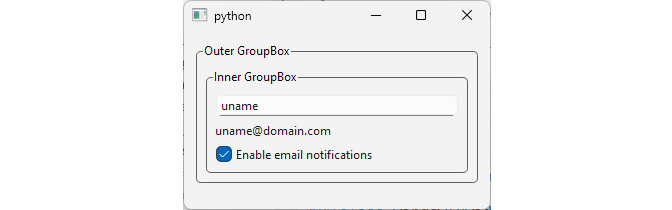
Because the filter is installed globally, it sees events at every step of delivery and propagation. Interactive widgets like the line edit and checkbox accept most events they receive, stopping further propagation. The label behaves differently: it accepts mouse presses but ignores most key presses. As a result, key events on the label propagate up through the inner group box, the outer group box, and finally the main window.
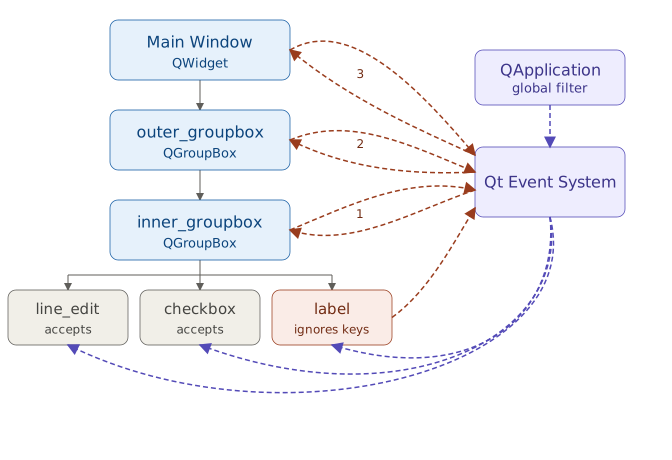
As in section 19.3, the QWindow object named ‘MainWindowWindow’ is the first to receive the event.
19.5 Custom Events
Qt allows you to define and post your own event types, extending the event system for application-specific needs. Custom events are processed in the event loop like built-in events and can be handled in the customEvent() handler, event(), or via event filters.
To create a custom event:
- Register a unique type with
QEvent.registerEventType(). - Subclass
QEventand add data attributes. - Post instances to receivers using
QApplication.postEvent(receiver, event).
|
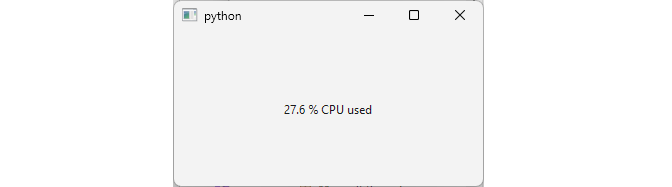
Your task is to create a custom Qt event whenever the current CPU usage percent exceeds a threshold. The event should hold the CPU usage percent as the data. |
To create a custom Qt event that represents CPU usage changes:
 1 import sys
 2 import psutil
 3 from PySide6.QtCore import Qt, QEvent, QTimer, QObject
 4 from PySide6.QtWidgets import (QApplication,
 5     QWidget, QLabel, QVBoxLayout)
 6
 7 # 1. Create a custom event class.
 8
 9 class CpuUsageEvent(QEvent):
10
11     event_type = QEvent.Type(QEvent.registerEventType())
12
13     def __init__(self, cpu_percent):
14         super().__init__(CpuUsageEvent.event_type)
15         self.cpu_percent = cpu_percent
16
17 class CpuUsageEventFilter(QObject):
18
19     def eventFilter(self, watched, event):
20         if event.type() == CpuUsageEvent.event_type:
21             print('In eventFilter(): ', event.cpu_percent)
22             watched.setText(f'{event.cpu_percent} % CPU used')
23         return super().eventFilter(watched, event)
24
25 class Window(QWidget):
26
27     THRESHOLD = 10 # CPU percent
28
29     def __init__(self):
30
31         super().__init__()
32         self.resize(300, 200)
33
34         layout = QVBoxLayout()
35         self.setLayout(layout)
36
37         self.label = QLabel()
38         self.label.setAlignment(Qt.AlignCenter)
39
40         self.filter = CpuUsageEventFilter()
41         self.label.installEventFilter(self.filter)
42         layout.addWidget(self.label)
43
44         self.timer = QTimer()
45         self.timer.setInterval(1000)
46         self.timer.timeout.connect(self.on_timeout)
47         self.timer.start()
48
49     def on_timeout(self):
50         cpu_percent = psutil.cpu_percent(interval=None)
51         if cpu_percent > self.THRESHOLD:
52             # 3. Create an event object and post it.
53             QApplication.postEvent(self.label, CpuUsageEvent(cpu_percent))
54             QApplication.postEvent(self, CpuUsageEvent(cpu_percent))
55         else:
56             self.label.clear()
57
58     def event(self, event):
59         if event.type() == CpuUsageEvent.event_type:
60             print('In event(): ', event.cpu_percent)
61         return super().event(event)
62
63     def customEvent(self, event):
64         if event.type() == CpuUsageEvent.event_type:
65             print('In customEvent(): ', event.cpu_percent)
66
67
68 if __name__ == '__main__':
69
70     app = QApplication(sys.argv)
71     main_window = Window()
72     main_window.show()
73     sys.exit(app.exec())
Define a custom event class
CpuUsageEventthat inherits fromQEventand carries the used CPU percent value. UseQEvent.registerEventType()to assign a unique type to the class.Use a
QTimerwith an interval of 1000 ms to periodically poll the CPU usage percent withpsutil.cpu_percent.If the CPU percent exceeds the threshold, create an event and add it to the event queue via
QApplication.postEvent().
Note that custom events do not automatically propagate up the widget hierarchy like mouse or key events.
19.6 Event Delivery Order
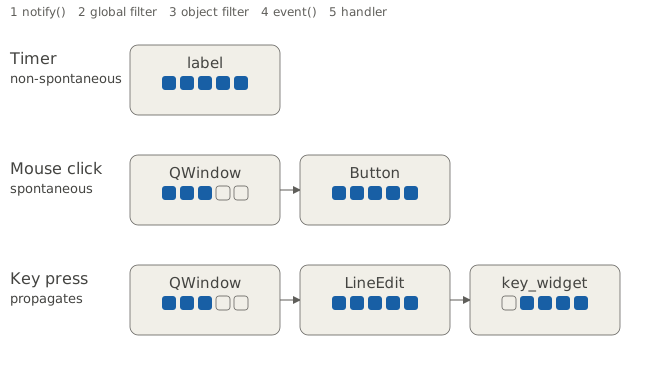
In the chapter introduction we listed five different ways that events can be processed. So far we have covered four of them, each more powerful than the previous one:
- Type-specific event handler methods like
keyPressEvent(), capable of intercepting a single event type of a single Qt class. - The main event handler (
event()), capable of intercepting all event types for a Qt class that reimplements it. - Object event filters, which can intercept all event types for the object on which they are installed (which is not necessarily the object in which they are defined).
- Global event filters, that can intercept all events for all widgets in the application.
What we haven’t seen is an example of the fifth way, reimplementing QCoreApplication.notify(). If you look up this method in the documentation you will find this warning:
Future direction: This function will not be called for objects that live outside the main thread in Qt 7. Applications that need that functionality should find other solutions for their event inspection needs in the meantime. The change may be extended to the main thread, causing this function to be deprecated.
Reimplementing notify() gives you complete control, and is as powerful as installing a global event filter, but may be deprecated in the future.
Having multiple event-handling mechanisms like these at your disposal lets you exercise fine-grained control over your application’s events, but also presents you with a problem: they can all be used simultaneously, and you need to be aware of the order in which an event is processed by each of them. Examining event delivery order is the subject of this section.
Based on their origin, Qt events can be either:
- Spontaneous - originating outside the application (e.g., from the window system).
- Non-spontaneous - generated within the application (e.g., by a
QTimer).
Event delivery order differs somewhat depending on the event type. Let’s first examine how non-spontaneous events are delivered.
 1 import sys
 2 from PySide6.QtCore import QObject, QEvent
 3 from PySide6.QtWidgets import QApplication, QWidget, QLabel, QVBoxLayout
 4
 5
 6 def report_layer(layer, receiver, event):
 7     print(layer,
 8           f'rec: {receiver.objectName()}, ',
 9           f'evt id: {id(event)}, ',
10           f'timer id: {event.timerId()}')
11
12
13 class TracingApplication(QApplication):
14
15     def notify(self, receiver, event):
16         if event.type() == QEvent.Type.Timer:
17             report_layer('1. notify()       -', receiver, event)
18         return super().notify(receiver, event)
19
20
21 class GlobalEventFilter(QObject):
22
23     def eventFilter(self, watched, event):
24         if event.type() == QEvent.Type.Timer:
25             report_layer('2. Global filter  -', watched, event)
26         return super().eventFilter(watched, event)
27
28
29 class ObjectEventFilter(QObject):
30
31     def eventFilter(self, watched, event):
32         if event.type() == QEvent.Type.Timer:
33             report_layer('3. Object filter  -', watched, event)
34         return super().eventFilter(watched, event)
35
36
37 class TrackedLabel(QLabel):
38
39     def __init__(self, text, parent=None):
40         super().__init__(text, parent)
41         self.setObjectName('label')
42         timer_id = self.startTimer(2000)
43         print(f'Timer id {timer_id} started\n')
44
45     def event(self, event):
46         if event.type() == QEvent.Type.Timer:
47             report_layer('4. event()        -', self, event)
48         return super().event(event)
49
50     def timerEvent(self, event):
51         report_layer('5. timerEvent()   -', self, event)
52
53
54 class TimerWidget(QWidget):
55
56     def __init__(self):
57
58         super().__init__()
59         layout = QVBoxLayout()
60         self.setLayout(layout)
61         self.label = TrackedLabel('A TrackedLabel')
62         layout.addWidget(self.label)
63
64         self.setObjectName('timer_widget')
65
66         self.object_filter = ObjectEventFilter()
67         self.label.installEventFilter(self.object_filter)
68
69     def event(self, event):
70         if event.type() == QEvent.Type.Timer:
71             report_layer('4. event()        -', self, event)
72         return super().event(event)
73
74     def timerEvent(self, event):
75         report_layer('5. timerEvent()   -', self, event)
76
77
78 if __name__ == '__main__':
79
80     app = TracingApplication(sys.argv)
81     global_filter = GlobalEventFilter()
82     app.installEventFilter(global_filter)
83
84     window = TimerWidget()
85     window.show()
86
87     window.windowHandle().installEventFilter(window.object_filter)
88
89     sys.exit(app.exec())
The first script tracks every QTimerEvent as it passes through Qt’s five event-delivery layers. To make the path visible we simply call a small reporting function at each layer:
1 def report_layer(layer, receiver, event):
2     print(layer,
3           f'rec: {receiver.objectName()}, ',
4           f'evt id: {id(event)}, ',
5           f'timer id: {event.timerId()}')
The function prints the layer name, the receiver’s objectName(), the Python identity of the event object, and the Qt timer ID.
To intercept QApplication.notify(), we subclass QApplication as TracingApplication and reimplement notify(). For the two filter layers we create two QObject subclasses, GlobalEventFilter and ObjectEventFilter, each reimplementing eventFilter(). Finally, we create a QLabel subclass named TrackedLabel and reimplement event() and timerEvent() in both TrackedLabel and TimerWidget, the main application window. All five points of interception:
TracingApplication.notify(),GlobalEventFilter.eventFilter(),ObjectEventFilter.eventFilter(),TrackedLabel.event(),TrackedLabel.timerEvent(),
filter out the timer events (event.type() == QEvent.Type.Timer), call report_layer(), and forward the event to the next layer. In TimerWidget.__init__() we:
- Create a
TrackedLabeland add it to theTimerWidgetlayout. - Install an object event filter on the label.
- Start a timer on the label with
startTimer()- it is the label that is the receiver from this point on.
In the application entry point we install a global event filter on the QApplication instance, and separately install that same object filter on the widget’s associated QWindow object (window.windowHandle()).
Running the application produces output similar to:
1 Timer id 1 started
2
3 1. notify()       - rec: label,  evt id: 2431584320384,  timer id: 1
4 2. Global filter  - rec: label,  evt id: 2431584320384,  timer id: 1
5 3. Object filter  - rec: label,  evt id: 2431584320384,  timer id: 1
6 4. event()        - rec: label,  evt id: 2431584320384,  timer id: 1
7 5. timerEvent()   - rec: label,  evt id: 2431584320384,  timer id: 1
A timer event is created and passes through the five layers in fixed order:
QApplication.notify().- Global event filter.
- Object-level event filter.
- The label’s main event handler (
TrackedLabel.event()). - The type-specific event handler (
TrackedLabel.timerEvent()).
Two things are worth noting about what doesn’t fire here. TimerWidget also reimplements event() and timerEvent(), but neither ever runs - the timer belongs to the label, so TimerWidget is simply never the receiver. Separately, the object filter installed on TimerWidget’s QWindow never runs either, for an unrelated reason: a QTimerEvent is generated entirely within Qt’s own event loop and delivered directly to whichever object started the timer, with no QWindow involved at any point.
Let’s now see how spontaneous events are delivered. The second script tracks QMouseEvents as they are delivered to a button that reimplements event() and mousePressEvent() (TrackedButton):
 1 import sys
 2 from PySide6.QtCore import QObject, QEvent
 3 from PySide6.QtWidgets import (QApplication, QWidget,
 4     QPushButton, QVBoxLayout)
 5
 6
 7 def report_layer(layer, receiver, event):
 8     x = int(event.position().x())
 9     y = int(event.position().y())
10     print(layer,
11           f'rec: {receiver.objectName()}, ',
12           f'id: {id(event)}, ',
13           f'pos: ({x}, {y})')
14
15
16 class TracingApplication(QApplication):
17
18     def notify(self, receiver, event):
19         if event.type() == QEvent.Type.MouseButtonPress:
20             report_layer('1. notify()          -', receiver, event)
21         return super().notify(receiver, event)
22
23
24 class GlobalEventFilter(QObject):
25
26     def eventFilter(self, watched, event):
27         if event.type() == QEvent.Type.MouseButtonPress:
28             report_layer('2. Global filter     -', watched, event)
29         return super().eventFilter(watched, event)
30
31
32 class ObjectEventFilter(QObject):
33
34     def eventFilter(self, watched, event):
35         if event.type() == QEvent.Type.MouseButtonPress:
36             report_layer('3. Object filter     -', watched, event)
37         return super().eventFilter(watched, event)
38
39
40 class TrackedButton(QPushButton):
41
42     def event(self, event):
43         if event.type() == QEvent.Type.MouseButtonPress:
44             report_layer('4. event()           -', self, event)
45         return super().event(event)
46
47     def mousePressEvent(self, event):
48         report_layer('5. mousePressEvent() -', self, event)
49         super().mousePressEvent(event)
50
51
52 class MouseWidget(QWidget):
53
54     def __init__(self):
55
56         super().__init__()
57         self.setObjectName('mouse_widget')
58
59         layout = QVBoxLayout()
60         self.setLayout(layout)
61
62         self.button = TrackedButton('Button')
63         self.button.setObjectName('Button')
64
65         self.object_filter = ObjectEventFilter()
66         self.installEventFilter(self.object_filter)
67         self.button.installEventFilter(self.object_filter)
68
69         layout.addWidget(self.button)
70
71     def event(self, event):
72         if event.type() == QEvent.Type.MouseButtonPress:
73             report_layer('4. event()           -', self, event)
74         return super().event(event)
75
76     def mousePressEvent(self, event):
77         report_layer('5. mousePressEvent() -', self, event)
78         super().mousePressEvent(event)
79
80
81 if __name__ == '__main__':
82
83     app = TracingApplication(sys.argv)
84     global_filter = GlobalEventFilter()
85     app.installEventFilter(global_filter)
86
87     window = MouseWidget()
88     window.show()
89     window.windowHandle().installEventFilter(window.object_filter)
90
91     sys.exit(app.exec())
The implementation of all five layers is the same as in the first script, except that they now filter out mouse events (event.type() == QEvent.Type.MouseButtonPress). Instead of a timer ID, report_layer() logs the mouse position as x and y coordinates.
When you run the script and click the button you will see output like:
1 1. notify()          - rec: mouse_widgetWindow,  id: 1971726336704,  pos: (69, 24)
2 2. Global filter     - rec: mouse_widgetWindow,  id: 1971726336704,  pos: (69, 24)
3 3. Object filter     - rec: mouse_widgetWindow,  id: 1971726336704,  pos: (69, 24)
4 1. notify()          - rec: Button,  id: 1971786877312,  pos: (58, 13)
5 2. Global filter     - rec: Button,  id: 1971786877312,  pos: (58, 13)
6 3. Object filter     - rec: Button,  id: 1971786877312,  pos: (58, 13)
7 4. event()           - rec: Button,  id: 1971786877312,  pos: (58, 13)
8 5. mousePressEvent() - rec: Button,  id: 1971786877312,  pos: (58, 13)
An event with the id 1971726336704 and position relative to the window (69, 24) is created with MouseWidget’s QWindow (‘mouse_widgetWindow’) as the receiver and goes through the first three layers:
notify().- Global filter.
- Object filter. The last two layers (
event()andmousePressEvent()) are not detected, since we never subclassQWindowto intercept them. After this first cycle, a new event is created with the button as the receiver, id1971786877312, and a position (58, 13) now relative to the button rather than the window. For this second event, all five layers are reported.
Note that MouseWidget, like TimerWidget before it, also reimplements event() and mousePressEvent() - and, just like TimerWidget’s copies, neither ever fires. The widget itself is never the receiver of a mouse click; only its child button is. All five reported layers above belong to TrackedButton, not MouseWidget.
Finally, the third script follows QKeyEvents delivered to a line edit.
 1 import sys
 2 from PySide6.QtCore import QObject, QEvent
 3 from PySide6.QtWidgets import (QApplication, QWidget,
 4     QLineEdit, QVBoxLayout)
 5
 6
 7 def report_layer(layer, receiver, event):
 8     print(layer,
 9           f'rec: {receiver.objectName()}, ',
10           f'id: {id(event)}, ',
11           f'key: {event.key()}')
12
13
14 class TracingApplication(QApplication):
15
16     def notify(self, receiver, event):
17         if event.type() == QEvent.Type.KeyPress:
18             report_layer('1. notify()          -', receiver, event)
19         return super().notify(receiver, event)
20
21
22 class GlobalEventFilter(QObject):
23
24     def eventFilter(self, watched, event):
25         if event.type() == QEvent.Type.KeyPress:
26             report_layer('2. Global filter     -', watched, event)
27         return super().eventFilter(watched, event)
28
29
30 class ObjectEventFilter(QObject):
31
32     def eventFilter(self, watched, event):
33         if event.type() == QEvent.Type.KeyPress:
34             report_layer('3. Object filter     -', watched, event)
35         return super().eventFilter(watched, event)
36
37
38 class TrackedLineEdit(QLineEdit):
39
40     def event(self, event):
41         if event.type() == QEvent.Type.KeyPress:
42             report_layer('4. event()           -', self, event)
43         return super().event(event)
44
45     def keyPressEvent(self, event):
46         report_layer('5. keyPressEvent() -', self, event)
47         super().keyPressEvent(event)
48
49
50 class KeyWidget(QWidget):
51
52     def __init__(self):
53
54         super().__init__()
55         self.setObjectName('key_widget')
56
57         layout = QVBoxLayout()
58         self.setLayout(layout)
59
60         self.line_edit = TrackedLineEdit(
61             'Type a letter, then try Escape')
62         self.line_edit.setObjectName('LineEdit')
63
64         self.object_filter = ObjectEventFilter()
65         self.installEventFilter(self.object_filter)
66         self.line_edit.installEventFilter(self.object_filter)
67
68         layout.addWidget(self.line_edit)
69
70     def event(self, event):
71         if event.type() == QEvent.Type.KeyPress:
72             report_layer('4. event()           -', self, event)
73         return super().event(event)
74
75     def keyPressEvent(self, event):
76         report_layer('5. keyPressEvent() -', self, event)
77         super().keyPressEvent(event)
78
79
80 if __name__ == '__main__':
81
82     app = TracingApplication(sys.argv)
83     global_filter = GlobalEventFilter()
84     app.installEventFilter(global_filter)
85
86     window = KeyWidget()
87     window.show()
88     window.line_edit.setFocus()
89     window.windowHandle().installEventFilter(window.object_filter)
90
91     sys.exit(app.exec())
The setup mirrors the first two scripts. KeyWidget contains a single TrackedLineEdit, a QLineEdit subclass reimplementing event() and keyPressEvent(). KeyWidget itself also reimplements both methods. report_layer() now logs the key code in place of a position.
Typing a letter produces output comparable to the button click from the second script - there is a partially detected delivery to the QWindow, then a fully detected delivery to the line edit:
1 1. notify()          - rec: key_widgetWindow,  id: 2180534557376,  key: 65
2 2. Global filter     - rec: key_widgetWindow,  id: 2180534557376,  key: 65
3 3. Object filter     - rec: key_widgetWindow,  id: 2180534557376,  key: 65
4 1. notify()          - rec: LineEdit,  id: 2180534557376,  key: 65
5 2. Global filter     - rec: LineEdit,  id: 2180534557376,  key: 65
6 3. Object filter     - rec: LineEdit,  id: 2180534557376,  key: 65
7 4. event()           - rec: LineEdit,  id: 2180534557376,  key: 65
8 5. keyPressEvent()   - rec: LineEdit,  id: 2180534557376,  key: 65
QLineEdit accepts a regular letter key, so nothing propagates. Hitting the Escape key is different - QLineEdit has no use for it, so it’s still unaccepted once the line edit’s keyPressEvent() returns:
 1 1. notify()          - rec: key_widgetWindow,  id: 2711068596864,  key: 16777216
 2 2. Global filter     - rec: key_widgetWindow,  id: 2711068596864,  key: 16777216
 3 3. Object filter     - rec: key_widgetWindow,  id: 2711068596864,  key: 16777216
 4 1. notify()          - rec: LineEdit,  id: 2711068596864,  key: 16777216
 5 2. Global filter     - rec: LineEdit,  id: 2711068596864,  key: 16777216
 6 3. Object filter     - rec: LineEdit,  id: 2711068596864,  key: 16777216
 7 4. event()           - rec: LineEdit,  id: 2711068596864,  key: 16777216
 8 5. keyPressEvent()   - rec: LineEdit,  id: 2711068596864,  key: 16777216
 9 2. Global filter     - rec: key_widget,  id: 2711068596864,  key: 16777216
10 3. Object filter     - rec: key_widget,  id: 2711068596864,  key: 16777216
11 4. event()           - rec: key_widget,  id: 2711068596864,  key: 16777216
12 5. keyPressEvent()   - rec: key_widget,  id: 2711068596864,  key: 16777216
The event id is identical across all twelve lines. The same event object is delivered to the line edit. Once the line edit leaves it unaccepted, the same event object propagates to its parent, key_widget.