23. Model-View Programming with QAbstractTableModel
QAbstractTableModel enables you to display and edit tabular data in Qt applications.
List models organize data as a one-dimensional sequence of items, where each row represents a single, atomic element. In contrast, table models structure data in a two-dimensional grid, where each row represents a composite record or entity, and the columns within it hold individual fields or attributes.
In the previous chapter we used a simple text file as the data source: each file row was a single element representing a client from a bank’s client roster. In this chapter we use a comma-separated (CSV) file where each row has four fields: date, payee, category, and amount, together representing a single transaction. The sections follow the same progression as in the previous chapter:
- read-only model
- editable model
- data mapping
- resizable model
but focusing on columnar aspects.
23.1 Basic Read-Only Table Model
 |
You need to show a user’s recent transactions from a CSV file (‘data.csv’) in a |
To create a read-only table model:

Create a subclass of
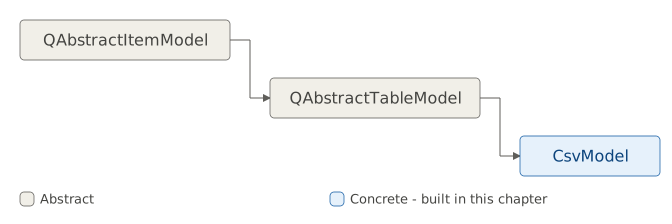
QAbstractTableModelnamedCsvModeland make external data available to it. We read the data fromdata.csvusing Python’s csv reader and store it in a member variable namedself.csv_data.csv_datais a list and each row returned by the csv reader is also a list, which effectively makescsv_dataa two-dimensional list suitable for use withQAbstractTableModelsubclasses.CsvModeltreats every field, including the amount column, as plain text - Chapter 25 shows how returning a properly-typed value fromdata(Qt.ItemDataRole.EditRole)lets Qt automatically select the right editor for it.Implement the
rowCount()andcolumnCount()methods.rowCount()is the length of theself.csv_datalist and never changes since the model is read-only.columnCount()is hard-coded to return 4, the number of columns in the CSV file.Implement the
data()method.data()expects two arguments:index, aQModelIndexinstance, androle, a member of theDisplayRoleenumeration. In the method body we check ifroleis equal toDisplayRoleand, if it is, we return the data that the index points to. Note that we need to use bothindex.row()andindex.column(), since the data has two dimensions.
- In your main class (
Window), create aCsvModelobject, create aQTableViewobject, and set its model usingQTableView.setModel().
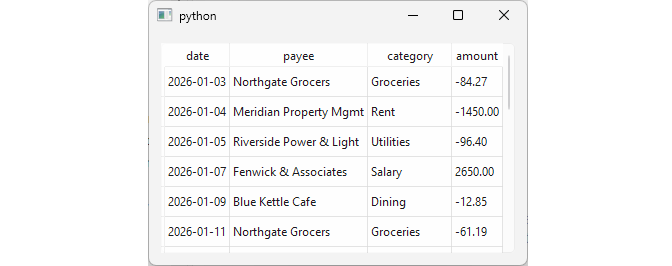
QAbstractTableModel subclasses are commonly used with QTableView but not necessarily so. QTableView is able to display table headers using the header data you provide to it in the model’s headerData() method, but implementing headerData() is still not mandatory.
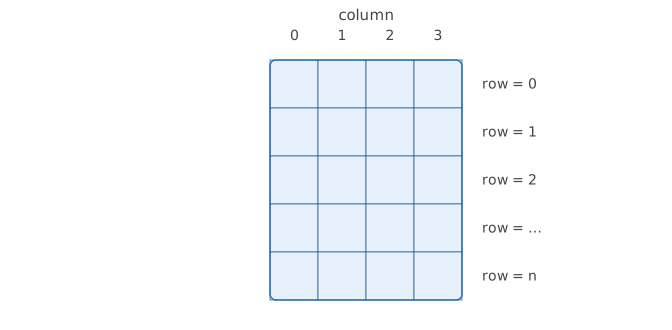
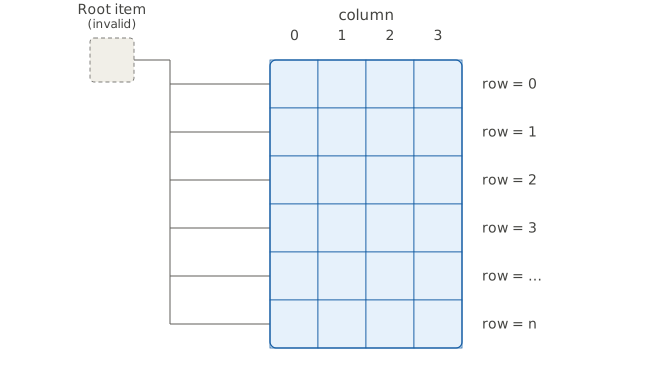
Just as list models address items with row() alone, table models address every cell with the pair row() and column() - the two-dimensional counterpart of the one-column shape from the previous chapter:
23.2 Making the Table Model Editable
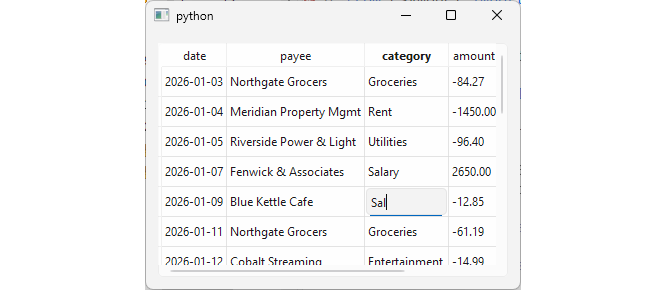
Just as for a list model, to make a table model editable you need to implement its setData() method and modify its flags() method to return the ItemIsEditable flag for each item.
|
You need to make your CSV file-backed transaction log editable, so users can correct a mis-categorized transaction or fix a typo in a payee name. |
To make a table model editable:
Create a
QAbstractTableModelsubclass.Implement the
rowCount(),columnCount(), anddata()methods. The implementation is the same as in the read-only model example.-
Implement the
setData()method.setData()accepts three arguments:index, aQModelIndexobject that you will use to get the coordinates of the data point to be changed,value, which is the new data value, androle, one of theQt.ItemDataRoleenumeration members, in most casesEditRole.
In the method body check if
roleis equal toEditRole, check if the new data is actually different from the current data, change the data, and emit thedataChanged()signal. Implement the
flags()method. In this method you return the item flags given its index. In the example all items (i.e. fields) are flagged as selectable, enabled, and editable. This does not have to be the case - for instance, if you wanted to protect the transaction date from casual edits, you would flag that column as selectable only, leaving the rest editable.
- Then, in the main class, create a model instance, create a
QTableViewinstance, and useQTableView.setModel()to connect the two.
23.3 Using Data Widget Mapper with Table Models
We have already seen how to use a data-widget mapper in the previous chapter, where we mapped a single line edit to a list model row. Here, we expand the example to map several widgets to a table model’s cells.
|
You need to add a form to the GUI so users can review and correct a transaction’s payee, category, and amount without editing table cells directly. |
To use a data-widget mapper with a table model:
Create the model class. It is the same editable table model as in the previous section.
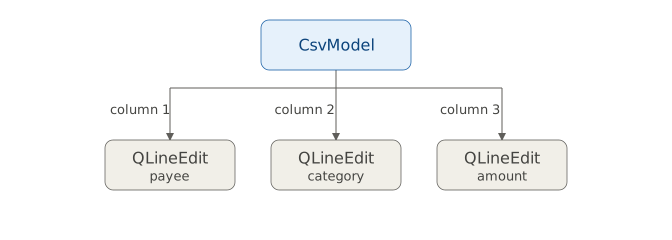
Create the widgets. Each mapped column in our table model (payee, category, and amount) contains string data, so we create three line edits, one for each column.
Create a data-widget mapper object and add the widgets to it. Create a
QDataWidgetMapperobject and set theCsvModelas its model. Map each line edit to aCsvModelcolumn usingaddMapping(), and synchronize the data in the mapper’s widgets with the table view’s currently selected row.
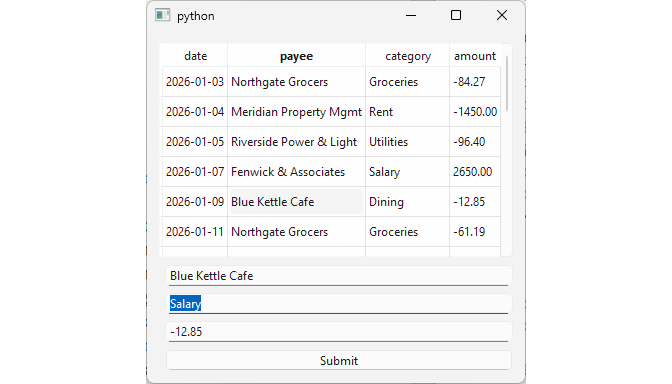
Now, when the user changes the data in the data-widget mapper’s widgets and presses the Submit button, the model is updated and the changes are propagated to the view.
23.4 Resizable Table Model
Just as with a list model, to make a table model resizable you need to implement two methods:
insertRows()removeRows()
|
You need to let users record new transactions or delete existing ones from the transaction log. |
To create a resizable table model:
-
Create the model. Create a subclass of
QAbstractTableModeland store the CSV data in theself.csv_datainstance field. You already implementedrowCount(),columnCount(), anddata()for your read-only model, andsetData()andflags()to make it editable. To make the model resizable:- Implement
insertRows(): check ifrowis within acceptable range, and insert an empty row inself.csv_data, guarding the insertion withbeginInsertRows()andendInsertRows()calls. ReturnTrueon success andFalseotherwise. - Implement
removeRows(). The lineself.csv_data[row:row + 1] = []removes the single element at indexrowfrom the list by assigning an empty list to that one-element slice, also guarded withbeginRemoveRows()andendRemoveRows(). ReturnTrueon success andFalseotherwise.
Then, in the main window:
Create the model and view objects. Create a
CsvModelobject, initializing it with the file that contains the transaction data. Create aQTableViewobject and set the CSV model as its model.-
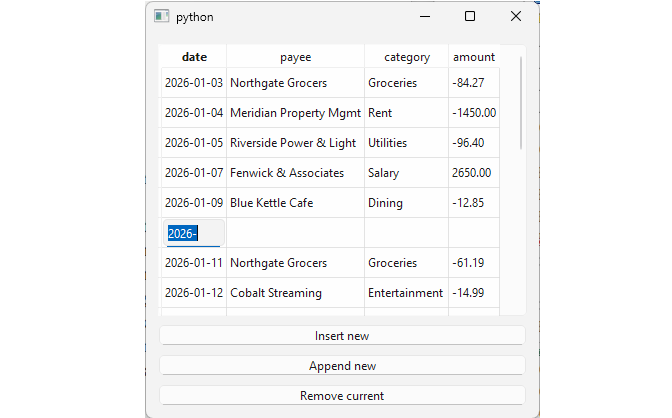
Add the Insert, Append, and Remove buttons:
- When the Insert button is pressed, get the view’s current index row and call
insertRows()with it to insert an empty row above the current row. - When the Append button is pressed, get the next available row number and call
insertRows()with it to append an empty row to the model. - When the Remove button is pressed, get the current view index and call
removeRows()with its row to remove the current row from the model.
Note that both
insertRows()andremoveRows()here assume that only one row can be inserted or removed at a time. To allow for multiple rows insertion and deletion, you need to adjust the range passed tobeginInsertRows()andbeginRemoveRows()and update the insert and remove logic.Also note that
insertRows()does not let you pass initial data to it, so we just insert empty strings as the data. If you need to insert some initial data, usesetData()after the insertion completes, or extend the model with a custom method (e.g.insertRowsWithData()) that accepts data parameters and calls the standardinsertRows()internally.Lastly, the documentation mentions that you can provide your own API for altering or removing the data, as long as you call
beginInsertRows()orbeginRemoveRows()to notify other components that the model has changed.
Similar to the previous chapter, CsvModel never reimplements parent(). Every row in a QAbstractTableModel is conceptually a child of the model’s invisible root index (an invalid QModelIndex()), exactly as it was for QAbstractListModel in chapter 22:
QAbstractTableModel can technically supply data to a QListView too. The view defaults to displaying column 0 of whatever model it’s given (setModelColumn() lets you point it at a different one), so nothing stops you from subclassing QAbstractTableModel, hardcoding columnCount() to return 1, and getting the same result as a proper list model. The difference is that QAbstractListModel already assumes a single column and implements columnCount() for you, so a genuinely one-dimensional data source needs one less method and signals that intent clearly to anyone reading the class later. You would use QAbstractTableModel if your data is inherently tabular or might grow more columns later. You will see all three model base classes compared side by side in section 24.5.