31. Timers in the Real World
Chapter 20. introduced the QTimer class, which lets you run code after a delay or at regular intervals, and briefly mentioned other timer classes Qt offers. This chapter focuses on these classes and their use in practice.
31.1QElapsedTimer - Measuring Elapsed Time
When an application performs a time-consuming operation, it can be useful to measure how long it takes to complete. This applies whether the operation is a single long-running task or something that is repeated many times.
Unlike QTimer, QElapsedTimer does not need an event loop and does not emit signals, so it works in any thread. You call its start() method to begin measuring, then call elapsed() to find out how many milliseconds that have passed.
 |
You need to measure the time needed to generate a report and export it, displaying the execution time of each operation and the total time. |
To measure elapsed time:
 1 from random import randint
 2 from PySide6.QtCore import (QObject, QRunnable, Signal,
 3     QElapsedTimer, QThread)
 4
 5
 6 class Signals(QObject):
 7
 8     report_done = Signal(str)
 9     export_done = Signal(str)
10
11
12 class ReportGenerator(QRunnable):
13
14     def __init__(self):
15
16         super().__init__()
17         self.signals = Signals()
18
19         # 1. Create a QElapsedTimer instance.
20
21         self.elapsed_timer = QElapsedTimer()
22
23     def run(self):
24
25         print(QThread.currentThread().loopLevel())
26
27         self.elapsed_timer.start()
28
29         # 2. Call elapsed().
30
31         self.generate_report()
32         report_time = self.elapsed_timer.elapsed()
33         self.signals.report_done.emit(
34             f'Report done in {report_time}ms.\n'
35             'Exporting...')
36
37
38         # 3. Call elapsed() again.
39
40         self.export_report()
41         total_time = self.elapsed_timer.elapsed()
42         export_time = total_time - report_time
43
44         # 4. Emit the export_done() signal.
45
46         self.signals.export_done.emit(
47             f'Export done in {export_time}ms.\n'
48             f'Total time: {total_time}ms.')
49
50     def generate_report(self):
51         QThread.currentThread().msleep(randint(100, 600))
52
53     def export_report(self):
54         QThread.currentThread().msleep(randint(100, 300))
Create a
QElapsedTimerinReportGenerator.__init__(). In therun()method, start the timer before generating the report.When the report is ready, call
elapsed()to get the elapsed time in milliseconds. Store the value inreport_timeand emit thereport_donesignal so that the UI can display the time.Export the report and call
elapsed()again to get the total execution time. Subtractreport_timefrom this value to find the time spent exporting.Emit
export_done()with the export time and the total execution time. In the main window, connect both signals to slots that display the results and re-enable the button when the operation finishes.

31.2 QDeadlineTimer - Deadline-Based Waiting
QDeadlineTimer represents a deadline. It lets you check how much time remains before the deadline and whether it has expired.
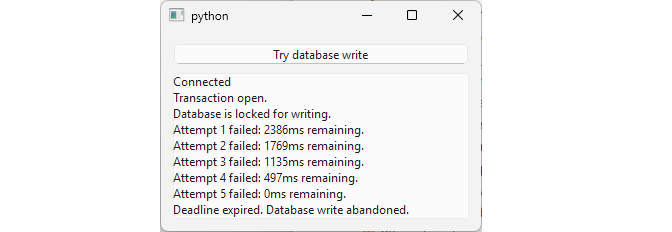
This is useful when an operation should not continue indefinitely. For example, a database write may fail because another connection holds a lock. Instead of retrying forever, you can keep trying while there is still time and stop when the deadline expires.
|
You need to write to a database that may be locked by another connection. Retry the operation until it succeeds or a three-second deadline expires. |
To use QDeadlineTimer in your application:
 1 from PySide6.QtCore import (QObject, QRunnable, Signal,
 2     QDeadlineTimer)
 3 from PySide6.QtSql import QSqlDatabase, QSqlQuery
 4
 5
 6 INSERT_STATEMENT = 'Insert Into my_table (my_column) Values ("New value")'
 7
 8 class Signals(QObject):
 9     progress = Signal(str)
10     done = Signal()
11
12
13 class DatabaseWorker(QRunnable):
14
15     def __init__(self, database_name, timeout):
16
17         super().__init__()
18         self.database_name = database_name
19         self.timeout = timeout
20         self.signals = Signals()
21
22     def run(self):
23
24         connection_name = 'worker'
25
26         db = QSqlDatabase.addDatabase('QSQLITE', connection_name)
27         db.setDatabaseName(self.database_name)
28         db.setConnectOptions('QSQLITE_BUSY_TIMEOUT=500')
29
30         if not db.open():
31             self.signals.progress.emit(
32                 f'Database open failed: {db.lastError().text()}')
33             del db
34             QSqlDatabase.removeDatabase(connection_name)
35             self.signals.done.emit()
36             return
37
38         # 1. Create a QDeadlineTimer.
39
40         deadline = QDeadlineTimer(self.timeout)
41         attempt = 1
42
43         # 2. Check whether the deadline has expired.
44
45         while not deadline.hasExpired():
46
47             # 3. Attempt the operation.
48
49             query = QSqlQuery(db)
50             if query.exec(INSERT_STATEMENT):
51                 self.signals.progress.emit(
52                     f'Write succeeded on attempt {attempt}.')
53                 db.close()
54                 del db
55                 QSqlDatabase.removeDatabase(connection_name)
56                 self.signals.done.emit()
57                 return
58
59             remaining = deadline.remainingTime()
60             self.signals.progress.emit(
61                 f'Attempt {attempt} failed: {remaining}ms remaining.')
62
63             attempt += 1
64
65         # 4. Perform cleanup.
66
67         self.signals.progress.emit(
68             'Deadline expired. Database write abandoned.')
69         db.close()
70         del db
71         QSqlDatabase.removeDatabase(connection_name)
72
73         self.signals.done.emit()
Create a
QDeadlineTimerinstance, passing the timeout in milliseconds to its constructor. The clock starts immediatelly.Use
hasExpired()as the loop condition se that retries stop when the deadline is reached.Inside the loop, attempt the operation. If it succeeds, finish processing and return. If it fails, use
remainingTime()to find the remaining time before the deadline.When the deadline expires, stop retrying and perform any necessary cleanup.
31.3 Debouncing User Input with QTimer
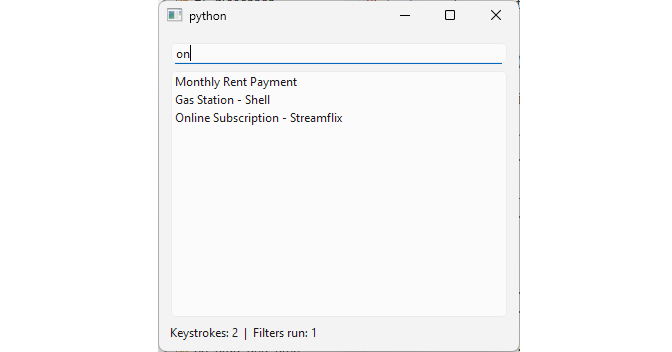
When filtering a list or searching a database, running the filter on every keystroke may be wasteful. You can use a single-shot QTimer to delay filtering until the user has stopped typing for a specified interval.
|
You need to filter a list of transactions 300 milliseconds after the user stops typing in a search box. |
To debounce user input:
 1 import sys
 2 from PySide6.QtCore import QSortFilterProxyModel, QTimer, Qt
 3 from PySide6.QtWidgets import (QApplication, QWidget, QVBoxLayout,
 4     QLineEdit, QListView, QLabel)
 5 from transactionmodel import TransactionModel
 6
 7
 8 class Window(QWidget):
 9
10     def __init__(self):
11
12         super().__init__()
13         self.resize(360, 320)
14
15         layout = QVBoxLayout()
16         self.setLayout(layout)
17
18         # 1. Create a QLineEdit for entering search text.
19
20         self.search_box = QLineEdit()
21         self.search_box.setPlaceholderText('Search transactions...')
22
23         self.model = TransactionModel()
24         self.proxy_model = QSortFilterProxyModel()
25         self.proxy_model.setSourceModel(self.model)
26         self.proxy_model.setFilterKeyColumn(0)
27         self.proxy_model.setFilterCaseSensitivity(
28             Qt.CaseSensitivity.CaseInsensitive)
29
30         self.list_view = QListView()
31         self.list_view.setModel(self.proxy_model)
32
33         self.status_label = QLabel('Keystrokes: 0  |  Filters run: 0')
34
35         layout.addWidget(self.search_box)
36         layout.addWidget(self.list_view)
37         layout.addWidget(self.status_label)
38
39         self.keystroke_count = 0
40         self.filter_count = 0
41
42         # 2. Create a single-shot timer.
43
44         self.debounce_timer = QTimer()
45         self.debounce_timer.setSingleShot(True)
46         self.debounce_timer.setInterval(300)
47         self.debounce_timer.timeout.connect(self.apply_filter)
48
49         # 3. Connect the search box textChange() signal.
50
51         self.search_box.textChanged.connect(self.on_text_changed)
52
53     def on_text_changed(self, text):
54
55         self.keystroke_count += 1
56         self.update_status()
57         self.debounce_timer.start()
58
59     # 4. Call setFilterFixedString().
60
61     def apply_filter(self):
62
63         self.filter_count += 1
64         text = self.search_box.text().strip()
65         self.proxy_model.setFilterFixedString(text)
66         self.update_status()
67
68     # 5. Update the status label.
69
70     def update_status(self):
71
72         self.status_label.setText(
73             f'Keystrokes: {self.keystroke_count}  |  '
74             f'Filters run: {self.filter_count}')
75
76
77 if __name__ == '__main__':
78
79     app = QApplication(sys.argv)
80     window = Window()
81     window.show()
82     sys.exit(app.exec())
Create a
QLineEditfor the search text and aQSortFilterProxyModelto filter the transactions. Set the proxy model’s source model, filter column, and case sensitivity.Create a single-shot
QTimerwith a 300ms interval. Connect itstimeout()signal to the method that applies the filter.Connect the search box’s
textChanged()signal to a slot. Each time the text changes, callstart()on the timer. Because the timer is single-shot, starting it again restarts the countdown.In
apply_filter(), read the current search text and callsetFilterFixedString()on the proxy model. The filter is applied when the timer times out rather than on every keystroke.Update the status label to show the number of keystrokes and filter operations.
31.4 Throttling Rapid Updates with QTimer
Debouncing delays an operation until the input has stopped changing. Throttling limits how frequently an operation is performed when updates arrive continuously.
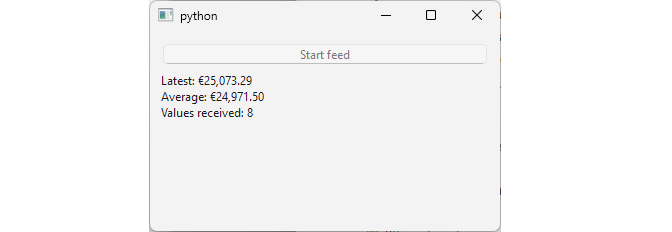
For example, a live portfolio feed may produce new values faster than the user interface needs to display them. Instead of updating on every value, you can collect the incoming data and refresh the interface only at fixed intervals.
|
You need to process a continuous stream of portfolio values while updating the user interface every 500 milliseconds. |
To throttle rapid updates:
 1 import math
 2 import random
 3
 4 from PySide6.QtCore import QObject, QRunnable, Signal, QThread
 5
 6
 7 class Signals(QObject):
 8     value_ready = Signal(float)
 9     done = Signal()
10
11 # 1. Create the worker.
12
13 class PortfolioGenerator(QRunnable):
14
15     def __init__(self):
16         super().__init__()
17         self.signals = Signals()
18
19     def run(self):
20
21         i = 0
22
23         while not QThread.currentThread().isInterruptionRequested():
24             value = self.generate_value(i)
25             self.signals.value_ready.emit(value)
26             QThread.currentThread().msleep(50)
27             i += 1
28             if i == 100:
29                 QThread.currentThread().requestInterruption()
30                 self.signals.done.emit()
31                 print('interrupt')
32
33     def generate_value(self, i):
34         base = 25000
35         variation = 500 * math.sin(i / 15)
36         noise = random.uniform(-20, 20)
37         return base + variation + noise
- Create a
PortfolioGeneratorworker that generates values and emits them through thevalue_ready()signal. Run it in a separate thread so the GUI stays responsive.
 1 import math
 2 import random
 3 import sys
 4
 5 from PySide6.QtCore import QThreadPool, QTimer, Slot, Qt
 6 from PySide6.QtWidgets import (
 7     QApplication, QPushButton, QLabel, QWidget, QVBoxLayout)
 8
 9 from runnable import PortfolioGenerator
10
11
12 class Window(QWidget):
13
14     def __init__(self):
15
16         super().__init__()
17
18         self.resize(350, 200)
19
20         layout = QVBoxLayout()
21         self.setLayout(layout)
22
23         self.button = QPushButton('Start feed')
24         self.button.clicked.connect(self.on_button_clicked)
25
26         self.label = QLabel()
27         self.label.setAlignment(Qt.AlignmentFlag.AlignTop)
28
29         layout.addWidget(self.button)
30         layout.addWidget(self.label)
31
32         self.latest_value = None
33         self.values = []
34
35         # 2. Create a timer.
36
37         self.timer = QTimer()
38         self.timer.setInterval(500)
39         self.timer.timeout.connect(self.on_timer_timeout)
40
41     @Slot()
42     def on_button_clicked(self):
43
44         self.button.setEnabled(False)
45
46         runnable = PortfolioGenerator()
47         runnable.signals.value_ready.connect(self.on_value_ready)
48
49         # 5. When the worker is done stop the timer.
50
51         runnable.signals.done.connect(self.timer.stop)
52
53         QThreadPool.globalInstance().start(runnable)
54
55         self.timer.start()
56
57         self.label.setText('Portfolio feed started...')
58
59     # 3. Store the latest value.
60
61     @Slot(float)
62     def on_value_ready(self, value):
63
64         self.latest_value = value
65         self.values.append(value)
66
67     # 4. Calculate and display the values.
68
69     @Slot()
70     def on_timer_timeout(self):
71
72         if self.latest_value is None:
73             return
74
75         average = sum(self.values) / len(self.values)
76
77         self.label.setText(
78             f'Latest: €{self.latest_value:,.2f}\n'
79             f'Average: €{average:,.2f}\n'
80             f'Values received: {len(self.values)}')
81
82         self.values.clear()
83
84
85 if __name__ == '__main__':
86
87     app = QApplication(sys.argv)
88     main_window = Window()
89     main_window.show()
90     sys.exit(app.exec())
In the main window, create a
QTimerwith a 500ms interval and connect itstimeout()signal toon_timer_timeout().When a new value arrives, store it in
latest_valueand append it to thevalueslist. Do not update the user interface in this slot.When the timer times out, calculate the average of the collected values and display the average, the latest value, and the number of values received. After updating the label clear the list so the next interval collects a new batch of values.
When the worker finishes, stop the timer by connecting its
done()signal to the timer’sstop()method.
31.5 Low-Level Timers: QObject.startTimer() and QBasicTimer
QTimer is convenient because it uses signals and slots. Qt also offers two lower-level alternatives: QObject.startTimer() and QBasicTimer. Both use the event loop to deliver timer events, but they avoid creating a separate QTimer object.
QObject.startTimer() starts a timer and returns an ID that can be used to stop it with killTimer(). When the timer times out, Qt calls the object’s timerEvent() method, in which you can handle the event and update the application.
QBasicTimer provides a lighweight wrapper around the same mechanism. Instead of managing the timer ID directly, you create a QBasicTimer, start it with the target object, and stop it by calling stop()
|
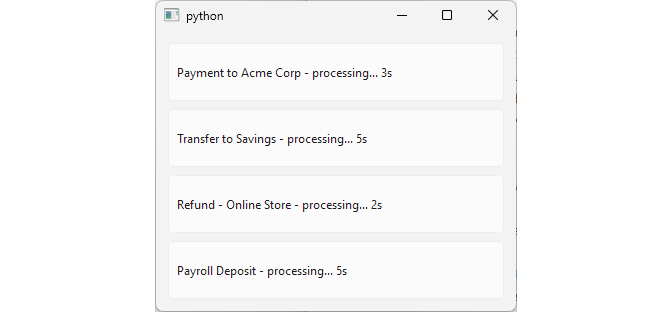
You need to display several transaction rows that show a countdown while each transaction is being processed. |
To use low-level timers in your application:
 1 from PySide6.QtCore import QBasicTimer
 2 from PySide6.QtWidgets import QFrame, QVBoxLayout, QLabel
 3
 4
 5 class Row(QFrame):
 6
 7     def __init__(self, description, seconds_remaining):
 8
 9         super().__init__()
10         self.setFrameShape(QFrame.Shape.StyledPanel)
11
12         self.description = description
13         self.seconds_remaining = seconds_remaining
14
15         layout = QVBoxLayout()
16         self.setLayout(layout)
17
18         self.label = QLabel()
19         layout.addWidget(self.label)
20         self.update_label()
21
22     def update_label(self):
23         if self.seconds_remaining > 0:
24             self.label.setText(
25                 f'{self.description} - processing... '
26                 f'{self.seconds_remaining}s')
27         else:
28             self.label.setText(f'{self.description} - Processed')
29
30
31 class TransactionRow(Row):
32
33     def __init__(self, description, seconds_remaining):
34
35         super().__init__(description, seconds_remaining)
36
37         self.timer_id = self.startTimer(1000)
38
39     def timerEvent(self, event):
40
41         if event.timerId() != self.timer_id:
42             return
43
44         self.seconds_remaining -= 1
45         self.update_label()
46
47         if self.seconds_remaining <= 0:
48             self.killTimer(self.timer_id)
49
50
51 class TransactionRowBasic(Row):
52
53     def __init__(self, description, seconds_remaining):
54
55         super().__init__(description, seconds_remaining)
56
57         self.timer = QBasicTimer()
58         self.timer.start(1000, self)
59
60     def timerEvent(self, event):
61
62         if event.timerId() != self.timer.timerId():
63             return
64
65         self.seconds_remaining -= 1
66         self.update_label()
67
68         if self.seconds_remaining <= 0:
69             self.timer.stop()
Create a
Rowbase class that holds the transaction description and the remaining processing time. Add theupdate_label()method to display the current status.Create a
TransactionRowsubclass that callsstartTimer()with a one-second interval, stores the returned ID, and reimplementstimerEvent()to decrease the remaining time and update the label.When the countdown reaches zero, call
killTimer()to stop the timer. IntimerEvent(), check the timer ID to make sure you only handle your own timer.Create a
TransactionRowBasicsubclass that usesQBasicTimer. Start the timer with the row as its target and reimplementtimerEvent(). When processing finishes, callstop().
 1 import sys
 2 import random
 3 from PySide6.QtWidgets import QApplication, QWidget, QVBoxLayout
 4 from customwidgets import TransactionRow, TransactionRowBasic
 5
 6
 7 DESCRIPTIONS = [
 8     'Payment to Acme Corp',
 9     'Transfer to Savings',
10     'Refund - Online Store',
11     'Payroll Deposit']
12
13
14 class Window(QWidget):
15
16     def __init__(self):
17
18         super().__init__()
19         self.resize(360, 280)
20
21         layout = QVBoxLayout()
22         self.setLayout(layout)
23
24         for description in DESCRIPTIONS[:-1]:
25             seconds = random.randint(3, 6)
26             layout.addWidget(TransactionRow(description, seconds))
27
28         layout.addWidget(
29             TransactionRowBasic(DESCRIPTIONS[-1], random.randint(3, 6)))
30
31
32 if __name__ == '__main__':
33
34     app = QApplication(sys.argv)
35     window = Window()
36     window.show()
37     sys.exit(app.exec())
- Add several rows of both types to the main window, each maintaining its own countdown.
Both methods deliver timer events through the event loop and require you to reimplement timerEvent(). QBasicTimer simplifies timer management by handling the timer ID internally, while QObject.startTimer() gives you direct access to it.
For most applications, QTimer remains the more practical choice because its timeout() signal integrates with the Qt’s signal-slot mechanism. The lower-level options become useful when a class needs to handle timer events directly.
There is a small performance difference between the two approaches. The following test creates increasing numbers of objects, each with a one-second timer. The timeout handlers do nothing, so the test measures the overhead of creating and starting the timers.
 1 import time, gc
 2 from PySide6.QtCore import QObject, QTimer, QCoreApplication
 3
 4 app = QCoreApplication([])
 5
 6 class QTimerCounter(QObject):
 7     def __init__(self):
 8         super().__init__()
 9         self.timer = QTimer(self)
10         self.timer.timeout.connect(self.on_timeout)
11         self.timer.start(1000)
12     def on_timeout(self):
13         pass
14
15 class StartTimerCounter(QObject):
16     def __init__(self):
17         super().__init__()
18         self.timer_id = self.startTimer(1000)
19     def timerEvent(self, event):
20         pass
21
22 def measure(cls, n):
23     gc.collect()
24     t0 = time.perf_counter()
25     objects = [cls() for _ in range(n)]
26     elapsed = time.perf_counter() - t0
27     if cls is QTimerCounter:
28         for obj in objects:
29             obj.timer.stop()
30     else:
31         for obj in objects:
32             obj.killTimer(obj.timer_id)
33     del objects
34     gc.collect()
35     return elapsed
36
37 for n in (100, 1000, 10000, 50000):
38     t_a = measure(QTimerCounter, n)
39     t_b = measure(StartTimerCounter, n)
40     print(f'n={n:>6}  '
41           f'QTimer: {t_a:.3f}s   '
42           f'startTimer(): {t_b:.3f}s')
The test produces results like this:
1 n=   100  QTimer: 0.005s   startTimer(): 0.001s
2 n=  1000  QTimer: 0.016s   startTimer(): 0.005s
3 n= 10000  QTimer: 0.197s   startTimer(): 0.066s
4 n= 50000  QTimer: 1.400s   startTimer(): 0.798s
startTimer() has lower creation overhead and the difference becomes more noticeable as the number of created timers increases. This is expected because QTimer requires an additional timer object and signal connection, while startTimer() registers the timer directly with the existing QObject. For a small number of timers the difference is unlikely to matter and QTimer is easier to use.