27. Worker Objects and moveToThread
Threads of execution let you execute your code concurrently while sharing the program’s memory and other resources. There are two primary use cases for threads:
- Accelerate processing by utilizing multiple processor cores,
- Maintain GUI responsiveness by offloading long-running tasks to background threads.
In the following examples, we focus on the second use case. First, however, let’s demonstrate the problem by showing a non-responsive Qt GUI.
27.1 Blocking the Qt GUI: How Not to Do It
 |
You need to search the filesystem for a file and report progress. |
 1 import os
 2 import sys
 3 from PySide6.QtCore import QObject, Signal, Slot
 4 from PySide6.QtWidgets import (QApplication,
 5     QWidget, QPushButton, QLabel, QVBoxLayout)
 6
 7
 8 class Task(QObject):
 9
10     progress = Signal(str)
11
12     def __init__(self, parent=None):
13         super().__init__(parent)
14
15     # 1. Create a long running task
16     #    We search for a file using os.walk()
17     #    using a tight (blocking) for loop.
18     #    The loop blocks the Qt event loop
19     #    so no signals are send or events
20     #    processed until the loop exits.
21     #    This effectively freezes the Gui.
22
23     @Slot()
24     def do_work(self):
25         path = os.path.abspath('.').split(os.path.sep)[0] + os.path.sep
26         name = 'bogus'
27         for root, _, files in os.walk(path):
28             self.progress.emit(root)
29             if name in files:
30                 print(os.path.join(root, name))
31
32
33 class Window(QWidget):
34
35     def __init__(self):
36
37         super().__init__()
38
39         layout = QVBoxLayout()
40         self.setLayout(layout)
41
42         # 2. Create a push button
43
44         self.button = QPushButton('Start working')
45         self.label = QLabel()
46
47         self.button.clicked.connect(self.do_work)
48
49         layout.addWidget(self.button)
50         layout.addWidget(self.label)
51
52     # 3. Execute the long running task.
53
54     def do_work(self):
55         self.task = Task()
56         self.task.progress.connect(self.label.setText)
57         self.task.do_work()
58
59
60 if __name__ == '__main__':
61
62     app = QApplication(sys.argv)
63     main_window = Window()
64     main_window.show()
65     sys.exit(app.exec())
Create the task. In the example, we use
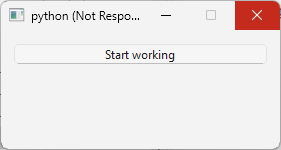
os.walk()within aforloop to search the file system for a non-existent file. We attempt to report progress after each iteration by emitting a custom Qt signal namedprogress(). This fails because the loop blocks the Qt event loop. Even thoughprogress()is emitted and its slot run immediately, the window can’t repaint or respond to input until the loop returns control to the event loop. Because the loop runs in the main application thread (also known as the GUI thread), the entire application becomes unresponsive - it freezes and you cannot even close it.Create a push button.
Create a slot that starts the long-running task when the push button is clicked.
27.2 A Minimal Working Example
The previous example shows how a PySide6 GUI can become unresponsive. Now let’s explore using Qt threads to run long tasks in the background while keeping the GUI responsive.
|
You need to create a minimal working Qt multithreading application. |
 1 from PySide6.QtCore import QObject, Signal, Slot
 2
 3 # 1. Create the worker_obj class
 4
 5 class Worker(QObject):
 6
 7     finished = Signal()
 8     error = Signal(str)
 9
10     def __init__(self, parent=None):
11         super().__init__(parent)
12
13     # This method to be executed
14
15     @Slot()
16     def process(self):
17         print('Hello World')
18         self.finished.emit()
- Create a
QObjectsubclass that contains the slot/method to be executed in a background thread (i.e. a thread other than the GUI thread). In the example the slot is namedprocess(). It prints a message and emits a custom signal namedfinished()before returning. TheWorkerclass declares anerror()signal that can be emitted if an error occurs duringprocess()execution.
 1 # https://mayaposch.wordpress.com/2011/11/01/how-to-really-truly-use-qthreads-the-full-explanation/
 2
 3 import sys
 4 from PySide6.QtCore import QThread, Slot, Qt
 5 from PySide6.QtWidgets import (QApplication,
 6     QPushButton, QLabel, QWidget, QVBoxLayout)
 7 from worker import Worker
 8
 9
10 class Window(QWidget):
11
12     def __init__(self):
13
14         super().__init__()
15
16         layout = QVBoxLayout()
17         self.setLayout(layout)
18
19         button = QPushButton('Start background thread')
20         button.clicked.connect(self.on_button_clicked)
21
22         self.label = QLabel()
23         self.label.setAlignment(Qt.AlignmentFlag.AlignCenter)
24
25         layout.addWidget(button)
26         layout.addWidget(self.label)
27
28     @Slot()
29     def on_button_clicked(self):
30
31         # 2. Create the thread object
32
33         self.background_thread = QThread()
34
35         # 3. Create the worker_obj and move it to the thread
36
37         self.worker_obj = Worker()
38         self.worker_obj.moveToThread(self.background_thread)
39
40         self.worker_obj.finished.connect(self.on_finished)
41
42         # 4. Connect the signals and the slots
43
44         self.worker_obj.error.connect(self.on_error)
45         self.background_thread.started.connect(self.worker_obj.process)
46         self.worker_obj.finished.connect(self.background_thread.quit)
47         self.worker_obj.finished.connect(self.worker_obj.deleteLater)
48         self.background_thread.finished.connect(self.background_thread.deleteLater)
49
50         # 5. Start the thread
51
52         self.background_thread.start()
53
54     @Slot()
55     def on_finished(self):
56         self.label.setText('Worker finished')
57
58     @Slot()
59     def on_error(self, message):
60         print(message)
61
62
63 if __name__ == '__main__':
64
65     app = QApplication(sys.argv)
66
67     main_window = Window()
68     main_window.show()
69
70     sys.exit(app.exec())
Then, in the main window class:
Create a
QThreadobject namedbackground_thread(avoid naming it simplythread, as that name is already used -QObject.thread()which returns the thread in which the object lives). Store it as a member of the main window (self.background_thread) so that it does not go out of scope whenon_button_clicked()returns.Create a
Workerobject and move it tobackground_threadwithQObject.moveToThread(). From this point on,Worker.process()will execute in the background thread.-
Connect the appropriate signals and slots:
- (2)
background_thread.started()->worker_obj.process(). This makesWorker.process()execute when the background thread starts. - (3)
worker_obj.finished()->background_thread.quit(). This stops the background thread event loop whenWorker.process()returns. - (4)
worker_obj.finished()->worker_obj.deleteLater()method. This schedules the worker for deletion. - (5)
background_thread.finished()->background_thread.deleteLater(). This schedules the thread object for deletion.
Start the background thread with
QThread.start()(1).
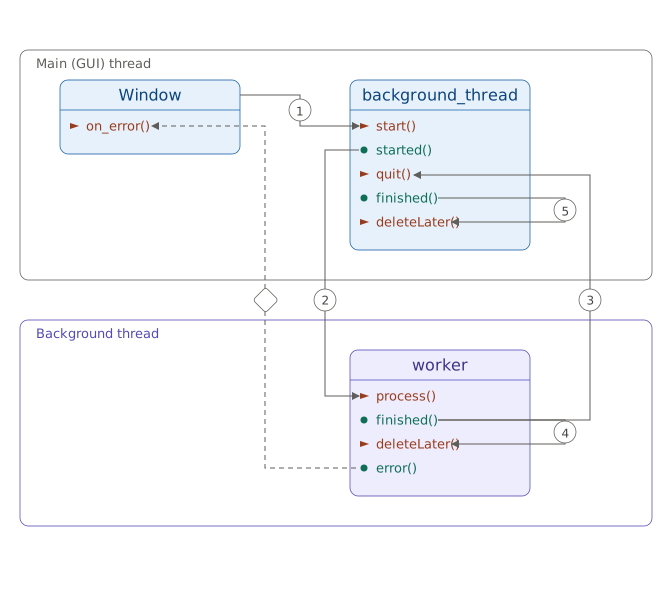
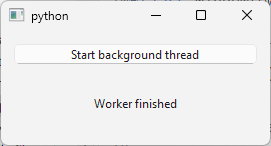
With these connections, process() runs as soon as the thread starts, the thread quits when the method returns, and both the worker and thread object are cleaned up automatically, while the GUI remains responsive.
27.3 Walking the Filesystem
The moveToThread() template provides a basic structure, but the worker does nothing useful. For a more practical example, we make Worker.process() traverse the filesystem with os.walk() starting from the root. This can take a long time and would freeze the GUI if it ran on the main thread.
|
You need to use Qt multithreading to search the filesystem for a file and report progress. |
 1 import os
 2 from PySide6.QtCore import QObject, QThread, Signal, Slot
 3
 4 # 1. Create the worker_obj class
 5
 6 class Worker(QObject):
 7
 8     finished = Signal()
 9     progress = Signal(str)
10     error = Signal(str)
11
12     def __init__(self, parent=None):
13         super().__init__(parent)
14
15     # This is the method we want to execute.
16     # We are in a tight loop.
17
18     @Slot()
19     def process(self):
20         path = os.path.abspath('.').split(os.path.sep)[0] + os.path.sep
21         for root, _, _ in os.walk(path):
22             if QThread.currentThread().isInterruptionRequested():
23                 return
24             self.progress.emit(os.path.basename(root))
25         self.finished.emit()
- Create the worker class. The
process()method uses Python’sos.walk()to traverse the filesystem. For each enumerated filesystem object, it emits a customprogress()signal (declared alongsidefinished()anderror()). If the background thread receives an interruption request,process()returns early, which triggers the usual signal-slot chain that stops and deletes both the worker and the background thread. Note that insideprocess(), we obtain the current (background) thread with the static methodQThread.currentThread().
  1 import sys
  2 from PySide6.QtCore import QThread, Slot, Qt
  3 from PySide6.QtWidgets import (QApplication, QPushButton,
  4     QLabel, QWidget, QVBoxLayout)
  5 from worker import Worker
  6
  7 class Window(QWidget):
  8
  9     def __init__(self):
 10
 11         super().__init__()
 12
 13         layout = QVBoxLayout()
 14         self.setLayout(layout)
 15
 16         self.start_button = QPushButton('Start background thread')
 17         self.start_button.clicked.connect(self.on_start_button_clicked)
 18
 19         self.cancel_button = QPushButton('Cancel')
 20         self.cancel_button.clicked.connect(self.on_cancel_button_clicked)
 21         self.cancel_button.setDisabled(True)
 22
 23         self.label = QLabel()
 24         self.label.setAlignment(Qt.AlignmentFlag.AlignCenter)
 25
 26         layout.addWidget(self.start_button)
 27         layout.addWidget(self.cancel_button)
 28         layout.addWidget(self.label)
 29
 30     @Slot()
 31     def on_start_button_clicked(self):
 32
 33         self.start_button.setDisabled(True)
 34         self.cancel_button.setEnabled(True)
 35
 36         # 2. Create the thread
 37
 38         self.background_thread = QThread()
 39
 40         # 3. Create the worker_obj and move it to the thread
 41
 42         self.worker_obj = Worker()
 43         self.worker_obj.moveToThread(self.background_thread)
 44
 45         self.worker_obj.finished.connect(self.on_finished)
 46
 47         # 4. Connect the appropriate signals to ensure
 48         #    both the worker_obj and the thread are destroyed.
 49
 50         self.worker_obj.error.connect(self.on_error)
 51         self.background_thread.started.connect(self.worker_obj.process)
 52         self.worker_obj.finished.connect(self.background_thread.quit)
 53         self.worker_obj.finished.connect(self.worker_obj.deleteLater)
 54         self.background_thread.finished.connect(self.background_thread.deleteLater)
 55
 56         self.worker_obj.progress.connect(self.label.setText)
 57
 58         # 5. Start the thread.
 59
 60         self.background_thread.start()
 61
 62     # Stop the work by requesting interruption
 63
 64     @Slot()
 65     def on_cancel_button_clicked(self):
 66
 67         self.start_button.setEnabled(True)
 68         self.cancel_button.setDisabled(True)
 69
 70         if hasattr(self, 'background_thread'):
 71             self.background_thread.requestInterruption()
 72             self.background_thread.quit()
 73             self.background_thread.wait()
 74
 75     @Slot()
 76     def on_finished(self):
 77         self.label.setText('Worker finished')
 78
 79     @Slot()
 80     def on_error(self, message):
 81         print(message)
 82
 83     # Make sure the thread is destroyed
 84     # when the main window is closed.
 85
 86     def closeEvent(self, event):
 87         try:
 88             self.background_thread.requestInterruption()
 89             self.background_thread.quit()
 90             self.background_thread.wait()
 91         except Exception as e:
 92             print(e)
 93
 94
 95 if __name__ == '__main__':
 96
 97     app = QApplication(sys.argv)
 98
 99     main_window = Window()
100     main_window.show()
101
102     sys.exit(app.exec())
In the main window class, create the thread object.
Create a
Workerobject and move it to the thread withQObject.moveToThread().-
Wire the lifetime signals exactly as in the minimal example:
- thread started -> worker process,
- worker finished -> thread quit,
- worker finished -> worker delete later,
- thread finished -> thread delete later.
Start the background thread. In this example the start happens inside
Window.on_start_button_clicked()so a newQThreadandWorkerare created each time the start button is pressed.
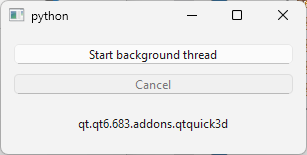
We also override QWidget.closeEvent() to interrupt the background thread, ensuring cleanup if the main window closes while the thread runs. The sequence, QThread.requestInterruption() + QThread.quit() + QThread.wait(), is also used in Window.on_cancel_button_clicked() for clean interruption.
27.4 Reusing the QThread object
In the previous examples a new background thread is created each time the task runs. The official QThread documentation example, however, creates both the thread and the worker once, in the main class constructor. Let’s reproduce that pattern.
|
Your task is to recreate the official Qt multithreading example in PySide6. |
 1 from PySide6.QtCore import QObject, Signal, Slot
 2
 3 # 1. Create the worker_obj class
 4
 5 class Worker(QObject):
 6
 7     result_ready = Signal(str)
 8
 9     def __init__(self, parent=None):
10         super().__init__(parent)
11
12     @Slot()
13     def do_work(self, parameter):
14         print(parameter)
15         self.result_ready.emit(parameter)
- Create the worker class. The background method is
do_work(), matching theQThreaddocumentation.
 1 # https://doc.qt.io/qt-6/qthread.html
 2
 3 import sys
 4 from PySide6.QtCore import QThread, Slot, Signal, Qt
 5 from PySide6.QtWidgets import (QApplication,
 6     QPushButton, QLabel, QWidget, QVBoxLayout)
 7 from worker import Worker
 8
 9
10 class Controller(QWidget):
11
12     operate = Signal(str)
13
14     def __init__(self):
15
16         super().__init__()
17
18         layout = QVBoxLayout()
19         self.setLayout(layout)
20
21         button = QPushButton('Start background thread')
22         button.clicked.connect(self.on_button_clicked)
23
24         self.label = QLabel()
25         self.label.setAlignment(Qt.AlignmentFlag.AlignCenter)
26
27         layout.addWidget(button)
28         layout.addWidget(self.label)
29
30         # 2. Create the thread object
31
32         self.worker_thread = QThread()
33
34         # 3. Create the worker_obj and move it to the thread
35
36         self.worker_obj = Worker()
37         self.worker_obj.moveToThread(self.worker_thread)
38
39         # 4. Connect the signals and the slots
40
41         self.worker_thread.finished.connect(
42             self.worker_obj.deleteLater)
43         self.operate.connect(self.worker_obj.do_work)
44         self.worker_obj.result_ready.connect(self.handle_results)
45
46         # 5. Start the thread
47
48         self.worker_thread.start()
49
50     # 6. On the button click emit the operate signal
51
52     @Slot()
53     def on_button_clicked(self):
54
55         self.operate.emit('Hello World')
56
57     @Slot()
58     def handle_results(self):
59         self.label.setText('Worker finished')
60
61     # 7. Quit the thread when the main window is closed
62
63     def closeEvent(self, event):
64         try:
65             self.worker_thread.quit()
66             self.worker_thread.wait()
67         except Exception as e:
68             print(e)
69         event.accept()
70
71
72 if __name__ == '__main__':
73
74     app = QApplication(sys.argv)
75
76     main_window = Controller()
77     main_window.show()
78
79     sys.exit(app.exec())
Then, in the main window (controller) class:
Create the worker thread.
Create the
Workerand move it to the worker thread withQObject.moveToThread().-
Connect signals and slots:
QThread.finished()toQObject.deleteLater()for worker deletion on thread finish,Controller.operate()toWorker.do_work()to start work via custom signal,Worker.result_ready()toController.handle_result()for handling results.
Start the worker thread. Steps 2-5 are performed in
Controller.__init__(), so the thread and the worker persist until the main window closes or explicit deletion.On button click, emit the
operate()signal. This causesWorker.do_work()to run.Reimplement
QWidget.closeEvent()to quit the thread usingQThread.quit()andQThread.wait().
27.5 Walking the Filesystem While Reusing the QThread
|
You need to walk the filesystemwith Qt multithreading while reusing the same worker thread. |
 1 import os
 2 from PySide6.QtCore import (QObject, QMutex,
 3     QMutexLocker, Signal, Slot)
 4
 5 # 1. Create the worker_obj class
 6
 7 class Worker(QObject):
 8
 9     result_ready = Signal()
10     progress = Signal(str)
11
12     def __init__(self, parent=None):
13         super().__init__(parent)
14         self.interruption_requested = False
15         self.mutex = QMutex()
16
17     @Slot()
18     def do_work(self):
19
20         self.interruption_requested = False
21
22         path = os.path.abspath('.').split(os.path.sep)[0] + os.path.sep
23         for root, _, _ in os.walk(path):
24             with QMutexLocker(self.mutex):
25                 if self.interruption_requested:
26                     self.progress.emit('Canceled')
27                     self.result_ready.emit()
28                     return
29             self.progress.emit(os.path.basename(root))
30         self.result_ready.emit()
31
32     @Slot()
33     def stop(self):
34         with QMutexLocker(self.mutex):
35             self.interruption_requested = True
36
37     @Slot()
38     def reset(self):
39         with QMutexLocker(self.mutex):
40             self.interruption_requested = False
-
Create the worker class. Several differences from the earlier filesystem example appear here:
- A boolean flag
interruption_requestedis used instead ofQThread.isInterruptionRequested() - We add
Worker.stop()andWorker.reset()methods to toggle the flag - Every access to the flag is protected by a
QMutexLockerandQMutexfor thread safety.
  1 # https://doc.qt.io/qt-6/qthread.html
  2
  3 import sys
  4
  5 from PySide6.QtCore import QThread, Slot, Signal, Qt
  6 from PySide6.QtWidgets import (QApplication,
  7     QPushButton, QLabel, QWidget, QVBoxLayout)
  8 from worker import Worker
  9
 10
 11 class Controller(QWidget):
 12
 13     operate = Signal()
 14
 15     def __init__(self):
 16
 17         super().__init__()
 18
 19         layout = QVBoxLayout()
 20         self.setLayout(layout)
 21
 22         self.start_button = QPushButton('Start background thread')
 23         self.start_button.clicked.connect(self.on_start_button_clicked)
 24
 25         self.cancel_button = QPushButton('Cancel')
 26         self.cancel_button.clicked.connect(self.on_cancel_button_clicked)
 27         self.cancel_button.setDisabled(True)
 28
 29         self.label = QLabel()
 30         self.label.setAlignment(Qt.AlignmentFlag.AlignCenter)
 31
 32         layout.addWidget(self.start_button)
 33         layout.addWidget(self.cancel_button)
 34         layout.addWidget(self.label)
 35
 36         # 2. Create the thread
 37
 38         self.worker_thread = QThread()
 39
 40         # 3. Create the worker_obj and move it to the thread
 41
 42         self.worker_obj = Worker()
 43         self.worker_obj.moveToThread(self.worker_thread)
 44
 45         # 4. Connect the signals with the slots
 46
 47         self.worker_thread.finished.connect(self.worker_obj.deleteLater)
 48         self.operate.connect(self.worker_obj.do_work)
 49         self.worker_obj.result_ready.connect(self.handle_results)
 50
 51         self.worker_obj.progress.connect(self.label.setText)
 52
 53         # 5. Start the thread
 54
 55         self.worker_thread.start()
 56
 57     # 6. On the start button click emit the operate signal
 58
 59     @Slot()
 60     def on_start_button_clicked(self):
 61
 62         self.start_button.setDisabled(True)
 63         self.cancel_button.setEnabled(True)
 64
 65         self.worker_obj.reset()
 66         self.operate.emit()
 67
 68     # 7. On the cancel button click stop the worker_obj
 69
 70     @Slot()
 71     def on_cancel_button_clicked(self):
 72
 73         self.start_button.setEnabled(True)
 74         self.cancel_button.setDisabled(True)
 75         self.worker_obj.stop()
 76
 77     @Slot()
 78     def handle_results(self):
 79         self.label.setText('Worker finished')
 80
 81     # 8. Quit the thread when the main window is closed
 82
 83     def closeEvent(self, event):
 84         try:
 85             self.worker_obj.stop()
 86             self.worker_thread.quit()
 87             self.worker_thread.wait()
 88         except Exception as e:
 89             print(e)
 90         event.accept()
 91
 92
 93 if __name__ == '__main__':
 94
 95     app = QApplication(sys.argv)
 96
 97     main_window = Controller()
 98     main_window.show()
 99
100     sys.exit(app.exec())
In
Controller.__init__()create the worker thread object.Create the worker and move it to the worker thread using
QObject.moveToThread().Connect signals and slots. Main class
operate()signal triggersWorker.do_work().Start the worker thread.
On Start button click, reset the worker with
Worker.reset()and emitoperate().On Cancel button click, stop the worker with
Worker.stop().Quit the thread when the main window closes.
But why did we use a mutex-guarded boolean flag? QThread.requestInterruption() is a one-shot mechanism: once requested, QThread.isInterruptionRequested() stays True and it cannot be reset. A signal to toggle a flag would require QApplication.processEvents() in the blocking loop. Direct flag setting is unsafe across threads, so a QMutex is required.
27.6 Signals and Slots Across Threads
 1 from PySide6.QtCore import QObject, QThread, Signal, Slot
 2
 3 class Worker(QObject):
 4
 5     auto_signal = Signal()
 6     direct_signal = Signal()
 7     queued_signal = Signal()
 8     blocking_signal = Signal()
 9
10     @Slot()
11     def auto_slot(self):
12         print('Auto connection')
13         print('In', QThread.currentThread().objectName(),
14             ', Loop level', QThread.currentThread().loopLevel())
15
16     @Slot()
17     def direct_slot(self):
18         print('Direct connection')
19         print('In', QThread.currentThread().objectName(),
20             ', Loop level', QThread.currentThread().loopLevel())
21     @Slot()
22     def queued_slot(self):
23         print('Queued connection')
24         print('In', QThread.currentThread().objectName(),
25             ', Loop level', QThread.currentThread().loopLevel())
26
27     @Slot()
28     def blocking_slot(self):
29         print('Blocking Queued connection')
30         print('In', QThread.currentThread().objectName(),
31             ', Loop level', QThread.currentThread().loopLevel())
32         QThread.sleep(10)
 1 # https://doc.qt.io/qt-6/qthread.html
 2
 3 import sys
 4
 5 from PySide6.QtCore import QThread, Slot, Qt
 6 from PySide6.QtWidgets import (QApplication, QPushButton,
 7     QLabel, QWidget, QVBoxLayout)
 8 from worker import Worker
 9
10
11 class Window(QWidget):
12
13     def __init__(self):
14
15         super().__init__()
16
17         QThread.currentThread().setObjectName('Main thread')
18
19         layout = QVBoxLayout()
20         self.setLayout(layout)
21
22         self.button_auto = QPushButton('Auto connection')
23         self.button_direct = QPushButton('Direct connection')
24         self.button_queued = QPushButton('Queued connection')
25         self.button_blocking = QPushButton('Blocking Queued connection')
26
27         self.label = QLabel()
28         self.label.setAlignment(Qt.AlignmentFlag.AlignCenter)
29
30         self.emitting_thread = QThread()
31         self.emitting_thread.setObjectName('Emitting Thread')
32
33         self.emitter = Worker()
34         self.emitter.moveToThread(self.emitting_thread)
35
36         self.receiving_thread = QThread()
37         self.receiving_thread.setObjectName('Receiving Thread')
38
39         self.receiver = Worker()
40         self.receiver.moveToThread(self.receiving_thread)
41
42         self.emitter.auto_signal.connect(self.receiver.auto_slot, Qt.ConnectionType.AutoConnection)
43         self.emitter.direct_signal.connect(self.receiver.direct_slot, Qt.ConnectionType.DirectConnection)
44         self.emitter.queued_signal.connect(self.receiver.queued_slot, Qt.ConnectionType.QueuedConnection)
45         self.emitter.blocking_signal.connect(self.receiver.blocking_slot, Qt.ConnectionType.BlockingQueuedConnection)
46
47         self.button_auto.clicked.connect(self.emitter.auto_signal)
48         self.button_direct.clicked.connect(self.emitter.direct_signal)
49         self.button_queued.clicked.connect(self.emitter.queued_signal)
50         self.button_blocking.clicked.connect(self.emitter.blocking_signal)
51
52         self.emitting_thread.start()
53         self.receiving_thread.start()
54
55         layout.addWidget(self.button_auto)
56         layout.addWidget(self.button_direct)
57         layout.addWidget(self.button_queued)
58         layout.addWidget(self.button_blocking)
59         layout.addWidget(self.label)
60
61     @Slot()
62     def on_result_ready(self, result):
63         self.label.setText(result)
64
65     def closeEvent(self, event):
66         try:
67             self.emitting_thread.quit()
68             self.emitting_thread.wait()
69             self.receiving_thread.quit()
70             self.receiving_thread.wait()
71         except Exception as e:
72             print(e)
73         event.accept()
74
75
76 if __name__ == '__main__':
77
78     app = QApplication(sys.argv)
79     main_window = Window()
80     main_window.show()
81
82     sys.exit(app.exec())
| Connection Type | Threads | Slot Invoked | Executed In | Blocks Emitter |
|---|---|---|---|---|
| Auto | Same (A->A) | immediately when emitted | A | No |
| Auto | Different (A->B) | when control returns to B’s event loop | B | No |
| Direct | Same (A->A) | immediately when emitted | A | No |
| Direct | Different (A->B) | immediately when emitted | A | No |
| Queued | Same (A->A) | when control returns to A’s own event loop | A | No |
| Queued | Different (A->B) | when control returns to B’s event loop | B | No |
| Blocking Queued | Same (A->A) | deadlocks | - | Deadlock |
| Blocking Queued | Different (A->B) | when control returns to B’s event loop | B | Yes |
Any of the four connection types above can be combined with Qt.UniqueConnection (e.g., Qt.AutoConnection | Qt.UniqueConnection) to make connect() reject a duplicate connection.
Qt lets you write signal.connect(slot, Qt.ConnectionType.BlockingQueuedConnection) between two objects that live in the same thread, but doing so hangs that thread permanently. A blocking queued connection posts an event to the receiver’s event loop and then blocks the emitting thread until that event has been processed. When both sender and receiver are in the same thread, the event loop that would process it is the one you have just blocked. Qt detects the self-connection at runtime and prints a warning, but the call still blocks forever regardless. In the example above, the sender and receiver are in two different background threads, but if you commented these two lines:
1 # self.emitter.moveToThread(self.emitting_thread)
2 # self.receiver.moveToThread(self.receiving_thread)
you would get this message printed in the terminal before the application is blocked:
1 Qt: Dead lock detected while activating a BlockingQueuedConnection: Sender is Worker(0x17b9aed2c10), receiver is Worker(0x17b9aed2d30)
We deal with connection types in more detail in Chapter 32.