12. Main Windows
QMainWindow is a QWidget subclass with built-in support for toolbars, dock widgets, menu bars, and status bars. It is useful as a starting point for building applications that combine a central content area with those elements.
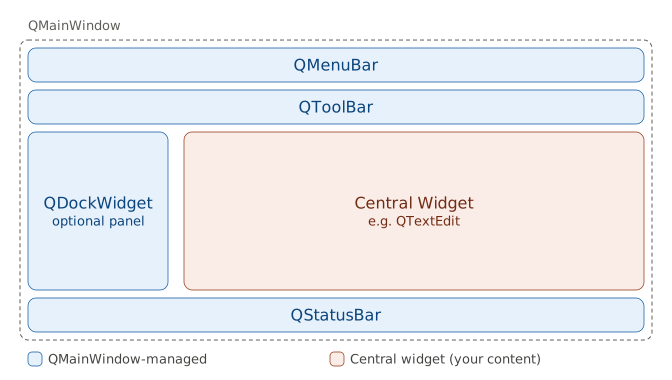
QMainWindow handles layout and docking automatically, saving you from manual widget management.
12.1 Setting Up the Central Widget
A central widget ca be any of the standard widgets, typically a QTextEdit, a QTableView, or a QGraphicsView. It is set with setCentralWidget().
 |
You are building a simple finantial memo editor for drafting client account notes and report write-ups. It needs to support rich text editing (bold, italic, different font sizes, etc.), and you anticipate more features in the future, such as menus, toolbars, and side panels. You decide to use |
To use QMainWindow in your application:
 1 import sys
 2 from PySide6.QtWidgets import QApplication, QMainWindow, QTextEdit
 3
 4
 5 # 1. Create a QMainWindow subclass.
 6
 7 class Editor(QMainWindow):
 8
 9     def __init__(self, parent=None):
10
11         super().__init__(parent)
12
13         self.setWindowTitle('Financial Memo Editor')
14         self.resize(500, 300)
15
16         # 2. Create a central widget.
17
18         text_edit = QTextEdit()
19
20         # 3. Set the main window central widget.
21
22         self.setCentralWidget(text_edit)
23
24
25 if __name__ == '__main__':
26
27     app = QApplication(sys.argv)
28     editor = Editor()
29     editor.show()
30     sys.exit(app.exec())
Create a class that inherits from
QMainWindowand name itEditor.Inside the
Editorclass’s__init__()method, instantiate aQTextEditwidget. This will serve as the primary area for viewing and editing memos.Call
self.setCentralWidget()on theQMainWindowinstance, passing theQTextEditobject. This places the text editor in the window’s central area, automatically handling resizing and layout.
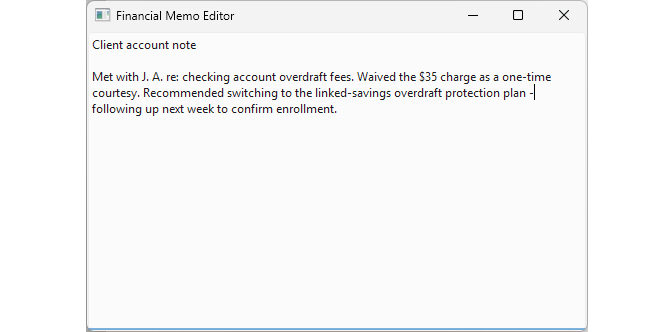
When you run the application, you see a window filled with the editable text area. You can type, select, copy, and paste text. The context menu and both scrollbars are present but text formatting (bold, italic, font size) is not available.
12.2 Adding a Status Bar
The QStatusBar class is a horizontal bar at the bottom of a QMainWindow, used for displaying status information. It supports three types of messages:
Temporary - briefly shown over normal messages but not permanent ones. Used for notifications, tool tip explanations, or menu help text.
Normal - displayed persistently on the left side. Used for dynamic information like cursor position, document length, or similar.
Permanent - always visible on the right side. Used for indicators such as Caps Lock status or character encoding.
|
Your financial memo editor’s users have requested live feedback at the bottom of the window: the current cursor line and column, the total character count, and (when text is selected) a note showing how many characters are selected. |
To add a status bar to the main window:
 1 #  The QStatusBar class provides a horizontal bar
 2 # suitable for presenting status information.
 3
 4 import sys
 5 from PySide6.QtCore import Slot
 6 from PySide6.QtWidgets import (QApplication, QMainWindow,
 7     QTextEdit, QLabel)
 8
 9
10 class Editor(QMainWindow):
11
12     def __init__(self, parent=None):
13
14         super().__init__(parent)
15
16         self.setWindowTitle('Financial Memo Editor')
17         self.resize(500, 300)
18         self.text_edit = QTextEdit()
19         self.setCentralWidget(self.text_edit)
20
21         # 1. Create the status bar widgets.
22
23         self.position_label = QLabel()
24         self.charcount_label = QLabel()
25
26         # 2. Add the widgets to the status bar.
27
28         self.statusBar().addWidget(self.position_label)
29         self.statusBar().addPermanentWidget(self.charcount_label)
30
31         # 3. Connect the signals to the slots.
32
33         self.text_edit.textChanged.connect(self.update_stats)
34         self.text_edit.cursorPositionChanged.connect(self.update_stats)
35         self.text_edit.selectionChanged.connect(self.show_selection_size)
36
37     @Slot()
38     def update_stats(self):
39         cursor = self.text_edit.textCursor()
40         size = self.text_edit.document().characterCount()
41         x = str(cursor.blockNumber() + 1)
42         y = str(cursor.columnNumber() + 1)
43         self.position_label.setText(f'Ln: {x}, Col: {y}')
44         self.charcount_label.setText(f'Chars: {size}')
45
46     @Slot()
47     def show_selection_size(self):
48         cursor = self.text_edit.textCursor()
49         count = len(cursor.selectedText())
50         msg = f'{count} characters selected'
51         self.statusBar().showMessage(msg, 2000)
52
53
54 if __name__ == '__main__':
55
56     app = QApplication(sys.argv)
57     editor = Editor()
58     editor.show()
59     sys.exit(app.exec())
Create
QLabelwidgets for the information you want to display persistently. In our example, we use one label for cursor position and another for total character count.Access the status bar with
self.statusBar()and add the labels usingaddWidget()for normal messages andaddPermanentWidget()for permanent ones.-
Connect
QTextEditsignals to update the information:textChanged()andcursorPositionChanged()both toupdate_stats(), refreshing the cursor position and character count.selectionChanged()show_selection_size()showing the selected character count temporarily.
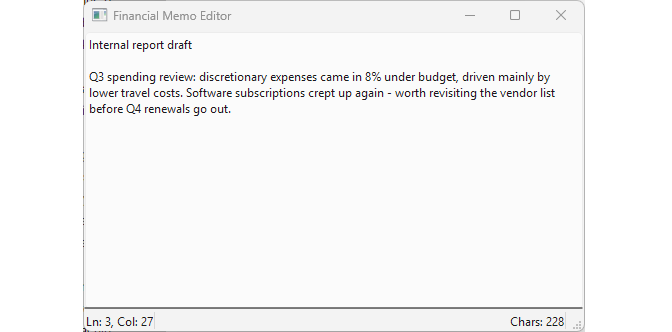
In the example, the permanent label always shows the total character count, while the normal label shows the cursor position. When text is selected, we briefly display a temporary message showing the selection size (e.g., “42 characters selected”). The temporary message hides the normal label for a couple of seconds but leaves the permanent character count message visible.
12.3 Creating Menus and Actions
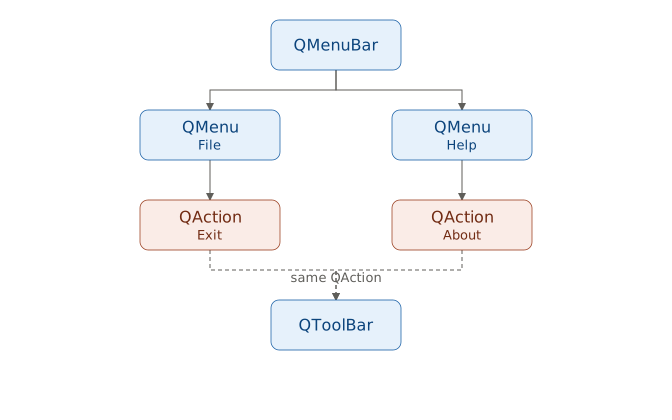
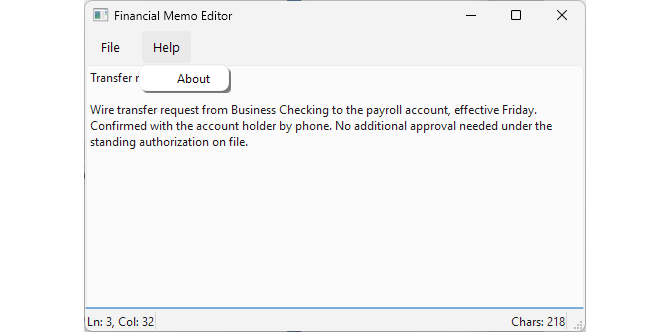
Menus are constructed using QMenuBar as the top-level container, with QMenu objects for each dropdown group, and QAction objects for the individual commands or items. QAction’s can be reused across menus, toolbars, and keyboard shortcuts.
|
Your financial memo editor’s users expect standard application menus: a File menu with an Exit command and a Help menu with an About dialog that shows application information and version. |
To add drop-down menus to your main window:
 1 # The QMenu class provides a menu widget for use
 2 # in menu bars, context menus, and other popup menus.
 3
 4 # The QAction class provides an abstraction for user commands
 5 # Same action objects can be added to
 6 # menus, toolbars and keyboard shortcuts.
 7
 8 import sys
 9 from PySide6.QtCore import Slot
10 from PySide6.QtGui import QAction
11 from PySide6.QtWidgets import (QApplication, QMainWindow,
12     QTextEdit, QLabel, QMessageBox)
13
14
15 class Editor(QMainWindow):
16
17     def __init__(self, parent=None):
18
19         super().__init__(parent)
20
21         self.setWindowTitle('Financial Memo Editor')
22         self.resize(500, 300)
23
24         self.text_edit = QTextEdit()
25         self.setCentralWidget(self.text_edit)
26
27         self.position_label = QLabel()
28         self.charcount_label = QLabel()
29         self.statusBar().addWidget(self.position_label)
30         self.statusBar().addPermanentWidget(self.charcount_label)
31
32         self.text_edit.textChanged.connect(self.update_stats)
33         self.text_edit.cursorPositionChanged.connect(self.update_stats)
34         self.text_edit.selectionChanged.connect(self.show_selection_size)
35
36         # You can access the main window QMenuBar
37         # using QMainWindow.menuBar()
38
39         menu_bar = self.menuBar()
40
41         # 1. Create a QMenu instance using QMenuBar.addMenu()
42         #    Use the ampersand to make keyboard shortcuts work.
43
44         file_menu = menu_bar.addMenu('&File')
45
46         # 2. Create a QAction instance.
47         #    Connect a slot to its triggered signal.
48         #    Set Editor as QAction's parent.
49
50         exit_action = QAction(self)
51         exit_action.setText('Exit')
52         exit_action.setShortcut('Alt+X')
53         exit_action.triggered.connect(QApplication.quit)
54
55         # 3. Add action to the menu.
56
57         file_menu.addAction(exit_action)
58
59         # Repeat the steps for each menu item
60
61         help_menu = menu_bar.addMenu('&Help')
62
63         about_action = QAction(self)
64         about_action.setText('About')
65         about_action.triggered.connect(self.show_messagebox)
66
67         help_menu.addAction(about_action)
68
69     @Slot()
70     def update_stats(self):
71         cursor = self.text_edit.textCursor()
72         size = self.text_edit.document().characterCount()
73         x = str(cursor.blockNumber() + 1)
74         y = str(cursor.columnNumber() + 1)
75         self.position_label.setText(f'Ln: {x}, Col: {y}')
76         self.charcount_label.setText(f'Chars: {size}')
77
78     @Slot()
79     def show_selection_size(self):
80         cursor = self.text_edit.textCursor()
81         count = len(cursor.selectedText())
82         msg = f'{count} characters selected'
83         self.statusBar().showMessage(msg, 2000)
84
85     @Slot()
86     def show_messagebox(self):
87         messagebox = QMessageBox()
88         messagebox.setText('Financial Memo Editor\nVersion 1.0')
89         messagebox.exec()
90
91
92 if __name__ == '__main__':
93
94     app = QApplication(sys.argv)
95     editor = Editor()
96     editor.show()
97     sys.exit(app.exec())
Access the main window’s menu bar with
QMainWindow.menuBar(). Add individual menus usingQMenuBar.addMenu()with a title (e.g., ‘&File’). Ampersands enable keyboard shortcuts.For each menu item, create a
QActionobject. Set its text, a shortcut withsetShortcut(), and connect itstriggered()signal to a slot (e.g., for quitting or showing a dialog). Set the main window as the action parent to ensure it stays in scope for the application lifetime.Add the action to the menu using
QMenu.addAction().
Menu-level keyboard accelerators are enabled by prefixing letters with an ampersand (&) in the menu title (e.g., “&File” allows Alt+F to open it). For action-level shortcuts (e.g., Ctrl+Q for Exit), use setShortcut().
When you run the application, the menu bar appears at the top. Selecting “Exit” closes the app, and “About” displays a simple dialog.
12.4 Adding Toolbars
QToolBar provides a panel for quick-access controls. Users can drag a toolbar to different dock areas, float them as separate windows, or customize their position. You can reuse the same QAction objects for both menus and toolbars.
|
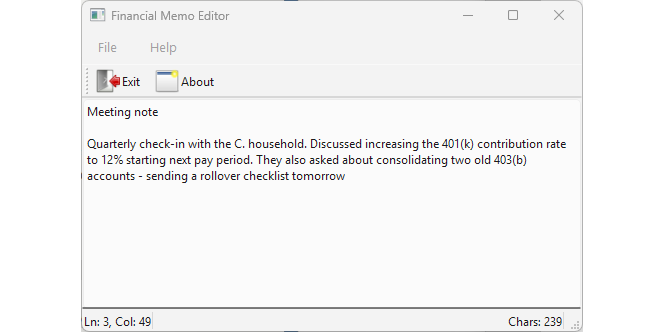
You are enhancing the financial memo editor with a toolbar. You decide to place the Exit and About commands on it. |
To use a toolbar in your application:
 1 # The QToolBar class provides a movable
 2 # panel that contains a set of controls.
 3
 4 import sys
 5 from PySide6.QtCore import Qt, Slot
 6 from PySide6.QtGui import QAction, QIcon
 7 from PySide6.QtWidgets import (QApplication, QMainWindow,
 8     QTextEdit, QLabel, QMessageBox)
 9
10
11 class Editor(QMainWindow):
12
13     def __init__(self, parent=None):
14
15         super().__init__(parent)
16         self.setWindowTitle('Financial Memo Editor')
17         self.resize(500, 300)
18
19         self.text_edit = QTextEdit()
20         self.setCentralWidget(self.text_edit)
21
22         self.position_label = QLabel()
23         self.charcount_label = QLabel()
24         self.statusBar().addWidget(self.position_label)
25         self.statusBar().addPermanentWidget(self.charcount_label)
26
27         self.text_edit.textChanged.connect(self.update_stats)
28         self.text_edit.cursorPositionChanged.connect(self.update_stats)
29         self.text_edit.selectionChanged.connect(self.show_selection_size)
30
31         menu_bar = self.menuBar()
32         file_menu = menu_bar.addMenu('&File')
33
34         # You can add icons to QActions.
35         # Icons are shown both in the menu and in the toolbar.
36         # The icons used here are from the Tango project.
37
38         exit_action = QAction(self)
39         exit_action.setText('Exit')
40         exit_action.setShortcut('Alt+X')
41         exit_action.setIcon(QIcon('./icons/exit.png'))
42         exit_action.triggered.connect(QApplication.quit)
43
44         file_menu.addAction(exit_action)
45
46         help_menu = menu_bar.addMenu('&Help')
47
48         about_action = QAction(self)
49         about_action.setText('About')
50         about_action.setShortcut('Alt+A')
51         about_action.setIcon(QIcon('./icons/about.png'))
52         about_action.triggered.connect(self.show_messagebox)
53
54         help_menu.addAction(about_action)
55
56         # 1. Create the toolbar.
57
58         file_toolbar = self.addToolBar('File')
59
60         # 2. Add actions to it. We reuse the same actions
61         #    that we used for the menu.
62
63         file_toolbar.addAction(exit_action)
64         file_toolbar.addAction(about_action)
65
66         # 3. Set the icons to be displayed besides the text.
67
68         file_toolbar.setToolButtonStyle(
69             Qt.ToolButtonStyle.ToolButtonTextBesideIcon)
70
71     @Slot()
72     def update_stats(self):
73         cursor = self.text_edit.textCursor()
74         size = self.text_edit.document().characterCount()
75         x = str(cursor.blockNumber() + 1)
76         y = str(cursor.columnNumber() + 1)
77         self.position_label.setText(f'Ln: {x}, Col: {y}')
78         self.charcount_label.setText(f'Chars: {size}')
79
80     @Slot()
81     def show_selection_size(self):
82         cursor = self.text_edit.textCursor()
83         count = len(cursor.selectedText())
84         msg = f'{count} characters selected'
85         self.statusBar().showMessage(msg, 2000)
86
87     def show_messagebox(self):
88         messagebox = QMessageBox()
89         messagebox.setText('Financial Memo Editor\nVersion 1.1')
90         messagebox.exec()
91
92
93 if __name__ == '__main__':
94
95     app = QApplication(sys.argv)
96     editor = Editor()
97     editor.show()
98     sys.exit(app.exec())
Create the toolbar using
QMainWindow.addToolBar().Add existing
QActionobjects (reused from menus), customQWidgets, or separators as needed.Optionally, add icons to the actions with
setIcon(). Icons display in both menus and toolbars. Customize the toolbar’s appearance withsetToolButtonStyle().
When you run the application, the toolbar appears at the top. Hovering shows tooltips (inherited from action text), and clicking performs the same actions as the menu. Users can right-click the toolbar area to toggle visibility or drag to reposition it.
12.5 Using Dock Widgets
QDockWidget enables the creation of panels that can be docked within a QMainWindow or floated as independent windows. It is used for tools that users may want to rearrange or hide to customise their workflow.
|
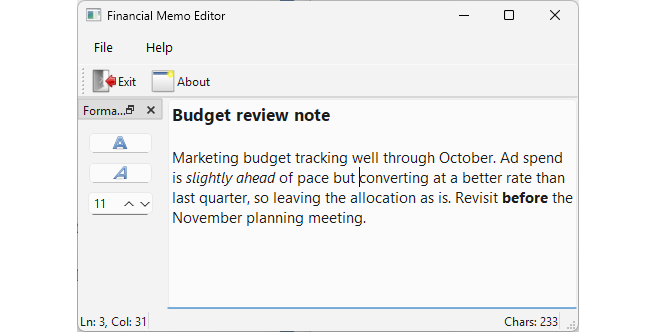
Your financial memo editor’s users want quick access to common formatting tools (bold, italic, and font size selection) without cluttering the main menu or toolbar. You provide these controls in a dockable widget that can be positioned on the left or right and floated if needed. |
To use a dock widget in your application:
  1 # The QDockWidget class provides a widget that can be
  2 # docked inside a QMainWindow or floated
  3 # as a top-level window on the desktop
  4
  5 import sys
  6 from PySide6.QtCore import Qt, Slot
  7 from PySide6.QtGui import QAction, QIcon, QTextCharFormat, QFont
  8 from PySide6.QtWidgets import (QApplication, QMainWindow,
  9     QTextEdit, QLabel, QMessageBox, QVBoxLayout, QPushButton,
 10     QSpinBox, QDockWidget, QWidget)
 11
 12
 13 class Editor(QMainWindow):
 14
 15     def __init__(self, parent=None):
 16
 17         super().__init__(parent)
 18         self.setWindowTitle('Financial Memo Editor')
 19         self.resize(500, 300)
 20
 21         self.text_edit = QTextEdit()
 22         self.text_edit.cursorPositionChanged.connect(
 23             self.update_dock_widgets)
 24         self.text_edit.cursorPositionChanged.connect(self.update_stats)
 25         self.setCentralWidget(self.text_edit)
 26
 27         self.position_label = QLabel()
 28         self.charcount_label = QLabel()
 29         self.statusBar().addWidget(self.position_label)
 30         self.statusBar().addPermanentWidget(self.charcount_label)
 31
 32         self.text_edit.textChanged.connect(self.update_stats)
 33         self.text_edit.selectionChanged.connect(
 34             self.show_selection_size)
 35
 36         menu_bar = self.menuBar()
 37         file_menu = menu_bar.addMenu('&File')
 38
 39         exit_action = QAction(self)
 40         exit_action.setText('Exit')
 41         exit_action.setShortcut('Alt+X')
 42         exit_action.setIcon(QIcon('./icons/exit.png'))
 43         exit_action.triggered.connect(QApplication.quit)
 44
 45         file_menu.addAction(exit_action)
 46
 47         help_menu = menu_bar.addMenu('&Help')
 48
 49         about_action = QAction(self)
 50         about_action.setText('About')
 51         about_action.setShortcut('Alt+A')
 52         about_action.setIcon(QIcon('./icons/about.png'))
 53         about_action.triggered.connect(self.show_messagebox)
 54
 55         help_menu.addAction(about_action)
 56
 57         file_toolbar = self.addToolBar('File')
 58         file_toolbar.addAction(exit_action)
 59         file_toolbar.addAction(about_action)
 60         file_toolbar.setToolButtonStyle(
 61             Qt.ToolButtonStyle.ToolButtonTextBesideIcon)
 62
 63         # 1. Create the dock widget.
 64
 65         dock_widget = QDockWidget('Formatting')
 66         dock_widget.setAllowedAreas(
 67             Qt.DockWidgetArea.LeftDockWidgetArea
 68             | Qt.DockWidgetArea.RightDockWidgetArea)
 69
 70         vbox = QVBoxLayout()
 71
 72         self.button_bold = QPushButton()
 73         self.button_bold.setIcon(QIcon('./icons/bold.png'))
 74         self.button_bold.setCheckable(True)
 75         self.button_bold.toggled.connect(self.update_bold)
 76
 77         self.button_italic = QPushButton()
 78         self.button_italic.setIcon(QIcon('./icons/italic.png'))
 79         self.button_italic.setCheckable(True)
 80         self.button_italic.toggled.connect(self.update_italic)
 81
 82         self.font_size_spinbox = QSpinBox()
 83         self.font_size_spinbox.setMinimumWidth(26)
 84         self.font_size_spinbox.setMinimum(1)
 85         self.font_size_spinbox.setMaximum(24)
 86         self.font_size_spinbox.valueChanged.connect(
 87             self.update_font_size)
 88
 89         self.point_size = 12
 90
 91         char_format = QTextCharFormat()
 92         char_format.setFontPointSize(self.point_size)
 93         self.text_edit.mergeCurrentCharFormat(char_format)
 94         self.font_size_spinbox.setValue(self.point_size)
 95
 96         vbox.addWidget(self.button_bold)
 97         vbox.addWidget(self.button_italic)
 98         vbox.addWidget(self.font_size_spinbox)
 99         vbox.addStretch()
100
101         container = QWidget()
102         container.setLayout(vbox)
103         container.setMinimumWidth(20)
104         dock_widget.setWidget(container)
105
106         # 2. Add the dock widget to the main window.
107
108         self.addDockWidget(
109             Qt.DockWidgetArea.LeftDockWidgetArea, dock_widget)
110
111     @Slot()
112     def update_stats(self):
113         cursor = self.text_edit.textCursor()
114         size = self.text_edit.document().characterCount()
115         x = str(cursor.blockNumber() + 1)
116         y = str(cursor.columnNumber() + 1)
117         self.position_label.setText(f'Ln: {x}, Col: {y}')
118         self.charcount_label.setText(f'Chars: {size}')
119
120     @Slot()
121     def show_selection_size(self):
122         cursor = self.text_edit.textCursor()
123         count = len(cursor.selectedText())
124         msg = f'{count} characters selected'
125         self.statusBar().showMessage(msg, 2000)
126
127     @Slot()
128     def show_messagebox(self):
129         messagebox = QMessageBox()
130         messagebox.setText('Financial Memo Editor\nVersion 1.2')
131         messagebox.exec()
132
133     # 3. Handle the dock widget children signals.
134
135     def update_bold(self, checked):
136         char_format = QTextCharFormat()
137         if checked:
138             char_format.setFontWeight(QFont.Weight.Bold)
139         else:
140             char_format.setFontWeight(QFont.Weight.Normal)
141         self.text_edit.mergeCurrentCharFormat(char_format)
142         self.text_edit.setFocus(Qt.FocusReason.OtherFocusReason)
143
144     def update_italic(self, checked):
145         char_format = QTextCharFormat()
146         char_format.setFontItalic(checked)
147         self.text_edit.mergeCurrentCharFormat(char_format)
148         self.text_edit.setFocus(Qt.FocusReason.OtherFocusReason)
149
150     def update_font_size(self, i):
151         char_format = QTextCharFormat()
152         char_format.setFontPointSize(i)
153         self.text_edit.mergeCurrentCharFormat(char_format)
154
155     def update_dock_widgets(self):
156         char_format = self.text_edit.textCursor().charFormat()
157
158         self.button_bold.blockSignals(True)
159         self.button_bold.setChecked(char_format.font().bold())
160         self.button_bold.blockSignals(False)
161
162         self.button_italic.blockSignals(True)
163         self.button_italic.setChecked(char_format.font().italic())
164         self.button_italic.blockSignals(False)
165
166         self.font_size_spinbox.blockSignals(True)
167         self.font_size_spinbox.setValue(char_format.font().pointSize())
168         self.font_size_spinbox.blockSignals(False)
169
170
171 if __name__ == '__main__':
172
173     app = QApplication(sys.argv)
174     editor = Editor()
175     editor.show()
176     sys.exit(app.exec())
Instantiate a
QDockWidgetand configure its properties, such as title or allowed docking areas.Create child widgets and arrange them in a layout within a container
QWidget, then set this container as the dock’s content usingsetWidget().Connect signals from the child widgets to slots that apply formatting via
QTextCharFormatandmergeCurrentCharFormat(). To reflect the current text format in the dock (e.g., when moving the cursor), connectQTextEdit.cursorPositionChanged()to update the widgets’ states.
Right-clicking the menu bar or toolbar area pops up a list of every toolbar and dock widget in the window, letting you restore a closed one to the same area it was closed from.
Editor applicatons have a convention of signalling the user when the current document has unsaved changes. QWidget exposes a windowModified property for this. If you insert a '[*]' placeholder in the window title, Qt substitutes its own modification marker when this property is true.
1 self.setWindowTitle('Financial Memo Editor[*]')
2 self.text_edit.document().modificationChanged.connect(
3     self.setWindowModified)