14. Customizing Qt Styles
Built-in Qt widgets are not drawn by hard-coded painting code inside the widget itself -they delegate drawing to the Qt Style system. When a widget receives a paint request, its paintEvent() method:
Prepares a style option by filling in one of the
QStyleOptionsubclasses.Uses the widget’s current
style()to paint it, usually through aQStylePainter, aQPaintersubclass with convenience methods that forward drawing calls to the style.
This indirection makes widgets independent of any particular look and feel, easy to theme, and visually consistent. (A widget whose paintEvent() draws directly with QPainter, like the custom widgets in Chapter 16, bypasses the style entirely.)
14.1 The Style System
Qt provides a set of prebuilt styles that you can use to easily change your application’s appearance:
| Style | Windows | macOS | Linux |
|---|---|---|---|
| fusion | available | available | available |
| windows | available | available | available |
| windows11 | available | ||
| windowsvista | available | ||
| macos | available |
Only Fusion and Windows (which mimics the “classic” Windows look and feel) are available on all platforms. The Windows11 style requires Qt 6.7 or later.
 |
You want to see which visual styles are available on the current platform and switch between them at runtime. |
There are several ways to apply a style to your application:
By setting the
QT_STYLE_OVERRIDEenvironment variable (for example,QT_STYLE_OVERRIDE=fusion).By passing the
-stylecommand-line argument when you start the application (python main.py -style fusion).By changing the style in code with
QApplication.setStyle().
To examine available Qt styles:
 1 import sys
 2 from PySide6.QtCore import Slot, Qt
 3 from PySide6.QtWidgets import (QApplication, QStyleFactory,
 4     QWidget, QComboBox, QVBoxLayout)
 5 from customwidgets import WidgetFactory
 6
 7
 8 class Window(QWidget):
 9
10     def __init__(self, parent=None):
11
12         super().__init__(parent)
13         self.setMinimumWidth(400)
14         self.setLayout(QVBoxLayout())
15
16         self.style_combo = QComboBox()
17
18         # 1. Populate a combobox with available Qt styles.
19
20         for key in QStyleFactory.keys():
21             self.style_combo.addItem(key)
22
23         current_style = QApplication.style().name()
24         idx = self.style_combo.findText(
25             current_style,
26             Qt.MatchFlag.MatchFixedString)
27         self.style_combo.setCurrentIndex(idx)
28
29         # 2. Connect the currentIndexChanged() signal to a slot.
30
31         self.style_combo.currentIndexChanged.connect(self.set_style)
32
33         self.layout().addWidget(self.style_combo)
34         self.layout().addWidget(WidgetFactory())
35
36     # 3. Apply selected style.
37
38     @Slot(int)
39     def set_style(self, idx):
40
41         style_name = self.style_combo.itemText(idx)
42         style = QStyleFactory.create(style_name)
43         QApplication.setStyle(style)
44
45
46 if __name__ == '__main__':
47
48     app = QApplication(sys.argv)
49     style = QStyleFactory.create('Fusion')
50     QApplication.setStyle(style)
51     main_window = Window()
52     main_window.show()
53     sys.exit(app.exec())
Populate a combobox with the available Qt styles. The
QStyleFactory.keys()list contains all available style names. Use this list to add each style name to a combobox. Get the current style name withQApplication.style().name()and select the matching combobox item. Note thatname()returns a lowercase name ('fusion') whilekeys()returns'Fusion'so use a case-insensitive match.Connect the combobox’s
currentIndexChanged()signal to a slot.In the slot, apply the selected style. Get the selected style name from the combobox. Pass the name to
QStyleFactory.create()to create the correspondingQStyleobject. UseQApplication.setStyle()to set the application’s style.setStyle()also accepts a style name directly which is simpler if you don’t need the style object.
Now, when you run the application and select a style from the combobox, the selected style is applied to all the widgets.
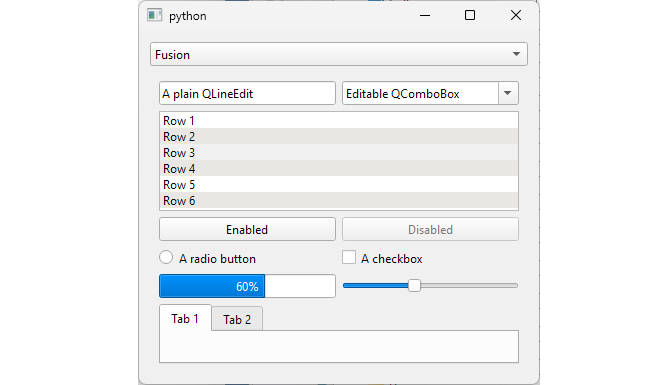
Individual widgets can override the application style with QStyle.setStyle(). This affects only the widget itself, not its children, and the widget does not take ownership of the style object.
14.2 QPalette and Color Roles
Styles consult a QPalette when painting widgets. Each palette has three color groups (plus Normal, which is an alias for Active):
| Color Group | |
|---|---|
| Active | The widget’s window is the active window |
| Disabled | The widget is disabled |
| Inactive | The widget is visible but its window is not active |
Each palette also has 21 color roles such as:
| Role | Typical use |
|---|---|
| Window | General background |
| WindowText | General text / foreground |
| Base | Text entry background |
| Text | Text on Base |
| Button | Button background |
| ButtonText | Text on buttons |
|
You want to test how changing |
  1 import sys
  2 from PySide6.QtCore import Slot, Qt
  3 from PySide6.QtGui import QPalette, QColor
  4 from PySide6.QtWidgets import (QApplication, QStyleFactory,
  5     QWidget, QComboBox, QVBoxLayout, QColorDialog, QPushButton)
  6 from customwidgets import WidgetFactory
  7
  8
  9 ROLES = (QPalette.ColorRole.Window, QPalette.ColorRole.WindowText,
 10          QPalette.ColorRole.Base, QPalette.ColorRole.Text,
 11          QPalette.ColorRole.Button, QPalette.ColorRole.ButtonText,
 12          QPalette.ColorRole.Highlight, QPalette.ColorRole.HighlightedText,
 13          QPalette.ColorRole.AlternateBase,QPalette.ColorRole.Midlight)
 14
 15
 16 class Window(QWidget):
 17
 18     def __init__(self, parent=None):
 19
 20         super().__init__(parent)
 21         self.setMinimumWidth(400)
 22         self.setLayout(QVBoxLayout())
 23
 24         self.style_combo = QComboBox()
 25
 26         # 1. Add the styles combobox.
 27
 28         for key in QStyleFactory.keys():
 29             self.style_combo.addItem(key)
 30
 31         current_style = QApplication.style().name()
 32         idx = self.style_combo.findText(
 33             current_style, Qt.MatchFlag.MatchFixedString)
 34         self.style_combo.setCurrentIndex(idx)
 35
 36         # 2. Add the color roles combobox.
 37
 38         self.role_combo = QComboBox()
 39         for role in ROLES:
 40             self.role_combo.addItem(role.name, role)
 41
 42         # 3. Add the color groups combobox.
 43
 44         self.group_combo = QComboBox()
 45         for group in QPalette.ColorGroup:
 46             if group != QPalette.ColorGroup.NColorGroups:
 47                 self.group_combo.addItem(group.name, group)
 48
 49         # 4. Add the select color button.
 50
 51         self.color_button = QPushButton('Select a color')
 52
 53         # 5. Connect the signals.
 54
 55         self.style_combo.currentIndexChanged.connect(self.set_style)
 56         self.role_combo.currentIndexChanged.connect(self.apply_palette)
 57         self.group_combo.currentIndexChanged.connect(self.apply_palette)
 58         self.color_button.clicked.connect(self.set_color)
 59
 60         self.layout().addWidget(self.style_combo)
 61         self.layout().addWidget(self.role_combo)
 62         self.layout().addWidget(self.group_combo)
 63         self.layout().addWidget(self.color_button)
 64
 65         self.widget_factory = WidgetFactory()
 66
 67         self.layout().addWidget(self.widget_factory)
 68
 69         self.original_palette = QApplication.palette()
 70         self.color = QColor('green')
 71         self.color_button.setStyleSheet('background-color: green')
 72         self.apply_palette()
 73
 74
 75     @Slot(int)
 76     def set_style(self, idx):
 77         style_name = self.style_combo.itemText(idx)
 78         style = QStyleFactory.create(style_name)
 79         QApplication.setStyle(style)
 80
 81     def set_color(self):
 82         ret_color = QColorDialog.getColor(parent=self)
 83         if ret_color.isValid():
 84             self.color = ret_color
 85             self.apply_palette()
 86
 87     # 6. Apply the palette to the selected group and role.
 88
 89     def apply_palette(self):
 90         color_name = self.color.name(QColor.NameFormat.HexRgb)
 91         palette = QPalette(self.original_palette)
 92         palette.setColor(
 93             self.group_combo.currentData(),
 94             self.role_combo.currentData(),
 95             self.color)
 96         self.color_button.setStyleSheet(f'background-color: {color_name}')
 97         self.widget_factory.setPalette(palette)
 98
 99
100 if __name__ == '__main__':
101
102     app = QApplication(sys.argv)
103     style = QStyleFactory.create('Fusion')
104     QApplication.setStyle(style)
105     main_window = Window()
106     main_window.show()
107     sys.exit(app.exec())
Add the styles combobox. Populate it with the names returned by
QStyleFactory.keys(). Retrieve the name of the active style withQApplication.style().name()and set it as the current item.Add the color roles combobox and populate it from the
ROLESlist.Add the color groups combobox. Iterate over
QPalette.ColorGroupand add an item to the combobox for each group.Add the Select color button.
-
Connect the signals:
- Connect the styles combobox
currentIndexChanged()signal to a slot that creates the selected style withQStyleFactory.create()and applies it withQApplication.setStyle(). - Connect the roles combobox
currentIndexChanged()signal to a slot that applies the palette. - Connect the color button
clicked()signal to slot.
-
Apply the palette to the selected color group and role:
- Create a copy of the active style’s standard palette with
QApplication.style().standardPalette(). - Call
QPalette.setColor()using the currently selected group, role, and color. - Update the button background color.
- Apply the modified palette.
This lets you see how changing a color role in a color group affects the appearance of different widgets under the currently active style.
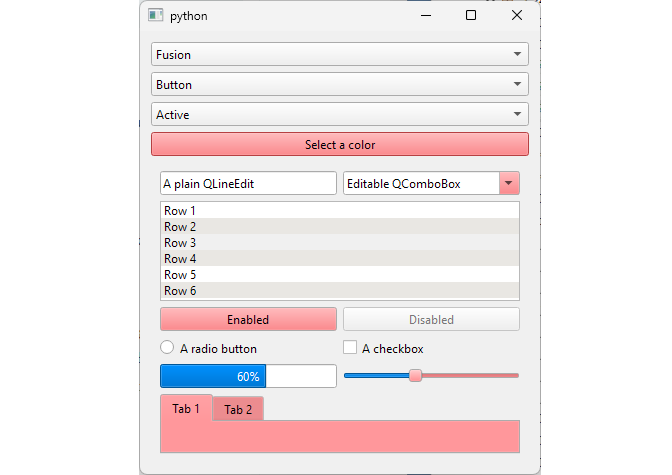
If you experiment with different style-role-group combinations, you will notice that a style is free to use or ignore whichever roles it likes.
14.3 QProxyStyle: Reimplementing Metrics and Hints
There are two QStyle methods that let you customize a widget’s appearance without reimplementing its painting code:
def pixelMetric( self, metric: QStyle.PixelMetric, option: QStyleOption | None = None, widget: QWidget | None = None) -> int.def styleHint( self, hint: QStyle.StyleHint, option: QStyleOption | None = None, widget: QWidget | None = None, returnData: QStyleHintReturn | None = None) -> int.
metric is one of the PixelMetric values like ButtonMargin or SliderLength, hint is a QStyle.StyleHint value, while option is a QStyleOption (or its subclass) that stores the information that QStyle methods need to draw the widget.
pixelMetric() returns the size in pixels of the given metric. styleHint() returns an integer whose meaning depends on the hint (a boolean flag, an alignment value, etc.).
styleHint() also has an optional returnData parameter which some hints use to return additional data. In PySide6 at its type is always QStyleHintReturn and never the actual subclass like QStyleHintReturnVariant, so hints that rely on it can not be implemented from Python.
|
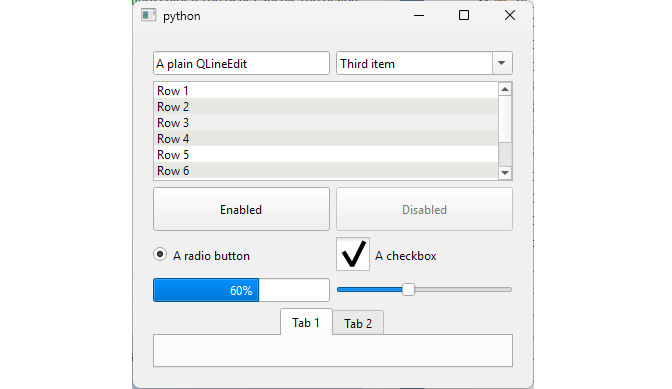
Your application uses the Fusion style but you need buttons and indicators to have more space. You also want combo boxes to display their drop-down lists as popups, and tab bars to be center-aligned. |
 1 from PySide6.QtCore import Qt
 2 from PySide6.QtWidgets import QStyle, QProxyStyle, QStyleFactory
 3
 4
 5 # 1. Create a QProxyStyle subclass.
 6
 7 class MyProxyStyle(QProxyStyle):
 8
 9     def __init__(self):
10         base = QStyleFactory.create('Fusion')
11         super().__init__(base)
12
13     # 2. Reimplement pixelMetric().
14
15     def pixelMetric(self, metric, option=None, widget=None):
16
17         value = super().pixelMetric(metric, option, widget)
18
19         if metric in (QStyle.PixelMetric.PM_ButtonMargin,
20                         QStyle.PixelMetric.PM_IndicatorHeight,
21                         QStyle.PixelMetric.PM_IndicatorWidth):
22             return value + 20
23         return value
24
25     # 3. Reimplement styleHint().
26
27     def styleHint(self, hint, option=None, widget=None, returnData=None):
28         if hint == QStyle.StyleHint.SH_ComboBox_Popup:
29             return 1
30         if hint == QStyle.StyleHint.SH_TabBar_Alignment:
31             return Qt.AlignmentFlag.AlignCenter
32         return super().styleHint(hint, option, widget, returnData)
Create a
QProxyStylesubclass. In__init__(), pass theFusionstyle to the base class__init__().Reimplement
pixelMetric(). Call the base implementation, then increase the returned metric value so that widgets get more space.Reimplement
styleHint(). Return the new values for the hints you want to change (SH_ComboBox_PopupandSH_TabBar_Alignment), and forward other hints to the base implementation.
 1 import sys
 2 from PySide6.QtWidgets import QApplication, QWidget, QVBoxLayout
 3 from customwidgets import WidgetFactory
 4 from proxystyles import MyProxyStyle
 5
 6
 7 class Window(QWidget):
 8
 9     def __init__(self, parent=None):
10
11         super().__init__(parent)
12
13         self.setMinimumWidth(400)
14         self.setLayout(QVBoxLayout())
15         self.layout().addWidget(WidgetFactory())
16
17
18 if __name__ == '__main__':
19
20     # 4. Apply your custom style.
21
22     app = QApplication(sys.argv)
23     app.setStyle(MyProxyStyle())
24     main_window = Window()
25     main_window.show()
26     sys.exit(app.exec())
- Apply your custom style. In main window, create an instance of your proxy style and set it with
QApplication.setStyle().
Note that if you want to change metrics or hints at runtime you need to create a new proxy style instance and pass it to QApplication.setStyle() - changing the attributes of the installed style does not refresh pixel metrics.
14.4 Primitives, Controls, and Complex Controls
Beyond simple changes like widget metrics and style hints, QStyle lets you draw widgets or their elements yourself using methods like drawPrimitive(), drawControl(), or drawComplexControl():
 1 def drawPrimitive(
 2     self,
 3     element: QStyle.PrimitiveElement,
 4     option: QStyleOption,
 5     painter: QPainter,
 6     widget: QWidget | None = None
 7 ) -> None
 8
 9 def drawControl(
10     self,
11     element: QStyle.ControlElement,
12     option: QStyleOption,
13     painter: QPainter,
14     widget: QWidget | None = None
15 ) -> None
16
17 def drawComplexControl(
18     self,
19     control: QStyle.ComplexControl,
20     option: QStyleOptionComplex,
21     painter: QPainter,
22     widget: QWidget | None = None
23 ) -> None
drawPrimitive() draws primitive elements, like checkbox and radio button indicators, or focus rectangles. drawControl() draws individual control elements, like labels, push buttons, checkboxes, or headers. drawComplexControl() draws controls that are composed of multiple subcontrols, such as scroll bars, sliders, and spin boxes.
|
You want to understand how a style paints a widget before you start overriding it. You write a small |
To log drawPrimitive(), drawControl(), and drawComplexControl():
 1 from PySide6.QtWidgets import QStyle, QProxyStyle, QStyleFactory
 2
 3 # 1 Create a custom style.
 4
 5 class MyProxyStyle(QProxyStyle):
 6
 7     def __init__(self, level=None):
 8         super().__init__(QStyleFactory.create('Fusion'))
 9         self.logging_enabled = True
10         self.last_widget = None
11
12     # 2. Create the log method.
13
14     def log(self, method, name, widget):
15
16         if not self.logging_enabled:
17             return
18
19         widget_name = widget.metaObject().className()
20         if widget_name != self.last_widget:
21             print(f'\n{widget_name}')
22             self.last_widget = widget_name
23
24         print(f'    {method:<22}{name}')
25
26     # 3. Reimplement the three methods.
27
28     def drawPrimitive(self, element, option, painter, widget=None):
29         name = QStyle.PrimitiveElement(element).name
30         self.log('drawPrimitive()', name, widget)
31         super().drawPrimitive(element, option, painter, widget)
32
33     def drawControl(self, element, option, painter, widget=None):
34         name = QStyle.ControlElement(element).name
35         self.log('drawControl()', name, widget)
36         super().drawControl(element, option, painter, widget)
37
38     def drawComplexControl(self, control, option, painter, widget=None):
39         name = QStyle.ComplexControl(control).name
40         self.log('drawComplexControl()', name, widget)
41         super().drawComplexControl(control, option, painter, widget)
Create a custom style class. Add a flag to enable or disable logging and a variable to hold the last widget that was painted.
Add a log method to the class. Print the widget’s class name whenever it changes, followed by the drawing method name and the element/control name.
Reimplement the three drawing methods. Reimplement
drawPrimitive(),drawControl(), anddrawComplexControl()to call the log method and forward the call to the base implementation.
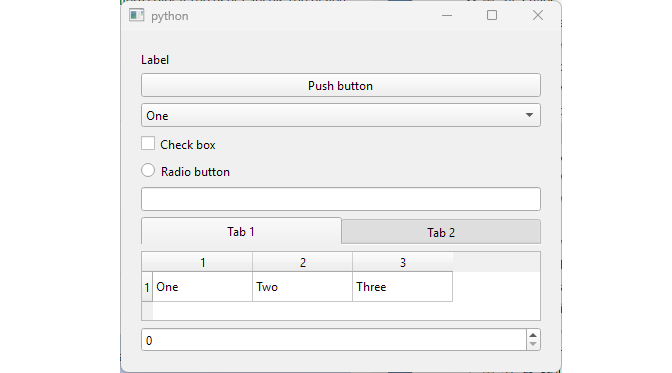
When you run the application, the log shows which calls the Fusion style makes to pain each widget. Three widgets show the typical patterns:
 1 QPushButton
 2     drawControl()         CE_PushButton
 3     drawControl()         CE_PushButtonBevel
 4     drawPrimitive()       PE_PanelButtonCommand
 5     drawControl()         CE_PushButtonLabel
 6
 7 QCheckBox
 8     drawControl()         CE_CheckBox
 9     drawPrimitive()       PE_IndicatorCheckBox
10     drawControl()         CE_CheckBoxLabel
11
12 QComboBox
13     drawComplexControl()  CC_ComboBox
14     drawPrimitive()       PE_PanelButtonCommand
15     drawControl()         CE_ComboBoxLabel
QLabel |
CE_ShapedFrame only. The text is drawn with drawItemText(), which we don’t log. |
QLineEdit |
Two primitives: PE_PanelLineEdit and PE_FrameLineEdit. |
QSpinBox |
One complex control: CC_SpinBox. The spin box embedded QLineEdit is painted separately (PE_PanelLineEdit). |
QTabBar |
PE_FrameTabBarBase, then for each tab CE_TabBarTab (which draws CE_TabBarTabShape and CE_TabBarTabLabel). |
QHeaderView |
For each section, CE_Header (which draws CE_HeaderSection and CE_HeaderLabel), then CE_HeaderEmptyArea. |
QTableWidget |
CE_ShapedFrame and PE_Frame for the frame, then for each cell PE_PanelItemViewRow and CE_ItemViewItem (which draws PE_PanelItemViewItem). |
14.5 Reimplementing drawControl()
All three draw* methods require you to draw widget elements with a QPainter. This lower-level approach lets you set pen and brush and use the painter to draw shapes like lines, rectangles, arcs, and ellipses, but also paths, pictures and text. We will see more examples of QPainter use in Chapters 16 and 35, but for now let’s examine a very simple example.
|
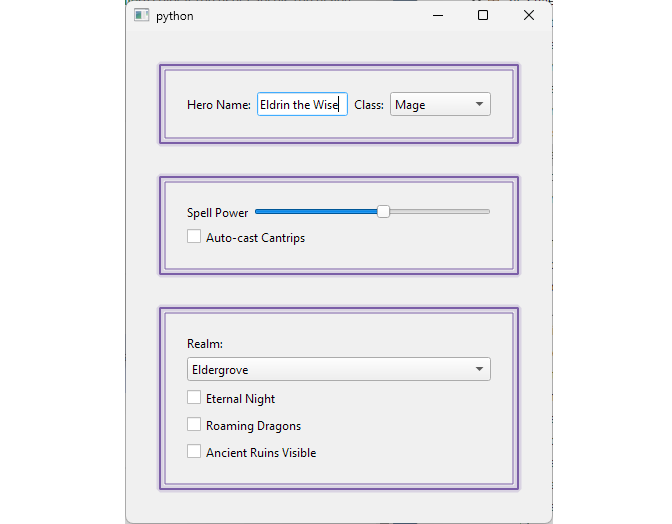
Your application groups its settings into panels, and you want every panel to get a distinctive border without changing the code that builds the panels. |
To use custom painting to draw a frame:
 1 from PySide6.QtWidgets import QStyle, QProxyStyle, QStyleFactory
 2
 3 # 1 Create a custom style.
 4
 5 class MyProxyStyle(QProxyStyle):
 6
 7     def __init__(self, level=None):
 8         super().__init__(QStyleFactory.create('Fusion'))
 9         self.logging_enabled = True
10         self.last_widget = None
11
12     # 2. Create the log method.
13
14     def log(self, method, name, widget):
15
16         if not self.logging_enabled:
17             return
18
19         widget_name = widget.metaObject().className()
20         if widget_name != self.last_widget:
21             print(f'\n{widget_name}')
22             self.last_widget = widget_name
23
24         print(f'    {method:<22}{name}')
25
26     # 3. Reimplement the three methods.
27
28     def drawPrimitive(self, element, option, painter, widget=None):
29         name = QStyle.PrimitiveElement(element).name
30         self.log('drawPrimitive()', name, widget)
31         super().drawPrimitive(element, option, painter, widget)
32
33     def drawControl(self, element, option, painter, widget=None):
34         name = QStyle.ControlElement(element).name
35         self.log('drawControl()', name, widget)
36         super().drawControl(element, option, painter, widget)
37
38     def drawComplexControl(self, control, option, painter, widget=None):
39         name = QStyle.ComplexControl(control).name
40         self.log('drawComplexControl()', name, widget)
41         super().drawComplexControl(control, option, painter, widget)
Create a custom style. Subclass
QproxyStyleand initialize it with the Fusion style.Check if the element is a frame. In
drawControl(), test whether the element isCE_ShapedFrameand the frame shape isStyledPanel.Draw the rectangles. When the conditions match, save the painter state, enable antialiasing, and draw three nested rectangles (a soft outer glow, a main border, and a thinner inner border). After that, restore the painter. For every other element forward the call to the base class.