LLMs with Local Models
Running language models on your own hardware gives you privacy, zero per-token cost, and the ability to work offline. The tradeoff is that local models are generally smaller and less capable than the frontier models available through cloud APIs, and running larger models requires significant GPU memory or Apple Silicon unified memory.
In this chapter we focus on Ollama, the most popular tool for running local models. Ollama handles model downloading, quantization, GPU acceleration, and exposes a simple API, you can go from zero to a running local LLM in minutes. We also briefly mention alternative tools at the end of the chapter.
If you want to go deeper into Ollama, including tool use, agents, RAG, and advanced configuration, see my book Ollama in Action.
The examples for this chapter are in the directory source-code/llm_local_models.
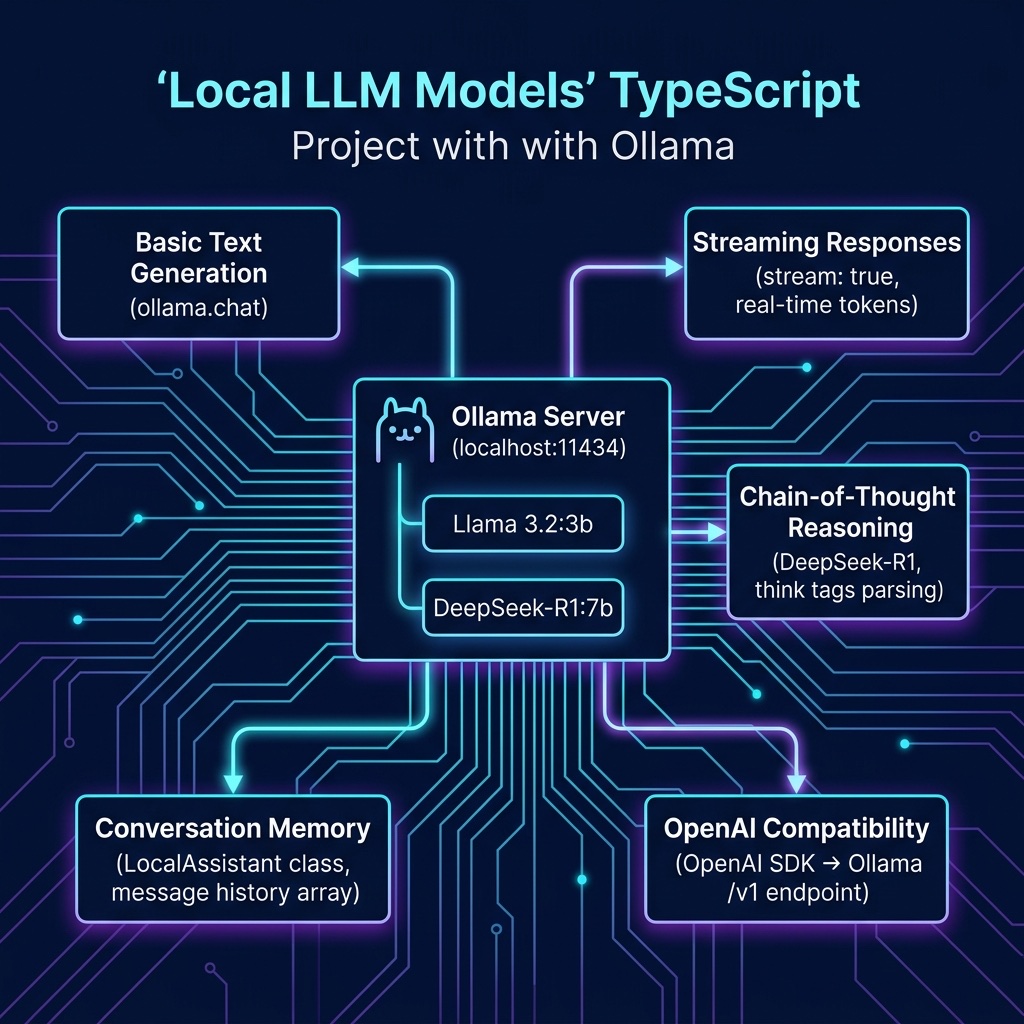
Installing Ollama
Ollama is available for macOS, Linux, and Windows. On macOS:
1 brew install ollama
Or download the installer from ollama.com. After installation, start the Ollama service:
1 ollama serve
This starts a local server on port 11434. The service runs in the background and manages model loading, GPU memory, and request handling.
Downloading and Running Models
Ollama uses a Docker-like model for pulling and running models. To download a model:
1 ollama pull llama3.2:3b
This downloads Meta’s Llama 3.2 with 3 billion parameters, quantized to about 2 GB. You can interact with it immediately from the command line:
1 ollama run llama3.2:3b "What is the capital of France?"
Some recommended models to start with:
| Model | Size | Strengths |
|---|---|---|
| llama3.2:3b | 2 GB | Fast, good general purpose |
| gemma3:4b | 3 GB | Google’s small model, strong reasoning |
| qwen3:4b | 2.6 GB | Excellent multilingual and coding |
| deepseek-r1:7b | 4.7 GB | Strong reasoning with explicit chain-of-thought |
| llava:7b | 4.7 GB | Vision model, can analyze images |
Using Ollama from TypeScript
The ollama npm package provides a clean TypeScript interface to the local Ollama service.
1 npm install ollama
Basic Text Generation
The simplest use of the Ollama SDK, send a prompt and print the response:
 1 // ollama_text.ts - Basic text generation with a local model
 2
 3 import ollama from "ollama";
 4
 5 const response = await ollama.chat({
 6   model: "llama3.2:3b",
 7   messages: [
 8     { role: "user", content: "Briefly explain what a neural network is." },
 9   ],
10 });
11
12 console.log(response.message.content);
This is similar in structure to the cloud API examples from the previous chapter, but the request never leaves your machine.
Streaming Responses
For interactive applications, streaming lets users see output as it’s generated rather than waiting for the complete response:
 1 // ollama_streaming.ts - Streaming responses for real-time output
 2
 3 import ollama from "ollama";
 4
 5 const stream = await ollama.chat({
 6   model: "llama3.2:3b",
 7   messages: [
 8     { role: "user", content: "Write a short poem about programming." },
 9   ],
10   stream: true,
11 });
12
13 for await (const chunk of stream) {
14   process.stdout.write(chunk.message.content);
15 }
16 console.log(); // final newline
Each chunk contains a small piece of the response. The for await...of syntax makes it clean to iterate over the async stream.
Reasoning with Local Models
Some local models support explicit chain-of-thought reasoning, where the model shows its thinking process before providing a final answer. DeepSeek-R1 is particularly good at this.
First pull the model:
1 ollama pull deepseek-r1:7b
Here is an example that extracts both the reasoning trace and the final answer:
 1 // ollama_reasoning.ts - Chain-of-thought reasoning with DeepSeek-R1
 2
 3 import ollama from "ollama";
 4
 5 async function reasonAbout(question: string, model = "deepseek-r1:7b") {
 6   const content = (await ollama.chat({ model, messages: [{ role: "user", content: question }] })).message.content;
 7   const m = content.match(/<think>([\s\S]*?)<\/think>/);
 8   return {
 9     reasoning: m?.[1].trim() ?? "",
10     answer: m ? content.replace(/<think>[\s\S]*?<\/think>/, "").trim() : content,
11   };
12 }
13
14 const { reasoning, answer } = await reasonAbout(
15   "A bakery sells 3 types of bread. Each type comes in 2 sizes. " +
16   "How many different bread options are available? " +
17   "Respond with just the number and a brief explanation.",
18 );
19
20 if (reasoning) console.log("=== Reasoning ===\n" + reasoning + "\n");
21 console.log("=== Answer ===\n" + answer);
The model’s reasoning trace shows each step of its thinking, making the output more transparent and debuggable than a black-box answer.
Conversation Memory with Ollama
Cloud APIs handle conversation history by passing the full message list with each request. With local models the same pattern applies, but since there are no per-token costs, you can maintain longer conversations without worrying about expense.
 1 // ollama_memory.ts - Conversation with persistent memory
 2
 3 import ollama from "ollama";
 4
 5 type Msg = { role: "system" | "user" | "assistant"; content: string };
 6
 7 class LocalAssistant {
 8   private messages: Msg[] = [];
 9   constructor(private model: string = "llama3.2:3b", systemPrompt = "") {
10     if (systemPrompt) this.messages.push({ role: "system", content: systemPrompt });
11   }
12   async chat(userMessage: string): Promise<string> {
13     this.messages.push({ role: "user", content: userMessage });
14     const reply = (await ollama.chat({ model: this.model, messages: this.messages })).message.content;
15     this.messages.push({ role: "assistant", content: reply });
16     return reply;
17   }
18   get messageCount() { return this.messages.length; }
19 }
20
21 const assistant = new LocalAssistant(
22   "llama3.2:3b",
23   "You are a concise technical writing assistant. Keep answers under 3 sentences.",
24 );
25
26 for (const q of [
27   "What is gradient descent?",
28   "How does the learning rate affect it?",
29   "What happens if I set it too high?",
30 ]) {
31   console.log(`Q: ${q}`);
32   console.log("A:", await assistant.chat(q));
33   console.log();
34 }
35 console.log(`(Conversation has ${assistant.messageCount} messages)`);
Note that unlike cloud APIs, keeping long conversation histories in local models is free, there are no per-token costs. The main constraint is the model’s context window size.
Describe Content of Images
Here we look at the example ollama_describe-image.ts that can read images and describe what is on the image. Here I use an image of a symphony ticket.
Many Ollama models support vision, they can accept images alongside text and describe their contents. To use this, pass base64-encoded images as an images array on the user message.
 1 // ollama_describe-image.ts - Send images to Ollama vision models for description
 2
 3 import ollama from "ollama";
 4 import { readFileSync, existsSync } from "fs";
 5
 6 const MODEL = process.env.OLLAMA_MODEL ?? "qwen3.5:0.8b";
 7 const HOST = process.env.OLLAMA_HOST ?? "http://localhost:11434";
 8
 9 async function imageToText(
10   imagePaths: string | string[], prompt: string,
11   model = MODEL, host = HOST,
12 ): Promise<string> {
13   const paths = Array.isArray(imagePaths) ? imagePaths : [imagePaths];
14   for (const p of paths) if (!existsSync(p)) throw new Error(`Image file not found: ${p}`);
15   const images = paths.map(p => readFileSync(p).toString("base64"));
16   const response = await ollama.chat({ model, messages: [{ role: "user", content: prompt, images }], host });
17   return response.message.content;
18 }
19
20 const [,, imageArg, ...promptArgs] = process.argv;
21 const result = await imageToText(
22   imageArg ?? "ticket.png",
23   promptArgs.length > 0 ? promptArgs.join(" ") : "Print out the plain text in this image",
24 );
25 console.log(result);
The key difference from a text-only request is the images field on the message, which holds an array of base64-encoded image strings. The readFileSync(...).toString("base64") call converts a file to base64 inline, no external dependencies needed.
You can pass a single image or multiple images. The imageToText function accepts either a string path or an array of paths, making it easy to compare images side by side, for example:
1 $ tsx ollama_describe-image.ts ticket.png "Extract the plain text from this image"
2 Mark Watson Fanfares and Fireworks Flagstaff Symphony Orchestra Ardrey Memorial Auditorium Friday, September 26, 2025 7:30 PM (AZ) #1 / 2 WJNBY.1.2406.1498 Friday, September 26, 2025 @ 7:30 PM LEVEL Main SECTION Main Level ROW M SEAT 31 Price $53.00 SERVICE FEE $0.00 TICKET OPTION Early Bird Tickets TICKET Type New Subscriber C3 The unique barcodes on this ticket allow only one entry to the event. If multiple copies of an ETTicket are made, the first copy of the ETTicket to arrive at the event will gain entry after scanning and validation. Other copies of this ticket will be denied entry.
3 $
4 $ tsx ollama_describe-image.ts ticket.png "Extract the price of the ticket from this image"
5 The price of the ticket is $53.00.
Vision models like qwen3.5:0.8b and llava:7b handle these requests locally on your machine, keeping image data private. Pull the model first with ollama pull qwen3.5:0.8b.
The ollama describe npm script in package.json runs this file with defaults, useful for a quick test with the included ticket.png sample image.
Adding Web Search Tools
The Ollama Cloud API provides access to larger models like gpt-oss:120b-cloud that support function calling, the model can request external tools during a conversation. This enables an agent loop pattern where the model decides when to search the web or fetch a URL, your code executes those actions, and the results feed back into the model’s context.
The example ollama-cloud-search.ts defines two tools, web_search and web_fetch, and runs an agent loop that calls the Ollama Cloud API, executes any requested tool calls, and continues until the model produces a final answer.
 1 // ollama-cloud-search.ts - Agent loop using Ollama Cloud API
 2 //
 3 // Usage: OLLAMA_API_KEY="your-key" tsx ollama-cloud-search.ts
 4
 5 const CLOUD_MODEL = "gpt-oss:120b-cloud";
 6 const CLOUD_HOST = "https://ollama.com/api/chat";
 7 const API_KEY = process.env.OLLAMA_API_KEY;
 8 if (!API_KEY) throw new Error("OLLAMA_API_KEY environment variable is not set");
 9
10 const mkTool = (name: string, desc: string, param: string, pdesc: string) => ({
11   type: "function",
12   function: {
13     name, description: desc,
14     parameters: { type: "object", properties: { [param]: { type: "string", description: pdesc } }, required: [param] },
15   },
16 });
17
18 const TOOLS = [
19   mkTool("web_search", "Search the web for current information", "query", "The search query string"),
20   mkTool("web_fetch", "Fetch the content of a web page by URL", "url", "The URL to fetch"),
21 ];
22
23 async function executeWebSearch(args: { query: string }): Promise<string> {
24   const q = args.query ?? "";
25   console.log(`  [web_search] query: ${q}`);
26   try {
27     const resp = await fetch(
28       `https://api.duckduckgo.com/?q=${encodeURIComponent(q)}&format=json&no_html=1&skip_disambig=1`,
29       { signal: AbortSignal.timeout(10_000) },
30     );
31     const text = await resp.text();
32     console.log(`  [web_search] got ${text.length} chars`);
33     return text;
34   } catch (e: any) { return `web_search error: ${e.message}`; }
35 }
36
37 async function executeWebFetch(args: { url: string }): Promise<string> {
38   console.log(`  [web_fetch] url: ${args.url}`);
39   try {
40     const resp = await fetch(args.url ?? "", { signal: AbortSignal.timeout(15_000) });
41     let text = await resp.text();
42     if (text.length > 4000) text = text.slice(0, 4000);
43     console.log(`  [web_fetch] got ${text.length} chars`);
44     return text;
45   } catch (e: any) { return `web_fetch error: ${e.message}`; }
46 }
47
48 const TOOL_FNS: Record<string, (args: any) => Promise<string>> = {
49   web_search: executeWebSearch,
50   web_fetch: executeWebFetch,
51 };
52
53 interface Message { role: string; content: string; tool_calls?: { function: { name: string; arguments: any } }[]; tool_name?: string }
54
55 async function cloudOllamaCall(messages: Message[]) {
56   console.log(`\nCalling Ollama Cloud (${CLOUD_MODEL})...`);
57   const resp = await fetch(CLOUD_HOST, {
58     method: "POST",
59     headers: { Authorization: `Bearer ${API_KEY}`, "Content-Type": "application/json" },
60     body: JSON.stringify({ model: CLOUD_MODEL, stream: false, messages, tools: TOOLS }),
61   });
62   return (await resp.json()) as { message: Message };
63 }
64
65 async function cloudSearchAgent(prompt: string): Promise<string> {
66   const messages: Message[] = [{ role: "user", content: prompt }];
67
68   while (true) {
69     const { message: msg } = await cloudOllamaCall(messages);
70     messages.push(msg);
71
72     if (!msg.tool_calls?.length) {
73       console.log(`\nFinal Answer: ${msg.content}`);
74       return msg.content ?? "No response";
75     }
76
77     console.log(`\nModel requested ${msg.tool_calls.length} tool call(s).`);
78     for (const tc of msg.tool_calls) {
79       const { name, arguments: args } = tc.function;
80       const fn = TOOL_FNS[name];
81       const result = fn ? await fn(args) : `Unknown tool: ${name}`;
82       console.log(`  Tool ${name} completed.`);
83       messages.push({ role: "tool", content: result, tool_name: name });
84     }
85   }
86 }
87
88 const query = process.argv.length > 2
89   ? process.argv.slice(2).join(" ")
90   : "What is the current price of Bitcoin and who is the CEO of Nvidia?";
91
92 console.log(await cloudSearchAgent(query));
93 export {};
How Tool Calling Works
The tool schemas (built by the mkTool helper) define what each tool does and the parameters it accepts. These schemas follow the OpenAI function-calling format, which the Ollama Cloud API uses. When you include the tools array in the request body, the model can decide to call one or more tools instead of (or in addition to) returning text.
The tool call response from the model includes a tool_calls array with the function name and arguments. Your code executes the tool, for web_search, that means hitting the DuckDuckGo API; for web_fetch, fetching the URL with a 15-second timeout and truncating the result to 4000 characters to stay within model context limits.
Each tool result is appended to the conversation as a message with role: "tool" and tool_name set to the function name. The loop then calls the API again so the model can process the results and either request more tools or produce a final answer.
Running the Agent
You need an Ollama Cloud API key (set as OLLAMA_API_KEY in your environment) and a cloud model available in your account:
1 $ OLLAMA_API_KEY="ollama-ck-..." tsx ollama-cloud-search.ts "What is the price of Gold and who is the CEO of Toyota?"
2   [web_search] query: Toyota CEO 2025
3   [web_search] got 1204 chars
4   Tool web_search completed.
5   [web_search] query: Gold price today
6   [web_search] got 1142 chars
7   Tool web_search completed.
8
9 Final Answer: The current price of gold is $2,034.50 per ounce. As of 2025, Koji Sato is the CEO of Toyota Motor Corporation, having taken over from Akio Toyoda.
The agent made two parallel web search calls, received the results, and synthesized them into a final answer. The cloud-search npm script in package.json runs this file with defaults, or you can pass a custom query as command-line arguments.
Unlike local models, the Ollama Cloud API routes your request to larger hosted models, which have stronger reasoning and more up-to-date knowledge. The tradeoff is that requests leave your machine and you pay for API usage, but with the benefit of tool-calling capabilities that enable this agent pattern.
OpenAI-Compatible API
Ollama exposes an OpenAI-compatible API endpoint, which means you can use the standard openai npm package to talk to local models. This is useful if you want to write code that can switch between cloud and local models by changing only the base URL:
 1 // ollama_openai_compat.ts - Using local Ollama with the OpenAI SDK
 2
 3 import OpenAI from "openai";
 4
 5 const client = new OpenAI({ baseURL: "http://localhost:11434/v1", apiKey: "not-needed" });
 6
 7 const response = await client.chat.completions.create({
 8   model: "llama3.2:3b",
 9   messages: [
10     { role: "system", content: "You are a helpful assistant." },
11     { role: "user", content: "What is the difference between a list and a tuple in Python?" },
12   ],
13   temperature: 0.7,
14 });
15
16 console.log(response.choices[0].message.content);
This compatibility layer means you can prototype with local models and then switch to OpenAI, Gemini, or another provider by changing the client configuration, the rest of your code stays the same.
Alternative Tools for Running Local Models
While Ollama is the system I usually use for running local models, several alternatives exist:
llama.cpp: The C++ inference engine that Ollama is built on. Use it directly if you need maximum control over quantization, batching, or want to embed inference in a C/C++ application. Available at github.com/ggerganov/llama.cpp.
LM Studio: A desktop application with a graphical interface for downloading, managing, and chatting with local models. Good for non-programmers or for quickly trying different models. Available at lmstudio.ai.
vLLM: A high-performance inference server optimized for throughput. Best suited for serving models to multiple users in production. Available at github.com/vllm-project/vllm.
Hardware Considerations
The amount of memory you need depends on the model size:
| Model Parameters | Quantized Size | Minimum RAM/VRAM |
|---|---|---|
| 1-3B | 1-2 GB | 8 GB RAM |
| 7-8B | 4-5 GB | 16 GB RAM |
| 14B | 8-9 GB | 16 GB RAM |
| 32-70B | 18-40 GB | 32-64 GB RAM |
On macOS with Apple Silicon (M1/M2/M3/M4), models run on the GPU using unified memory, which means your total system RAM is also your GPU memory. A MacBook with 16 GB of RAM can comfortably run 7-8B parameter models, and 32 GB or more enables larger models.
On Linux and Windows, a dedicated NVIDIA GPU with sufficient VRAM provides the best performance. Models can also run on CPU only, but inference is significantly slower.
Summary
Running LLMs locally with Ollama gives you a private, cost-free, offline-capable alternative to cloud APIs. The setup is straightforward, install Ollama, pull a model, and start making API calls from TypeScript. Features like streaming, conversation memory, prompt caching, and reasoning models make local models practical for many real applications.
The main tradeoff is capability: the largest models that run locally (7-14B parameters on typical hardware) are less capable than frontier cloud models with hundreds of billions of parameters. For many tasks, code assistance, text summarization, data extraction, conversational interfaces, local models perform well enough, and the privacy and cost benefits make them the better choice.
Optional Practice Problems
- Interactive Chat Loop: Build a CLI application that starts an interactive conversation loop with
llama3.2:3bin the terminal, utilizing theLocalAssistantclass from the “Conversation Memory” section. Users should be able to type their message, see a streamed response (as in the “Streaming Responses” section), and type another message. Add a command likeexitto quit the application. - Formatted Reasoning Trace Viewer: Create a script that uses
deepseek-r1:7bto solve a logic puzzle. Parse the<think>tags as shown in the “Reasoning with Local Models” section, but display the reasoning steps and the final answer with clean visual formatting (e.g., under distinct console headers or with subtle styling). - Structured Local Vision Parser: Use a local vision model like
qwen3.5:0.8borllava:7bto build a receipt or invoice parser. Write a script that reads an image, prompts the model to extract fields like date, total cost, and vendor, and outputs a formatted JSON object. Include logic to parse the JSON string response back into a typed TypeScript object. - Zero-Change API Switcher: Implement a class called
FlexibleLLMthat uses the OpenAI SDK. Based on an environment variable (e.g.,LLM_PROVIDER="openai"orLLM_PROVIDER="local"), it should automatically configure the client to target either a cloud frontier model or the local Ollama compatibility endpoint. Write a test script to verify that the same chat completion call runs seamlessly against both. - Adding a Custom Tool to the Cloud Agent: Extend
ollama-cloud-search.tsby adding a third tool, such asget_weather(which returns weather data for a location) orget_current_time(which returns the current system time). Test the agent loop with a prompt that forces the model to use both web search and your new tool to answer a complex question (e.g., “Find the weather in Sydney right now and tell me if it is suitable for outdoor running”).