Things you can do with the basic graph
The following headings in this section are intended to be a list of relatively simple ‘block’ type improvements that you can do to your graph to add functionality. The idea is to be able to use the simple graph that was used for the explanation of how D3 worked and just slot in code to add functionality (let’s hope it works for you :-)).
I have included the full code for a graph that includes rotated axis label, title, grid lines and filled area as an appendix (Graph with Many Features) for those who would prefer to see the code as a block.
The full code for this example can also be found on github or in the code samples bundled with this book (graph-with-many-features.html and data.csv). A live example can be found on bl.ocks.org
Adding Axis Labels
What’s the first thing you get told at school when drawing a graph?
“Always label your axes!”
So, time to add a couple of labels!
First things first (because they’re done slightly differently), the x axis. If we begin by describing what we want to achieve, it may make the process of implementing a solution a little more logical.
What we want to do is to add a simple piece of text under the x axis and in the centre of the total span. Wow, that does sound easy.
And it is, but there are different ways of accomplishing it, and I think I should take an opportunity to demonstrate them. Especially since one of those ways is a BAD idea. Lets start with the bad idea first :-).
This is the code we’re going to add to the simple line graph script;
    svg.append("text")             // text label for the x axis
        .attr("x", 265 )
        .attr("y",  240 )
        .style("text-anchor", "middle")
        .text("Date");
We will put it in between the blocks of script that add the x axis and the y axis.
    svg.append("g")              // Add the X Axis
        .attr("class", "x axis")
        .attr("transform", "translate(0," + height + ")")
        .call(xAxis);

    //	PUT THE NEW CODE HERE!

    svg.append("g")             // Add the Y Axis
        .attr("class", "y axis")
        .call(yAxis);
Before we describe what’s happening, let’s take a look at the result;
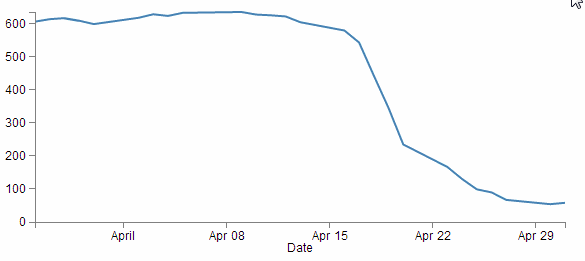
Well, it certainly did what it was asked to do. There’s a ‘Date’ label as advertised! (Yes, I know it’s not pretty.) Let’s describe the code and then work out why there’s a better way to do it.
    svg.append("text")                // text label for the x axis
        .attr("x", 265 )
        .attr("y", 240 )
        .style("text-anchor", "middle")
        .text("Date");
The first line appends a “text” element to our canvas. There is a lot more to learn about “text” elements at the home of the World Wide Web Consortium (W3C).
The next two lines ( .attr("x", 265 ) and .attr("y", 240 ) ) set the attributes for the x and y coordinates to position the text on the canvas.
The second last line (.style("text-anchor", "middle")) ensures that the text ‘style’ is such that the text is centre aligned and therefore remains nicely centred on the x,y coordinates that we send it to.
The final line (.text("Date");) adds the actual text that we are going to place.
That seems really simple and effective and it is. However, the bad part about it is that we have hard coded the location for the date into the code. This means if we change any of the physical aspects of the graph, we will end up having to re-calculate and edit our code. And we don’t want to do that.
Here’s an example. If I decide that I would prefer to increase the height of the graph by editing the line here;
height = 270 - margin.top - margin.bottom;
and making the height 350 pixels;
height = 350 - margin.top - margin.bottom;
The result is as follows;
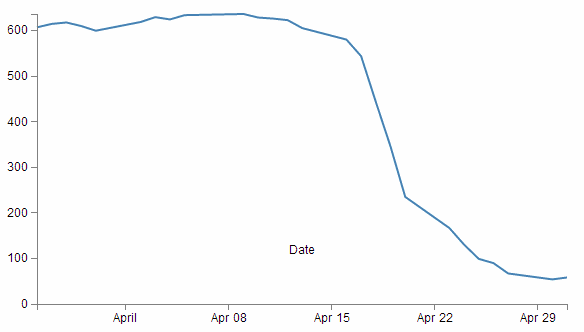
EVERYTHING about the graph has adjusted itself, except our nasty, hard coded ‘Date’ label. This is far from ideal and can be easily fixed by using the variables that we set up ever so carefully earlier.
So, instead of;
        .attr("x", 265 )
        .attr("y", 240 )
lets let our variables do the walking and use;
        .attr("x", width / 2 )
        .attr("y",  height + margin.bottom)
So with this code we tell the script that the ‘Date’ label will always be halfway across the width of the graph (no matter how wide it is) and at the bottom of the graph with respect to it’s height and the bottom margin (remember it uses a coordinates system that increases from the top down).
The end result of using variables is that if I go to an extreme of changing the height and width of my graph to;
    width = 400 - margin.left - margin.right,
    height = 200 - margin.top - margin.bottom;
We still finish up with an acceptable result;
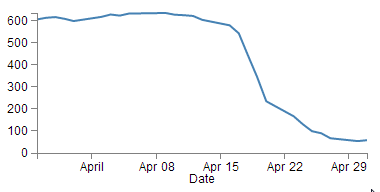
Well, for the label position at least :-).
So the changes to using variables is just a useful lesson that variables rock and mean that you don’t have to worry about your graph staying in relative shape while you change the dimensions. The astute readers amongst you will have learned this lesson very early on in your programming careers, but it’s never a bad idea to make sure that users that are unfamiliar with the concept have an indicator of why it’s a good idea.
Now the third method that I mentioned at the start of our x axis odyssey. This is not mentioned because it’s any better or worse way to implement your script (The reason that I say this is because I’m not sure if it’s better or worse.) but because it’s sufficiently different to make it look confusing if you didn’t think of it in the first place.
So, we’ll take our marvellous coordinates code;
    .attr("x", width / 2 )
    .attr("y",  height + margin.bottom)
And replace it with a single (longer) line;
    .attr("transform",
          "translate(" + (width/2) + " ," +
                         (height+margin.bottom) + ")")
This uses the "transform" attribute to move (translate) the point to place the ‘Date’ label to exactly the same spot that we’ve been using for the other two examples (using variables of course).
So, that’s the x axis label. Time to do the y axis. The code we’re going to use looks like this;
    svg.append("text")
        .attr("transform", "rotate(-90)")
        .attr("y", 0 – margin.left)
        .attr("x",0 - (height / 2))
        .attr("dy", "1em")
        .style("text-anchor", "middle")
        .text("Value");
For the sake of neatness we will put the piece of code in a nice logical spot and this would be following the block of code that added the y axis (but before the closing curly bracket)
    svg.append("g")			// Add the Y Axis
        .attr("class", "y axis")
        .call(yAxis);

    //	PUT THE NEW CODE HERE!

});
And the result looks like this;
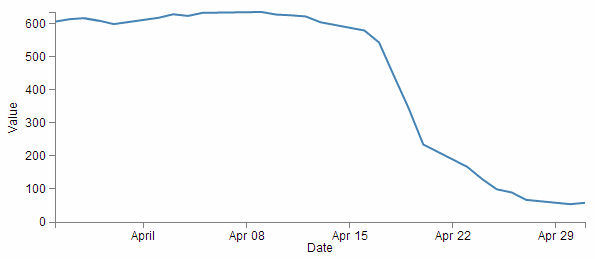
There we go, a label for the y axis that is nicely centred and (gasp!) rotated by 90 degrees! Woah, does the leetness never end! (No. No it does not.)
So, how do we get to this incredible result?
The first thing we do is the same as for the x axis and append a text element to our canvas (svg.append("text")).
Then things get interesting.
.attr("transform", "rotate(-90)")
Because that line rotates everything by -90 degrees. While it’s obvious that the text label ‘Value’ has been rotated by -90 degrees (from the picture), the following lines of code show that we also rotated our reference point (which can be a little confusing).
        .attr("y", 0 – margin.left)
        .attr("x",0 - (height / 2))
Let’s get graphical to illustrate how this works;
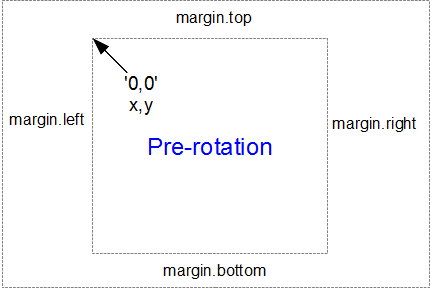
Here’s our starting position, with x,y in the 0,0 coordinate of the graph drawing area surrounded by the margins.
When we apply a -90 degrees transform we get the equivalent of this;
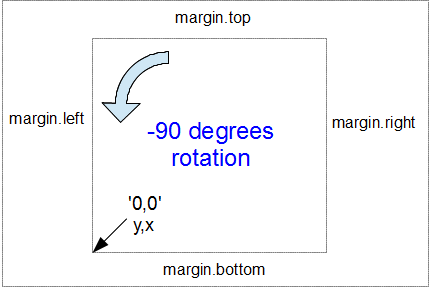
Here the 0,0 coordinate has been shifted by -90 degrees and the x,y designations are flipped so that we now need to tell the script that we’re moving a ‘y’ coordinate when we would have otherwise been moving ‘x’.
Hence, when the script runs…
.attr("y", 0 – margin.left)
… we can see that this is moving the x position to the left from the new 0 coordinate by the margin.left value.
Likewise when the script runs…
.attr("x",0 - (height / 2))
… this is actually moving the y position from the new 0 coordinate halfway up the height of the graph area.
Right, we’re not quite done yet. The following line has the effect of shifting the text slightly to the right.
.attr("dy", "1em")
Firstly the reason we do this is that our previous translation of coordinates means that when we place our text label it sits exactly on the line of 0 – margin.left. But in this case that takes the text to the other side of the line, so it actually sits just outside the boundary of the overall canvas.
The "dy" attribute is another coordinate adjustment move, but this time a relative adjustment and the “1em” is a unit of measure that equals exactly one unit of the currently specified text point size. So what ends up happening is that the ‘Value’ label gets shifted to the right by exactly the height of the text, which neatly places it exactly on the edge of the canvas.
The two final lines of this part of the script are the same as for the x axis. They make sure the reference point is aligned to the centre of the text (.style("text-anchor", "middle")) and then it prints the text (.text("Value");). There, that wasn’t too painful.
The astute amongst you (and I’m picking that if you’re reading this far into the book, you will definitely qualify as astute or at least suckers for punishment) will notice that the example that I have included in the appendices and online does not have the ‘Value’ label. Instead it has the text ‘Price ($)’and it appears on the area of the graph itself! Well spotted. The technique used above is identical to the one used in the description here, but in the example code we have taken an additional step of demonstrating how to place a white shadowy background under the text (more of that to come in a couple of sections!).
How to add a title to your graph
If you’ve read through the adding the axis labels section most of this will come as no surprise.
What we want to do to add a title to the graph is to add a text element (just a few words) that will appear above the graph and centred left to right.
The code block we will use will looks like this;
    svg.append("text")
        .attr("x", (width / 2))
        .attr("y", 0 - (margin.top / 2))
        .attr("text-anchor", "middle")
        .style("font-size", "16px")
        .style("text-decoration", "underline")
        .text("Value vs Date Graph");
And the end result will look like this;
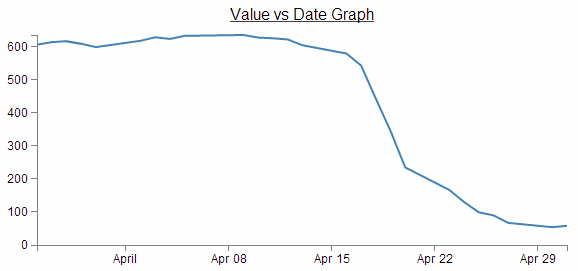
A nice logical place to put the block of code would be towards the end of the JavaScript. In fact I would put it as the last element we add. So here;
    svg.append("g")              // Add the Y Axis
        .attr("class", "y axis")
        .call(yAxis);

    // PUT THE NEW CODE HERE!

});
Now since the vast majority of the code for this block is a regurgitation of the axis labels code, I don’t want to revisit that and bloat up this document even more, so I will direct you back to that section if you need to refresh yourself on any particular line. But….. There are a couple of new ones in there which could benefit from a little explanation.
Both of them are style descriptors and as such their job is to apply a very specific style to this element.
        .style("font-size", "16px")
        .style("text-decoration", "underline")
What they do is pretty self explanatory. Make the text a specific size and underline it. But what is perhaps slightly more interesting is that we have this declaration in the JavaScript code and not in the CSS portion of the file.
Smoothing out graph lines
When you draw a line graph, what you’re doing is taking two (or more) sets of coordinates and connecting them with a line (or lines). I know that sounds simplistic, but bear with me. When you connect these points, you’re telling the viewer of the graph that in between the individual points, you expect the value to vary in keeping with the points that the line passes through. So in a way, you’re trying to interpret the change in values that are not shown.
Now this is not strictly true for all graph types, but it does hold for a lot of line graphs.
So… when connecting these known coordinates together, you want to make the best estimate of how the values would be represented. In this respect, sometimes a straight line between points is not the best representation.
For instance. Earlier, when demonstrating the extent function for graphing we showed a graph of the varying values with the y axis showing a narrow range.
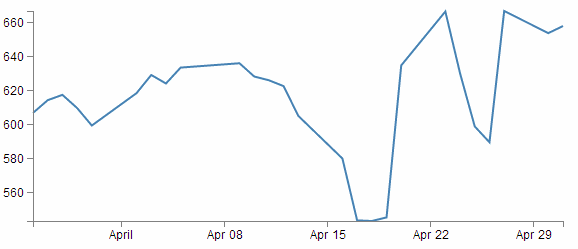
The resulting variation of the graph shows a fair amount of extremes and you could be forgiven for thinking that if this represented a smoothly flowing analog system of some kind then some of those sharp peaks and troughs would not be a true representation of how the system or figures varied.
So how should it look? Ahh… The $64,000 question. I don’t know :-). You will have a better idea since you are the person who will know your data best. However, what I do know is that D3 has some tricks up its sleeve to help.
We can easily change what we see above into;
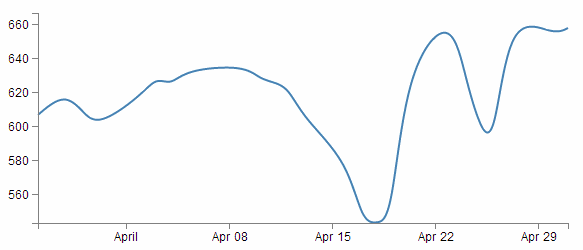
How about that? And the massive amount of code required to carry out what must be a ridiculously difficult set of calculations?
.interpolate("basis")
So where does this neat piece of code go? Here;
var valueline = d3.svg.line()
    .interpolate("basis")	 		// <=== THERE IT IS!
    .x(function(d) { return x(d.date); })
    .y(function(d) { return y(d.close); });
So is that it? Nooooo…….. There’s more! This is one form of interpolation effect that can be applied to your data, but there is a range and depending on your data you can select the one that is appropriate.
Here’s the list of available options and for more about them head on over to the D3 wiki and look for ‘line.interpolate’.
- linear – Normal line (jagged).
- step-before – a stepping graph alternating between vertical and horizontal segments.
- step-after - a stepping graph alternating between horizontal and vertical segments.
- basis - a B-spline, with control point duplication on the ends (that’s the one above).
- basis-open - an open B-spline; may not intersect the start or end.
- basis-closed - a closed B-spline, with the start and the end closed in a loop.
- bundle - equivalent to basis, except a separate tension parameter is used to straighten the spline. This could be really cool with varying tension.
- cardinal - a Cardinal spline, with control point duplication on the ends. It looks slightly more ‘jagged’ than basis.
- cardinal-open - an open Cardinal spline; may not intersect the start or end, but will intersect other control points. So kind of shorter than ‘cardinal’.
- cardinal-closed - a closed Cardinal spline, looped back on itself.
- monotone - cubic interpolation that makes the graph only slightly smoother.
Because in the course of writing this I took an opportunity to play with each of them, I was pleasantly surprised to see some of the effects and it seems like a shame to deprive the reader of the same joy :-). So at the risk of deforesting the planet (so I hope you are reading this in electronic format) here is each of the above interpolation types applied to the same data.
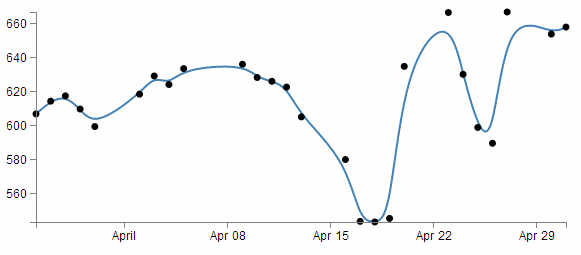
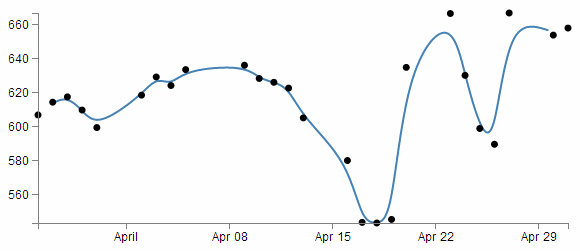
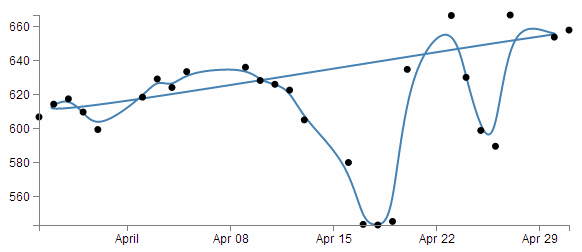
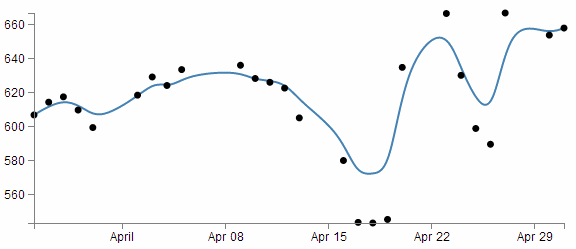
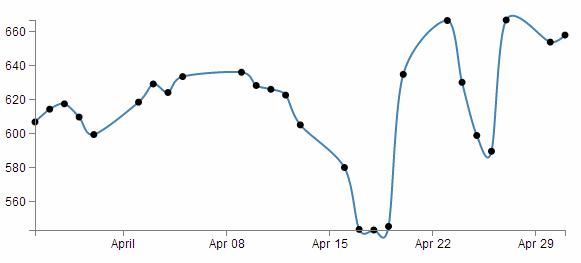
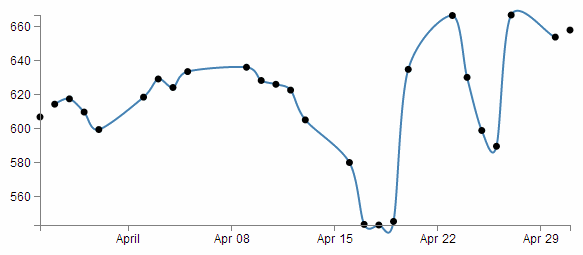
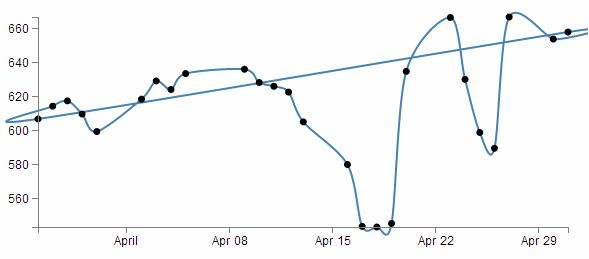
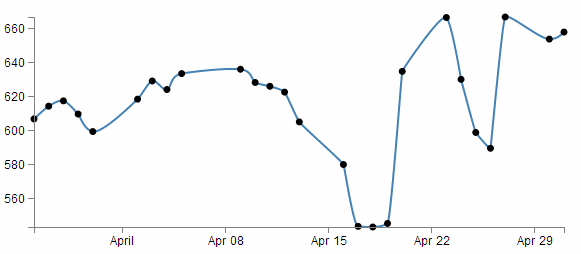
This is also an opportunity to add some reader feedback awesomeness. Many thanks to ‘enjalot’ for the great suggestion to plot the points of the data as separate circles on the graphs. Since the process of interpolation has the effect of ‘interpreting’ the trends of the data to the extent that in some cases, the lines don’t intersect the actual data much at all.
Each of the following shows the smoothing curve and the data that is used to plot the graph.
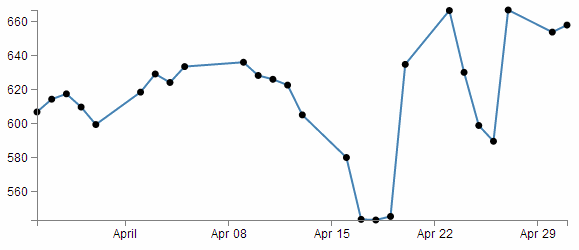
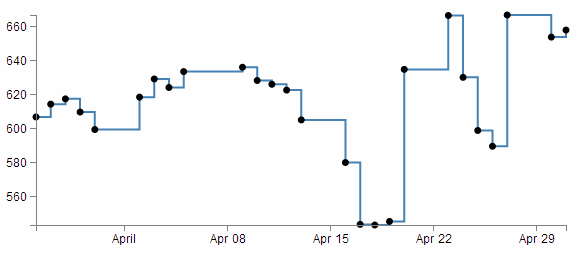
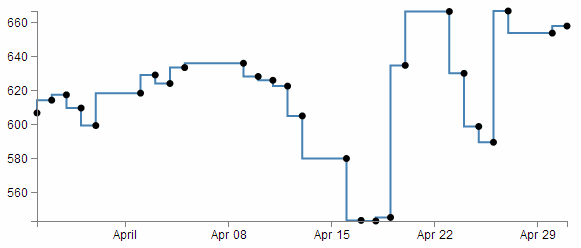
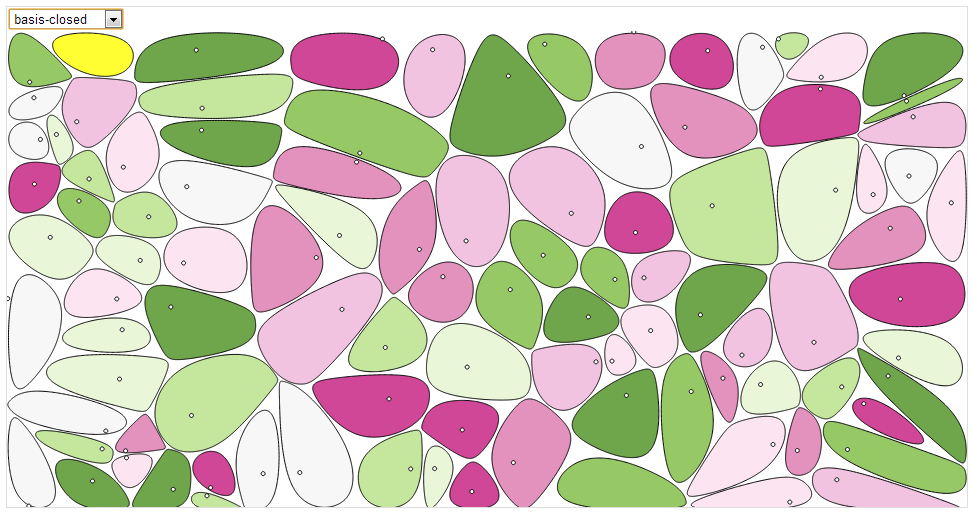
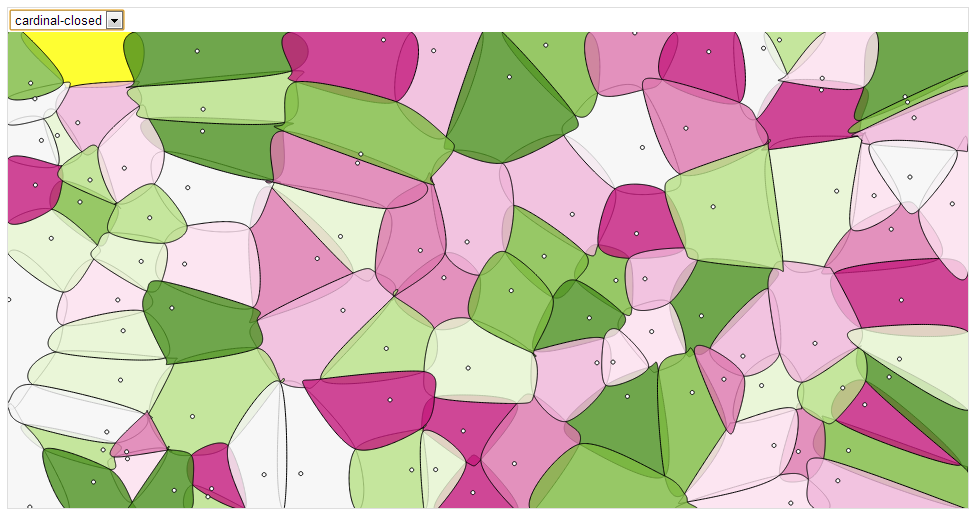
Just in case you’re in the mood for another example, here are voronoi tessellations drawn with various d3 line interpolators (the original interactive version by ‘shawnbot’ can be found here).
First a version using the linear interpolation when each of the points is joined faithfully with a straight line.
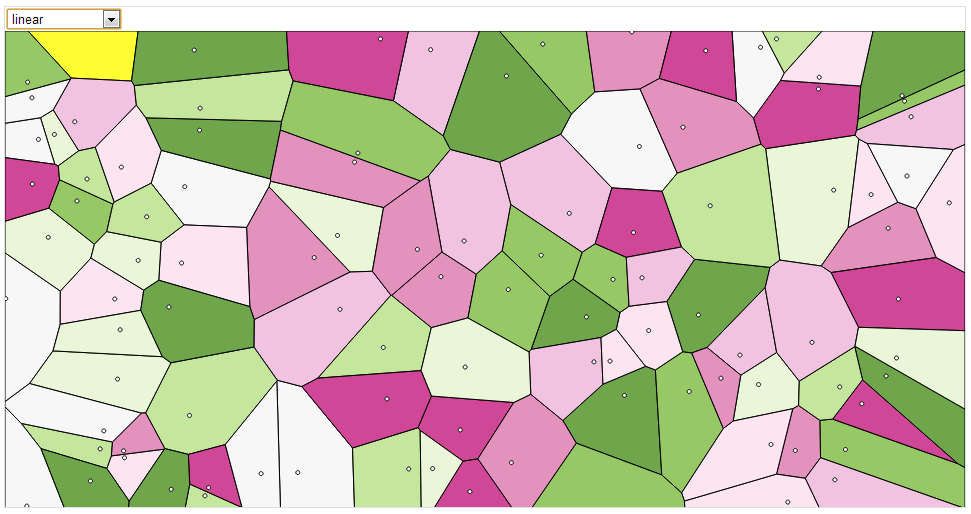
Now a version where the polygons are formed with the ‘basis-closed’ interpolator (note how the lines don’t go through the points that describe the bounds of the polygons/blobs).
And lastly, using the ‘cardinal-closed’ interpolator, while the line travels through each point in the polygon, they overshoot in an effort to maintain a nice curve and the resulting polygon/blobs overlap.
So, over to you to decide which format of interpolation is going to suit your data best:-).
Adding grid lines to a graph
Grid lines are an important feature for some graphs as they allow the eye to associate three analogue scales (the x and y axis and the displayed line).
There is currently a tendency to use graphs without grid lines online as it gives the appearance of a ‘cleaner’ interface, but they are still widely used and a necessary component for graphing.
This is what we’re going to draw;
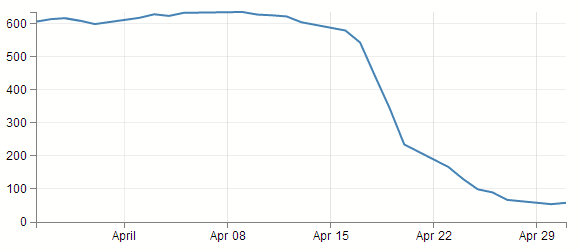
How to build grid lines?
We’re going to use the axis function to generate two more axis elements (one for x and one for y) but for these ones instead of drawing the main lines and the labels, we’re just going to draw the tick lines. Really long ticklines (I’m considering calling them long cat lines).
To create them we have to add in 3 separate blocks of code.
- One in the CSS section to define what style the grid lines will have.
- One to define the functions that generate the grid lines. And…
- One to draw the lines.
The grid line CSS
This is the total styling that we need to add for the tick lines;
.grid .tick {
    stroke: lightgrey;
    stroke-opacity: 0.7;
    shape-rendering: crispEdges;
}
.grid path {
          stroke-width: 0;
}
Just add this block of code at the end of the current CSS that is in the simple graph template (just before the </style> tag).
The CSS here is done in two parts.
The first portion sets the line colour (stroke), the opacity (transparency) of the lines and make sure that the lines are narrow (crispEdges).
    stroke: lightgrey;
    stroke-opacity: 0.7;
    shape-rendering: crispEdges;
The colour is pretty standard, but in using the opacity style we give ourselves the opportunity to use a good shade of colour (if grey actually is a colour) and to juggle the degree to which it stands out a little better.
The second part is the stroke width.
stroke-width: 0;
Now it might seem a little weird to be setting the stroke width to zero, but if you don’t (and we remove the style) this is what happens;
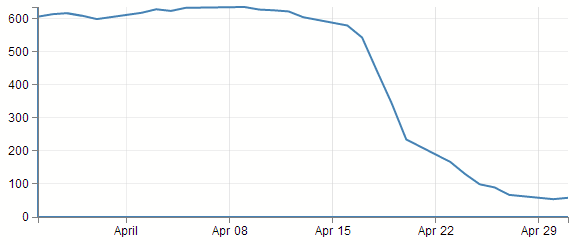
If you look closely (compare with the previous picture if necessary) the main lines for the axis have turned thicker. The stroke width style is obviously adding in new (thicker) axis lines and we’re not interested in them at the moment. Therefore, if we set the stroke width to zero, we get rid of the problem.
Define the grid line functions
We will need to define two functions to generate the grid lines and they look a little like this;
function make_x_axis() {
    return d3.svg.axis()
        .scale(x)
        .orient("bottom")
        .ticks(5)
}

function make_y_axis() {
    return d3.svg.axis()
        .scale(y)
        .orient("left")
        .ticks(5)
}
Each function will carry out it’s configuration when called from the later part of the script (the drawing part).
A good spot to place the code is just before we load the data with the d3.csv
        //   <== Put the functions here!
// Get the data
d3.csv("data.csv", function(error, data) {
    data.forEach(function(d) {
        d.date = parseDate(d.date);
        d.close = +d.close;
    });ticks(5)
}
Both functions are almost identical. They give the function a name (make_x_axis and make_y_axis) which will be used later when the piece of code that draws the lines calls out to them.
Both functions also show which parameters will be fed back to the drawing process when called. Both make sure they use the d3.svg.axis function and then they set individual attributes which make sense.
They make sure they’ve got the right axis (.scale(x) and .scale(y)).
They set the orientation of the axes to match the incumbent axes (.orient("bottom") and .orient("left")).
And they set the number of ticks to match the number of ticks in the main axis (.ticks(5) and .ticks(5)). You have the opportunity here to do something slightly different if you want. For instance, think back to when we were setting up the axis for the basic graph and we messed about, seeing how many ticks we could get to appear. If we increase the number of ticks that appear in the grid (lets say to .ticks(30) and .ticks(10))) we get the following;
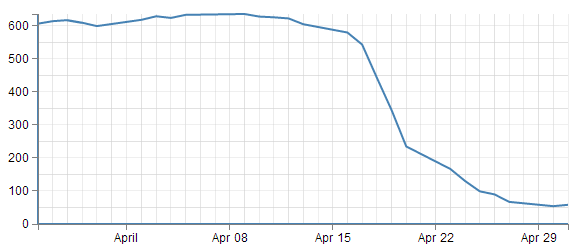
So the grid lines can now show divisions of 50 on the y axis and per day on the x axis :-)
Draw the lines
The final block of code we need is the bit that draws the lines.
    svg.append("g")
        .attr("class", "grid")
        .attr("transform", "translate(0," + height + ")")
        .call(make_x_axis()
            .tickSize(-height, 0, 0)
            .tickFormat("")
        )

    svg.append("g")
        .attr("class", "grid")
        .call(make_y_axis()
            .tickSize(-width, 0, 0)
            .tickFormat("")
        )
The first two lines of both the x and y axis grid lines code above should be pretty familiar by now. The first one appends the element to be drawn to the group “g”. the second line (.attr("class", "grid")) makes sure that the style information set out in the CSS is applied.
The x axis grid lines portion makes a slight deviation from conformity here to adjust its positioning to take into account the coordinates system .attr("transform", "translate(0," + height + ")").
Then both portions call their respective make axis functions (.call(make_x_axis() and .call(make_y_axis()).
Now comes the really interesting bit.
What you will see if you go to the D3 API wiki is that for the .tickSize function, the following is the format.
axis.tickSize([major[[, minor], end]])
That tells us that you get to specify the size of the ticks on the axes, by the major ticks, the minor ticks and the end ticks (that is to say the lines on the very end of the graph which, in the case of the example we are looking at, aren’t there!).
So in our example we are setting our major ticks to a length that corresponds to the full height or width of the graph. Which of course means that they extend across the graph and have the appearance of grid lines! What a neat trick.
Something I haven’t done before is to see what would happen if I included the tick lines for the minor and end ticks. So here we go :-)
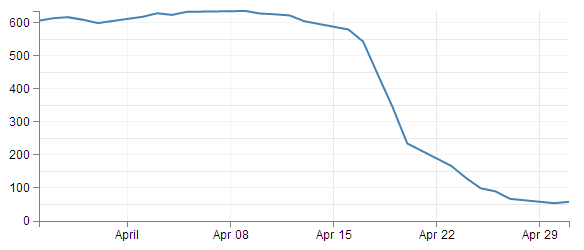
Darn! Disappointment. We can see a minor tick line for the y axis, but nothing for the x axis and nothing on the ends. Clearly I will have to run some experiments to see what’s going on there (later).
The last thing that is included in the code to draw the grid lines is the instruction to suppress printing any label for the ticks;
.tickFormat("")
After all, that would become a bit confusing to have two sets of labels. Even if one was on top of the other. They do tend to become obvious if that occurs (they kind of bulk out a bit like bold text).
And that’s it. Grid lines!
Make a dashed line
Dashed lines totally rock!
One of the best parts about it is that they’re so simple to do!
Literally one line!!!!
So lets imagine that we want to make the line on our simple graph dashed. All we have to do is insert the following line in our JavaScript code here;
    svg.append("path")
        .attr("class", "line")
        .style("stroke-dasharray", ("3, 3"))  // <== This line here!!
        .attr("d", valueline(data));
And our graph ends up like this;
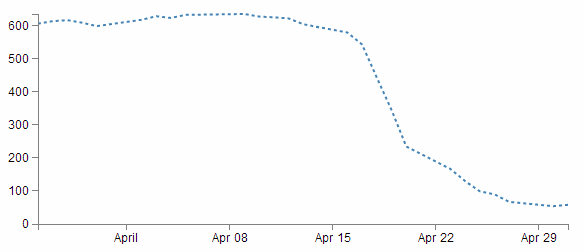
Hey! It’s dashtastic!
So how does it work?
Well, obviously "stroke-dasharray" is a style for the path element, but the magic is in the numbers.
Essentially they describe the on length and off length of the line. So "3, 3" translates to 3 pixels (or whatever they are) on and 3 pixels off. Then it repeats. Simple eh?
So, experiment time :-)
What would the following represent?
“5, 5, 5, 5, 5, 5, 10, 5, 10, 5, 10, 5”
Try not to cheat…
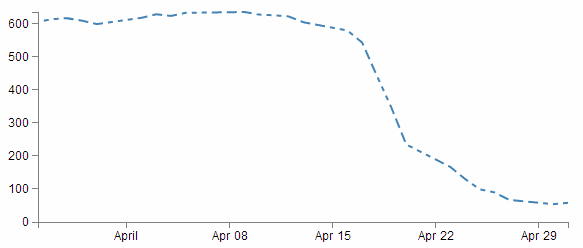
Ahh yes, Mr. Morse would be proud.
And you can put them anywhere. Here’s our axes perverted with dashes;
    svg.append("g")
        .attr("class", "x axis")
        .attr("transform", "translate(0," + height + ")")
        .style("stroke-dasharray", ("3, 3"))
        .call(xAxis);

    svg.append("g")
        .attr("class", "y axis")
        .style("stroke-dasharray", ("3, 3"))
        .call(yAxis);
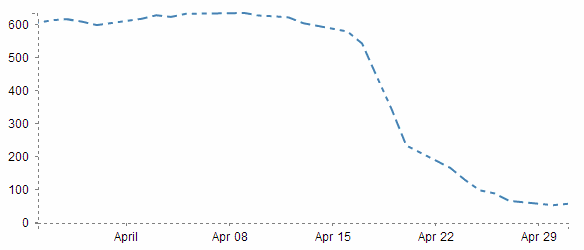
Well… I suppose you can have too much of a good thing. With great power comes great responsibility. Use your dash skills wisely and only for good.
Filling an area under the graph
Lines are all very well and good, but that’s not the whole story for graphs. Sometimes you’ve just got to go with a fill.
Filling an area with a solid colour isn’t too hard. I mean we did it by mistake back a few pages when we were trying to draw a line.
But to do it in a nice coherent way is fairly straight forward.
It takes three sections of code in much the same way that we drew our grid lines earlier;
- One in the CSS section to define what style the area will have.
- One to define the functions that generate the area. And…
- One to draw the area.
The end result will looks a bit like this;
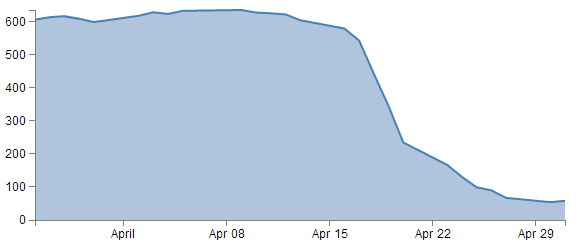
CSS for an area fill
This is pretty straight forward and only consists of two rules;
.area {
    fill: lightsteelblue;
    stroke-width: 0;
}
Put them at the bottom of your <style> section.
The first one (fill: lightsteelblue;) sets the colour of our fill (and in this case we have chosen a lighter shade of the same colour as our line to match it) and the second one (stroke-width: 0;) sets the width of the line that surrounds the area to zero. This last rule is kind of important in making a filled area work well. The whole idea is that the graph is made up of separate elements that will compliment each other. There’s the axes, the line and the fill. If we don’t tell the code that there is no line surrounding the filled area, it will assume that there is one and add it in like this.
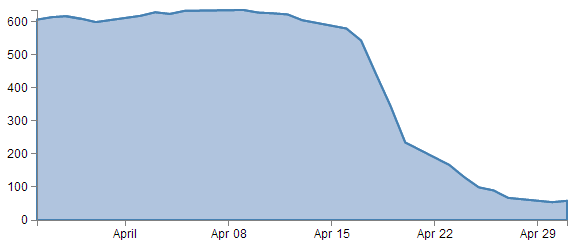
So what has happened here is that the area element has inherited the line property from the path element and surrounding the area is a 2px wide steelblue line. Not too pretty. Let’s not go there.
Define the area function
We need a function that will tell the area what space to fill. This is accessed from the d3.svg.area function
The code that we will use is as follows;
var area = d3.svg.area()
    .x(function(d) { return x(d.date); })
    .y0(height)
    .y1(function(d) { return y(d.close); });
I have placed it in between the axis variable definitions and the line definitions here;
var yAxis = d3.svg.axis().scale(y)
    .orient("left").ticks(5);
                         <==== Put the new code here!
var valueline = d3.svg.line()
    .x(function(d) { return x(d.date); })
    .y(function(d) { return y(d.close); });
So the only changes to the code are the addition of the y0 line and the renaming of the y line y1.
Here’s a picture that might help explain;
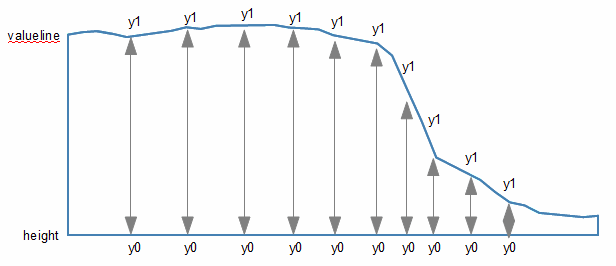
As should be apparent, the top line (y1) follows the valueline line and the bottom line is at the constant ‘height’ value. Everything in between these lines is what gets filled. The function in this section describes the area.
Draw the area
Now to the money maker.
The final section of code in the area filling odyssey is as follows;
    svg.append("path")
        .datum(data)
        .attr("class", "area")
        .attr("d", area);
We should place this block directly after the domain functions but before the drawing of the valueline path;
    x.domain(d3.extent(data, function(d) { return d.date; }));
    y.domain([0, d3.max(data, function(d) { return d.close; })]);
                                //   <== Area drawing code here!
    svg.append("path")
        .attr("class", "line")
        .attr("d", valueline(data));
This is actually a pretty good idea to put it there since the various bits and pieces that are drawn in the graph are done so one after the other. This means that the filled area comes first, then the valueline is layered on top and then the axes come last. This is a pretty good sequence since if there are areas where two or more elements overlap, it might cause the graph to look ‘wrong’.
For instance, here is the graph drawn with the area added last.
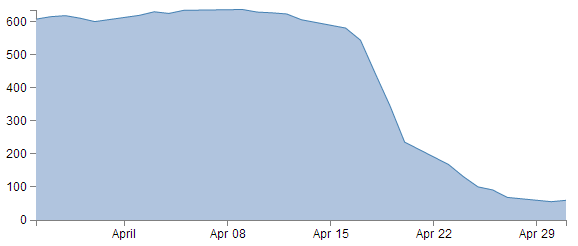
You should be able to notice that part of the valueline line has been obscured and the line for the y axis where it coincides with the area is obscured also.
Looking at the code we are adding here, the first line appends a path element (svg.append("path")) much like the script that draws the line.
The second line (.datum(data)) declares the data we will be utilising for describing the area and the third line (.attr("class", "area")) makes sure that the style we apply to it is as defined in the CSS section (under ‘area’).
The final line (.attr("d", area);) declares “d” as the attributer for path data and calls the ‘area’ function to do the drawing.
And that’s it!
Filling an area above the line
Pop Quiz:
How would you go about filling the area ABOVE the graph?
In this instance, you could fill the lower area as has been demonstrated here, and with a small change you can fill another area with a solid colour above another line.
How is this incredible feat achieved?
Well, remember the code that defined the area?
var area = d3.svg.area()
    .x(function(d) { return x(d.date); })
    .y0(height)
    .y1(function(d) { return y(d.close); });
All we have to do is tell it that instead of setting the y0 constant value to the height of the graph (remember, this is the bottom of the graph) we will set it to the constant value that is at the top of the graph. In other words zero (0).
.y0(0)
That’s it.
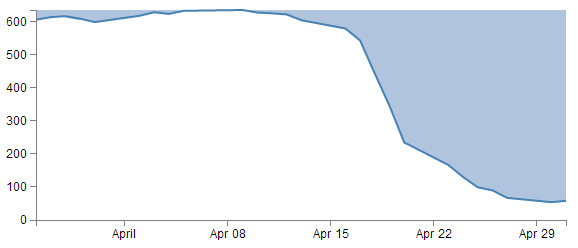
Now, I’m not going to go over the process of drawing two lines and filling each in different directions to demonstrate the example I described, but this provides a germ of an idea that you might be able to flesh out :-)
Adding a drop shadow to allow text to stand out on graphics.
I’ve deliberately positioned this particular tip to follow the ‘filling an area’ description because it provides an opportunity to demonstrate the principle to slightly better effect.
There have been several opportunities where I have wanted to place text overlaid on graphs for convenience sake only to have it look overly messy as the text interferes with the graph.
Anyway, what we’ll do is leave the fill in place and place the title back on the graph, but position the title so that it lays on top of the fill like so;
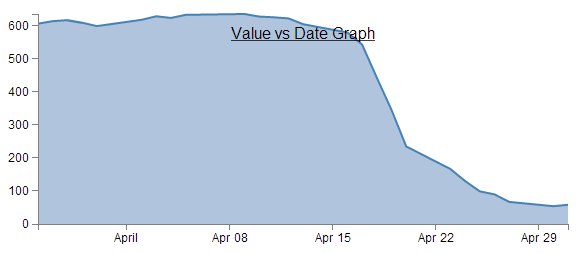
The additional code for the title is the following and appears just after the drawing of the axes.
    svg.append("text")
        .attr("x", (width / 2))
        .attr("y", 25 )
        .attr("text-anchor", "middle")
        .style("font-size", "16px")
        .style("text-decoration", "underline")
        .text("Value vs Date Graph");
(the only change from the previous title example is the ‘y’ attribute which has been hard coded to 25 to place it inconveniently on the filled area.)
So, what we want to end up with is something like the following…
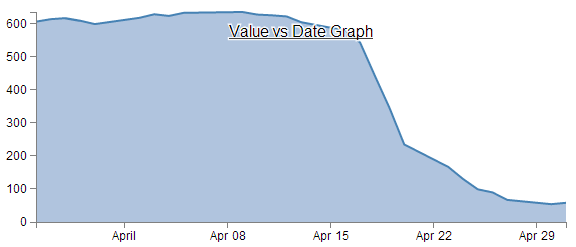
In my humble opinion, it’s just enough to make the text acceptable :-).
The method that I’ll describe to carry this out is designed so that the drop shadow effect can be applied to any text elements in the graph, not the isolated example that we will use here. In order to implement this marvel of utility we will need to make changes in two areas. One in the CSS where we will define a style for white shadowy backgrounds and the second to draw it.
CSS for white shadowy background
The code to add to the CSS section is as follows;
text.shadow {
    stroke: white;
    stroke-width: 2.5px;
    opacity: 0.9;
}
The first line designates that the style applies to text with a ‘shadow’ label. The stroke is set to white. the width of the line is set to 2.5px and it is made to be slightly see-through. So by setting the line that surrounds the text to be thick, white and see-through gives it a slightly ‘cloudy’ effect. If we remove the black text from over the top we get a slightly better look;

Of course if you want to have a play with any of these settings, you should have a go and see what works best for your graph.
Drawing the white shadowy background.
Now that we’ve set the style for our background, we need to draw it in.
The code for this should be extremely familiar;
    svg.append("text")
        .attr("x", (width / 2))
        .attr("y", 25 )
        .attr("text-anchor", "middle")
        .style("font-size", "16px")
        .style("text-decoration", "underline")
        .attr("class", "shadow")		// <=== Here's the different line
        .text("Value vs Date Graph");
That’s because it’s identical to the piece of code that was used to draw the title except for the one line that is indicated above. The reason that it’s identical is that what we are doing is placing a white shadow on the graph and then the text on top of it, if it deviated by a significant amount it will just look silly. Of course a slight amount could look effective, in which case adjust the ‘x’ or ‘y’ attributes.
One of the things I pointed out in the previous paragraph was extremely important. That’s the bit that tells you that we needed to place the shadow before we placed the black text. For the same reason that we placed the area fill on first in the area fill example, If black text goes on before the shadow, it will look pretty silly. So place this block of code just before the block that draws the title.
So the line that has been added in is the one that tells D3 that the text that is being drawn will have the white cloudy effect. And at the risk of repeating myself, if you have several text elements that could benefit from this effect, once you have the CSS code in place, all you need to do is duplicate the block that adds the text and add in that single line and voila!
Again the astute amongst you will note that in the example code in the appendices and online, the shadow effect is applied to the Y axis label. Never fear, it’s exactly the same principle :-).
Adding more than one line to a graph
All right, we’re starting to get serious now. Two lines on a graph is a bit of a step into a different world in one respect. I mean that in the sense that there’s more than one way to carry out the task, and I tend to do it one way and not the other mainly because I don’t fully understand the other way :-(.
So, how are we going to do this? I think that the best way will be to make the executive decision that we have suddenly come across more data and that it is also in our data.csv file (which we’ll rename data2.csv just to highlight the difference between the two data sets). In fact it looks a little like this (apologies in advance for the big ugly block of data);
date,close,open
1-May-12,68.13,34.12
30-Apr-12,63.98,45.56
27-Apr-12,67.00,67.89
26-Apr-12,89.70,78.54
25-Apr-12,99.00,89.23
24-Apr-12,130.28,99.23
23-Apr-12,166.70,101.34
20-Apr-12,234.98,122.34
19-Apr-12,345.44,134.56
18-Apr-12,443.34,160.45
17-Apr-12,543.70,180.34
16-Apr-12,580.13,210.23
13-Apr-12,605.23,223.45
12-Apr-12,622.77,201.56
11-Apr-12,626.20,212.67
10-Apr-12,628.44,310.45
9-Apr-12,636.23,350.45
5-Apr-12,633.68,410.23
4-Apr-12,624.31,430.56
3-Apr-12,629.32,460.34
2-Apr-12,618.63,510.34
30-Mar-12,599.55,534.23
29-Mar-12,609.86,578.23
28-Mar-12,617.62,590.12
27-Mar-12,614.48,560.34
26-Mar-12,606.98,580.12
Three columns, date open and close. The first two are exactly what we have been dealing with all along and the last (open) is our new made up data. Each column is separated by a comma (hence .csv (comma separated values)), which is the format we’re currently using to import data.
We should save this as a new file so we don’t mess up our previous data, so (as mentioned earlier) let’s call it data2.csv.
There is a copy of this file and the sample code at github and in the code samples bundled with this book (dual-line-with-labels.html and data2.csv). A live example can be found on bl.ocks.org. The dual-line-with-labels.html file includes the double lines and also a labelling scheme which we will be descriping in a later section.
We will build our new code using our simple graph template to start with, so the immediate consequence of this is that we need to edit the line that was looking for ‘data.csv’ to reflect the new name.
d3.csv("data2.csv", function(error, data) {
So when you browse to our new graph’s html file, we don’t see any changes. It still happily loads the new data, but because it hasn’t been told to do anything with it, nothing new happens.
What we need to do now it to essentially duplicate the code blocks that drew the first line for the second line.
The good news is that in the simplest way possible that’s just two code blocks. The first sets up the function that defines the new line;
var valueline2 = d3.svg.line()
    .x(function(d) { return x(d.date); })
    .y(function(d) { return y(d.open); });
You should notice that this block is identical to the block that sets up the function for the first line, except this one is called (imaginatively) valueline2. We should put it directly after the block that sets up the function for valueline.
The second block draws our new line;
    svg.append("path")          // Add the valueline2 path.
        .attr("d", valueline2(data));
Again, this is identical to the block that draws the first line, except this one is called valueline2. We should put it directly after the block that draws valueline.
After those three small changes, check out your new graph;
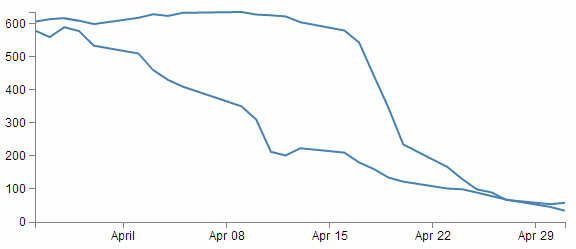
Hey! Two lines! Hmm…. Both being the same colour is a bit confusing. Good news. We can change the colour of the second line by inserting a line that adjusts it’s stroke (colour) very simply.
So here’s what our new drawing block looks like;
    svg.append("path")		// Add the valueline2 path.
        .style("stroke", "red")
        .attr("d", valueline2(data));
And as if by magic, here’s our new graph;
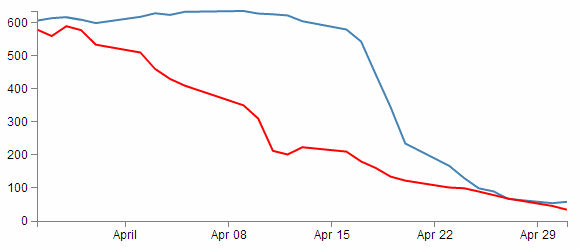
Wow. Right about now, we’re thinking ourselves pretty clever. But there’s two places where we’re not doing things right. We took a simple way, but we took some short cuts that might bite us in the posterior.
The first mistake we made was not ensuring that our variable "d.open" is being treated as a number or a string. We’re fortunate in this case that it is, but this can’t always be assumed. So, this is an easy fix and we just need to put the following (indicated line) in our code;
// Get the data
d3.csv("data.csv", function(error, data) {
    data.forEach(function(d) {
        d.date = parseDate(d.date);
        d.close = +d.close;
        d.open = +d.open;        //  <=== Add this line in!
    });
The second and potentially more fatal flaw is that nowhere in our code do we make allowance for our second set of data (the second line’s values) exceeding our first lines values.
That might not sound too normal straight away, but consider this. What if when we made up our data earlier, some of the new data exceeded our maximum value in our original data? As a means of demonstration, here’s what happens when our second line of data has values higher than the first lines;
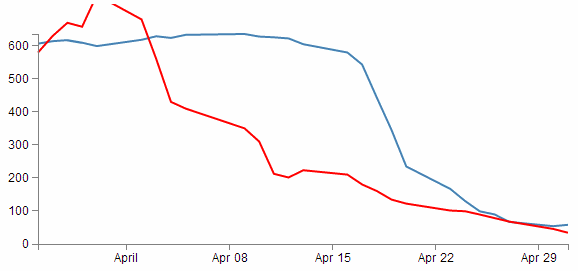
Ahh…. We’re not too clever now.
Good news though, we can fix it!
The problem comes about because when we set the domain for the y axis this is what we put in the code;
y.domain([0,d3.max(data, function(d) {return d.close;})]);
So that only considers d.close when establishing the domain. With d.open exceeding our domain, it just keeps drawing off the graph!
The good news is that ‘Bill’ has provided a solution for just this problem here;
All you need to replace the y.domain line with is this;
y.domain([0, d3.max(data, function(d) {
    return Math.max(d.close, d.open); })]);
It does much the same thing, but this time it returns the maximum of d.close and d.open (whichever is largest). Good work Bill.
If we put that code into the graph with the higher values for our second line we are now presented with this;
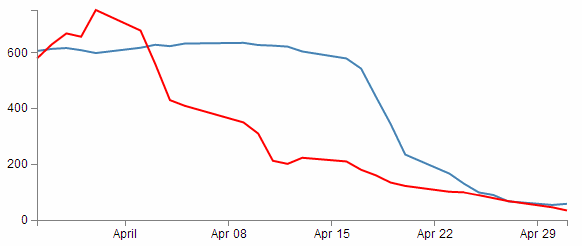
And it doesn’t matter which of the two sets of data is largest, the graph will always adjust :-)
You will also have noticed that our y axis has auto adjusted again to cope. Clever eh?
Labelling multiple lines on a graph
Our previous example of a graph with multiple lines is a thing of rare beauty, but which line relates to which set of data? We have data that defines values for open and close, but we don’t know which line is which.
In this section we will add labels to our lines so that we know what it what.
This section was inspired by a question from a reader (Arun b.s) of the d3noob.org blog where the question was asked “How can we put text at the end of each line on the graph?”.
The question was so good I realised that it had to be part of the book, so here you go :-).
It’s actually not too difficult. What we are trying to achieve is to find the position of the end of each line and to add a text label at that position so that the association of proximity denotes the linkage. Of course we’re going to go a little further and colour the text so that it’s really clear which label belongs with which line, but you get the idea.
Each line requires a single block of script to add the text. The block that adds the open label is as follows;
svg.append("text")
  .attr("transform", "translate("+(width+3)+","+y(data[0].open)+")")
  .attr("dy", ".35em")
  .attr("text-anchor", "start")
  .style("fill", "red")
  .text("Open");
So firstly it appends a textual element to the svg object;
svg.append("text")
Then it finds the position of the end of the line;
.attr("transform", "translate("+(width+3)+","+y(data[0].open)+")")
To do this we use the transform and translate attribute and find the x position that equates to the end of the graph plus 3 pixels ((width+3)) (we add in the three pixels to create a small separation between the end of the line and the label). The y position is far more interesting. We need to find the position of the last point in our line for the open data. Because the data is in the form of an indexed array and because the data has the latest date at the start of the array, we only need to find the point at the 0 position of the array. This is data[0].open. But of course, we also need to adjust our data for our scale and range, so we transform it using the y function (in the same way that we do it for the valueline and valueline2 points. So the script to find the point on the screen in the y direction is y(data[0].open).
If our data was arranged with the last date at the end of our data we would have to find the final index point and we would use y(data[data.length-1].open)).
Then it’s just a matter of aligning and justifying our text correctly;
  .attr("dy", ".35em")
  .attr("text-anchor", "start")
Then colouring it the correct colour;
.style("fill", "red")
And adding out text;
.text("Open");
We put this block of code after the blocks that add in the axes so that they make sure they’re on top of anything else we draw.
The only other small change we want to make is to change the right margin for the graph that we set at the start of our script from 20 to 40 so that there is enough room to add our label without cutting it off.
After that you have a marvellously labelled multi-line graph!
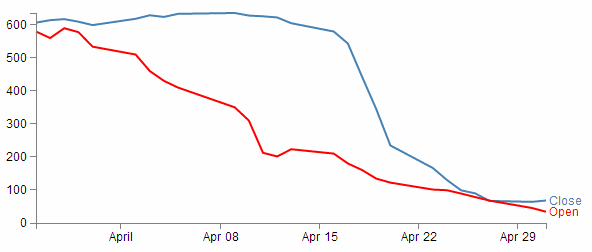
The full code for this example can be found on github or in the code samples bundled with this book (dual-line-graph-with-labels.html and data2.csv). A working example can be found on bl.ocks.org.
Now, I’d like to pretend that this is perfection, but it isn’t. If our lines end too close together, the labels will interfere with each other, so in the ideal world I would include a bit of fanciness to prevent that, but for the purposes of this exercise we can consider ourselves happy.
Multiple axes for a graph
Alrighty… Let’s imagine that we want to show our wonderful graph with two lines, much like we already have, but that the data that the lines are made from is significantly different in magnitude from the original data (in the example below, the data for the second line has been reduced by approximately a factor of 10 from our original data).
date,close,open
1-May-12,58.13,3.41
30-Apr-12,53.98,4.55
27-Apr-12,67.00,6.78
26-Apr-12,89.70,7.85
25-Apr-12,99.00,8.92
24-Apr-12,130.28,9.92
23-Apr-12,166.70,10.13
20-Apr-12,234.98,12.23
19-Apr-12,345.44,13.45
18-Apr-12,443.34,16.04
17-Apr-12,543.70,18.03
16-Apr-12,580.13,21.02
13-Apr-12,605.23,22.34
12-Apr-12,622.77,20.15
11-Apr-12,626.20,21.26
10-Apr-12,628.44,31.04
9-Apr-12,636.23,35.04
5-Apr-12,633.68,41.02
4-Apr-12,624.31,43.05
3-Apr-12,629.32,46.03
2-Apr-12,618.63,51.03
30-Mar-12,599.55,53.42
29-Mar-12,609.86,57.82
28-Mar-12,617.62,59.01
27-Mar-12,614.48,56.03
26-Mar-12,606.98,58.01
Now this isn’t a problem in itself. D3 will still make a reasonable graph of the data, but because of the difference in range, the detail of the second line will be lost.
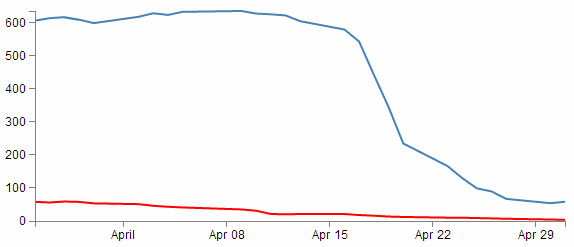
What I’m proposing is that we have a second y axis on the right hand side of the graph that relates to the red line.
The mechanism used is based on the great examples put forward by Ben Christensen here.
The full code for this example can be found on github or in the code samples bundled with this book (dual-line-dual-axes.html and data2a.csv). A working example can be found on bl.ocks.org.
First things first, there won’t be space on the right hand side of our graph to show the extra axis, so we should make our right hand margin a little larger.
var margin = {top: 30, right: 40, bottom: 30, left: 50},
I went for 40 and it seems to fit pretty well.
Then (and here’s where the main point of difference for this graph comes in) you want to amend the code to separate out the two scales for the two lines in the graph. This is actually a lot easier than it sounds, since it consists mainly of finding anywhere that mentions y and replacing it with y0 and then adding in a reciprocal piece of code for y1.
Let’s get started.
Firstly, change the variable declaration for y to y0 and add in y1.
var x = d3.time.scale().range([0, width]);
var y0 = d3.scale.linear().range([height, 0]);
var y1 = d3.scale.linear().range([height, 0]);
Then change our yAxis declaration to be specific for y0 and specifically left. And add in a declaration for the right hand axis;
var yAxisLeft = d3.svg.axis().scale(y0)    //  <==  Add in 'Left' and 'y0'
    .orient("left").ticks(5);

var yAxisRight = d3.svg.axis().scale(y1)   // new declaration for 'Right', 'y\
1'
    .orient("right").ticks(5);             // and includes orientation .
Note the orientation change for the right hand axis.
Now change our valueline declarations so that they refer to the y0 and y1 scales.
var valueline = d3.svg.line()
    .x(function(d) { return x(d.date); })
    .y(function(d) { return y0(d.close); });    // <== y0
var valueline2 = d3.svg.line()
    .x(function(d) { return x(d.date); })
    .y(function(d) { return y1(d.open); });     // <== y1
There are a few different ways for the scaling to work, but we’ll stick with the fancy max method we used in the dual line example (although technically it’s not required).
   y0.domain([0, d3.max(data, function(d) { return Math.max(d.close); })]);
   y1.domain([0, d3.max(data, function(d) { return Math.max(d.open); })]);
Again, here’s the y0 and y1 changed and added and the maximums for d.close and d.open are separated out).
The final piece of the puzzle is to draw the new axis, but we also want to make a slight change to the original y axis. Since we have two lines and two axes, we need to know which belongs to which, so we can colour code the text in the axes to match the lines;
    svg.append("g")
        .attr("class", "y axis")
        .style("fill", "steelblue")
        .call(yAxisLeft);

    svg.append("g")
        .attr("class", "y axis")
        .attr("transform", "translate(" + width + " ,0)")
        .style("fill", "red")
        .call(yAxisRight);
In the above code you can see where we have added in a ‘style’ change for the yAxisLeft to make it ‘steelblue’ and a complementary change in the new section for yAxisRight to make that text red.
The yAxisRight section obviously needs to be added in, but the only significant difference is the transform / translate attribute that moves the axis to the right hand side of the graph.
And after all that, here’s the result…
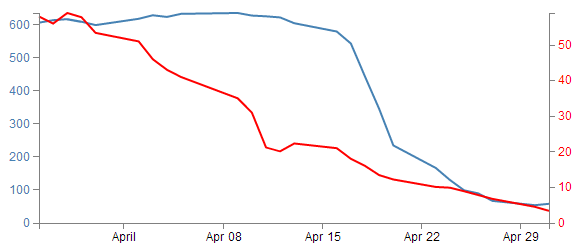
Now, let’s not kid ourselves that it’s a thing of beauty, but we should console our aesthetic concerns with the warm glow of understanding how the function works :-).
How to rotate the text labels for the x Axis.
The observant reader will recall the problem we had observed earlier when increasing the number of ticks on our x axis to 10. The effect had been to produce a large number of x axis ticks (actually 19) but they had run together and become unreadable.
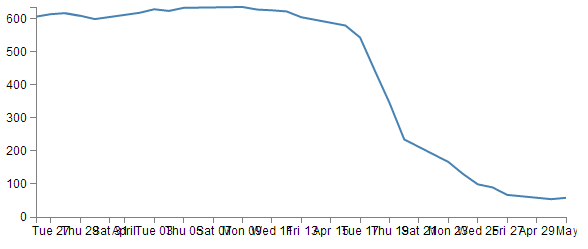
We postulated at the time that an answer to the problem might be to rotate the text to provide more space. Well, it’s about time we solved that problem.
The answer I found most usable was provided by Aaron Ward on Google Groups.
The full code for this example can be found on github or in the code samples bundled with this book (simple-graph-rotated-axis-text.html and data.csv). A working example can be found on bl.ocks.org. The example code also includes the formatting of the x axis ticks in a specific format as described in the next section.
Starting out with our simple graph example, we should increase the number of ticks on the x axis to 10 to highlight the problem in the previous image.
The first substantive change would be a little housekeeping. Because we are going to be rotating the text at the bottom of the graph, we are going to need some extra space to fit in our labels. So we should change our bottom margin appropriately.
var margin = {top: 30, right: 40, bottom: 50, left: 50},
I found that 50 pixels was sufficient.
The remainder of our changes occur in the block that draws the x axis.
    svg.append("g")
        .attr("class", "x axis")
        .attr("transform", "translate(0," + height + ")")
        .call(xAxis)
        .selectAll("text")
            .style("text-anchor", "end")
            .attr("dx", "-.8em")
            .attr("dy", ".15em")
            .attr("transform", "rotate(-65)");
It’s pretty standard until the .call(xAxis) portion of the code. Here we remove the semicolon that was there so that the block continues with its function.
Then we select all the text elements that comprise the x axis with the .selectAll("text"). From this point onwards, we are operating on the text elements associated with the x axis. In effect; the following 4 ‘actions’ are applied to the text labels.
The .style("text-anchor", "end") line ensures that the text label has the end of the label ‘attached’ to the axis tick. This has the effect of making sure that the text rotates about the end of the date. This makes sure that the text all ends up at a uniform distance from the axis ticks.
The dx and dy attribute lines move the end of the text just far enough away from the axis tick so that they don’t crowd it and not too far away so that it appears disassociated. This took a little bit of fiddling to ‘look’ right and you will notice that I’ve used the ‘em’ units to get an adjustment if the size of the font differs.
The final action is kind of the money shot.
The transform attribute applies itself to each text label and rotates each line by -65 degrees. I selected -65 degrees just because it looked OK. There was no deeper reason.
The end result then looks like the following;
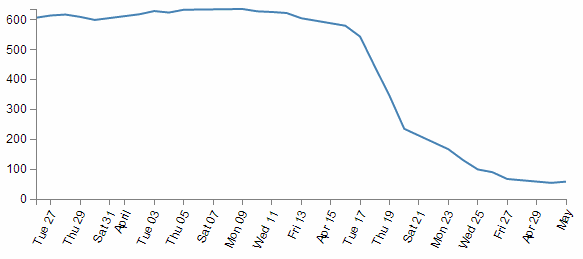
This was a surprisingly difficult problem to find a solution to that I could easily understand (well done Aaron). That makes me think that there are some far deeper mysteries to it that I don’t fully appreciate that could trip this solution up. But in lieu of that, enjoy!
Format a date / time axis with specified values
OK then. We’ve been very clever in rotating our text, but you will notice that D3 has used it’s own good judgement as to what format the days / date will be represented as.
Not that there’s anything wrong with it, but what if we want to put a specific format of date / time nomenclature as axis labels?
No problem. D3 has your back.
This is actually a pretty easy thing to do, but there are plenty of options for the formatting, so the only really tricky part is deciding what to put where.
But, before we start doing anything we are going to have to expand our bottom margin even more than we did with the rotate the axis labels feature.
var margin = {top: 30, right: 40, bottom: 70, left: 50},
That should see us right.
Right, now the simple part :-). Changing the format of the label is as simple as inserting the tickFormat command into the xAxis declaration a little like this;
var xAxis = d3.svg.axis().scale(x)
    .orient("bottom").ticks(10)
    .tickFormat(d3.time.format("%Y-%m-%d")); // insert the tickFormat function
An example using this code can be found on github or in the code samples bundled with this book (simple-graph-rotated-axis-text.html and data.csv). A working example can be found on bl.ocks.org. The example code also includes the rotating of the x axis text as described in the previous section.
What the tickFormat allows is the setting of formatting for the tick labels. The d3.time.format portion of the code is specifying the exact format of those ticks. This formatting is described using the same arguments that were explained in the earlier section on formatting date time values. That means that the examples we see here (%Y-%m-%d) should display the year as a four digit number then a hyphen then the month as a two digit number, then another hyphen, then a two digit number corresponding to the day.
Let’s take a look at the result;
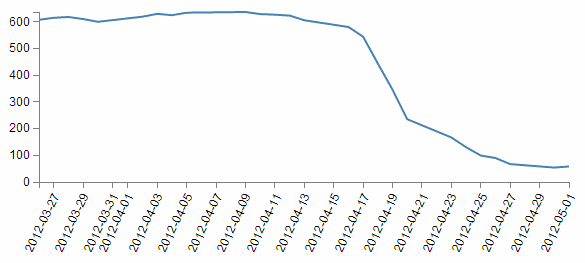
There we go! You should be able to see this file in the downloads section on d3noob.org with the general examples as formatted-date-time-axis-labels.html.
So how about we try something a little out of the ordinary (extreme)?
How about the full weekday name (%A), the day (%d), the full month name (%B) and the year (%Y) as a four digit number?
.tickFormat(d3.time.format("%A %d %B %Y"));
We will also need some extra space for the bottom margin, so how about 140?
var margin = {top: 30, right: 40, bottom: 140, left: 50},
and….
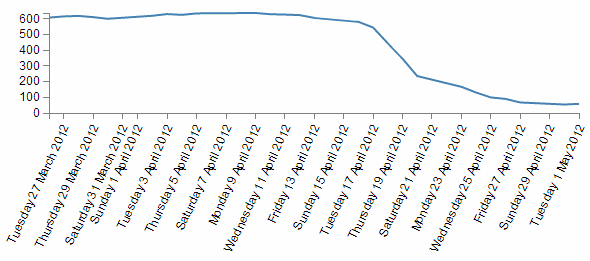
Oh yeah… When axis ticks go bad…
But seriously, that does work as a pretty good example of the flexibility available.
Update data dynamically - On Click
OK, you’re going to enjoy this section. Mainly because it takes the traditional graph that we know, love and have been familiar with since childhood and adds in an aspect that that has been missing for most of your life.
Animation!
Graphs are cool. Seeing information represented in a graphical way allows leaps of understanding that are difficult or impossible to achieve from raw data. But in this crazy ever-changing world, a static image is only as effective as the last update. The ability to being able to have the most recent data represented in your graph and to have it occur automatically provides a new dimension to traditional visualizations.
So what are we going to do?
First we’ll spend a bit of time setting the scene. We’ll add a button to our basic graph file so that we can control when our animation occurs, we’ll generate a new data set so that we can see how the data changes easily, then we’ll shuffle the code about a bit to make it do its magic. While we’re shuffling the code we’ll take a little bit of time to explain what’s going on with various parts of it that are different to what we might have seen thus far. Then we’ll change the graph to update automatically (on a schedule) when the data changes.
The code for this example can be found on github or in the code samples bundled with this book (data-load-button.html, data.csv and data-alt.csv). A working example can be found on bl.ocks.org.
Adding a Button
It’s all well and good animating your data, but if you don’t know when it’s supposed to happen or what should happen, it’s a little difficult to evaluate how successful you’ve been.
To make life easy, we’re going to take some of the mystery out of the equation (don’t worry, we’ll put it back later) and add a button to our graph that will give you control over when your graph should update it’s data. When complete it should look like this;
To add a button, we will take our simple-graph.html example and just after the <body> tag we add the following code;
<div id="option">
    <input name="updateButton"
           type="button"
           value="Update"
           onclick="updateData()"
    />
</div>
The HTML <div> element (or HTML Document Division Element) is used to assign a division or section in an HTML document. We use it here as it’s good practice to keep sections of your HTML document distinct so that it’s easier to perform operations them at a later date.
In this case we have given the div the identifier “option” so that we can refer to it later if we need to (embarrassingly, we won’t be referring to it at all, but it’s good practice none the less).
The following line adds our button using the HTML <input> tag. The <input> tag has a wide range of attributes (options) for allowing user input. Check out the links to w3schools and Mozilla for a whole lot of reading.
In our <input> line we have four different attributes;
- name
- type
- value
- onclick
Each of these attributes modifies the <input> function in some way so that our button does what we want it to do.
name:
This is the name of the control (in this case a button) so that we can reference it in other parts of our HTML script.
type:
Probably the most important attribute for a button, this declares that our type of input will be a button! There are heaps of other options for type which would form a significant section in itself.
value:
For a button input type, this is the starting value for our button and forms the label that our button will have.
onclick:
This is not an attribute that is specific to the <input> function, but it allows the browser to capture a mouse clicking event when it occurs and in our case we tell it to run the updateData() function (which we’ll be seeing more of soon).
Updating the data
To make our first start at demonstrating changing the data, we’ll add another data file to our collection. We’ll name it data-alt.csv (you can find it in the sample code collection that can be downloaded with the book on Leanpub). This file changes our normal data (only the values, not the structure) just enough to see a movement of the time period of the graph and the range of values on the y axis (this will become really obvious in the transition).
Changes to the d3.js code layout
While going through the process of working out how to do this, the iterations of my code were mostly horrifying to behold. However, I think my understanding has improved sufficiently to allow only a slight amendment to our simple-graph.html JavaScript code to get this going.
What we should do is add the following block of code to our script towards the end of the file just before the </script> tag;
function updateData() {

    // Get the data again
    d3.csv("data-alt.csv", function(error, data) {
       	data.forEach(function(d) {
	    	d.date = parseDate(d.date);
	    	d.close = +d.close;
	    });

    	// Scale the range of the data again
    	x.domain(d3.extent(data, function(d) { return d.date; }));
            y.domain([0, d3.max(data, function(d) { return d.close; })]);

    // Select the section we want to apply our changes to
    var svg = d3.select("body").transition();

    // Make the changes
        svg.select(".line")   // change the line
            .duration(750)
            .attr("d", valueline(data));
        svg.select(".x.axis") // change the x axis
            .duration(750)
            .call(xAxis);
        svg.select(".y.axis") // change the y axis
            .duration(750)
            .call(yAxis);

    });
}
What’s happening in the code?
There are several new concepts and techniques in this block of code for us to go through but we’ll start with the overall wrapper for the block which is a function call.
The entirety of our JavaScript code that we’re adding is a function called updateData. This is the subject of the first line in the code above (and the last closing curly bracket). It is called from the only other piece of code we’ve added to the file which is the button in the HTML section. So when that button is clicked, the updateData function is carried out.
Then we get our new data with the block that starts with d3.csv("data-alt.csv". This is a replica of the block in the main part of the code with one glaring exception. It is getting the data from our new file called data-alt.csv. However, one thing it’s doing that bears explanation is that it’s loading data into an array that we’ve already used to generate our line. At a point not too far from here (probably the next page) we’re going to replace the data that made up our line on the page with the new data that’s just been loaded.
We then set the scale and the range again using the x.domain and y.domain lines. We do this because it’s more than possible that our data has exceeded or shrunk with respect to our original domains so we recalculate them using our new data. The consequence of not doing this would be a graph that could exceed it’s available space or be cramped up.
Then we assign the variable svg to be our selection of the "body" div (which means the following actions will only be carried out on objects within the "body" div.
The other part of that line is the transition command (.transition()). This command goes to the heart of animating dynamic data and visualizations and is a real treasure.
As the name suggests, a transition is a method for moving from one state to another. In its simplest form for a d3.js visualisation, it could mean moving an object from one place to another, or changing an object’s properties such as opacity or colour. In our case, we will take our data which is in the form of a line, and change some of that data. And when we change the data we will get d3 to manage the change via a transition. At the same time (because we’re immensely clever) we will also make sure we change the axes if they need it.
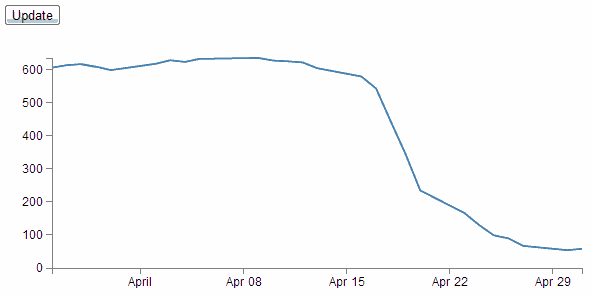
So in short, we’re going to change this…
… into this…
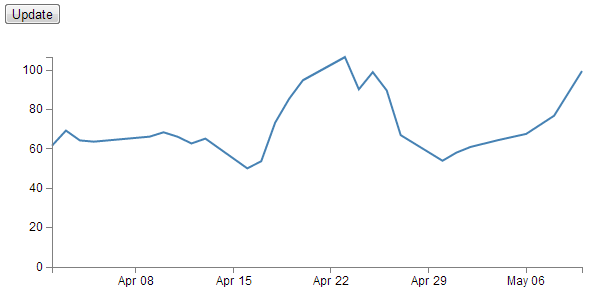
Obviously the line values have changed, and both axes have changed as well. And using a properly managed transition, it will all occur in a smooth ballet :-).
So, looking at the short block that manages the line transition;
        svg.select(".line")   // change the line
            .duration(750)
            .attr("d", valueline(data));
We select the ".line" object and since we’ve already told the script that svg is all about the transition (var svg = d3.select("body").transition();) the attributes that follow specify how the transition for the line will proceed. In this case, the code describes the length of time that the transition will take as 750 milliseconds (.duration(750)) and uses the new data as transcribed by the valueline variable from the original part of the script (.attr("d", valueline(data));).
The same is true for both of the subsequent portions of the code that change the x and y axes. We’ve set both to a transition time of 750 milliseconds, although feel free to change those values (make each one different for an interesting effect).
Other attributes for the transition that we could have introduced would be a delay (.delay(500), perhaps to stagger the movements) and more interestingly an easing attribute (.ease(type[, arguments…])) which will have the effect of changing how the movement of a transition appears (kind of like a fast-slow-fast vs linear, but with lots of variations).
But for us we’ll survive with the defaults.
In theory, you’ve added in your new data file (data-alt.csv) and made the two changes to the simple graph file (the HTML block for the button and the JavaScript one for the updateData function). The result has been a new beginning in your wonderful d3 journey!
Update data dynamically – Automatically
I have no doubt that the excitement of updating your data and graph with the magic of buttons is quite a thrill. But believe it or not, there’s more to come.
In the example we’re going to demonstrate now, there are no buttons to click, the graph will simply update itself when the data changes.
I know, I know. It’s like magic!
So the sort of usage scenario that you would be putting this to is when you had a dashboard type display or a separate window just for the purposes of showing a changing value like a stock ticker or number of widgets sold (where the number was changing frequently).
So, how to create the magic?
Starting with the data-load-button.html file, firstly we should remove the button, so go ahead and delete the button block that we had in the HTML section (the bit that looked like this…).
<div id="option">
    <input name="updateButton"
                 type="button"
                value="Update"
                onclick="updateData()" />
</div>
Now, we have two references in our JavaScript where we load our data. One loads data.csv initially, then when the button was pushed, we loaded data-alt.csv. We’re going to retain that arrangement for the moment, because we want to make sure we can see something happening, but ultimately, we would just have them referencing a single file.
So, the magic piece of script that will do your updating is as follows;
var inter = setInterval(function() {
                updateData();
        }, 5000);
And we should put that just above the function updateData() { line in our code.
The key to this piece of code is the setInterval function which will execute specified code (in this case it’s updateData(); which will go and read in our new information) over and over again at a set interval (in this case 5000 milliseconds (}, 5000);)).
I honestly wish it was harder, but sadly it’s that simple. You now have in your possession the ability to make your visualizations do stuff on a regular basis, all by themselves!
There is a copy of this sample code and the data files at github and in the code samples bundled with this book (data-load-automatic.html, data.csv and data-alt.csv). A live example can be found on bl.ocks.org.
How to test?
Well, just load up your new file in a browsers. After an interval of 5 seconds, you should see the graph change all by itself. How cool is that?
You know it gets better though…
If you open your data-alt.csv file and change a value (increase one of the close values by a factor of 10 or something equally noticeable). Then save the file. Keep an eye on your graph. Before 5 seconds is up it should have changed to reflect your new data.