Linux Commands
Executing Commands in Linux
A command is an instruction given by a user telling the computer to carry out an action. This could be to run a single program or a group of linked programs. Commands are typically initiated by typing them in at the command line (in a terminal) and then pressing the ENTER key, which passes them to the shell.
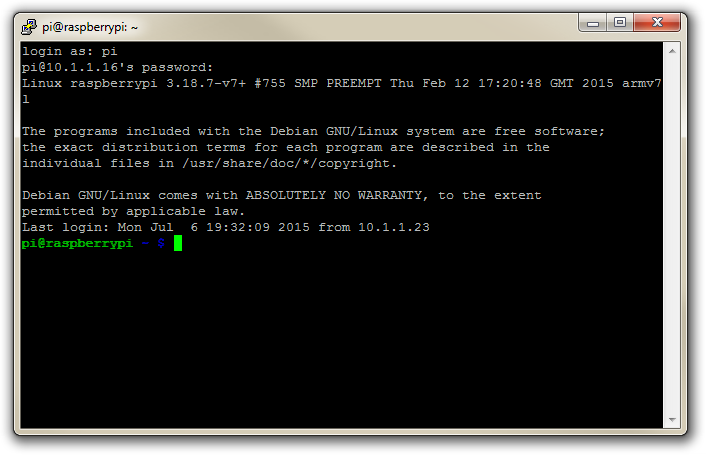
A terminal refers to a wrapper program which runs a shell. This used to mean a physical device consisting of little more than a monitor and keyboard. As Unix/Linux systems advanced the terminal concept was abstracted into software. Now we have programs such as LXTerminal (on the Raspberry Pi) which will launch a window in a Graphical User Interface (GUI) which will run a shell into which you can enter commands. Alternatively we can dispense with the GUI all together and simply start at the command line when we boot up.
The shell is a program which actually processes commands and returns output. Every Linux operating system has at least one shell, and most have several. The default shell on most Linux systems is bash.
The Commands
Commands on Linux operating systems are either built-in or external commands. Built-in commands are part of the shell. External commands are either executables (programs written in a programming language and then compiled into an executable binary) or shell scripts.
A command consists of a command name usually followed by one or more sequences of characters that include options and/or arguments. Each of these strings is separated by white space. The general syntax for commands is;
commandname [options] [arguments]
The square brackets indicate that the enclosed items are optional. Commands typically have a few options and utilise arguments. However, there are some commands that do not accept arguments, and a few with no options.
As an example we can run the ls command with no options or arguments as follows;
The ls command will list the contents of a directory and in this case the command and the output would be expected to look something like the following;
Options
An option (also referred to as a switch or a flag) is a single-letter code, or sometimes a single word or set of words, that modifies the behaviour of a command. When multiple single-letter options are used, all the letters are placed adjacent to each other (not separated by spaces) and can be in any order. The set of options must usually be preceded by a single hyphen, again with no intervening space.
So again using ls if we introduce the option -l we can show the total files in the directory and subdirectories, the names of the files in the current directory, their permissions, the number of subdirectories in directories listed, the size of the file, and the date of last modification.
The command we execute therefore looks like this;
And so the command (with the -l option) and the output would look like the following;
26
drwxr-xr-x 2 pi pi 4096 Feb 20 08:07 Desktop
drwxrwxr-x 2 pi pi 4096 Jan 27 08:34 python_games
Here we can see quite a radical change in the formatting and content of the returned information.
Arguments
An argument (also called a command line argument) is a file name or other data that is provided to a command in order for the command to use it as an input.
Using ls again we can specify that we wish to list the contents of the python_games directory (which we could see when we ran ls) by using the name of the directory as the argument as follows;
The command (with the python_games argument) and the output would look like the following (actually I removed quite a few files to make it a bit more readable);
Putting it all together
And as our final example we can combine our command (ls) with both an option (-l) and an argument (python_games) as follows;
Hopefully by this stage, the output shouldn’t come as too much surprise, although again I have pruned some of the files for readabilities sake;
1800
-rw-rw-r-- 1 pi pi 9731 Jan 27 08:34 4row_arrow.png
-rw-rw-r-- 1 pi pi 7463 Jan 27 08:34 4row_black.png
-rw-rw-r-- 1 pi pi 8666 Jan 27 08:34 4row_board.png
-rw-rw-r-- 1 pi pi 18933 Jan 27 08:34 4row_computerwinner.png
-rw-rw-r-- 1 pi pi 25412 Jan 27 08:34 4row_humanwinner.png
-rw-rw-r-- 1 pi pi 8562 Jan 27 08:34 4row_red.png
-rw-rw-r-- 1 pi pi 14661 Jan 27 08:34 tetrisc.mid
-rw-rw-r-- 1 pi pi 15759 Jan 27 08:34 tetrominoforidiots.py
-rw-rw-r-- 1 pi pi 18679 Jan 27 08:34 tetromino.py
-rw-rw-r-- 1 pi pi 9771 Jan 27 08:34 Tree_Short.png
-rw-rw-r-- 1 pi pi 11546 Jan 27 08:34 Tree_Tall.png
-rw-rw-r-- 1 pi pi 10378 Jan 27 08:34 Tree_Ugly.png
-rw-rw-r-- 1 pi pi 8443 Jan 27 08:34 Wall_Block_Tall.png
-rw-rw-r-- 1 pi pi 6011 Jan 27 08:34 Wood_Block_Tall.png
-rw-rw-r-- 1 pi pi 8118 Jan 27 08:34 wormy.py
apt-get
The apt-get command is a program, that is used with Debian based Linux distributions to install, remove or upgrade software packages. It’s a vital tool for installing and managing software and should be used on a regular basis to ensure that software is up to date and security patching requirements are met.
There are a plethora of uses for apt-get, but we will consider the basics that will allow us to get by. These will include;
- Updating the database of available applications (
apt-get update) - Upgrading the applications on the system (
apt-get upgrade) - Installing an application (
apt-get install *package-name*) - Un-installing an application (
apt-get remove *package-name*)
The apt-get command
The apt part of apt-get stands for ‘advanced packaging tool’. The program is a process for managing software packages installed on Linux machines, or more specifically Debian based Linux machines (Since those based on ‘redhat’ typically use their rpm (red hat package management (or more lately the recursively named ‘rpm package management’) system). As the Raspberry Pi OS is based on Debian, so the examples we will be using are based on apt-get.
APT simplifies the process of managing software on Unix-like computer systems by automating the retrieval, configuration and installation of software packages. This was historically a process best described as ‘dependency hell’ where the requirements for different packages could mean a manual installation of a simple software application could lead a user into a sink-hole of despair.
In common apt-get usage we will be prefixing the command with sudo to give ourselves the appropriate permissions;
apt-get update
This will resynchronize our local list of packages files, updating information about new and recently changed packages. If an apt-get upgrade (see below) is planned, an apt-get update should always be performed first.
Once the command is executed, the computer will delve into the internet to source the lists of current packages and download them so that we will see a list of software sources similar to the following appear;
[490 B]
Get:2 http://archive.raspberrypi.org wheezy Release.gpg [473 B]
Hit http://raspberrypi.collabora.com wheezy Release
Get:3 http://mirrordirector.raspbian.org wheezy Release [14.4 kB]
Get:4 http://archive.raspberrypi.org wheezy Release [17.6 kB]
Hit http://raspberrypi.collabora.com wheezy/rpi armhf Packages
Get:5 http://mirrordirector.raspbian.org wheezy/main armhf Packages [6,904 kB]
Get:6 http://archive.raspberrypi.org wheezy/main armhf Packages [130 kB]
Ign http://raspberrypi.collabora.com wheezy/rpi Translation-en
Ign http://mirrordirector.raspbian.org wheezy/contrib Translation-en
Ign http://mirrordirector.raspbian.org wheezy/main Translation-en
Ign http://mirrordirector.raspbian.org wheezy/non-free Translation-en
Ign http://mirrordirector.raspbian.org wheezy/rpi Translation-en
Fetched 7,140 kB in 35s (200 kB/s)
Reading package lists... Done
apt-get upgrade
The apt-get upgrade command will install the newest versions of all packages currently installed on the system. If a package is currently installed and a new version is available, it will be retrieved and upgraded. Any new versions of current packages that cannot be upgraded without changing the install status of another package will be left as they are.
As mentioned above, an apt-get update should always be performed first so that apt-get upgrade knows which new versions of packages are available.
Once the command is executed, the computer will consider its installed applications against the databases list of the most up to date packages and it will prompt us with a message that will let us know how many packages are available for upgrade, how much data will need to be downloaded and what impact this will have on our local storage. At this point we get to decide whether or not we want to continue;
6 upgraded, 0 newly installed, 0 to remove and 0 not upgraded.
Need to get 10.7 MB of archives.
After this operation, 556 kB disk space will be freed.
Do you want to continue [Y/n]?
Once we say yes (‘Y’) the upgrade kicks off and we will see a list of the packages as they are downloaded unpacked and installed (what follows is an edited example);
continue [Y/n]? y
Get:1 http://archive.raspberrypi.org/debian/wheezy/main libsdl1.2debian
armhf 1.2.15-5+rpi1 [205 kB]
Get:2 http://archive.raspberrypi.org/debian/wheezy/main raspi-config all
20150131-5 [13.3 kB]
Get:3 http://mirrordirector.raspbian.org/raspbian/ wheezy/main libsqlite3-0
armhf 3.7.13-1+deb7u2 [414 kB]
Fetched 10.7 MB in 31s (343 kB/s)
Preconfiguring packages ...
(Reading database ... 80703 files and directories currently installed.)
Preparing to replace cups-common 1.5.3-5+deb7u5
(using .../cups-common_1.5.3-5+deb7u6_all.deb) ...
Unpacking replacement cups-common ...
Preparing to replace cups-bsd 1.5.3-5+deb7u5
(using .../cups-bsd_1.5.3-5+deb7u6_armhf.deb) ...
Unpacking replacement cups-bsd ...
Preparing to replace php5-gd 5.4.39-0+deb7u2
(using .../php5-gd_5.4.41-0+deb7u1_armhf.deb) ...
Unpacking replacement php5-gd ...
Processing triggers for man-db ...
Setting up libssl1.0.0:armhf (1.0.1e-2+rvt+deb7u17) ...
Setting up libsqlite3-0:armhf (3.7.13-1+deb7u2) ...
Setting up cups-common (1.5.3-5+deb7u6) ...
Setting up cups-client (1.5.3-5+deb7u6) ...
There can often be alerts as the process identifies different issues that it thinks the system might strike (different aliases, runtime levels or missing fully qualified domain names). This is not necessarily a sign of problems so much as an indication that the process had to take certain configurations into account when upgrading and these are worth noting. Whenever there is any doubt about what has occurred, Google will be your friend :-).
apt-get install
The apt-get install command installs or upgrades one (or more) packages. All additional (dependency) packages required will also be retrieved and installed.
If we want to install multiple packages we can simply list each package separated by a space after the command as follows;
apt-get remove
The apt-get remove command removes one (or more) packages.
cd
The cd command is used to move around in the directory structure of the file system (change directory). It is one of the fundamental commands for navigating the Linux directory structure.
cd [options] directory : Used to change the current directory.
For example, when we first log into the Raspberry Pi as the ‘pi’ user we will find ourselves in the /home/pi directory. If we wanted to change into the /home directory (go up a level) we could use the command;
Take some time to get familiar with the concept of moving around the directory structure from the command line as it is an important skill to establish early in Linux.
The cd command
The cd command will be one of the first commands that someone starting with Linux will use. It is used to move around in the directory structure of the file system (hence cd = change directory). It only has two options and these are seldom used. The arguments consist of pointing to the directory that we want to go to and these can be absolute or relative paths.
The cd command can be used without options or arguments. In this case it returns us to our home directory as specified in the /etc/passwd file.
If we cd into any random directory (try cd /var) we can then run cd by itself;
… and in the case of a vanilla installation of the Raspberry Pi OS, we will change to the /home/pi directory;
cd /var
pi@raspberrypi /var $ cd
pi@raspberrypi ~ $ pwd
/home/pi
In the example above, we changed to /var and then ran the cd command by itself and then we ran the pwd command which showed us that the present working directory is /home/pi. This is the Raspberry Pi OS default home directory for the pi user.
Options
As mentioned, there are only two options available to use with the cd command. This is -P which instructs cd to use the physical directory structure instead of following symbolic links and the -L option which forces symbolic links to be followed.
For those beginning Linux, there is little likelihood of using either of these two options in the immediate future and I suggest that you use your valuable memory to remember other Linux stuff.
Arguments
As mentioned earlier, the default argument (if none is included) is to return to the users home directory as specified in the /etc/passwd file.
When specifying a directory we can do this by absolute or relative addressing. So if we started in the /home/pi directory, we could go the /home directory by executing;
… or using relative addressing and we can use the .. symbols to designate the parent directory;
Once in the /home directory, we can change into the /home/pi/Desktop directory using relative addressing as follows;
We can also use the - argument to navigate to the previous directory we were in.
Examples
Change into the root (/) directory;
Test yourself
- Having just changed from the
/home/pidirectory to the/homedirectory, what are the five variations of using thecdcommand that will take the pi user to the/home/pidirectory - Starting in the
/home/pidirectory and using only relative addressing, usecdto change into the/vardirectory.
ifconfig
The ifconfig command can be used to view the configuration of, or to configure a network interface. Networking is a fundamental function of modern computers. ifconfig allows us to configure the network interfaces to allow that connection.
-
ifconfig[arguments] [interface]
or
-
ifconfig[arguments] interface [options]
Used with no ‘interface’ declared ifconfig will display information about all the operational network interfaces. For example running;
… produces something similar to the following on a simple Raspberry Pi.
76:12:45:56:47:53
UP BROADCAST MULTICAST MTU:1500 Metric:1
RX packets:0 errors:0 dropped:0 overruns:0 frame:0
TX packets:0 errors:0 dropped:0 overruns:0 carrier:0
collisions:0 txqueuelen:1000
RX bytes:0 (0.0 B) TX bytes:0 (0.0 B)
lo Link encap:Local Loopback
inet addr:127.0.0.1 Mask:255.0.0.0
UP LOOPBACK RUNNING MTU:65536 Metric:1
RX packets:0 errors:0 dropped:0 overruns:0 frame:0
TX packets:0 errors:0 dropped:0 overruns:0 carrier:0
collisions:0 txqueuelen:0
RX bytes:0 (0.0 B) TX bytes:0 (0.0 B)
wlan0 Link encap:Ethernet HWaddr 09:87:65:54:43:32
inet addr:10.1.1.8 Bcast:10.1.1.255 Mask:255.255.255.0
UP BROADCAST RUNNING MULTICAST MTU:1500 Metric:1
RX packets:3978 errors:0 dropped:898 overruns:0 frame:0
TX packets:347 errors:0 dropped:0 overruns:0 carrier:0
collisions:0 txqueuelen:1000
RX bytes:859773 (839.6 KiB) TX bytes:39625 (38.6 KiB)
The output above is broken into three sections; eth0, lo and wlan0.
-
eth0is the first Ethernet interface and in our case represents the RJ45 network port on the Raspberry Pi (in this specific case on a B+ model). If we had more than one Ethernet interface, they would be namedeth1,eth2, etc. -
lois the loopback interface. This is a special network interface that the system uses to communicate with itself. You can notice that it has the IP address 127.0.0.1 assigned to it. This is described as designating the ‘localhost’. -
wlan0is the name of the first wireless network interface on the computer. This reflects a wireless USB adapter (if installed). Any additional wireless interfaces would be namedwlan1,wlan2, etc.
The ifconfig command
The ifconfig command is used to read and manage a servers network interface configuration (hence ifconfig = interface configuration).
We can use the ifconfig command to display the current network configuration information, set up an ip address, netmask or broadcast address on an network interface, create an alias for network interface, set up hardware addresses and enable or disable network interfaces.
To view the details of a specific interface we can specify that interface as an argument;
Which will produce something similar to the following;
(8.4 MiB) TX bytes:879127 (858.5 KiB)
The configuration details being displayed above can be interpreted as follows;
-
Link encap:Ethernet- This tells us that the interface is an Ethernet related device. -
HWaddr b8:27:eb:2c:bc:62- This is the hardware address or Media Access Control (MAC) address which is unique to each Ethernet card. Kind of like a serial number. -
inet addr:10.1.1.8- indicates the interfaces IP address. -
Bcast:10.1.1.255- denotes the interfaces broadcast address -
Mask:255.255.255.0- is the network mask for that interface. -
UP- Indicates that the kernel modules for the Ethernet interface have been loaded. -
BROADCAST- Tells us that the Ethernet device supports broadcasting (used to obtain IP address via DHCP). -
RUNNING- Lets us know that the interface is ready to accept data. -
MULTICAST- Indicates that the Ethernet interface supports multicasting. -
MTU:1500- Short for for Maximum Transmission Unit is the size of each packet received by the Ethernet card. -
Metric:1- The value for the Metric of an interface decides the priority of the device (to designate which of more than one devices should be used for routing packets). -
RX packets:119833 errors:0 dropped:0 overruns:0 frame:0andTX packets:8279 errors:0 dropped:0 overruns:0 carrier:0- Show the total number of packets received and transmitted with their respective errors, number of dropped packets and overruns respectively. -
collisions:0- Shows the number of packets which are colliding while traversing the network. -
txqueuelen:1000- Tells us the length of the transmit queue of the device. -
RX bytes:8895891 (8.4 MiB)andTX bytes:879127 (858.5 KiB)- Indicates the total amount of data that has passed through the Ethernet interface in transmit and receive.
Options
The main option that would be used with ifconfig is -a which will will display all of the interfaces on the interfaces available (ones that are ‘up’ (active) and ‘down’ (shut down). The default use of the ifconfig command without any arguments or options will display only the active interfaces.
Arguments
We can disable an interface (turn it down) by specifying the interface name and using the suffix ‘down’ as follows;
Or we can make it active (bring it up) by specifying the interface name and using the suffix ‘up’ as follows;
To assign a IP address to a specific interface we can specify the interface name and use the IP address as the suffix;
To add a netmask to a a specific interface we can specify the interface name and use the netmask argument followed by the netmask value;
To assign an IP address and a netmask at the same time we can combine the arguments into the same command;
Test yourself
- List all the network interfaces on your server.
- Why might it be a bad idea to turn down a network interface while working on a server remotely?
- Display the information about a specific interface, turn it down, display the information about it again then turn it up. What differences do you see?
mv
The mv command is used to rename and move files or directories. It is one of the basic Linux commands that allow for management of files from the command line.
-
mv[options] source destination : Move and/or rename files and directories
For example: to rename the file foo.txt and to call it foo-2.txt we would enter the following;
This makes the assumption that we are in the same directory as the file foo.txt, but even if we weren’t we could explicitly name the file with the directory structure and thereby not just rename the file, but move it somewhere different;
To move the file without renaming it we would simply omit the new name at the destination as so;
The mv command
The mv command is used to move or rename files and directories (mv is an abbreviated form of the word move). This is a similar command to the cp (copy) command but it does not create a duplicate of the files it is acting on.
If we want to move multiple files, we can put them on the same line separated by spaces.
The normal set of wildcards and addressing options are available to make the process more flexible and extensible.
Options
While there are a few options available for the mv command the one most commonly ones used would be -u and -i.
-
uThis updates moved files by only moving the file when the source file is newer than the destination file or when the destination file does not exist. -
iInitiates an interactive mode where we are prompted for confirmation whenever the move would overwrite an existing target.
Examples
To move all the files from directory1 to directory2 (directory2 must initially exist);
To rename a directory from directory1 to directory2 (directory2 must not already exist);
To move the files foo.txt and bar.txt to the directory foobar;
To move all the ‘txt’ files from the users home directory to a directory called backup but to only do so if the file being moved is newer than the destination file;
Test yourself
- How can we move a file to a new location when that act might overwrite an already existing file?
- What characters cannot be used when naming directories or files?
rm
The rm command is used to remove file or directories. This is a basic Linux file management command that should be understood by all Linux users.
-
rm[options] file : Delete files or directories
For example if we want to remove the file foo.txt we would use the command as follows;
The rm command
The rm command is used to remove (hence rm = remove) files. Any act that involves deleting files should be treated with a degree of caution and the rm command falls into the ‘treat with caution’ category. This is especially true if using wildcards or complex relative addressing.
It will not remove directories by default although it can be directed to do so via the -r option (covered later). The command will return an error message if a file doesn’t exist or if the user doesn’t have the appropriate permissions to delete it. Files which are located in write-protected directories can not be removed, even if those files are not write-protected (they are protected by the directory).
If a file to be deleted is a symbolic link, the link will be removed, but the file or directory to which that link refers will not be deleted.
Options
There are a small number of options available for use with rm. The following would be the most common;
-
-rallows us to recursivly remove directories and their contents -
-fallows us to force the removal of files irrespective of write-protected status -
-itells thermcommend to interactivly prompt us for confirmation of every deletion
So the following will delete the foobar directory and all its contents;
To delete all the txt files in the current directory irrespective of their write-protect status (and without prompting us to tell us that it’s happening);
To take a nice careful approach and to have a prompt for the removal of each file we can use the -i option. The following example will look for each txt file and ask us if we want to delete it;
The output will look something like the following;
We can’t use the -f and -i options simultaneously. Whichever was the last one in the command takes affect.
The rm command supports the -- (two consecutive dashes) parameter which acts as a delimiter that indicates the end of any options. This is used when the name of a file or directory begins with a dash. For example, the following removes a directory named -directory1;
Arguments
The normal set of wildcards and addressing options are available to make the process of finding the right files more flexible and extensible.
To remove more than one file we can simply separate them with a space as follows;
Test yourself
- Will the
-foption successfully delete a write protected file in a write protected directory? Justify your answer. - What are the implications of running the following command;
sudo
The sudo command allows a user to execute a command as the ‘superuser’ (or as another user). It is a vital tool for system administration and management.
-
sudo[options] [command] : Execute a command as the superuser
For example, if we want to update and upgrade our software packages, we will need to do so as the super user. All we need to do is prefix the command apt-get with sudo as follows;
One of the best illustrations of this is via the excellent cartoon work of the xkcd comic strip (Buy his stuff, it’s awesome!).
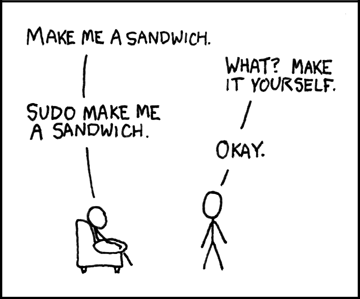
The sudo command
The sudo command is shorthand for ‘superuser do’.
When we use sudo an authorised user is determined by the contents of the file /etc/sudoers.
As an example of usage we should check out the file /etc/sudoers. If we use the cat command to list the file like so;
We get the following response;
That’s correct, the ‘pi’ user does not have permissions to view the file
Let’s confirm that with ls;
Which will result in the following;
1 root root 696 May 7 10:39 /etc/sudoers
It would appear that only the root user can read the file!
So let’s use sudo to cat](#cat) the file as follows;
That will result in the following output;
There’s a lot of information in the file, but there, right at the bottom is the line that determines the privileges for the ‘pi’ user;
We can break down what each section means;
pi
pi ALL=(ALL) NOPASSWD: ALL
The pi portion is the user that this particular rule will apply to.
ALL
pi ALL=(ALL) NOPASSWD: ALL
The first ALL portion tells us that the rule applies to all hosts.
ALL
pi ALL=(ALL) NOPASSWD: ALL
The second ALL tells us that the user ‘pi’ can run commands as all users and all groups.
NOPASSWD
pi ALL=(ALL) NOPASSWD: ALL
The NOPASSWD tells us that the user ‘pi’ won’t be asked for their password when executing a command with sudo.
All
pi ALL=(ALL) NOPASSWD: ALL`
The last ALL tells us that the rules on the line apply to all commands.
Under normal situations the use of sudo would require a user to be authorised and then enter their password. By default the Raspberry Pi OS operating system has the ‘pi’ user configured in the /etc/sudoers file to avoid entering the password every time.
If your curious about what privileges (if any) a user has, we can execute sudo with the -l option to list them;
This will result in output that looks similar to the following;
for pi on this host:
env_reset, mail_badpass,
secure_path=/usr/local/sbin\:/usr/local/bin\:/usr/sbin\:/usr/bin\:/sbin\:/bin
User pi may run the following commands on this host:
(ALL : ALL) ALL
(ALL) NOPASSWD: ALL
The ‘sudoers’ file
As mentioned above, the file that determines permissions for users is /etc/sudoers. DO NOT EDIT THIS BY HAND. Use the visudo command to edit. Of course you will be required to run the command using sudo;
sudo vs su
There is a degree of confusion about the roles of the sudo command vs the su command. While both can be used to gain root privileges, the su command actually switches the user to another user, while sudo only runs the specified command with different privileges. While there will be a degree of debate about their use, it is widely agreed that for simple on-off elevation, sudo is ideal.
Test yourself
- Write an entry for the
sudoersfile that provides sudo privileges to a user for only thecatcommand. - Under what circumstances can you edit the
sudoersfile with a standard text editor.
tar
The tar command is designed to facilitate the creation of an archive of files by combining a range of files and directories into a single file and providing the ability to extract these files again. While tar does not include compression as part of its base function, it is available via an option. tar is a useful program for archiving data and as such forms an important command for good maintenance of files and systems.
-
tar[options] archivename [file(s)] : archive or extract files
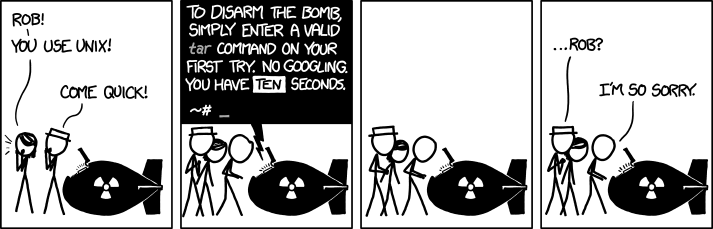
tar is renowned as a command that has a plethora of options and flexibility. So much so that it can appear slightly arcane and (dare I say it) ‘over-flexible’. This has been well illustrated in the excellent cartoon work of the xkcd comic strip (Buy his stuff, it’s awesome!).
However, just because it has a lot of options does not mean that it needs to be difficult to use for a standard set of tasks and at its most basic is the creation of an archive of files as follows;
Here we are creating an archive in a file called foobar.tar of the files foo.txt and bar.txt.
The options used allow us to;
-
c: create a new archive -
v: verbosely list files which are processed. -
f: specify the following name as the archive file name
The output of the command is the echoing of the files that are placed in the archive;
The additional result is the creation of the file containing our archive foobar.tar.
To carry the example through to its logical conclusion we would want to extract the files from the archive as follows;
The options used allow us to;
-
x: extract an archive -
v: verbosely list files which are processed. -
f: specify the following name as the archive file name
The output of the command is the echoing of the files that are extracted from the archive;
The tar command
tape archive, or tar for short, is a command for converting files and directories into a single data file. While originally written for reading and writing from sequential devices such as tape drives, it is nowadays used more commonly as a file archive tool. In this sense it can be considered similar to archiving tools such as WinZip or 7zip. The resulting file created as a result of using the tar command is commonly called a ‘tarball’.
Note that tar does not provide any compression, so in order to reduce the size of a tarball we need to use an external compression utility such as gzip. While this is the most common, any other compression type can be used. These switches are the equivalent of piping the created archive through gzip.
One advantage to using tar over other archiving tools such as zip is that tar is designed to preserve Unix filesystem features such as user and group permissions, access and modification dates, and directory structures.
Another advantage to using tar for compressed archives is the fact that any compression is applied to the tarball in its entirety, rather than individual files within the archive as is the case with zip files. This allows for more efficient compression as the process can take advantage of data redundancy across multiple files.
Options
-
c: Create a new tar archive. -
x: Extract a tar archive. -
f: Work on a file. -
z: Use Gzip compression or decompression when creating or extracting. -
t: List the contents of a tar archive.
The tar program does not compress the files, but it can incorporate the gzip compression via the -z option as follows;
If we want to lit the contents of a tarball without un-archiving it we can use the -t option as follows;
When using tar to distribute files to others it is considered good etiquette to have the tarball extract into a directory of the same name as the tar file itself. This saves the recipient from having a mess of files on their hands when they extract the archive. Think of it the same way as giving your friends a set of books. They would much rather you hand them a box than dump a pile of loose books on the floor.
For example, if you wish to distribute the files in the foodir directory then we would create a tarball from the directory containing these files, rather than the files themselves:
Remember that tar operates recursively by default, so we don’t need to specify all of the files below this directory ourselves.
Test yourself
- Do you need to include the
zoption when decompressing atararchive? - Enter a valid tar command on the first try. No Googling. You have 10 seconds.
wget
The wget command (or perhaps a better description is ‘utility’) is a program designed to make downloading files from the Internet easy using the command line. It supports the HTTP, HTTPS and FTP protocols and is designed to be robust to accomplish its job even on a network connection that is slow or unstable. It is similar in function to curl for retrieving files, but there are some key differences between the two, with the main one for wget being that it is capable of downloading files recursively (where resources are linked from web pages).
-
wget[options] [URL] : download or upload files from the web non-interactivly.
In it’s simplest example of use it is only necessary to provide the URL of the file that is required and the download will begin;
The program will then connect to the remote server, confirm the file details and start downloading the file;
As the downloading process proceeds a simple text animation advises of the progress with an indication of the amount downloaded and the rate
Once complete the successful download will be reported accompanied by some statistics of the transfer;
The file is downloaded into the current working directory.
The wget command
wget is a utility that exists slightly out of the scope of a pure command in the sense that it is an Open Source program that has been complied to work on a range of operating systems. The name is a derivation of web get where the function of the program is to ‘get’ files from the world wide web.
It does this via support for the HTTP, HTTPS and FTP protocols such that if you could paste a URL in a browser and have it subsequently download a file, the same file could be downloaded from the command line using wget. wget is not the only file downloading utility that is commonly used in Linux. curl is also widely used for similar functions. However both programs have different strengths and in the case of wget that strength is in support of recursive downloading where an entire web site could be downloaded while maintaining its directory structure and links. There are other differences as well, but this would be the major one.
There is a large range of options that can be used to ensure that downloads are configured correctly. We will examine a few of the more basic examples below and after that we will check out the recursive function of wget.
-
--limit-rate: limit the download speed / download rate. -
-O: download and store with a different file name -
-b: download in the background -
-i: download multiple files / URLs -
--ftp-userand--ftp-password: FTP download using wget with username and password authentication
Rate limit the bandwidth
There will be times when we will be somewhere that the bandwidth is limited or we want to prioritise the bandwidth in some way. We can restrict the download speed with the option --limit-rate as follows;
Here we’ve limited the download speed to 20 kilo bytes per second. The amount may be expressed in bytes, kilobytes with the k suffix, or megabytes with the m suffix.
Rename the downloaded file
If we try to download a file with the same name into the working directory it will be saved with an incrementing numerical suffix (i.e. .1, .2 etc). However, we can give the file a different name when downloaded using the -O option (that’s a capital ‘o’ by the way). For example to save the file with the name alpha.zip we would do the following;
Download in the background
Because it may take some considerable time to download a file we can tell the process to run in the background which will release the terminal to carry on working. This is accomplished with the -b option as follows;
While the download continues, the progress that would normally be echoed to the screen is passed to the file wget-log that will be in the working directory. We can check this file to determine progress as necessary.
Download multiple files
While we can download multiple files by simply including them one after the other in the command as follows;
While that is good, it can start to get a little confusing if a large number of URL’s are included. To make things easier, we can create a text file with the URL’s/names of the files we want to download and then we specify the file with the -i option.
For example, if we have a file named files.txt in the current working directory that has the following contents;
Then we can run the command…
… and it will work through each file and download it.
Download files that require a username and password
The examples shown thus far have been able to be downloaded without providing any form of authentication (no user / password). However this will be a requirement for some downloads. To include a username and password in the command we include the --ftp-user and --ftp-password options. For example if we needed to use the username ‘adam’ and the password ‘1234’ we would form or command as follows;
You may be thinking to yourself “Is this secure?”. To which the answer should probably be “No”. It is one step above anonymous access, but not a lot more. This is not a method by which things that should remain private should be secured, but it does provide a method of restricting anonymous access.
Download files recursively
One of the main features of wget is it’s ability to download a large complex directory structure that exists on many levels. The best example of this would be the structure of files and directories that exist to make up a web site. While there is a wide range of options that can be passed to make the process work properly in a wide variety of situations, it is still possible to use a fairly generic set to get us going.
For example, to download the contents of the web site at dnoob.runkite.com we can execute the following command;
The options used here do the following;
-
-e robots=off: the execute option allows us to run a separate command and in this case it’s the commandrobots=offwhich tells the web site that we are visiting that it should ignore the fact that we’re running a command that is acting like a robot and to allow us to download the files. -
-r: the recursive option enables recursive downloading. -
-np: the no-parent option makes sure that a recursive retrieval only works on pages that are below the specified directory. -
-c: the continue option ensures that any partially downloaded file continues from the place it left off. -
-nc: the no-clobber option ensures that duplicate files are not overridden
Once entered the program will display a running listing of the progress and a summary telling us how many file and the time taken at the end. The end result is a directory called dnoob.runkite.com in the working directory that has the entire website including all the linked pages and files in it. If we examine the directory structure it will look a little like the following;
Using wget for recursive downloading should be used appropriately. It would be considered poor manners to pillage a web site for anything other than good reason. When in doubt contact the person responsible for a site or a repository just to make sure there isn’t a simpler way that you might be able to accomplish your task if it’s something ‘weird’.
Test yourself
- Craft a
wgetcommand that downloads a file to a different name, limiting the download rate to 10 kilobytes per second and which operates in the background. - Once question 1 above is carried out, where do we find the output of the downloads progress?