Chapter 8 - Minecraft: Pi Edition
“We are what we celebrate.”
–Dean Kamen
Minecraft is a popular sandbox open-world building game. A free version of Minecraft is available for the Raspberry Pi; it also comes with a programming interface. This means you can write commands and scripts in Python code to build things in the game automatically. It’s a great way to learn Python!
Project # 1 - Getting Started with Minecraft Pi
Getting Started with Minecraft: Pi Edition by the Raspberry Pi Foundation is licensed under a Creative Commons Attribution 4.0 International Licence
Run Minecraft
To run Minecraft Pi, open it from the Desktop menu under Games.
When Minecraft Pi has loaded, click on Start Game, followed by Create new. You’ll notice that the containing window is offset slightly. This means to drag the window around you have to grab the title bar behind the Minecraft window.
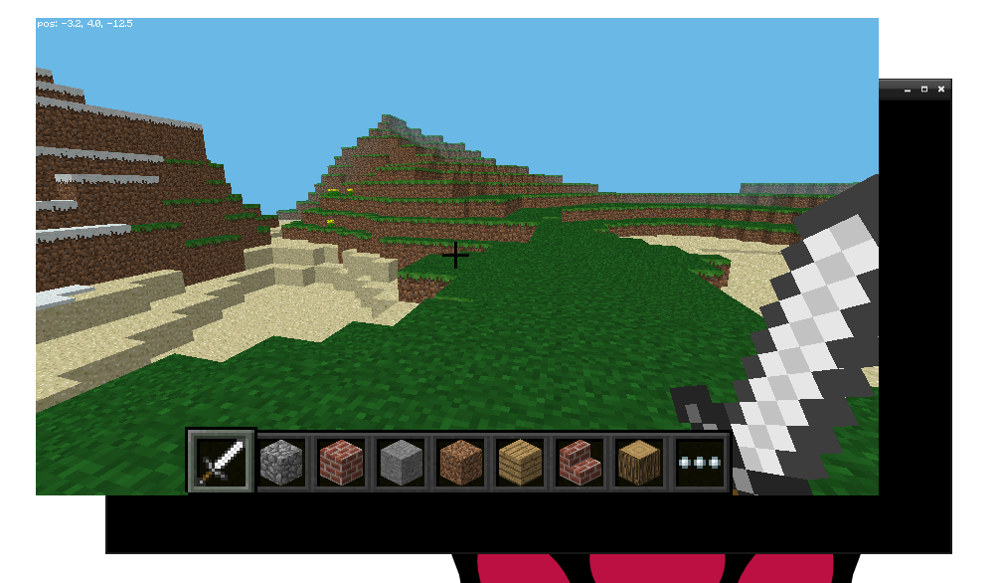
You are now in a game of Minecraft! Go walk around, hack things, and build things!
Use the mouse to look around and use the following keys on the keyboard:
| Key | Action |
|---|---|
| W | Forward |
| A | Left |
| S | Backward |
| D | Right |
| E | Inventory |
| Space | Jump |
| Double Space | Fly / Fall |
| Esc | Pause / Game menu |
| Tab | Release mouse cursor |
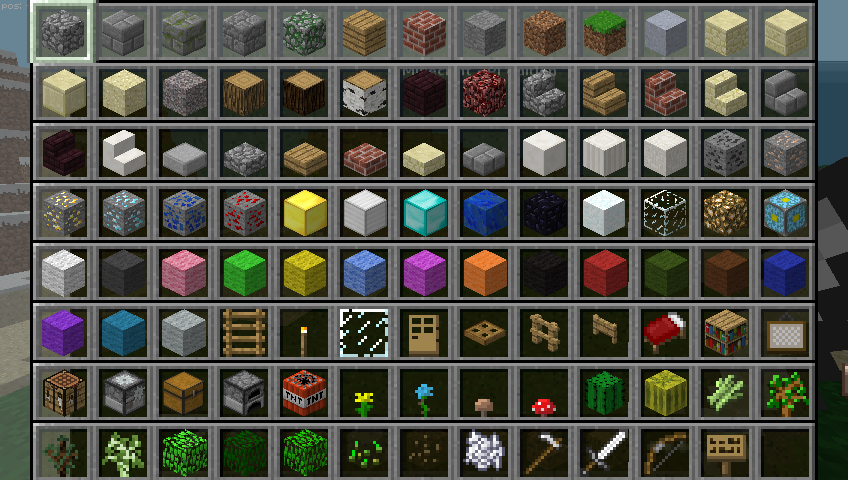
You can select an item from the quick draw panel with the mouse’s scroll wheel (or use the numbers on your keyboard), or press E and select something from the inventory.
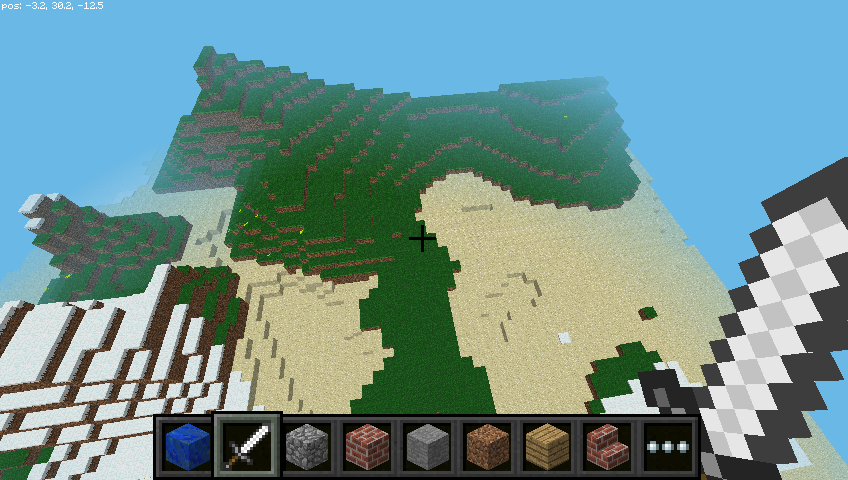
You can also double tap the space bar to fly into the air. You’ll stop flying when you release the space bar, and if you double tap it again you’ll fall back to the ground.
With the sword in your hand, you can click on blocks in front of you to remove them (or to dig). With a block in your hand, you can use right click to place that block in front of you, or left click to remove a block.
Use the Python programming interface
With Minecraft running, and the world created, bring your focus away from the game by pressing the Tab key, which will free your mouse. Open Python 3 from the application menu and move the windows so they’re side-by-side.
You can either type commands directly into the Python window or create a file so you can save your code and run it again another time.
If you want create a file, go to File > New window and File > Save. You’ll probably want to save this in your home folder or a new project folder.
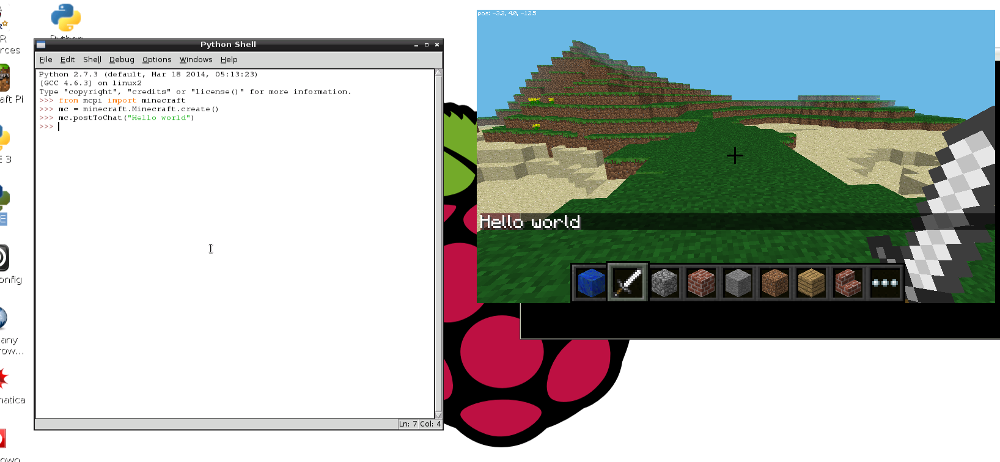
Start by importing the Minecraft library, creating a connection to the game and testing it by posting the message “Hello world” to the screen:
1 from mcpi.minecraft import Minecraft
2
3 mc = Minecraft.create()
4
5 mc.postToChat("Hello world")
If you’re entering commands directly into the Python window, just hit Enter after each line. If it’s a file, save with Ctrl + S and run with F5. When your code runs, you should see your message on screen in the game.
Find your location
To find your location, type:
1 pos = mc.player.getPos()
pos now contains your location; access each part of the set of coordinates with pos.x, pos.y and pos.z.
Alternatively, a nice way to get the coordinates into separate variables is to use Python’s unpacking technique:
1 x, y, z = mc.player.getPos()
Now x, y, and z contain each part of your position coordinates. x and z are the walking directions (forward/back and left/right) and y is up/down.
Note that getPos() returns the location of the player at the time, and if you move position you have to call the function again or use the stored location.
Teleport
As well as finding out your current location you can specify a particular location to teleport to.
1 x, y, z = mc.player.getPos()
2 mc.player.setPos(x, y+100, z)
This will transport your player to 100 spaces in the air. This will mean you’ll teleport to the middle of the sky and fall straight back down to where you started.
Try teleporting to somewhere else!
Set block
You can place a single block at a given set of coordinates with mc.setBlock():
1 x, y, z = mc.player.getPos()
2 mc.setBlock(x+1, y, z, 1)
Now a stone block should appear beside where you’re standing. If it’s not immediately in front of you it may be beside or behind you. Return to the Minecraft window and use the mouse to spin around on the spot until you see a grey block directly in front of you.
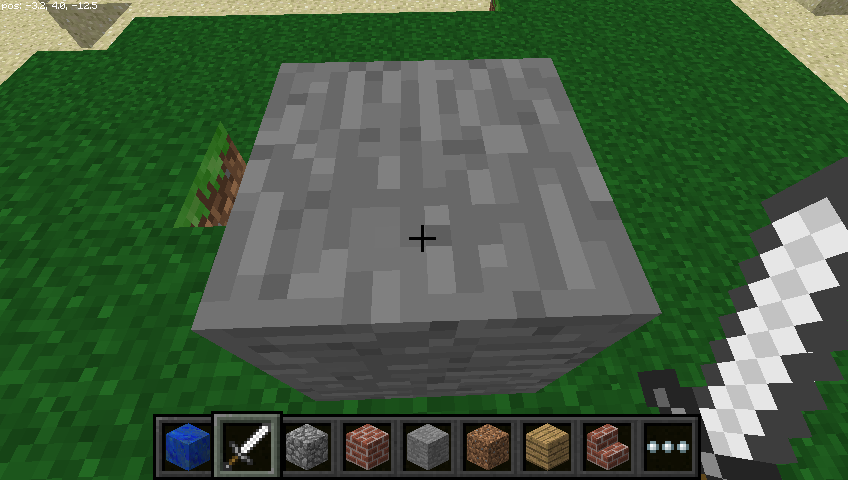
The arguments passed to set block are x, y, z and id. The (x, y, z) refers to the position in the world (we specified one block away from where the player is standing with x + 1) and the id refers to the type of block we’d like to place. 1 is stone.
Other blocks you can try:
1 Air:   0
2 Grass: 2
3 Dirt:  3
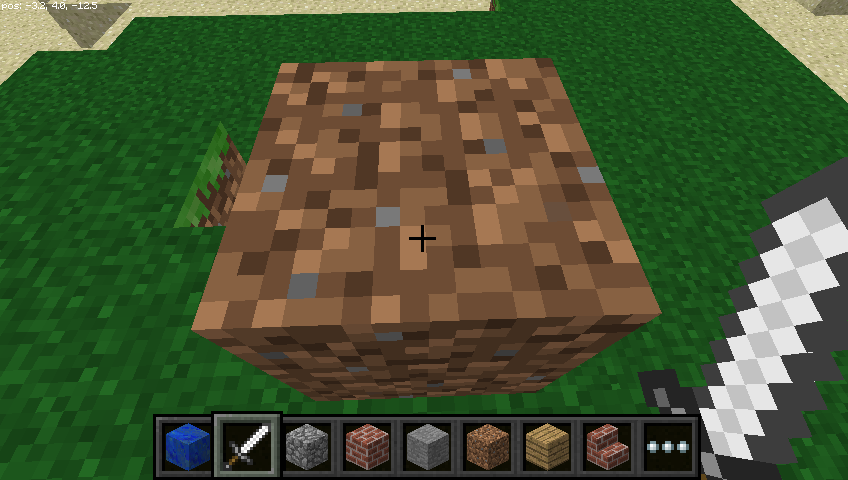
Now with the block in sight, try changing it to something else:
1 mc.setBlock(x+1, y, z, 2)
You should see the grey stone block change in front of your eyes!
Block constants
You can use a inbuilt block constants to set your blocks, if you know their names. You’ll need another import line first though.
1 from mcpi import block
Now you can write the following to place a block:
1 mc.setBlock(x+3, y, z, block.STONE.id)
Block ids are pretty easy to guess, just use ALL CAPS, but here are a few examples to get you used to the way they are named.
1 WOOD_PLANKS
2 WATER_STATIONARY
3 GOLD_ORE
4 GOLD_BLOCK
5 DIAMOND_BLOCK
6 NETHER_REACTOR_CORE
### Block as variable
If you know the id of a block it can be useful to set it as a variable. You can use the name or the integer id.
1 dirt = 3
2 mc.setBlock(x, y, z, dirt)
or
1 dirt = block.DIRT.id
2 mc.setBlock(x, y, z, dirt)
### Special blocks
There are some blocks which have extra properties, such as Wool which has an extra setting you can specify the colour. To set this use the optional fourth parameter in setBlock:
1 wool = 35
2 mc.setBlock(x, y, z, wool, 1)
Here the fourth parameter 1 sets the wool colour to orange. Without the fourth parameter it is set to the default (0) which is white. Some more colours are:
1 2: Magenta
2 3: Light Blue
3 4: Yellow
Try some more numbers and watch the block change!
Other blocks which have extra properties are wood (17): oak, spruce, birch, etc; tall grass (31): shrub, grass, fern; torch (50): pointing east, west, north, south; and more. See the API reference for full details.
Set multiple blocks
As well as setting a single block with setBlock you can fill in a volume of space in one go with setBlocks:
1 stone = 1
2 x, y, z = mc.player.getPos()
3 mc.setBlocks(x+1, y+1, z+1, x+11, y+11, z+11, stone)
This will fill in a 10 x 10 x 10 cube of solid stone.
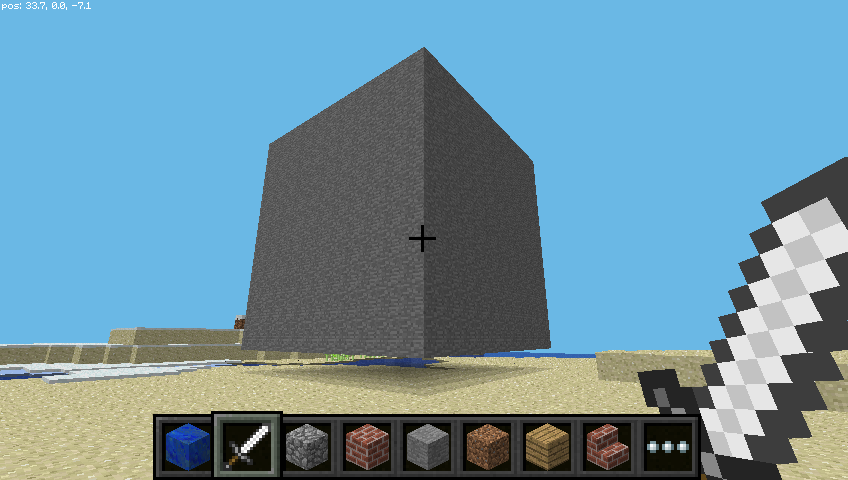
You can create bigger volumes with the setBlocks function but it may take longer to generate!
Dropping blocks as you walk
Now you know how to drop blocks, let’s use our moving location to drop blocks when you walk.
The following code will drop a flower behind you wherever you walk:
 1 from mcpi.minecraft import Minecraft
 2 from time import sleep
 3
 4 mc = Minecraft.create()
 5
 6 flower = 38
 7
 8 while True:
 9     x, y, z = mc.player.getPos()
10     mc.setBlock(x, y, z, flower)
11     sleep(0.1)
Now walk forward for a while and turn around to see the flowers you have left behind you.
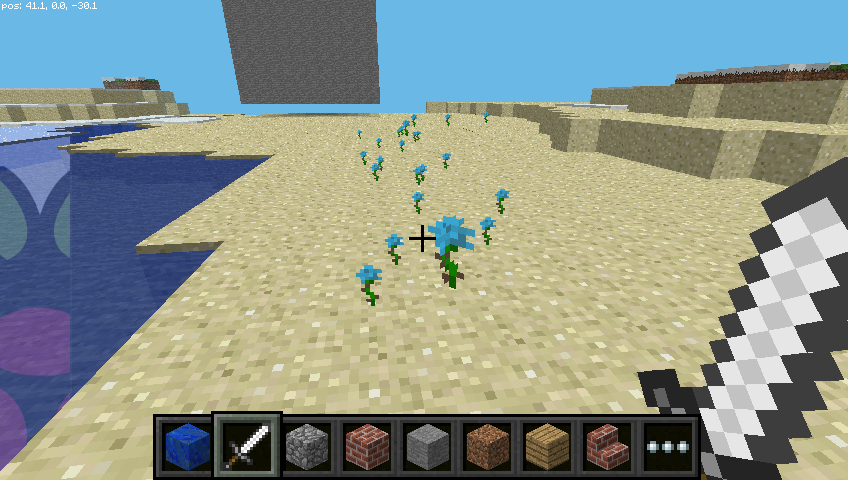
Since we used a while True loop this will go on forever. To stop it, hit Ctrl + C in the Python window.
Try flying through the air and see the flowers you leave in the sky:
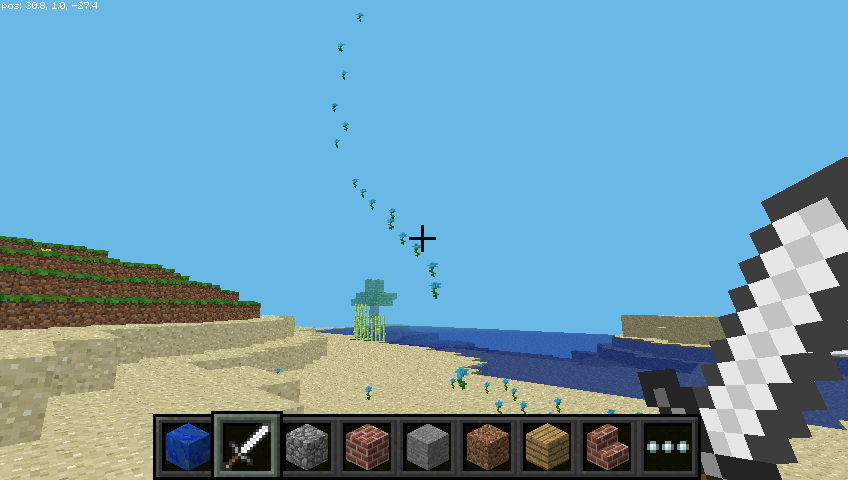
What if we only wanted to drop flowers when the player walks on grass? We can use getBlock to find out what type a block is:
1 x, y, z = mc.player.getPos()  # player position (x, y, z)
2 this_block = mc.getBlock(x, y, z)  # block ID
3 print(this_block)
This tells you the location of the block you’re standing in (this will be 0 - an air block). We want to know what type of block we’re standing on. For this we subtract 1 from the y value and use getBlock() to determine what type of block we’re standing on:
1 x, y, z = mc.player.getPos()  # player position (x, y, z)
2 block_beneath = mc.getBlock(x, y-1, z)  # block ID
3 print(block_beneath)
This tells us the ID of the block the player is standing on.
Test this out by running a loop to print the block ID of whatever you’re currently standing on:
1 while True:
2     x, y, z = mc.player.getPos()
3     block_beneath = mc.getBlock(x, y-1, z)
4     print(block_beneath)
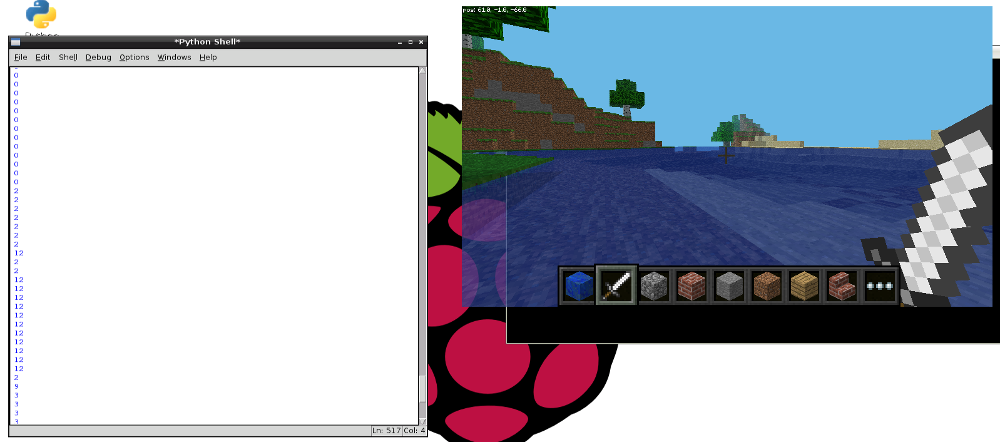
We can use an if statement to choose whether or not we plant a flower:
 1 grass = 2
 2 flower = 38
 3
 4 while True:
 5     x, y, z = mc.player.getPos()  # player position (x, y, z)
 6     block_beneath = mc.getBlock(x, y-1, z)  # block ID
 7
 8     if block_beneath == grass:
 9         mc.setBlock(x, y, z, flower)
10     sleep(0.1)
Perhaps next we could turn the tile we’re standing on into grass if it isn’t grass already:
1 if block_beneath == grass:
2     mc.setBlock(x, y, z, flower)
3 else:
4     mc.setBlock(x, y-1, z, grass)
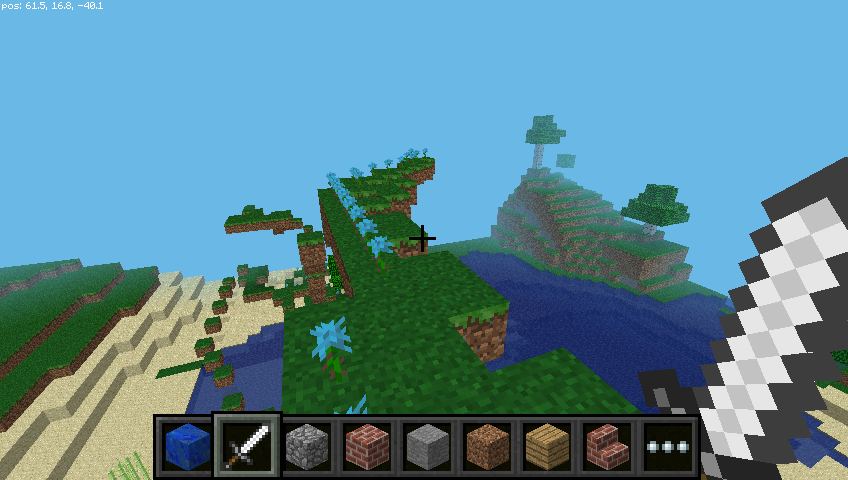
Now we can walk forward and if we walk on grass, we’ll leave a flower behind. If the next block is not grass, it turns into grass. When we turn around and walk back, we now leave a flower behind us.
Playing with TNT blocks
Another interesting block is TNT! To place a normal TNT block use:
1 tnt = 46
2 mc.setBlock(x, y, z, tnt)
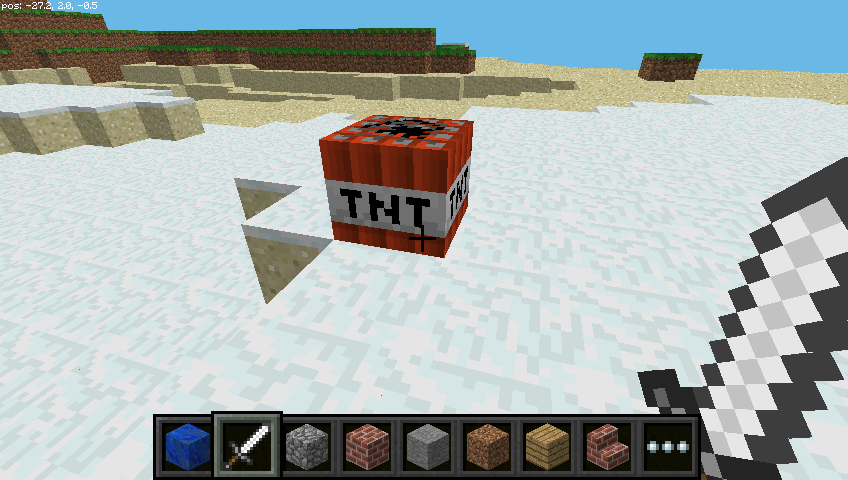
However, this TNT block is fairly boring. Try applying data as 1:
1 tnt = 46
2 mc.setBlock(x, y, z, tnt, 1)
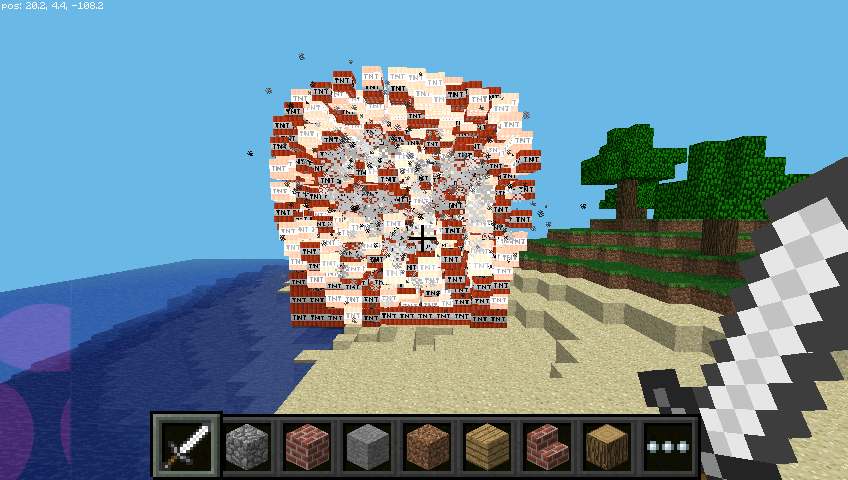
Now use your sword and left click the TNT block: it will be activated and will explode in a matter of seconds!
Now try making a big cube of TNT blocks!
1 tnt = 46
2 mc.setBlocks(x+1, y+1, z+1, x+11, y+11, z+11, tnt, 1)
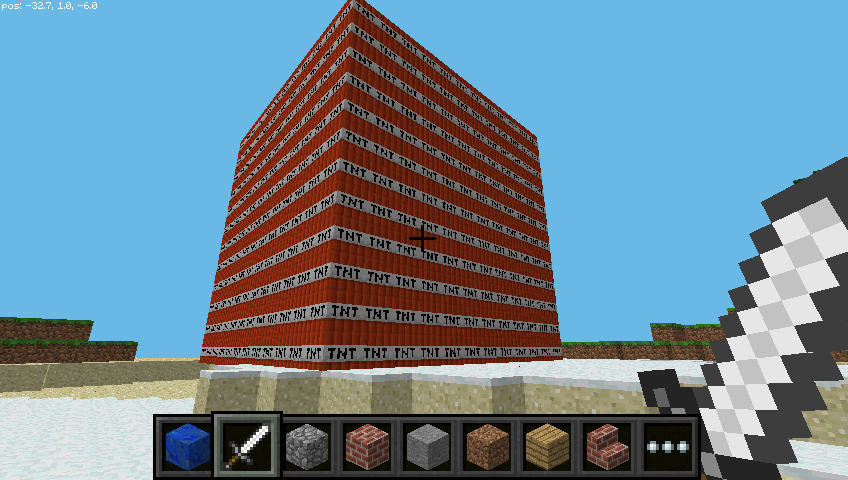
Now you’ll see a big cube full of TNT blocks. Go and activate one of the blocks and then run away to watch the show! It’ll be really slow to render the graphics as so many things are changing at once.
Fun with flowing lava.
One block that’s a lot of fun to play with is flowing lava.
1 from mcpi.minecraft import Minecraft
2
3 mc = Minecraft.create()
4
5 x, y, z = mc.player.getPos()
6
7 lava = 10
8
9 mc.setBlock(x+3, y+3, z, lava)
Find the block you’ve just placed, and you should see lava flowing from the block to the ground.
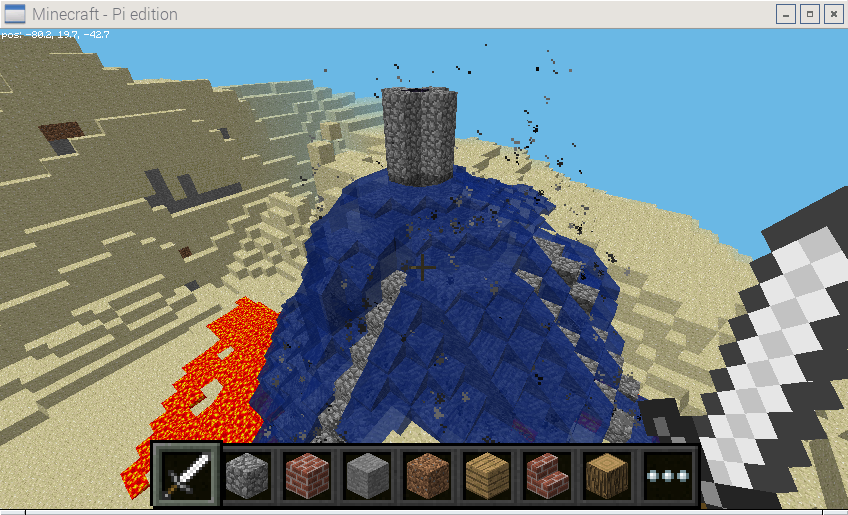
The cool thing about lava is that when it cools down it becomes rock. Move to another location in your world and try this:
 1 from mcpi.minecraft import Minecraft
 2 from time import sleep
 3
 4 mc = Minecraft.create()
 5
 6 x, y, z = mc.player.getPos()
 7
 8 lava = 10
 9 water = 8
10 air = 0
11
12 mc.setBlock(x+3, y+3, z, lava)
13 sleep(20)
14 mc.setBlock(x+3,y+5, z, water)
15 sleep(4)
16 mc.setBlock(x+3, y+5, z, air)
You can adjust the sleep parameters to allow more or less lava to flow.
Project # 2 - Whac-a-Block Game
Create a “Whack-a-Block” Game with Minecraft: Pi Edition by the Raspberry Pi Foundation is licensed under a Creative Commons Attribution 4.0 International Licence
The game you are going to create is called “Whac-a-Block”, inspired by the original arcade game “Whac-a-Mole”. The objective of the game is to whack (or hit with a sword) the blocks that light up as glowstone, and turn them back to stone. You will earn points for each block you turn back to stone and the game is over when all the blocks have been turned into glowstone.
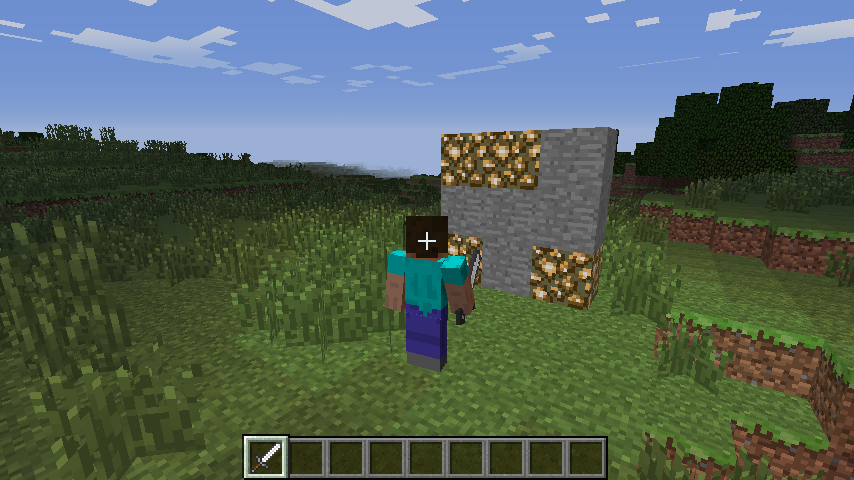
This project is split into five parts.
- Create the program: starting your Minecraft Python program and making sure everything is working.
- Build the game board: creating the code which will make game board appear in front of the player.
- Turn the blocks on: coding the functions to turn the blocks randomly into glowstone.
- Whack blocks: turn the blocks back to stone when the player hits them.
- Game over: how many points did you score?
Create the program
Boot you Raspberry Pi and from the menu select Python 3 (IDLE) from the Programming section.
When the Python shell appears, create a new program using File > New Window. You may also want to save your program now using File > Save.
Import the Python libraries you are going to need for this program:
1 import mcpi.minecraft as minecraft
2 import mcpi.block as block
3 import random
4 import time
-
mcpi.minecraftis needed to interact with Minecraft: Pi Edition -
mcpi.blockis needed to refer to blocks by name rather than ID -
randomis used to create random numbers -
timeis used to put delays into your program
Create a connection to Minecraft: Pi Edition and post a message to the chat window:
1 mc = minecraft.Minecraft.create()
2 mc.postToChat("Minecraft Whac-a-Block")
You can run the program now. It won’t do much, but if everything is set up correctly you should see “Minecraft Whac-a-Block” displayed in the Minecraft chat window.
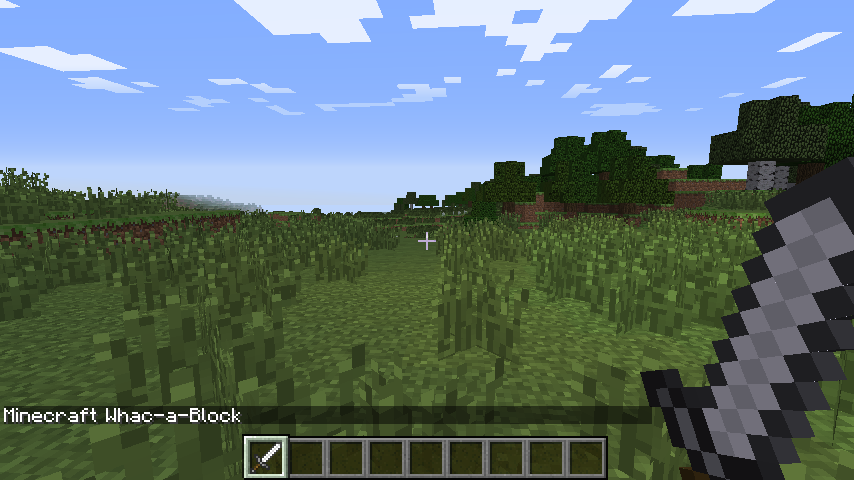
If you haven’t done so already, start up Minecraft and create/open a world. Run your program by clicking Run > Run Module in IDLE or by pressing F5. Any errors will appear in red in the Python shell window.
Build the game board
The next step is to create the game board; this consists of 3x3 stone blocks, which will randomly turn into glowstone and light up.
The game board will be created just in front of the player, so the first step is to get the player’s position using player.getTilePos():
1 pos = mc.player.getTilePos()
The player’s position is then used with the setBlocks() function to create the game board out of stone:
1 mc.setBlocks(pos.x - 1, pos.y, pos.z + 3,
2              pos.x + 1, pos.y + 2, pos.z + 3,
3              block.STONE.id)
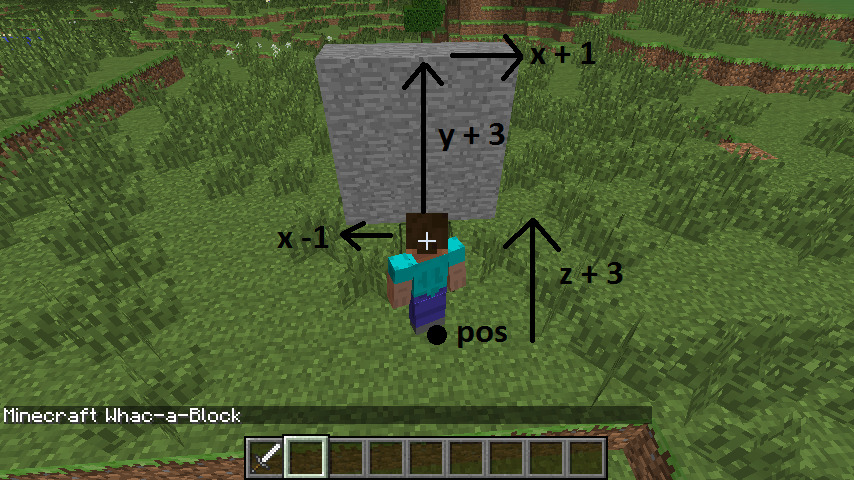
To give the player a warning that the game is about to start, post a couple of messages to the chat window and put a delay into the program using time.sleep(seconds):
1 mc.postToChat("Get ready ...")
2 time.sleep(2)
3 mc.postToChat("Go")
Run the program again. You should see the game board appear directly in front of the player, and the messages “Get ready …” and “Go”.
Turn the blocks on
Next, you are going to create the code which will turn the stone blocks to glowstone and light them up. The blocks will turn on randomly; you will use the random.randint(start, end) function to pick the random block on the game board.
Create a variable called blocksLit; this will hold the number of blocks which are currently lit (i.e. turned into glowstone). Next, create a variable called points which will hold how many points the player has scored. As it’s the start of the game, set them both to 0:
1 blocksLit = 0
2 points = 0
Your program will need to loop until the game is over, or in this case until all the blocks are lit.
Create a while loop which will continue until the blocksLit variable is 9 (i.e. all the blocks are turned to glowstone). Next, put a small delay of 0.2 seconds into the program; otherwise it will run so fast, you won’t be able to whack any blocks!
1 while blocksLit < 9:
2     time.sleep(0.2)
From now on, the code will be indented under this while loop.
The next step is to randomly turn a block into glowstone. This is more difficult than it sounds: what happens if the block you randomly choose is already glowstone? Your code needs to be able to deal with this.
The method you will use is a really simple one. The code creates a random position, checks to see if that block is stone, and if it isn’t (i.e. it’s glowstone), it tries again and creates a new random position. The code will continue to do this until it finds a block which is still unlit.
Create a variable called lightCreated then set it to False; next, create a while loop which will continue until lightCreated is set to True. You should also increase the number of blocksLit by 1, to show that another block will be lit:
1     blocksLit = blocksLit + 1
2     lightCreated = False
3     while not lightCreated:
Once a block is successfully turned to glowstone, lightCreated will be set to True and the loop will exit.
Inside this loop use random.randint(start, end) to create a random x (between -1 and 1) and y (between 0 and 2) position on the game board:
1         xPos = pos.x + random.randint(-1,1)
2         yPos = pos.y + random.randint(0,2)
3         zPos = pos.z + 3
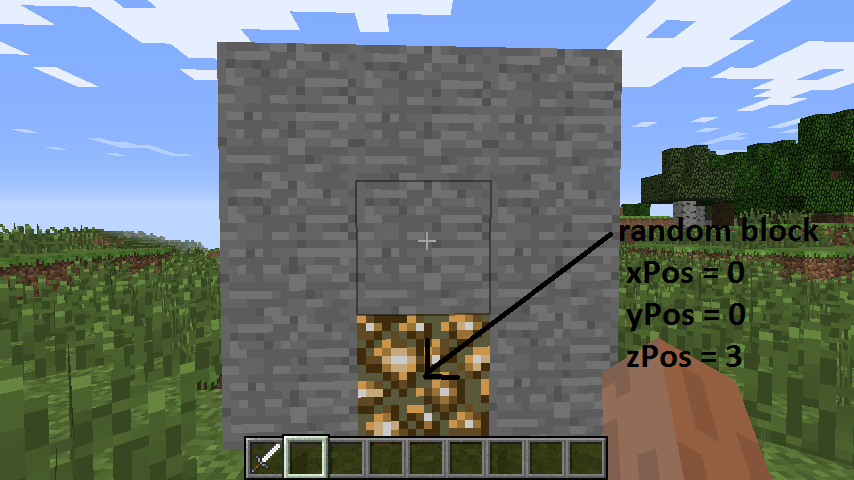
Use getBlock(x,y,z) and an if statement to check if the block at the random position is STONE. If it is, set it to glowstone using setBlock(x,y,z,blockId) and make lightCreated = True; if this is not changed, the code will go back to the start of the loop and find another random position.
1         if mc.getBlock(xPos, yPos, zPos) == block.STONE.id:
2             mc.setBlock(xPos, yPos, zPos, block.GLOWSTONE_BLOCK.id)
3             lightCreated = True
Note: Rather than using the ID numbers of blocks (e.g. stone = 1, glowstone = 89), you can use the block module, which holds all the block IDs and their names (e.g. block.STONE.id).
Run the program by clicking Run > Run Module in IDLE or by pressing F5; you should see the game board appear. The stone blocks should then, one by one, turn into glowstone and the program should end when all nine are lit.
Whack blocks
The player will whack blocks by hitting them (right-clicking) while holding a sword. The Minecraft API has functions which allow you to find out what blocks were hit; these are known as block hit events. Using the function events.pollBlockHits() you can get a list of the events that have occurred since it was last called, such as blocks which were hit.
You will use events to find out the position of the block which was hit, before using getBlock(x,y,z) to see if the block hit was glowstone. If it was, you will then use setBlock(x,y,z,blockId) to turn it back to stone, before reducing the number of blocks lit and increasing the player’s score.
Indented under the while blocksLit < 9 loop, create the following code to loop through the block hit events list:
1 for hitBlock in mc.events.pollBlockHits():
Note: The hitBlock variable holds the event which has happened. It contains lots of information, including which block was hit, what face was hit and who hit it. You can see this information in the Python shell by using print hitBlock.
Use getBlock(x,y,z), the hitBlock event data and an if statement to see if the block hit was glowstone. If it was, use setBlock(x,y,z,blockId) to set it back to stone before reducing the blocksLit variable and adding 1 to the player’s points:
1         if mc.getBlock(hitBlock.pos.x, hitBlock.pos.y, hitBlock.pos.z) == block.\
2 GLOWSTONE_BLOCK.id:
3             mc.setBlock(hitBlock.pos.x, hitBlock.pos.y, hitBlock.pos.z, block.ST\
4 ONE.id)
5             blocksLit = blocksLit - 1
6             points = points + 1
Run the program. The game board should appear and this time when the blocks are lit, if you hit them by right-clicking with a sword, they should turn off.
Game over
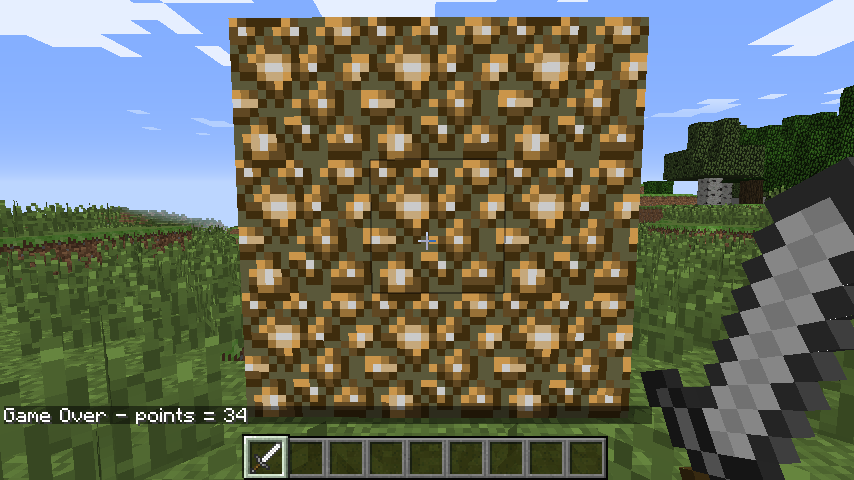
The last step in the game is to let the player know it’s “Game Over” and to tell them how many points they scored. The very last line of the program should be:
1 mc.postToChat("Game Over - points = " + str(points))
What next?
At the moment the gameplay is pretty simple, and there’s a lot you can do, now you have the basic program set up, to make it your own. Here are some ideas to get you started:
- The difficulty of the game is set by the how long the program waits before lighting another block, currently
time.sleep(0.2). By increasing this time you make the game easier, and decreasing it will make the game harder. Experiment and see what works best for you. - What if the player gets things wrong and hits a stone block instead of a glowstone block? Can you change the program so that if the player hits a stone block, it lights the block? This forces the player to think more about what block they are hitting and increases the skill required.
- It is common for video games to start easy and get harder. Can you make the game start easier and the more points you score, the harder it gets?
API reference
For more extensive documentation of functions, and a full list of block IDs, see an API reference at stuffaboutcode.com.