Chapter 4 - Command-line with the Terminal
“The truth is rarely pure and never simple.”
–Oscar Wilde
The Raspberry Pi computer uses a version of the Linux operating system called Raspbian. Raspbian, like all versions of Linux, has powerful features built into it for system administrators and/or “power users”. This is accomplished through the Terminal application and the use of Linux (or terminal) commands. It will be necessary for you to learn a few very basic Linux commands. You will often find terminal commands useful to get the Raspberry Pi to do something, such as startx to show your desktop.
Many computer tasks can only be completed by using the command-line. This can be a little daunting for new Raspberry Pi users, but it is a valuable skill for young people to learn because it teaches them a computational thinking skill - abstraction. More about computational thinking can be found in Chapter 5. Also, it shows new users the computer is fundamentally a dumb device - it needs instructions from the user to operate. Modern computers use graphical user interfaces (GUIs) to accomplish the same tasks, but in a much simpler manner. Touchscreen smartphones and tablets have purposely hidden these details away from today’s computer users.
When you type a command, it has to be exact. All the letters, numbers, or words have to be in the correct position. This can be frustrating for new users, but eventually once you get used to typing a few basic commands you will begin to see the power and value of having complete control over the computer via the terminal.
Terminal
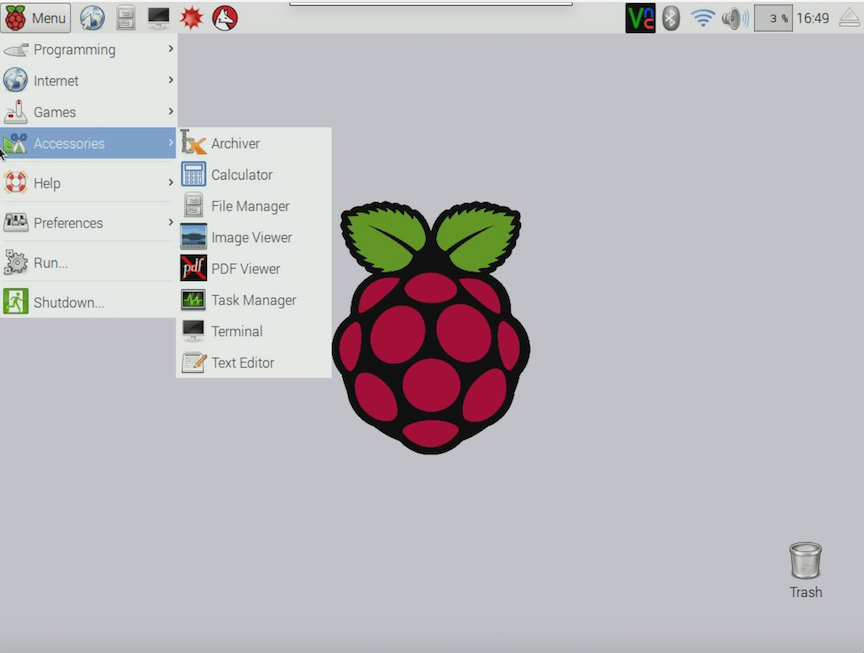
You access the command-line on a Raspberry Pi via the Terminal. You may often hear the terms used interchangeably: command-line = terminal or terminal = command-line. This is fine. The Terminal is similar to the Command Prompt found on Windows computers. The Terminal can be accessed via Menu –> Accessories –> Terminal.
Linux/Raspbian Commands
Here is a very brief list of Raspberry Pi/Linux/Raspbian commands you should know:
| Command | Description |
|---|---|
| pwd | Displays the name of the current working directory |
| mkdir | Makes a new directory |
| rmdir | Remove empty directories |
| rm | Removes the specified file (or recursively from a directory when used with -r). Be careful, with this! Files deleted in this way are mostly gone for good! |
| cp | Makes a copy of a file and places it at the specified location (essentially, doing a ‘copy-paste’) |
| ls | lists the content of the current directory (or one that is specified). |
| cd | Changes the current directory to the one specified |
More commands can be found at: Raspberry Pi Documentation
Conquer the Command Line
If you are going to use the Raspberry Pi in the classroom you should become pretty familiar with the command line. There are hundreds of combinations of commands you can use to accomplish tasks quickly and efficiently. The best beginner resource I have found for learning the command line is the “Conquer the Command Line” ebook. It is available as a free PDF download - here. You can also purchase a hard copy of the book for a very reasonable price. I would recommend this because it 1) will be a nice desktop reference guide for you and your students as you learn more about the command line 2) the purchase price goes towards supporting the work of the Raspberry Pi Foundation.