Gosu Basics
By now Gosu should be installed and ready for a spin. But before we rush into building our game, we have to get acquainted with our library. We will go through several simple examples, familiarize ourselves with Gosu architecture and core principles, and take a couple of baby steps towards understanding how to put everything together.
To make this chapter easier to read and understand, I recommend watching Writing Games With Ruby talk given by Mike Moore at LA Ruby Conference 2014. In fact, this talk pushed me towards rethinking this crazy idea of using Ruby for game development, so this book wouldn’t exist without it. Thank you, Mike.
Hello World
To honor the traditions, we will start by writing “Hello World” to get a taste of what Gosu feels like. It is based on Ruby Tutorial that you can find in Gosu Wiki.
01-hello/hello_world.rb
 1 require 'gosu'
 2
 3 class GameWindow < Gosu::Window
 4   def initialize(width=320, height=240, fullscreen=false)
 5     super
 6     self.caption = 'Hello'
 7     @message = Gosu::Image.from_text(
 8       self, 'Hello, World!', Gosu.default_font_name, 30)
 9   end
10
11   def draw
12     @message.draw(10, 10, 0)
13   end
14 end
15
16 window = GameWindow.new
17 window.show
Run the code:
$ ruby 01-hello/hello_world.rb
You should see a neat small window with your message:
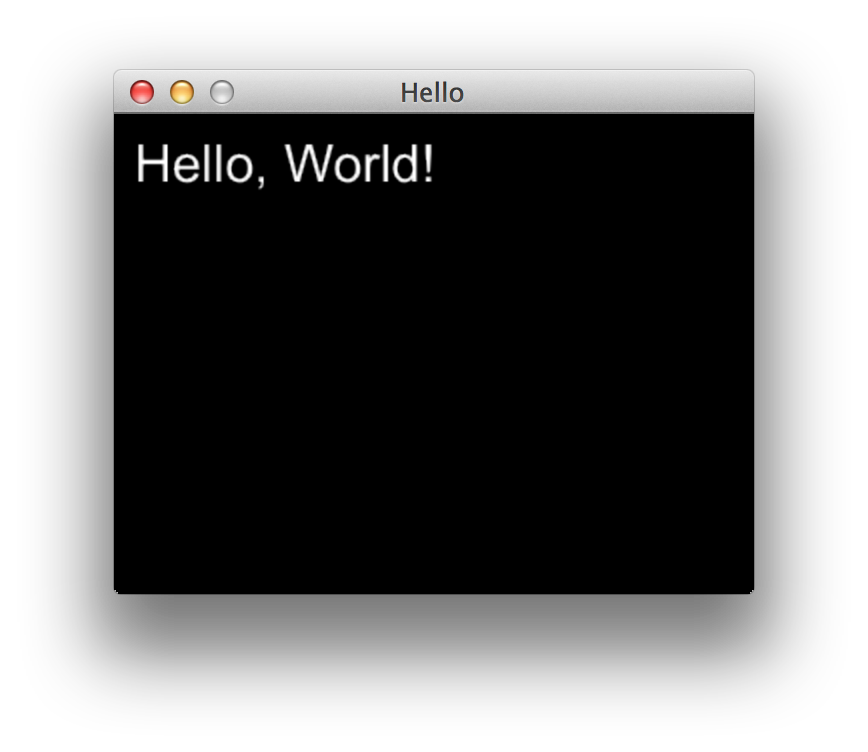
Hello World
See how easy that was? Now let’s try to understand what just happened here.
We have extended Gosu::Window with our own
GameWindow class, initializing it as 320x240 window. super passed width, height and
fullscreen initialization parameters from GameWindow to Gosu::Window.
Then we defined our window’s
caption, and created
@message instance variable with an image generated from text "Hello, World!" using
Gosu::Image.from_text.
We have overridden
Gosu::Window#draw instance
method that gets called every time Gosu wants to redraw our game window. In that method we call
draw on our
@message variable, providing x and y screen coordinates both equal to 10, and z (depth)
value equal to 0.
Screen Coordinates And Depth
Just like most conventional computer graphics libraries, Gosu treats x as horizontal axis (left to
right), y as vertical axis (top to bottom), and z as order.

Screen coordinates and depth
x and y are measured in pixels, and value of z is a relative number that doesn’t mean
anything on it’s own. The pixel in top-left corner of the screen has coordinates of 0:0.
z order in Gosu is just like z-index in CSS. It does not define zoom level, but
in case two shapes overlap, one with higher z value will be drawn on top.
Main Loop
The heart of Gosu library is the main loop
that happens in Gosu::Window.
TODO write more about main loop
Moving Things With Keyboard
We will modify our “Hello, World!” example to learn how to move things on screen. The following code will print coordinates of the message along with number of times screen was redrawn. It also allows exiting the program by hitting Esc button.
01-hello/hello_movement.rb
 1 require 'gosu'
 2
 3 class GameWindow < Gosu::Window
 4   def initialize(width=320, height=240, fullscreen=false)
 5     super
 6     self.caption = 'Hello Movement'
 7     @x = @y = 10
 8     @draws = 0
 9     @buttons_down = 0
10   end
11
12   def update
13     @x -= 1 if button_down?(Gosu::KbLeft)
14     @x += 1 if button_down?(Gosu::KbRight)
15     @y -= 1 if button_down?(Gosu::KbUp)
16     @y += 1 if button_down?(Gosu::KbDown)
17   end
18
19   def button_down(id)
20     close if id == Gosu::KbEscape
21     @buttons_down += 1
22   end
23
24   def button_up(id)
25     @buttons_down -= 1
26   end
27
28   def needs_redraw?
29     @draws == 0 || @buttons_down > 0
30   end
31
32   def draw
33     @draws += 1
34     @message = Gosu::Image.from_text(
35       self, info, Gosu.default_font_name, 30)
36     @message.draw(@x, @y, 0)
37   end
38
39   private
40
41   def info
42     "[x:#{@x};y:#{@y};draws:#{@draws}]"
43   end
44 end
45
46 window = GameWindow.new
47 window.show
Run the program and try pressing arrow keys:
$ ruby 01-hello/hello_movement.rb
The message will move around as long as you keep arrow keys pressed.
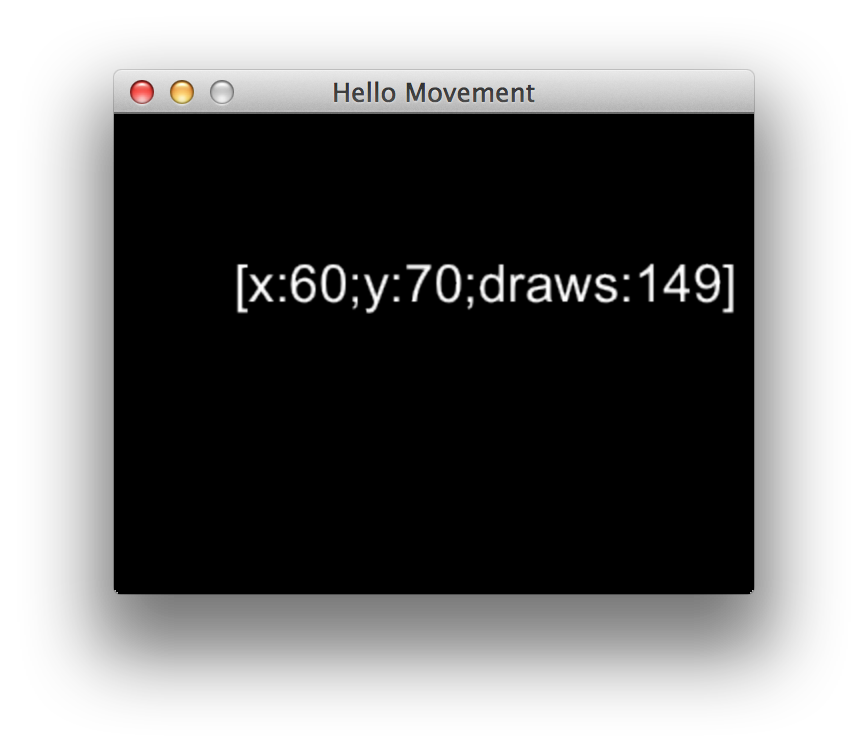
Use arrow keys to move the message around
We could write a shorter version, but the point here is that if we wouldn’t override
needs_redraw?
this program would be slower by order of magnitude, because it would create @message object every
time it wants to redraw the window, even though nothing would change.
Here is a screenshot of top displaying two versions of this program. Second screen has
needs_redraw? method removed. See the difference?
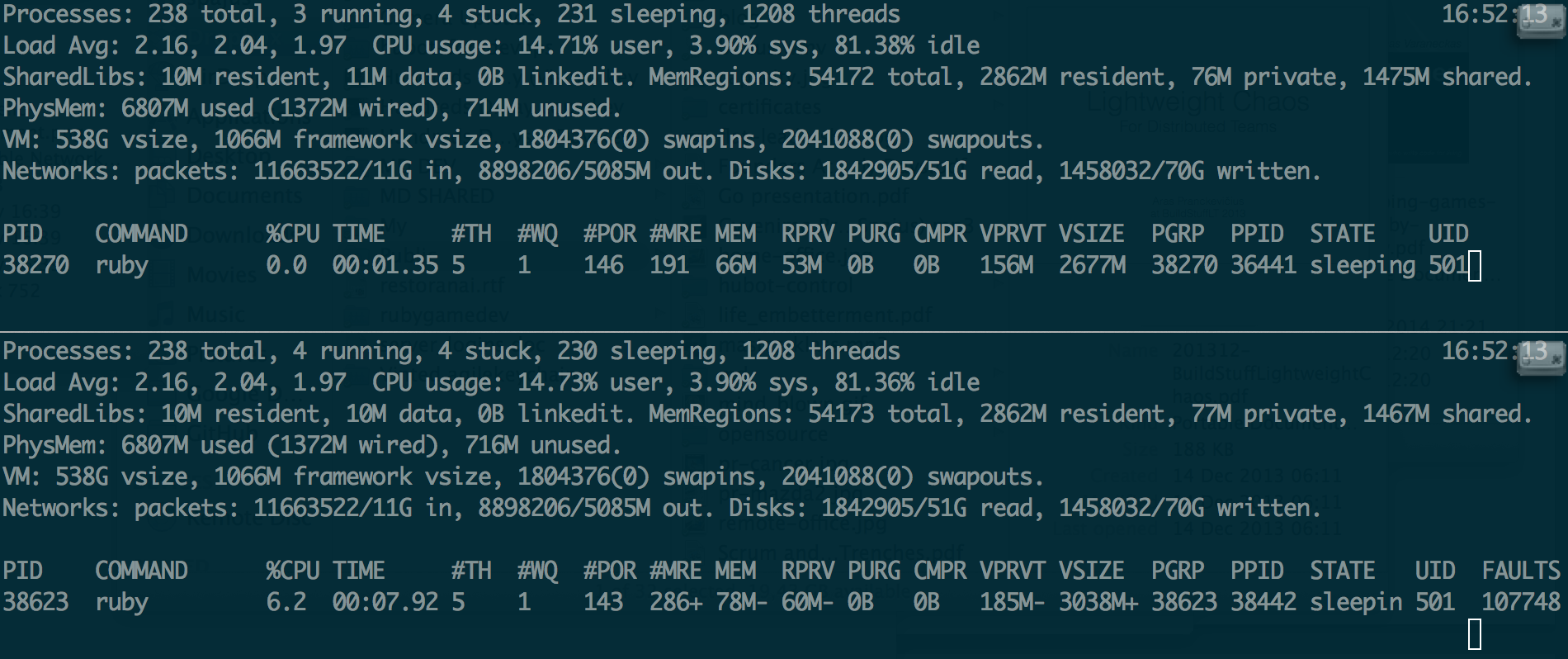
Redrawing only when necessary VS redrawing every time
Ruby is slow, so you have to use it wisely.
Images And Animation
It’s time to make something more exciting. Our game will have to have explosions, therefore we need to learn to animate them. We will set up a background scene and trigger explosions on top of it with our mouse.
01-hello/hello_animation.rb
 1 require 'gosu'
 2
 3 def media_path(file)
 4   File.join(File.dirname(File.dirname(
 5     __FILE__)), 'media', file)
 6 end
 7
 8 class Explosion
 9   FRAME_DELAY = 10 # ms
10   SPRITE = media_path('explosion.png')
11
12   def self.load_animation(window)
13     Gosu::Image.load_tiles(
14       window, SPRITE, 128, 128, false)
15   end
16
17   def initialize(animation, x, y)
18     @animation = animation
19     @x, @y = x, y
20     @current_frame = 0
21   end
22
23   def update
24     @current_frame += 1 if frame_expired?
25   end
26
27   def draw
28     return if done?
29     image = current_frame
30     image.draw(
31       @x - image.width / 2.0,
32       @y - image.height / 2.0,
33       0)
34   end
35
36   def done?
37     @done ||= @current_frame == @animation.size
38   end
39
40   private
41
42   def current_frame
43     @animation[@current_frame % @animation.size]
44   end
45
46   def frame_expired?
47     now = Gosu.milliseconds
48     @last_frame ||= now
49     if (now - @last_frame) > FRAME_DELAY
50       @last_frame = now
51     end
52   end
53 end
54
55 class GameWindow < Gosu::Window
56   BACKGROUND = media_path('country_field.png')
57
58   def initialize(width=800, height=600, fullscreen=false)
59     super
60     self.caption = 'Hello Animation'
61     @background = Gosu::Image.new(
62       self, BACKGROUND, false)
63     @animation = Explosion.load_animation(self)
64     @explosions = []
65   end
66
67   def update
68     @explosions.reject!(&:done?)
69     @explosions.map(&:update)
70   end
71
72   def button_down(id)
73     close if id == Gosu::KbEscape
74     if id == Gosu::MsLeft
75       @explosions.push(
76         Explosion.new(
77           @animation, mouse_x, mouse_y))
78     end
79   end
80
81   def needs_cursor?
82     true
83   end
84
85   def needs_redraw?
86     !@scene_ready || @explosions.any?
87   end
88
89   def draw
90     @scene_ready ||= true
91     @background.draw(0, 0, 0)
92     @explosions.map(&:draw)
93   end
94 end
95
96 window = GameWindow.new
97 window.show
Run it and click around to enjoy those beautiful special effects:
$ ruby 01-hello/hello_animation.rb
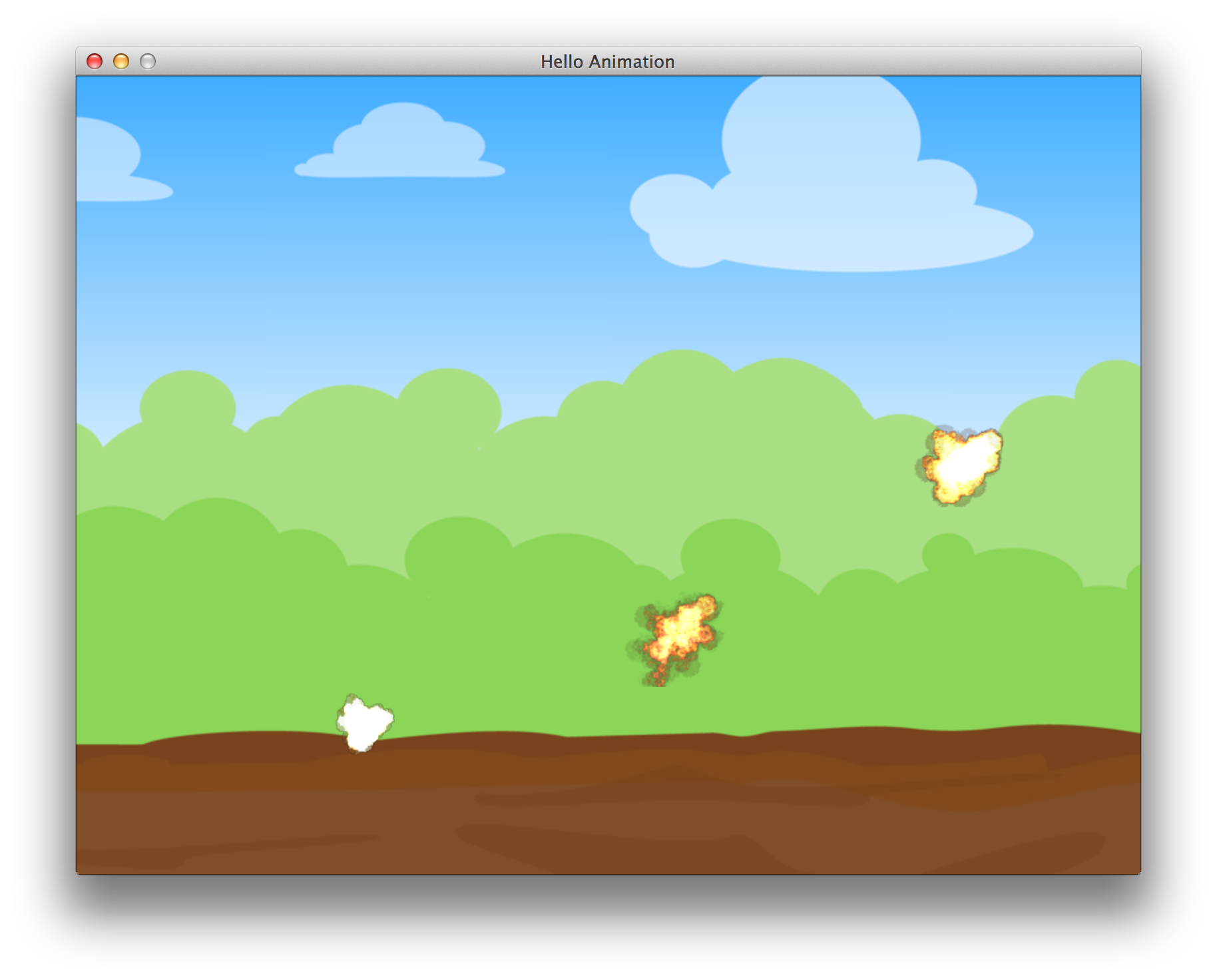
Multiple explosions on screen
Now let’s figure out how it works. Our GameWindow initializes with @background
Gosu::Image and @animation, that holds array
of Gosu::Image instances, one for each frame of explosion.
Gosu::Image.load_tiles
handles it for us.
Explosion::SPRITE points to “tileset” image, which is just a regular image that contains equally
sized smaller image frames arranged in ordered sequence. Rows of frames are read left to right,
like you would read a book.
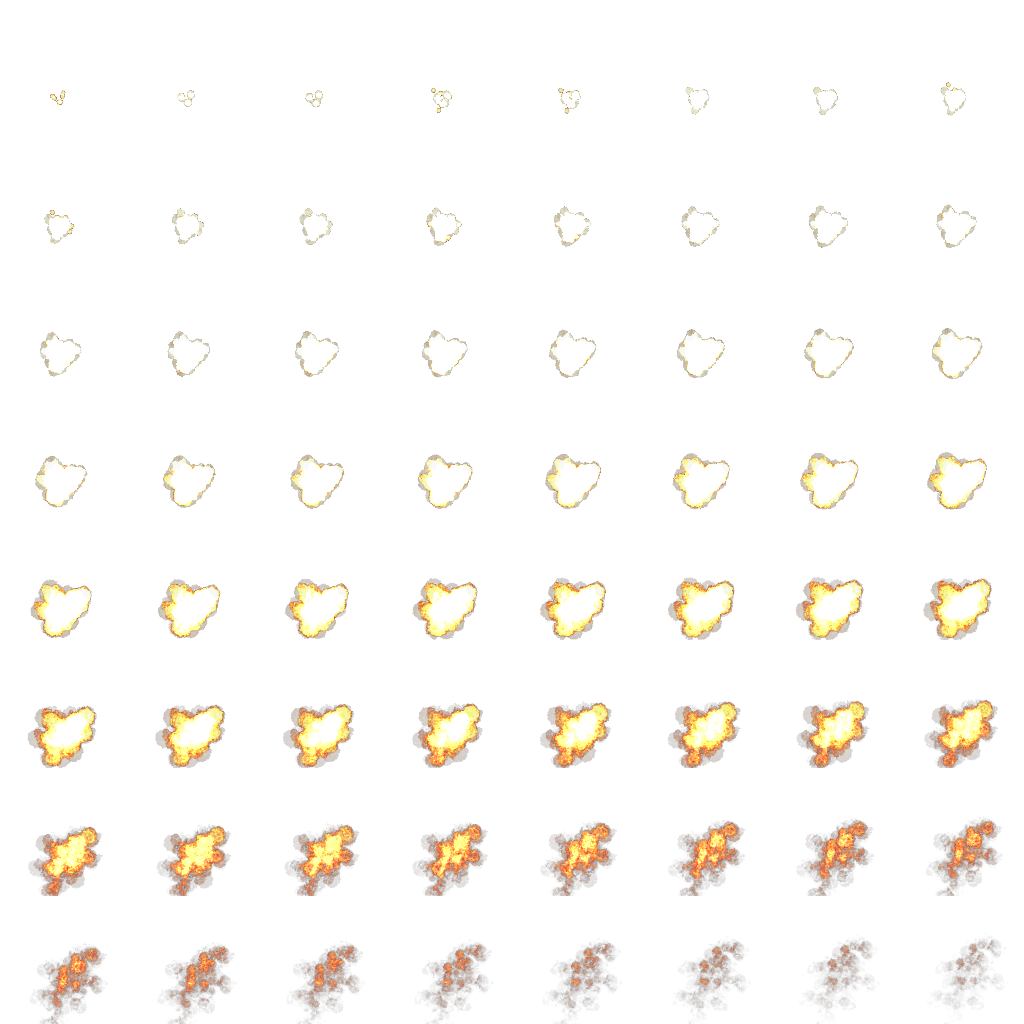
Explosion tileset
Given that explosion.png tileset is 1024x1024 pixels big, and it has 8 rows of 8 tiles per row,
it is easy to tell that there are 64 tiles 128x128 pixels each. So, @animation[0] holds
128x128 Gosu::Image with top-left tile, and
@animation[63] - the bottom-right one.
Gosu doesn’t handle animation, it’s something you have full control over. We have to draw each tile in a sequence ourselves. You can also use tiles to hold map graphics The logic behind this is pretty simple:
-
Explosionknows it’s@current_framenumber. It begins with 0. -
Explosion#frame_expired?checks the last time when@current_framewas rendered, and when it is older thanExplosion::FRAME_DELAYmilliseconds,@current_frameis increased. - When
GameWindow#updateis called,@current_frameis recalculated for all@explosions. Also, explosions that have finished their animation (displayed the last frame) are removed from@explosionsarray. -
GameWindow#drawdraws background image and all@explosionsdraw theircurrent_frame. - Again, we are saving resources and not redrawing when there are no
@explosionsin progress.needs_redraw?handles it.
It is important to understand that update and draw order is unpredictable, these methods can be
called by your system at different rate, you can’t tell which one will be called more often than
the other one, so update should only be concerned with advancing object state, and draw should
only draw current state on screen if it is needed. The only reliable thing here is time, consult
Gosu.milliseconds to know how
much time have passed.
Rule of the thumb: draw should be as lightweight as possible. Prepare all calculations in
update and you will have responsive, smooth graphics.
Music And Sound
Our previous program was clearly missing a soundtrack, so we will add one. A background music will be looping, and each explosion will become audible.
01-hello/hello_sound.rb
  1 require 'gosu'
  2
  3 def media_path(file)
  4   File.join(File.dirname(File.dirname(
  5     __FILE__)), 'media', file)
  6 end
  7
  8 class Explosion
  9   FRAME_DELAY = 10 # ms
 10   SPRITE = media_path('explosion.png')
 11
 12   def self.load_animation(window)
 13     Gosu::Image.load_tiles(
 14       window, SPRITE, 128, 128, false)
 15   end
 16
 17   def self.load_sound(window)
 18     Gosu::Sample.new(
 19       window, media_path('explosion.mp3'))
 20   end
 21
 22   def initialize(animation, sound, x, y)
 23     @animation = animation
 24     sound.play
 25     @x, @y = x, y
 26     @current_frame = 0
 27   end
 28
 29   def update
 30     @current_frame += 1 if frame_expired?
 31   end
 32
 33   def draw
 34     return if done?
 35     image = current_frame
 36     image.draw(
 37       @x - image.width / 2.0,
 38       @y - image.height / 2.0,
 39       0)
 40   end
 41
 42   def done?
 43     @done ||= @current_frame == @animation.size
 44   end
 45
 46   def sound
 47     @sound.play
 48   end
 49
 50   private
 51
 52   def current_frame
 53     @animation[@current_frame % @animation.size]
 54   end
 55
 56   def frame_expired?
 57     now = Gosu.milliseconds
 58     @last_frame ||= now
 59     if (now - @last_frame) > FRAME_DELAY
 60       @last_frame = now
 61     end
 62   end
 63 end
 64
 65 class GameWindow < Gosu::Window
 66   BACKGROUND = media_path('country_field.png')
 67
 68   def initialize(width=800, height=600, fullscreen=false)
 69     super
 70     self.caption = 'Hello Animation'
 71     @background = Gosu::Image.new(
 72       self, BACKGROUND, false)
 73     @music = Gosu::Song.new(
 74       self, media_path('menu_music.mp3'))
 75     @music.volume = 0.5
 76     @music.play(true)
 77     @animation = Explosion.load_animation(self)
 78     @sound = Explosion.load_sound(self)
 79     @explosions = []
 80   end
 81
 82   def update
 83     @explosions.reject!(&:done?)
 84     @explosions.map(&:update)
 85   end
 86
 87   def button_down(id)
 88     close if id == Gosu::KbEscape
 89     if id == Gosu::MsLeft
 90       @explosions.push(
 91         Explosion.new(
 92           @animation, @sound, mouse_x, mouse_y))
 93     end
 94   end
 95
 96   def needs_cursor?
 97     true
 98   end
 99
100   def needs_redraw?
101     !@scene_ready || @explosions.any?
102   end
103
104   def draw
105     @scene_ready ||= true
106     @background.draw(0, 0, 0)
107     @explosions.map(&:draw)
108   end
109 end
110
111 window = GameWindow.new
112 window.show
Run it and enjoy the cinematic experience. Adding sound really makes a difference.
$ ruby 01-hello/hello_sound.rb
We only added couple of things over previous example.
72 @music = Gosu::Song.new(
73   self, media_path('menu_music.mp3'))
74 @music.volume = 0.5
75 @music.play(true)
GameWindow creates
Gosu::Song with menu_music.mp3, adjusts the
volume so it’s a little more quiet and starts playing in a loop.
16 def self.load_sound(window)
17   Gosu::Sample.new(
18     window, media_path('explosion.mp3'))
19 end
Explosion has now got load_sound method that loads explosion.mp3 sound effect
Gosu::Sample. This sound effect is loaded once in
GameWindow constructor, and passed into every new Explosion, where it simply starts playing.
Handling audio with Gosu is very straightforward. Use
Gosu::Song to play background music, and
Gosu::Sample to play effects and sounds that can
overlap.