10. September 2013
- Git Flow - Moving patches from one Commit into another Commit
- Example of using GitHub Pull Requests to merge changes made on Branches
- Script to Git Clone 13 repositories in order to have all TeamMentor Libraries in one folder
Git Flow - Moving patches from one Commit into another Commit
This (longish) post will cover detailed git workflows and is part of the series of blog posts that show how we use the Git Flow workflow to manage TeamMentor’s source code (you will also see practical applications of GitHub’s powerful of powerful features like Network Graphs and Pull Requests).
The key problem that we are going to solve, is the situation created by Michael Hidalgo’s TeamMentor fixes/commits/branches that were done against an commit (38bfcd54d8046372c0ace2409324ecc965761504)** which was originally planed to be part of the next release, but we decided that the next **3.4 Release of TeamMentor will be based on the current 3.3.3 version (with is based on the earlier commit: b97a470ffa173d67a9c74373593eea03eb7a2da4).
The key reason is that he 38bfcd54d8046372c0ace2409324ecc965761504 commit(currently the parent of Michael’s fixes/branches) is not stable and is going now to be the basis of the 3.5_Release (this code contains a number of big changes which need more TLD and testing: native ASP.NET MVC routing, better Git support, native Markdown editor, depreciation of HTML WYSIWYG editor, and more)
In a nutshell, we need to re-apply Michael’s bug fixes to an earlier commit than the one used (i.e. backport those commits).
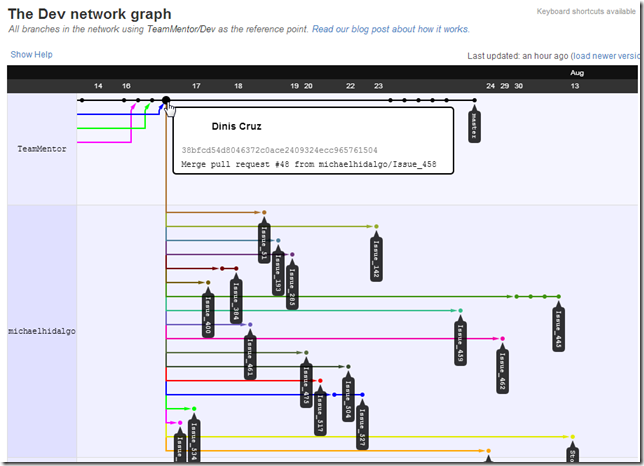
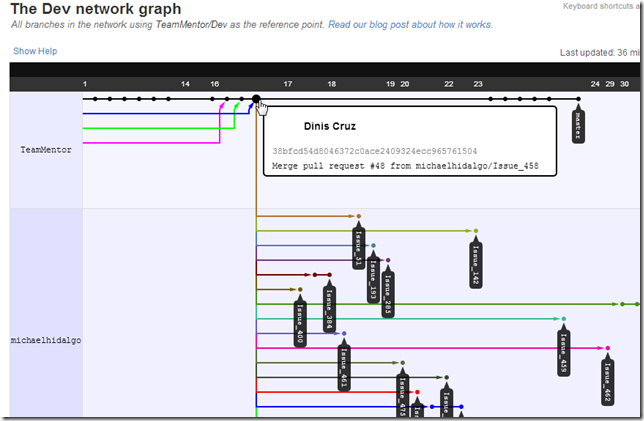
To start, here is what Michael’s branches look like at the moment (note that all have the 38bfcd54d8046372c0ace2409324ecc965761504 commit as parent):
Here is the commit (38bfcd54d8046372c0ace2409324ecc965761504) that we want to have as the parent, since this is the commit that is currently on the 3.3.3. release (and will be the basis for the 3.4 release of TeamMentor):
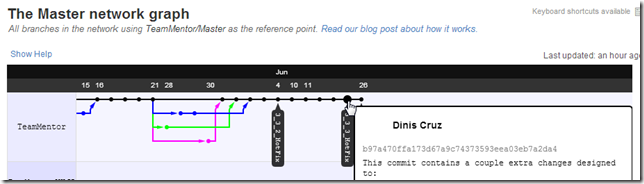
Basically, what we need to do is to ‘just’ backport the branches linked to 38bfcd54d8046372c0ace2409324ecc965761504 commit, into the b97a470ffa173d67a9c74373593eea03eb7a2da commit
Note: since this post was getting quite long, I moved some workflows into Appendixes (included below) so that the key actions/changes can be read in sequence.
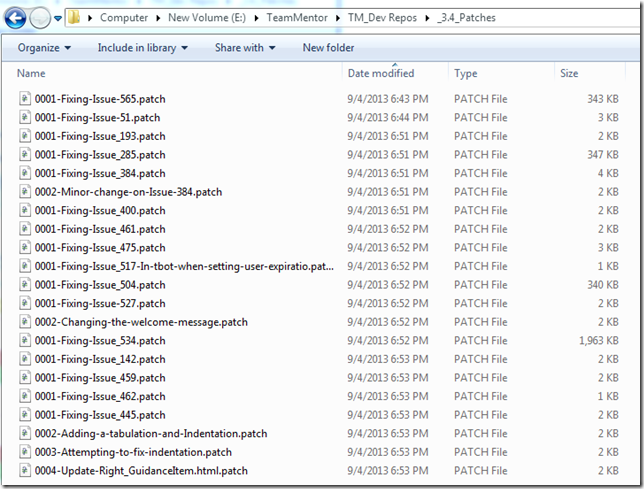
Using the workflow described in the Appendix 1) Creating patches from Michael’s branches here are the patches to apply (i.e. these are all changes from the branches currently available in Michael’s dev repository):
After:
- Fixing the master branch and creating a feature branch for the 3.5_Release (so that TeamMentor/Dev master branch is in sync with TeamMentor/Master master brach, and the 3.5 commits are not lost)
- … see __Appendix 2) Creating a 3.3.3 tag and branch in Dev repository
- … see Appendix 4) Creating a 3.5_Release Feature branch** )
- Applying the 6 patches that merged without conflict
- … see Appendix 3) Applying patches
…we get the following TeamMentor/Dev ‘not merged branches’:
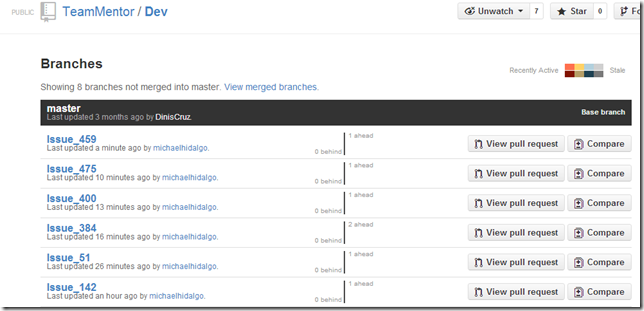
After the pull requests are made into a new 3.4_Release branch (see Appendix 5) Creating a 3.4_Release Feature branch for more details) we have 5 Issues/branches applied (and ready for QA):

Here is the graph view, with TeamMentor/Dev master (blue line below):
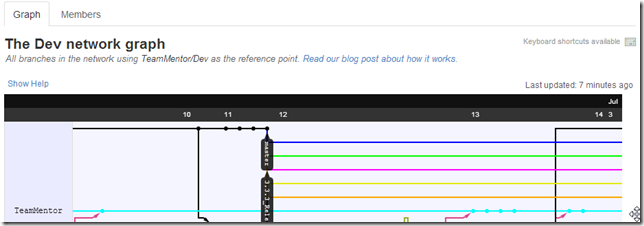
…. now being the parent of the Issue_142, Issue_51, Issue_400, Issue_475 and Issue_459 branches:
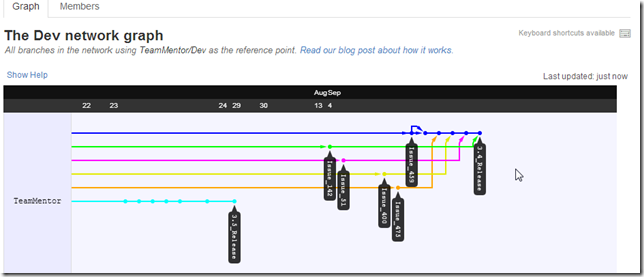
This concludes the (main part of) this post, which showed how to handle the scenario where fixes (and branches) were applied to a commit whose release schedule was changed (and there was the need to back-port those changes into an earlier commit).
I think it is important to note that the workflow shown in here is a great proof of the power of Git (I can’t even image doing this in SVN).
In fact, in this case, we are paying the price for not being more formal in the use of Git Flow workflows, and for not being more strategic on where we applied simple fixes (like the ones shown here).
I.e. this should be easier next time.
That said, it took me orders-of-magnitude more time to write this blog post, than to actually make these changes/fixes :)
Appendix 1) Creating patches from Michael’s branches:
To create the patches, I grabbed a fresh clone of Michael’s dev repo (which is a fork of TeamMentor/Dev)
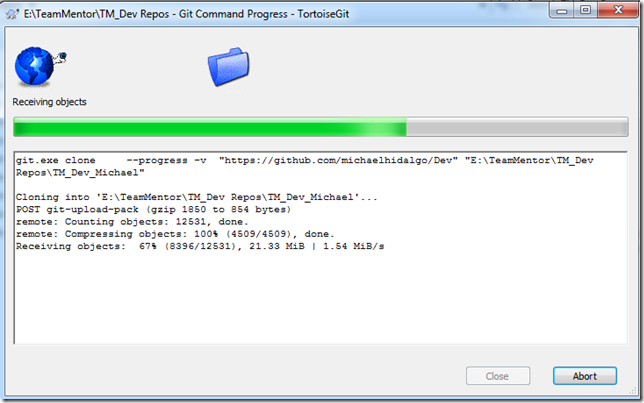
Then, on a git bash of this repository, I created a new branch that pointed to the current
38bfcd54d8046372c0ace2409324ecc965761504 commit, using the commands: $ git checkout 38bfcd54d8046372c0ace2409324ecc965761504 _** and **$ git checkout -b Patch_Parent_
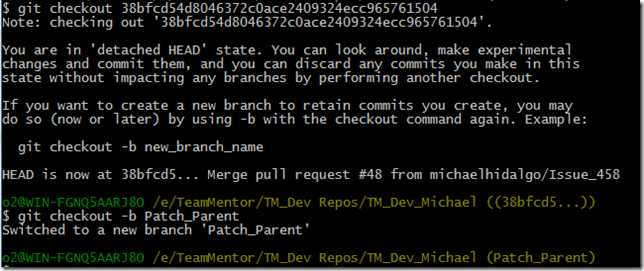
The reason I picked the 38bfcd54d8046372c0ace2409324ecc965761504 commit is because this is the commit that all Michael’s current branches are based on:
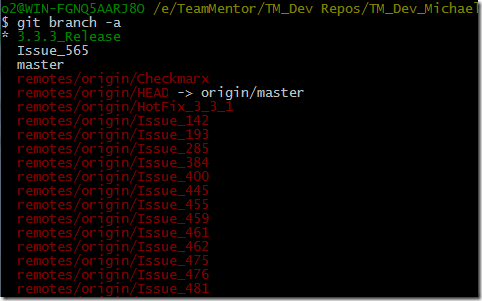
Using the $ git branch -a command, we can see that this local repository/clone already contains the branches we need:
Let’s start with a simple one, for example the changes on Issue 534:
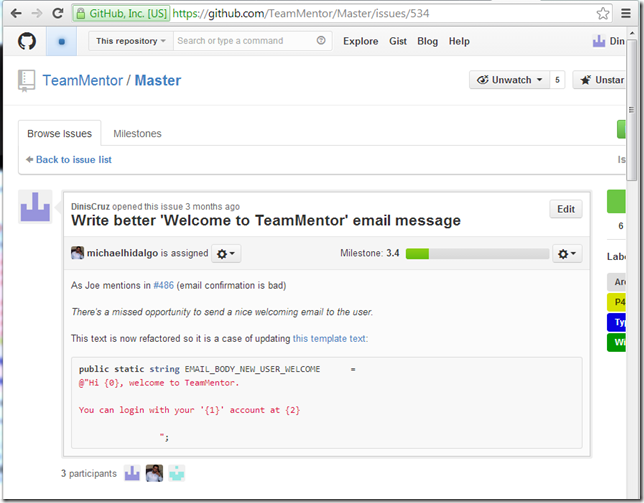
whose changes are on branch Issue_534
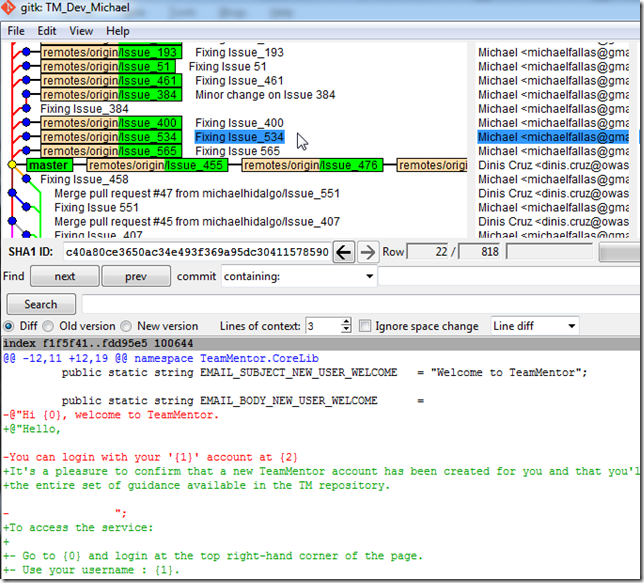
In order to create the patch, I created a local tracking branch using the command $ git checkout -b Issue_534 remotes/origin/Issue_534

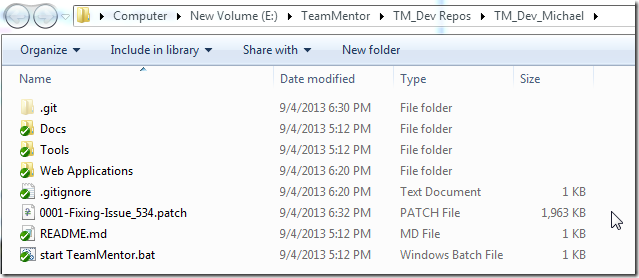
I then created a patch using $ git format-patch Patch_Parent

…which created the file 0001-Fixing-Issue_534.patch:
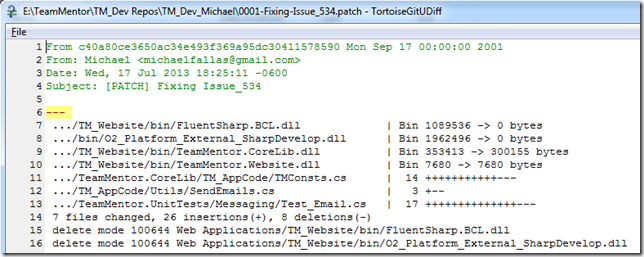
… containing these changes:
…the these ones:
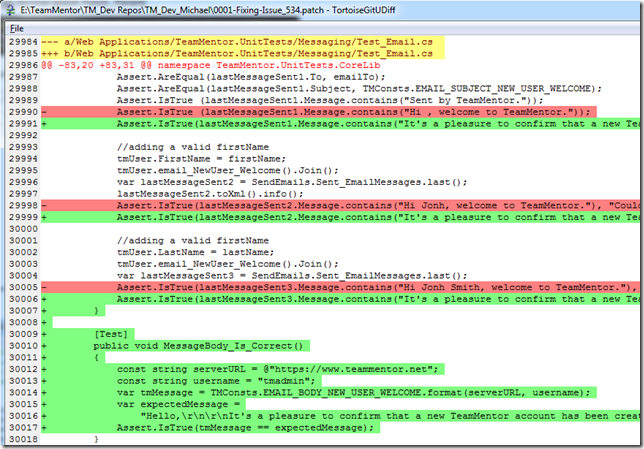
Note: the reason the patch is about 1Mb is because Michael (on this branch) also committed a bunch of *.dlls which should not be there.
One more little thing, since we are going to create a number of these patch files, it is better to put them on a dedicated folder. This can can be done using the command: $ git format-patch Patch_Parent -o ../_3.4_Patches

… with the ‘patch file’ now being placed on the folder:
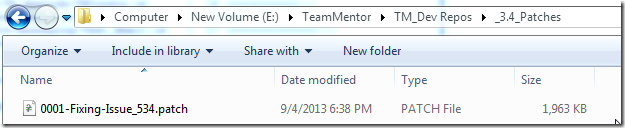
Here is the same process for Issue_565:

… with the patch created in:
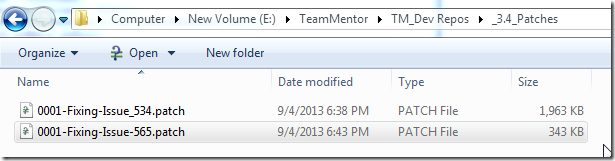
We can also create the patches without creating a tracking branch. For example here is how to create a patch for the code at the Issue_51 branch:
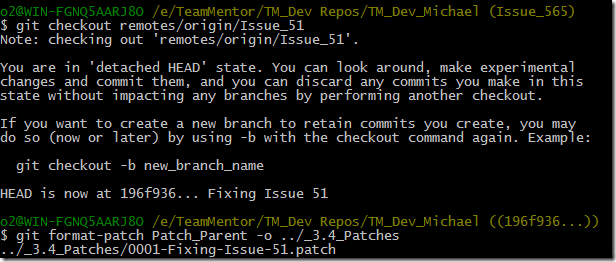
Note that the 0001-Fixing-Issue-51.patch file is much smaller (3k) then the others
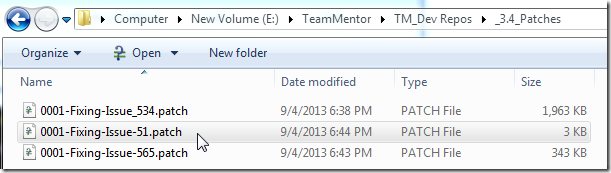
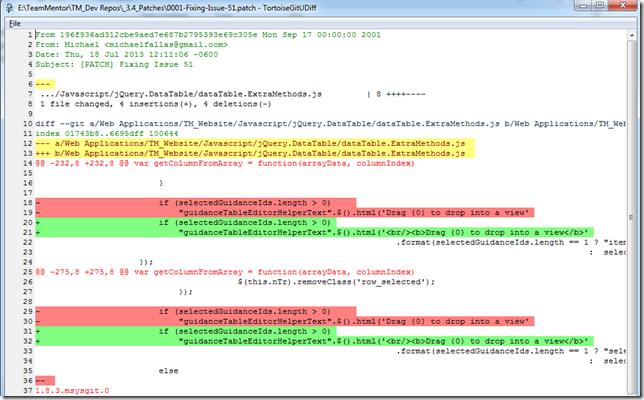
This is caused by this patch only containing text diffs (and no binaries), which is how all patches should be:
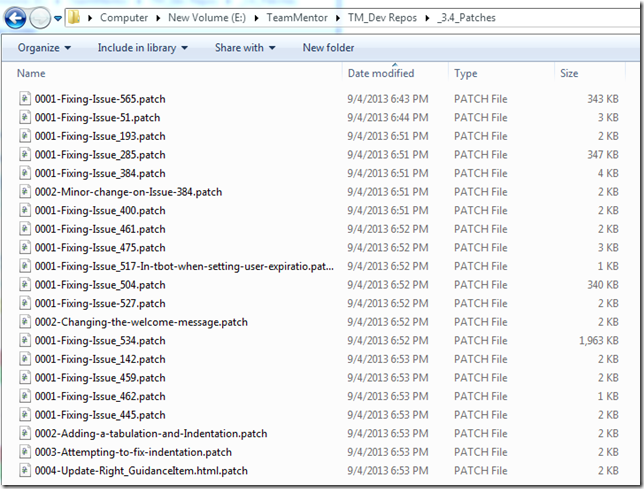
Finally here are all the patch files created (containing all commits made by Michael’s branches):
Appendix 2) Creating a 3.3.3 tag and branch in the TeamMentor/Dev repository
In order to be able to apply the changes into the _TeamMentor/Master _master branch, I created a branch in the current TeamMentor/Dev that points to the last common commit between_ TeamMentor/Master** and **_TeamMentor/Dev (this way the commits can be pushed into TeamMentor/Master master branch, and eventually pulled into the TeamMentor/Dev 3.5_Release branch)
Since b97a470ffa173d67a9c74373593eea03eb7a2da4 is the last commit in TeamMentor/Master that also exists in TeamMentor/Dev, we are we are going to use as the parent for the patches/branches to apply:
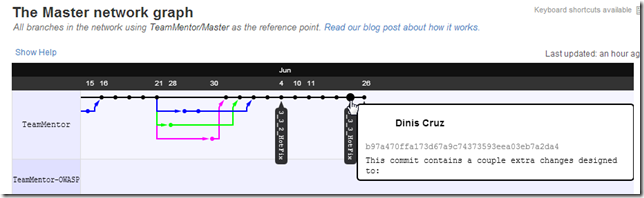
To do so, I started by opening up my local dev repo (currently in sync with the latest commit to Dev) , and executed $ git checkout b97a470ffa173d67a9c74373593eea03eb7a2da4
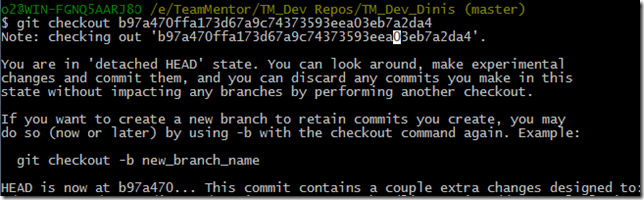
I then created a tracking branch (called 3.3.3_Release) and added a tag (called v3.3.3), using the commands: $ git checkout -b 3.3.3_Release and $ git tag -a v3.3.3 -m ‘3.3.3 Release’
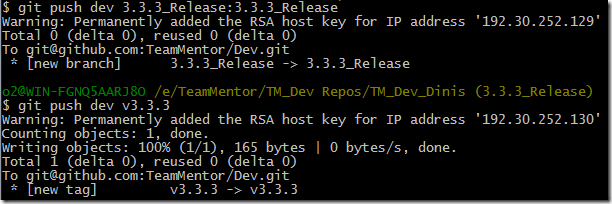
I then pushed the 3.3.3_Release branch and v3.3.3 tag into the TeamMentor/Dev repository, using the commands: $ git push dev 3.3.3_Release:3.3.3_Release and $ git push dev v3.3.3
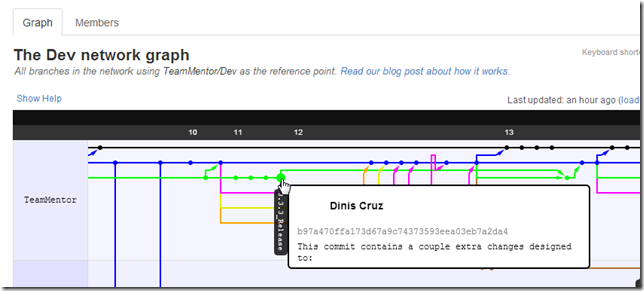
Following these commands (and without the pushes that will happen next) we can see the 3.3.3_Release tag in TeamMentor/Dev network graph
Appendix 3) Applying patches
We are now going to apply the patches files (previously created), into the 3.3.3_Release branch of the current local clone of TeamMentor/Dev

Starting with the 0001-Fixing-Issue_142.patch which is a simple change:
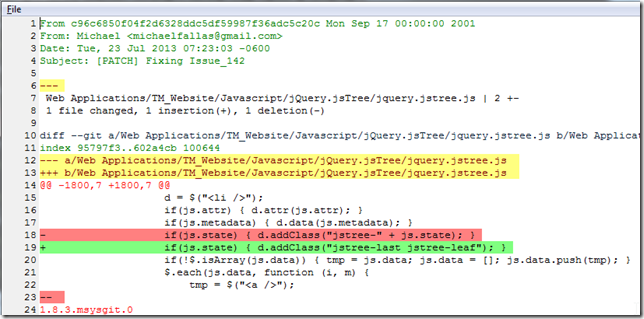
To get a preview of what will change when we apply a patch, we can use the command: $ git apply –stat ../_3.4_Patches/0001-Fixing-Issue_142.patch

To see if we are going to have any errors when applying a patch, we can use the command: $ git apply –check ../_3.4_Patches/0001-Fixing-Issue_142.patch

In this case, the fact that we saw no messages on the —check command (shown above), means that we can merge this patch file ok:
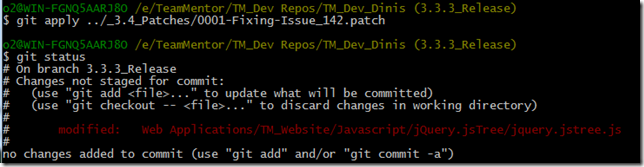
… in this case the change was applied on top of our current branch code (with no commit added)
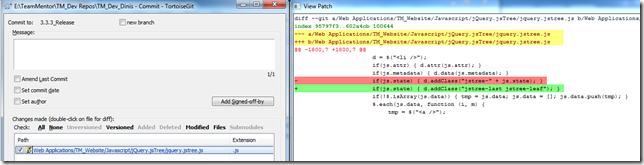
But that has the problem that there was no commit made (just the files changed on disk).
Since we want to preserve the original commit we, will need to can use another command.
First lets reset the current change:
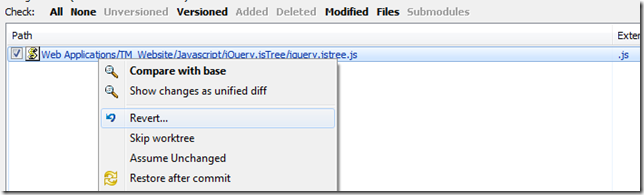
… and before we apply the 0001-Fixing-Issue_142.patch, lets create the Issue_142 branch, using the command git checkout –b Issue_142

Now lets apply the patch this using the command: $ git am –signoff < ../_3.4_Patches/0001-Fixing-Issue_142.patch

…which will add a commit containing the original commit message and author:

Next we push this branch into TeamMentor/Dev
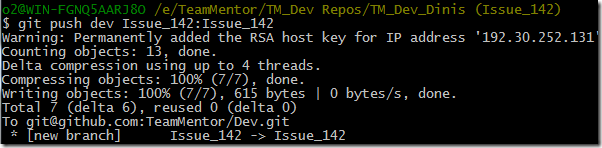
And confirm that the Issue_142 changes are in the correct location (i.e with the b97a470ffa173d67a9c74373593eea03eb7a2da4 commit as its parent):
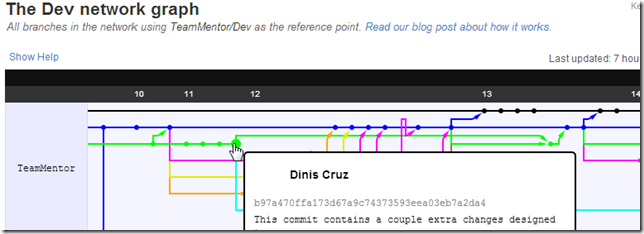
Note how the light blue line is connected from the b97a470ffa173d67a9c74373593eea03eb7a2da4 commit (see above) into the newly pushed 5319e3028da01c64d09409b833c4f33bc49b7208 commit (see below)
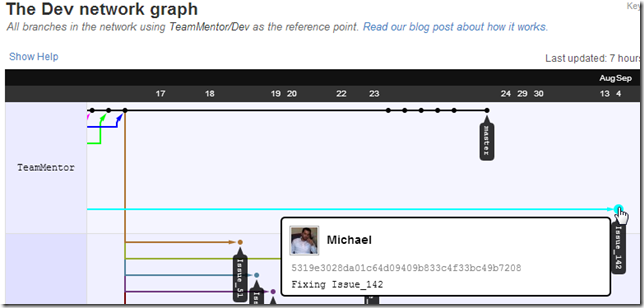
… which is the current head of the Issue_142 branch

The next image shows how we can use GitHub’s UI to create/view the pull request for this branch:
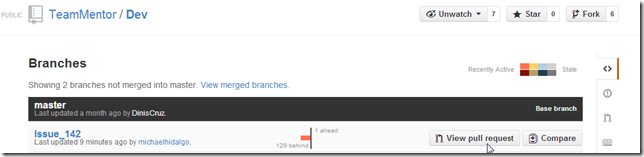
Note how in the screenshot above the Issue_142 branch is 129x commit behind master.
That is caused by the fact that master is currently at the commit 16354b3ec1757f56f0ee1594de3c72bb506f6537 and it should be at the commit b97a470ffa173d67a9c74373593eea03eb7a2da4
See Appendix 5) Creating a 3.4_Release Feature branch and merging branches for how that was fixed.
After mapping the current master commit into a new the 3.5_Release branch and doing a force reset to the master branch, we get the Issue_142 branch correctly set-up with 1x commits ahead and 0x commits behind the master branch:
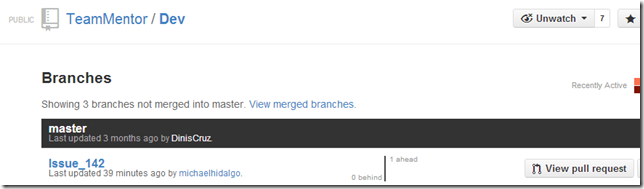
With TeamMentor/Dev master branch in the correct location, lets apply more patches into it:
For example Issue 51, using the commands:
$ git apply –check ../_3.4_Patches/0001-Fixing-Issue-51.patch (check if patch can be applied)
$ git checkout -b Issue_51 (create patch branch)
$ git am –signoff < ../_3.4_Patches/0001-Fixing-Issue-51.patch (apply patch and preserve original commit) $ git push dev Issue_51:Issue_51 (push branch into GitHub)
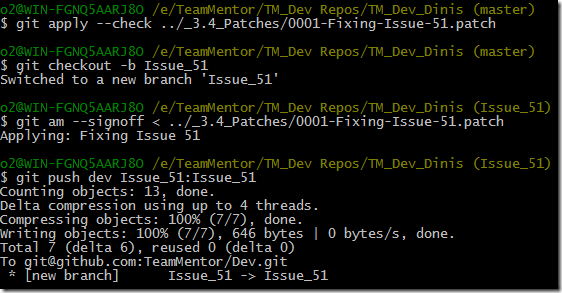
This makes the Issue_51 branch to also be 1x ahead and 0x behind commits of the master branch:
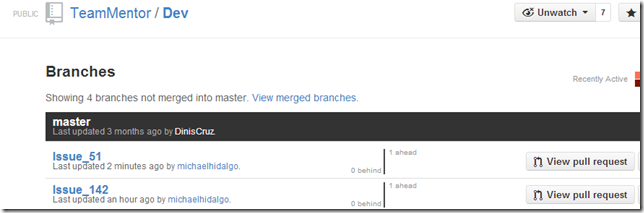
With this workflow in place, I quickly did the same workflow for the branches: Issue_384 , Issue_400 , Issue_475 and Issue_459
At the moment we have these branches to merge (Appendix 5) Creating a 3.4_Release Feature branch and merging branches will show them in action):
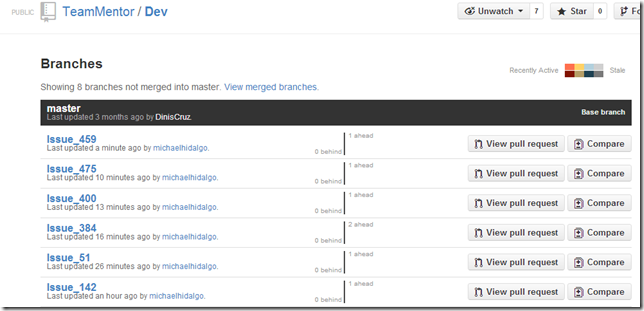
Note that there were numerous patches (534, 565, 193, 285, 461, 517, 504, 527,462 and 445) that didn’t merge correctly.
For example this is what happened for the 0001-Fixing-Issue-565.patch when executing the command $ git apply –check ../_3.4_Patches/0001-Fixing-Issue-565.patch
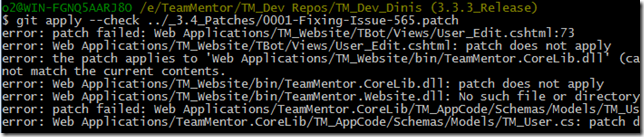
These will need to be handled separately (which is a topic for another blog post, since this one is already getting a bit long :) )
Appendix 4) Creating a 3.5_Release Feature branch
In order to make the current TeamMentor/Dev match the TeamMentor/Master in terms of the master branch, we need to move the current master of TeamMentor/Dev into a feature branch called 3.5_Release (in a way we were using the master of TeamMentor/Dev as a ‘feature branch’ which was ok if that code was going to become the 3.4 release (which now it isn’t).
First step is to move into the current master using the command $ git checkout master

Then we create the 3.5_Release feature branch using the command $ git checkout –b 3.5_Release

Next we push this branch into TeamMentor/Dev
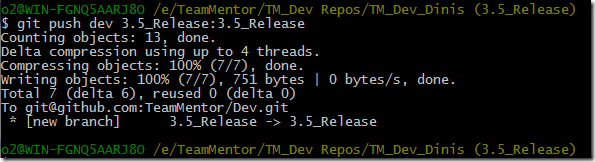
At this moment, in the GitHub repo, TeamMentor/Dev’s master and 3.5_Release point to the same commit (16354b3ec1757f56f0ee1594de3c72bb506f6537):
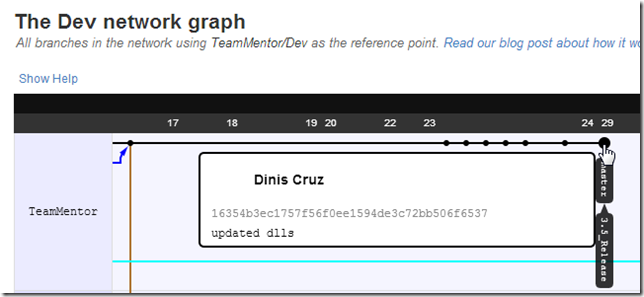
Now comes the sledgehammer :)
We’re going to (first locally) do a hard reset into the b97a470ffa173d67a9c74373593eea03eb7a2da4 commit, using the command $ git reset –hard b97a470ffa173d67a9c74373593eea03eb7a2da4 (remember that this commit is the common one between TeamMentor/Master and TeamMentor/Dev)

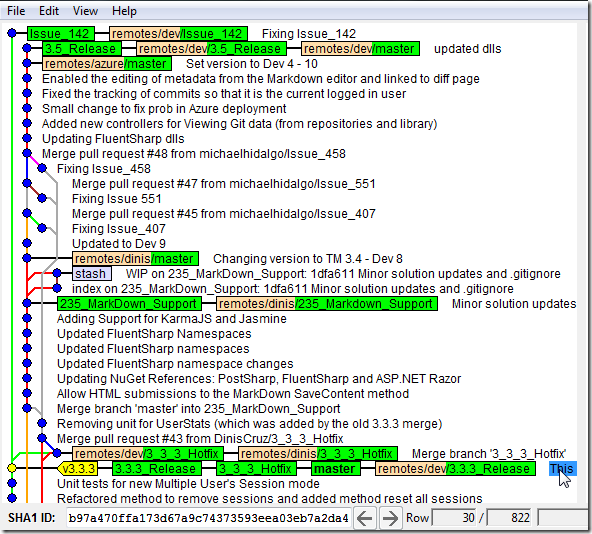
After this hard reset, the TeamMentor/Dev master is aligned with the 3.3.3_Release branch and v3.3.3 tag (previously created)

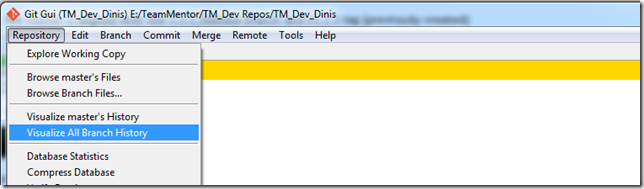
We can also double check this, by using the command $ git gui

… followed by the Visualize all Branch History menu option:
…and see that the Issue_142 branch is now a child of the current TeamMentor/Dev master (which is in sync with the TeamMentor/Master master)
Finally we are ready to apply the sledgehammer to the repository hosted at GitHub, by forcing a push using the command $ git push –f dev master:master

Which makes the TeamMentor/Master look like this:
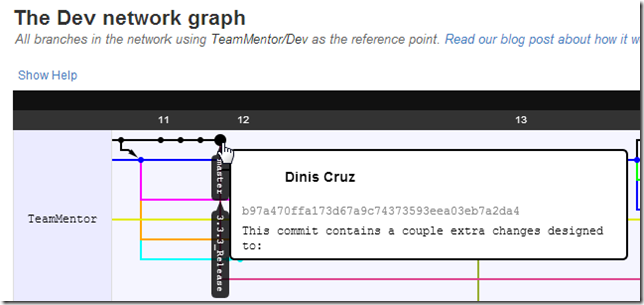
… with the Issue_142 branch having the master/3.3.3_Release branch as parent (see rouge/brown line)
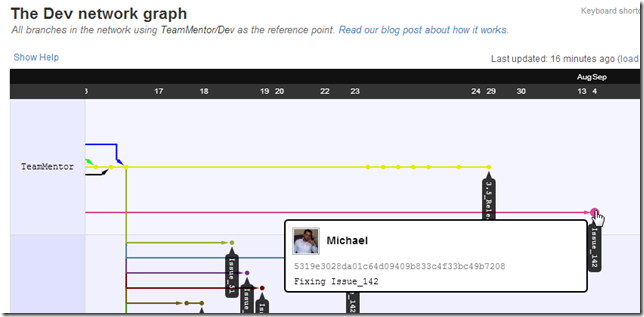
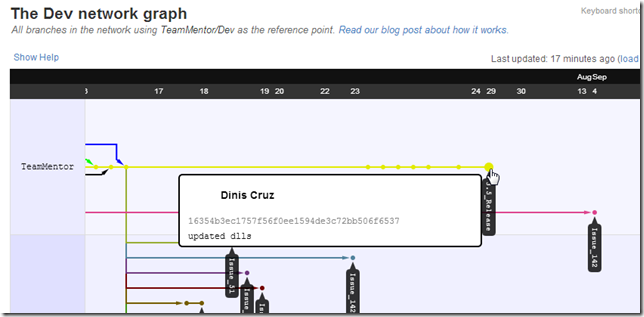
… and the 3.5_Release branch containing the commits that ware previously in the master branch (see yellow line)
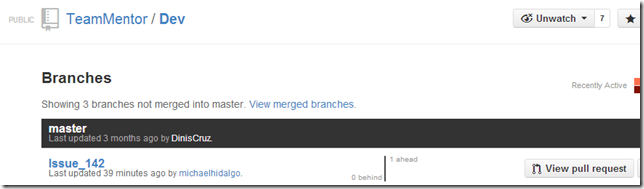
Finally a look at the current branches in TeamMentor/Dev shows that the Issue_142 is correctly 1x commit ahead and 0x behind the master branch (which means that it is ready for a pull request)
Appendix 5) Creating a 3.4_Release Feature branch and merging branches
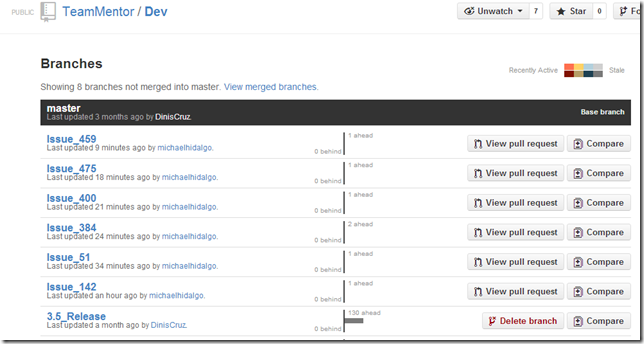
At this point we have these branches ready to commit (via a pull request)
Instead of merging them into the TeamMentor/Dev master branch, we are going to create a TeamMentor/Dev 3.4_Release branch using the command $ git checkout -b 3.4_Release and push it to TeamMentor/Dev using the command $ git push dev 3.4_Release:3.4_Release
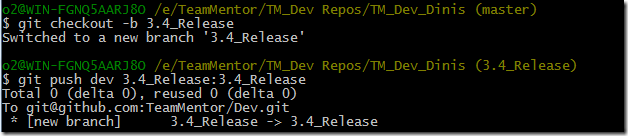
The reason for this branch is so that TeamMentor/Dev master branch is aligned with TeamMentor/Master master branch (which is the current official release), and only QA’d changes are pushed into TeamMentor/Master (first into 3.4_Release branch, and eventually into the official TeamMentor/Master master branch (note that we will most likely rename the TeamMentor/Master repo into TeamMentor/Release)
Next step is to create a pull request from the current Issue_XYZ branches into the 3.4_Release branch.
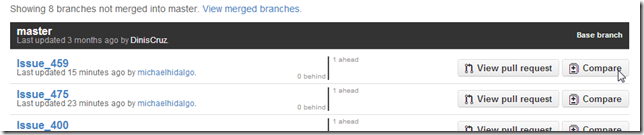
Let’s start with Issue_459, by clicking on its Compare button:
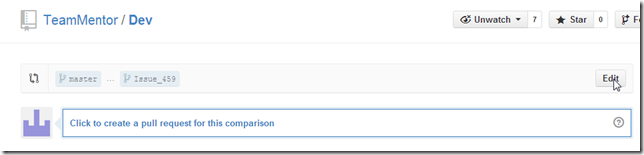
On the next page, click on Edit:
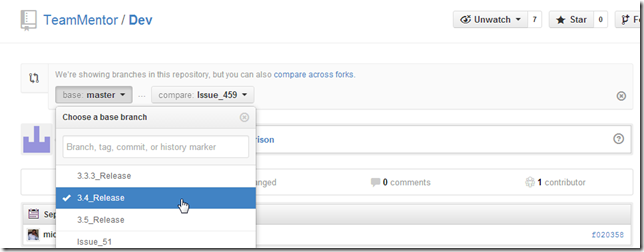
… to change the base branch (into 3.4_Release):
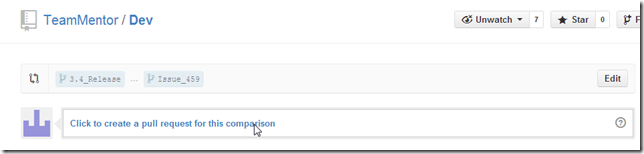
Then click on the Click to create a pull request for this comparison link
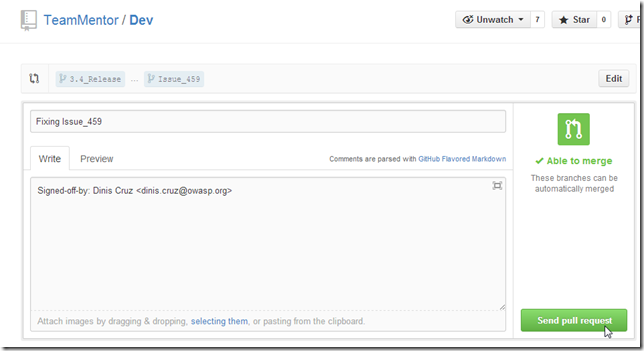
… click on the Send the Pull Request button:
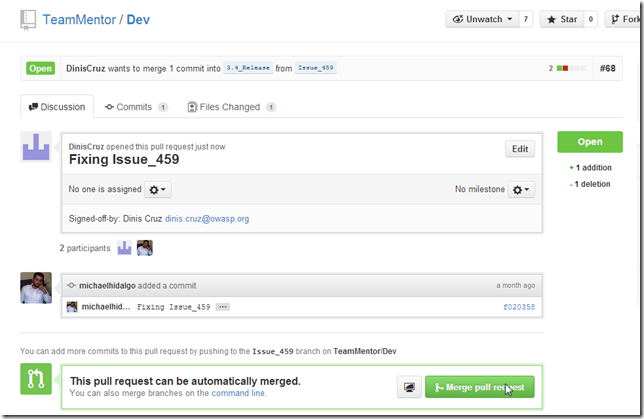
… click on the Merge pull request button
… and the Confirm Merge button:
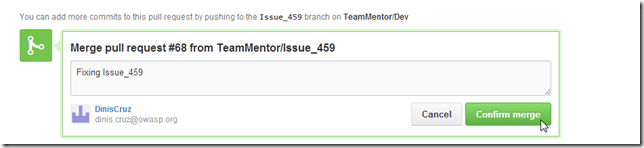
We could now delete the branch (but I’m not going to do that at this stage, since first I want to see these merged branches in a GitHub Network Graph):

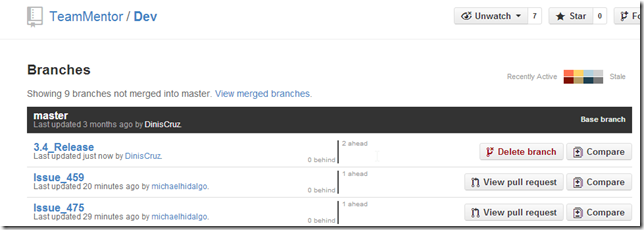
Back into the Branches not merged into master list, although the Issue_459 branch is still 1x ahead of master, we now have the 3.4_Release branch with 2x commits ahead:
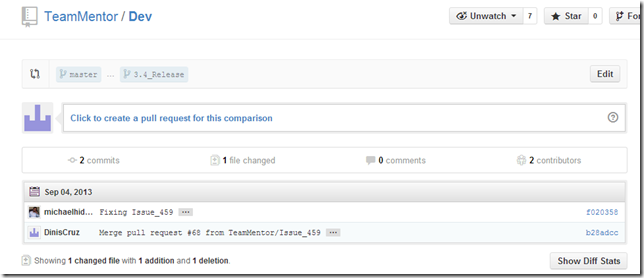
The two commits of the 3.4_Release branch are one from the Issue_459 branch and one from the pull request merge (note above how we could now do a Pull request from this 3.4_Release branch into the master branch):
After doing the same workflow for Issue_475 branch:
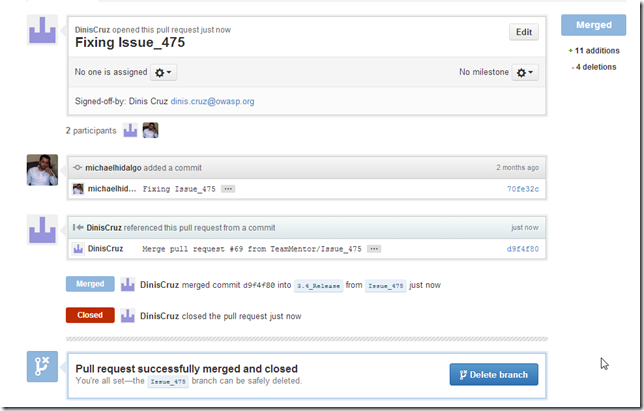
… the 3_4_Release branch is 4 commits ahead:

And after doing the same workflow for the Issue_142, Issue_51 and Issue_400 branches/issues, the 3_4_Release is 10 commits ahead (with 5 Issues_Xyz applied):

The TeamMentor/Dev graph also shows this workflow in action (note that If I had deleted branches after the pull request, we wouldn’t see the tags in this network graph)
One important note is that the Issue_384 didn’t merge automatically with the 3.4_Release, which means that there is a conflict between one of the changes made by the applied branches and this code (i.e. Michael will need to fix this and resubmit the patch)
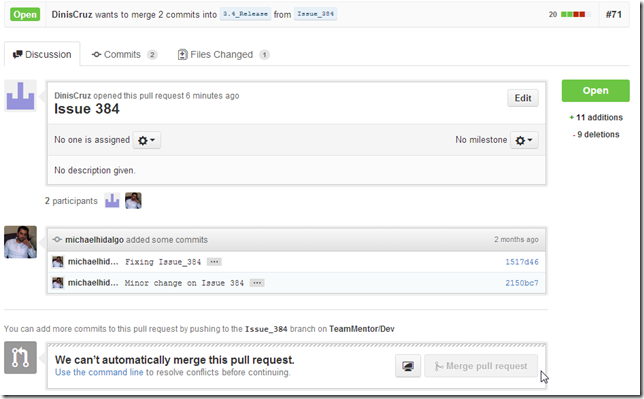
Wrapping up: Feedback and better git commands:
If you made it this far to the end, it would be great to have some feedback on this git workflow (and solution).
And if you know of better ways to do solve probs like this one, please ping us with your ideas, since there is still far too much Git functionality that I/we are not aware of.
Example of using GitHub Pull Requests to merge changes made on Branches
After the fixes explained in the Git Flow - Moving patches from one Commit into another Commit post and the reset of the TeamMentor 3.4 branch, Michael reapplied his other changes/fixes to the correct 3.4 commit, and I’m now in the process merging his Pull Requests into the 3.4_Release branch (and eventually into the master branch).
This post walks through my current workflow.
At the moment there are a number of Pull Requests to process:
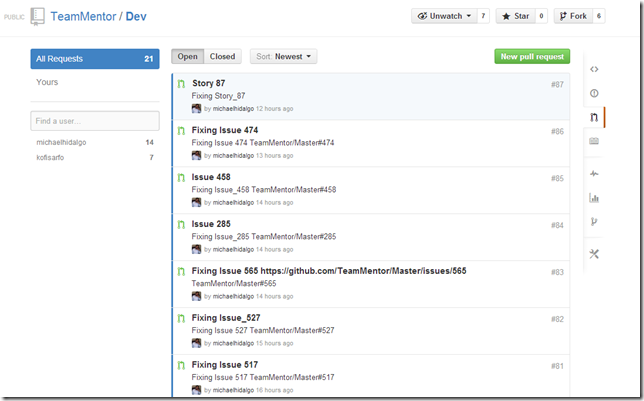
… which were all created using Git Branches:
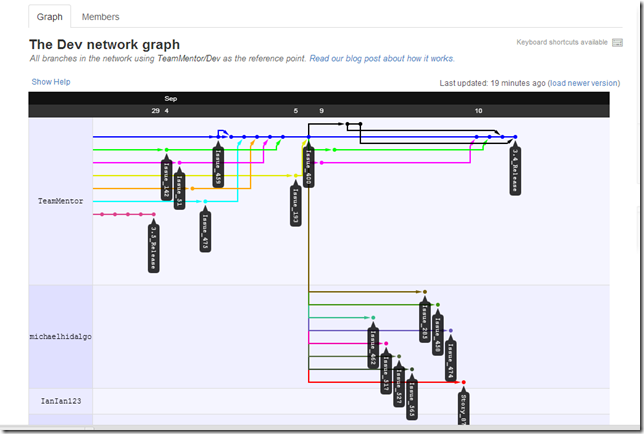
In the image above, the top lines show the commits/branches that have already been committed, and the bottom ones the branches that still need to be committed (currently on the ‘open’ Pull Requests)
Git Pull Request workflow
1) open the Pull Request page:
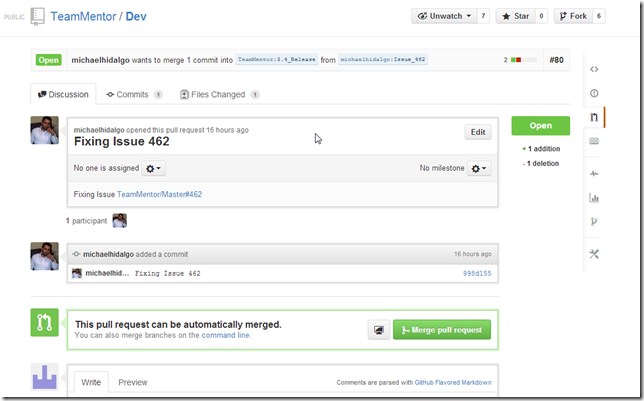
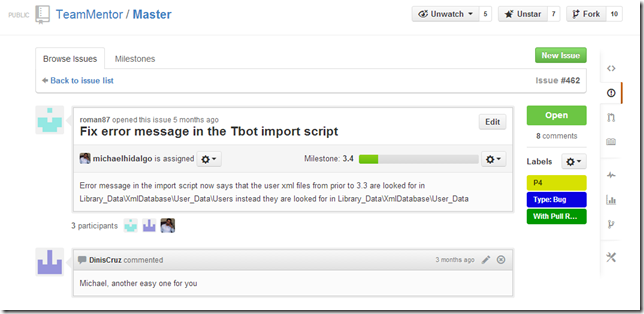
2) click on the link to the issue that is being fixed:
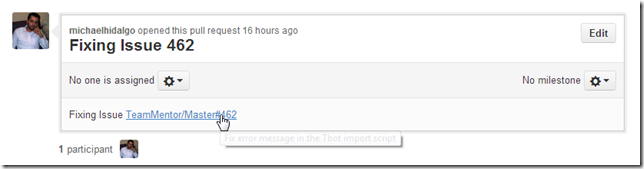
3) read the issue (and its history)
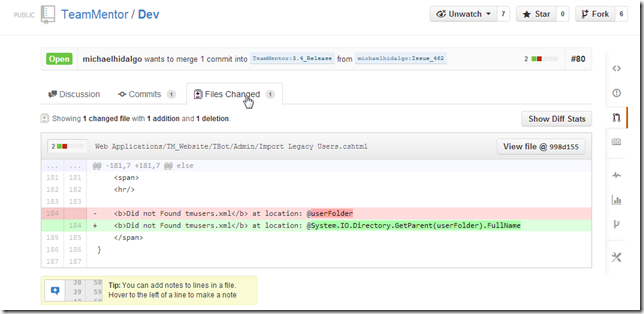
4) back in GitHub’s Pull Request, click on the Files Changed link to see the proposed code changes:
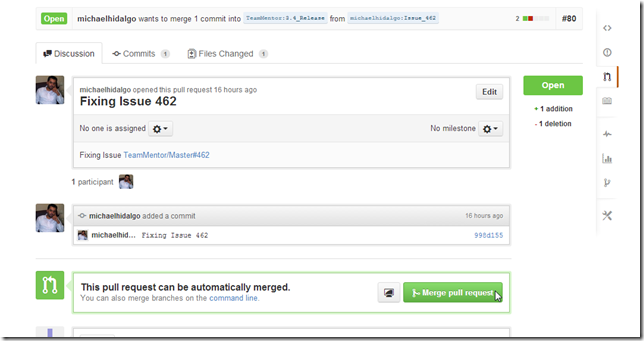
5) if I’m happy with the request, on the ‘Discussion’ tab, I click on the Merge pull request button
… followed by Confirm merge

6) optional: if this was under a repo that I owned, I would also delete the branch, in this case, Michael will have to do it on his repo/fork)
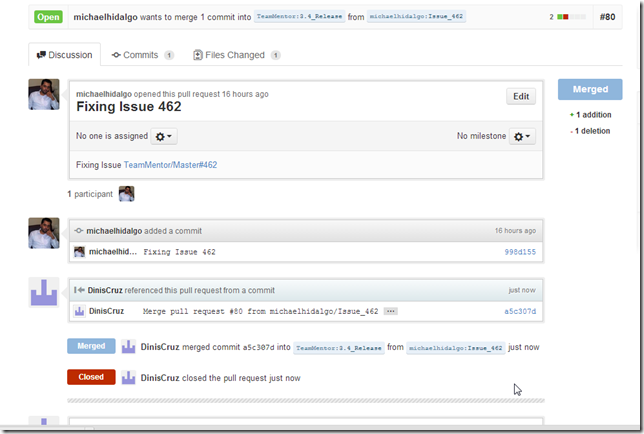
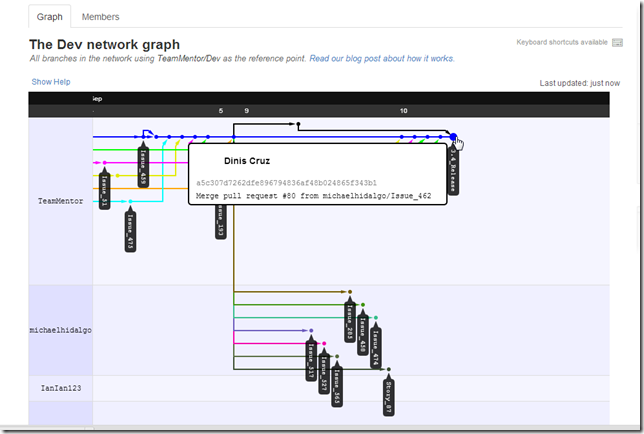
7) optional: confirm on GitHub’s Network Graph that the merge happened ok (i.e. the commit is now on the 3.4_Release branch and the Issue_462 branch no longer is shown on Michael’s fork)
8) optional: check that the respective issue has been correctly tagged/linked with this pull request
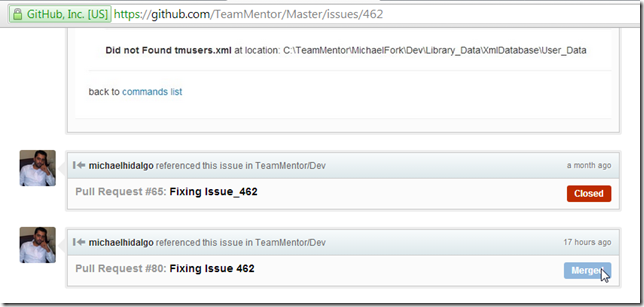
… do this for the other Pull Requests….
Here is how the Network Graph looks like after all merges have occurred:
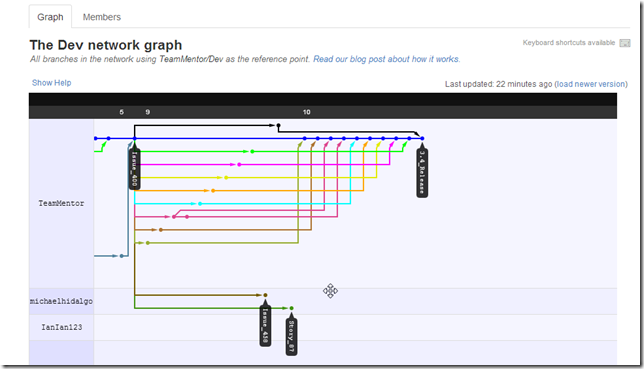
At the moment there are only two branches that need to be merged:
1) https://github.com/TeamMentor/Dev/pull/85 : currently conflicting (i.e the merge cannot happen automatically):
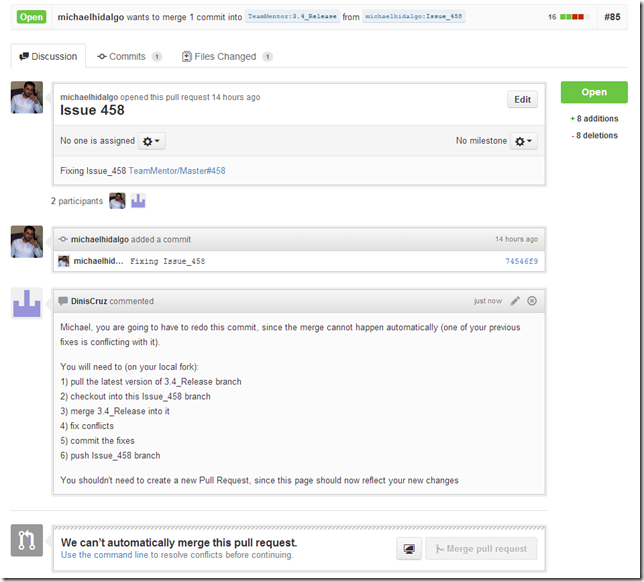
2) https://github.com/TeamMentor/Dev/pull/87 – no idea what issue this is fixing (the link to the GitHub issue is missing)
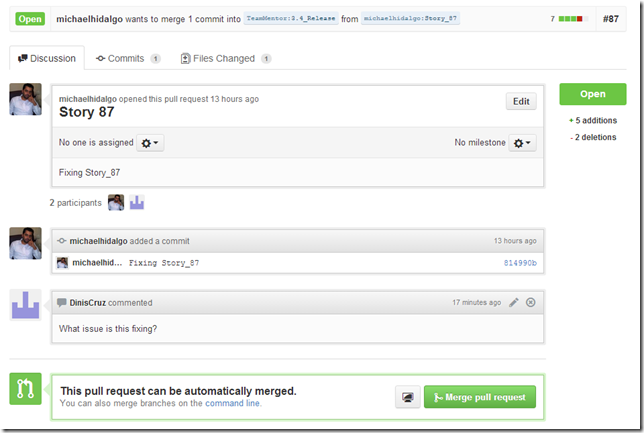
Hopefully this shows the power of Git and GitHub’s commit/review workflow where:
- each bug has a separate Issue, Branch and Pull Request
- code review of proposed changes is really easy to do
- multiple fixes can be done in parallel with very view conflicts
- conflicts (when exist) are easy to indentify and deal with
- GitHub’s visualizations make a massive difference in making this workflow really smooth
- everything done by GitGub is based on git commands, which means that all actions could had been done locally, on git clones of TeamMentor/Dev and michaelhidalgo/Dev
In fact, speaking of a manual step, now that we have the 3.4_Release with (just about) the final set of commits, I’m going to merge the 3.4_Release branch with the master branch (which will eventually become the release one)
To do that, I opened a (local) clone of TeamMentor/Dev:

… updated it (since it is out of date with the changes made directly on the GitHub’s version), using the command: $ git pull origin
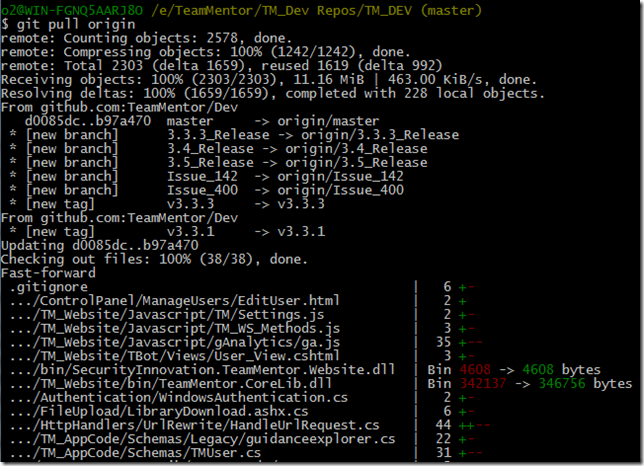
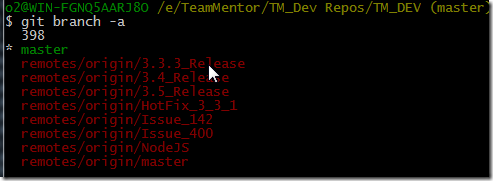
… see all branches available, using the command: $ git branch –a
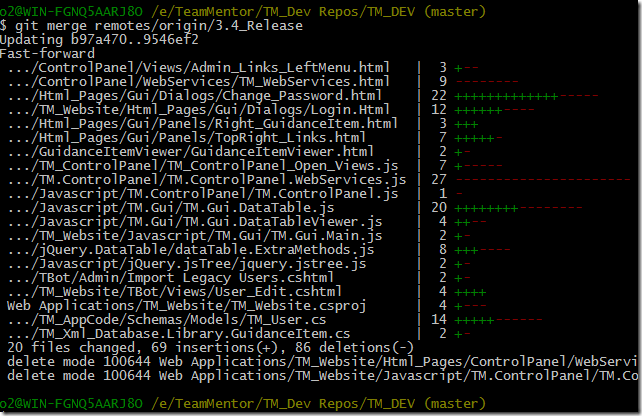
… merged 3.4_Release branch into master branch, using the command $ git merge remotes/origin/3.4_Release
… pushed these changes into GitHub, using the command $ git push origin master:master

(note how no files were changed with this push, since all data was already in the 3.4_Release branch, this commit was just saying to GitHub’s version: ‘please point the master branch into the 3.4_Release commit’)
After this commit, GitHub’s network graph will show that the master branch is now at the same commit as the 3.4_Release branch
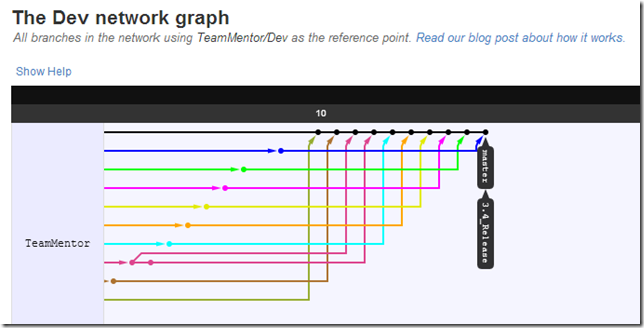
But we are not done here, we will still need to update the compiled TeamMentor Dlls (and see if any UnitTests broke)
Let’s start by opening up the solution file in VisualStudio 2010:
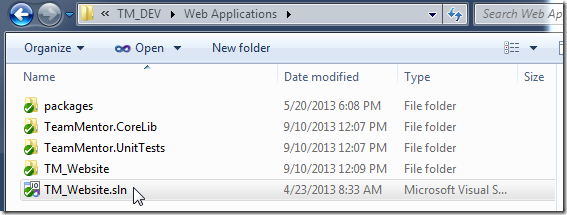
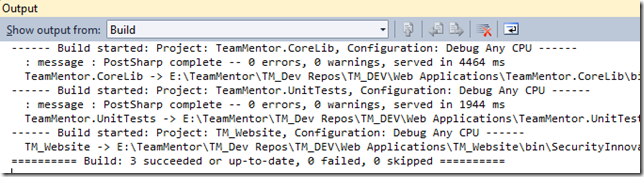
… then clean and build the solution:

… which succeeded ok:
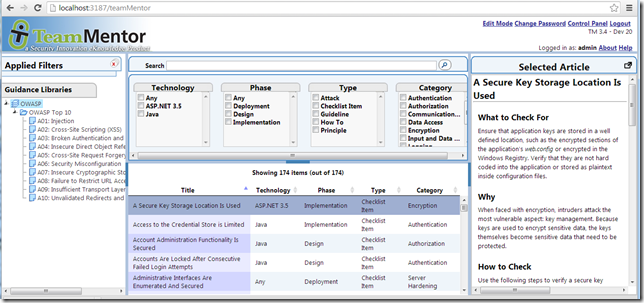
Next, change the version number to TM 3.4 – Dev 20

And start TM locally (just to see is all looks good):
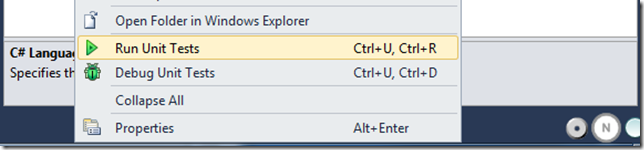
Now, its time to run all UnitTests (in this case using ReSharper NUnit plugin):
… with two tests failing:
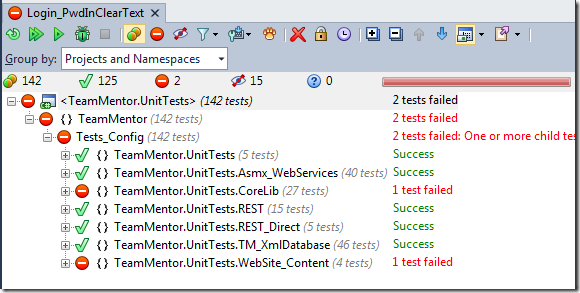
The first one was easy to fix (it was a case of updating the UnitTests to the changes made to the TM_User required fields):

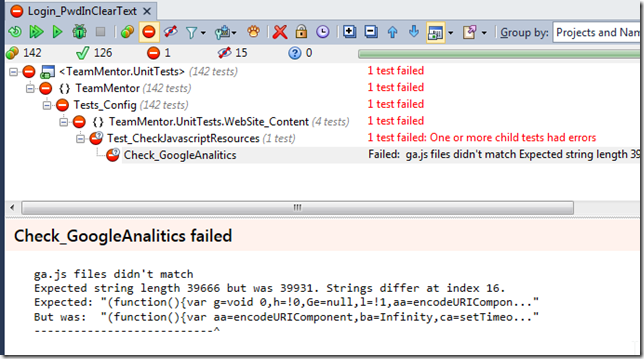
The 2nd one was caused because the Google Analysis file has changed:
Here is the test that does this check:
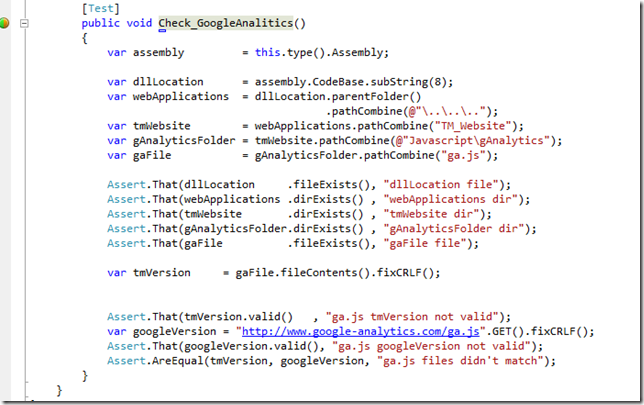
… which basically checks that the http://www.google-analytics.com/ga.js we are using is still the same one served by google (this is a good security practice since TeamMentor’s security is not dependent on Google’s server).
The fix is to update that file:
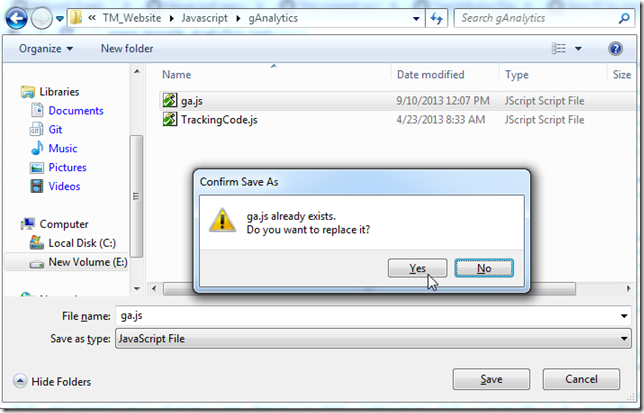
… and rerun all tests (just to confirm it):
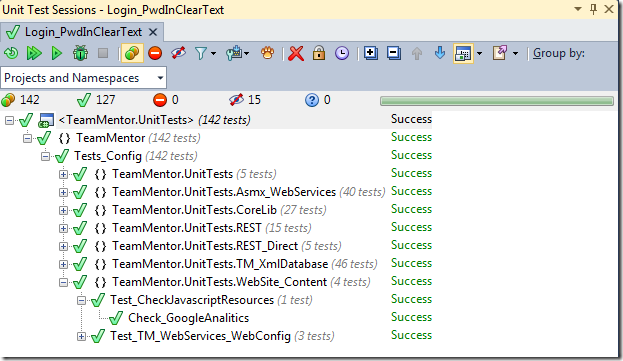
Committing changes made locally.
Keeping up with the model of only doing commits on branches, I quickly created a new branch, using the command: $ git checkout –b 3.4_Dll_Updates

(note how the small changes I made were also marked as ‘Modified (namely the version change, the UnitTests fixes and the recompiled dlls)
… added the files to be committed using the command: $ git add .

… created an commit using the command: $ git commit -m ‘Changing version, adding compiled Dlls, fixing couple UnitTests’
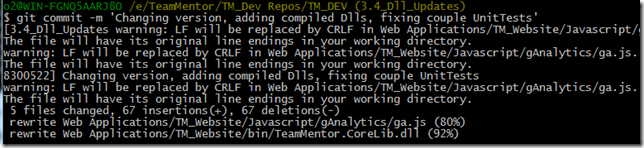
… pushed this branch to GitHub (not 100% necessary, but it will help with the graph), using the command $ git push origin 3.4_Dll_Updates:3.4_Dll_Updates
… applied these changes to the 3.4_Release branch (locally and at GitHub), using the commands:
- $ git push origin 3.4_Dll_Updates:3.4_Dll_Updates
- $ git checkout 3.4_Release
- $ git merge 3.4_Dll_Updates
- $ git push origin 3.4_Release:3.4_Release
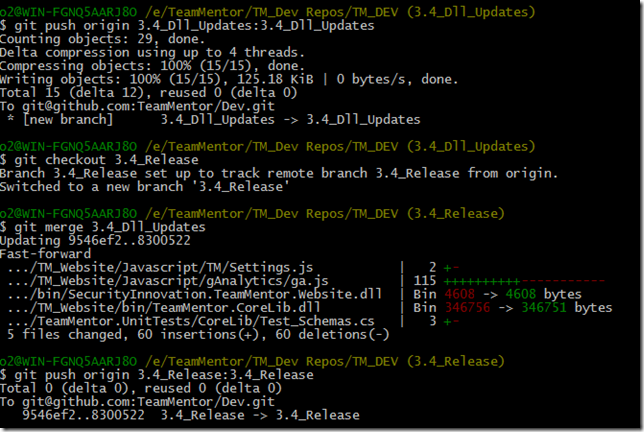
(note that this is an example of a ‘manual Pull Request’)
A quick look at GitHub’s network graph, shows the 3.4_Release branch at the same commit as 3.4_Dll_Updates branch (both one commit behind the master branch)
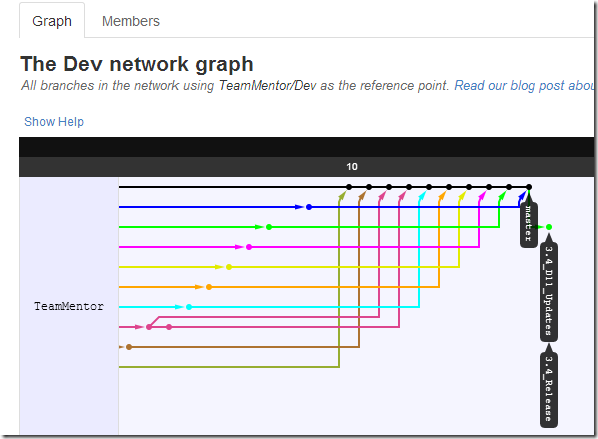
Finally we update master with these changes, using the commands:
- $ git checkout master
- $ git merge 3.4_Release
- $ git push origin master:master
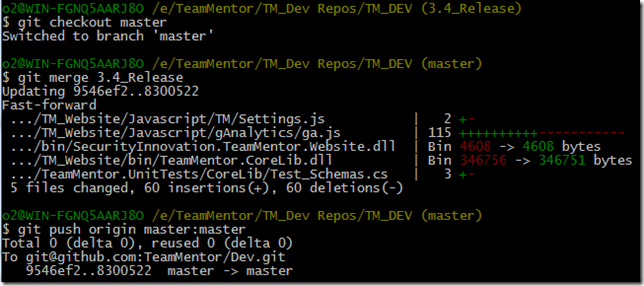
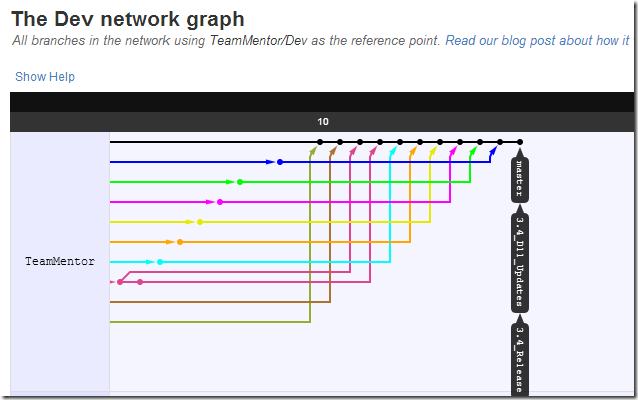
… and now all branches are at the same level:
Testing QA version created by TeamCity and deployed to Azure:
As shown in past blog posts, we also have TeamCity configured to monitor TeamMentor commits and auto-publish new builds into Azure.
In this case after the latest commit into GitHub TeamMentor/Dev master repo, TeamCity picked up the changes and:
* Built the code
* Published to Azure
* Run all unit-tests
At the moment there is one unit failing:
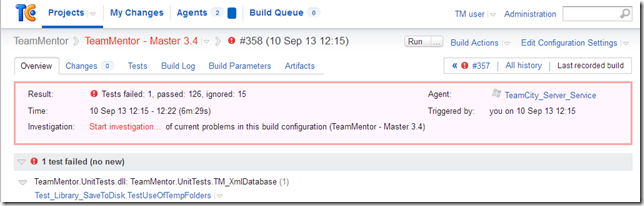
… which doesn’t look problematic (it fells like a TeamCity specific case).
The Azure deployment went ok:

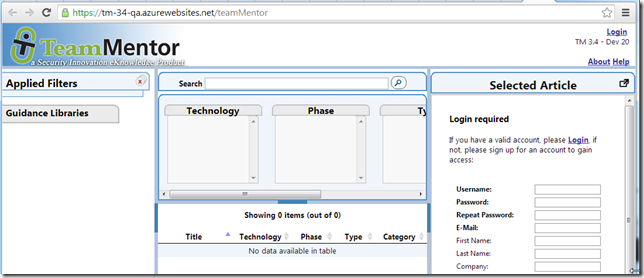
With a clean version of TM ready for testing:
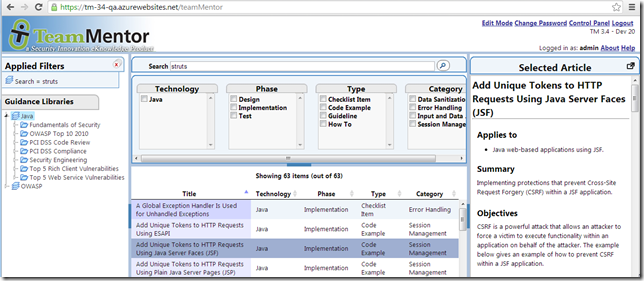
…easily populated with a couple libraries:
Running TM locally from Zip File
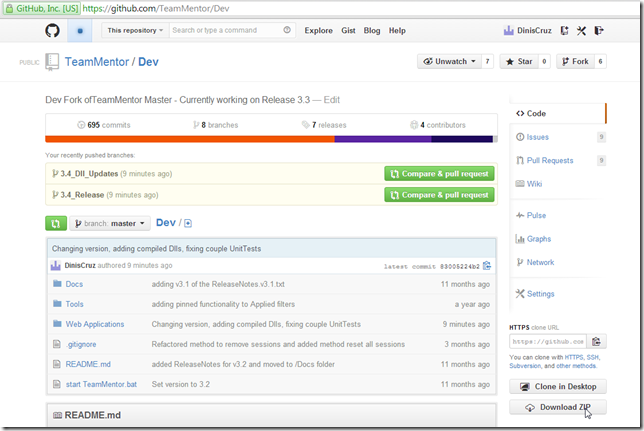
A final test is to go to the main https://github.com/TeamMentor/Dev site and click on the Download Zip button:
…extract the zip files into a local folder, and click on the ‘start TeamMentor.bat’ file:
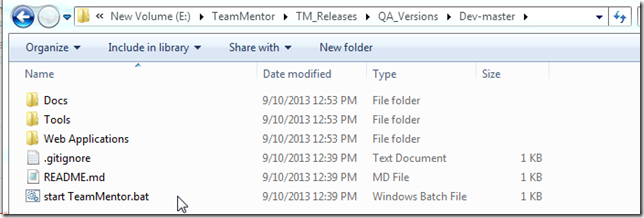
…which will start the .Net Cassini webserver on port 12120:
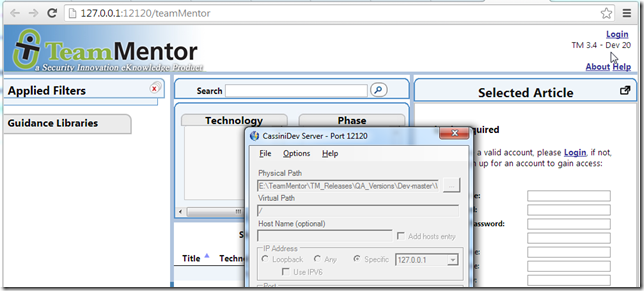
(note how the version number matches the commit made earlier)
At this stage:
- TM is just about ready for a final round of QA
- TM 3.4 RC1 will be created as soon as:
- Michael fixes the couple pending issues
- All UI UnitTests pass
- All backend UnitTests pass (shown above)
Script to Git Clone 13 repositories in order to have all TeamMentor Libraries in one folder
Part of the push for the 3.4 release of TeamMentor, I wanted to have a copy of all TeamMentor libraries locally (there are 13 libraries on the 3.4 release).
Since O2 Platform’s FluentSharp has native Git support, I was able to do create the clones using this script (note how simple it is to create a clone from a GitHub repo):
 1 var baseFolder = @"E:\TeamMentor\Libraries\SI Library";
 2 var contentRepo  = "git@github.com:TMContent/{0}.git";
 3 var libraries = new [] { "Lib_PHP", "Lib_CWE", "Lib_iOS","Lib_Android", "Lib_PCI_DSS_Complian\
 4 ce",
 5                          "Lib_.NET_4.0", "Lib_.NET_3.5", "Lib_.NET_2.0","Lib_Java", "Lib_CPP",
 6                          "Lib_Vulnerabilities", "Lib_Scala", "Lib_HTML5" };
 7
 8 var stopWatch = utils.new_Stopwatch();
 9 foreach(var library in libraries)
10 {
11     var gitRepo      = contentRepo.format(library);
12     var targetFolder = baseFolder.pathCombine(library);
13     if (targetFolder.isNotGitRepository())
14         gitRepo.git_Clone(targetFolder);
15 }
16 return "Cloning took: " + stopWatch.stop().minutes_Seconds_And_Miliseconds();
17
18 //using FluentSharp.Git
19 //O2Ref:FluentSharp.NGit.dll
The script takes about 1m to run:
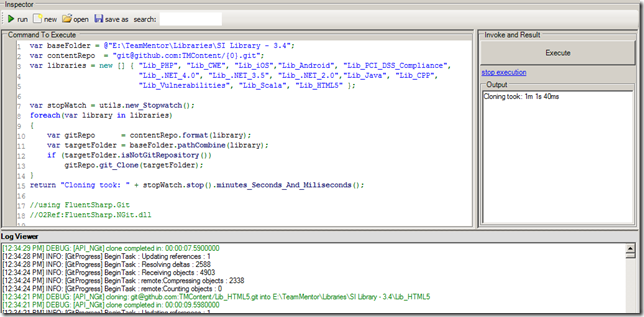
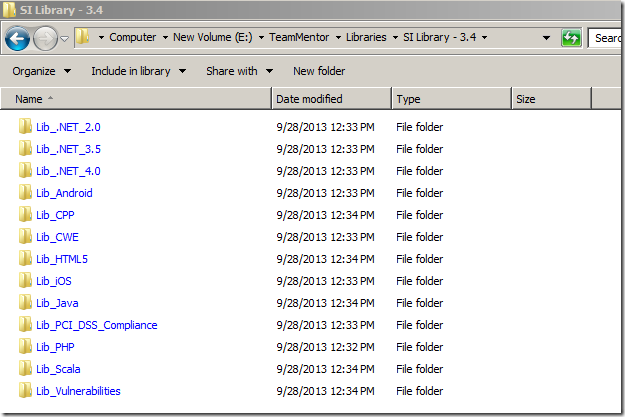
And the end result is a folder with all libraries cloned:
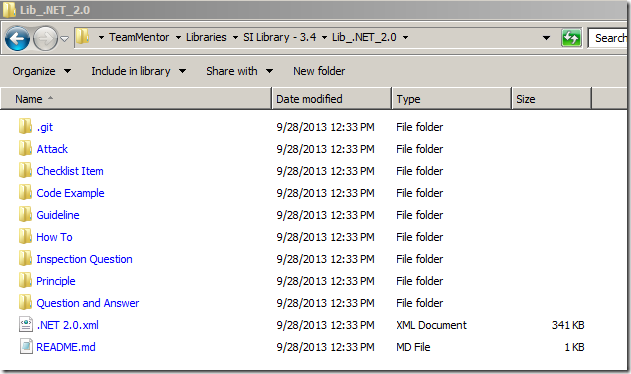
With each folder containing the git repository for that library
Next, I zipped all these files into the SI Library –3.4.zip file (note that they all must be on the root of the zip)
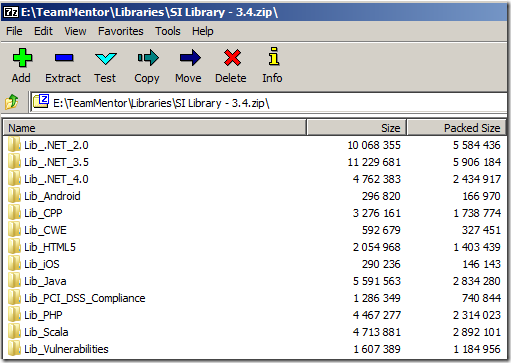
Then, on a local QA TM instance, I:
- went into the admin panel,
- chose up upload the zip,
- triggered the installation (i.e. unzip) of those libraries
- rebuilt the cache:

Once that was completed, a reload of the home page shows the 13 libraries:
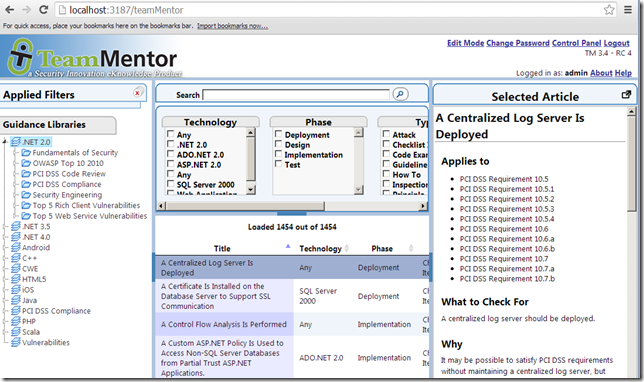
Including the new Html5 library:
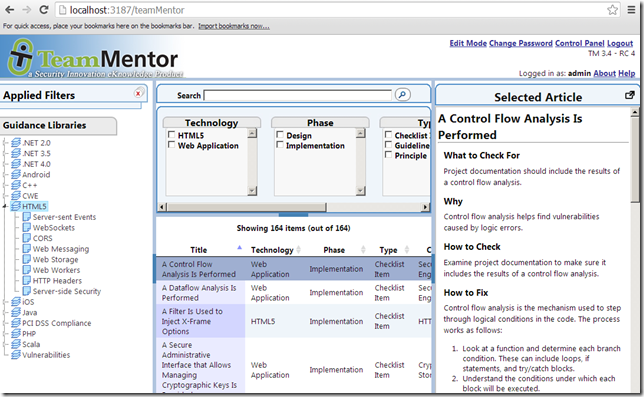
… and the new Scala library