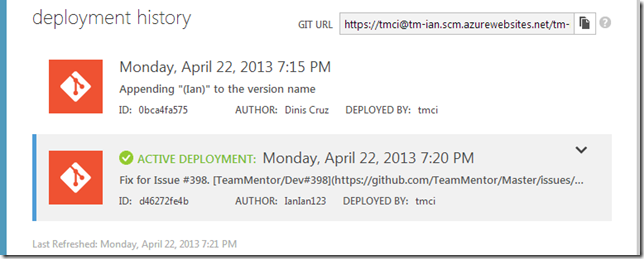
6. April 2013
- Git pulling a TeamMentor Library and renaming it
- Creating QA versions of TeamMentor UserData repository, and using branches to show/test the multiple config options
- Changing a User’s ExpiryDate from GitHub hosted file
- Linus gift to the world will be Git not Linux (and what about an OS built on top of an hash-driven file system?)
- What the move from HTML to WikiText looks like (in GitHub)
- Is Git a Single point of failure for TeamMentor?
- Setting up Ian’s CI Development Environment (for TeamMentor)
Git pulling a TeamMentor Library and renaming it
Here is an example of how to use the new TM 3.3 capabilities to load libraries from GitHub and to rename them.
Let’s start with a version of TM that looks like this:
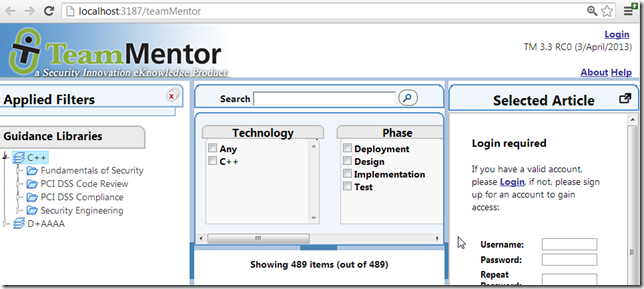
And let’s say that we wanted to add the TM4TM Library to this server
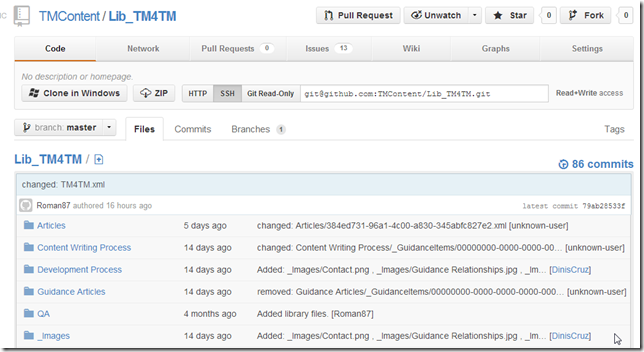
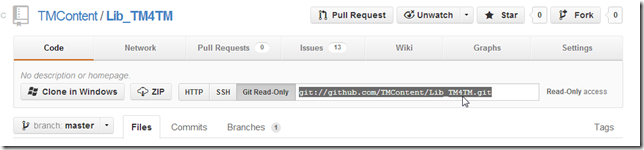
First thing to do is to copy the Git’s Read-Only Url
And add it to the TBot’s Secret Data file:
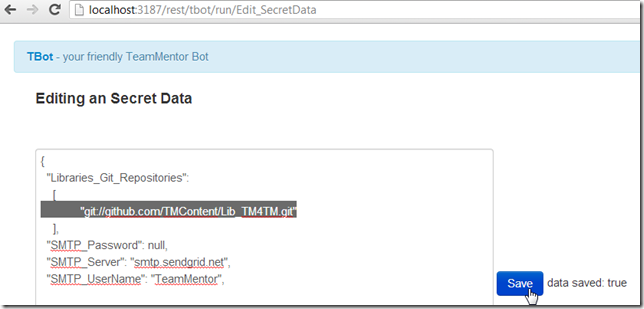
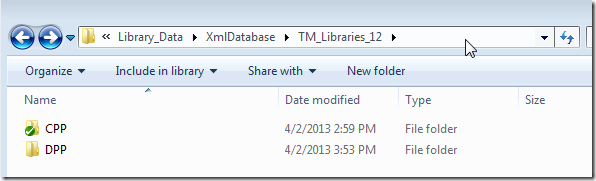
Before we reload the cache (which will do the git pull using NGit), lets see what the Library’s folder looks like.
In this instance of TM, as we can see by the TMConfig.config file:
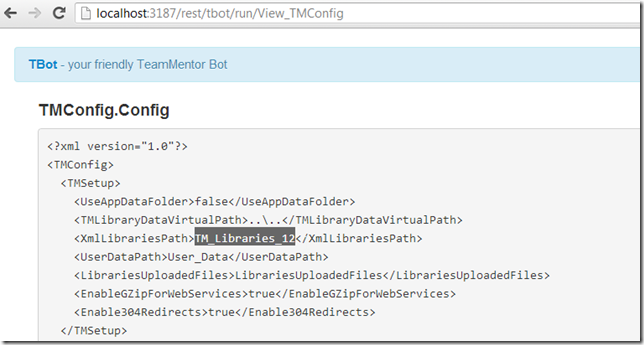
The Library files are located in the TM_Libraries_12 folder:
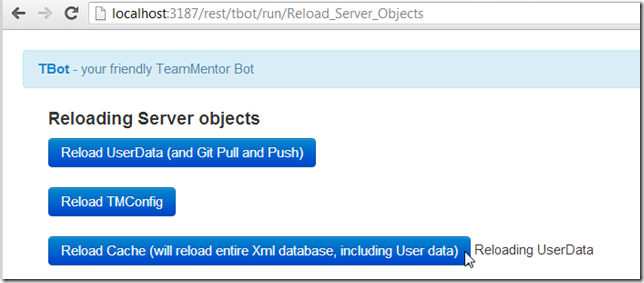
And if we now trigger the cache reload:
We will see that there is a new TM4TM folder:
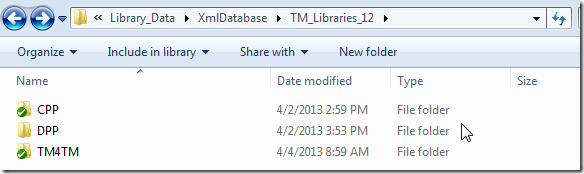
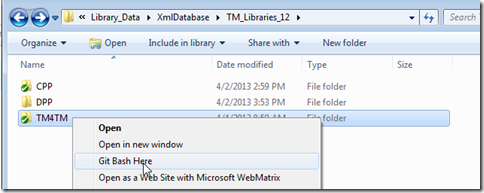
which is a git repository
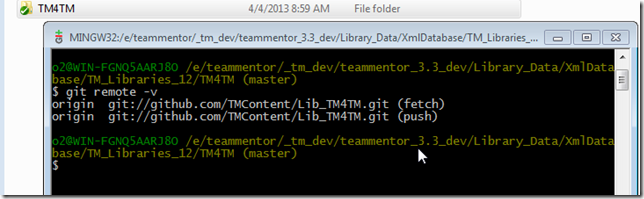
with its remote set to the Git;s Read-Only Url
After the cache reloads:
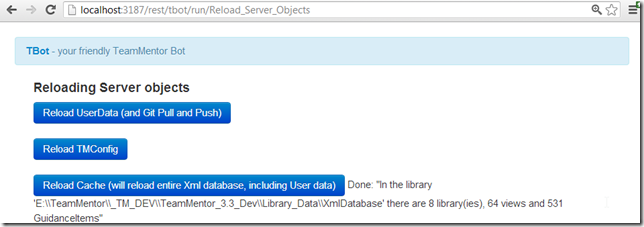
There are now 8 Libraries loaded in TM:
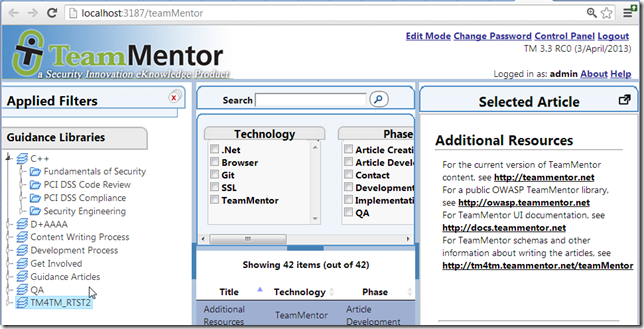
The reason for the extra 6 libraries (when we only added one new repository) is that from TM 3.3, there can be more than one library file in library folder (note: the recommendation is have one library xml file per folder)

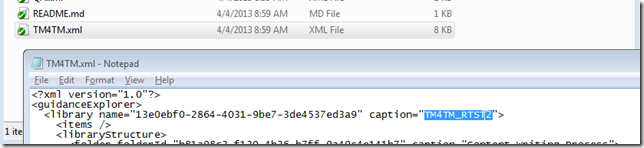
Also note that the library name/caption is now independent from the xml file name:
Let’s now open TM’s Edit mode
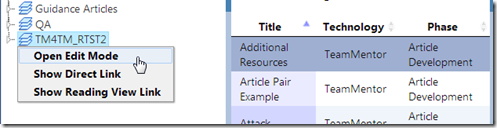
and use it to rename the TM4TM_RTST2 Library:
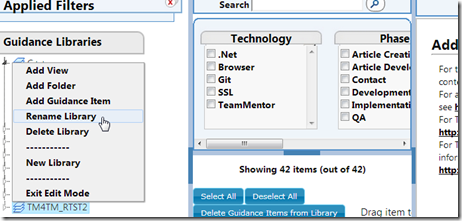
from:

to:
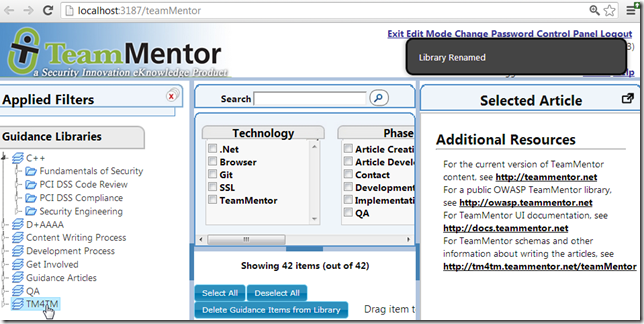
After the rename, a number of thinks happened.
1) The TM4TM.xml library file contents changed:
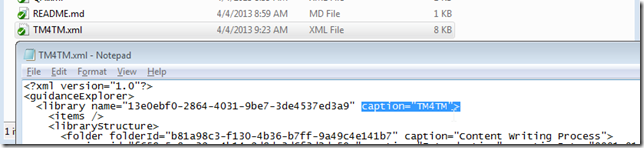
2) There was a local commit with the change:
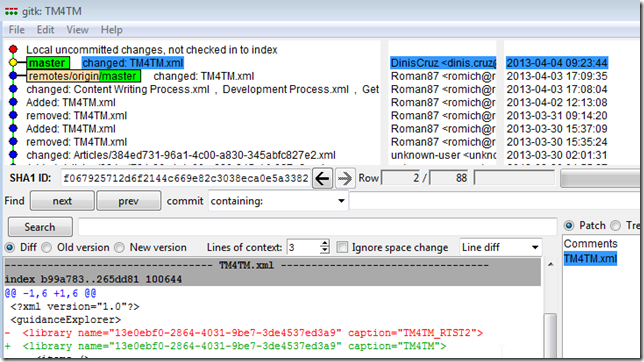
3) the auto pull to GitHub failed
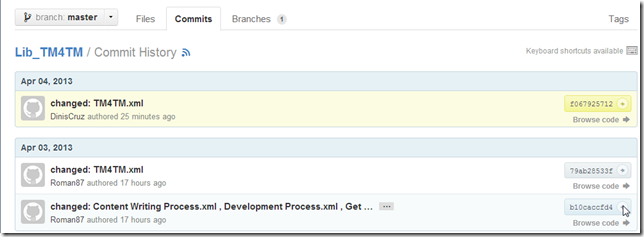
This is confirmed by the commit list at GitHub:
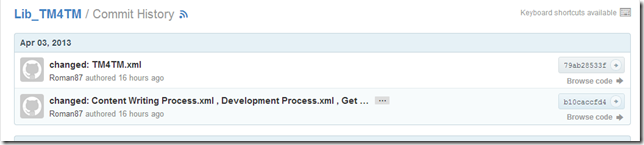
and the ‘push error’ we got on the TBot’s DebugInfo page
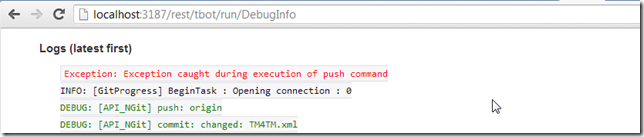
In this case I do want to push the changes, so back in GitHub I copied the SSH git url

And use it directly on a git push (I could also had done this by setting up a new remote)
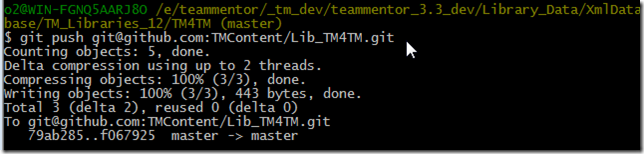
Now the commit created by TM (on library rename) exists in GitHub:
Removing the extra Library files:
Since we don’t need the extra libraries xml files, I just removed them (and committed the changes)
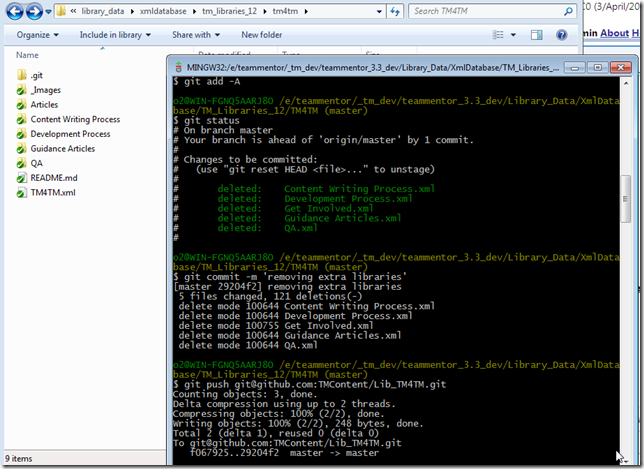
Which means that after cache reload,
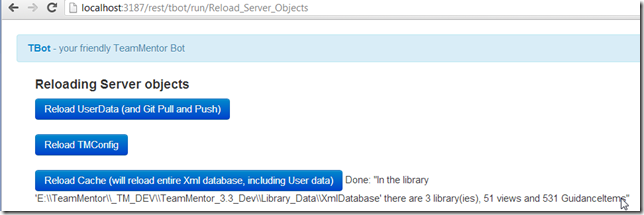
there are now 3 libraries in my local TM instance:
Creating QA versions of TeamMentor UserData repository, and using branches to show/test the multiple config options
Now that a number of TeamMentor settings can be configured from the UserData repositories, we need a way to test and document what can be done.
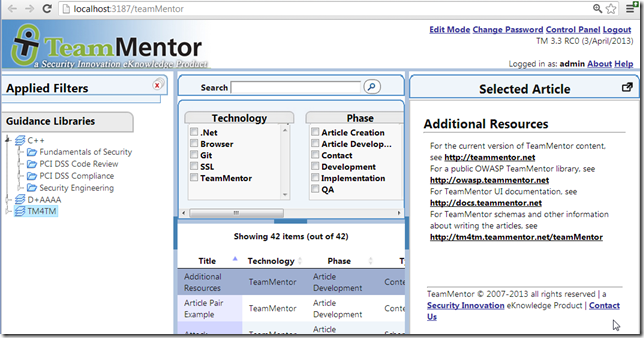
Let’s start by creating a public GitHub repository (https://github.com/TeamMentor/UserData_Customizations) to hold the multiple examples/tests:
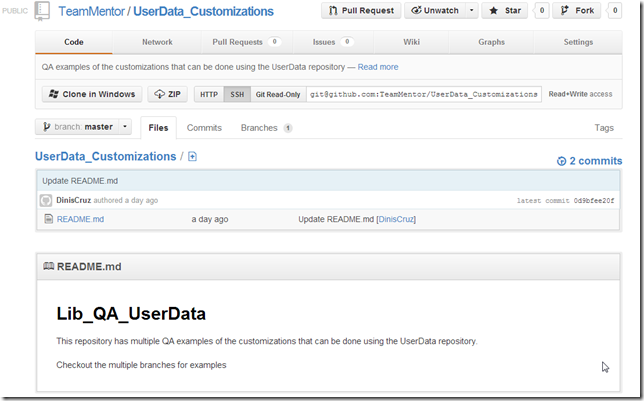
Set the GitUser location to it:
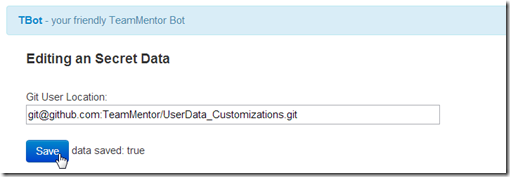
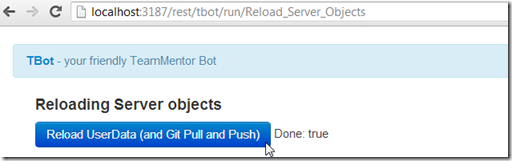
And reload the user data:
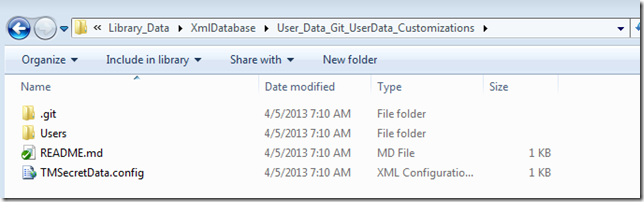
Once the reload is complete, there will be a new folder called User_Data_Git_UserData_Customizations in the local XmlDatabase folder:
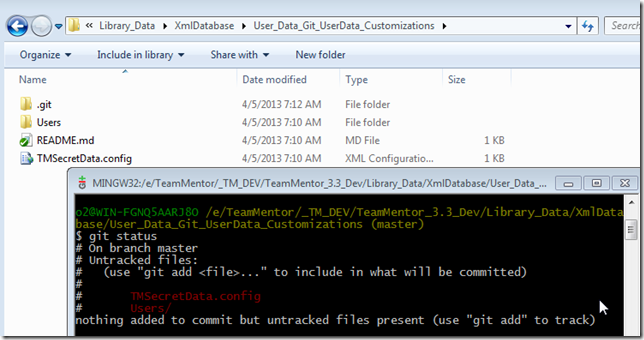
Note that if you are running TM from localhost (as in the current example) then the user data will not be auto committed (due to the dynamic nature of UserData, if GitAutoCommit was enabled it would not be possible to load userdata repositories used on live TM sites (like the multiple Site_nnn.git ones) without creating commit conflicts):
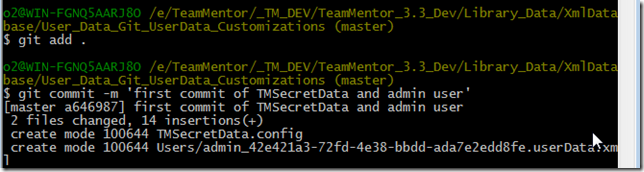
Before we move to the branches let’s commit the current TMSecretData.config and admin files:
Use Case #1: Changing version by running Customized Javascript code
The first example is going to show how to execute some Javascript in the main TM Gui from a file provided in the user data folder.
Let’s create a branch to hold the changes:

Add a folder called WebRoot_Files:
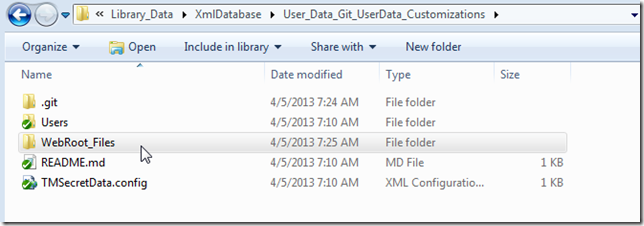
Add a folder called _Customizations (inside the WebRoot_Files)
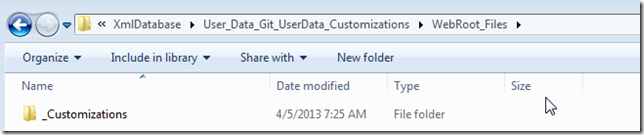
Add a JavaScript file called TM_Custom_Settings.js inside the _Customizations folder:
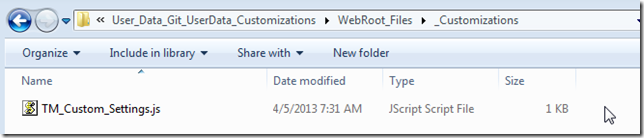
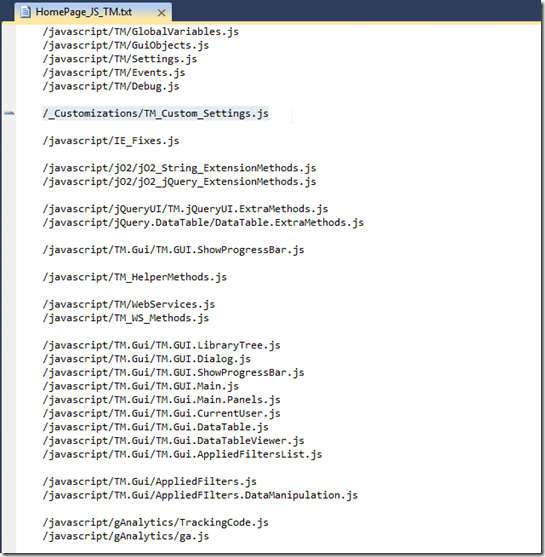
Note: the reason for this file, is that it is automatically included (if it exists) in the Javascript consolidated download that is done on the main TM GUI. Here is the mapping file that also shows the execution order of this script:
Next edit the TM_Custom_Settings.js file and use it to (for example) change the TM.tmVersion value.

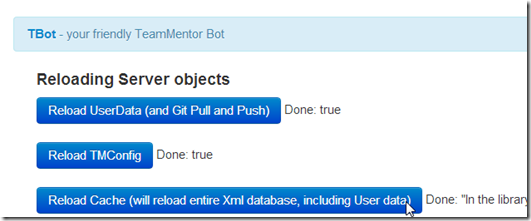
And in TBot , trigger a Cache Reload
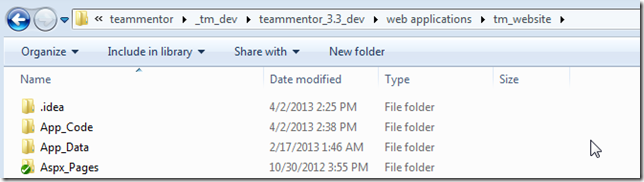
If you keep an eye in the TM_WebSite folder (the root of the TM website), you will see that it looks like this before the the Cache Reload
and like this after the Cache Reload:
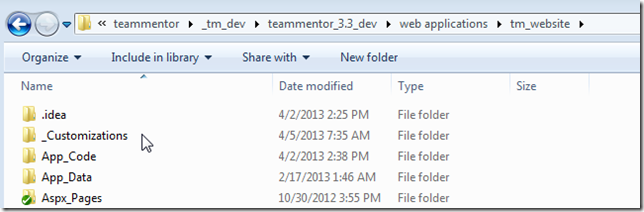
What happened is that the contents of the UserData’s WebRoot_Files was copied into TM’s web root.
Which means that the TM_Custom_Settings.js created above is now part of TM:
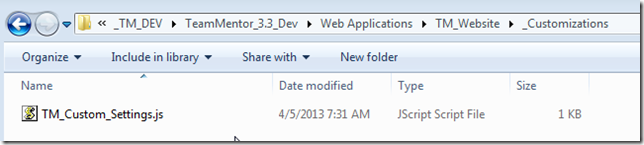
A hard refresh of the browser, will now show the customized TM.tmVersion value:
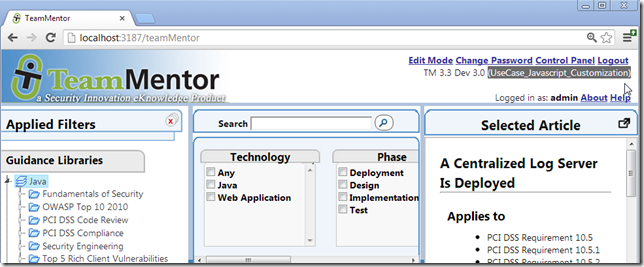
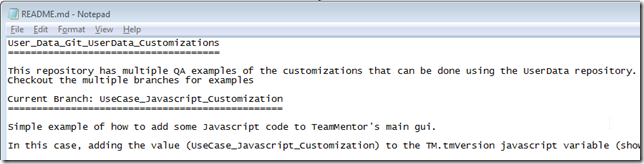
To wrap up this branch, let’s modify the README.md file:
Commit the changes:

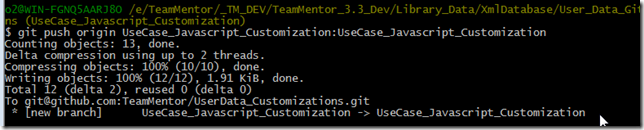
And push the branch to GitHub (note the explicit branch mapping on the git push command):
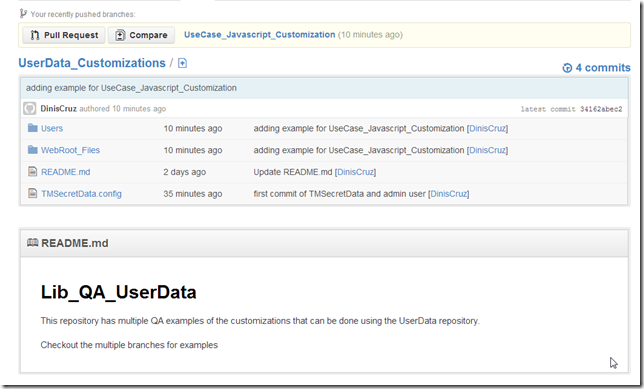
A quick look at GitHubs repo:
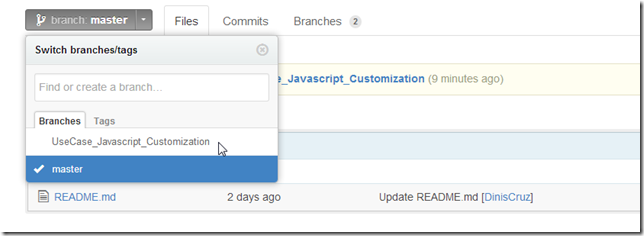
will show our branch and modified files:
Use Case #2: Setting Google Analytics (server-side) value by running Customized C# code
In this example we will set enabled and configure the Server side google analytics settings (used to provide metrics on TM usage)
Note: see the Running Customized C# code loaded from TeamMentor’s UserData repository post to understand the role of the FirstScriptToInvoke.h2 script
Let’s create a new branch called UseCase_CSharp_Customization using as a starting point the existing UseCase_Javascript_Customization

Modify the WebRoot_Files_CustomizationsTM_Custom_Settings.js file:

In the User data repository (which is checkout into the UseCase_CSharp_Customization branch), add the H2Scripts folder
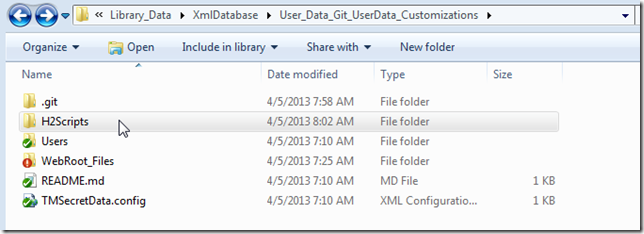
Inside that folder add the FirstScriptToInvoke.h2 file
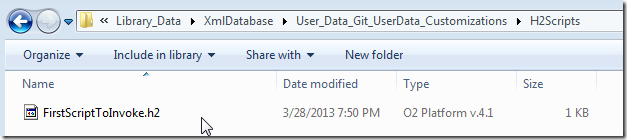
Which (as explained in this post) will be executed on startup.
Before adding code to the FirstScriptToInvoke.h2 file, its to good to test/debug that code using the TM’s CSharp REPL:
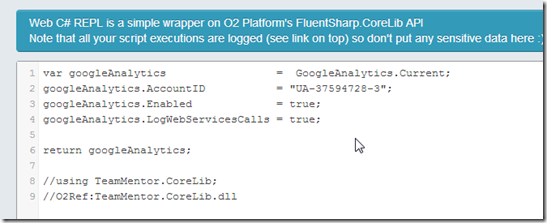
and confirm on the log viewer that Google Analytics (GA) calls are now being logged:

Once we’re happy with the C# snippet to execute, we can add it to the FirstScriptToInvoke.h2 file:
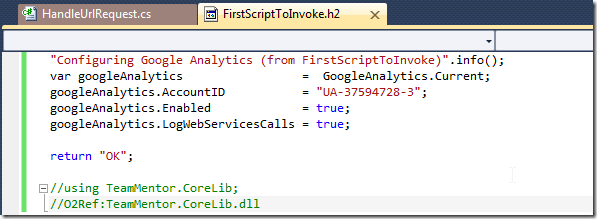
To double check that the Google Analytics (GA) settings are being configured on TM setup, I restarted Cassini, and confirmed that the log viewer shows the FirstScriptToInvoke.h2 file execution:
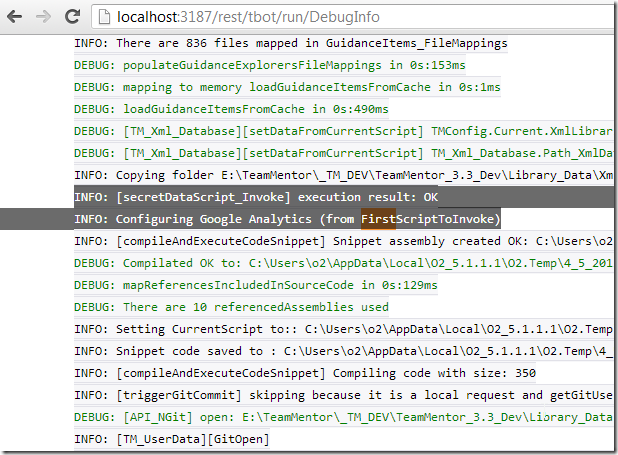
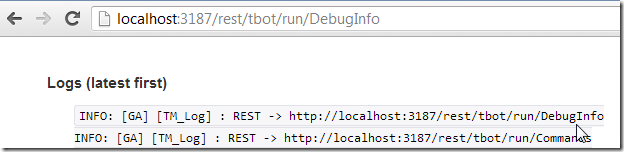
and the successful configuration/use of Google Analytics:
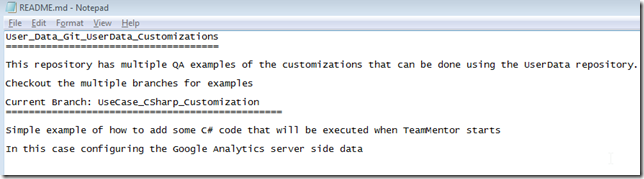
Final step is to update the README.md file
Add the files to git
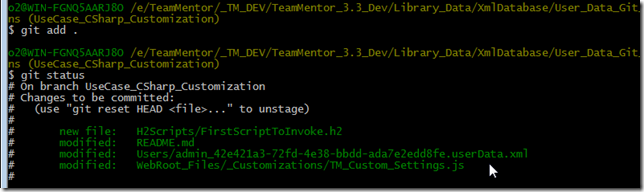
Commit the changes:

And push Commit into a new branch at GitHub:
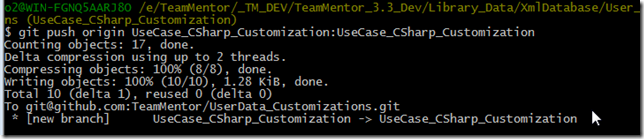
Changing a User’s ExpiryDate from GitHub hosted file
For the cases where TeamMentor UserData is loaded from a GitHub repository, it is possible to change/manage user data directly from GitHub’s web GUI (or from a local clone of that repository).
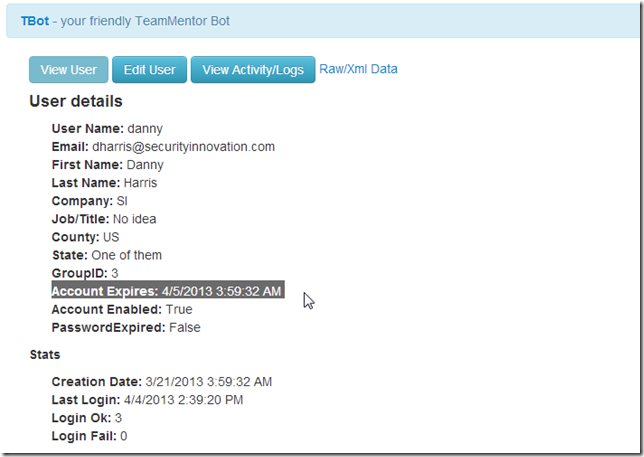
Lets take for example Danny’s account, which is expired at the moment (today is 4/10/2013):
In GitHub, this is the file that contains Danny’s user data:
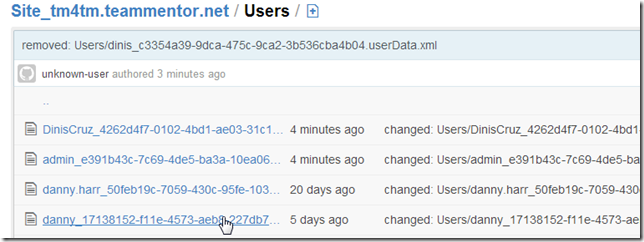
So we open and edit that file:
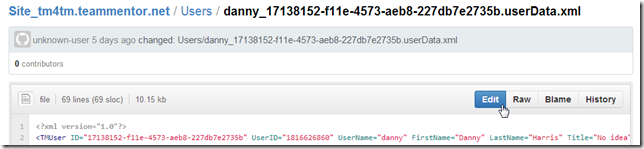
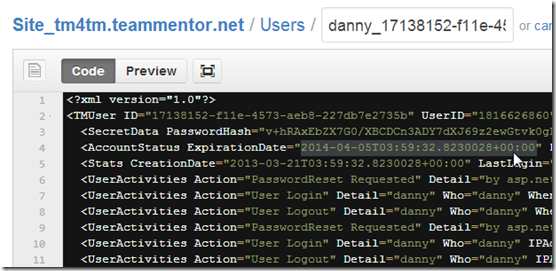
Change the ExpirationDate to a value in 2014
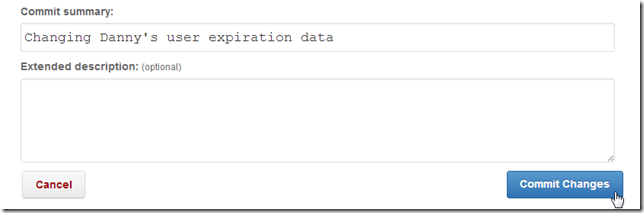
Commit the changes:
Reload the UserData:
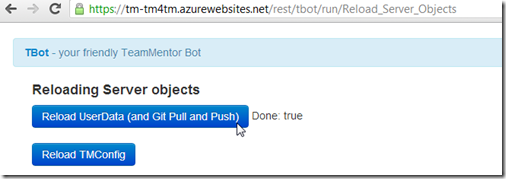
And the Danny account details at the server is now set to the new date:
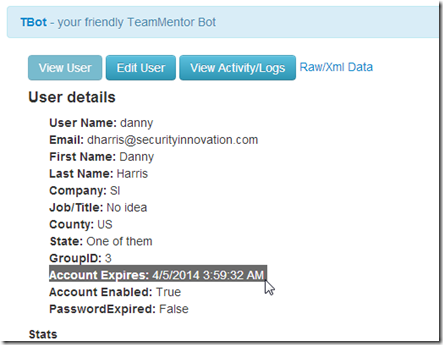
This is one of the nice side effects of having the ability to push TM’s user data into a Git repository (another advantage is that we now have fully backed-up, logged and hashed user’s change-history)
Linus gift to the world will be Git not Linux (and what about an OS built on top of an hash-driven file system?)
I know it is a big claim, but I think that Linus Torvalds will be more famous for creating Git than for this work on Linux
Linux is a great example of OpenSource development and a good OS. Its impact is mainly technical and behind the scenes.
Git is a hashed-based file system with built-it version control. Its impact is not only technical but social.
The more I use Git, the more I appreciate its beauty, simplicity and ability to scale while handling complex workflows.
See A must watch TED talk about GIT and democracy for an example of how Git can/will be used to change how information is managed in our society.
Also think about the power of having a ‘Git Powered’ OS (where all files and actions are Git controlled/tracked). We could finally get a lot of security, resilience, quality assurance and traceable from the multiple software/APIs/Apps that we use/consume.
Git also allows its technical users (like me) to be creative in finding ways to improve their productivity and workflows. See Changing a User’s ExpiryDate from GitHub hosted file or these Git, GitHub and NGit posts, for examples of the wide range of areas that I have been using git for (in TeamMentor and O2Platform development)
What the move from HTML to WikiText looks like (in GitHub)
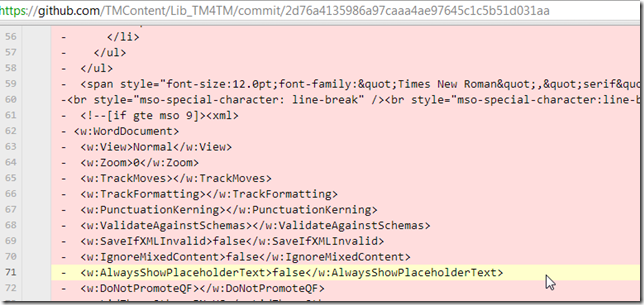
Copy and paste of HTML is such a mess (even today in 2013).
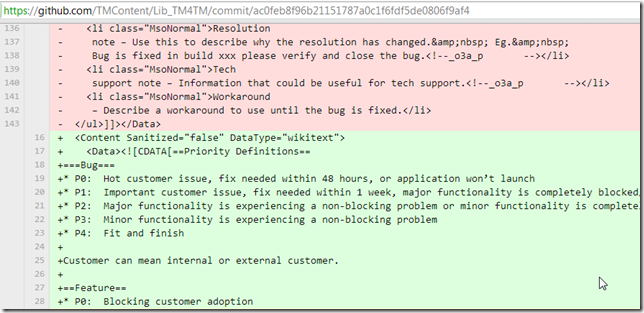
I just converted a couple (converted from Word doc) TM articles from HTML into WikiText and it is shocking the difference in the amount of code (and complexity)
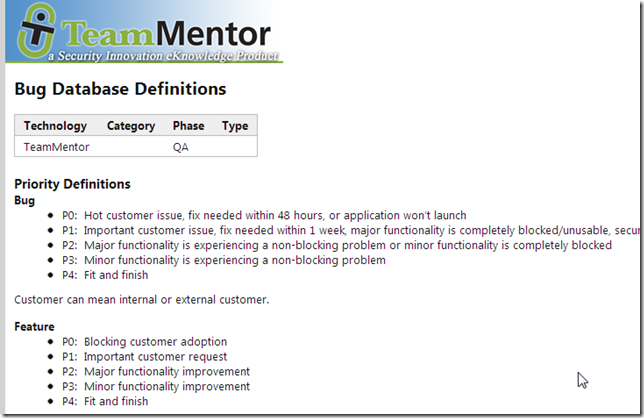
Example #1: Bug Database Definitions
Here is what the article looks like:
And here is the ‘Html to Wiki’ Commit
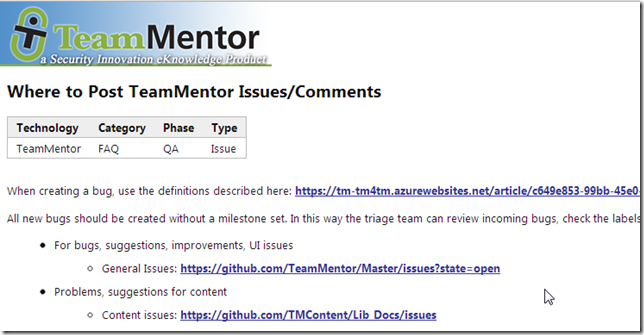
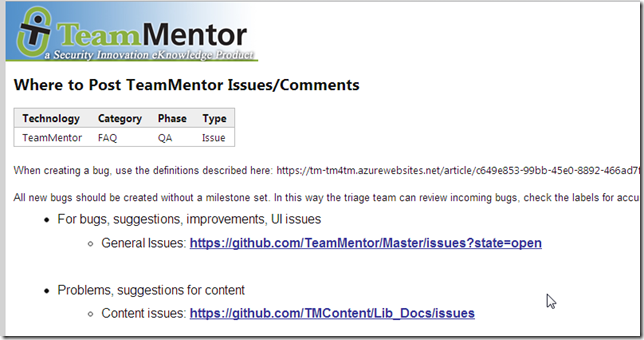
Example #2: Where to Post TeamMentor Issues/Comments
And here is the ‘Html to Wiki’ Commit
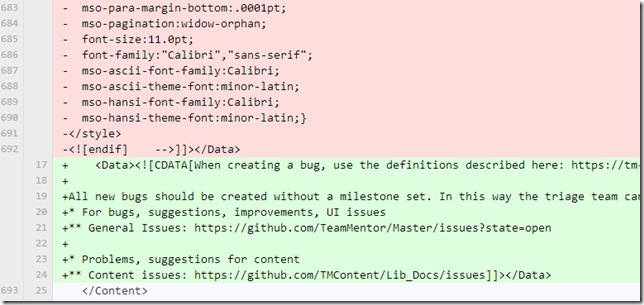
In this 2nd case, ironically the WikiText version looks better (look at the difference with the screenshot below with the above) because of the lack of HTML formatting mess:
Is Git a Single point of failure for TeamMentor?
Danny is getting into Git and just asked-me this:
“is it possible for Git to be a single point of failure for TM? If Git went down or offline, wouldn’t that be a problem?”
The short answer is “NO, in fact Git is a distributed point of success for TM”
Let’s start with the differences between Git and GitHub.
Think of Git as a ‘file-based database of multiple versions of a particular file, with one version shown in the file system’, i.e. ‘Git’ is the .git folder and a checkout version of the files (in the file system)
Think of GitHub as a ‘web based location to store and share the .git folder’
This means that a Git repository doesn’t go ‘down or offline’. A Git repository is just a .git folder, and if you wanted to remove Git **from a particular folder/repository, you could just delete that .git folder (and you would be left with the latest ‘checked-out version of the files’)
In terms of GitHub going down, there are two main scenarios:
1) GitHub loses the .git folders that it hosts (i.e. it loses the git repositories) - this would be a pain, but as long as there is one clone of those repositories, there shouldn’t be much/anything lost. This is why I say that ‘Git has distributed points of success’, basically, every clone or fork that exists, is in effect a backup of the code (there are a couple things like remote information that is not cloned, but those are minor)
2) GitHub.com is down - the impact will depend on how long this happens, at the moment we do use GitHub as a central way to distribute and publish source code between TM devs and servers, so if GitHub is down (more specifically, GitHub’s Git hosting service, not the GitHub.com website), then we can’t push the commits made (note that the devs can still work on the local git clones, and TeamMentor users can still edit Git based Libraries). Even in the case where GitHub is down for a significant time, there are easy solutions to implement (specially when you compare with the fact that if GMail, Google or Twitter goes down, there is nothing we can’t do). Part of the power of Git is that all commits are tied to its Hash, which means that while GitHub is down, we could host our own git server (see here how I did it using apache) or push commits directly to Azure (which can also act as a Git Server). Then once GitHub is back online all we need to do is to push the commits to it.
The other scenario that could happen on GitHub is that those repositories are maliciously manipulated (lets say by an internal attack that is able to add extra commits). But since of the key advantages of Git is that it is a DRCS (Distributed Revision Control System) and the entire version history is present on all clones/forks, in practice, the next ‘real’ commit would fail, which should raise the alarm (i.e. that developer would need to do a git pull before it could push the code)
The way I look at Git is that it creates a ‘virtual file system, fully hashed and with version control’, which you can read more about in the post: Linus gift to the world will be Git not Linux (and what about an OS built on top of an hash-driven file system?)
Setting up Ian’s CI Development Environment (for TeamMentor)
Now that Ian (and Kofi) have pushed a couple commits (to his fork of TeamMentor) its time to set-up Ian’s CI dev environment, so that his commits can be automatically tested and viewed on a live instance of TeamMentor.
First think to do is to go to Azure and create a website to hold Ian’s Fork

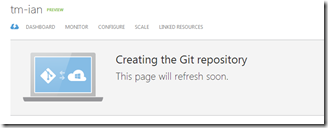
Which is going to be http://tm-ian.azurewebsites.net/
See the post Creating a new TeamMentor test site using TeamCity, GitHub and Azure for more details about how TeamCity is usually configured. The only major change for Ian’s version, is that TeamCity is going to track the ‘azure’ branch (vs the master branch)
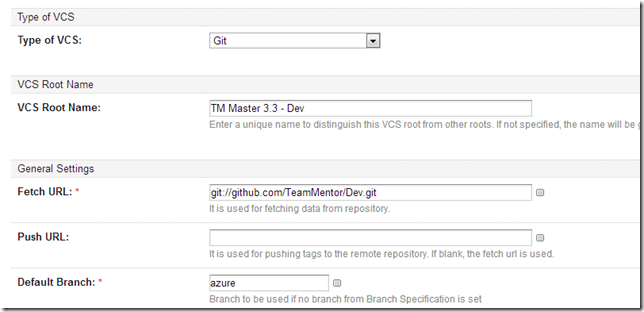
(See my next post for more details on how this azure branch was created)
Once TM is set-up and this TeamCity build is ‘Run’ , the Azure site goes from:
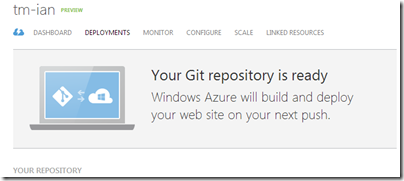
to:
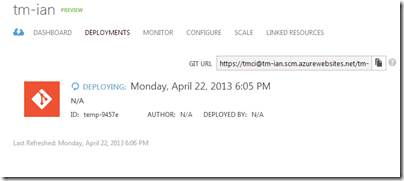
to:
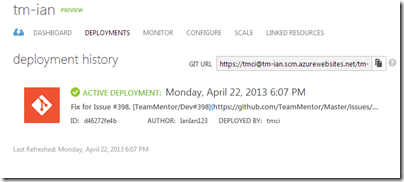
And when completed we will have a clean TM site based on Ian’s repository (azure branch):
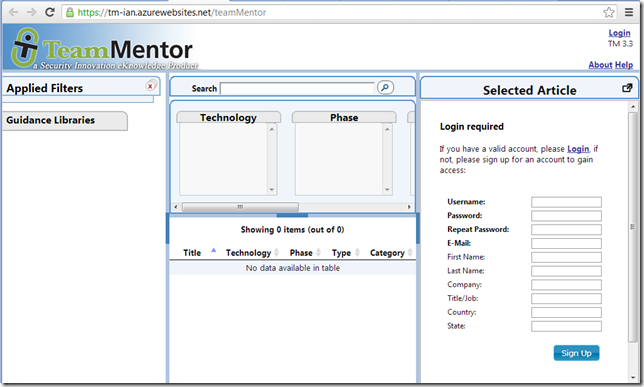
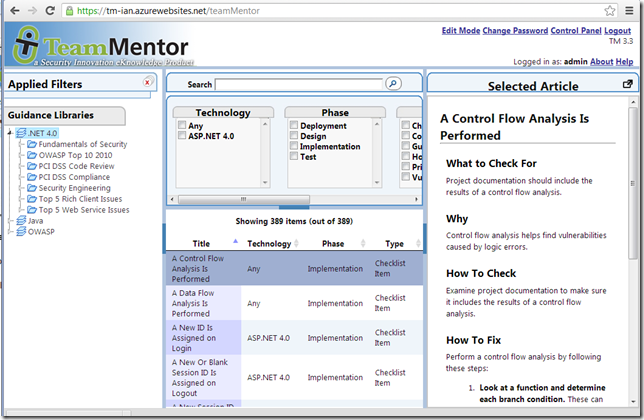
Finally, so that Ian has some data to play with, I logged in as admin and quickly added a couple libraries:
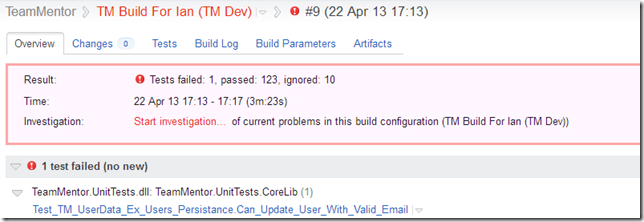
Running NUnit tests in TeamCity:
I also configured TeamCity to run the NUnit UnitTests from Ian’s solution.
And in this case there is 1 test that fails:
which is also failing locally (i.e. in VisualStudio):
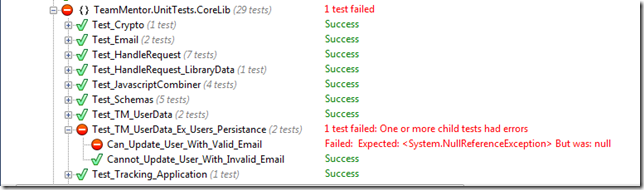
Which means that there is a side effect of one of Ian’s code changes (which he will need to fix on his repo :) )
Confirming Git to TeamCity to Azure
To double check that the workflow is working ok, let’s make a file change:
In the TM Website Settings,js file:
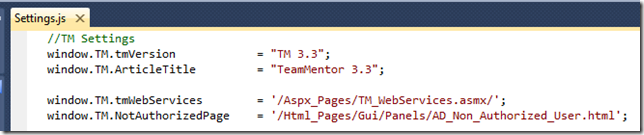
lets append Ian’s name to the build version:
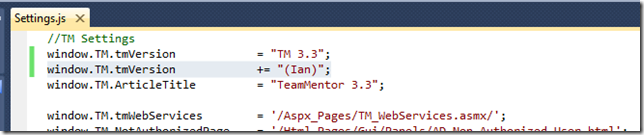
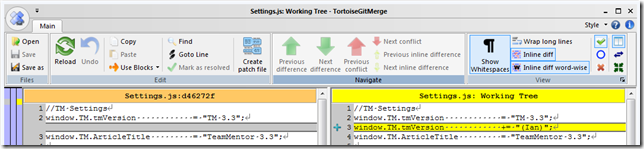
This change is picked up by Git:
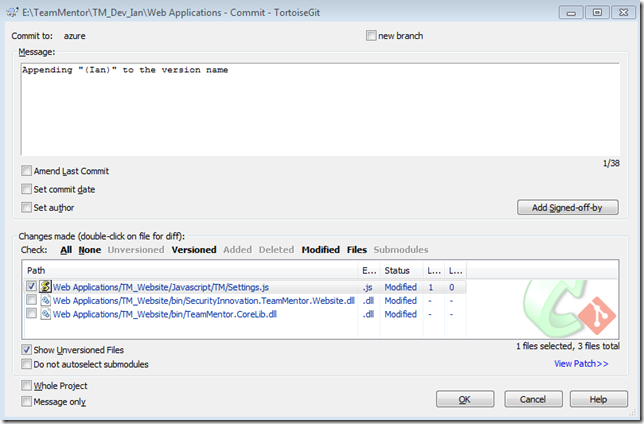
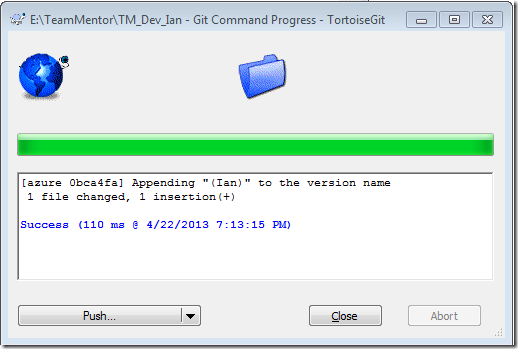
Where we can commit it locally (note the ‘azure’ branch)
and Push it to GitHub:
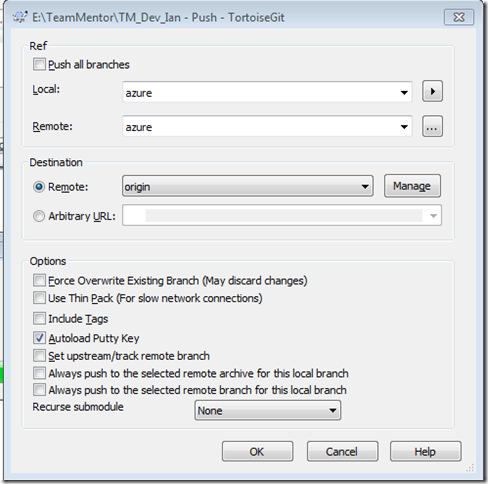
Making sure both local and remote branches are azure:
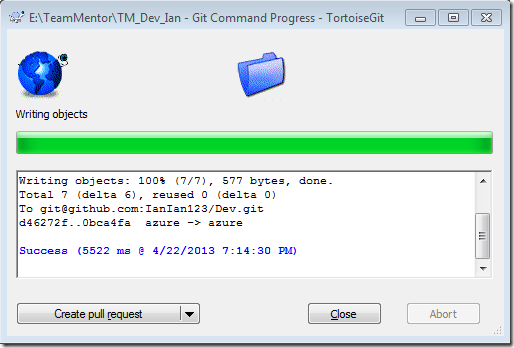
After the push is done:
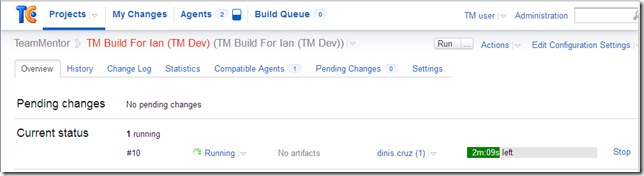
TeamCity with trigger the build (TeamCity checks for new GitHub commits every 60sec):
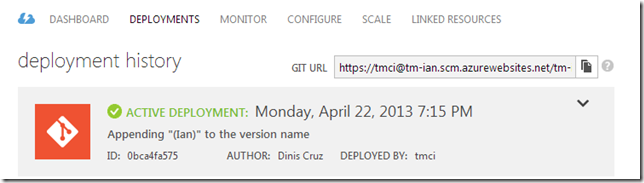
Azure will be pushed the new version (which is fast):
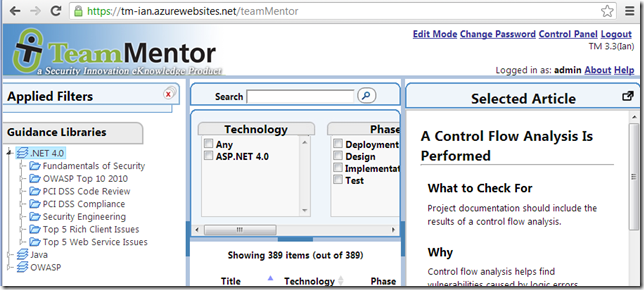
A refresh of the https://tm-ian.azurewebsites.net site confirms the change (notice the ‘Ian’ next to the version):
Re-deploying a previous ‘Azure deployed’ version.
Note that it is also possible to go back a couple deployed versions in Azure. Just select the deployment and click on ‘REDEPLOY’
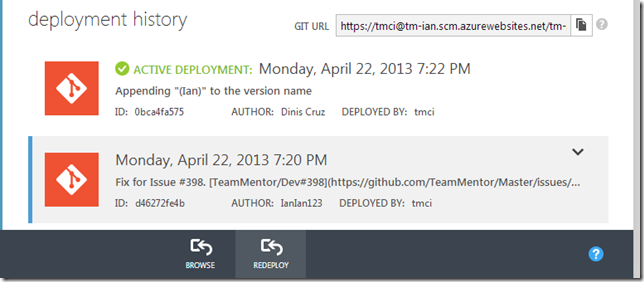
Which will change the active deployment: