11. October 2013
- Fixing the Merge conflict caused by one extra commit on TeamMentor master
- Enabling GitHub Two Factor Authentication
- Syncing all releases to the same commit and Tag (for TeamMentor v3.4)
Fixing the Merge conflict caused by one extra commit on TeamMentor master
On the 3.4 Release of TeamMentor (which was the first release we really used Git Flow on development (see this great presentation on Git Branching Model) we ended up with a situation where the commit that was the parent of all feature/fix branches was off-by-one the master of the TeamMentor/Master repository (we also had to do a bunch of back-porting of fixes into that commit, see Git Flow - Moving patches from one Commit into another Commit post)
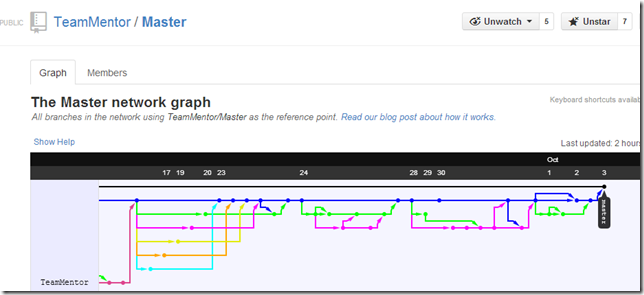
In practice this means that the TeamMentor/Master graph currently looks like this:
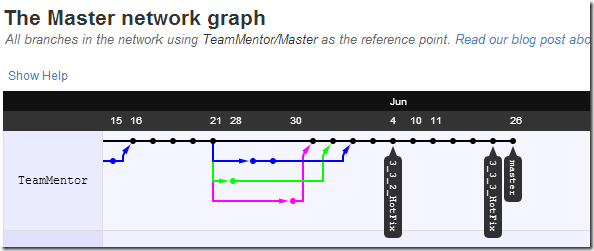
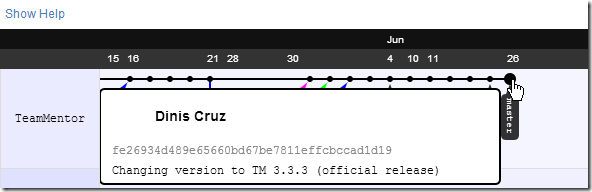
… with the master branch on the commit fe26934d489e65660bd67be7811effcbccad1d19
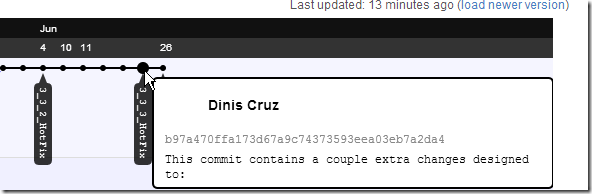
.. .and the 3_3_3_Hotfix branch on commit b97a470ffa173d67a9c74373593eea03eb7a2da4
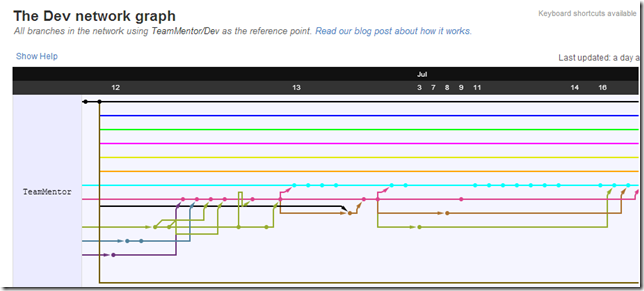
But looking at the TeamMentor/Dev Graph
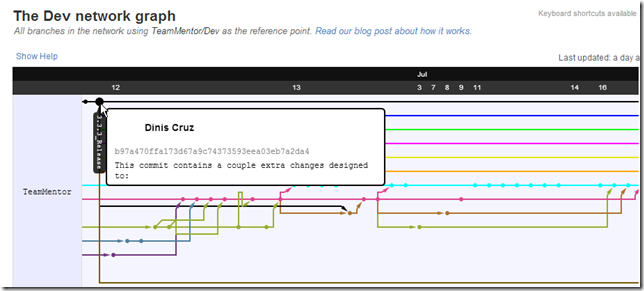
…we can see that all commits (done on ‘one branch per issue’ workflow) have the b97a470ffa173d67a9c74373593eea03eb7a2da4 commit as its parent (see image above and below)
In practice this means that the final 3.4 release commit from the TeamMentor/Dev repo
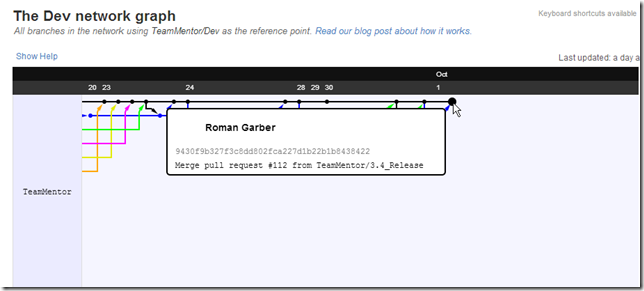
… is incompatible with the TeamMentor/Master repo (note that these could be branches of the same repo, but I like the use of separate repositories, since they provide a nice air-gap between development and production repositories)
Actually in principle they could be merged automatically if there was no conflicts!
But if we look at that extra commit from TeamMentor/Master repo (the fe26934d489e65660bd67be7811effcbccad1d19 one)
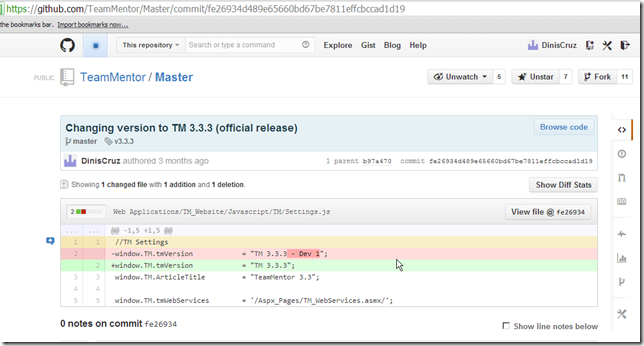
… we see that the change was made on the version number (which in the 3.4 release will now say 3.4)
Note that GitHub will not allow a Pull Request to be made in cases like this, since GitHub has no online merge capabilities.
Ok, so how do we solve this?
The solution is to:
- create a local branch pointing to b97a470ffa173d67a9c74373593eea03eb7a2da4
- do a pull from TeamMentor/Master to get the fe26934d489e65660bd67be7811effcbccad1d19 commit
- merge the current 3.4 code into fe26934d489e65660bd67be7811effcbccad1d19 (which will cause a conflict)
- solve the conflict,
- commit the result
- push to GitHub into a new branch (called 3.4_Merge)
- do a pull request (from 3.4_Merge into master)
In a local clone of TeamMentor/Dev we start by to create a branch that is pointing to b97a470ffa173d67a9c74373593eea03eb7a2da4
This can be done using the command: $ git checkout b97a470ffa173d67a9c74373593eea03eb7a2da4
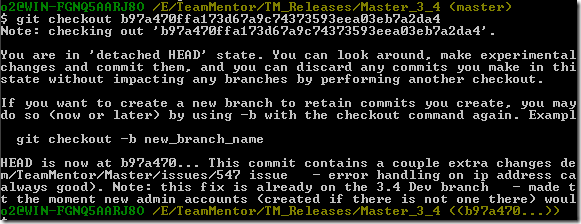
Followed by (as the help says) with: $ git checkout -b 3.4_Merge

Next we do a pull from TeamMentor/Master using $ git pull git@github.com:TeamMentor/Master.git master:3.4_Merge

The command above is basically saying:
Go to the git@github.com:TeamMentor/Master.git repo and merge/add the commits from its master branch into the local 3.4_Merge branch
Note how the line _b97a470..fe26934 master -> 3.4_Merge _(from screenshot above) shows how we went form the b97a470ffa173d67a9c74373593eea03eb7a2da4 commit to the **fe26934d489e65660bd67be7811effcbccad1d19 **commit
Next we merge into the 3.4_Merge branch, the contents of the master branch (which contains the 3.4 code) using: $ git merge master

…. which predictably failed with a conflict on Settings.js
Solving git conflicts
My preferred UI to solve conflicts is the one provided by TortoiseGit, which you can access from here:
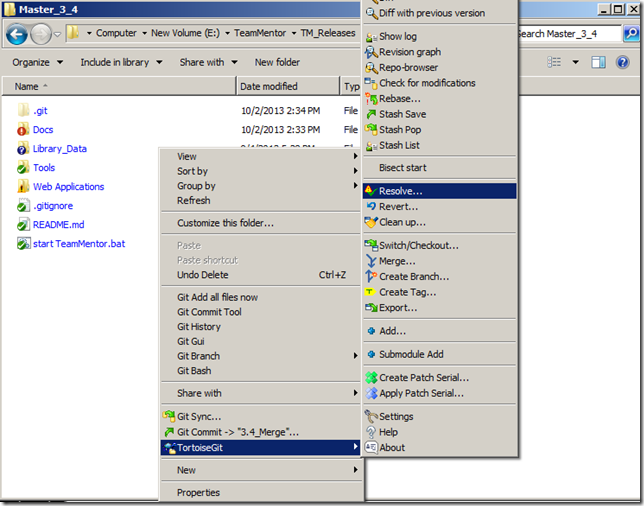
… them on the popup window that shows up, double click on the conflicted file:
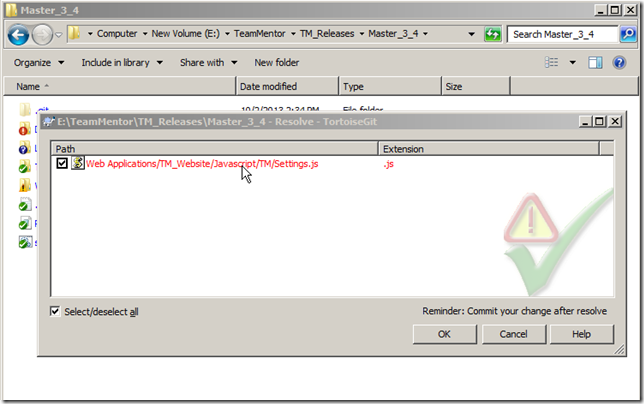
… and on the TortoiseMerge GUI :
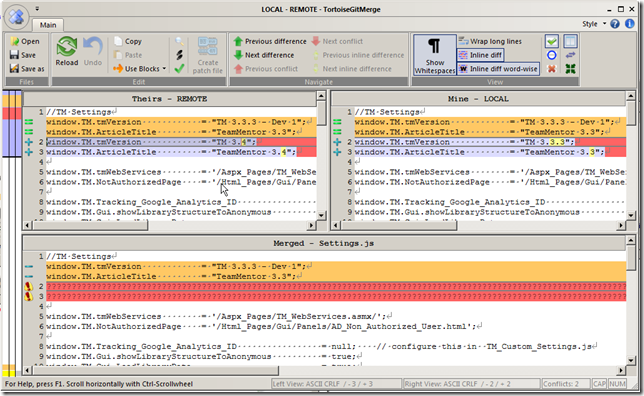
… chose the option to Use ‘theirs’ text block
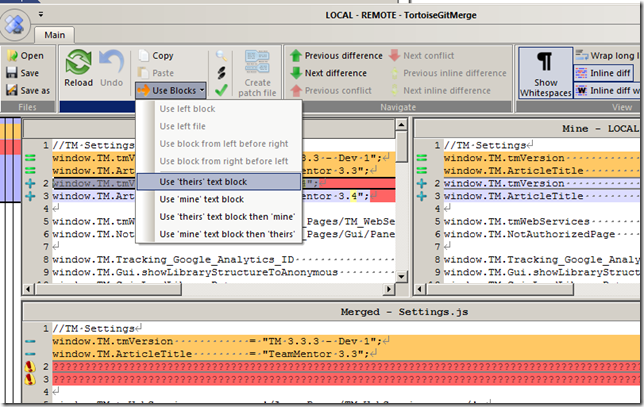
… which will update the bottom pane with the fixed version of Settings.js (in this case with no changes from before)
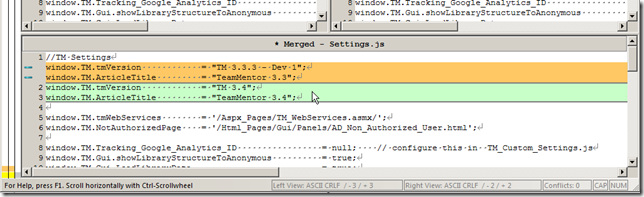
Save the changes and chose yes to mark the file as resolved:
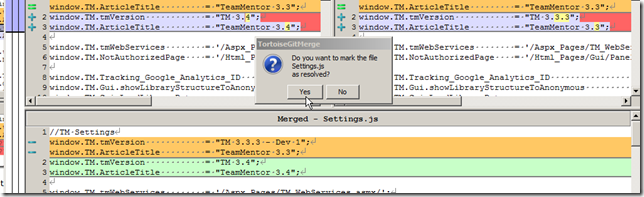
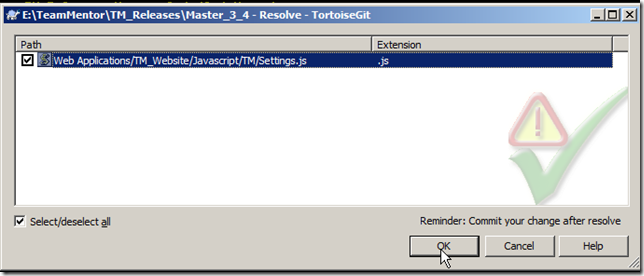
Close the TortoiseMerge and (since there is no other conflicts) click OK on the Resolve GUI
… another OK:
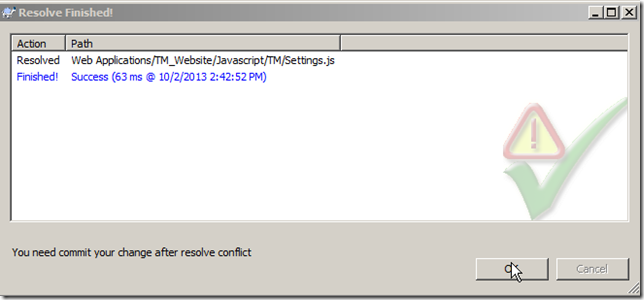
As the multiple ‘notes’ in the previous UIs mention, we need to commit the changes.
This commit will contain all changes including the conflict fixes
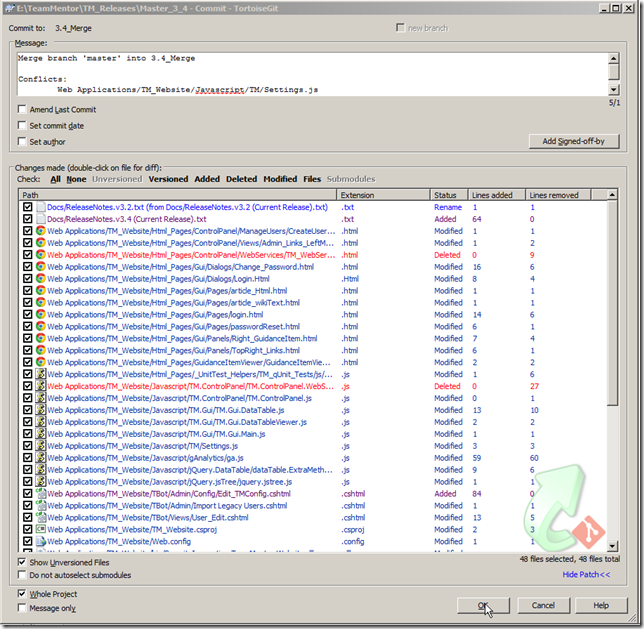
Once the commit is done:
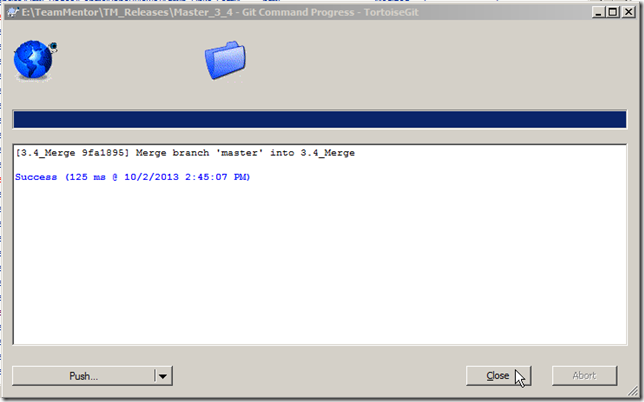
Go back to the Git Bash and push this branch into TeamMentor/Master (I prefer to do these things on a Git Bash)

After the push, this is what the TeamMentor/Master graph looks like:
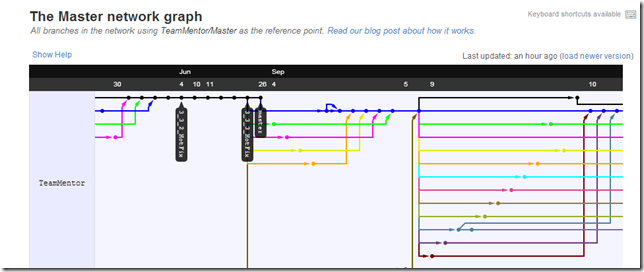
…with the 3.4 code now being there:
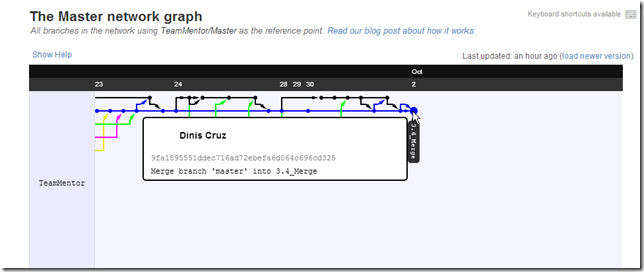
Finally, what we can do now is to issue a Pull Request:
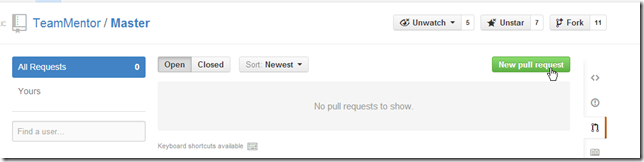
… from the_ 3.4_Merge_ branch:
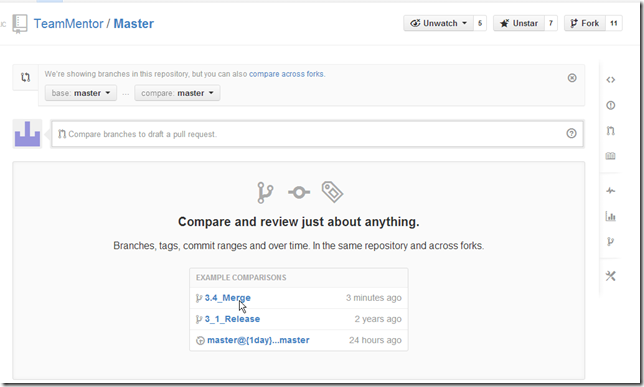
… into the master branch:
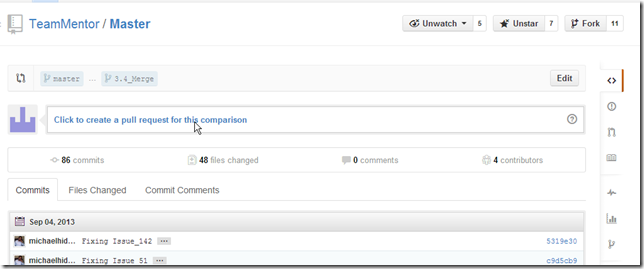
… which contain all the code changes since the 3.3.3 release
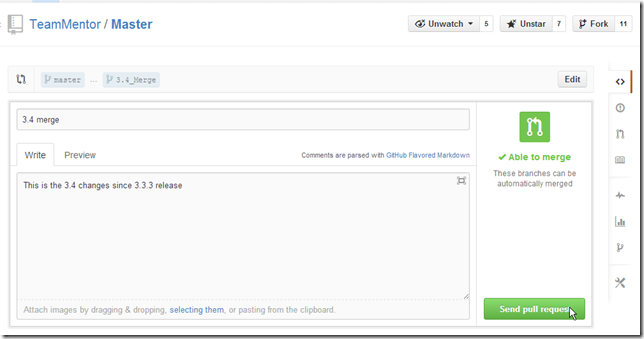
With the best part being that this Pull Request can be merged using GitHub’s UI (since there are no conflicts)
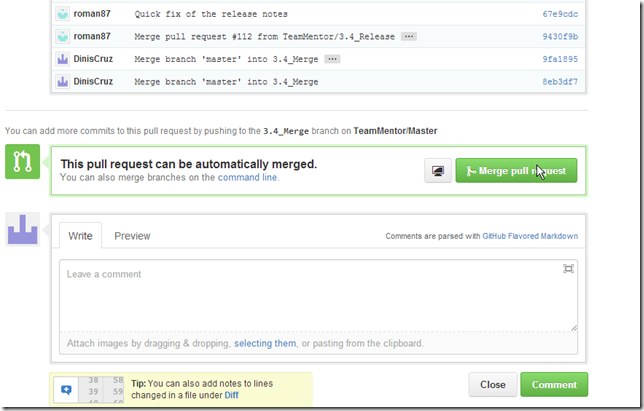
And that’s it!
Hopefully this provided a good example of how to use Git and TortoiseGit to easily merge commits and resolve any resulting conflicts.
Tip: How to delete branches in GitHub:
To delete a branch in Github, we do a push from an ‘empty branch’ into an ‘existing branch’
In this case, if I wanted to delete the 3.4_Merge branch at the TeamMentor/Master repository, I would use: $ git push git@github.com:TeamMentor/Master.git :3.4_Merge

Enabling GitHub Two Factor Authentication
Inspired by Google’s Two Factor Authentication workflow, last month GitHub did the same thing.
I just enabled it, and I strongly recommend that you do it to.
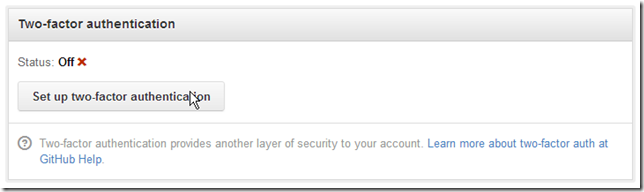
As per the instructions in GitHub’s Two-factor Authentication post, the first step is to go to https://github.com/settings/admin and click on the Set up two-factor authentication’ button:
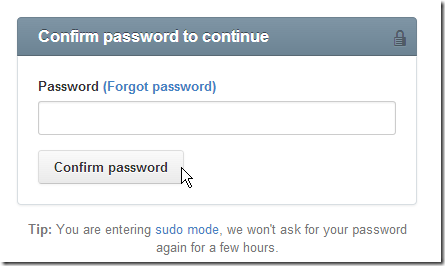
… which requires the current password to be entered:
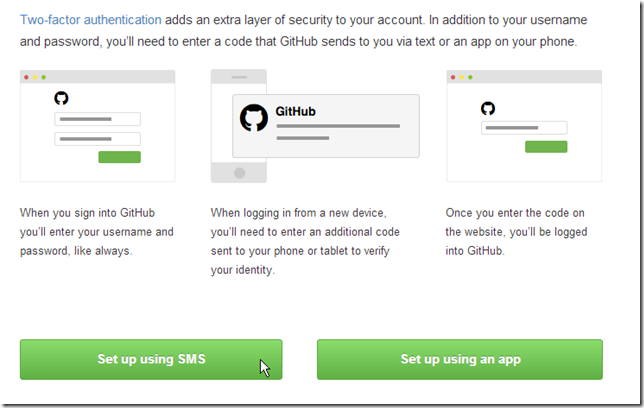
In this case I’m going to use SMS:
Next we enter the phone number and click on Send code:
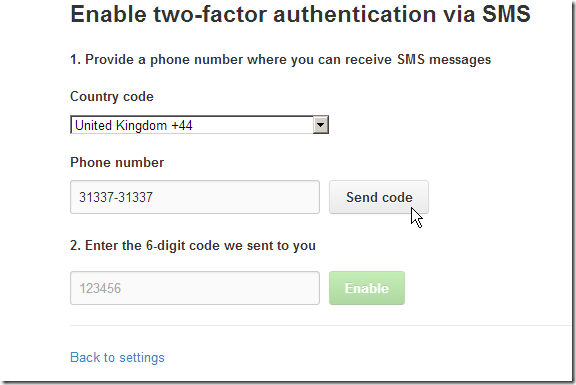
… enter the number received by SMS and click Enable

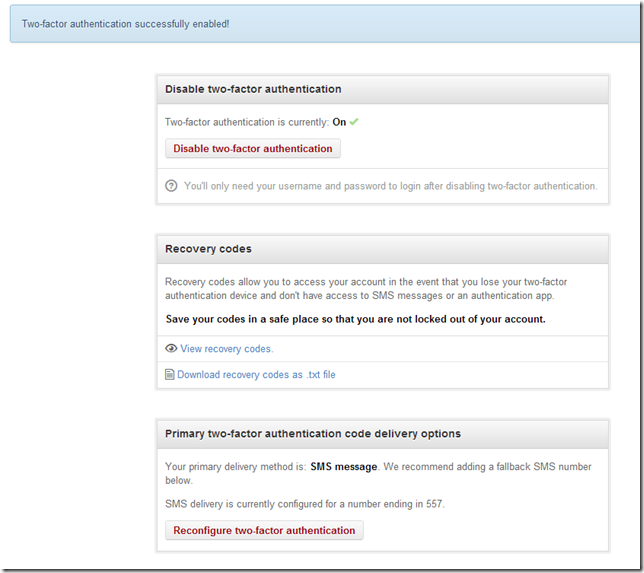
And that’s it, two-factor authentication is now enabled:
Creating Tokens to access repos (instead of pwds)
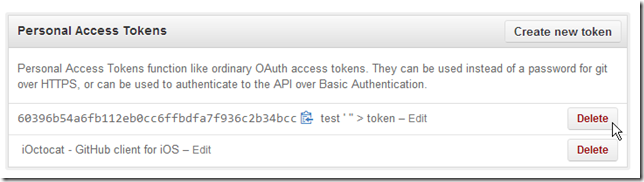
Also great from a security point of view, is that it is also possible to create ‘login tokens’ for Https logins.
This is done one the Applications Settings page:
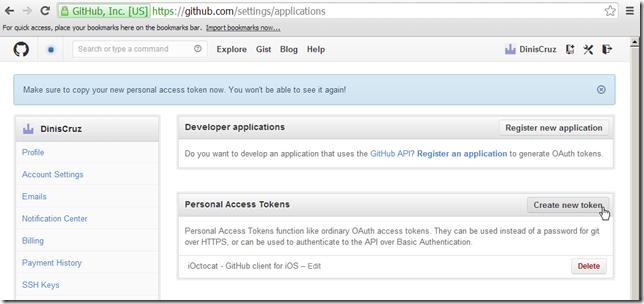
… where new tokens can be created:
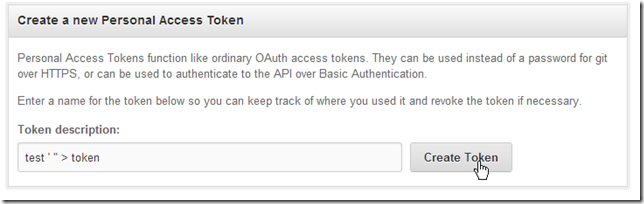
… which can now be used instead of passwords (with the great advantage of being revocable and assignable for a particular use (lets say a particular deployment or app))
I really like this functionality, and hope to eventually add something similar to TeamMentor
Syncing all releases to the same commit and Tag (for TeamMentor v3.4)
This is a bit of house keeping, as you can see by the Fixing the Merge conflict caused by one extra commit on TeamMentor master and Git Flow - Moving patches from one Commit into another Commit posts, not doing this has already cause us some pain in the past.
So after some pushes and pulls (of both commits and tags) I now have the main TeamMentor repos all synchronized at the 72ca4b5d3322901266ca294678cbe15aa343a4b3 commit:
TeamMentor/Release - now the new official home for TeamMentor releases (i.e. the ‘production code’)
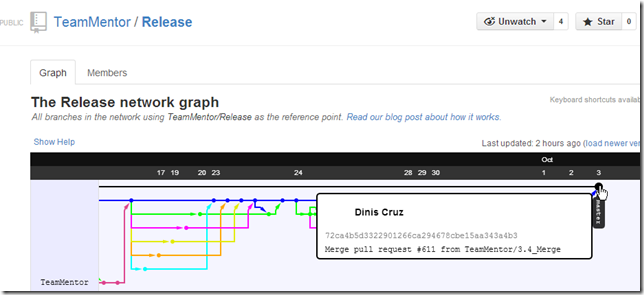
TeamMentor/Master – the old TeamMentor official repo (and updated to help migrations into 3.4)
TeamMentor/Dev #1 (before merge 3.5_Release and 3.6_Release merges) – this is the main development clone/fork
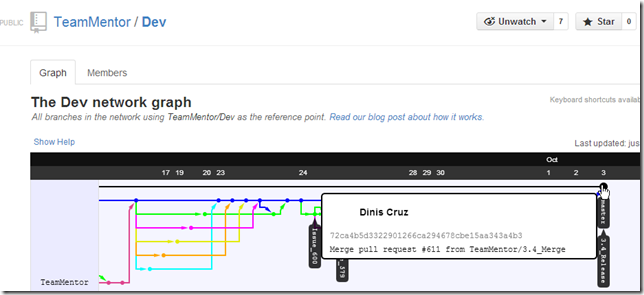
TeamMentor/Dev #2 (after merge 3.5_Release and 3.6_Release merges) – note how 3.5 is currently at the same level as 3.4 (see Appendix 1 and Append 2 for how this was done, and how the merge conflicts were resolved)
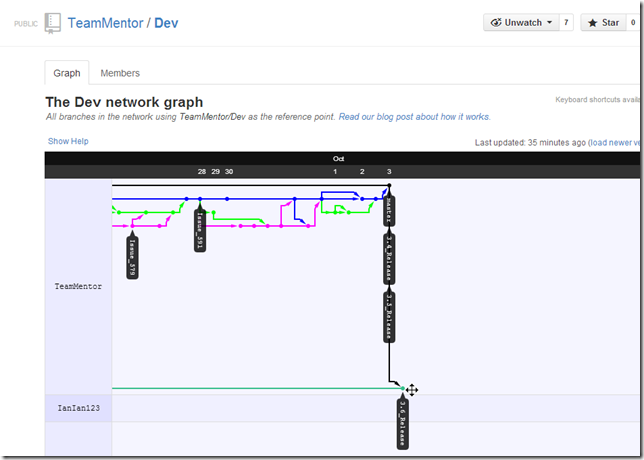
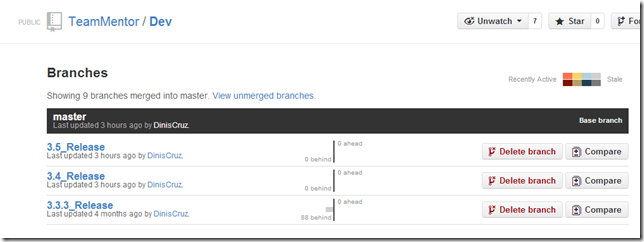
This can be further confirmed by GitHub’s Branches view, where the 3.5_Release and 3_4_Release branches are synced with master:
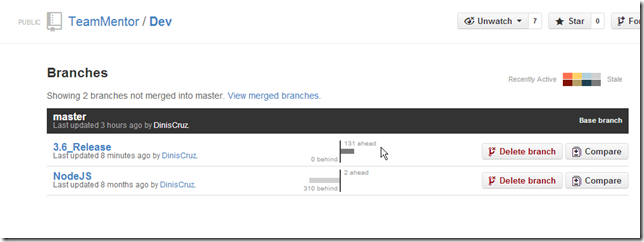
… and the 3.6_Release branch is already 131 commits ahead of master (and 3.4_Release and 3.5_Release)
Updating the tags/Releases
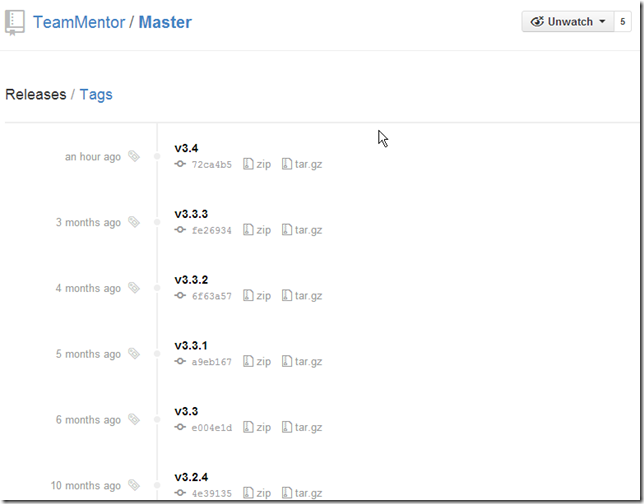
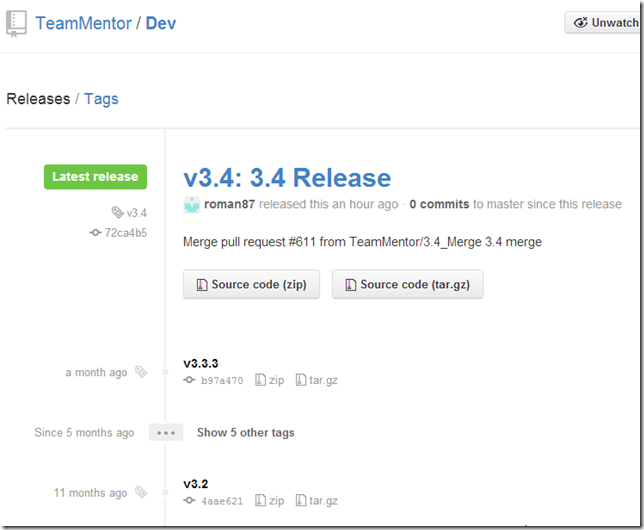
I also updated the tags of 3 repos (Release, Master, Dev).
NOTE:** I had to force the update of the tags**, since there was already an v3.4 tag in there (I’m not 100% sure of the side effects of this, but I’m sure I’ll soon find out :) )
Release repo (new production release): https://github.com/TeamMentor/Release/releases
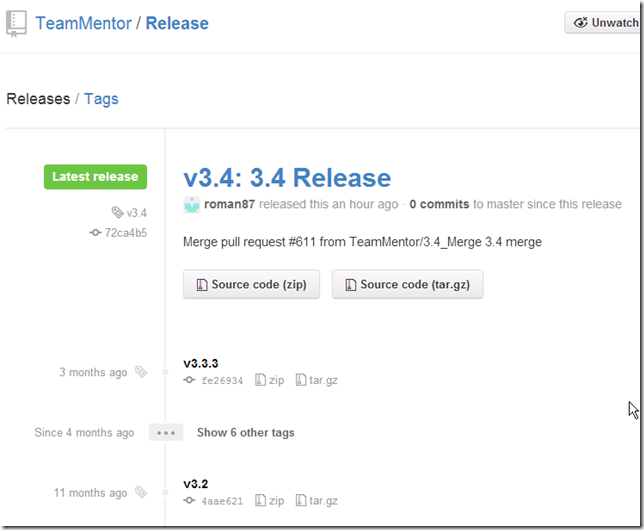
Master repo (legacy/previous production release) https://github.com/TeamMentor/Master/releases (note sure why the GitHub’s layout of this one is different)
Dev repo: https://github.com/TeamMentor/Dev/releases
Appendix 1: Updating 3.5 Release branch
This one was easy since the 3.5_Release branch was already synced with an earlier version of the 3.4_Release branch:
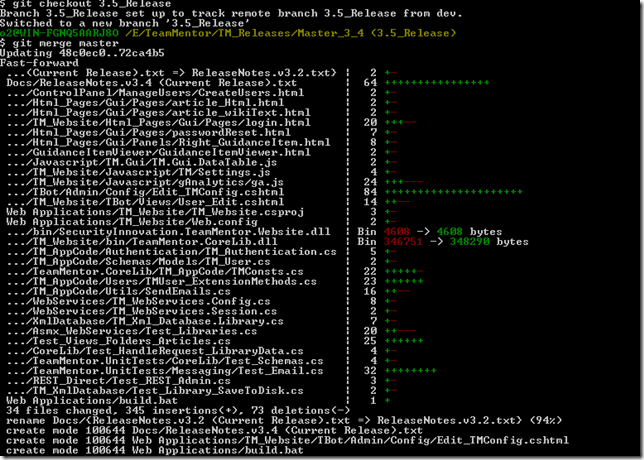
The push also confirms that this branch is at 72ca4b5d3322901266ca294678cbe15aa343a4b3

Appendix 2: Updating 3.6 Release branch
Merging the 3.4_Release into 3.6_Release was a bit more problematic due to the number of changes/fixes already done on 3.6 and the backporting of some fixes to 3.4.
After the merge failed, here are the conflicts that needed to be solved:
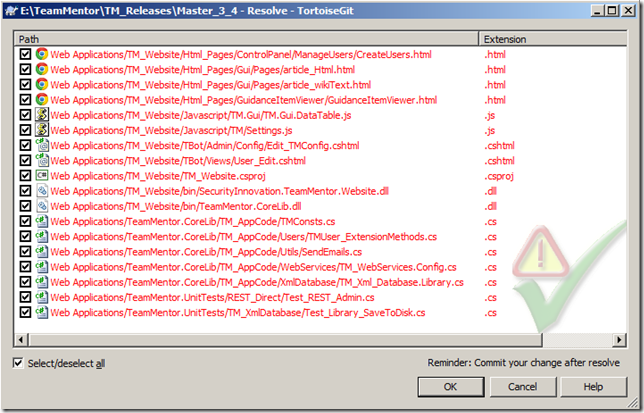
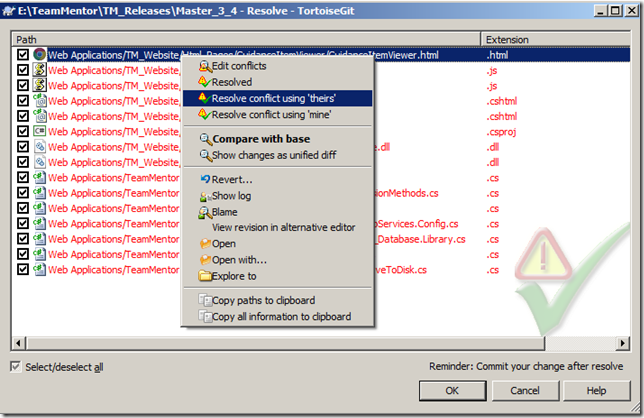
… with some resolved using the ‘theirs’ strategy
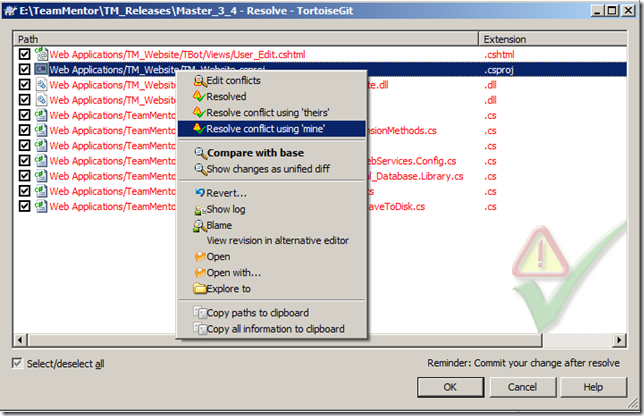
… a few using the ‘mine’ strategy
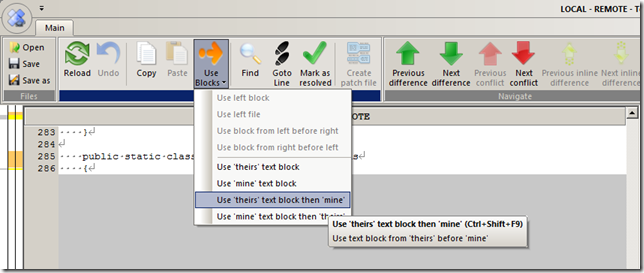
… and a couple using the ‘theirs first then mine’ strategy (which I expect that will need further fixing in VisualStudio
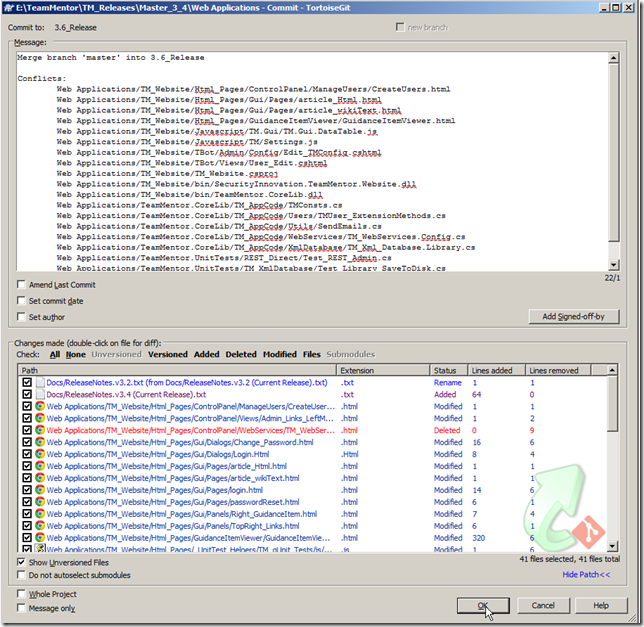
Finally here is the commit that applies all 3.4 changes to 3.6 (including the merge fixes)
… and the respective push:
