3. December 2012
- Comparing two GitHub Issues List
- Using TeamCity to build on Git Commit, deploy to AppHarbor and open browser
- Minimum required files to run git.exe on windows (for clone, push and pull)
- Rewriting Git History (locally and at GitHub)
Comparing two GitHub Issues List
Is there a way to compare two GitHub Issues lists?
What I need is a programatic way to compare the items that exist in two GitHub repositories (repo A and repo B), do a diff, and list the ones that don’t exist in repo B (i.e. which ones were not copied from repo A to repo B)
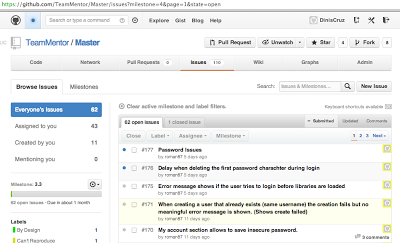
Recently we moved the TeamMentor issues/bug list into the public repository: https://github.com/TeamMentor/Master/issues
Before (when started to use GitHub for TeamMentor development) we used the private repository https://github.com/DinisCruz/TeamMentor-v3.0/issues
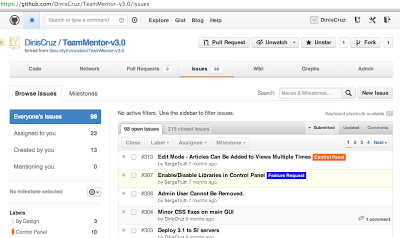
When we did the switch, we manually moved a number of issues into the new public repository, but I want to make sure we don’t lose anything (since these issue’s list are also our brain-dump of ideas for future releases)
So, any tools or services that currently do this?
Using TeamCity to build on Git Commit, deploy to AppHarbor and open browser
I just gave TeamCity a test drive and I really LIKED it :)

After using it for a bit, I was able to create a really nice CI that:
- Monitors the local file system for a Git Commit (of TeamMentor)
- On Git Commit, trigger a build (of the main VisualStudio 2010 project)
- If the build is OK, trigger a git push into AppHarbor
- Open a WebBrowser with the AppHarbor site
All automated from the moment there is a commit :)
Let’s see this in action
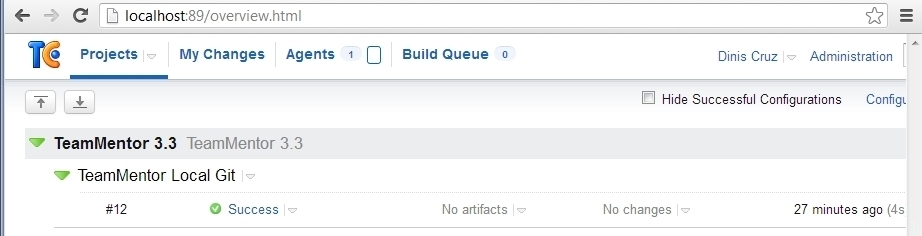
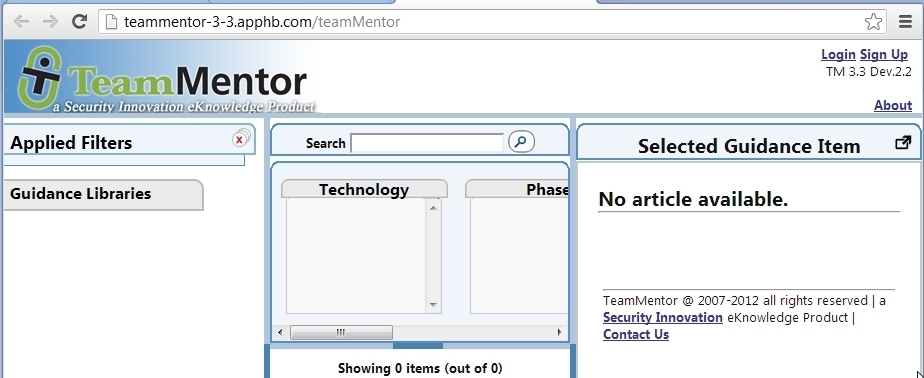
It all starts with a deployed instance of TeamMentor at version Dev.2.1 (see top right)
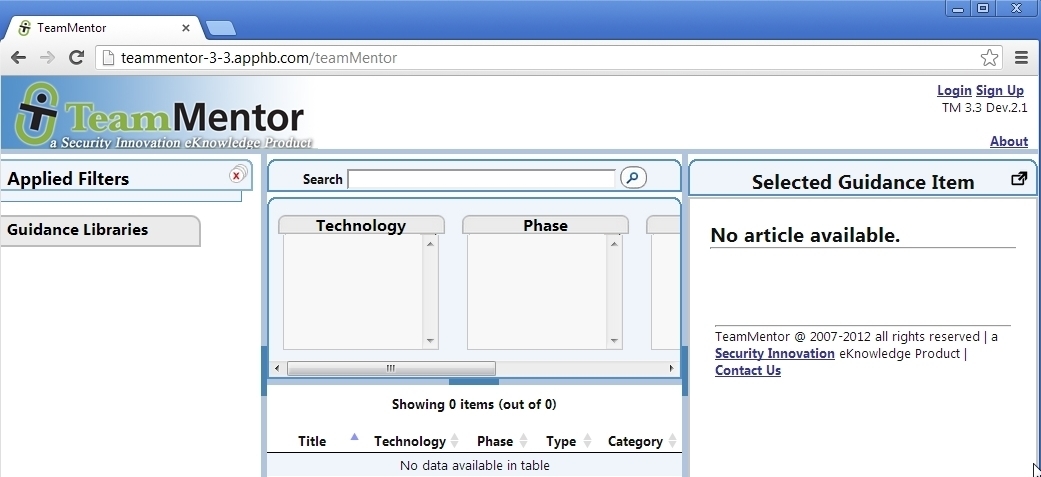
With TeamCity running locally on my box (as a service) keeping an eye on the local git repository
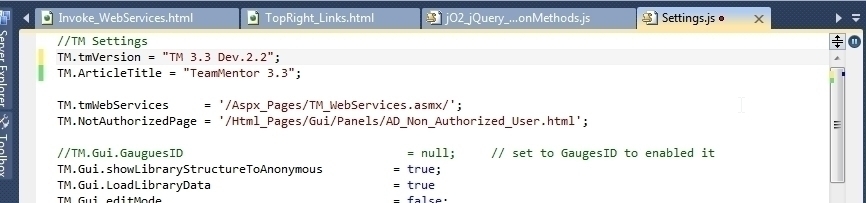
In VisualStudio, lets make a simple change (bumping the version to Dev.2.2)
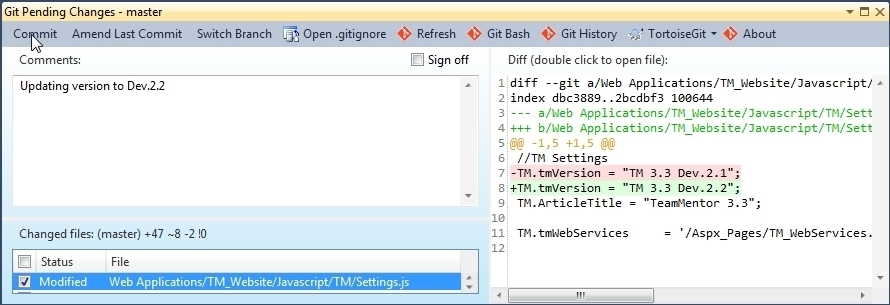
Using Git Source Control Provider VisualStudio Extension, create a Commit
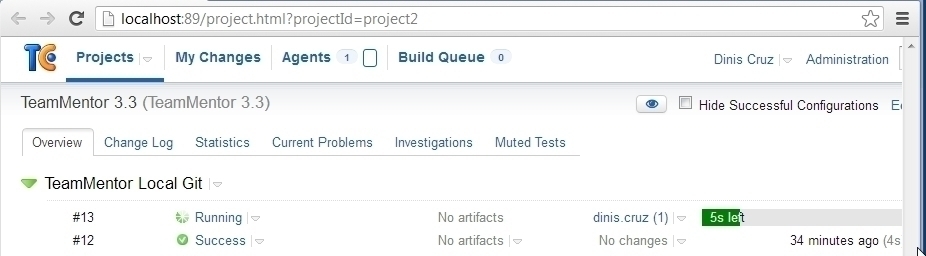
Which (after about 10 to 20 secs) is picked up by TeamCity
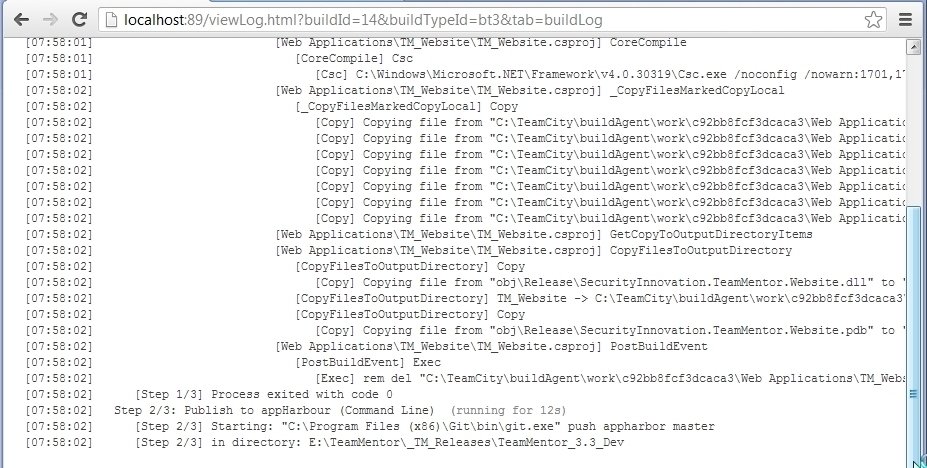
The ‘build logs’ update in real-time, and provide a lot of good info:
After the build completes, and the AppHarbor push is done, the target website will be opened: (notice that it is now on version Dev.2.2)
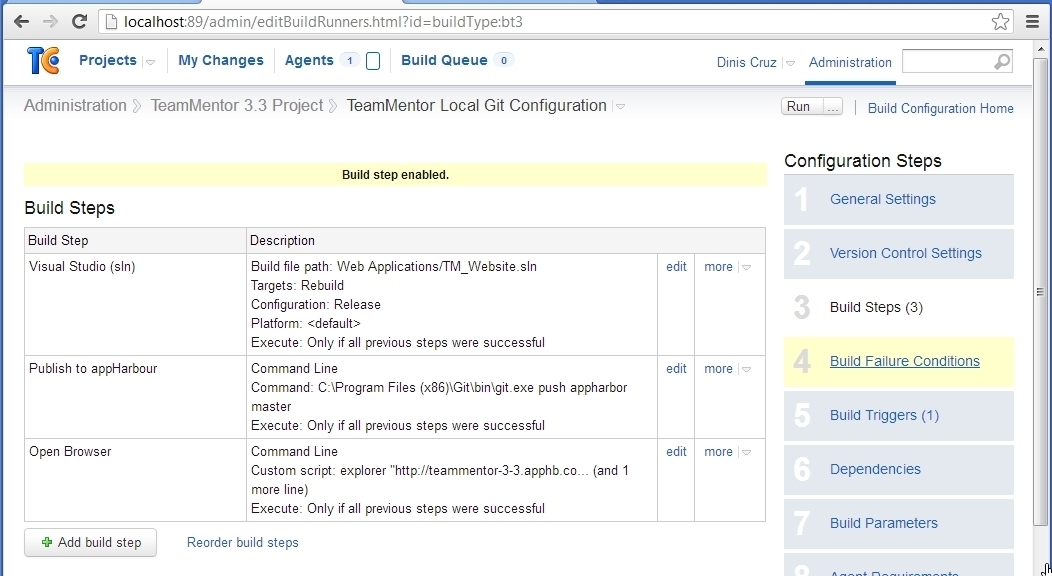
For reference here are the Build Steps in TeamCity configuration page:
Minimum required files to run git.exe on windows (for clone, push and pull)
I want to add native Git support to TeamMentor (and O2) and don’t want to ship the entire git folder structure that is installed with msysgit
I found the minimal required files to just use git-clone post that implies that the only files that are needed for a git clone are :
- git-clone.exe
- git-fetch-pack.exe
- git-index-pack.exe
- git.exe
- libcurl-4.dll
- libiconv2.dll
Is this correct?
What about for git pushes, pulls and commits?
I’m sure I saw this on a tool I used the other day (which had git support), but I can’t remember which one
Rewriting Git History (locally and at GitHub)
When fixing the ASP.NET WCF REST help page ‘Memory gates checking’ error at AppHarbor,
I ended up with a number of Git Commits: locally
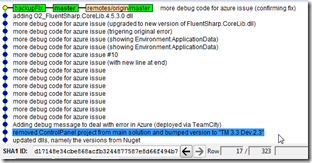
and at GitHub
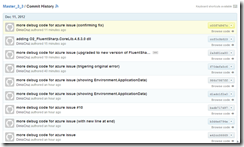
Once we found the solution (and pushed a new version of FluentSharp.CoreLib.dll to Nuget), it was time to clean up the history (since those commits don’t really need to be in the main TM master). Yes I could had used a branch, but since this was part of the TeamCity deployment tests, It was useful to do it on the master branch (and see how fast TeamCity can be :) )
So what we want to do, is to something that is not very common in Git: rewrite Git’s history (i.e. remove pushed commits). In practice this means that we want to ‘go back’ to the commit marked in blue (gitk image above) ,and remove the extra commits from the main Git History:
Just in case something goes wrong, lets let’s backup the current changes as a local branch :)

Once that is done, we do a ‘forced git reset’:

This does the trick, and now the (local) history looks good:

and
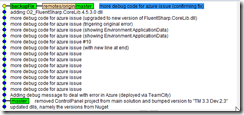
Next, to remove these commits from GitHub …
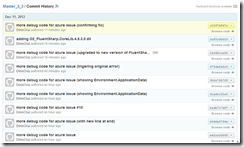
….we do a _git push –force _

And GitHub’s version has been moved back:
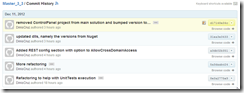
Finally we update ( on the TeamMentor VS Projects) the FluentSharp.CoreLib.dll via NuGet:
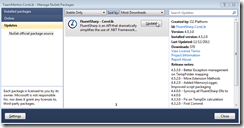
and commit it:
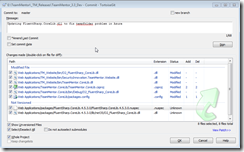
Creating the desired Git Commit History: