Miscellaneous

Creating A Runnable Distribution

Grails 3.1 allows us to build a runnable WAR file for our application with the package command. We can run this WAR file with Java using the -jar option. In Grails 3.0 the package command also created a JAR file that could be executed as standalone application. Let’s see how we can still create the JAR with Grails 3.1.

First we use the package command to create the WAR file. The file is generated in the directory build/libs. The WAR file can be run with the command java -jar sample-0.1.war if the file name of our WAR file is sample-0.1.war. It is important to run this command in the same directory as where the WAR file is, otherwise we get an ServletException when we open the application in our web browser (javax.servlet.ServletException: Could not resolve view with name '/index' in servlet with name 'grailsDispatcherServlet').

$ grails package
:compileJava UP-TO-DATE
:compileGroovy
:findMainClass
:assetCompile
...
Finished Precompiling Assets
:buildProperties
:processResources
:classes
:compileWebappGroovyPages UP-TO-DATE
:compileGroovyPages
:war
:bootRepackage
:assemble

BUILD SUCCESSFUL

| Built application to build/libs using environment: production
$ cd build/libs
$ java -jar sample-0.1.war
Grails application running at http://localhost:8080 in environment: production

Instead of using the Grails package command we can use the assemble task if we use Gradle: $ ./gradlew assemble

To create a runnable JAR file we only have to remove the war plugin from our Gradle build file. The package command now creates the JAR file in the directory build/libs.

$ grails package
:compileJava UP-TO-DATE
:compileGroovy
:findMainClass
:assetCompile
...
Finished Precompiling Assets
:buildProperties
:processResources
:classes
:compileWebappGroovyPages UP-TO-DATE
:compileGroovyPages
:jar
:bootRepackage
:assemble

BUILD SUCCESSFUL

| Built application to build/libs using environment: production
$ java -jar build/libs/sample-0.1.jar
Grails application running at http://localhost:8080 in environment: production

Alternatively we can use the Gradle task assemble instead of the Grails package command.

Written with Grails 3.1.

Original blog post written on February 08, 2016.

Creating A Fully Executable Jar

With Grails 3 we can create a so-called fat jar or war file. To run our application we only have to use java -jar followed by our archive file name and the application starts. Another option is to create a fully executable jar or war file, which adds a shell script in front of the jar or war file so we can immediately run the jar or war file. We don’t have to use java -jar anymore to run our Grails application. The fully executable JAR file can only run on Unix-like systems and it is ready to be used as service using init.d or systemd.

To create a fully executable jar file for our Grails application we must add the following lines to our build.gradle file:

// File: build.gradle
...
// Disable war plugin to create a jar file
// otherwise a fully executable war file
// is created.
//apply plugin: 'war'

...
springBoot {
    // Enable the creation of a fully
    // executable archive file.
    executable = true
}

Next we execute the Gradle assemble task to create the fully executable archive:

grails> assemble
...
:compileGroovyPages
:jar
:bootRepackage
:assemble

BUILD SUCCESSFUL

Total time: 5.619 secs
| Built application to build/libs using environment: production
grails>

We can find the executable archive file in the build/libs directory. Suppose our Grails application is called grails-full-executable-jar and has version 0.1 we can execute the jar file grails-full-executable-jar-0.1.jar:

$ cd build/libs
$ ./grails-full-executable-jar-0.1.jar
Grails application running at http://localhost:8080 in environment: production

The launch script that is prepended to the archive file can be changed by defining a new launch script with the springBoot property embeddedLaunchScript. The default launch script that is used has some variable placeholders we can change using the embeddedLaunchScriptProperties property. For example the launch script can determine if the script is used to run the application standalone or as a Linux/Unix service and will act accordingly. We can also set the mode property to service so it will always act like a Linux/Unix service. Furthermore we can set some meta information for the launch script with several properties. To learn more about the different options see the Spring Boot documentation.

// File: build.gradle
...
springBoot {
    // Enable the creation of a fully
    // executable archive file.
    executable = true

    // Set values for variable placeholders
    // in the default launch script.
    embeddedLaunchScriptProperties =
        [initInfoDescription: project.description,
         initInfoShortDescription: project.name,
         initInfoProvides: jar.baseName,
         mode: 'service']
}

After we have recreated the archive file we can check the launch script that is created:

$ head -n 55 build/libs/grails-full-executable-jar-0.1.jar
#!/bin/bash
#
#    .   ____          _            __ _ _
#   /\\ / ___'_ __ _ _(_)_ __  __ _ \ \ \ \
#  ( ( )\___ | '_ | '_| | '_ \/ _` | \ \ \ \
#   \\/  ___)| |_)| | | | | || (_| |  ) ) ) )
#    '  |____| .__|_| |_|_| |_\__, | / / / /
#   =========|_|==============|___/=/_/_/_/
#   :: Spring Boot Startup Script ::
#

### BEGIN INIT INFO
# Provides:          grails-full-executable-jar
# Required-Start:    $remote_fs $syslog $network
# Required-Stop:     $remote_fs $syslog $network
# Default-Start:     2 3 4 5
# Default-Stop:      0 1 6
# Short-Description: grails-full-executable-jar
# Description:       Sample Grails Application
# chkconfig:         2345 99 01
### END INIT INFO

[[ -n "$DEBUG" ]] && set -x

# Initialize variables that cannot be provided by a .conf file
WORKING_DIR="$(pwd)"
# shellcheck disable=SC2153
[[ -n "$JARFILE" ]] && jarfile="$JARFILE"
[[ -n "$APP_NAME" ]] && identity="$APP_NAME"

# Follow symlinks to find the real jar and detect init.d script
cd "$(dirname "$0")" || exit 1
[[ -z "$jarfile" ]] && jarfile=$(pwd)/$(basename "$0")
while [[ -L "$jarfile" ]]; do
  [[ "$jarfile" =~ init\.d ]] && init_script=$(basename "$jarfile")
  jarfile=$(readlink "$jarfile")
  cd "$(dirname "$jarfile")" || exit 1
  jarfile=$(pwd)/$(basename "$jarfile")
done
jarfolder="$(dirname "$jarfile")"
cd "$WORKING_DIR" || exit 1

# Source any config file
configfile="$(basename "${jarfile%.*}.conf")"
# shellcheck source=/dev/null
[[ -r "${jarfolder}/${configfile}" ]] && source "${jarfolder}/${configfile}"

# Initialize PID/LOG locations if they weren't provided by the config file
[[ -z "$PID_FOLDER" ]] && PID_FOLDER="/var/run"
[[ -z "$LOG_FOLDER" ]] && LOG_FOLDER="/var/log"
! [[ -x "$PID_FOLDER" ]] && PID_FOLDER="/tmp"
! [[ -x "$LOG_FOLDER" ]] && LOG_FOLDER="/tmp"

# Set up defaults
[[ -z "$MODE" ]] && MODE="service" # modes are "auto", "service" or "run"
$ cd build/libs
$ ./grails-full-executable-jar.0.1.jar
Usage: ./grails-full-executable-jar-0.1.jar {start|stop|restart|force-reload|status|run}
$

Written with Grails 3.1.8.

Original blog post written on June 20, 2016.

Run Grails Application As Docker Container

Docker is a platform to build and run distributed applications. We can use Docker to package our Grails application, including all dependencies, as a Docker image. We can then use that image to run the application on the Docker platform. This way the only dependency for running our Grails applications is the availability of a Docker engine. And with Grails 3 it is very easy to create a runnable JAR file and use that JAR file in a Docker image. Because Grails 3 now uses Gradle as build system we can even automate all the necessary steps by using the Gradle Docker plugin.

Let’s see an example of how we can make our Grails application runnable as Docker container. As extra features we want to be able to specify the Grails environment as a Docker environment variable, so we can re-use the same Docker image for different Grails environments. Next we want to be able to pass extra command line arguments to the Grails application when we run the Docker container with our application. For example we can then specify configuration properties as docker run ... --dataSource.url=jdbc:h2:./mainDB. Finally we want to be able to specify an external configuration file with properties that need to be overridden, without changing the Docker image.

We start with a simple Grails application and make some changes to the grails-app/conf/application.yml configuration file and the grails-app/views/index.gsp, so we can test the support for changing configuration properties:

# File: grails-app/conf/application.yml
---
# Extra configuration property.
# Value is shown on grails-app/views/index.gsp.
app:
    welcome:
        header: Grails sample application
...
...
<g:set var="config" value="${grailsApplication.flatConfig}"/>
<h1>${config['app.welcome.header']}</h1>

<p>
    This Grails application is running
    in Docker container <b>${config['app.dockerContainerName']}</b>.
</p>
...

Next we create a new Gradle build file gradle/docker.gradle. This contains all the tasks to package our Grails application as a runnable JAR file, create a Docker image with this JAR file and extra tasks to create and manage Docker containers for different Grails environment values.

// File: gradle/docker.gradle
buildscript {
    repositories {
        jcenter()
    }
    dependencies {
        // Add Gradle Docker plugin.
        classpath 'com.bmuschko:gradle-docker-plugin:2.6.1'
    }
}


// Add Gradle Docker plugin.
// Use plugin type, because this script is used with apply from:
// in main Gradle build script.
apply plugin: com.bmuschko.gradle.docker.DockerRemoteApiPlugin


ext {
    // Define tag for Docker image. Include project version and name.
    dockerTag = "mrhaki/${project.name}:${project.version}".toString()

    // Base name for Docker container with Grails application.
    dockerContainerName = 'grails-sample'

    // Staging directory for create Docker image.
    dockerBuildDir = mkdir("${buildDir}/docker")

    // Group name for tasks related to Docker.
    dockerBuildGroup = 'Docker'
}


docker {
    // Set Docker host URL based on existence of environment
    // variable DOCKER_HOST.
    url = System.env.DOCKER_HOST ?
            System.env.DOCKER_HOST.replace("tcp", "https") :
            'unix:///var/run/docker.sock'
}


import com.bmuschko.gradle.docker.tasks.image.Dockerfile
import com.bmuschko.gradle.docker.tasks.image.DockerBuildImage
import com.bmuschko.gradle.docker.tasks.image.DockerRemoveImage
import com.bmuschko.gradle.docker.tasks.container.DockerCreateContainer
import com.bmuschko.gradle.docker.tasks.container.DockerStartContainer
import com.bmuschko.gradle.docker.tasks.container.DockerStopContainer
import com.bmuschko.gradle.docker.tasks.container.DockerRemoveContainer

task dockerRepackage(type: BootRepackage, dependsOn: jar) {
    description = 'Repackage Grails application JAR to make it runnable.'
    group = dockerBuildGroup

    ext {
        // Extra task property with file name for the
        // repackaged JAR file.
        // We can reference this extra task property from
        // other tasks.
        dockerJar = file("${dockerBuildDir}/${jar.archiveName}")
    }

    outputFile = dockerJar
    withJarTask = jar
}

task prepareDocker(type: Copy, dependsOn: dockerRepackage) {
    description = 'Copy files from src/main/docker to Docker build dir.'
    group = dockerBuildGroup

    into dockerBuildDir
    from 'src/main/docker'
}

task createDockerfile(type: Dockerfile, dependsOn: prepareDocker) {
    description = 'Create Dockerfile to build image.'
    group = dockerBuildGroup

    destFile = file("${dockerBuildDir}/Dockerfile")

    // Contents of Dockerfile:
    from 'java:8'
    maintainer 'Hubert Klein Ikkink "mrhaki"'

    // Expose default port 8080 for Grails application.
    exposePort 8080

    // Create environment variable so we can customize the
    // grails.env Java system property via Docker's environment variable
    // support. We can re-use this image for different Grails environment
    // values with this construct.
    environmentVariable 'GRAILS_ENV', 'production'

    // Create a config directory and expose as volume.
    // External configuration files in this volume are automatically
    // picked up.
    runCommand 'mkdir -p /app/config'
    volume '/app/config'

    // Working directory is set, so next commands are executed
    // in the context of /app.
    workingDir '/app'

    // Copy JAR file from dockerRepackage task that was generated in
    // build/docker.
    copyFile dockerRepackage.dockerJar.name, 'application.jar'
    // Copy shell script for starting application.
    copyFile 'docker-entrypoint.sh', 'docker-entrypoint.sh'
    // Make shell script executable in container.
    runCommand 'chmod +x docker-entrypoint.sh'

    // Define ENTRYPOINT to execute shell script.
    // By using ENTRYPOINT we can add command line arguments
    // when we run the container based on this image.
    entryPoint './docker-entrypoint.sh'
}

task buildImage(type: DockerBuildImage, dependsOn: createDockerfile) {
    description = 'Create Docker image with Grails application.'
    group = dockerBuildGroup

    inputDir = file(dockerBuildDir)
    tag = dockerTag
}

task removeImage(type: DockerRemoveImage) {
    description = 'Remove Docker image with Grails application.'
    group = dockerBuildGroup

    targetImageId { dockerTag }
}

//------------------------------------------------------------------------------
// Extra tasks to create, run, stop and remove containers
// for a development and production environment.
//------------------------------------------------------------------------------
['development', 'production'].each { environment ->

    // Transform environment for use in task names.
    final String taskName = environment.capitalize()

    // Name for container contains the environment name.
    final String name = "${dockerContainerName}-${environment}"

    task "createContainer$taskName"(type: DockerCreateContainer) {
        description = "Create Docker container $name with grails.env $environment."
        group = dockerBuildGroup

        targetImageId { dockerTag }
        containerName = name

        // Expose port 8080 from container to outside as port 8080.
        portBindings = ['8080:8080']

        // Set environment variable GRAILS_ENV to environment value.
        // The docker-entrypoint.sh script picks up this environment
        // variable and turns it into Java system property
        // -Dgrails.env.
        env = ["GRAILS_ENV=$environment"]

        // Example of adding extra command line arguments to the
        // java -jar app.jar that is executed in the container.
        cmd = ["--app.dockerContainerName=${containerName}"]

        // The image has a volume /app/config for external configuration
        // files that are automatically picked up by the Grails application.
        // In this example we use a local directory with configuration files
        // on our host and bind it to the volume in the container.
        binds = [
            (file("$projectDir/src/main/config/${environment}").absolutePath):
            '/app/config']
    }


    task "startContainer$taskName"(type: DockerStartContainer) {
        description = "Start Docker container $name."
        group = dockerBuildGroup

        targetContainerId { name }
    }

    task "stopContainer$taskName"(type: DockerStopContainer) {
        description = "Stop Docker container $name."
        group = dockerBuildGroup

        targetContainerId { name }
    }

    task "removeContainer$taskName"(type: DockerRemoveContainer) {
        description = "Remove Docker container $name."
        group = dockerBuildGroup

        targetContainerId { name }
    }

}

We also must add a supporting shell script file to the directory src/main/docker with the name docker-entrypoint.sh. This script file makes it possible to specify a different Grails environment variable with environment variable GRAILS_ENV. The value is transformed to a Java system property -Dgrails.env={value} when the Grails application starts. Also extra commands used to start the Docker container are appended to the command line:

#!/bin/bash
set -e

exec java -Dgrails.env=$GRAILS_ENV -jar application.jar $@

Now we only have to add an apply from: 'gradle/docker.gradle' at the end of the Gradle build.gradle file:

// File: build.gradle
...
apply from: 'gradle/docker.gradle'

When we invoke the Gradle tasks command we see all our new tasks. We must at least use Gradle 2.5, because the Gradle Docker plugin requires this (see also this issue):

...
Docker tasks
------------
buildImage - Create Docker image with Grails application.
createContainerDevelopment - Create Docker container grails-sample-development with grails.env develop\
ment.
createContainerProduction - Create Docker container grails-sample-production with grails.env productio\
n.
createDockerfile - Create Dockerfile to build image.
dockerRepackage - Repackage Grails application JAR to make it runnable.
prepareDocker - Copy files from src/main/docker to Docker build dir.
removeContainerDevelopment - Remove Docker container grails-sample-development.
removeContainerProduction - Remove Docker container grails-sample-production.
removeImage - Remove Docker image with Grails application.
startContainerDevelopment - Start Docker container grails-sample-development.
startContainerProduction - Start Docker container grails-sample-production.
stopContainerDevelopment - Stop Docker container grails-sample-development.
stopContainerProduction - Stop Docker container grails-sample-production.
...

Now we are ready to create a Docker image with our Grails application code:

$ gradle buildImage
...
:compileGroovyPages
:jar
:dockerRepackage
:prepareDocker
:createDockerfile
:buildImage
Building image using context '/Users/mrhaki/Projects/grails-docker-sample/build/docker'.
Using tag 'mrhaki/grails-docker-sample:1.0' for image.
Created image with ID 'c1d0a600c933'.

BUILD SUCCESSFUL

Total time: 48.68 secs

We can check with docker images if our image is created:

$ docker images
REPOSITORY                               TAG                 IMAGE ID            CREATED             V\
IRTUAL SIZE
mrhaki/grails-docker-sample              1.0                 c1d0a600c933        4 minutes ago       8\
79.5 MB

We can choose to create and run new containers based on this image with the Docker run command. But we can also use the Gradle tasks createContainerDevelopment and createContainerProduction. These tasks will create containers that have predefined values for the Grails environment, a command line argument --app.dockerContainerName and directory binding on our local computer to the container volume /app/config. The local directory is src/main/config/development or src/main/config/production in our project directory. Any files placed in those directories will be available in our Docker container and are picked up by the Grails application. Let’s add a new configuration file for each environment to override the configuration property app.welcome.header:

# File: src/main/config/development/application.properties
app.welcome.header=Dockerized Development Grails Application!
# File: src/main/config/production/application.properties
app.welcome.header=Dockerized Production Grails Application!

Now we create two Docker containers:

$ gradle createContainerDevelopment createContainerProduction
:createContainerDevelopment
Created container with ID 'feb56c32e3e9aa514a208b6ee15562f883ddfc615292d5ea44c38f28b08fda72'.
:createContainerProduction
Created container with ID 'd3066d14b23e23374fa7ea395e14a800a38032a365787e3aaf4ba546979c829d'.

BUILD SUCCESSFUL

Total time: 2.473 secs
$ docker ps -a
CONTAINER ID        IMAGE                             COMMAND                  CREATED             STA\
TUS                     PORTS               NAMES
d3066d14b23e        mrhaki/grails-docker-sample:1.0   "./docker-entrypoint."   7 seconds ago       Cre\
ated                                        grails-sample-production
feb56c32e3e9        mrhaki/grails-docker-sample:1.0   "./docker-entrypoint."   8 seconds ago       Cre\
ated                                        grails-sample-development

First we start the container with the development configuration:

$ gradle startContainerDevelopment
:startContainerDevelopment
Starting container with ID 'grails-sample-development'.

BUILD SUCCESSFUL

Total time: 1.814 secs

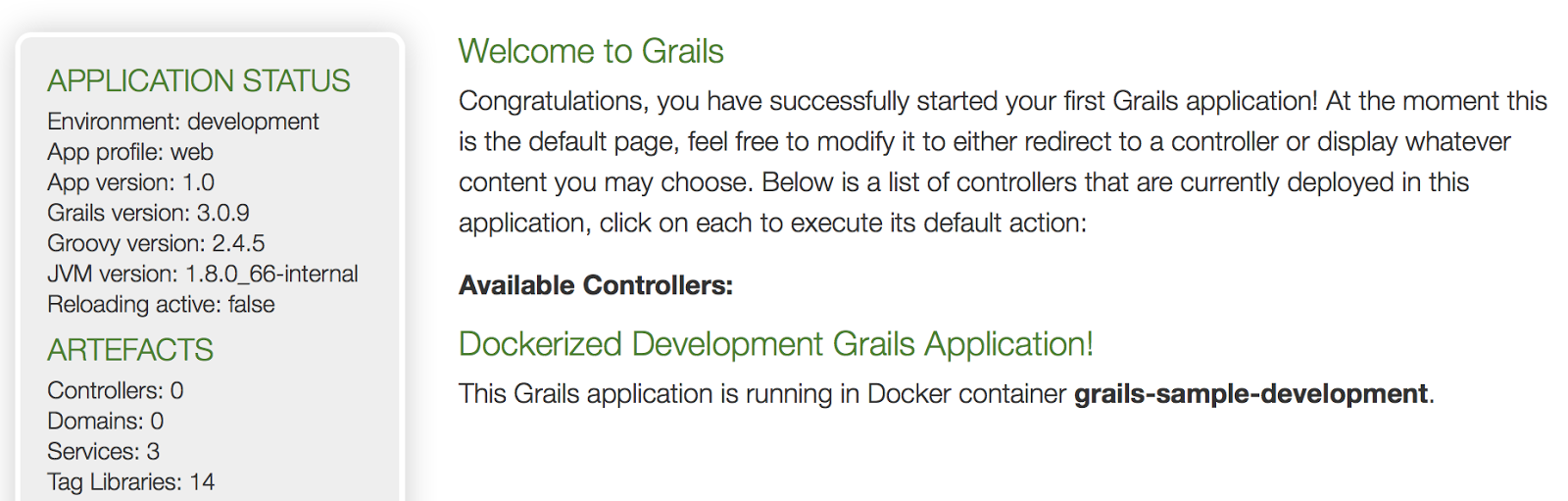
In our web browser we open the index page of our Grails application and see how the current Grails environment is development and that the app.welcome.header configuration property is used from our application.properties file. We also see that the app.dockerContainerName configuration property set as command line argument for the Docker container is picked up by Grails and shown on the page:
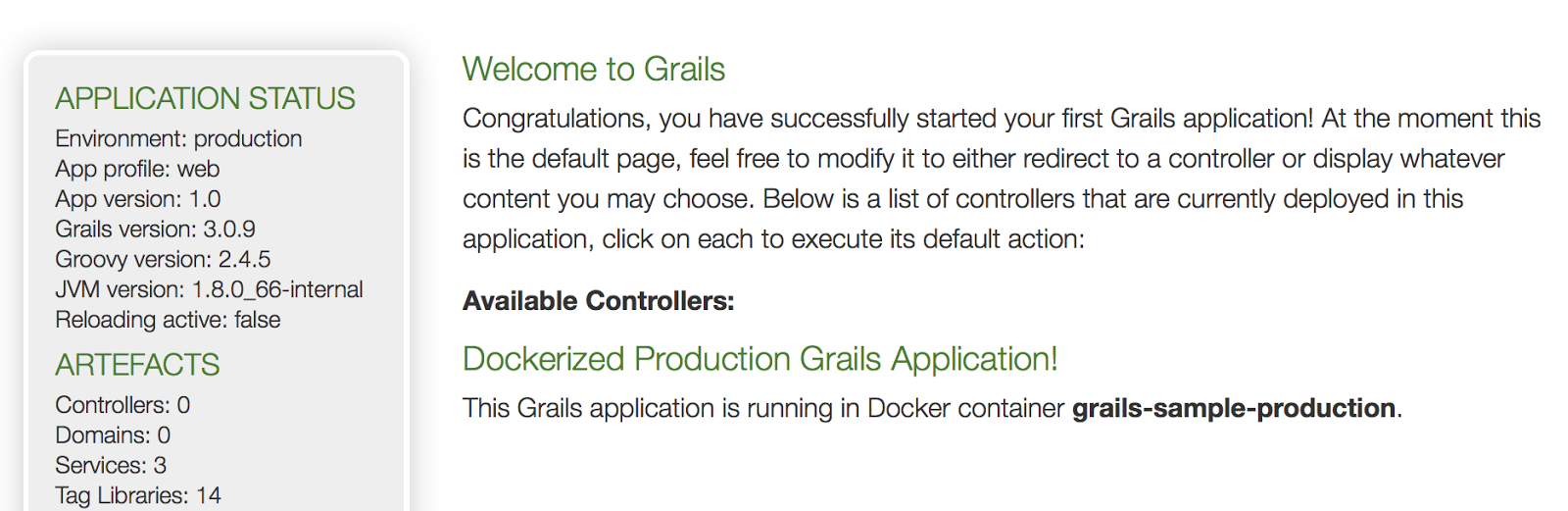
If we stop this container and start the production container we see different values:
The code is also available as Grails sample project on Github.

Written with Grails 3.0.9.

Original blog post written on October 21, 2015.