Introduction To Writing Command Line Utilities
Writing command line utilities is one of the most rewarding ways to use Gerbil Scheme. A small, fast executable that does one thing well can become a trusted part of your daily workflow, and Gerbil makes this style of development unusually pleasant. With a standard library that includes tools for argument parsing, clean error reporting, and multi-call interfaces, you can focus on the logic of your utility rather than boilerplate. The result is code that feels both expressive and pragmatic: terse enough to fit in a few dozen lines, yet powerful enough to interoperate with your wider toolchain. In a world of ever-growing frameworks and layers of abstraction, a lean Gerbil command line program can be a breath of fresh air.
The Gerbil ecosystem is designed around building and packaging binaries, so distribution is straightforward. A single source file can be compiled into a standalone executable, or for more ambitious projects, you can define a build script that packages multiple tools under one roof. Command line options are handled declaratively with getopt, while helper libraries provide standard exit codes, usage banners, and even multi-call support for utilities that expose multiple subcommands. This structured approach encourages writing utilities that are not only functional but also friendly to end users, programs that behave consistently and provide clear feedback. Once you have mastered this pattern, it becomes natural to treat Gerbil as both a systems language and a scripting tool.
Equally important is the mindset that comes with writing command line utilities. Each utility should feel like a sharp instrument, simple to invoke with predictable behavior and minimal dependencies. Gerbil lets you achieve this balance while still giving you access to higher-level abstractions when needed, whether you are parsing JSON, making HTTP requests, or wrapping a C library through the foreign function interface. This chapter will show how to construct utilities using both a simple structure and then using a more flexible structure by providing minimal “hello world” executable for each approach. We will explore both the mechanics of building programs, and also the design philosophy that makes small tools enduringly useful.
Overview of the Command Line Utilities Project Structure and Build System
Here we look at two examples of ways to structure Gerbil Scheme command line applications set up in two project directories:
- command_line_utilities_first_demo_START_HERE - This is the simplest structure and the one I usually use.
- command_line_utilities - This is a more general purpose structure using a separate lib.ss and main.ss source files.
Simple Structure for Command Line Utilities
Let’s take a look at the directory structure and code, then build and run the example:
 1 $ pwd
 2 command_line_utilities_first_demo_START_HERE
 3 $ ls
 4 README.md   test-tool.ss
 5 $ gxc -exe -o test-tool test-tool.ss
 6 $ ls -lh
 7 total 128
 8 -rw-r--r--  1 markw  staff   206B Aug 30 12:40 README.md
 9 -rwxr-xr-x  1 markw  staff    54K Aug 30 12:39 test-tool
10 -rw-r--r--@ 1 markw  staff   601B Aug 30 12:33 test-tool.ss
11 $ ./test-tool --name Mark -v
12 verbose on
13 Hello, Mark
14 $ rm test-tool
15 $
This program (file test-mytool.ss) demonstrates how to construct a complete, albeit simple, command-line utility in Gerbil Scheme. It leverages the powerful :std/cli/getopt library to handle argument parsing, a common requirement for such tools. The script is designed to accept two specific command-line options: a mandatory —name option that requires a string value, and an optional boolean flag, —verbose (or its short form -v), which toggles additional output. The program’s logic includes robust argument validation, printing a usage message and exiting if the required name is not provided. Upon successful execution, it greets the user by name, optionally printing a “verbose on” message if the corresponding flag was set, showcasing a standard pattern for creating interactive and user-friendly command-line applications.
The example file test-tool.ss:
 1 ;; test-tool.ss
 2 (export main)
 3 (import :std/cli/getopt :std/cli/print-exit)
 4 (import :std/format) ;; for 'format'
 5
 6 (def (usage)
 7   (print-exit 2 "usage: mytool [-v] --name=STR [ARGS...]"))
 8
 9 (def (main . argv)
10   (let* ((parser (getopt (flag 'verbose "-v" "--verbose")
11                          (option 'name "--name" help: "Your name" value: identity)))
12          (opts (getopt-parse parser argv))
13          (name (hash-get opts 'name))
14          (verbose (hash-get opts 'verbose)))
15     (unless name (usage))
16     (when verbose (display "verbose on\n"))
17     (displayln (format "Hello, ~a\n" name))
18     0))
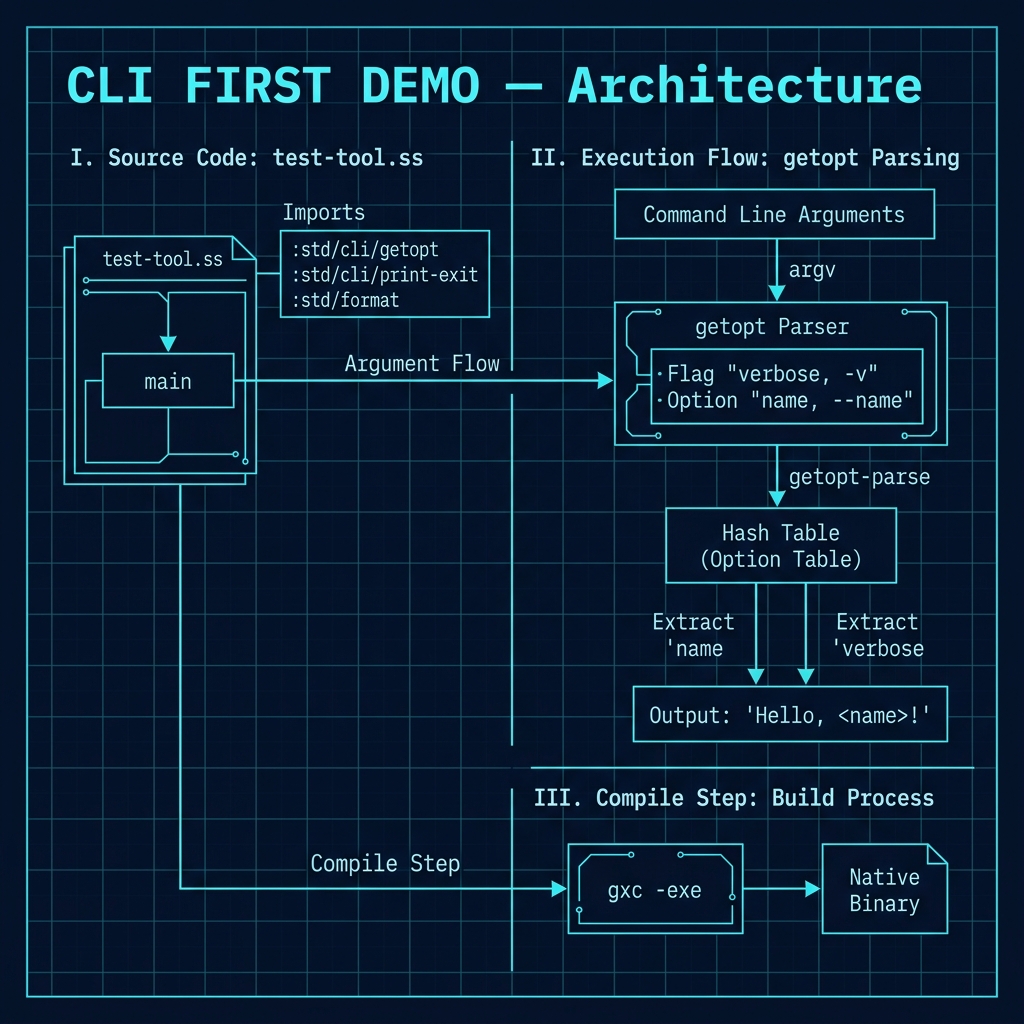
Let’s dissect the code’s structure. At the top, we import the necessary libraries: :std/cli/getopt for parsing arguments, :std/cli/print-exit for our usage message, and :std/format for string interpolation. The usage function is a standard convention for command-line tools, providing help text and exiting with a non-zero status code to indicate an error. The core of the argument parsing logic is defined in the call to getopt, where we create a parser. We define a boolean flag named verbose triggered by either -v or —verbose, and a required option named name which expects a value, processed here by the identity function (meaning, we take the provided string as-is).
The main function orchestrates the program’s execution. It receives the command-line arguments as a list in argv and passes them to getopt-parse, which returns a hash table of options. We then use hash-get to extract the values associated with the ’name and ’verbose symbols. The logic then proceeds with essential validation using unless to ensure the name option was provided, calling usage if it wasn’t. The when form conditionally prints the verbose message. Finally, the program prints its greeting using format and displayln, and returns 0, the conventional exit code for successful completion.
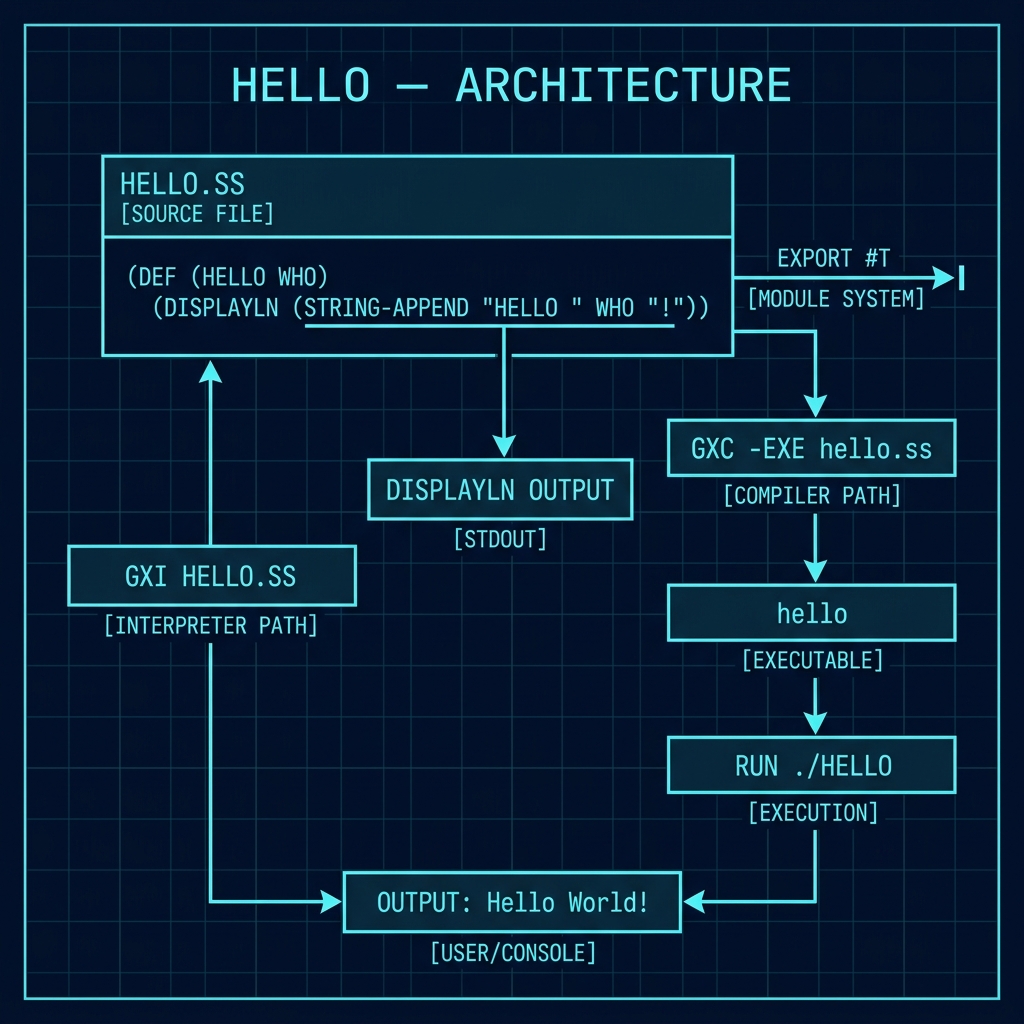
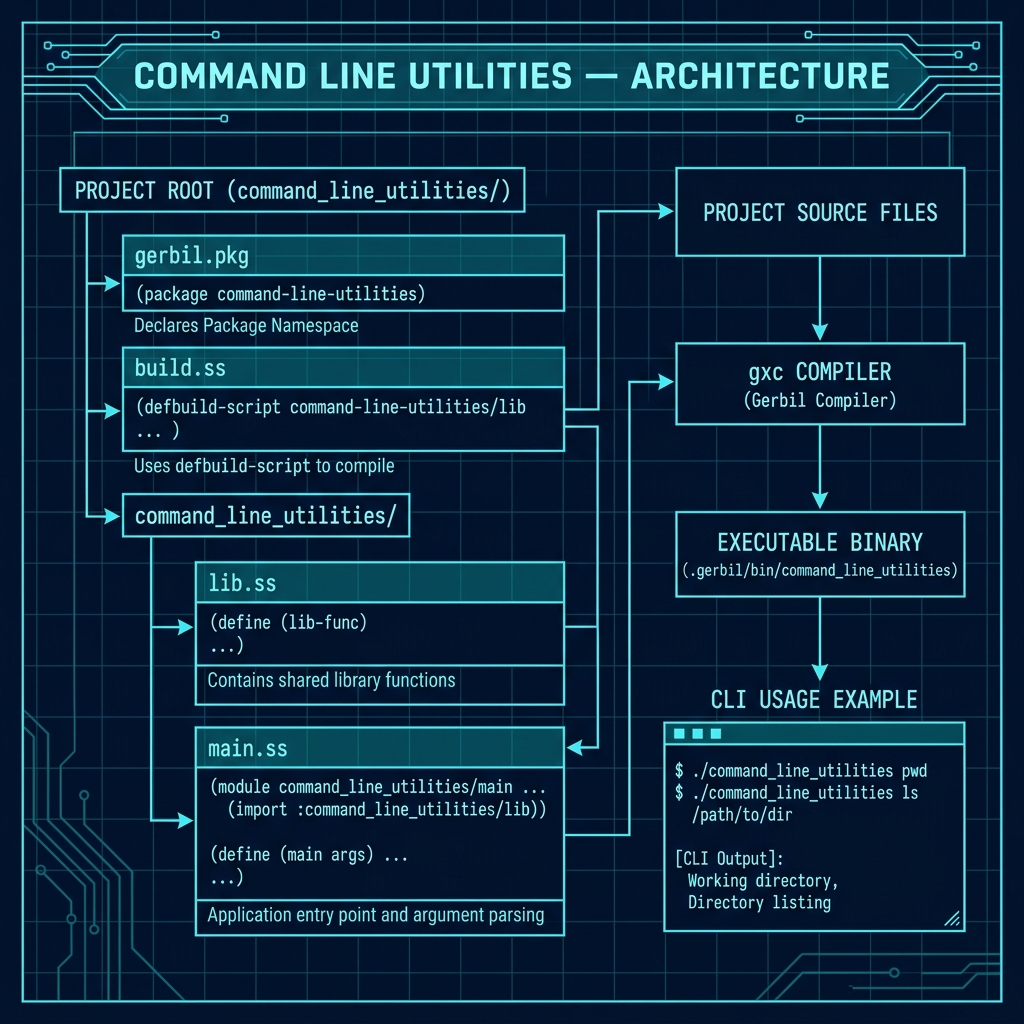
The following architecture diagrams show the structure of the example projects covered in this chapter. The first diagram shows the simple “hello” example, the second shows the streamlined command-line utility structure, and the third shows the more flexible multi-module project layout.
A More Flexible Structure for Command Line Utilities
This next listing of a Bash shell interaction demonstrates a ccommand-line utility project written in Gerbil Scheme. The terminal session walks through the entire lifecycle of the project, starting with an inspection of the directory structure. You’ll see the standard Gerbil project files: a gerbil.pkg file to declare the package, a build.ss script that defines how to compile the source code, and a Makefile for convenience. The source code (to be listed ater) is split into a main.ss entrypoint and a lib.ss library module. The session continues by showing the compilation process using make, which invokes Gerbil’s package manager, gxpkg. Finally, we execute the compiled program, testing its command-line argument parsing and its ability to perform a simple action, in this case printing the current working directory, similar to the Unix pwd command. This example serves as a practical template for structuring, building, and running standalone applications with Gerbil.
 1 $ pwd
 2 /Users/markw/GITHUB/gerbil_scheme_book/source_code/command_line_utilities
 3 Marks-Mac-mini:command_line_utilities $ ls
 4 build.ss        gerbil.pkg      manifest.ss
 5 command_line_utilities  Makefile        README.md
 6 Marks-Mac-mini:command_line_utilities $ ls -l command_line_utilities
 7 total 16
 8 -rw-r--r--  1 markw  staff   313 Aug 31 12:28 lib.ss
 9 -rw-r--r--  1 markw  staff  1426 Aug 31 12:31 main.ss
10 Marks-Mac-mini:command_line_utilities $ cat gerbil.pkg
11 (package: markw)
12 Marks-Mac-mini:command_line_utilities $ cat build.ss
13 #!/usr/bin/env gxi
14 ;;; -*- Gerbil -*-
15 (import :std/build-script)
16
17 (defbuild-script
18   '("command_line_utilities/lib"
19     (exe: "command_line_utilities/main" bin: "command_line_utilities")))
20 Marks-Mac-mini:command_line_utilities $ make
21 /opt/homebrew/bin/gxpkg deps -i
22 /opt/homebrew/bin/gxpkg build
23 ... build in current directory
24 Marks-Mac-mini:command_line_utilities $ .gerbil/bin/command_line_utilities --help
25 Unknown argument: --help
26 usage: command_line_utilities [pwd|ls] [--file PATH]
27 Marks-Mac-mini:command_line_utilities $ .gerbil/bin/command_line_utilities pwd
28 /Users/markw/GITHUB/gerbil_scheme_book/source_code/command_line_utilities/
The project’s structure and build process are quintessential Gerbil. The gerbil.pkg file simply declares the top-level namespace, markw, for the project. The core of the build logic resides in build.ss, which uses the defbuild-script macro from Gerbil’s standard build library. It declares two targets: the first compiles command_line_utilities/lib.ss into a library, and the second, more interestingly, compiles command_line_utilities/main.ss into an executable file. The exe: keyword specifies the main source file, while the bin: keyword defines the name of the resulting binary, command_line_utilities, which is placed in the local .gerbil/bin/ directory upon compilation.
Wrap Up for Writing Command Line Utilities in Gerbil Scheme and Notes On User Built Libraries
The material here serves as a tutorial for getting started. This book is a work in progress: the next two chapters (currently being written) are additional command line application examples.
Notes On User Installed Libraries
As you work through the examples in this book, you might ask yourself where compiled files and libraries you create are stored. Take a look in the /.gerbil/lib directory on your laptop or server. The ~/.gerbil/lib directory is the default location for user installed Gerbil Scheme libraries and modules. When you use Gerbil’s package manager gxi -d or compile your own modules, the compiled artifacts are placed here so the Gerbil runtime and compiler can find them:
 1 $ pwd
 2 /Users/markw/.gerbil/lib
 3 Marks-Mac-mini:lib $ ls
 4 dbpedia     ffi.o4      ffi~0.o13   ffi~0.o9    stop-words~0.o1
 5 ffi.o1      ffi.o5      ffi~0.o14   gemini      test.o1
 6 ffi.o10     ffi.o6      ffi~0.o15   groq        test.o2
 7 ffi.o11     ffi.o7      ffi~0.o16   hello       test.o3
 8 ffi.o12     ffi.o8      ffi~0.o2    markw       test.ssi
 9 ffi.o13     ffi.o9      ffi~0.o3    ollama      test~0.o1
10 ffi.o14     ffi.ssi     ffi~0.o4    openai      test~0.o2
11 ffi.o15     ffi~0.o1    ffi~0.o5    openai-client   test~0.o3
12 ffi.o16     ffi~0.o10   ffi~0.o6    static
13 ffi.o2      ffi~0.o11   ffi~0.o7    stop-words.o1
14 ffi.o3      ffi~0.o12   ffi~0.o8    stop-words.ssi
15 $ ls ollama
16 ollama.o1   ollama.o4   ollama.o7   ollama~0.o2 ollama~0.o5
17 ollama.o2   ollama.o5   ollama.ssi  ollama~0.o3 ollama~0.o6
18 ollama.o3   ollama.o6   ollama~0.o1 ollama~0.o4 ollama~0.o7
The compiled stop-words files were created running the examples in the previous NLP chapter. ollama, openai, etc. were created in the chapters covering Large Language Models (LLMS), etc.
Gerbil maintains a search path for modules. ~/.gerbil/lib is a standard entry in this path, allowing you to (import …) your own or third-party code without specifying a full path.
Gerbil Scheme is an ahead-of-time (AOT) compiled language that uses Gambit-C as a backend. When you compile a module, it produces several files:
- Object Files (.o*): These are the compiled object code for your Scheme files. The number suffix (e.g., .o1, .o2) often relates to compilation passes or optimization levels. The files with a tilde (~) are typically temporary or backup files from the compilation process.
- Module Metadata (.ssi): This “Scheme Source Information” file contains metadata about the compiled module, including its dependencies, exported symbols, and macros. This file is essential for the (import) system to work correctly.
Optional Practice Problems
- Greeter Count Option: Extend the basic CLI demo in
test-tool.ssto support an optional parameter--count=INT(or-c INT), allowing the user to specify how many times the greeting is printed. - Standard Argument Parser: Rewrite the manual recursive list parsing in
main.ss(of the multi-module project) to utilize the declarative:std/cli/getoptparser. - Subcommand Extension: Add a new subcommand
cattocommand_line_utilitiesthat outputs the contents of a text file provided in the arguments list.