Java Strategies for Working with Cloud Data: Knowledge Management-Lite
Knowledge Management (KM) is the collection, organization and maintenance of knowledge. The last chapter introduced you to techniques for information architecture and development using linked data and semantic web technologies and is paired with this chapter so please read these two chapters in order.
KM is a vast subject but I am interested in exploring one particular idea in this chapter: strategies for combining information stored in local data sources (relational and NoSQL data stores) with cloud data sources (e.g., Google Drive, Microsoft OneDrive, and Dropbox) to produce fused information that in turn may provide actionable knowledge. Think about your workflow: do you use Google Docs and Calendars? Microsoft Office 365 documents in the Azure cloud? I use both companies cloud services in my work. Sometimes cloud data just exists to backup local data on my laptops but usually I use cloud data for storing:
- very large data sets
- data that needs to be available for a wide range of devices
- data that is valuable and needs to be replicated
I have been following the field of KM for many years but in the last few years I have been more taken with the idea of fusing together public information sources with private data. The flexibility of hybrid private data storage in the cloud and locally stored is a powerful pattern:
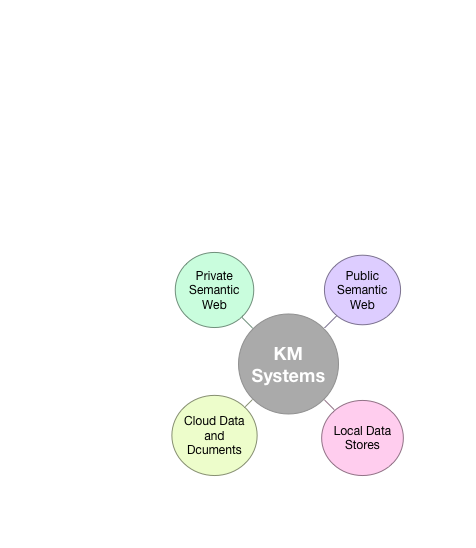
In this chapter we use data sources of documents in the cloud and local relational databases.
When I first planned on writing this chapter the example program that I wanted to write would access a user’s data in real time from either Google’s or Microsoft’s cloud services. I decided that the complexity of implementing OAuth2 to access Google and Microsoft services was too much for a book example because of the need for a custom web app to support an example application authenticating with these services.
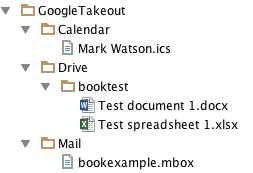
What I decided to do was export (using Google Takeout) a small set of test data from my Google account for my calendar, Google Drive, and GMail and use a sanitized version of these data for examples programs in this chapter. Google Drive documents export as Microsoft document formats (Microsoft Word docx files, Excel xlsx spreadsheet files) and in standard calendar ics format files and email in the standard mbox format. In other words, this example could also be applicable for data stored in Microsoft Office 365. While using canned data does not make a totally satisfactory demo it does allow me to concentrate on techniques for accessing the content of popular document types while ignoring the complexities of authenticating users to access their data on Google and Microsoft cloud services.
If you want to experiment with the example programs in this chapter with your own data you can use www.google.com/settings/takeout/ to download your own data and replace my sanitized Google Takeout data - doing this will make the example programs more interesting and hopefully motivate you to experiment further with them.
A real system using the techniques that we will cover could be implemented as a web app running on either Google Cloud Services or Microsoft Azure that would authenticate a user with their Google or Microsoft accounts, and have live access to the user’s cloud data.
We will be using open source Java libraires to access the data in Microsoft Excel and Office formats (note that Google exports Google docs in these formats as does Microsoft’s Office 365).
One excellant tool for building KM systems that I am not covering is web search. Automatically accessing a web-wide search index to provide system users with more information to make decisions is something to consider when designong KM and decision support systems. I decided not to cover Java examples for calling public web search APIs in this book but you can use my project on github that wraps the Microsoft Bing Search API. I once wrote a service using search APIs to annotate notes and stored documents. Using DBPedia (as we did in the last chapter) and Bing search was easy and allowed me to annotate text (with hyperlinks to web information sources) in near real time.
Motivation for Knowledge Management
Knowledge workers are different than previous kinds of workers who were trained to do a specific job repetitively. Knowledge workers tend to combine information from different sources to make decisions.
When workers leave, if their knowledge is not codified then the organization loses value. This situation will get worse in the future as baby boomers retire in larger numbers. So, the broad goals of KM are to capture employee knowledge, to facilitate sharing knowledge and information between workers company wide, and provide tools to increase workers’ velocity in making good decisions that are based on solid information and previous organizational knowledge.
For the purposes of this chapter we will discuss KM from the viewpoint of making maximum use of all available data sources, including shared cloud-based sources of information. We will do this through the implementation of Java code examples for accessing common document formats.
Since KM is a hugely broad topic I am going to concentrate on a few relatively simple examples that will give you ideas for both capturing and using knowledge and in some cases also provide useful code from the examples in this book that you can use:
- Capture your email in a relational database and assign categories using some of the techniques we learned in the NLP and machine learning chapters.
- Store web page URIs and content snippets for future use.
- Java clients to process data in Google Drive, specifically reading Microsoft file formats that Google uses for exporting Google docs.
- Annotate text in a document store by resolving entity names to unique DBPedia URIs.
- Use Postgres as a local database to store discovered data that is discovered by the example software in this chapter.
Microsoft Office 365, which I use, also has APIs for integrating your own programs into an Office 365 work flow. I decided to use Google Drive in this chapter because it is free to use but I also encourage you to experiment with the Office 365 APIs. You can take free Office 365 API classes offered online edX.org. We will use Google Drive as a data source for the example code developed in this chapter.
As I mentioned earlier in this chapter in order to build a real system based on the ideas and example code in this chapter you will need to write a web applicaton that can authenticate users of your system to access data in Google Drive and/or in Microsoft OneDrive. In addition to real time access to shared data in the cloud, another important part of organizational KM systems that we are not discussing in this chapter is providing user and access roles. In the examples in this chapter we will ignore these organizational requirements and concentrate on the process of automatic discovery of useful metadata that helps to organize shared data.
There are many KM products that cater to organizations or individuals. Depending on your requirements you might want to mix custom software with off the shelf software tools. Another important aspect of KM is the concept of master data which is creating a uniform data model and storage strategy for diverse (and often legacy) databases. This is partly what I worked on at Google. Even for the three simple examples we will develop in this chapter there are interesting issues involving master data that I will return to later.
Most KM systems deal with internal data that is stored on local servers. While I do provide some very simple examples of using the Postgres relational database later in this chapter, I wanted to get you thinking about using multiple data sources and concentrating on data stored in commercial cloud services makes sense.
Using Google Drive Cloud Takeout Service
As I mentioned in the introduction to this chapter, while it is fairly easy to write a web app for Microsoft Azure that uses the Office 365 APIs an a web app for AppEngine (or Google Cloud) that uses the Google Drive data access APIs, building a web app with the auth2 support required to use these APIs is outside of the scope for an example program. So, I am cheating a little. Google has a “Google Takeout” service that everyone who uses Google services should periodically use to save all of their data from Google services.
In this section and contained sub-sections we will use a “Google Takeout” dump as the data used by the example programs. The following subsections contain utilities for reading and parsing:
- Microsoft Excel which is what Google Takeout exports Google Drive spreadsheets as.
- Microsoft Word docx files which is the format that Google Takeout uses to export Google Drive word processing documents.
- iCal calendar files which is a standard format that Google Calendar data is exported as.
- Email mbox files which is the format that GMail is exported as.
These are all widely used file formats so I hope the utilities developed in the next four sub-sections will be generally useful to you. The following figure shows a screen grab of the IntelliJ Community Edition project browser showing just the data files that I exported using Google Takeout. I “sanitized” these files by changing names, email addresses, etc. to use for the example programs in this chapter.
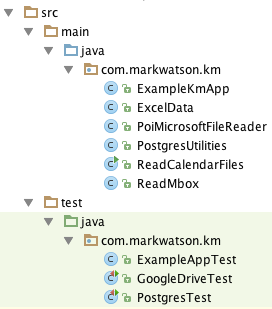
We will be using the Apache Tika and iCal4j libraires to implement the code in the next three sub-sections. The following figure shows the IntelliJ source and test files used in this chapter:
Processing Microsoft Excel Spreadsheet xlsx and Microsoft Word docx Files
We will be using the Tika library that parses all sheets (i.e., separate pages) in Excel spreadsheet files. The output is a nicely formatted text file that is new line and tab character delimited. The following utility class parses this text output for more convenient use by parsing the plain text representation into Java data:
 1 package com.markwatson.km;
 2
 3 import java.util.*;
 4 import java.util.regex.Pattern;
 5
 6 public class ExcelData {
 7   public List<List<List<String>>> sheetsAndRows = new ArrayList<>();
 8   private List<List<String>> currentSheet = null;
 9
10   public ExcelData(String contents) {
11     Pattern.compile("\n")
12         .splitAsStream(contents)
13         .forEach((String line) -> handleContentsStream(line));
14     if (currentSheet != null) sheetsAndRows.add(currentSheet);
15   }
16
17   private void handleContentsStream(String nextLine) {
18     if (nextLine.startsWith("Sheet")) {
19       if (currentSheet != null) sheetsAndRows.add(currentSheet);
20       currentSheet = new ArrayList<>();
21     } else {
22       String[] columns = nextLine.substring(1).split("\t");
23       currentSheet.add(Arrays.asList(columns));
24     }
25   }
26
27   public String toString() {
28     StringBuilder sb = new StringBuilder("<ExcelData # sheets: " +
29               sheetsAndRows.size() + "\n");
30     for (List<List<String>> sheet : sheetsAndRows) {
31       sb.append("  <Sheet\n");
32       for (List<String> row : sheet) {
33         sb.append("    <row " + row + ">\n");
34       }
35       sb.append("  >\n>\n");
36     }
37     return sb.toString();
38   }
39 }
When a new instance of the class ExcelData is created you can access the individual sheets and the rows in each sheet from the public data in sheetsAndRows.
The first index of sheetsAndRows provides access to individual sheets, the second index provided access to the rows in a selected sheet, and the third (inner) index provides access to the individual columns in a selected row. The public utility method toString provides an example for accessing this data. The class ExcellData is used in the example code in the next listing.
The following utility class PoiMicrosoftFileReader has methods for processing Excel and Word files:
 1 package com.markwatson.km;
 2
 3 import java.io.*;
 4 import org.apache.poi.openxml4j.exceptions.InvalidFormatException;
 5 import org.apache.tika.Tika;
 6 import org.apache.tika.exception.TikaException;
 7 import org.apache.tika.metadata.Metadata;
 8 import org.apache.tika.parser.ParseContext;
 9 import org.apache.tika.parser.microsoft.ooxml.OOXMLParser;
10 import org.apache.tika.sax.BodyContentHandler;
11 import org.apache.xmlbeans.XmlException;
12 import org.xml.sax.SAXException;
13
14 public class PoiMicrosoftFileReader {
15
16   static private boolean DEBUG_PRINT_META_DATA = false;
17
18   public static String DocxToText(String docxFilePath)
19       throws IOException, InvalidFormatException, XmlException,
20              TikaException {
21     String ret = "";
22     FileInputStream fis = new FileInputStream(docxFilePath);
23     Tika tika = new Tika();
24     ret = tika.parseToString(fis);
25     fis.close();
26     return ret;
27   }
28
29   public static ExcelData readXlsx(String xlsxFilePath)
30       throws IOException, InvalidFormatException, XmlException,
31              TikaException, SAXException {
32     BodyContentHandler bcHandler = new BodyContentHandler();
33     Metadata metadata = new Metadata();
34     FileInputStream inputStream = new FileInputStream(new File(xlsxFilePath));
35     ParseContext pcontext = new ParseContext();
36     OOXMLParser parser = new OOXMLParser();
37     parser.parse(inputStream, bcHandler, metadata, pcontext);
38     if (DEBUG_PRINT_META_DATA) {
39       System.err.println("Metadata:");
40       for (String name : metadata.names())
41         System.out.println(name + "\t:\t" + metadata.get(name));
42     }
43     ExcelData spreedsheet = new ExcelData(bcHandler.toString());
44     return spreedsheet;
45   }
46 }
The static public method DocxToText transforms a file path specifying a Microsoft Word docx file to the plain text in that file. The public static method readXlsx transforms a file path to an Excel xlsx file to an instance of the class ExcelData that we looked at earlier.
The following output was generated from running the test programs GoogleDriveTest.testDocxToText and GoogleDriveTest.testExcelReader. I am using jUnit tests as a convenient way to provide examples of calling APIs in the example code. Here is the test code and its output:
 1   String contents =
 2     PoiMicrosoftFileReader.DocxToText(
 3 	      "GoogleTakeout/Drive/booktest/Test document 1.docx");
 4   System.err.println("Contents of test Word docx file:\n\n" +
 5                      contents + "\n");
 6
 7   ExcelData spreadsheet =
 8     PoiMicrosoftFileReader.readXlsx(
 9 		"GoogleTakeout/Drive/booktest/Test spreadsheet 1.xlsx");
10   System.err.println("Contents of test spreadsheet:\n\n" +
11                      spreadsheet);
 1 Contents of test Word docx file:
 2
 3 This is a test document for Power Java book.
 4
 5
 6 Contents of test spreadsheet:
 7
 8 <ExcelData # sheets: 1
 9   <Sheet
10     <row [Name, Age]>
11     <row [Brady, 12]>
12     <row [Calvin, 17]>
13   >
14 >
Processing iCal Calendar Files
The iCal format is the standard way that Google, Apple, Microsoft, and other vendors export calendar data. The following code uses the net.fortuna.ical4j library that provides a rich API for dealing with iCal formatted files. In the follow example we are using a small part of this API.
 1 package com.markwatson.km;
 2
 3 // refenerence: https://github.com/ical4j/ical4j
 4
 5 import net.fortuna.ical4j.data.CalendarBuilder;
 6 import net.fortuna.ical4j.data.ParserException;
 7 import net.fortuna.ical4j.model.Component;
 8 import net.fortuna.ical4j.model.Property;
 9
10 import java.io.FileInputStream;
11 import java.io.IOException;
12 import java.util.*;
13
14 public class ReadCalendarFiles {
15
16   public ReadCalendarFiles(String filePath)
17              throws IOException, ParserException {
18     Map<String, String> calendarEntry = null;
19     FileInputStream fin = new FileInputStream(filePath);
20     CalendarBuilder builder = new CalendarBuilder();
21     net.fortuna.ical4j.model.Calendar calendar = builder.build(fin);
22     for (Iterator i = calendar.getComponents().iterator();
23          i.hasNext(); ) {
24       Component component = (Component) i.next();
25       if (component.getName().equalsIgnoreCase("VEVENT")) {
26         calendarEntry = new HashMap<>();
27         for (Iterator j = component.getProperties().iterator();
28              j.hasNext(); ) {
29           net.fortuna.ical4j.model.Property property =
30              (Property) j.next();
31           calendarEntry.put(property.getName(),
32                             property.getValue());
33         }
34         calendarEntries.add(calendarEntry);
35       }
36     }
37   }
38
39   public int size() { return calendarEntries.size(); }
40   public Map<String, String> getCalendarEntry(int index) {
41     return calendarEntries.get(index);
42   }
43
44   /**
45    * List of calendar entries where each entry
46    *  is a Map<String, String>
47    *
48    */
49   private List<Map<String, String>> calendarEntries =
50        new ArrayList<>();
51 }
The following output was generated from running the test program GoogleDriveTest.testCalendarFileReader. Here is the test code and its output:
 1   ReadCalendarFiles calendar =
 2     new ReadCalendarFiles("GoogleTakeout/Calendar/Mark Watson.ics");
 3   System.err.println("\n\nTest iCal calendar file has " +
 4                      calendar.size() + " calendar entries.");
 5   for (int i=0, size=calendar.size(); i<size; i++) {
 6     Map<String,String> entry = calendar.getCalendarEntry(i);
 7     System.err.println("\n\tNext calendar entry:");
 8     System.err.println("\n\t\tDTSAMP:\t" + entry.getOrDefault("DTSTAMP", ""));
 9     System.err.println("\n\t\tSUMMARY:\t" + entry.getOrDefault("SUMMARY", ""));
10     System.err.println("\n\t\tDESCRIPTION:\t" +
11                        entry.getOrDefault("DESCRIPTION", ""));
12   }
 1 Test iCal calendar file has 11 calendar entries.
 2
 3 	Next calendar entry:
 4
 5 		DTSAMP: 20150917T234033Z
 6
 7 		SUMMARY: Free Foobar Test  Meeting
 8
 9 		DESCRIPTION: Bob Smith has invited you to join a meeting
10
11  ... ...
The utility method toString for the class ReadCalendarFiles prints for each entry three attributes: a date stamp, a summary, and a description.
Processing Email mbox Files
In this section we use the Apace Tika library for parsing email mbox formatted files. There is a commented out printout on line 36 and you might want to uncomment this and look at the full message text to see all available meta data for each email as it is processed. You might want to use more of the meta data in your applications than I am using in the example code.
  1 package com.markwatson.km;
  2
  3 // reference: https://tika.apache.org/
  4
  5 import org.apache.poi.openxml4j.exceptions.InvalidFormatException;
  6 import org.apache.tika.exception.TikaException;
  7 import org.apache.tika.metadata.Metadata;
  8 import org.apache.tika.parser.ParseContext;
  9 import org.apache.tika.parser.Parser;
 10 import org.apache.tika.parser.mbox.MboxParser;
 11 import org.apache.tika.parser.microsoft.ooxml.OOXMLParser;
 12 import org.apache.tika.sax.BodyContentHandler;
 13 import org.apache.xmlbeans.XmlException;
 14 import org.xml.sax.SAXException;
 15
 16 import java.io.*;
 17 import java.nio.charset.StandardCharsets;
 18 import java.util.ArrayList;
 19 import java.util.List;
 20
 21 /**
 22  * Created by markw on 9/17/15.
 23  */
 24 public class ReadMbox {
 25
 26   static private boolean DEBUG_PRINT_META_DATA = true;
 27
 28   private String getTextContents(InputStream stream) {
 29     BufferedReader br = new BufferedReader(new InputStreamReader(stream));
 30     StringBuffer sb = new StringBuffer();
 31     String subject = "";
 32     String from = "";
 33     String to = "";
 34     try {
 35       String line = null;
 36       boolean inText = false;
 37       while ((line = br.readLine()) != null) {
 38         //System.err.println("-- line: " + line);
 39         if (!inText) {
 40           if (line.startsWith("Subject:")) subject = line.substring(9);
 41           if (line.startsWith("To:"))      to = line.substring(4);
 42           if (line.startsWith("From:"))    from = line.substring(6);
 43         }
 44         if (line.startsWith("Content-Type: text/plain;")) {
 45           inText = true;
 46           br.readLine();
 47         } else if (inText) {
 48           if (line.startsWith("-----")) break;
 49           if (line.startsWith("--_---")) break;
 50           if (line.startsWith("Content-Type: text/html;")) break;
 51           sb.append(line + "\n");
 52         }
 53       }
 54     } catch (Exception ex) {
 55       System.err.println("ERROR: " + ex);
 56     }
 57     return "To: " + to + "\nFrom: " + from + "\nSubject: " +
 58            subject + "\n" + sb.toString();
 59   }
 60
 61   public ReadMbox(String filePath)
 62       throws IOException, InvalidFormatException, XmlException,
 63              TikaException, SAXException {
 64
 65     FileInputStream inputStream = new FileInputStream(new File(filePath));
 66
 67     BufferedReader br = new BufferedReader(new InputStreamReader(inputStream));
 68
 69     String line = null;
 70     StringBuffer sb = new StringBuffer();
 71     try {
 72       // the outer loop splits each email to a separate string that we will use \
 73 Tika to parse:
 74       while ((line = br.readLine()) != null) {
 75         if (line.startsWith("From ")) {
 76           if (sb.length() > 0) { // process all but the last email
 77             String content = sb.toString();
 78             InputStream stream =
 79               new ByteArrayInputStream(content.getBytes(StandardCharsets.UTF_8));
 80             emails.add(getTextContents(stream));
 81             sb = new StringBuffer();
 82           }
 83         }
 84         sb.append(line + "\n");
 85       }
 86       if (sb.length() > 0) { // process the last email
 87         String content = sb.toString();
 88         InputStream stream =
 89           new ByteArrayInputStream(content.getBytes(StandardCharsets.UTF_8));
 90         emails.add(getTextContents(stream));
 91       }
 92
 93       br.close();
 94     } catch (Exception ex) {
 95       System.err.println("ERROR: " + ex);
 96     }
 97   }
 98
 99   public int size() {
100     return emails.size();
101   }
102
103   public String getEmail(int index) {
104     return emails.get(index);
105   }
106
107   public List<String> emails = new ArrayList<>();
108 }
The following output was generated from running the test program GoogleDriveTest.testMboxFileReader. Here is the test code and its output (edited for brevity and clarity):
1   ReadMbox mbox = new ReadMbox("GoogleTakeout/Mail/bookexample.mbox");
2   System.err.println("\nMBOX size = " + mbox.size());
3   for (int i=0, size=mbox.size(); i<size; i++) {
4     System.err.println("\n* * next email:\n\n" + mbox.getEmail(i) + "\n");
5   }
 1 MBOX size = 3
 2
 3 * * next email:
 4
 5 To: <mark@markwatson.com>
 6 From: Ruby Weekly= <rw@peterc.org>
 7 Subject: This week's Ruby news issue
 8
 9 This week's Ruby and Rails news
10
11 Ruby Weekly - A Weekly Ruby Newsletter
12 Issue 264 - September 17=2C 2015
13
14  ...  ...
You now can parse and use information from exported Microsoft Office documents. As I mentioned before, when you export Google documents this process also generates documents in the Microsoft formats.
Using Postgres as a Local Document Store with Text Search
We will now develop a simple set of utiltity classes for easily string structured data and “less structured” JSON data in a Postgres database. We will also provide support for text search in database table columns containing text data.
I use many different data stores in my work: Amazon S3 and DynamoDB, Google Big Table, Hadoop File System, MongoDB, CouchDB, Cassandra, etc. Lots of good options for different types of projects!
That said, Postgres is my “Swiss Army knife” data store offering a rock solid relational database, full text indexing, and native support for schema less native JSON documents. I this short section I am going to cover JDBC access to Postgres and cover the common use cases that you might need if you also want to use Postgres as your “Swiss Army knife” data store.
The following listing shows these utilities, encapsulated in the Java class PostgresUtilities. In line 16 we set the server name, Postgres account anme, and password for connecting to a database. Here the server name is “localhost” since I am running both the example program and the postgres server on my laptop. I pass the connection parameters in the connection URI on line 14 but the commented out lines 25 and 26 show you how to set connection properties in your code if you prefer that.
  1 package com.markwatson.km;
  2
  3 import java.sql.*;
  4 import java.util.ArrayList;
  5 import java.util.HashMap;
  6 import java.util.List;
  7 import java.util.Properties;
  8
  9 /**
 10  * Created by Mark on 6/5/2015.
 11  */
 12 public class PostgresUtilities {
 13   private static String defaultConnectionURL =
 14        "jdbc:postgresql://localhost:5432/kmdexample?user=markw&password=";
 15   private Connection conn = null;
 16
 17   public PostgresUtilities() throws ClassNotFoundException, SQLException {
 18     this(defaultConnectionURL);
 19   }
 20
 21   public PostgresUtilities(String connectionURL)
 22          throws ClassNotFoundException, SQLException {
 23     Class.forName("org.postgresql.Driver");
 24     Properties props = new Properties();
 25     //props.setProperty("user","a username could go here");
 26     //props.setProperty("password","a passwordc could go here");
 27     conn = DriverManager.getConnection(connectionURL, props);
 28   }
 29
 30   /**
 31    * doQuery - performs an SQL update
 32    * @param sql the update string
 33    * @return List<HashMap<String,Object>> Each row is a map where columns are
 34    *         fetched by (lower case) column name
 35    * @throws SQLException
 36    */
 37   public int doUpdate(String sql) throws SQLException {
 38     Statement st = conn.createStatement();
 39     int rows_affected = st.executeUpdate(sql);
 40     return rows_affected;
 41   }
 42
 43   /**
 44    * doQuery - performs an SQL query
 45    * @param sql the query string
 46    * @return List<HashMap<String,Object>> Each row is a map where columns are
 47              fetched by (lower case) column name
 48    * @throws SQLException
 49    */
 50   public List<HashMap<String,Object>> doQuery(String sql) throws SQLException {
 51     Statement st = conn.createStatement();
 52     ResultSet rs = st.executeQuery(sql);
 53     List<HashMap<String,Object>> ret = convertResultSetToList(rs);
 54     rs.close();
 55     st.close();
 56     return ret;
 57   }
 58
 59   /**
 60    * textSearch - search for a space separated query string in a specific column
 61    *              in a specific table.
 62    *
 63    * Please note that this utility method handles a very general case. I usually
 64    * start out with a general purpose method like <strong>textSearch</strong>
 65    * and then as needed add additional methods that are very application
 66    * specific (e.g., selecting on different columns, etc.)
 67    *
 68    * @param tableName
 69    * @param coloumnToSearch
 70    * @param query
 71    * @return List<HashMap<String,Object>> Each row is a map where columns are
 72    *                                      fetched by (lower case) column name
 73    * @throws SQLException
 74    */
 75   public List<HashMap<String,Object>> textSearch(String tableName,
 76                                                  String coloumnToSearch,
 77                                                  String query)
 78          throws SQLException {
 79     // we need to separate query words with the & character:
 80     String modifiedQuery = query.replaceAll(" ", " & ");
 81     String qString = "select * from " + tableName + " where to_tsvector(" +
 82                      coloumnToSearch + ") @@ to_tsquery('" +
 83                      modifiedQuery +  "')";
 84     Statement st = conn.createStatement();
 85     ResultSet rs = st.executeQuery(qString);
 86     List<HashMap<String,Object>> ret = convertResultSetToList(rs);
 87     rs.close();
 88     st.close();
 89     return ret;
 90   }
 91
 92   /**
 93    * convertResultSetToList
 94    *
 95    * The following method is derived from an example on stack overflow.
 96    * Thanks to stack overflow users RHT and Brad M!
 97    *
 98    * Please note that I lower-cased the column names so the column data for each
 99    * row can uniformly be accessed by using the column name in the query as
100    * lower-case.
101    *
102    * @param rs is a JDBC ResultSet
103    * @return List<HashMap<String,Object>> Each row is a map where columns are
104    *         fetched by (lower case) column name
105    * @throws SQLException
106    */
107   private List<HashMap<String,Object>> convertResultSetToList(ResultSet rs)
108           throws SQLException {
109     ResultSetMetaData md = rs.getMetaData();
110     int columns = md.getColumnCount();
111     List<HashMap<String,Object>> list = new ArrayList<HashMap<String,Object>>();
112     while (rs.next()) {
113       HashMap<String,Object> row = new HashMap<String, Object>(columns);
114       for(int i=1; i<=columns; ++i) {
115         row.put(md.getColumnName(i).toLowerCase(),rs.getObject(i));
116       }
117       list.add(row);
118     }
119     return list;
120   }
121 }
I use the private method convertResultSetToList (lines 107 through 102) to convert a result set object (class java.sql.ResultSet) to pure Java data. This method returns a list. Each element in the returned list contains a map representing a row. the keys of the map are table column names and the values are the row value for the column.
Besides rhe constructor, this class contains three public methods: doUpdate, doQuery and textSearch. Both take as an argument a string containign an SQL statement. I assume that you know the SQL language, and if not the following test code for the class PostgresUtilities provides a few simple SQL statement examples for creating tables, adding and updating rows in a table, querying to find specific rows, and performing full text search.
The test program PostgresTest contains examples for using this utility class. In the following snippets I will alternate code from PostgresTest with the outputs from the snippets:
The doUpdate method returns the number of modified rows in the database. From the output you see that creating a table changes no rows in the database:
The output is:
The output is:
The output is:
The output is:
The output is:
The output is:
The output is:
There is a lot of hype concerning NoSQL data stores and some of this hype is well deserved: when you have a massive amount of data to handle then splitting it accross many servers with systems like the Hadoop File System or Cassandra allows you to process large data sets using many lower cost servers. That said, for many applications, you don’t have very large data sets so general purpose database systems like Postgres make more sense. Ideally you will wrap data access in your own code to minimize future code changes if you switch data stores.
Wrap Up
Much of my career has involved building systems to store and provide access to information to support automated and user in the loop systems. Knowledge Management is the branch of computer science that helps turn data into data into information and information into knowledge. I titled this chapter “Knowledge Management-Lite” because I am just providing you with ideas for your own KM projects and hopefully changed for the better how you look at the storage and use of data.