Blocks
Using Filename Starting With Dot As Block Title
Adding a block title in Asciidoctor is easily done by adding a line at the top of the block that starts with a dot (.). The text following the dot is then used as the title of the block. But if the text of the title itself starts with a dot (.) Asciidoctor get's confused. For example if we want to use a filename that starts with a dot (.filename) we must use different syntax to set the block title with the filename.
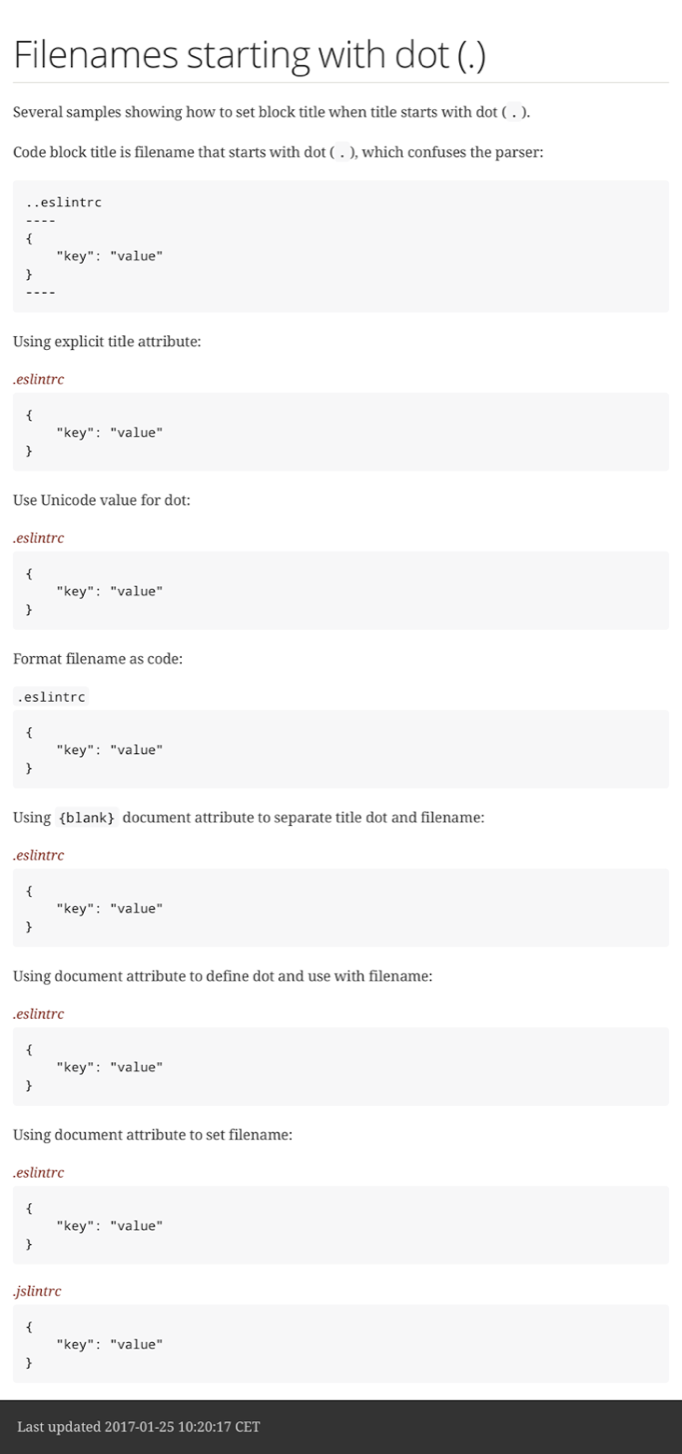
In the next Ascciidoc markup sample we use different ways to set the block title for a code block with a filename that starts with a dot. First we use the title attribute for the block. Another solution is to use the Unicode value for the dot. Next we enclose the filename in back ticks (`) which also formats the filename with a monotype font. We can also separate the first dot with the dotted filename with the document attribute {blank}. Also we can define the dot as document attribute and use it in the title. And finally we can define the filename via a document attribute and reference the document attribute in the block title:
When we generate a HTML version of this markup we get the following result:
Written with Asciidoctor 1.5.4
Original post written on January 2, 2017
Nested Delimited Blocks
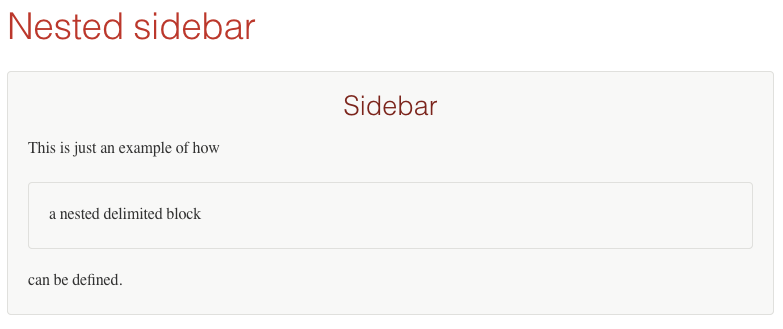
In our Asciidoc markup we can include delimited blocks, like sidebars, examples, listings and admonitions. A delimited block is indicated by a balanced pair of delimiter characters. For example a sidebar starts and ends with four asterisk characters (****). If we want to nest another delimited block of the same type we must add an extra delimiter character at the start and end of the nested block. So when we want to nest another sidebar block inside an existing sidebar block we must use five asterisk characters (*****).
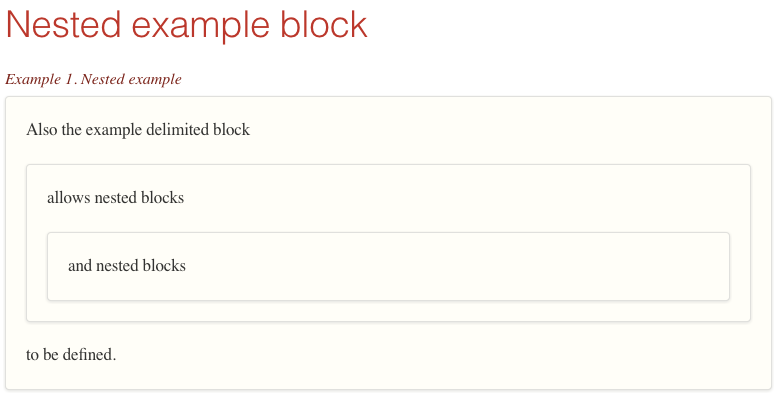
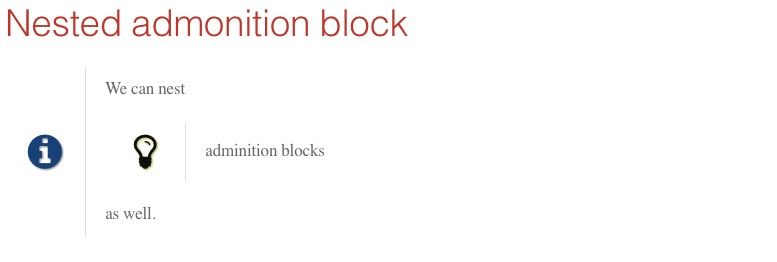
In the following example Asciidoc source we have several blocks with nested blocks:
If we transform this to HTML we get the following result:
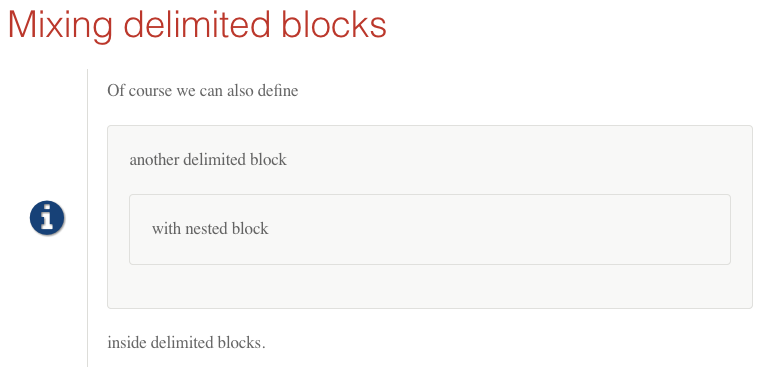
Written with Asciidoctor 1.5.2.
Original post written on December 11, 2014
Use Captions For Listing Blocks
Asciidoctor has some built-in attributes to work with captions for certain content blocks. For example the table-section attribute defines the caption label (by default Table) that is prefixed to a counter for all tables in the document. When we transform our markup Asciidoctor will insert the text Table followed by the table number. By default the caption for listing blocks is disabled, but we can easily enable it with the listing-caption attribute.
In the following markup we enable the caption for listing blocks and set the value to Listing. This will add the text Listing followed by the listing section counter to the output.
When we generate the HTML for this markup we see the caption for the two listing blocks:
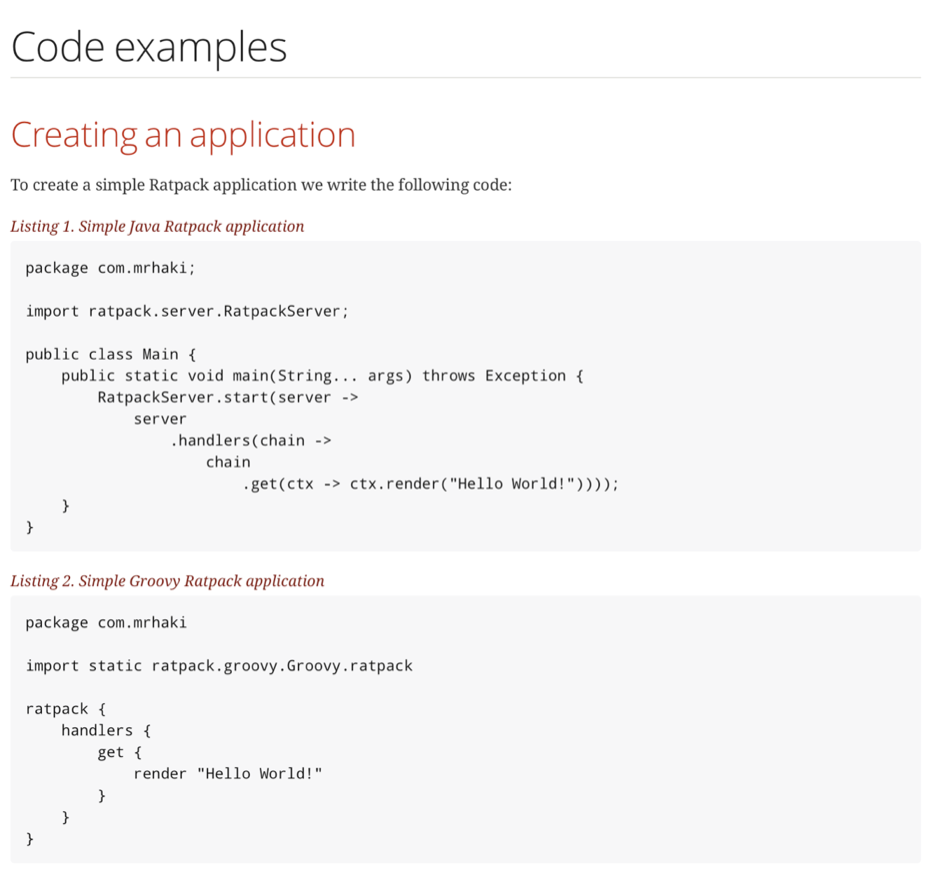
To disable the listing captions we must negate the document attribute: :!listing-caption:.
Written with Asciidoctor 1.5.4.
Original post written on September 26, 2016
Do Not Wrap Lines in Listing or Literal Blocks
When we use listing or literal blocks in our Asciidoc markup long lines will be wrapped if needed in the generated output. We can use the options attribute with a nowrap value to have horizontal scrolling instead of wrapped lines. This applies for the HTML backend when we generate the documentation.
In the following markup we first use the default wrapping of lines:
If we generate HTML we get the following output:
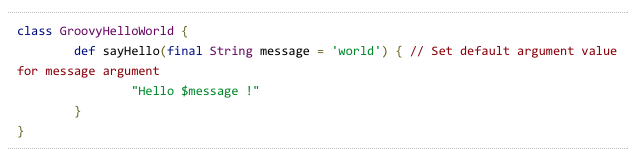
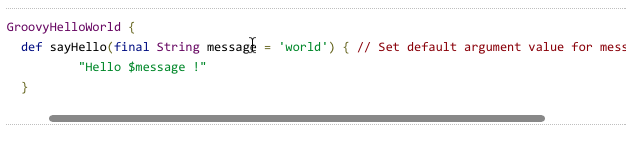
If we set the options attribute with the value nowrap the long lines are no longer wrapped and we get a horizontal scrollbar to see the complete code listing:
The following screenshot shows a horizontal scrollbar when we want to see the rest of the line:
Written with Asciidoctor 0.1.4.
Original post written on June 11, 2014
Don't Wrap Lines in All Listing or Literal Blocks of Document
In a previous post we learned about setting the value of options attribute to nowrap on listing and literal blocks, so the lines in the block are not wrapped. In the comments a user suggested another option to disable line wrapping for all listing and literal blocks in the document by using the document attribute prewrap. We must negate the document attribute, :prewrap!:, to disable all wrapping. If we place this document attribute at the top of our Asciidoctor document it is applied for the whole document. We can also place it at other places in the document to change the setting for all listing and literal blocks following the prewrap document attribute. To enable wrapping again we set :prewrap: (leaving out the exclamation mark).
In the following example we have markup with a listing, literal and example block and we use the document attribute :prewrap!: to disable the wrapping for the listing and literal blocks:
When we create HTML from this markup we get the following output:
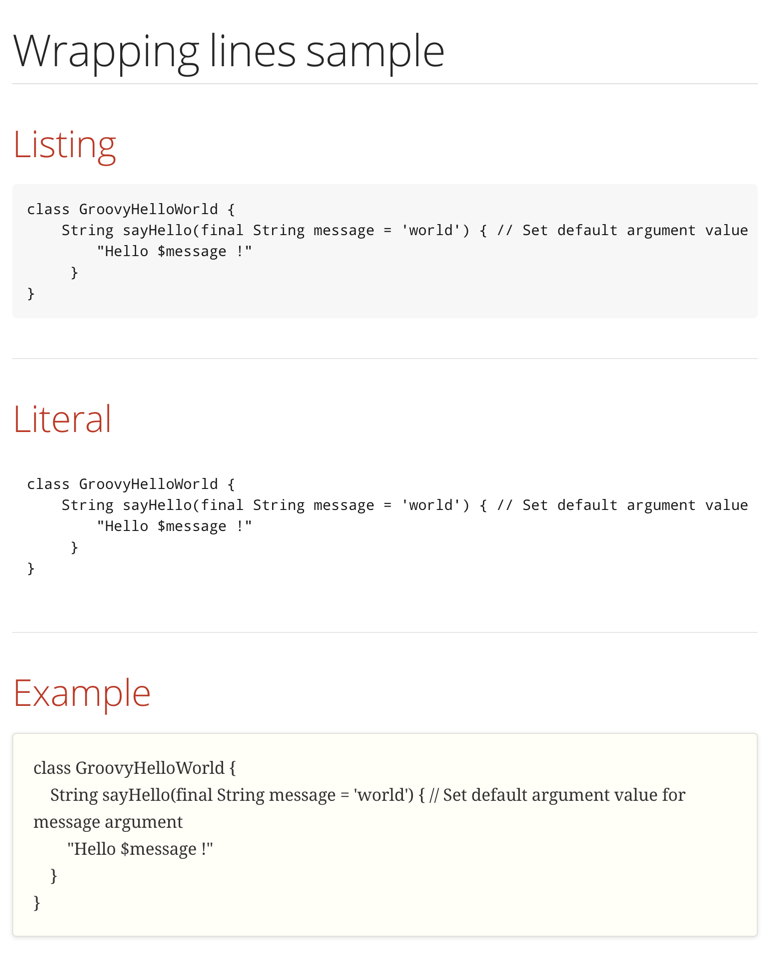
The code in the listing and literal blocks is now not wrapped, but continues on the same line.
Written with Asciidoctor 2.0.2.
Original post written on May 22, 2019
Include Asciidoc Markup With Listing or Literal Blocks Inside Listing or Literal Block
If we want to include Asciidoc markup as source language and show the markup without transforming it we can use a listing or literal block. For example we are using Asciidoc markup to write a document about Asciidoctor and want to include some Asciidoc markup examples. If the markup contains sections like a listing or literal block and it is enclosed in a listing or literal block, the tranformation goes wrong. Because the beginning of the included listing or literal block is seen as the ending of the enclosing listing or literal block. Let's see what goes wrong with an example where we have the following Asciidoc markup:
When we transform this to HTML we get the following output:
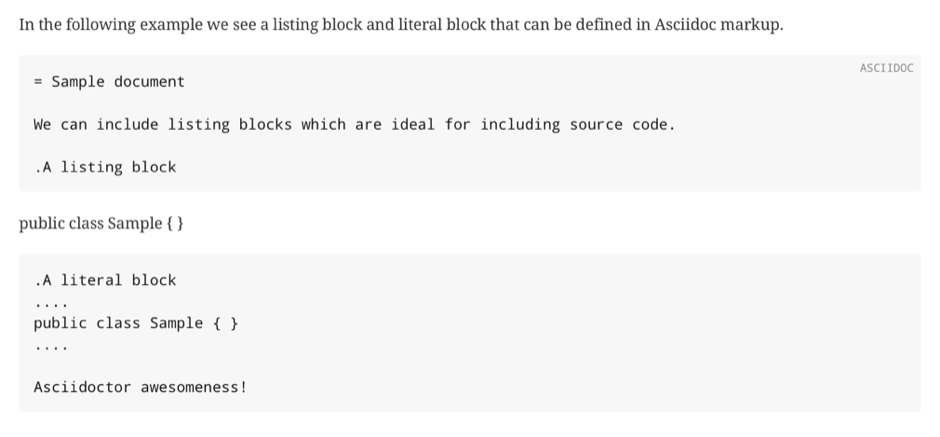
We can use nested listing or literal blocks where we have to add an extra hyphen or dot to the nested block, but then the Asciidoc markup we want to show as an example is not correct anymore. It turns out we can also add an extra hyphen or dot to the enclosing listing or literal block to transform our markup correctly. So in our example we add an extra hyphen to the outer listing block:
The transformed HTML looks like this:
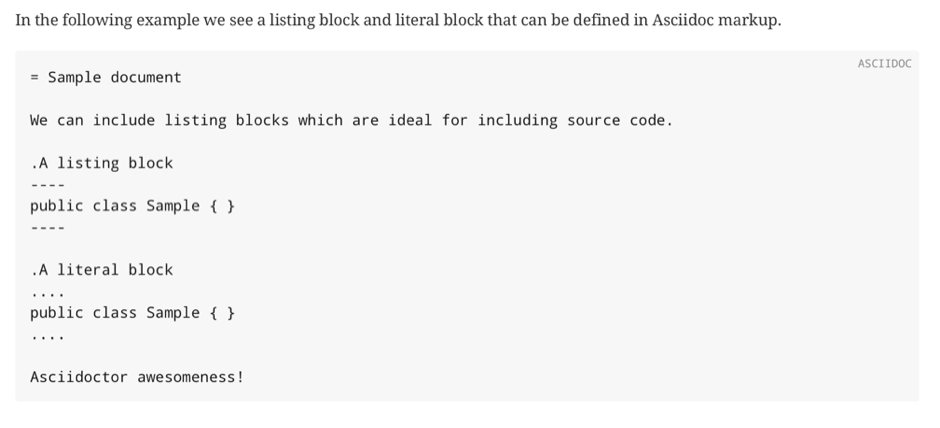
If our sample markup we want to show only contains a listing block we could have enclosed it in a literal block to get the same result or sample markup of a literal block could be in a listing block.\ But in our example we have both a listing and literal block so we needed another solution to get the desired result.
Written with Asciidoctor 2.0.9.
Original post written on May 24, 2019
Collapsible Content
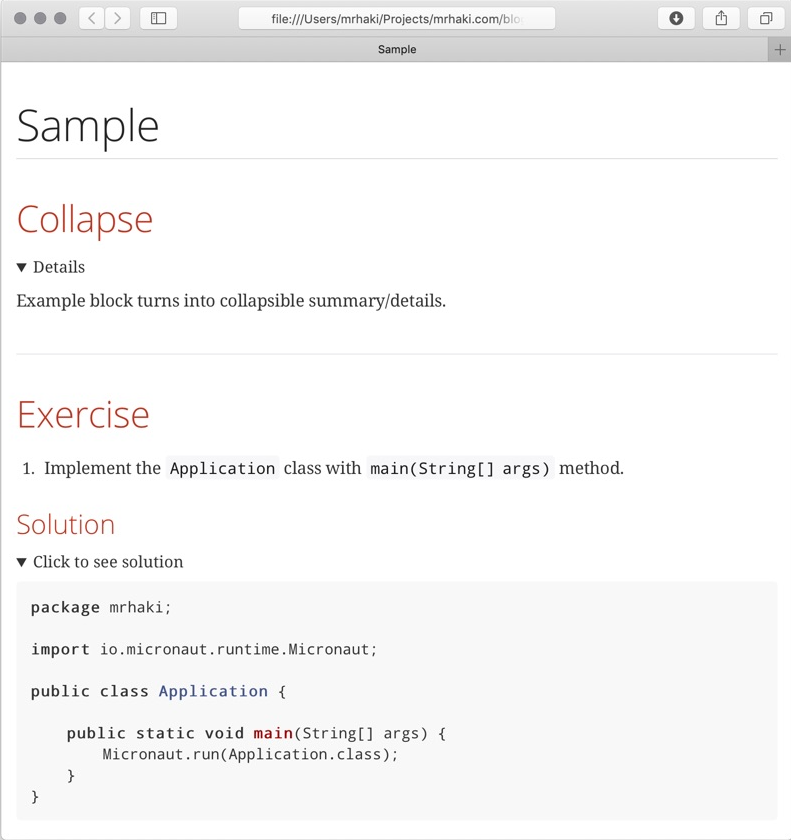
Since Asciidoctor 2.0.0 we can add the collapsible option to an example block. When the markup is generated to HTML we get a HTML details and summary section. The content of the example block is collapsed (default behaviour because it is in a details section) and a clickable text is available to open the collapsed block (the summary section), so we can see the actual content. The text we can click on is by default Details, but we can change that by setting the title of the example block. Then the title is used as the text to click on to open the collapsed content.
The following example markup has two collapsible blocks with and without a title:
When we generate this markup to HTML we get the following result:
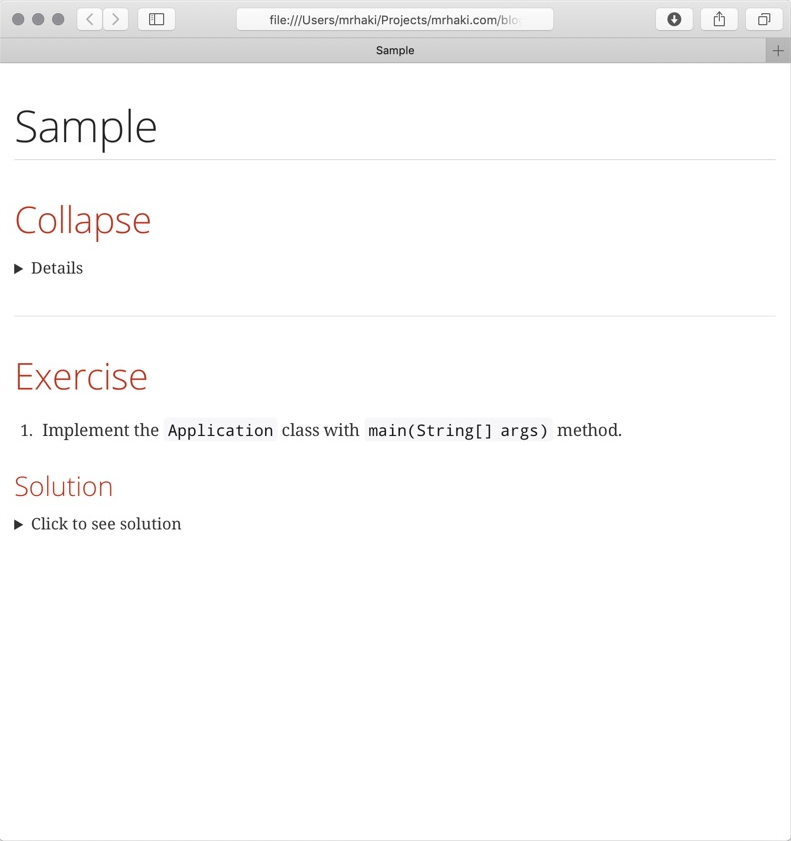
And when we expand the collapsible content we see:
Written with Asciidoctor 2.0.2.
Original post written on March 28, 2019