4 Windows Hijacking
This section has the following chapters:
- Showing_Chrome,_Eclipse,_IBM_AppScan_Standard_and_VisualStudio_in_the_same_Process_Window.md
- Util-_Win32_Window_Handle_Hijack(4x_host_panels)_v1.0.exe.md
- Util-_Windows_Handles-_View_Handle_Screenshot_v1.0.exe.md
- Util-_Windows_Handles_Viewer(Simple_Gui)_v1.0.exe.md
- Util-_Windows_Handles_Viewer(Simple_GUI_with_REPL)_v1.0.exe.md
- Util-_Windows_Handles_Viewer(with_Child_Windows)_v1.0.exe.md
4.1 Showing Chrome, Eclipse, IBM AppScan Standard and VisualStudio in the same Process/Window
**UPDATE (Jan/13): **See PoC - Selenium - Gui with 3 Hijacked Browser Windows.h2 post for another powerful example of consuming Chrome (and IE and Firefox) window in another process
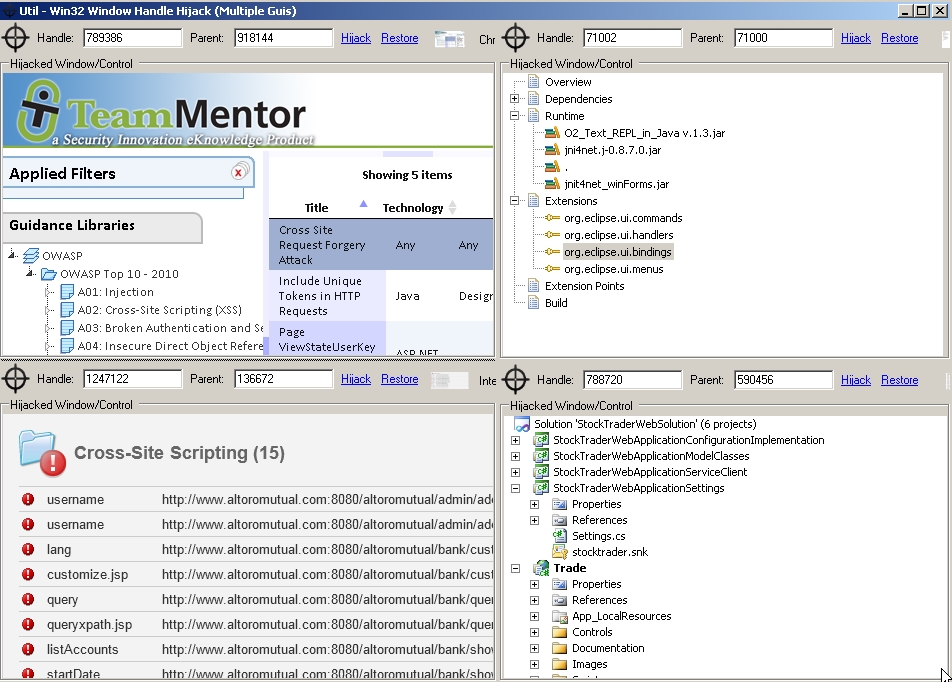
Using the control shown in Util - Win32 Window Handle Hijack (4x host panels) I was able to create a process that has windows from:
- **Chrome **(top left)
- **Eclipse **(top right)
- IBM AppScan Standard (bottom left)
- **VisualStudio **(bottom right)
Chrome inside Eclipse
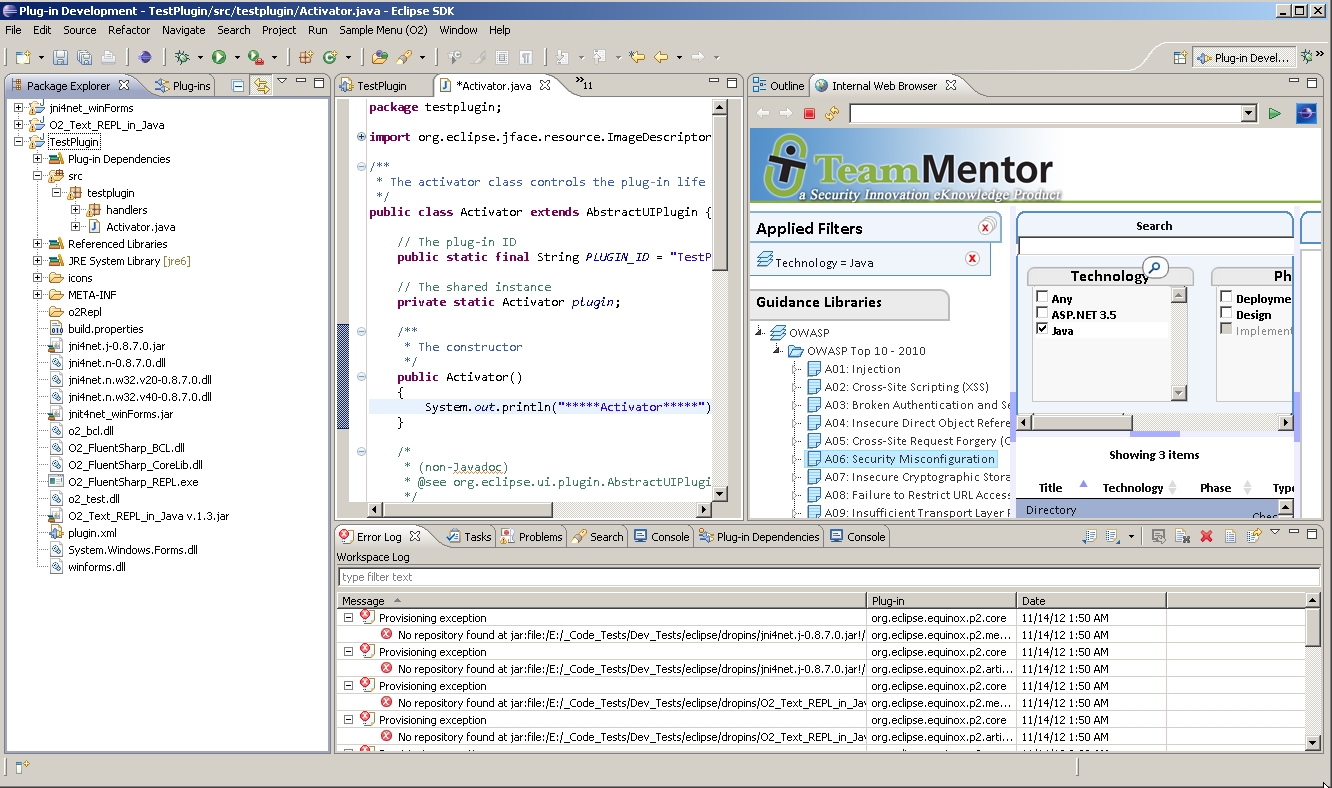
We can also ‘push’ windows into other controls.
For example, here is a Chrome Browser window running inside Eclipse (note that the TeamMentor window on the top-right is being executed by Chrome’s process (not eclipse))
Chrome inside IBM AppScan Standard:
**
**In the example below, TeamMentor is also hosted by Chrome, while being shown natively on AppScan’s GUI:

4.2 Util - Win32 Window Handle Hijack (4x host panels) v1.0.exe
Using the exact same control used in Util - Win32 Window Handle Hijack (simple) v1.0 here is a 4x Panel version of it (i.e. using 2 rows and 2 columns)
This allows for the _hijack _of a multiple Windows into a common (external) process/GUI
You can download this 1Mb tool from Util - Win32 Window Handle Hijack (4x host panels) v1.0.exe
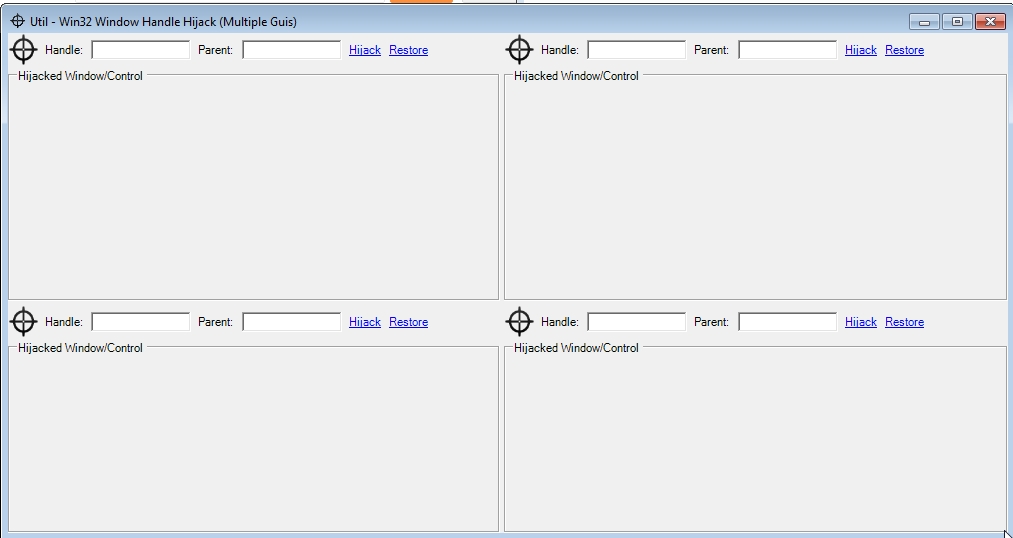
When you start the tool you will see 4 _Target _Icons, which represent the 4 _Hijack areas _available:
Next step is to chose a number of Windows/Controls from other processes.
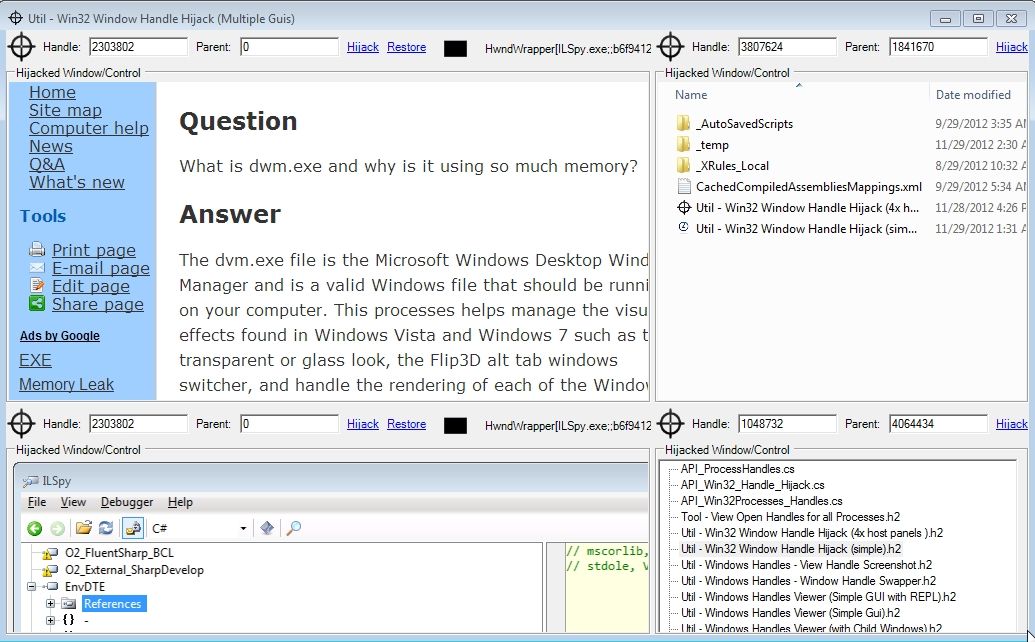
For example, the image below shows controls from:
- Chrome Browser (top left)
- Windows Explorer (top right)
- **ILSpy **(bottom left)
- .Net TreeView (bottom right)
4.3 Util - Windows Handles - View Handle Screenshot v1.0.exe
Following from Util - Windows Handles Viewer (Simple GUI with REPL) here is nice utility that takes a screenshot of the target handle’s window (when the target process doesn’t use the the Win32 Windows controls, you will get a screenshot of the main Window)
You can download the 868 Kb tool from: Util - Windows Handles - View Handle Screenshot v1.0.exe
Here is the tool taking a screenshot of itself :)
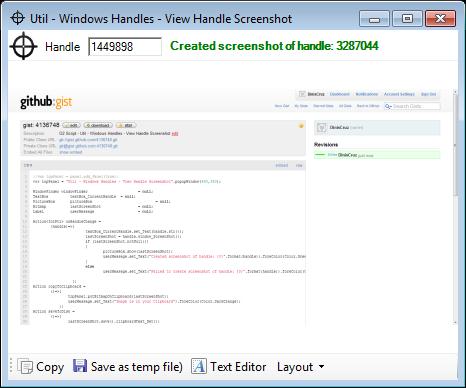
Here is the source code that creates tool:
And here is the PDF with the ‘how the script was created’ step-by-step guide:
4.4 Util - Windows Handles Viewer (Simple Gui) v1.0.exe
Following my research into Win32 Messaging APIs that allowed me to put both IBM AppScan Source and Standard working side by side and to connect TeamMentor with AppScan Source, here is a pretty sweet **Windows Handles Viewer **which allows the easy discovery (and in some cases modification) of the Window’s Handle of a particular Win32’s Button, TextBox, Menu, Window, etc…
You can download this (857kb) .NET 4.0 app from Util - Windows Handles Viewer (Simple Gui) v1.0.exe
And this is what it looks like:

To find a handle, just drag the Target icon _**around and you will see the values in the **_Handle, **Window _**and _Handle Text change.
In the image below, the Target _**icon **_was hovering on top of this tools’s top bar:

The _Handle Text _TextBox can also be used to edit the value (which if applicable will be changed on the target Handle):

We can also view and edit other process (like Notepad)

And even Chrome:
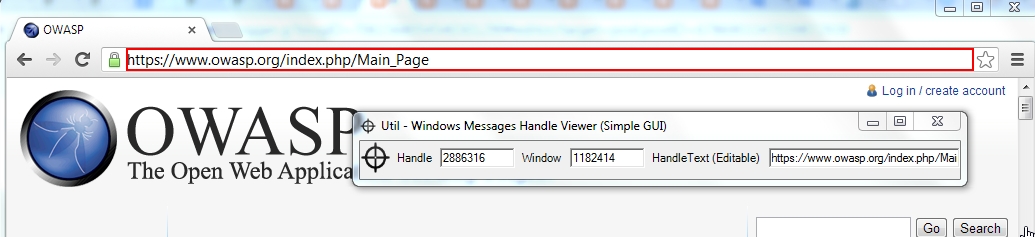
In the example below, note how the the URL was changed, but the loaded website is still the same (owasp.org)

NOTE: These ‘handle detection’ and ‘set text’ techniques don’t work with all visible controls:
- more complex Windows controls, like TreeViews, DataGridViews, RichTextBoxes, ListViews, etc… require more complex Windows Messages
- a number of applications, like for example WPF applications or WebBrowsers, have their own rendering engine (i.e. not using Win32/user32.dll )
- in this case we will only see a handle for the window hosting those rendering engines
**Script this tool: **If you want to run or modify this tool (using the O2 Platform) here is the script used to create it: Util - Windows Messages Handle Viewer (Simple Gui).h2
Credits: this tools re-uses code from the http://hawkeye.codeplex.com/ tool
4.5 Util - Windows Handles Viewer (Simple GUI with REPL) v1.0.exe
Based on the Util - Windows Handles Viewer (Simple Gui) v1.0.exe tool, here is a bigger version (5Mbs) which contains a C# REPL Script editor (with the detected handle provided as a parameter).
You can get this version from Util - Windows Handles Viewer (Simple GUI with REPL) v1.0.exe
And this is what the default GUI looks like:

To try out the C# REPL , drag the _Target Icon _into the TextBox below (shown in red below)

Then un-comment the line below Task #1 and click on Execute (note how the TextBox value was changed)
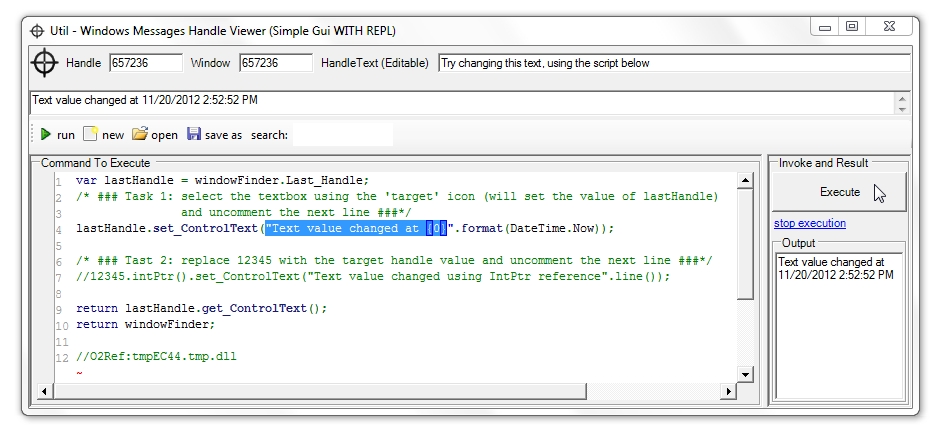
To see how you can also change the text of a Handle whose value you discovered, use the Handle value (in this case 657236) in the code (replacing 12345 as mentioned in the Task #2 instructions) and click execute:

And as shown in Util - Windows Handles Viewer (Simple Gui) v1.0.exe , this will work on other windows and processes :)
4.6 Util - Windows Handles Viewer (with Child Windows) v1.0.exe
Following from the tool shown in Util - Windows Handles - View Handle Screenshot v1.0, the next step was to create a tool that shows (for the selected Win32 Window) the handle’s children structure (i.e. what ‘child windows’ exists for the selected window/control)
You can download the 1 Mb tool from Util - Windows Handles Viewer (with Child Windows) v1.0.exe
Here is what the tool looks like (with the ‘target icon’ used to select the control):
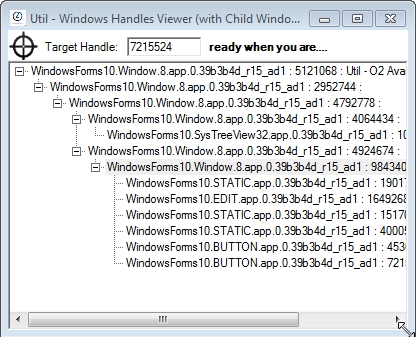
Here is the Pdf with the ‘how the script was created’ step-by-step guide: