5. Versioning Profiles
Any MDG will vary over time. It’s definitely nothing build from concrete which will last over ages. There are two major reasons for change:
- The domain model changes along with the company itself or because some parts were modeled incorrectly for various reasons.
- The supported process will undergo some optimization not at last because the profile is being used.
So you need to face CRUD scenarios for anything inside a MDG: elements, diagrams and toolboxes.
Let us view the latter: toolboxes. Changes in this area are almost uncritical. It’s just the users that might get confused if the toolbox does no longer look like they used to be. There’s a simple solution and it’s called communication. So if you plan to change toolboxes just be sure to involved all people that may be affected and you are done.
As easy as this was, any other change offers the spectrum from minor trouble to catastrophe. Happily the worst case got more unlikely as it seems that the Sparxians really fixed wrong behavior from previous versions where TV creation from MDGs had changed dramatically. However, the manipulations described below come with absolutely no warranty and are on your own risk! Have a backup! Make a test run in a sandbox! Know what you are doing! A set of bleeding ears is guaranteed anyway.
5.1 Removing Stereotypes
If you happen to remove a stereotype from your profile you need to be sure to do it the right way. First the stereotype might be used in various toolboxes. So make sure to run the Extended Search. This will list also attributes which had been named after the stereotype in question. If in our example domain the Bike has to be deleted (just hypothetically) the search would list quite a number of elements. Eventually you could limit the search to <profile>::<stereo> (i.e. CBM::Bike in our domain) or simply ::<stereo>. Any ghost element in a stereotype would show up as
 (i.e. with the stereotype icon) in the toolbox.
If you have any elements using the deleted stereotype they will live on as zombies. That means they have an entry in t_xref13 telling they are from your MDG. But for EA your MDG does not have that stereotype and it will not remove the t_xref entry. So they appear in the tagged values still under the technology group. To get rid of those zombies you need the SQL14 pump gun
1 DELETE FROM t_xref WHERE description like "%FQName=<profile>::<deleted>;%"
where <profile> is the name of your profile and <deleted> the name of the deleted stereotype (i.e. in our example CBM::Bike).
5.2 Adding an Attribute
This can also be regarded as minor critical. The only thing to do is to synchronize the changed stereotype once the updated MDG is reloaded. You can run the synchronization from the stereotype in Diagram/Toolbox from the context menu.
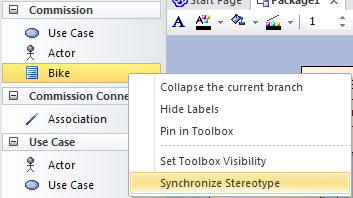
This will add the new TV to where it is needed. The synch will list all elements that have been affected along with the TV that had been added. So far so good. But unfortunately you can not use the list for anything — no copy, not navigation. If you need to rework those updated elements you have to find ways to locate them afterwards.
5.3 Renaming an Attribute
Let’s assume you need to rename one of the attributes in a stereotype, be it to correct a typo or for orthogonality reasons. In that case you end up with already created stereotypes still using the old name. Only newly created stereotypes will receive the renamed attribute as TV.
Like above you can run the profile synch for the changed element. This will add the renamed tagged value as new entry but leave the old one as zombie.
Here you have two or three options. The first is to manually correct the TVs after running an Extended search. Probably the only alternative you have once you shot your patient. Eventually (as option 1a) you can run a SQL to clean the zombies from t_xref (see SQL above) and leave them as manually added TVs. Probably not the worst choice.
The second (or third if you count 1a) alternative is to take precaution and run a SQL to rename the TVs in the repository in advance to reloading the MDG. You would need to look into t_objectproperties.property and t_xref.description (and here the FQNAME-part). It might turn out that finding the right rows can be tricky if the old name is not uniquely to be found by its string value. You definitely need to run a SELECT to cross check the result set before running an UPDATE. Finally the SQLs could look like the following:
1 UPDATE t_objectproperties SET property="new" WHERE property="old"
This will work if the old name is unique. Else you need to JOIN t_object and t_xref with your search15.
1 UPDATE t_xref
2   SET description =
3     Replace('FQName=<profile>::<old>;', 'FQName=<profile>::<new>;')
4   WHERE description like "%FQName=<profile>::<old>;%"
5.4 Renaming a Stereotype
If you rename a stereotype in your MDG this will make all elements created from that stereotype be custom stereotypes. You will see that the TVs are no longer grouped under the profile but appear as ordinary TVs. Turning them back to the right position by unchecking the (now custom) former stereotype and re-assigning the new one from the MDG seems to help. But not really. The entry in t_xref still references the old and gone name. Just another set of zombies lurking around.
Unless you want to create new stereotypes, clone and re-link them before deleting the old ones you will for sure want a SQL that can help. The first of two needed updates goes to t_object:
1 UPDATE t_object SET stereotype="<new stereo>" WHERE stereotype="<old stereo>"
You need to be sure that there is no stereotype from another MDG used with the same name. Running a cross-check with SELECTing the right rows is crucial.
The second UPDATE goes to t_xref. In principle it is the same as described above for renaming an attribute. Only that here the Name-part is to be changes instead of the FQName
1 UPDATE t_xref
2   SET description = Replace('Name=<old>;', 'Name=<new>;')
3   WHERE description like "%Name=<old>;%"