4. Deploying a MDG
A MDG is always loaded temporarily during runtime in some memory which is not directly accessible from an API. That means the stereotypes you had defined in the profiles are not stored in the t_stereotype table. Once the MDG is loaded it will however influence the behavior of stereotyped elements.
4.1 Accessing the MDG
Basically there are two recommended and one system reserved variants how to deploy a MDG:
- imported to a single repository and
- shared on a disk or
- in the EA program folder.
Resource view
In the first case a MDG will be read from disk and stored in EA’s t_document table per MDG ID. You load the file via the View/Resources/MDG Technologies. It will then occur in this view as well as under Extensions/MDG Technologies where you find that it shows Location: Model. You can enable and disable the MDG here as any other MDG. If you remove it from here it will be removed from the Resources (and t_document) as well.
To load a new MDG for testing it is sufficient to re-import the file from the Resources view.
Shared file
The second way to load a MDG is to tell EA where user MDGs are located. This can be shared folders or URLs. Open Extensions/MDG Technologies and click Advanced. Here you can add/delete paths and URLs. EA will look into these locations to offer additional MDGs in the Extensions dialog. This way you can update the MDG on the fly so users have always the most recent version when starting EA. Vice versa if the file has been erased EA will just disable the MDG and not warn you in any way.
To load a new MDG in this dialog it is necessary to disable it and close the Extensions dialog. Now when you re-enable the MDG it will be read from its file location/URL. It is not sufficient to uncheck/tick the MDG without closing.
EA program folder
All of the MDGs listed in the Extensions dialog9 stem from EA’s program folder, namely the MDGTechnologies sub-folder. You could place your own MDG here, but that is not really recommended. However, it is often a good idea to remove the MDGs you will not use in the course of a configuration management. It might save you some trouble if you get unwanted stereotypes out of the way.
Reloading happens as described above for a shared file.
4.2 Using MDG Elements
Loading the MDG is one thing. But using the elements from the MDG is another story. Here I will talk about what happens when you actually use elements from your MDG.
Locating the right elements
Unless you assign elements to according toolboxes of custom diagrams the single stereotypes can be retrieved manually. To do that you can either use the properties window of elements and click the ellipsis button following the Stereotype property. Alternatively you can use the Stereotype field in the View/Properties window and choose browse other stereotypes... at the end of the drop down.
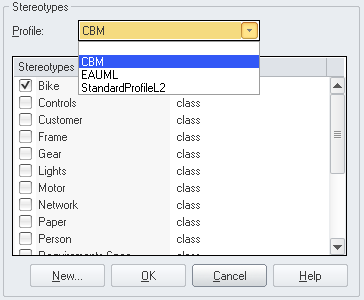
Your profile can be selected from the Profile drop down. Now you can see all the stereotypes where extensions to the metaclass of the currently selected element were defined. Here you can tick the appropriate one.
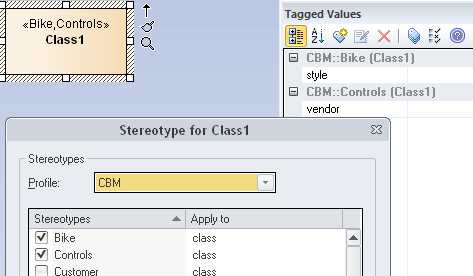
Tagged values
If you assign an element the matching stereotype (that is it has been defined for the same metaclass) EA will create the tagged values from the profile even if the stereotype has been defined in UML Types. Further if you change the stereotype from one existing profile element to another one EA will remove the TVs of the old stereotype and create those for the new one. It does not touch user defined TVs, though11.
Shape scripts
If you have defined a stereotype with the same name of one of your profile elements (e.g. Bike) in Project/Settings/UML Types and assigned a shape script12 then the latter will be used when rendering the element.
| Profile | UML Types | Rendering |
|---|---|---|
| no shape | no shape | default |
| no shape | shape | UML types |
| shape | no shape | profile |
| shape | shape | profile |