Linux Concepts
What is Linux?
In it’s simplest form, the answer to the question “What is Linux?” is that it’s a computer operating system. As such it is the software that forms a base that allows applications that run on that operating system to run.
In the strictest way of speaking, the term ‘Linux’ refers to the Linux kernel. That is to say the central core of the operating system, but the term is often used to describe the set of programs, tools, and services that are bundled together with the Linux kernel to provide a fully functional operating system.
An operating system is software that manages computer hardware and software resources for computer applications. For example Microsoft Windows could be the operating system that will allow the browser application Firefox to run on our desktop computer.
Linux is a computer operating system that is can be distributed as free and open-source software. The defining component of Linux is the Linux kernel, an operating system kernel first released on 5 October 1991 by Linus Torvalds.
Linux was originally developed as a free operating system for Intel x86-based personal computers. It has since been made available to a huge range of computer hardware platforms and is a leading operating system on servers, mainframe computers and supercomputers. Linux also runs on embedded systems, which are devices whose operating system is typically built into the firmware and is highly tailored to the system; this includes mobile phones, tablet computers, network routers, facility automation controls, televisions and video game consoles. Android, the most widely used operating system for tablets and smart-phones, is built on top of the Linux kernel.

The development of Linux is one of the most prominent examples of free and open-source software collaboration. Typically, Linux is packaged in a form known as a Linux distribution, for both desktop and server use. Popular mainstream Linux distributions include Debian, Ubuntu and the commercial Red Hat Enterprise Linux. Linux distributions include the Linux kernel, supporting utilities and libraries and usually a large amount of application software to carry out the distribution’s intended use.
A distribution intended to run as a server may omit all graphical desktop environments from the standard install, and instead include other software to set up and operate a solution stack such as LAMP (Linux, Apache, MySQL and PHP). Because Linux is freely re-distributable, anyone may create a distribution for any intended use.
Linux is not an operating system that people will typically use on their desktop computers at home and as such, regular computer users can find the barrier to entry for using Linux high. This is made easier through the use of Graphical User Interfaces that are included with many Linux distributions, but these graphical overlays are something of a shim to the underlying workings of the computer. There is a greater degree of control and flexibility to be gained by working with Linux at what is called the ‘Command Line’ (or CLI), and the booming field of educational computer elements such as the Raspberry Pi have provided access to a new world of learning opportunities at this more fundamental level.
Linux Directory Structure
To a new user of Linux, the file structure may feel like something at best arcane and in some cases arbitrary. Of course this isn’t entirely the case and in spite of some distribution specific differences, there is a fairly well laid out hierarchy of directories and files with a good reason for being where they are.
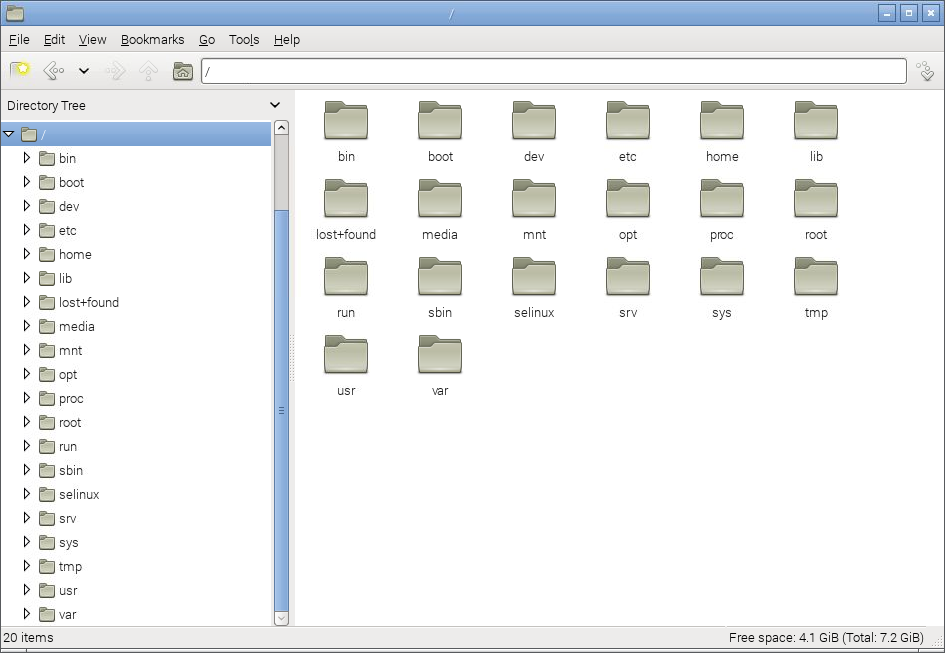
We are frequently comfortable with the concept of navigating this structure using a graphical interface similar to that shown below, but to operate effectively at the command line we need to have a working knowledge of what goes where.
The directories we are going to describe form a hierarchy similar to the following;
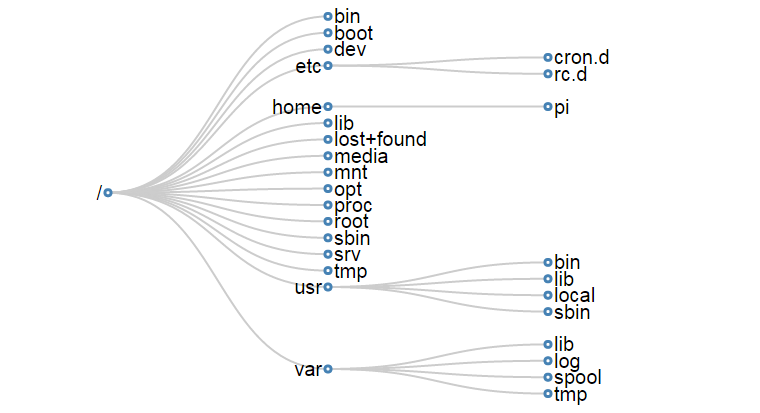
For a concise description of the directory functions check out the cheat sheet. Alternatively their function and descriptions are as follows;
/
The / or ‘root’ directory contains all other files and directories. It is important to note that this is not the root users home directory (although it used to be many years ago). The root user’s home directory is /root. Only the root user has write privileges for this directory.
/bin
The /bin directory contains common essential binary executables / commands for use by all users. For example: the commands cd, cp, ls and ping. These are commands that may be used by both the system administrator and by users, but which are required when no other filesystems are mounted.
/boot
The /boot directory contains the files needed to successfully start the computer during the boot process. As such the /boot directory contains information that is accessed before the Linux kernel begins running the programs and process that allow the operating system to function.
/dev
The /dev directory holds device files that represent physical devices attached to the computer such as hard drives, sound devices and communication ports as well as ‘logical’ devices such as a random number generator and /dev/null which will essentially discard any information sent to it. This directory holds a range of files that strongly reinforces the Linux precept that Everything is a file.
/etc
The /etc directory contains configuration files that control the operation of programs. It also contains scripts used to startup and shutdown individual programs.
/etc/cron.d
The /etc/cron.d, /etc/cron.hourly, /etc/cron.daily, /etc/cron.weekly, /etc/cron.monthly directories contain scripts which are executed on a regular schedule by the crontab process.
/etc/rc?.d
The /rc0.d, /rc1.d, /rc2.d, /rc3.d, /rc4.d, /rc5.d, /rc6.d, /rcS.d directories contain the files required to control system services and configure the mode of operation (runlevel) for the computer.
/home
Because Linux is an operating system that is a ‘multi-user’ environment, each user requires a space to store information specific to them. This is done via the /home directory. For example, the user ‘pi’ would have /home/pi as their home directory.
/lib
The /lib directory contains shared library files that supports the executable files located under /bin and /sbin. It also holds the kernel modules (drivers) responsible for giving Linux a great deal of versatility to add or remove functionality as needs dictate.
/lost+found
The /lost+found directory will contain potentially recoverable data that might be produced if the file system undergoes an improper shut-down due to a crash or power failure. The data recovered is unlikely to be complete or undamaged, but in some circumstances it may hold useful information or pointers to the reason for the improper shut-down.
/media
The /media directory is used as a directory to temporarily mount removable devices (for example, /media/cdrom or /media/cdrecorder). This is a relatively new development for Linux and comes as a result of a degree of historical confusion over where was best to mount these types of devices (/cdrom, /mnt or /mnt/cdrom for example).
/mnt
The /mnt directory is used as a generic mount point for filesystems or devices. Recent use of the directory is directing it towards it being used as a temporary mount point for system administrators, but there is a degree of historical variation that has resulted in different distributions doing things different ways (for example, Debian allocates /floppy and /cdrom as mount points while Redhat places them in /mnt/floppy and /mnt/cdrom respectively).
/opt
The /opt directory is used for the installation of third party or additional optional software that is not part of the default installation. Any applications installed in this area should be installed in such a way that it conforms to a reasonable structure and should not install files outside the /opt directory.
/proc
The /proc directory holds files that contain information about running processes and system resources. It can be described as a pseudo filesystem in the sense that it contains runtime system information, but not ‘real’ files in the normal sense of the word. For example the /proc/cpuinfo file which contains information about the computers cpus is listed as 0 bytes in length and yet if it is listed it will produce a description of the cpus in use.
/root
The /root directory is the home directory of the System Administrator, or the ‘root’ user. This could be viewed as slightly confusing as all other users home directories are in the /home directory and there is already a directory referred to as the ‘root’ directory (/). However, rest assured that there is good reason for doing this (sometimes the /home directory could be mounted on a separate file system that has to be accessed as a remote share).
/sbin
The /sbin directory is similar to the /bin directory in the sense that it holds binary executables / commands, but the ones in /sbin are essential to the working of the operating system and are identified as being those that the system administrator would use in maintaining the system. Examples of these commands are fdisk, shutdown, ifconfig and modprobe.
/srv
The /srv directory is set aside to provide a location for storing data for specific services. The rationale behind using this directory is that processes or services which require a single location and directory hierarchy for data and scripts can have a consistent placement across systems.
/tmp
The /tmp directory is set aside as a location where programs or users that require a temporary location for storing files or data can do so on the understanding that when a system is rebooted or shut down, this location is cleared and the contents deleted.
/usr
The /usr directory serves as a directory where user programs and data are stored and shared. This potential wide range of files and information can make the /usr directory fairly large and complex, so it contains several subdirectories that mirror those in the root (/) directory to make organisation more consistent.
/usr/bin
The /usr/bin directory contains binary executable files for users. The distinction between /bin and /usr/bin is that /bin contains the essential commands required to operate the system even if no other file system is mounted and /usr/bin contains the programs that users will require to do normal tasks. For example; awk, curl, php, python. If you can’t find a user binary under /bin, look under /usr/bin.
/usr/lib
The /usr/lib directory is the equivalent of the /lib directory in that it contains shared library files that supports the executable files for users located under /usr/bin and /usr/sbin.
/usr/local
The /usr/local directory contains users programs that are installed locally from source code. It is placed here specifically to avoid being inadvertently overwritten if the system software is upgraded.
/usr/sbin
The /usr/sbin directory contains non-essential binary executables which are used by the system administrator. For example cron and useradd. If you can’t locate a system binary in /usr/sbin, try /sbin.
/var
The /var directory contains variable data files. These are files that are expected to grow under normal circumstances For example, log files or spool directories for printer queues.
/var/lib
The /var/lib directory holds dynamic state information that programs typically modify while they run. This can be used to preserve the state of an application between reboots or even to share state information between different instances of the same application.
/var/log
The /var/log directory holds log files from a range of programs and services. Files in /var/log can often grow quite large and care should be taken to ensure that the size of the directory is managed appropriately. This can be done with the logrotate program.
/var/spool
The /var/spool directory contains what are called ‘spool’ files that contain data stored for later processing. For example, printers which will queue print jobs in a spool file for eventual printing and then deletion when the resource (the printer) becomes available.
/var/tmp
The /var/tmp directory is a temporary store for data that needs to be held between reboots (unlike /tmp).
Everything is a file in Linux
A phrase that will often come up in Linux conversation is that;
Everything is a file
For someone new to Linux this sounds like some sort of ‘in joke’ that is designed to scare off the unwary and it can sometimes act as a barrier to a deeper understanding of the philosophy behind the approach taken in developing Linux.
The explanation behind the statement is that Linux is designed to be a system built of a group of interacting parts and the way that those parts can work together is to communicate using a common method. That method is to use a file as a common building block and the data in a file as the communications mechanism.
The trick to understanding what ‘Everything is a file’ means, is to broaden our understanding of what a file can be.
Traditional Files
The traditional concept of a file is an object with a specific name in a specific location with a particular content. For example, we might have a file named foo.txt which is in the directory /home/pi/ and it could contain a couple of lines of text similar to the following;
Directories
As unusual as it sounds a directory is also a file. The special aspect of a directory is that is is a file which contains a list of information about which files (and / or subdirectories) it contains. So when we want to list the contents of a directory using the ls command what is actually happening is that the operating system is getting the appropriate information from the file that represents the directory.
System Information
However, files can also be conduits of information. The /proc/ directory contains files that represent system and process information. If we want to determine information about the type of CPU that the computer is using, the file cpuinfo in the /proc/ directory can list it. By running the command `cat /proc/cpuinfo’ we can list a wealth of information about our CPU (the following is a subset of that information by the way);
Now that might not mean a lot to us at this stage, but if we were writing a program that needed a particular type of CPU in order to run successfully it could check this file to ensure that it could operate successfully. There are a wide range of files in the /proc/ directory that represent a great deal of information about how our system is operating.
Devices
When we use different devices in a Linux operating system these are also represented as a file. In the /dev/ directory we have files that represent a range of physical devices that are part of our computer. In larger computer systems with multiple disks they could be represented as /dev/sda1 and /dev/sda2, so that when we wanted to perform an action such as formatting a drive we would use the command mkfs on the /dev/sda1 file.
The /dev/ directory also holds some curious files that are used as tools for generating or managing data. For example /dev/random is an interface to the kernels random number device. /dev/zero represents a file that will constantly stream zeros (while this might sound weird, imagine a situation where you want to write over an area of disk with data to erase it). The most well known of these unusual files is probably /dev/null. This will act as a ‘null device’ that will essentially discard any information sent to it.