10 How can I make the invisible OCR information on a scanned PDF page visible?
10.1 Answer
No, OCR information about scanned pages is not stored in a hidden layer. Layers in a PDF are quite a different concept.
But OCR-ed text nevertheless is ‘hidden’ – but hidden alongside the same layer as the rest of the page content.
I suggest you read the chapter of this book named “How can I use invisible fonts in a PDF?” first. It gives you a short theoretical background of “invisible text” regarding PDF.
The OCR text in your PDF uses Text Rendering Mode 3 (‘Neither fill nor stroke glyph shapes’). In order to make this text visible, you have to change this text rendering mode to one of the other modes:
-
0 Tr(fill text) -
1 Tr(stroke text) -
2 Tr(fill, then stroke text) -
4 Tr(fill text and add to path for clipping) -
5 Tr(stroke text and add to path for clipping)
My favorite mode for this job would be 1 Tr.
It will just draw the outline shape of the glyphs without filling them.
I recommend to do this using a very thin red line.
This way you will be able to see the exact positioning of the text relative to the scanned image when you zoom in to the page.
Unfortunately I do not know of any commandline tool that can achieve this. You’ll have to dive into the PDF source code and manipulate it with a text editor.
Fortunately this is much more easy than it sounds at first. We will use three steps for this:
- Expand the original PDF source code of the OCR/scanned PDF using
qpdf. - Open the expanded PDF source code in a simple text editor and manipulate it.
- ‘Repair’ the PDF source code (which has become ‘corrupted’ through our editing) and copress it again.
Step 1: Expand the original PDF
Looking at the scanned PDF page may show a view like the one in the following image.
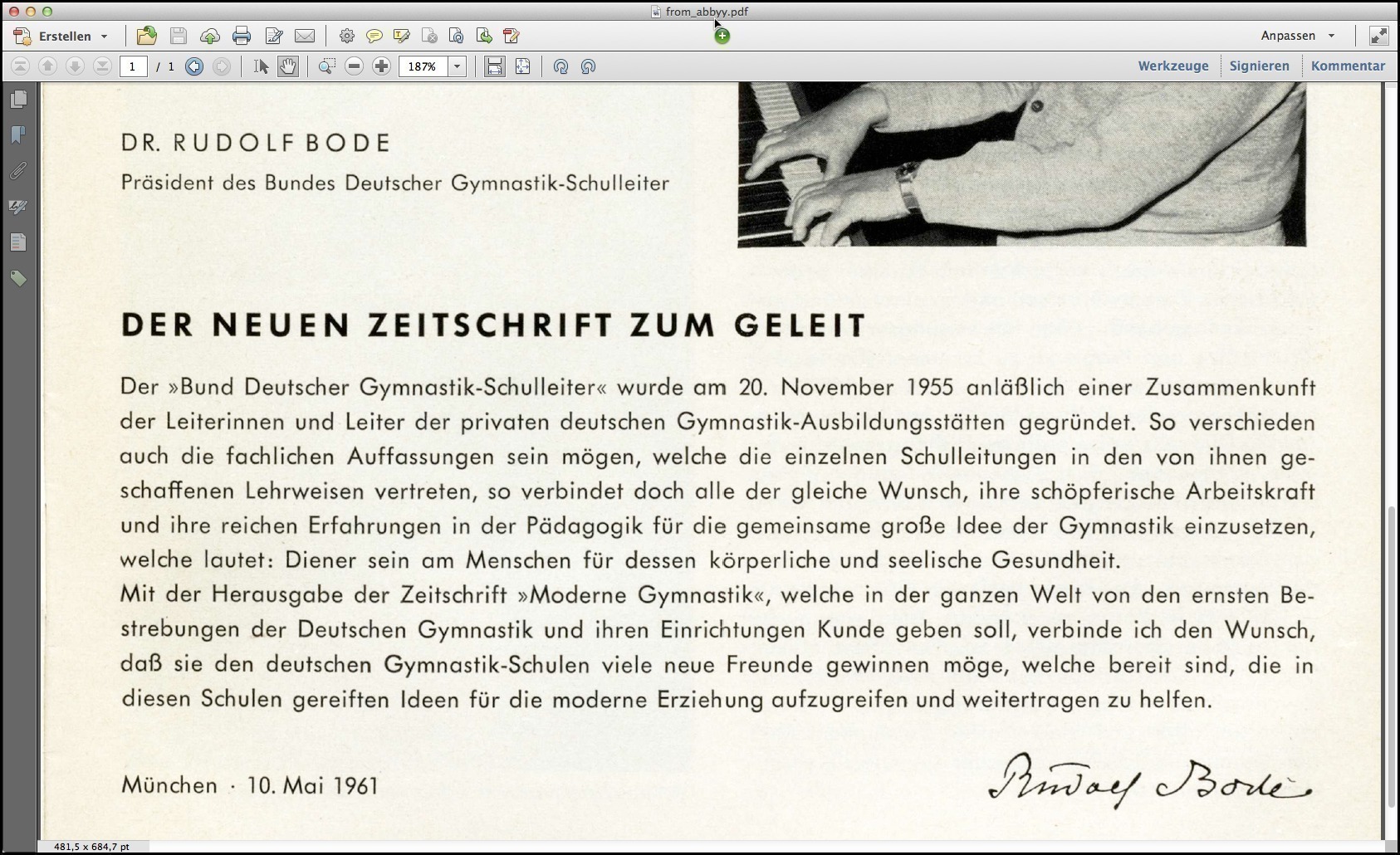
Screenshot showing the original scanned/OCR-ed PDF page opened in Acrobat.
If you’ve read other chapters of this book already, you may be familiar with qpdf.
It can expand PDF source code and transform it into a mode that makes it more easy to process for human brains (if these brains have acquired some PDF knowhow beforehand, or if they are guided with the help of a book like this one).
Here is the command to use:
This created a new PDF file named qdf---original-scan.pdf which can easily be opened and manipulated by a text editor.

|
Note, in case your original PDF had binary data sections (such as images, fonts or color profiles), these will not be expanded and will still be contained in binary form in your expanded PDF. It is only the other components which were expanded. So your text editor should be able to not get a hangover from these binary parts and save your edited version without damaging these. |
Step 2: Open the expanded PDF with a text editor
Now open the new PDF file in your favorite text editor.
Search for all spots where you find the text string 3 Tr.
It could look like this:
Modify these text strings and replace them by the following: 1 0 0 RG 0.1 w 1 Tr.
The resulting PDF code could then look like this:
This modification will have the following effects:
-
1 Tr: this switches the text rendering mode to ‘Stroke text’. -
0.1 w: this sets the stroking line for the text rendering mode to a very thin one, 0.1 points only. -
RG: this sets the RGB color mode for stroking operations. -
1 0 0 RG: this sets the color to ‘red’ for RGB colors.
Now save this modified PDF under a new name like qdf---edited-scan.pdf.
Step 3: ‘Repair’ the modified PDF and compress it again
Our editing manipulations will very likely have ‘corrupted’ the PDF.
Because we inserted some 15 additional characters (*1 0 0 RG 0.1 w *), the PDF’s cross reference table (which holds a list of all object addresses based as byte offsets from the files start) will no longer be correct.
You can use qpdf to check for this problem:
The output will be similar to this:
Fortunately, many PDF viewers will not have major problems with this – they’ll automatically (and often silently) calculate a new xref section for the PDF and use that instead of the one embedded in the file.
You can try to open the file as is with your PDF viewer and see if it does or does not cause a problem.
But to play it save and make sure that each and every viewer will open the manipulated PDF without choking, we will use qpdf again in order to fix this problem:
If you look at the resulting file, ocr-made-visible-in-scan.pdf, you should see something like this now:
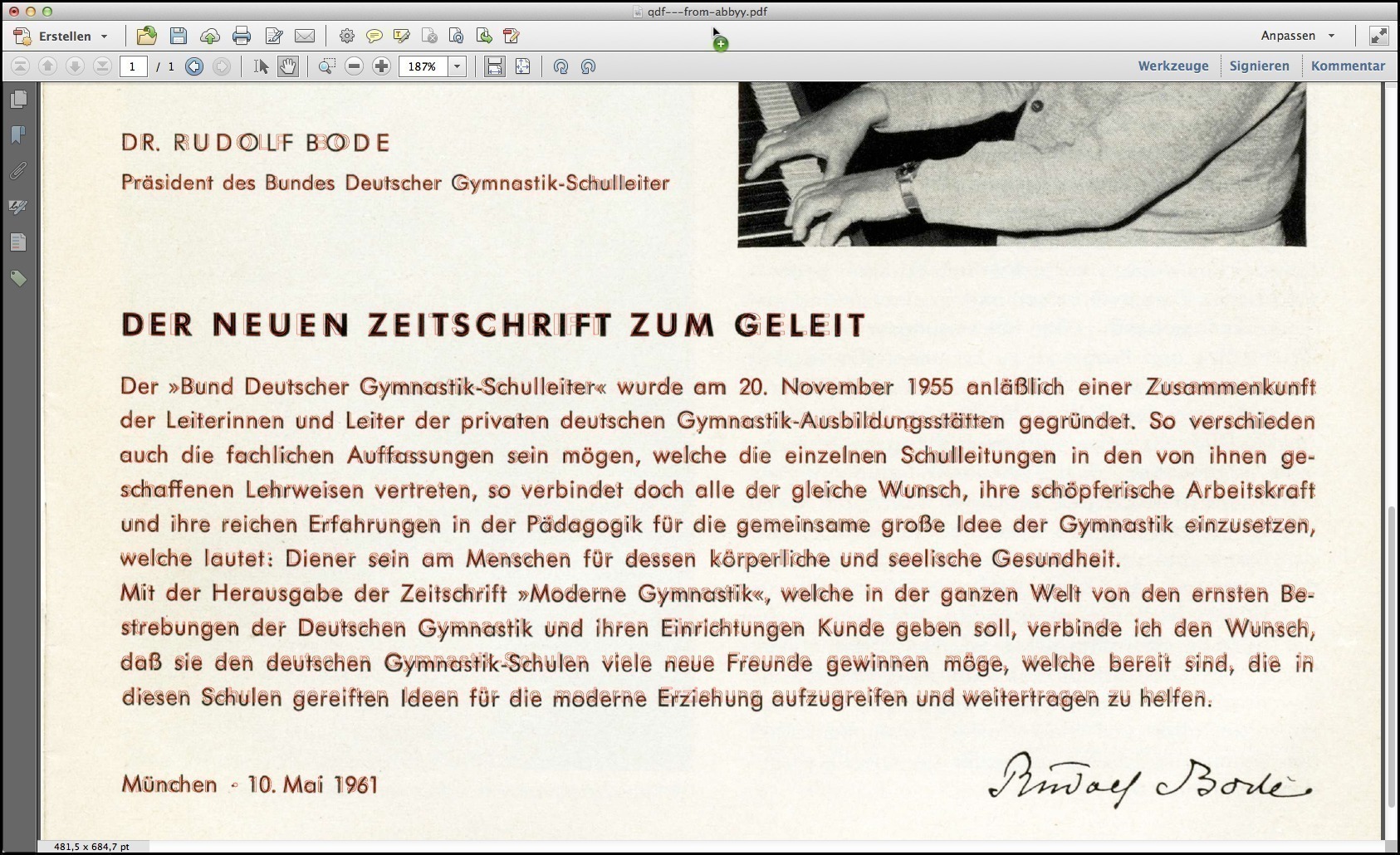
Screenshot showing the manipulated scanned/OCR-ed PDF page opened in Acrobat. The hidden OCR text is now made visible as thin red outlines. Zooming in to the image will reveal more details.
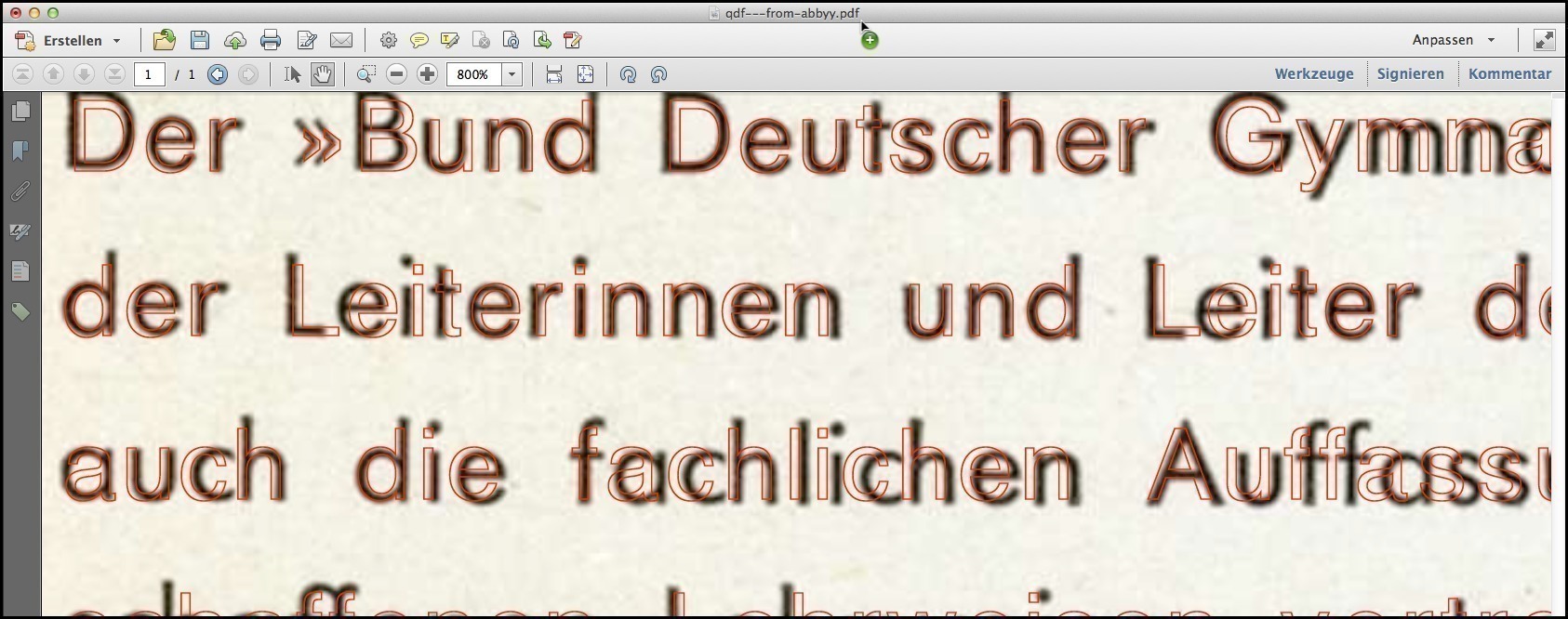
Zooming into the manipulated scanned/OCR-ed PDF page at 800% in Acrobat.
Nice, isn’t it? You’ve just earned your yellow belt in PDF-KungFoo mastership. ;-)