IV Colors
11 How can I convert a color PDF into grayscale?
11.1 Answer
Yes, it is correct that grayscale instead of color images inside PDFs in general do reduce the filesize. I will show this with a small example.
A command to do that is the following:
As long as the image’s resolution remains unchanged, a color-to-gray conversion should significantly reduce the size:
- RGB images use 3 color channels (red, green, blue)
- CMYK images use 4 color channels (cyan, magenta, yellow)
- Gray images use only one color channel
Assuming the same level of color depth for each image type, this means that ratios for the raw amount of uncompressed image data withequally-dimensioned images 1:3:4 for gray:rgb:cmyk images.
Of course, in the real life images are compressed. Depending on their actual contents, different compression algorithms will change this ratios – but for a first approximation they are an important consideration to make.
The picture below1 shows the original input file, color.pdf, vs. the resulting grayscale output, gray.pdf.
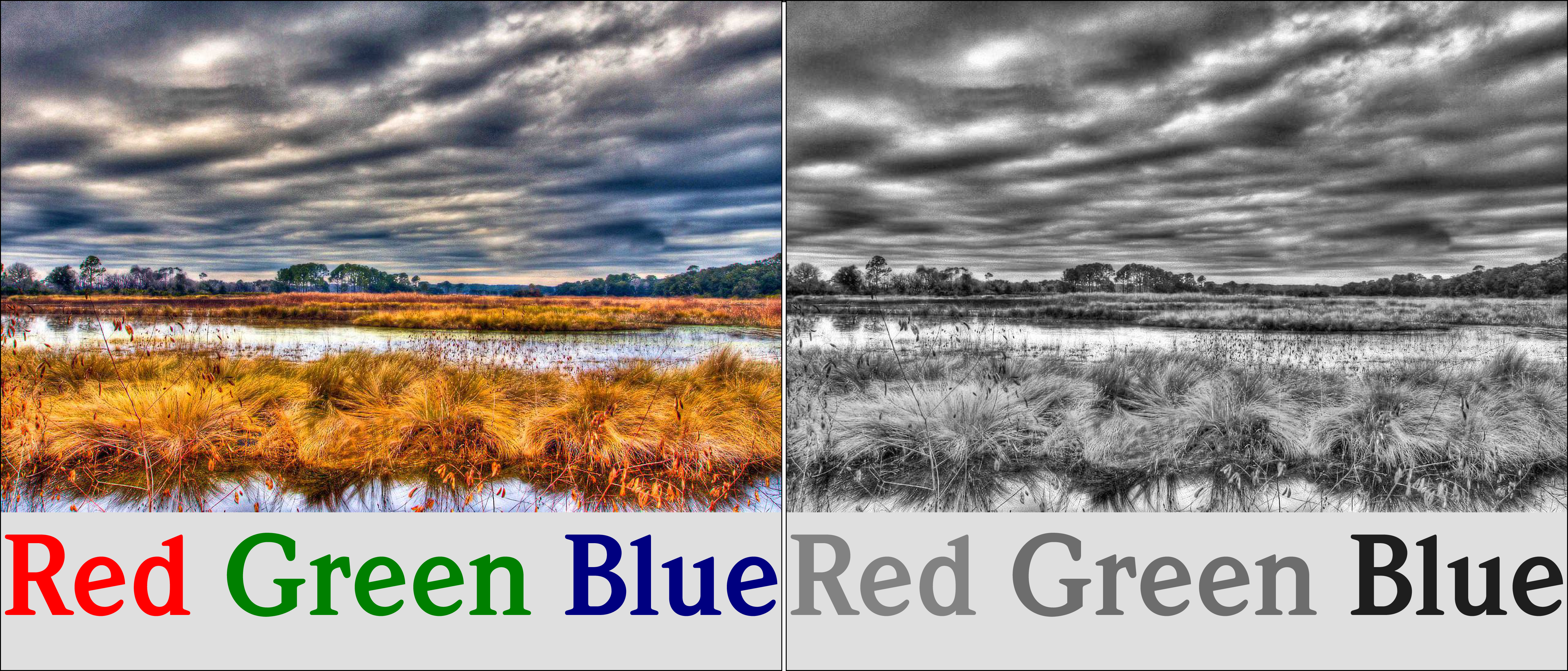
Left: original color PDF – Right: grayscale PDF converted with Ghostcript. (Color image used in the PDF is by Craig ONeal (“minds-eye”), licensed under Creative Commons ‘BY-SA 2.0’.)
Comparing the file sizes of these two files shows this:
-
color.pdf: 2,6 MByte -
gray.pdf: 172 kBbyte
So in this specific case the conversion reduced the file size to roughly 6% of the original.
|
Note, not every single color-to-gray conversion will show the same amount of file size reduction.** **The reduction ratio very much depends on the amount of color images used in the original PDF vs. the amount of text or other elements. |
To further analyse what has happened to the image during conversion, we can use pdfimages and pdfinfo like this:
The image in the PDF uses the RGB color space. Since the width of the page is 595 PostScript points (where 72 pt == 1 inch), and the width of the image (borderless on the page) is 1280 pixels, the resolution of the image as embedded in the PDF page can easily be calculated. In the current case that resolution for both, color.pdf and gray.pdf is 152 ppi (pixels per inch).
Assuming the original color image had been of a higher resolution. With 300 ppi (4 times the number of pixels than at 150 ppi) the PDF size could easily have exceeded 10 MByte. With 600 ppi (16 times the number of pixels than at 150 ppi) it could have exceeded 40 MByte.
Converting these high-resolution color images to grayscale would also significantly reduce the file size. But when doing this conversion, you could at the same time downsample all high resolution images to, say, 150 ppi. Here is how you’d achieve this:
As you can see from the various command line parameters, you could differentiate between color, grayscale as well as mono images and give different parameters for each type. Above I used the same ones for each.
Three parameters which deserve special mention here are the {Mono,Gray,Color}DownsampleThreshold ones.
Their default value is 1.5.
This means that downsampling will only happen, if the original’s image resolution is 1.5 times as high or higher than the target image’s resolution.
If you have an image of 250 ppi embedded in a PDF page its resolution will remain unchanged for a 150 ppi target.
Images will only be downsampled if they are at 225 ppi or above.
Setting the {Mono,Gray,Color}DownsampleThresholds to 1.0 enforces the downsampling of each and every image that has a higher resolution than the target.