Chapter 5 - Homestead and Laravel Installer
This chapter explores the two composer tools previously installed: homestead and laravel. A typical daily workflow is examined, as are the six steps to set up any new Laravel 5.1 project.
Chapter Contents
- The Homestead Tool
- Overview of Common Homestead Commands
- Examining Homestead.yaml
- Adding Software to the Homestead VM
- Daily Workflow
- Six Steps to Starting a New Laravel 5.1 Project
- Other Homestead Tips
- Recap
The Homestead Tool
From the console of your host operating system, you can easily see what the valid homestead commands are by typing the homestead command without any arguments.
% homestead
Laravel Homestead version 2.0.9

Usage:
  [options] command [arguments]

Options:
  --help           -h Display this help message.
  --quiet          -q Do not output any message.
  --verbose        -v|vv|vvv Increase the verbosity of messages: 1 for normal \
output, 2 for more verbose output and 3 for debug.
  --version        -V Display this application version.
  --ansi              Force ANSI output.
  --no-ansi           Disable ANSI output.
  --no-interaction -n Do not ask any interactive question.

Available commands:
  destroy     Destroy the Homestead machine
  edit        Edit the Homestead.yaml file
  halt        Halt the Homestead machine
  help        Displays help for a command
  init        Create a stub Homestead.yaml file
  list        Lists commands
  provision   Re-provisions the Homestead machine
  resume      Resume the suspended Homestead machine
  run         Run commands through the Homestead machine via SSH
  ssh         Login to the Homestead machine via SSH
  status      Get the status of the Homestead machine
  suspend     Suspend the Homestead machine
  up          Start the Homestead machine
  update      Update the Homestead machine image
The main command you’ll use each day is the homestead up command to start the Homestead Virtual Machine.
Overview of Common Homestead Commands
Here’s a quick overview of commonly used Homestead commands.
homestead up- Starts the Homestead Virtual Machine. It turns on the power to the VM. If you use the provision option (
homestead up --provision) then any new sites you’ve added will be provisioned. homestead halt- Stops the Homestead Virtual Machine. In other words, powering off.
homestead suspend- Suspends the Homestead Virtual Machine. It’s like hibernate.
homestead resume- Resumes the suspended Homestead Virtual Machine.
homestead edit- Edit the Homestead.yaml file. This launches whatever editor is associated with YAML files on your operating system.
homestead status- See the current status of the Homestead Virtual Machine.
Examining Homestead.yaml
The configuration settings for Laravel Homestead are contained in the Homestead.yaml file. This file is located in the .homestead directory of your Host OS’s home directory.
If you view the contents of this file, you’ll see what’s below.
---
ip: "192.168.10.10"
memory: 2048
cpus: 1

authorize: ~/.ssh/id_rsa.pub

keys:
    - ~/.ssh/id_rsa

folders:
    - map: ~/Code
      to: /home/vagrant/Code

sites:
    - map: homestead.app
      to: /home/vagrant/Code/Laravel/public

databases:
    - homestead

variables:
    - key: APP_ENV
      value: local
Here’s a definition of each of the settings.
- ip
- The internal IP used to access the machine.
- memory
- How much memory the VM will use.
- cpus
- The number of CPUs the VM will use.
- authorize
- This should point to your public SSH key.
- keys
- Your private SSH key.
- folders
- The shared folders. These are the directories in your Host Operating System and where they will appear within the VM. For Windows the
~/Codeequates to something likeC:\Users\YOU\Code. In OS X, this is/Users/YOU/Code. Under Linux it’s usually something like/home/YOU/Code. Whenever you edit a file in this directory tree on your host machine, it’s instantly available to the Homestead Virtual Machine. - sites
- A list of sites (paths each domain points to) that will be set up on the Homestead Virtual Machine each time you provision.
- databases
- A list of database Homestead should automatically create.
- variables
- Variables to make available to the homestead environment.
For now, don’t change any homestead configuration values except the databases setting (and then, only if you want to.)
Adding Software to the Homestead VM
When you need to install new software inside the Homestead Virtual Machine, use the Ubuntu utility apt-get.
It’s an easy two step process.
- Upgrade Ubuntu
- Install with apt-get
For example, here’s how to install unzip, a handy utility for dealing with zip archives.
First, Upgrade Ubuntu
vagrant@homestead:~$ sudo apt-get update
vagrant@homestead:~$ sudo apt-get upgrade
You may have to choose “Y” to continue. If prompted during the installation to pick a configuration it’s generally best to go with the existing or default.
After the Ubuntu OS within the Homestead VM is updated, install unzip.
Next, Install unzip with apt-get
vagrant@homestead:~$ sudo apt-get install unzip
Daily Workflow
The daily workflow when working with homestead consists of three steps:
Step 1 - homestead up - Start the day by booting your Homestead Virtual Machine.
Step 2 - homestead ssh or PuTTY - SSH to the Homestead VM to access files directly and execute artisan commands.
Step 3 - write beautiful code - In your favorite code editor, on your host operating system, write code.
Optional 4th Step - homestead halt - When you are done for the day, you can optionally power off the Homestead Virtual Machine with the halt command.
Six Steps to Starting a New Laravel 5.1 Project
There are six simple steps to follow whenever starting a new Laravel 5.1 application.
Let’s say we want to create a project called test.app and use test as the project folder.
Step 1 - Create the app skeleton
Using the Laravel Installer (the laravel command installed in a previous chapter) it’s easy to create a new project skeleton.
~/Code % laravel new test
Crafting application...
Generating optimized class loader
Compiling common classes
Application key [rzUhyDksVxzTXFjzFYiOWToqpunI2m6X] set successfully.
Application ready! Build something amazing.
Step 2 - Configure the web server
After there’s an application skeleton in place you can set up the Nginx webserver within the homestead environment to serve pages from your app’s public directory.
The homestead environment makes this easy with the serve command.
~/Code$ serve test.app ~/Code/test/public
dos2unix: converting file /vagrant/scripts/serve.sh to Unix format ...
 * Restarting nginx nginx                                                [ OK ]
php5-fpm stop/waiting
php5-fpm start/running, process 2169
The serve command sets up a new configuration file in /etc/nginx/sites-available for the domain we’ll be using (test.app) and a symbolic link to this file within the /etc/nginx/sites-enabled directory.
Even when you reboot the machine, this configuration file will be there.
Step 3 - Add the Host to Your Hosts File
Since test.app does not exist in any DNS, an entry must be added to the Host OS’s hosts file. Edit /etc/hosts in Linux or OS X. In Windows the file is C:\Windows\System32\drivers\etc\hosts. In this hosts file point test.app to the IP specified in Homestead.yaml.
Add the following line to this file.
192.168.10.10 test.app
sudo nano /etc/hosts
// or
sudo vi /etc/hosts
Step 4 - NPM Local Installs
In order to later use gulp it’s important to make sure all the required npm modules are locally installed.
You can skip this step if you know you will not use gulp.
Change to your project directory in your Host OS’s console and execute the following.
~% cd Code/test
~/Code/test% npm install
npm WARN package.json @ No repository field.

> v8flags@1.0.5 install /Users/chuck/Code/test/node_modules/gulp/\
node_modules/v8flags
> node fetch.js

flags for v8 3.14.5.9 cached.

[snip]
This will install everything required by gulp locally into the node_modules directory of your project.
Step 5 - Create the app’s database
If your application requires a database, it’s easy to create it within the Homestead VM using the mysql console.
$ mysql --user=homestead --password=secret
mysql> create database test;
mysql> exit;
Once the database is created, edit the .env file in your project’s root directory and change the DB_NAME appropriately.
// Change the following line
DB_DATABASE=homestead

// To the correct value
DB_DATABASE=test
Easy. Now you’ll be able to migrate and create tables. This is covered in a later chapter.
Step 6 - Testing in the Browser
Point your browser to http://test.app and you should see the page below.
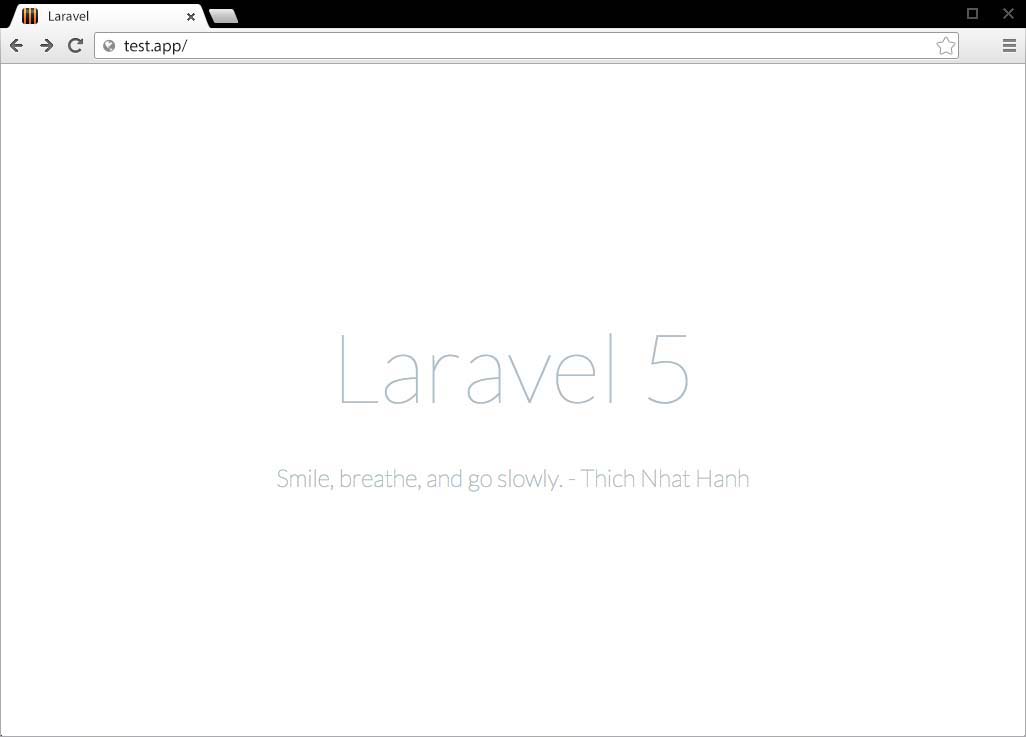
If you see anything else then something didn’t work.
Other Homestead Tips
Edit Source Code in your Host Operating System
Although this has been mentioned in an earlier chapter, it bears repeating. Always edit your source code in your Host OS. Through the magic of shared folders, changes you make within the ~/Code directory are immediately seen within the Homestead Virtual Machine.
Use the .homestead/aliases file
Each time you re-provision Homestead with homestead up --provision or homestead provision, the .homestead/aliases file updates the aliases in the Homestead Virtual Machine.
This is a handy place to add aliases, or functions, or even other environment variables.
Keep the Homestead VM up-to-date
As mentioned earlier, two commands will keep the Ubuntu operating system within the Homestead Virtual Machine up to date.
$ sudo apt-get update
$ sudo apt-get upgrade
Recap
This chapter provided details on the homestead and laravel commands. And the Six Steps to a New Laravel 5.1 Project were outlined.
In the next chapter where we’ll do a bit of testing.