Chapter 3 - Setting up a Windows Machine
This chapter goes through the steps required to set up and install the supporting software for Laravel Homestead on a Windows machine. It is assumed VirtualBox and Vagrant were already installed from the previous chapter.
If you’re using OS X or Linux, please skip to the next chapter.
Chapter Contents
- Multiple Ways to Setup Windows
- Step 1 - Installing PHP Natively
- Step 2 - Install Node.js
- Step 3 - Install Composer
- Step 4 - Install GIT and set up SSH Key
- Step 5 - Adding the Homestead box
- Step 6 - Installing Homestead
- Step 7 - Bring up the Homestead VM
- Step 8 - Setting up PuTTY
- Step 9 - Installing Laravel’s Installer
- Recap
Multiple Ways to Setup Windows
With Windows, there’s quite a few different paths you can go down to install the required software. I tried multiple methods searching for the combination presented below. This chapter has been tested with Windows 8.1 but should work fine with Windows 7.
Step 1 - Installing PHP Natively
The first step is to get PHP running on Windows.
Step 1.1 - Download / Unzip PHP
Go to windows.php.net/download and download the latest Zip file for your machine. For my machine I downloaded the VC11 x64 Thread Safe version. (php-5.6.10-Win32-VC11-x64.zip at the time of this writing.)
Unzip this file into the C:\Php directory.
Step 1.2 - Update PHP.INI
Open up a command prompt and do the following to create the php.ini file.
C:\Users\Chuck> cd \php
C:\Php> copy php.ini-development php.ini
Then edit php.ini in a text editor and change the following lines.
// change
; extension_dir = "ext"
// to
extension_dir = "ext"

// change
;extension=php_openssl.dll
// to
extension=php_openssl.dll

// change
;extension=php_mbstring.dll
// to
extension=php_mbstring.dll
Now, within the C:\Php directory, you should be able to execute php.
C:\Php> php --version
PHP 5.6.10 (cli) (built: Oct 30 2014 16:05:53)
Copyright (c) 1997-2014 The PHP Group
Zend Engine v2.6.0, Copyright (c) 1998-2014 Zend Technologies
Step 1.3 - Add C:\Php to the path
- Open up the Windows Control Panel
- Search for env in the top right corner
- Click on the Edit environment variables for your account link
- If
PATHis already in your User variables, then [Edit…] it, adding;C:\Phpto the end, otherwise add it.
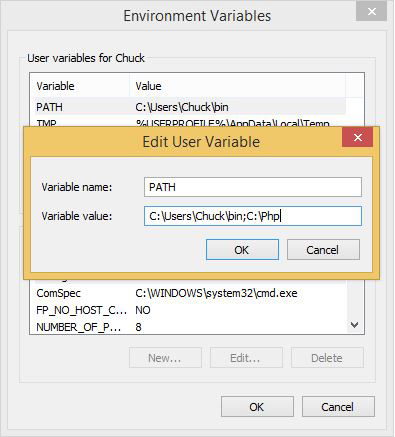
The next time you open up a command prompt, php will be available in your path.
Step 2 - Install Node.js
We’ll install Node.js natively in Windows because later it’ll make it easy to use Gulp directly from the Windows command prompt.
Go to nodejs.org/download and download the Windows Installer for your version of windows. (Either 32-bit or 64-bit.)
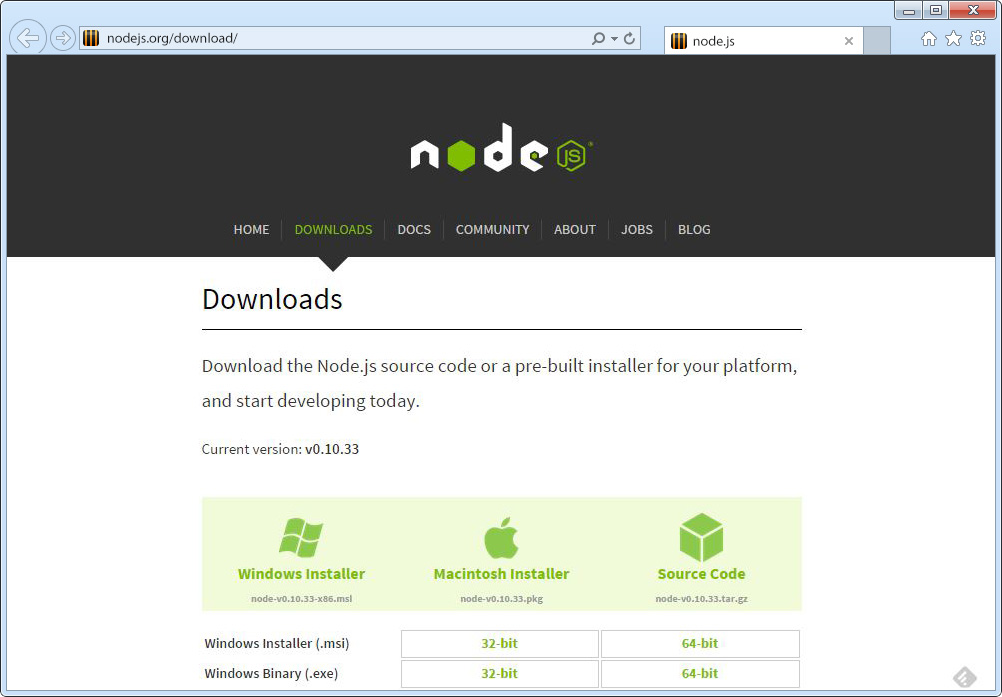
Install using defaults. Once installed, open up a new command prompt and check the installation by looking at the versions installed.
C:\Users\Chuck> node --version
v0.10.33

C:\Users\Chuck> npm --version
1.4.28
C:\Users\Chuck> npm install -g gulp
C:\Users\Chuck\AppData\Roaming\npm\gulp -> C:\Users\Chuck\AppData/
Roaming\npm\node_modules\gulp\bin\gulp.js
gulp@3.8.10 C:\Users\Chuck\AppData\Roaming\npm\node_modules\gulp
[snip]
C:\Users\Chuck> gulp --version
[10:13:44] CLI version 3.8.10
Using the Node package manager (NPM), install bower globally.
C:\Users\Chuck> npm install -g bower
C:\Users\Chuck\AppData\Roaming\npm\bower -> C:\Users\Chuck\AppData\
    Roaming\npm\node_modules\bower\bin\bower
bower@1.3.12 C:\Users\Chuck\AppData\Roaming\npm\node_modules\bower
[snip]
C:\Users\Chuck> bower --version
1.3.12
Step 3 - Install Composer
Composer is the package manager for PHP.
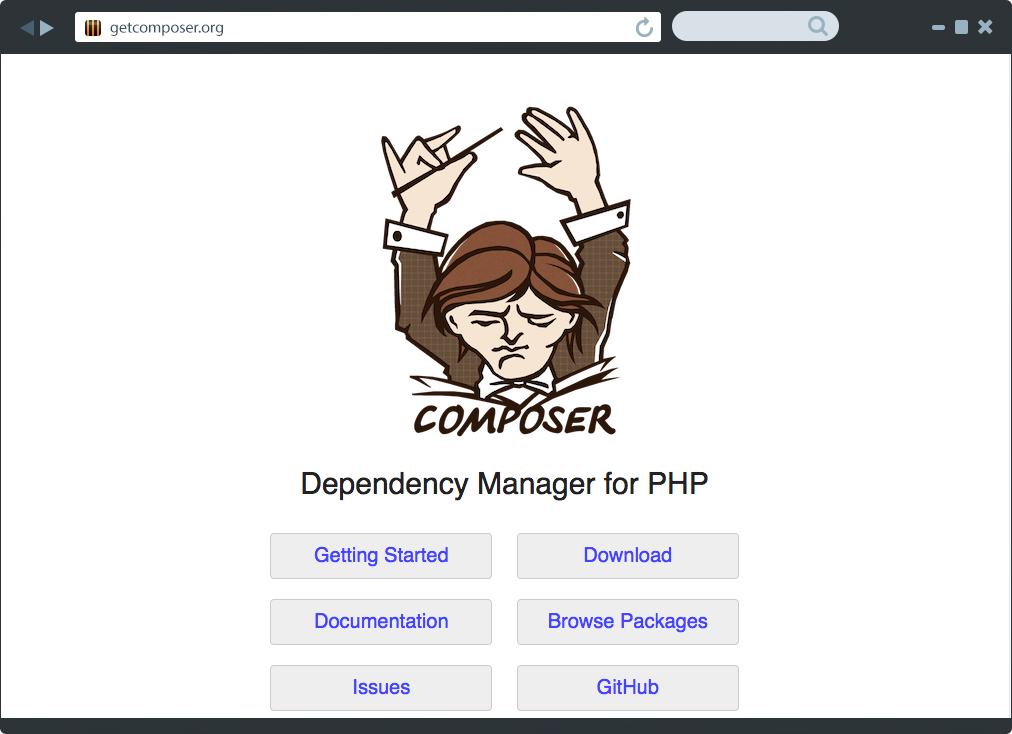
Download and install the Windows setup program, Composer-Setup.exe. Use the defaults when installing and if it asks you the path to PHP, enter C:\Php\php.exe.
Once Composer installs, close any command prompts and open up a new one. Check the version of composer to see if installed correctly.
C:\Users\Chuck> composer --version
Composer version 1.0-dev (b23a3cd36870ff0eefc161a4638d9fcf49d998ba)\
2014-11-21 17:59:11
Step 4 - Install GIT and set up SSH Key
For Windows we’ll install the native GIT application and use GIT BASH for setting up the SSH Key. Any other GIT usage in Windows will be through the Windows command prompt.
Step 4.1 - Download the git installer
Go to git-scm.com/downloads and click on the [Downloads for Windows] button. This will download the latest version of Git for windows.
(At the time of this writing, the file downloaded is named Git-1.9.4-preview20140920.exe.)
Step 4.2 - Install, choosing the ‘Use Git from Command Prompt’ option
Run the file just downloaded and choose default options until you get to the following screen.
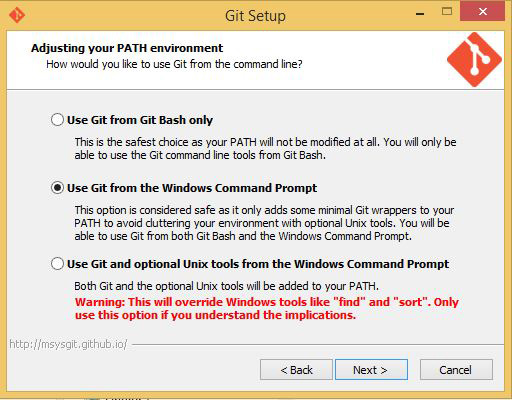
Make sure you select the Use Git from the Windows Command Prompt option.
Use the defaults for the rest of the installation.
Step 4.3 - Checking the Git Version
Close any existing command prompts and open a new command prompt. Make sure Git installed successfully by executing the command below.
C:\Users\Chuck> git --version
git version 1.9.4.msysgit.2
Step 4.4 - Setup the SSH Key
Find Git Bash in the Windows Start Menu and execute the ssh-keygen command below. Press [Enter] all the way through to use the defaults and set up the SSH key with no pass phrase.
Chuck@Windows ~
$ ssh-keygen -t rsa -C "your@email.com"
Generating public/private rsa key pair.
Enter file in which to save the key (/c/Users/Chuck/.ssh/id_rsa):
Created directory '/c/Users/Chuck/.ssh'.
Enter passphrase (empty for no passphrase):
Enter same passphrase again:
$
Step 5 - Adding the Homestead box
This step downloads the Laravel Homestead Vagrant box.
C:\Users\Chuck> vagrant box add laravel/homestead
==> box: Loading metadata for box 'laravel/homestead'
    box: URL: https://vagrantcloud.com/laravel/homstead

[snip]
It can take a while to download on slow connections.
Step 6. Installing Homestead
Now we’ll use composer to install the homestead command. This command line utility makes it easy to control the Homestead VM.
Step 6.1 - Globally requiring Homestead
C:\Users\Chuck> composer global require "laravel/homestead=~2.0"
Changed current directory to C:\Users/Chuck/AppData/Roaming/Composer
./composer.json has been updated
Loading composer repositories with package information
Updating dependencies (including require-dev)
  - Installing symfony/process (v2.5.7)
    Loading from cache

  - Installing symfony/console (v2.5.7)
    Loading from cache

  - Installing laravel/homestead (v2.0.7)
    Loading from cache

Writing lock file
Generating autoload files
Step 6.2 - Updating Path
Composer just installed Homestead into the vendor directory of your Composer installation. (For example, C:\Users\YOU\AppData\Roaming\Composer).
In order to access homestead from any command prompt, add this path to your User path variable.
Follow the same steps to do this as you did back in Step 1.3 - Adding C:\Php to the path but this time the path to add will be below (replacing YOU as appropriate).
Paths to add
C:\Users\YOU\AppData\Roaming\Composer\vendor\bin;vendor\bin
Step 6.3 - Verifying Homestead Installed
Close any existing command prompts and open a new command prompt so the latest changes to the path will be in effect. Then check the version of homestead to verify it installed.
C:\Users\Chuck>homestead --version
Laravel Homestead version 2.0.7
Step 6.4 - Initialize Homestead
Once you’ve installed the homestead command and added the composer bin directory to your path, then you need to initialize Homestead.
C:\Users\Chuck> homestead init
Creating Homestead.yaml file...
Homestead.yaml file created at: C:\Users\Chuck\.homestead/Homestead.yaml
Step 7 - Bring up the Homestead VM
To bring up Homestead for the first time we’ll create a Code directory to store our projects and use the homestead up command.
C:\Users\Chuck> mkdir Code
C:\Users\Chuck> homestead up
Bringing machine 'default' up with 'virtualbox' provider...
==> default: Importing base box 'laravel/homestead'...
==> default: Matching MAC address for NAT networking...
==> default Checking if box 'laravel/homestead' is up to date...

[snip]
Now the Homestead Virtual Machine is running. If you exit the Windows command prompt, the VM is still running. It’ll remain active until you issue a homestead halt command from the Windows command prompt.
You can log onto the Homestead Virtual Machine, but on Windows we won’t use the homestead ssh command, we’ll use PuTTY.
Step 8 - Setting up PuTTY
Windows does not provide a SSH client so we need to download and install one. For this book we’ll use PuTTY and set it up to log onto the Homestead VM.
Step 8.1 - Download and install PuTTY
Download putty-0.63-installer. Run this file to install PuTTY. You can just use the default installation settings.
Step 8.2 - Convert the SSH Key
Next find PuTTYgen in the Windows Start Menu and run it. Select the Conversions menu and then Import key. Navigate to the id_rsa file created in Step 4.4. Then click the [Save private key] button. Yes, you want to save the key without a pass phrase, and save it to the same directory–in my case it’s C:\Users\Chuck\.ssh–using the filename id_rsa.ppk.
Step 8.3 - Setup a Homestead PuTTY Session
Start up PuTTY and set the Connection | SSH | Auth private key to the id_rsa.ppk just created. Set the Session Hostname to vagrant@127.0.0.1 and the port to 2222.
Save the session as the name homestead.
The first time you run this session you’ll have a confirmation box, but after that you’ll log onto the Homestead Virtual Machine without having to type a password.
You may want to create a shortcut on your desktop. The item you want the shortcut to point to is: "C:\Program Files (x86)\PuTTY\Putty.exe" -load homestead and name the shortcut homestead.
Step 8.4 - Connecting to Homestead via PuTTY
Execute the homestead session you just created in PuTTY and you should receive a screen similar to the follows.
Using username "vagrant".
Authenticating with public key "imported-openssh-key"
Welcome to Ubuntu 14.04.1 LTS (GNU/Linux 3.13.0-11-generic x86_64)

 * Documentation:  https://help.ubuntu.com/

  System information as of Fri Nov 28 04:24:01 UTC 2014

  System load:  0.0               Processes:           92
  Usage of /:   5.2% of 39.34GB   Users logged in:     0
  Memory usage: 33%               IP address for eth0: 10.0.2.15
  Swap usage:   0%                IP address for eth1: 192.168.10.10

  Graph this data and manage this system at:
    https://landscape.canonical.com/

  Get cloud support with Ubuntu Advantage Cloud Guest:
    http://www.ubuntu.com/business/services/cloud

Last login: Fri Nov 28 04:24:01 2014 from 10.0.2.2
vagrant@homestead:~$
Step 9 - Installing Laravel’s Installer
For the last step we’ll install the Laravel installer
C:\Users\Chuck> composer global require "laravel/installer=~1.1"
Changed current directory to C:\Users/Chuck/AppData/Roaming/Composer
./composer.json has been updated
Loading composer repositories with package information
Updating dependencies (including require-dev)
  - Installing guzzlehttp/streams (2.1.0)
    Downloading: 100%

  - Installing guzzlehttp/guzzle (4.2.3)
    Downloading: 100%

  - Installing laravel/installer (v1.1.3)
    Downloading: 100%

Writing lock file
Generating autoload files
Since your path was already updated in Step 6.2 to contain composer’s bin directory, the laravel command should already be accessible from a DOS Prompt. Verify it by checking the version.
C:\Users\Chuck>laravel --version
Laravel Installer version 1.1
Recap
This chapter was basically a laundry list of steps to follow in order to get Laravel Homestead up and running on your Windows machine. The good news is, these steps only have to be performed once.
Now, skip to the Using Homestead chapter for some information about Laravel Homestead.