Chapter 2 - Required Software and Components
This chapter discusses what software and components are required to develop applications with Laravel 5.1 and why they’re required. Instructions to install VirtualBox and Vagrant are provided.
Chapter Contents
- The Rise of the Virtual Machines
- About Laravel Homestead
- Installing Virtual Box
- Installing Vagrant
- Where Do I Execute Things?
- Recap
The Rise of the Virtual Machines
Over the last few years, virtual machines have come into their own. Virtual Machines (or VMs) allow one computer system (the host operating system) to emulate another one. Sure, VMs have been around for a while, but now with increased processor speed and cheap memory VMs can be on every developer’s desktop.
Laravel embraces VM technology and packages it’s own “box” with the most common requirements for web applications. This pre-packaged development environment is called Laravel Homestead.
About Laravel Homestead
One of the driving philosophies behind Laravel is to make PHP development both fun and easy. To this end Laravel provides a development environment called Laravel Homestead. Vagrant is used to manage the virtual machine. Under the hood VirtualBox provides the interface to the host operating system.
A car is the perfect metaphor for how this all works together. Homestead is the driver’s seat of the car, Vagrant is the car’s frame, and VirtualBox is the engine. Once Vagrant and VirtualBox are installed, there’s no need to worry about them again. All interaction with the VM occurs through Homestead. (Just like when driving a car, there’s no need to worry about the frame or engine.)
Laravel Homestead allows you to use a virtual Ubuntu Linux machine, pre-installed with the software required for web development. This VM includes:
- Ubuntu 14.04
- PHP 5.6
- HHVM
- Nginx
- MySQL
- PostgresSQL
- Node (With Bower, Grunt, and Gulp)
- Redis
- Memcached
- Beanstalkd
- Laravel Envoy
- Fabric + HipChat Extension
And best of all, Laravel Homestead allows the same development environment to be used on Windows, OS X, or Linux systems without worrying about conflicting software on the host machine.
Installing Virtual Box
Vagrant requires a back-end provider to provide the virtual machine it will manage. If you already have VirtualBox, VMWare, or another compatible provider you can skip this step.
But if you don’t yet have a back-end installed, use the VirtualBox platform package. It’s free and works on every major platform.
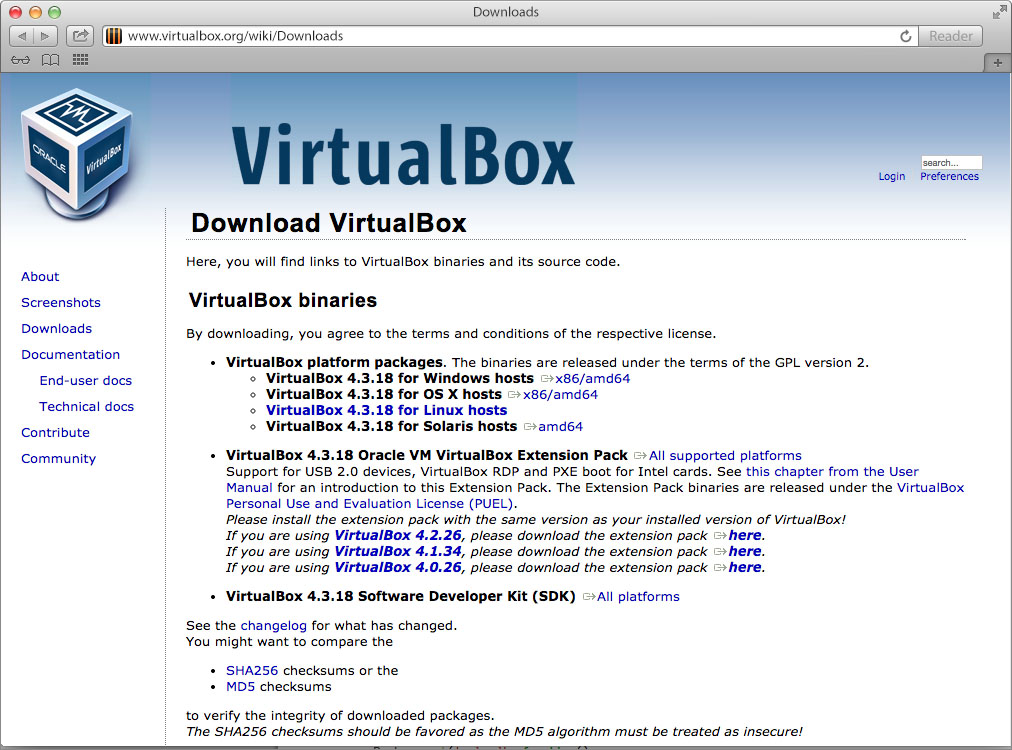
Go to `www.virtualbox.org](https://www.virtualbox.org/wiki/Downloads), download and install the package for your operating system.
Installing Vagrant
Once you have VirtualBox (or another back-end provider) installed, you need to install Vagrant.
Go to www.vagrantup.com, download and install the package for your operating system.
When the Vagrant installation is complete, you may need to reboot your machine. After the reboot, verify Vagrant is installed by opening the console (command prompt in Windows, terminal in OS X or Linux) and checking the version.
% vagrant --version
Vagrant 1.6.5
Where Do I Execute Things?
After going through the next few chapters installing and running Laravel Homestead a common question is “Where do I run …?” or “Where does … run?” This section provides a brief overview of the major components of Laravel development within Homestead and answers the questions.
The Web Server
The Web Server runs in the Homestead Virtual Machine.
Nginx is the web server used to serve the web pages. The Host OS can access the web pages using the standard HTTP port (80) at the address 192.168.10.10. The Host OS can also access web pages at 127.0.0.1 on port 8000.
Editing Files
Always edit your source code from the Host OS.
The edited files are immediately available in the Homestead VM through shared folders.
MySQL
MySQL runs within the Homestead Virtual Machine.
You can access MySQL from your Host OS with the following information.
| Setting Name | Setting Value |
|---|---|
| Host | 127.0.0.1 |
| Port | 33060 |
| Username | homestead |
| Password | secret |
Memcached
Memcached is an in-memory key/value cache. It runs within the Homestead Virtual Machine.
Beanstalkd
Beanstalkd is a simple and fast work queue. It runs within the Homestead Virtual Machine.
Git or Subversion
Run from your Host OS.
Although you can run these version control systems from either place, it is strongly recommended to only run them from your Host OS. Consistently running them in one location avoids potential conflicts.
For example, let’s say you install subversion in the Homestead Virtual Machine and it’s version 1.8. You check out source code within the Homestead Virtual Machine and then try to check it in from your Host OS. If subversion v1.7 is installed on your Host OS you won’t be able to do anything until upgrading subversion on your Host OS.
Bower
Bower is a simple to use package manager for the web. You can run this from either place if bower’s installed on your Host OS.
Gulp
Gulp is a simple build system Laravel Elixir uses to concatenate assets, minify assets, combine assets, copy assets, and automate unit tests.
ONLY run this from your Host OS.
When running Gulp from your Host OS, growl-like notifications will appear in your OS when certain tasks are performed (such as LESS files compiled). If you execute Gulp within the Homestead Virtual Machine there will be warning errors when these notification attempts are made.
Composer
Only run Composer from your Host OS.
If you’re Host OS is OS X or Linux you can run from either place, but if your Host OS is Windows then Composer creates necessary batch files required to operate correctly.
Artisan
Only run artisan from the Homestead Virtual Machine. The main reason for this is that any specific database, queue, and cache drivers are installed within Homestead and may not be available (or installed) on your Host OS. Also, the database setting of localhost is from the Homestead VM perspective, not from your Host OS’s perspective.
Recap
In this chapter we discussed the various software required to develop applications in Laravel 5.1 and installed VirtualBox and Vagrant.
If your machine is a Windows box, continue to the next chapter, Setting up a Windows Machine. Otherwise, skip to the chapter Setting up an OS X or Linux Machine.