4. June 2013
- Another step in the use of ESAPI and AppSensor Jars from .Net/C#
Another step in the use of ESAPI and AppSensor Jars from .Net/C
At the OWASP EU Tour London Chapter event meeting I presented the next step of my research on using ESAPI and AppSensor inside a .NET application like TeamMentor (using Jni4Net to allow the JVM to work side by side with the CLR).
The source code of the demo I presented is posted to the github.com:DinisCruz/TeamMentor_3_3_AppSensor repo, and this post shows a number of screenshots of what is in there.
I used TeamMentor’s TBot C# and AngularJS pages to create the prototypes (since it is very easy and fast to code in that enviroment)
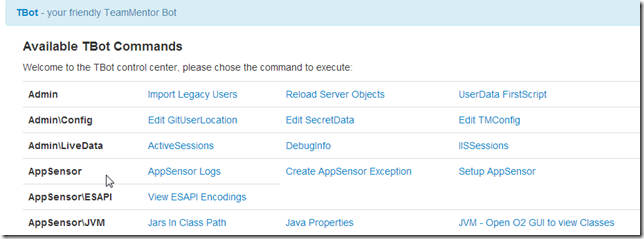
The pages were added to the main TBot ** control panel, in 3 new sections: **AppSensor, AppSensor/ESAPI and AppSensor/JVM:
Let’s look at all of them and see what they do.
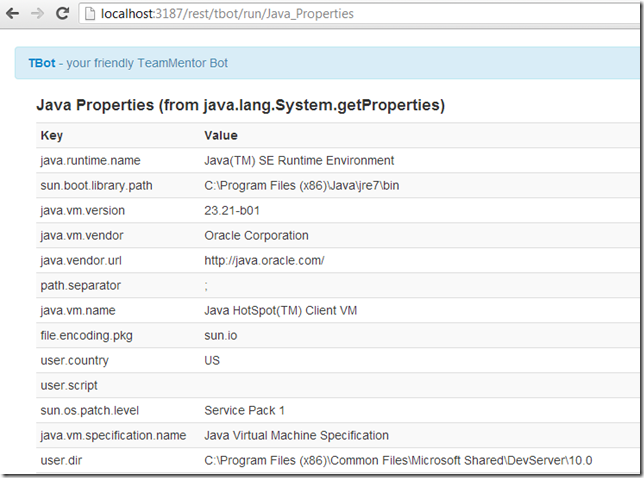
Java Properties
Shows the Properties of the current JVM, and is a good first script to run (since it shows that the Jni4Net CLR to JVM bridge is correctly set up)
Jars In Class Path
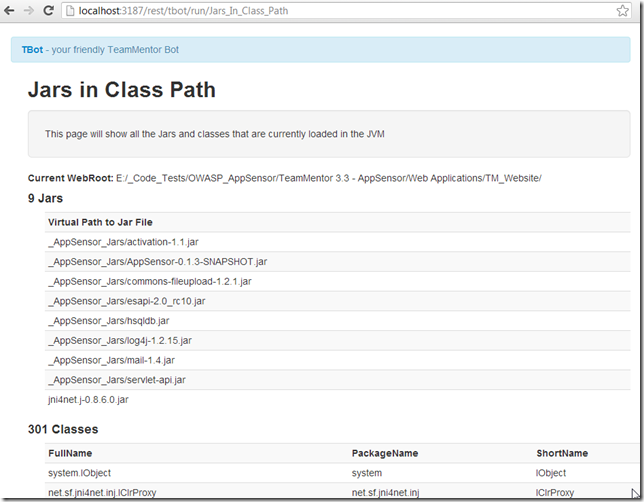
This one shows the Jar’s currently loaded and some details about the loaded classes
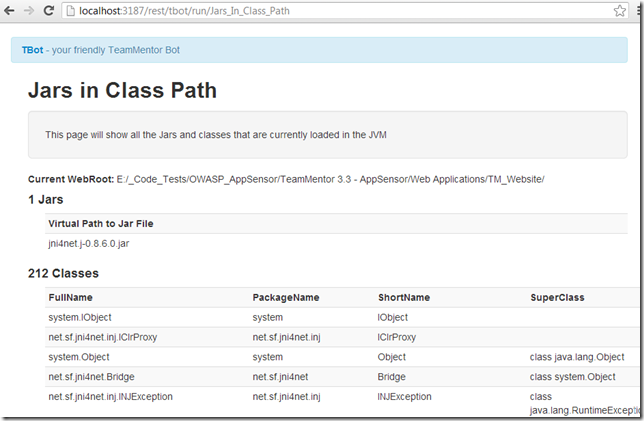
The image above shows that there is only one jar loaded at start (jni4net.j-0.8.6.0.jar) and below is what it looks after the Setup AppSensor Tbot page is executed
Setup AppSensor
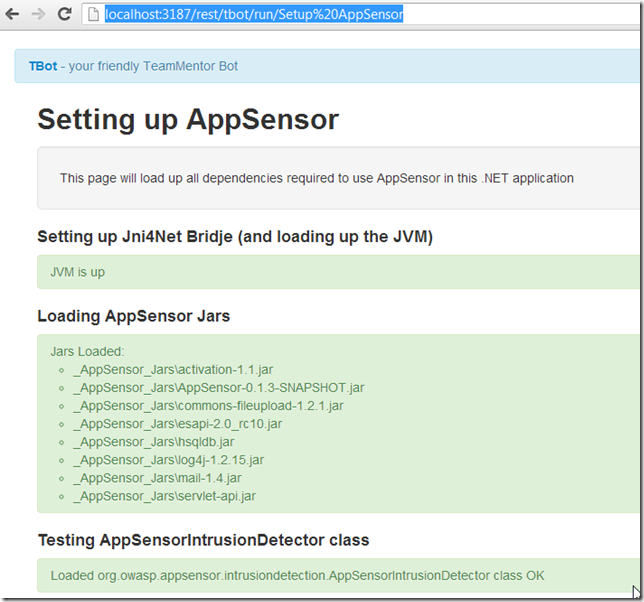
This will load up the AppSensor Jars and perform a simple test to see if one of the expected classes can be loaded
View ESAPI Encodings
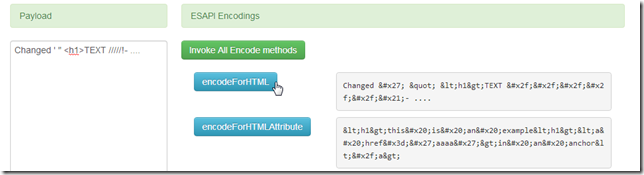
Once we have the ESAPI loaded we can open up this page that shows what all the ESAPI encodings looks like
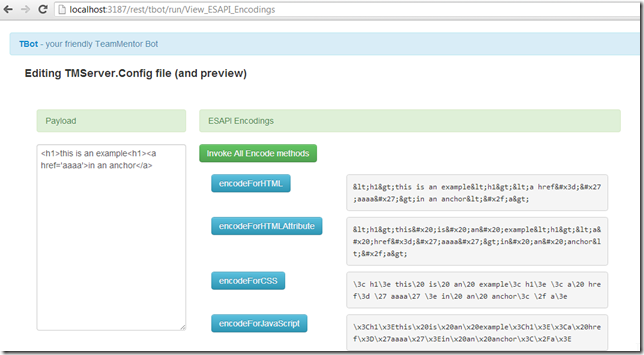
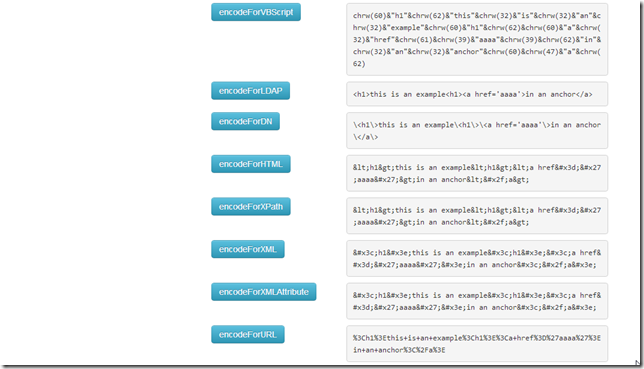
Note how many they are: encodeForHTML , encodeForHTMLAttribute, encodeForCSS, encodeForJavascript, encodeForVBScript, encodeForLDAP, encodeForDN, encodeForXPath, encodeForXML, encodeForXmlAttribute, encodeForURL you can use this GUI to try out what a specific encoding looks like.
For example change the text on the left and click on of the ‘encodeFor…‘ buttons
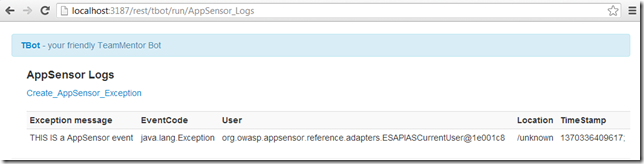
AppSensor Logs
Shows the currently registered logs
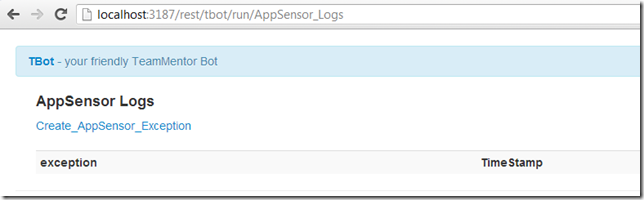
To help to create a new log entry, this page provides a link to:
Create AppSensor Exception
which looks like this:
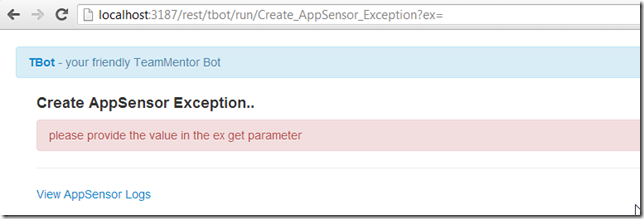
This page (for testing) allows the use of the ex querystring parameter to create a new AppSensor log message
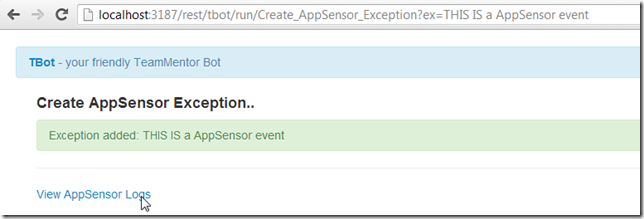
and clicking on View AppSensor Logs, which show details of the log: