2. September 2013
- Opening up a native Chrome Browser window inside Eclipse (raw version)
- Injecting HP Fortify Eclipse Plug-in Views into HP’s WebInspect UI
Opening up a native Chrome Browser window inside Eclipse (raw version)
On the Win32 Window’s Hijack theme, here is a raw version of how to show an actual Chrome browser window inside an Eclipse view (ie. a window from a C++ process inside a JVM-based Process).
Using the Groovy execution capabilities described in the Programming Eclipse in Real-Time (using an ‘Groovy based’ Eclipse Plug-in) post, in Eclipse, I start by creating an instance of a SWT panel and get its handle:

After executing that script we will get an empty panel in the bottom of the screen:
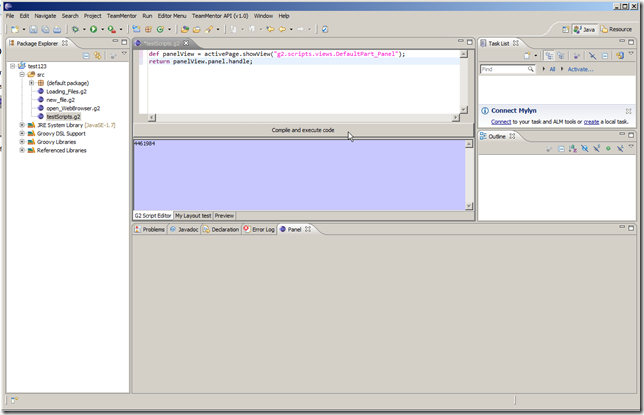
… and the 4461984 return value in the purple ‘Groovy script output window’
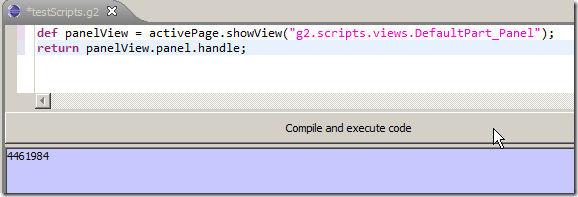
… which is the handle to that Panel/View (which is where were we are going to insert our hijacked window).
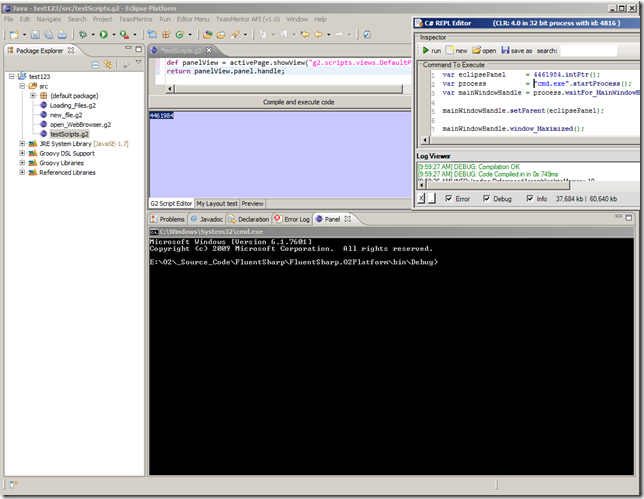
In an C# REPL UI, we can now use this script (that consumes that 4461984 handle) to open an Cmd.exe and hijack its window into the Eclipse panel:
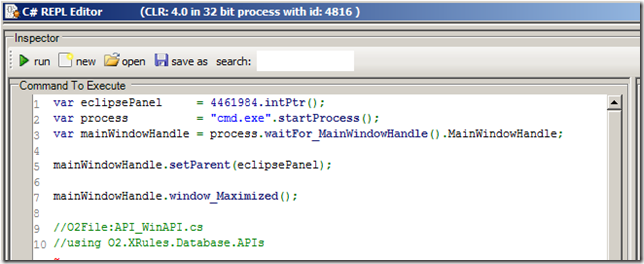
… which looks like this:
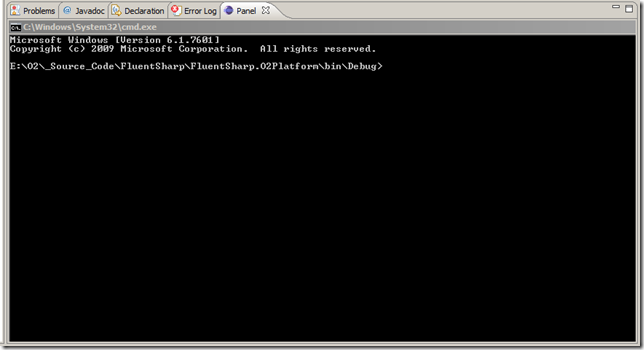
… in eclipse:
Since what we want is chrome, we can use the API_Chrome_Hijack API to:
- open up a new instance of chrome,
- find its dedicated process and
- get that process MainWindowHandle
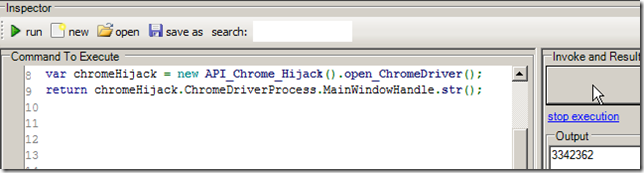
… which looks like this:
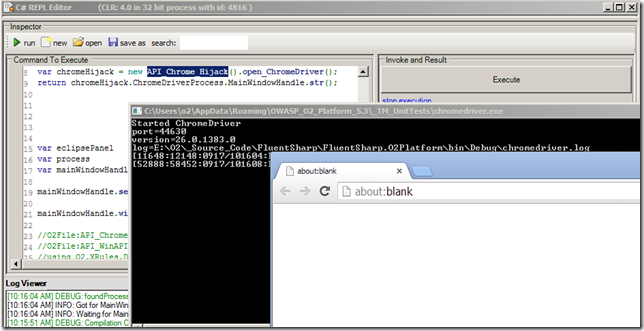
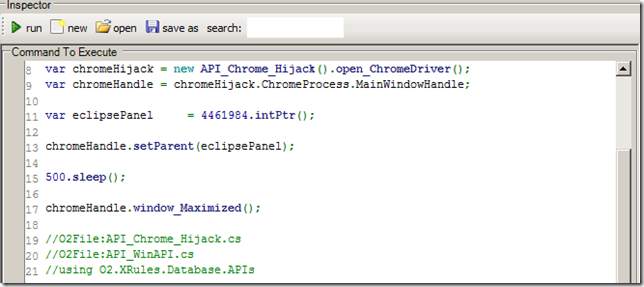
Finally here is the script that starts a new instance of chrome and insert’s it into the eclipse panel:
… which looks like this (in Eclipse)
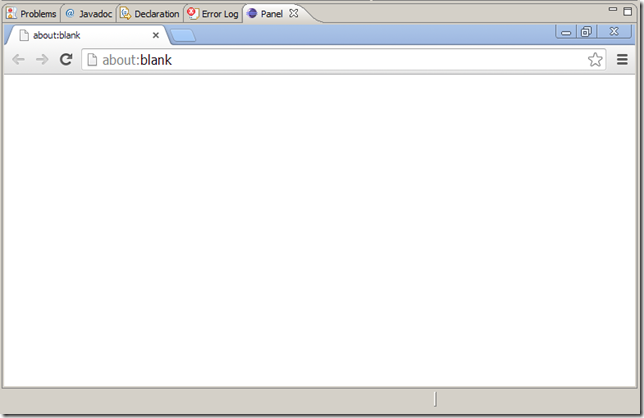
Note the native Chrome window (C++ Process) fitting nicely with the Eclipse UI (JVM Process)
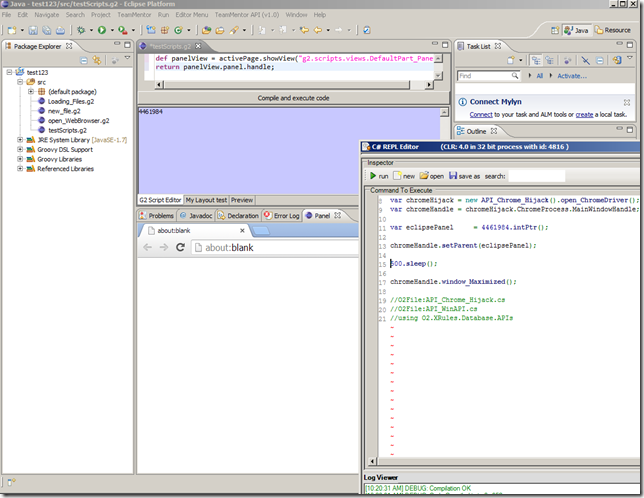
Since chrome is now running inside an native Eclipse view/control, we can put it where ever we want tit to be (inside the Eclipse UI).
Like on the top right:
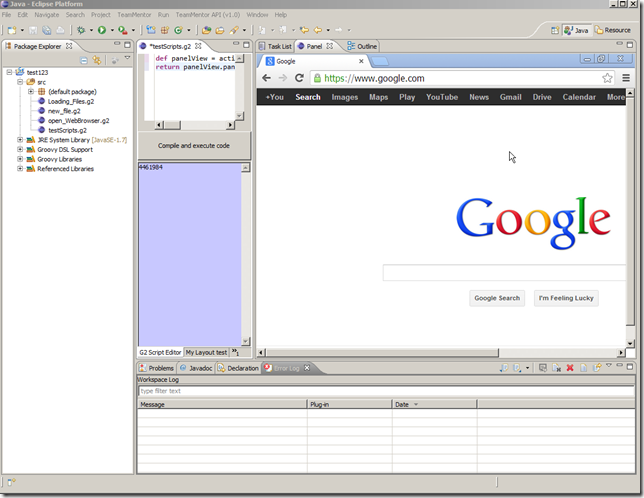
… on the left:
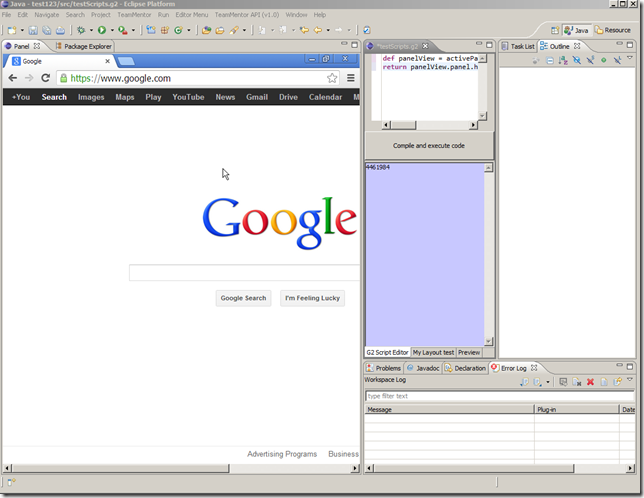
… maximised
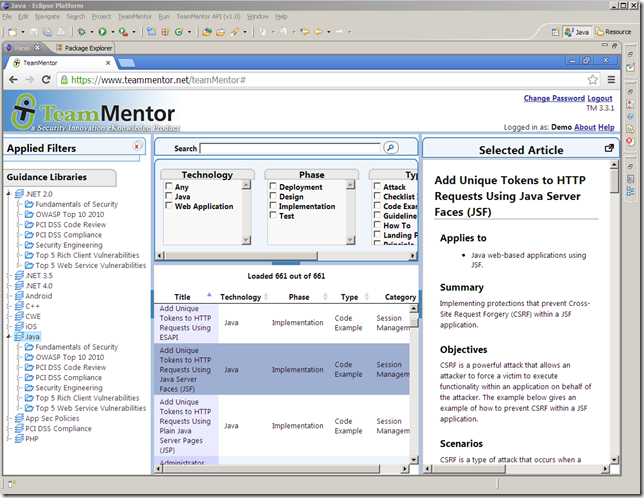
… as a detached eclipse window:
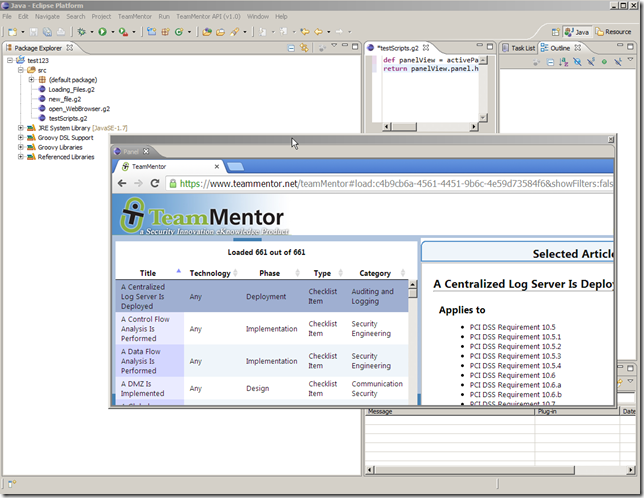
..or in the middle (with another chrome tab opened inside the same Hijacked panel)
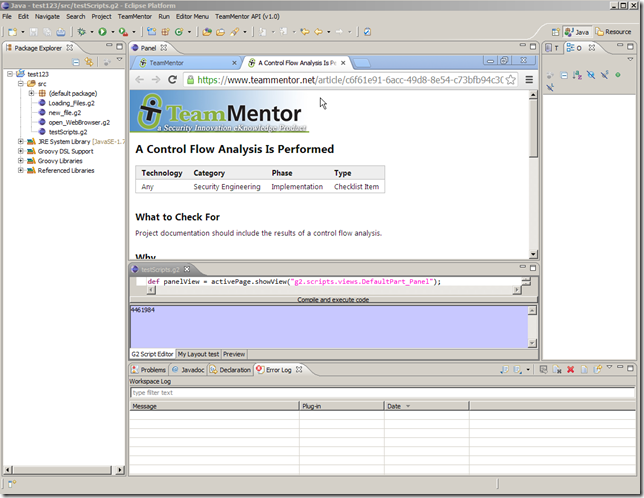
Here is the Groovy script that created the panel (in Eclipse)
1 def panelView = activePage.showView("g2.scripts.views.DefaultPart_Panel");
2 return panelView.panel.handle;
Here is the C# Script that did the Handle setParent:
 1 var chromeHijack = new API_Chrome_Hijack().open_ChromeDriver();
 2 var chromeHandle = chromeHijack.ChromeProcess.MainWindowHandle;
 3
 4 var eclipsePanel = 4461984.intPtr();
 5
 6 chromeHandle.setParent(eclipsePanel);
 7
 8 500.sleep();
 9
10 chromeHandle.window_Maximized();
11
12 //O2File:API_Chrome_Hijack.cs
13 //O2File:API_WinAPI.cs
14 //using O2.XRules.Database.APIs
Injecting HP Fortify Eclipse Plug-in Views into HP’s WebInspect UI
Using the O2’s Win32 Window Hijacking capabilities (see also Opening up a native Chrome Browser window inside Eclipse (raw version)) , here is a PoC on how to inject a couple Eclipse Views from the HP Fortify Eclipse plug-in (which is Java app running under an JVM) into the HP WebInspect UI (which is .NET app running under an CLR).
The power of this PoC is to show that we can have the best of both worlds and show security consultants and developers the best possible environment/UI for them to analyze, review and fix security vulnerabilities.
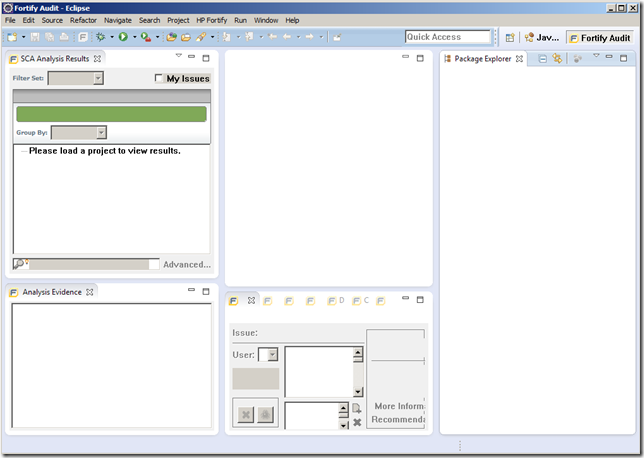
We start with an instance of Eclipse Juno with the Fortify Plug-in installed, where I opened the Fortify Audit perspective, in order to have access to the multiple Fortify specific views:
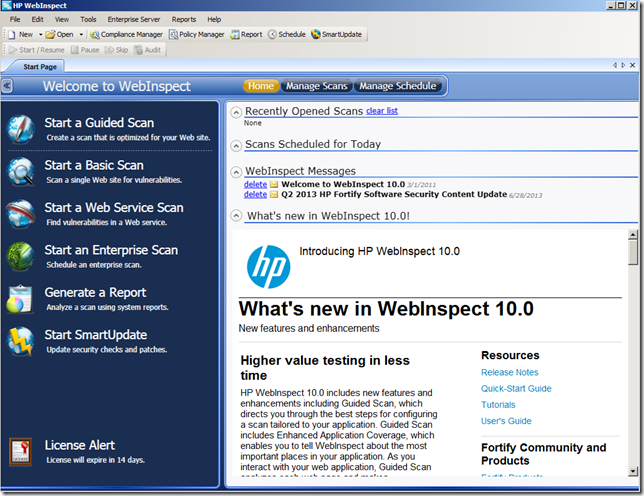
Next I opened an instance of WebInspect 10.0:
Since we need to add a couple panels into WebInspect (which is a .NET process), the first step is to inject an O2 REPL UI into the WebInspect process.
Note 1: if we were doing a pure Win32 Handle Hijacking this would not be needed, but in this case I want to control where the Fortify Views will be placed.
Note 2: since Web Inspect is running with elevated privileges (i.e. full admin), we will also need to run the O2 Platform with the same privileges (or the dll injection will not work).
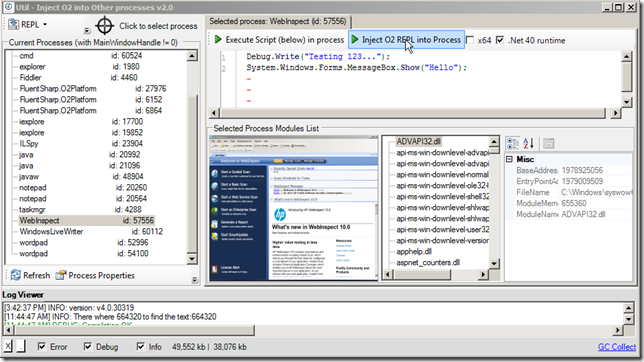
The script/tool that I’m going to use is the Util - Inject O2 into other processes.h2, which can be executed from here:
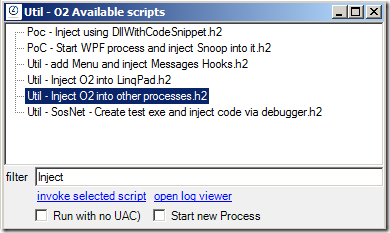
…or here:
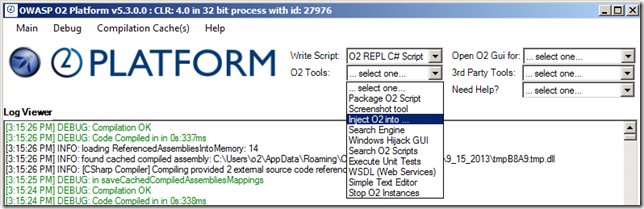
On the Util - Inject O2 into other processes.h2 UI, find the WebInspect process on the left-hand-side process list (a screenshot of the process should be visible if we have enough privileges to inject into this process) and click on the ‘Inject O2 REPL into Process’ button:
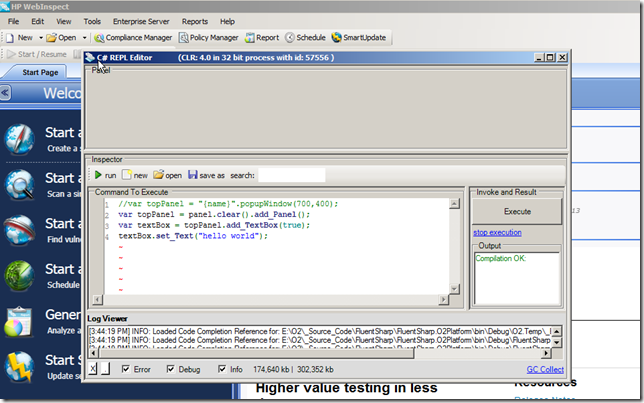
An C# REPL Editor should appear (a good clue that the injection worked ok is the fact that the top-left icon of the the REPL Form matches the icon of WebInspect):
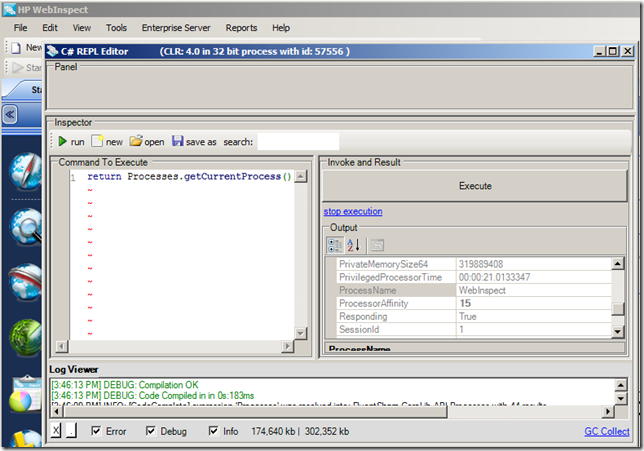
Another way to confirm that this C# REPL script is indeed inside the WebInspect process, is to execute:
1 return Processes.getCurrentProcess();
… which will return the C# object of the current process (note the ProcessName value below):
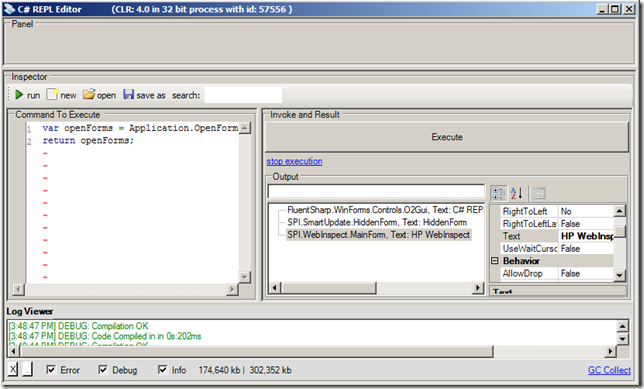
Since WebInspect is using .NET WinForms as its main windows host (there are a number of WPF controls in there, but the main window is an instance of System.Windows.Forms.Form), we can use this command to get the list of open forms:
1 var openForms = Application.OpenForms;
2 return openForms;
Which in this case returns 3 Form Controls:
- the main WebInspect UI
- an hidden WebInspect update window
- the O2 platform C# REPL (currently executing the script)
Next, using this script:
1 var form = (Form)Application.OpenForms[1];
2 return form;
… we find the Form we want:
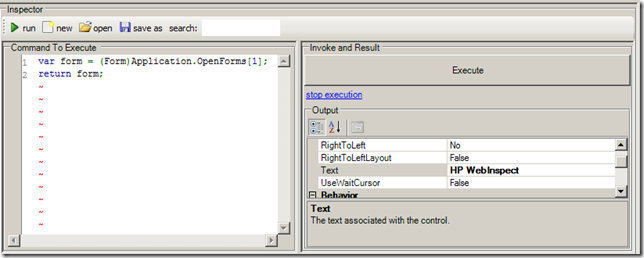
… which is of type SPI.WebInspect.MainForm:
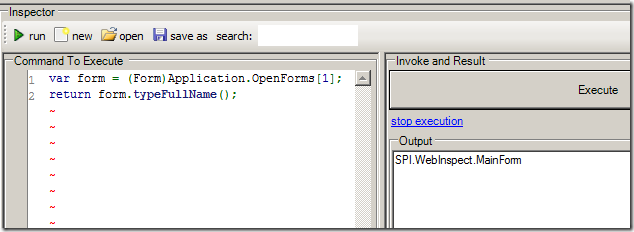
…from the WebInspect.exe assembly:
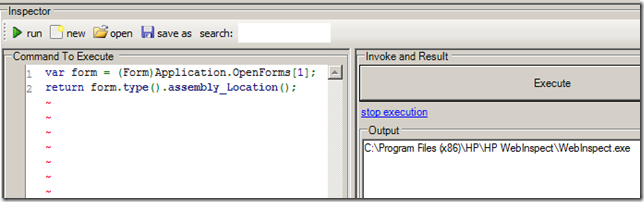
… which means that we can get a strongly type reference to that control:
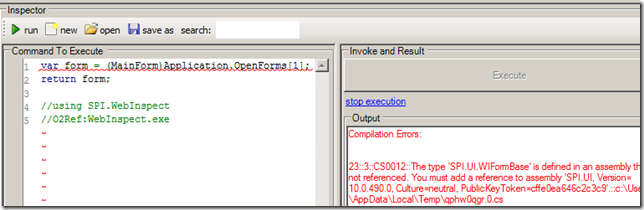
… after adding a reference to the SPI.UI.dll (as requested by the error shown above):
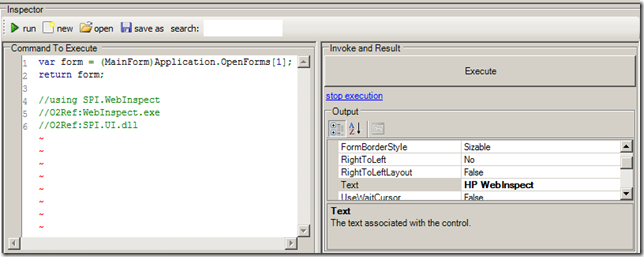
What is really powerful about this script:
1 var form = (MainForm)Application.OpenForms[1];
2 return form;
3
4 //using SPI.WebInspect
5 //O2Ref:WebInspect.exe
6 //O2Ref:SPI.UI.dll
… is that the .NET object shown in the output window, is the real WebInspect main Form object (see below how I changed the title of the main WebInspect window (from the PropertyGrid shown in the C# REPL output panel)):
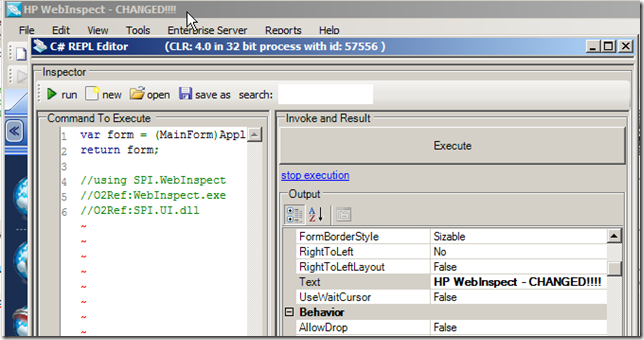
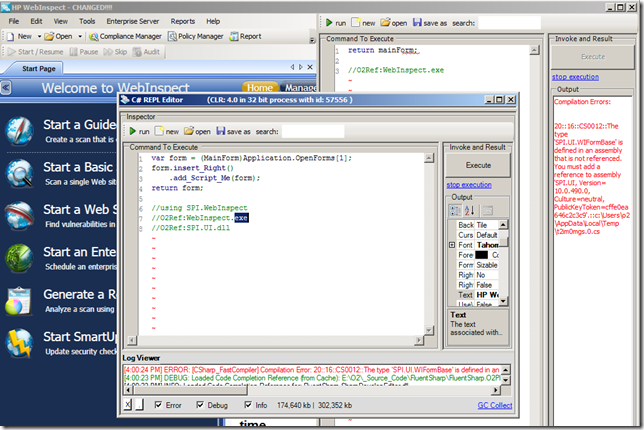
Next (because we can) we are going to inject this script environment right into WebInspect UI, using the script:
1 var form = (MainForm)Application.OpenForms[1];
2 form.insert_Right()
3     .add_Script_Me(form);
4 return form;
5
6 //using SPI.WebInspect
7 //O2Ref:WebInspect.exe
8 //O2Ref:SPI.UI.dll
This will create a new Panel to the right of the current main UI and add a C# REPL Script UI to it (with the WebInspect UI form variable passed as a parameter):
Using the C# REPL that is now inside the main WebInspect UI, let’s create another panel (now to the left) and get its handle (which in this case it is going to be 592370)
1 var fortifyPanel = mainForm.insert_Left();
2 return fortifyPanel.handle().str();
3
4 //O2Ref:WebInspect.exe
5 //O2Ref:SPI.UI.dll
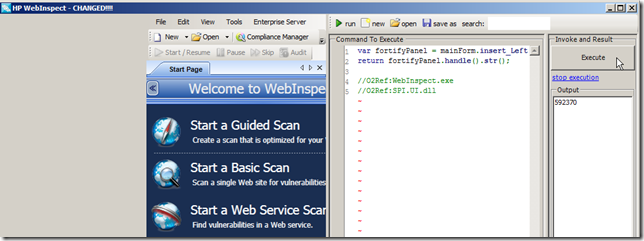
The 592370 handle is what we need to in order to be able to inject Windows into that left hand side panel (basically we will set the parent of the ‘Window to Hijack’ to 592370).
For example if we wanted to add a real cmd.exe command prompt to it we could execute:
1 var leftPanelHandle = 592370.intPtr();
2
3 var cmdExe_WindowHandle = "cmd.exe".startProcess()
4                                    .waitFor_MainWindowHandle()
5                                    .MainWindowHandle;
6
7 cmdExe_WindowHandle.setParent(leftPanelHandle);
8
9 return cmdExe_WindowHandle.str();
… which will look like this
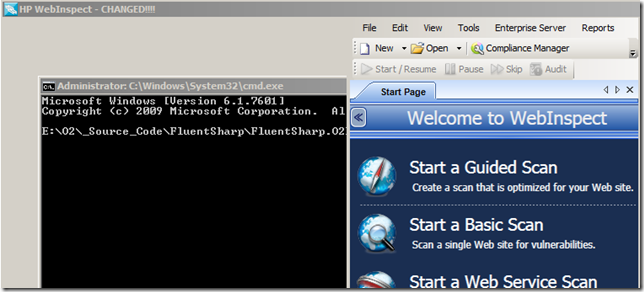
.. note that this is the full cmd.exe (which can be resized, moved and used to execute commands):
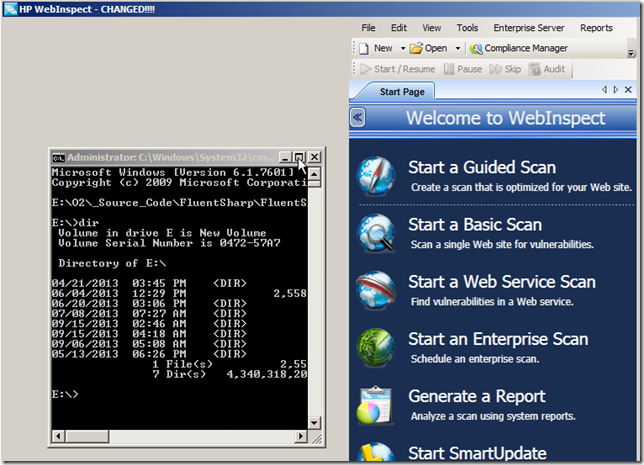
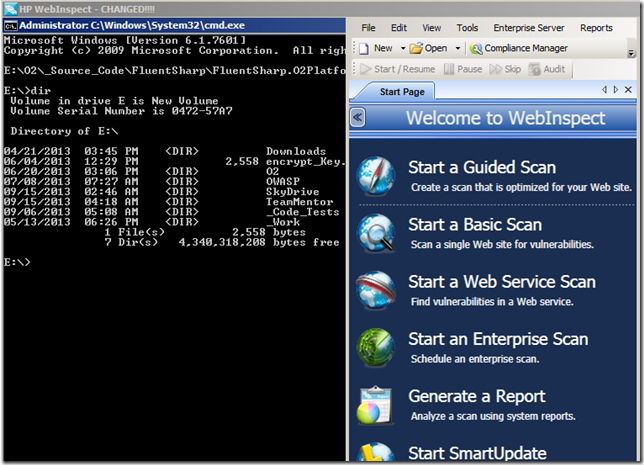
… or even maximized:
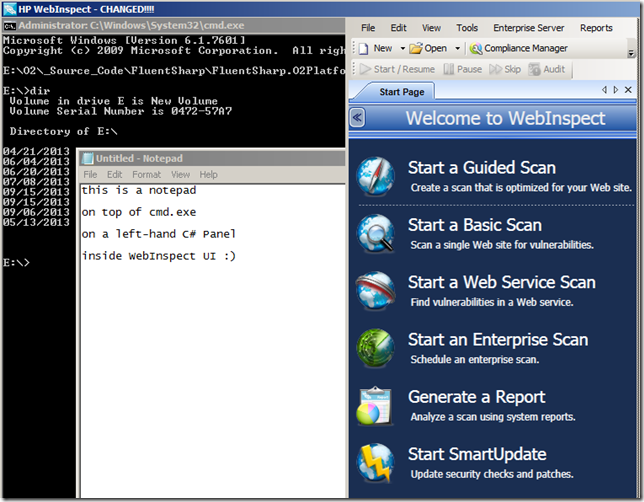
… we can even add other processes to it, like Notepad, using the script
1 var leftPanelHandle = 592370.intPtr();
2
3 var cmdExe_WindowHandle = "notepad.exe".startProcess()
4                                        .waitFor_MainWindowHandle()
5                                        .MainWindowHandle;
6
7 cmdExe_WindowHandle.setParent(leftPanelHandle);
8 return cmdExe_WindowHandle.str();
… which will look like this:
The examples above used the main process window (whose parent was originally the handle 0 (i.e. the Desktop)).
But we can do the same thing for any child window.
For example we could inject the actual Notepad Text Editor (vs the whole Notepad UI).
The following script:
 1 var leftPanelHandle = 592370.intPtr();
 2
 3 var notepadProcess = "notepad.exe".startProcess();
 4 var notepad_WindowHandle = notepadProcess.waitFor_MainWindowHandle()
 5                                          .MainWindowHandle;
 6
 7 var notepadInnerWindow = notepad_WindowHandle.child_Windows().first();
 8
 9 10000.wait();
10
11 var originalParent = notepadInnerWindow.get_Parent();
12
13 notepadInnerWindow.setParent(leftPanelHandle);
14 notepadInnerWindow.window_Redraw();
15
16 10000.wait();
17
18 notepadInnerWindow.setParent(originalParent);
19 return notepadInnerWindow.str();
Will:
- Open Notepad
- Get Notepad’s main window handle
- Get the first child window from that handle
- Save the parent of the first child window
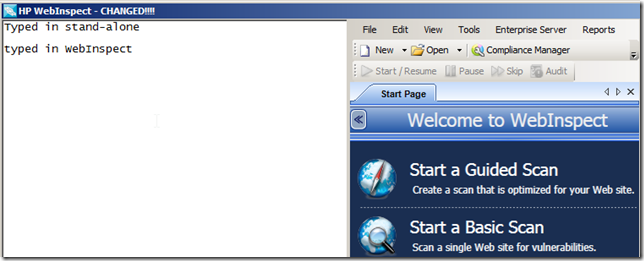
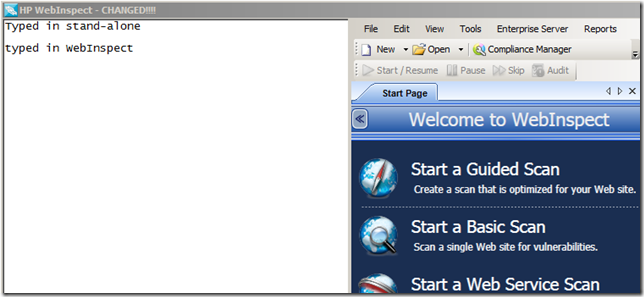
- Wait 10 secs (to give us time to type something on the Notepad window, when running OUTSIDE the WebInspect UI
- Set the parent of the Notepad child window (the TextEditor) to be the Webinspect Panel
- Wait 10 sec (to give us time to type something on the Notepad window, when running INSIDE the the WebInspect UI)
- Reset the original Notepad Child window parent
Here is what it look like before step #8 executes:
OK, so now that we have the ability to inject any window into WebInspect, let’s add something interesting like a view from Fortify’s Eclipse Plug-in (which is a Java app).
To do that we need to find the handle of the window we want to inject.
There are numerous ways to do this, one of them is to use the Util - Windows Handles - View Handle Screenshot.h2 script:
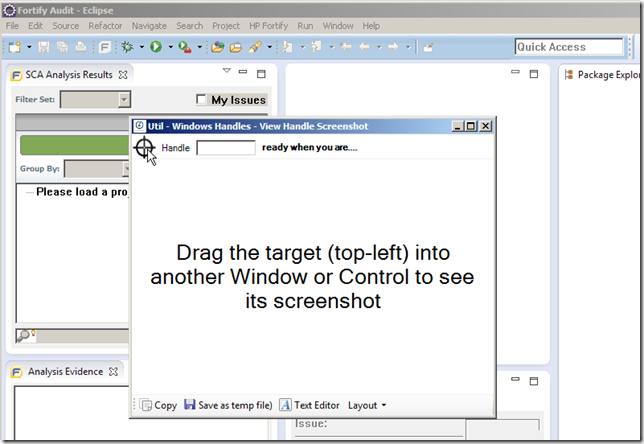
… which can be easily used to:
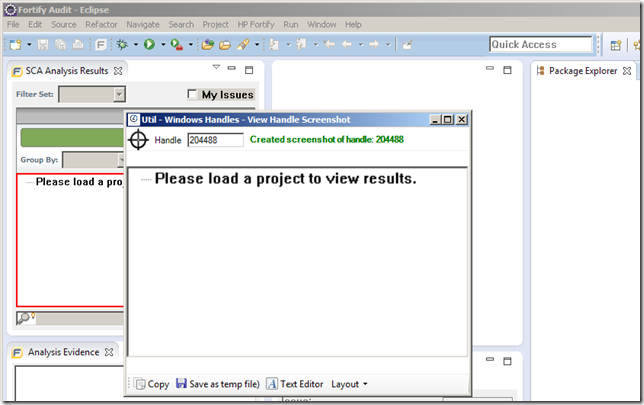
… find the handle we want (note the red box highlighting the selected window (also shown as a screenshot inside the Util - Windows Handles - View Handle Screenshot.h2 script UI))
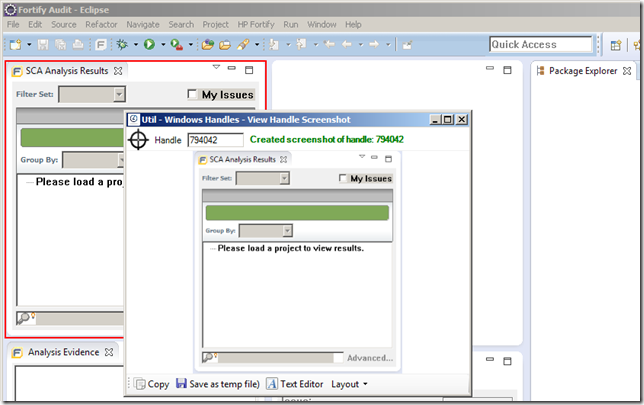
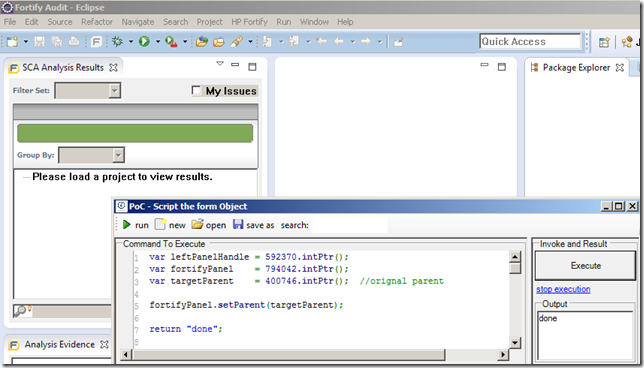
Once we know the handle of the window we want to inject (in this case 794042), we can automate the injection using this script:
 1 var leftPanelHandle = 592370.intPtr();
 2 var fortifyPanel    = 794042.intPtr();
 3 //return fortifyPanel.get_Parent().str(); //400746 (backup in case we want to restore it)
 4
 5 fortifyPanel.setParent(leftPanelHandle);
 6
 7 return "done";
 8
 9 //using O2.XRules.Database.APIs
10 //O2File:O2File:API_WinAPI.cs
… which will create this:
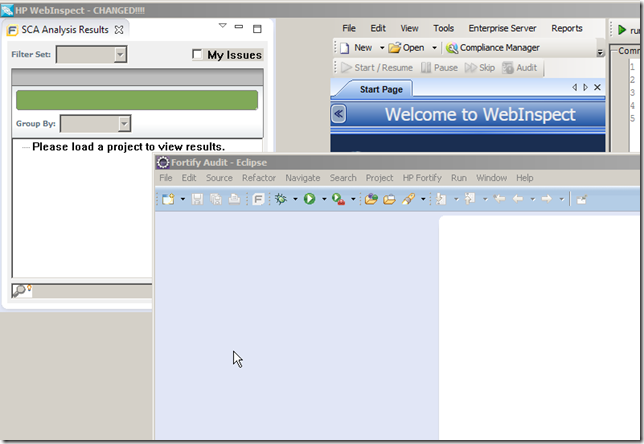
Note 1: the Fortify Eclipse Plugin panel (top-left) is now in WebInspect and not in Eclipse
In the screenshot above the Fortify Plug-in View was not correctly resized to its new parent. This can be corrected using this script:
1 var leftPanelHandle = 592370.intPtr();
2 var fortifyPanel    = 794042.intPtr();
3
4 var rect = fortifyPanel.get_Parent().window_Rectangle();
5
6 fortifyPanel.window_Move(0,0,rect.Width,rect.Height);
… which will set the size of the injected window to be the size of its parent (another option would had been to call the .window_Maximize() extension method):
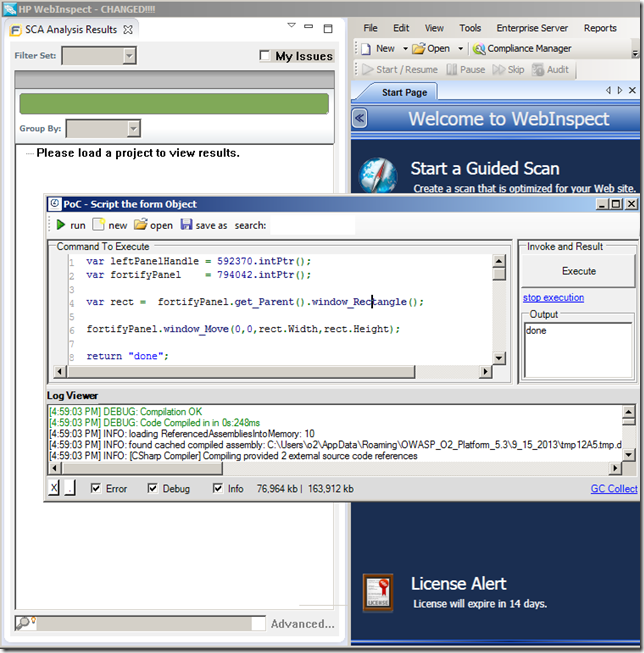
Returning back the Fortify Eclipse Plugin View
Here are a couple interesting places to put the view back:
Example #1) The Desktop** (using the parent handle 0)
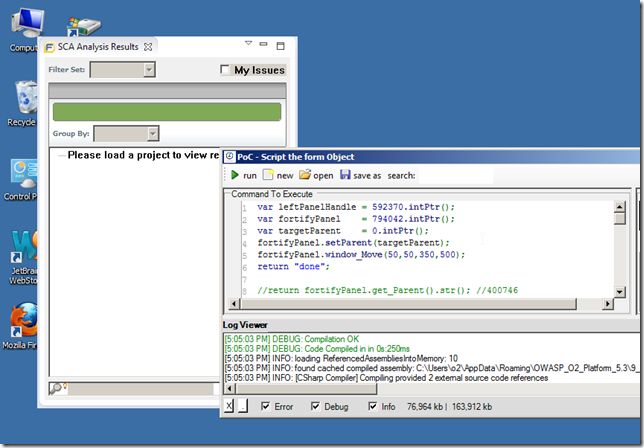
Note that that window will not be movable or resizable (i.e. it is stuck in that location))
Example #2) Cmd.exe (using the cmd.exe MainWindowHandle as the parent)
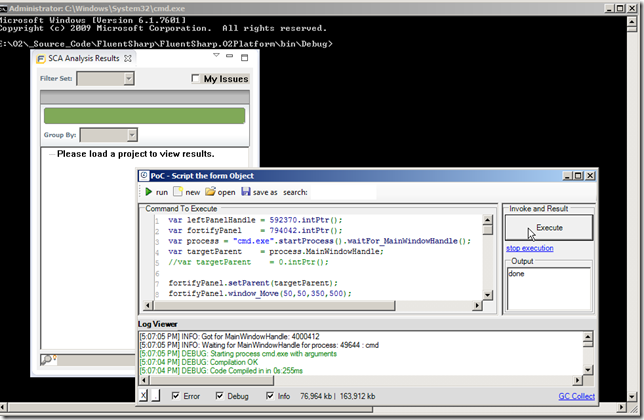
Note that in cases like this, the host process can be resized but the injected window will remain in the same relative place (to its parent window)
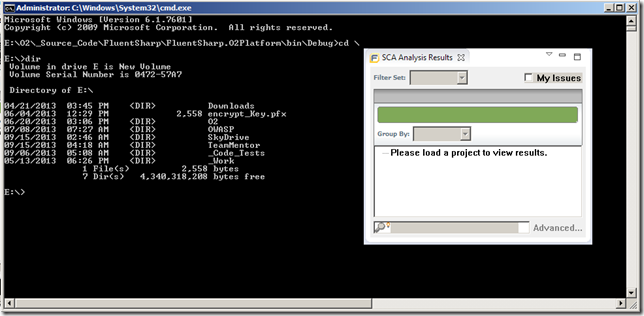
So we can create GUIs like this, where the Fortify Plugin View is nicely positioned to the top right of a cmd.exe process:
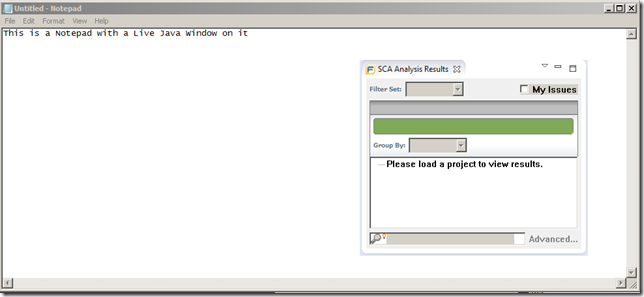
Example #3) Notepad: (same technique as shown above)
Example #4) Eclipse** (returning the view to its original parent)