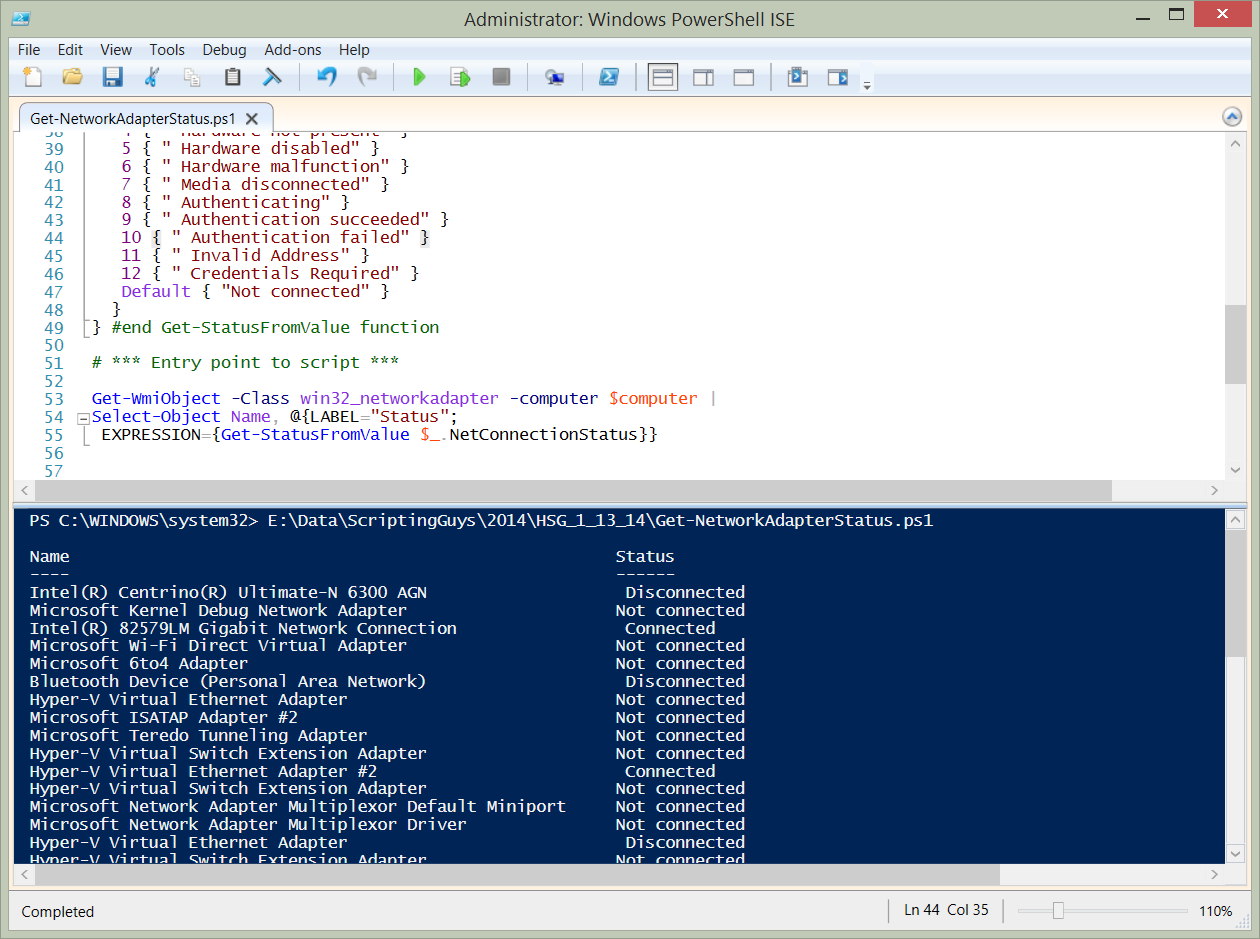
*** Entry point to script ***
Get-WmiObject-Classwin32_networkadapter-computer$computer| Select-ObjectName, @{LABEL=”Status”;
EXPRESSION={Get-StatusFromValue$_.NetConnectionStatus}}
If my environment is Windows 7 and Windows Server 2008 R2, I can use either Windows PowerShell 3.0 or Windows PowerShell 4.0. The advantage here, is that I gain access to the Get-CimInstance cmdlet which uses WinRM for remoting instead of DCOM that the Get-WmiObject cmdlet uses. The only change to the Get-NetworkAdapterStatus.ps1 script that is required is to replace the Get-WmiObject line with Get-CimInstance. The revision appears here:
# *** Entry point to script ***
Get-CimInstance-Classwin32_networkadapter-computer$computer| Select-ObjectName, @{LABEL=”Status”;
EXPRESSION={Get-StatusFromValue$_.NetConnectionStatus}} ```` When I run the Get-StatusFromValue.ps1 script, in the Windows PowerShell ISE, I see the output achieved here.
Using the NetAdapter module
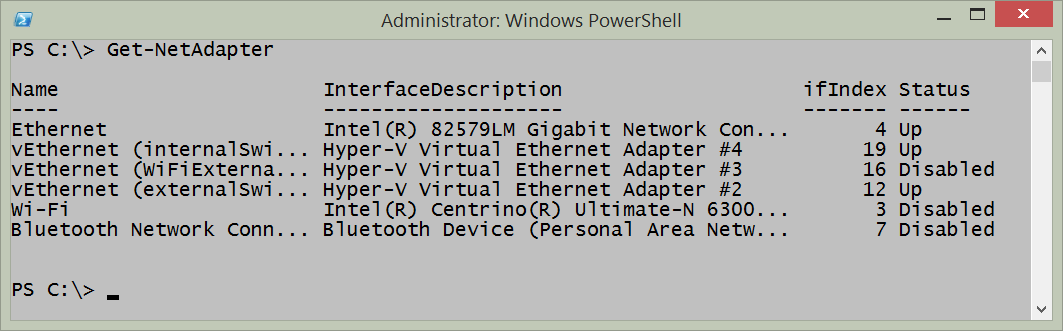
On Windows 8 and above the NetAdapter module contains the Get-NetAdapter function. To see the status of all network adapters, use the Get-NetAdapter function with no parameters. The command appears here:
Get-NetAdapter
The output from this command appears here.
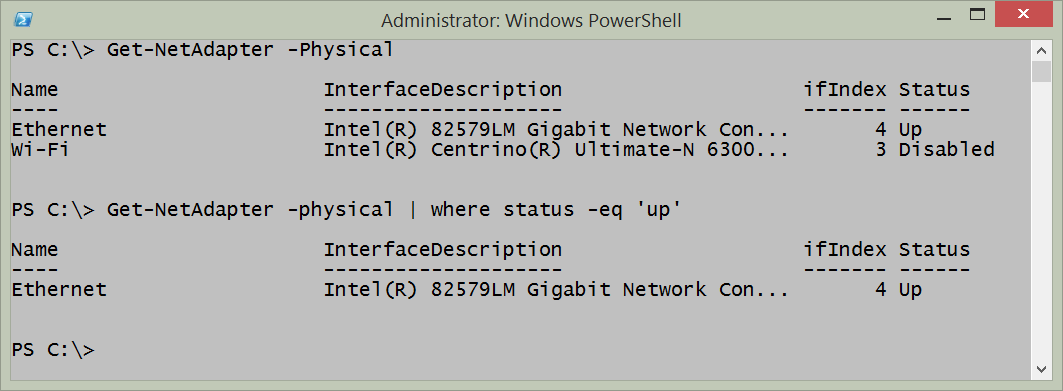
I can reduce the output to only physical adapters by using the -physical parameter. This command appears here.
Get-NetAdapter-Physical
If I only want to see the physical network adapters that are actually up, I pipeline the results to the where-object. This command appears here.
Get-NetAdapter-physical|wherestatus-eq'up'
The commands and the output from the two previous commands appear in the figure that follows.