Appendix A - Using Google Colab
Google Colab is based on Jupyter notebooks and provides an interactive Python programming environment with GPU and TPU support for deep learning and using LLMs.
The default Colab notebook Making the Most of your Colab Subscription provides an overview for getting started.
I keep small reference Colab notebooks in my Google Drive that I can quickly refer to for writing interactive user interfaces, accessing Google Drive and GitHub files, etc.
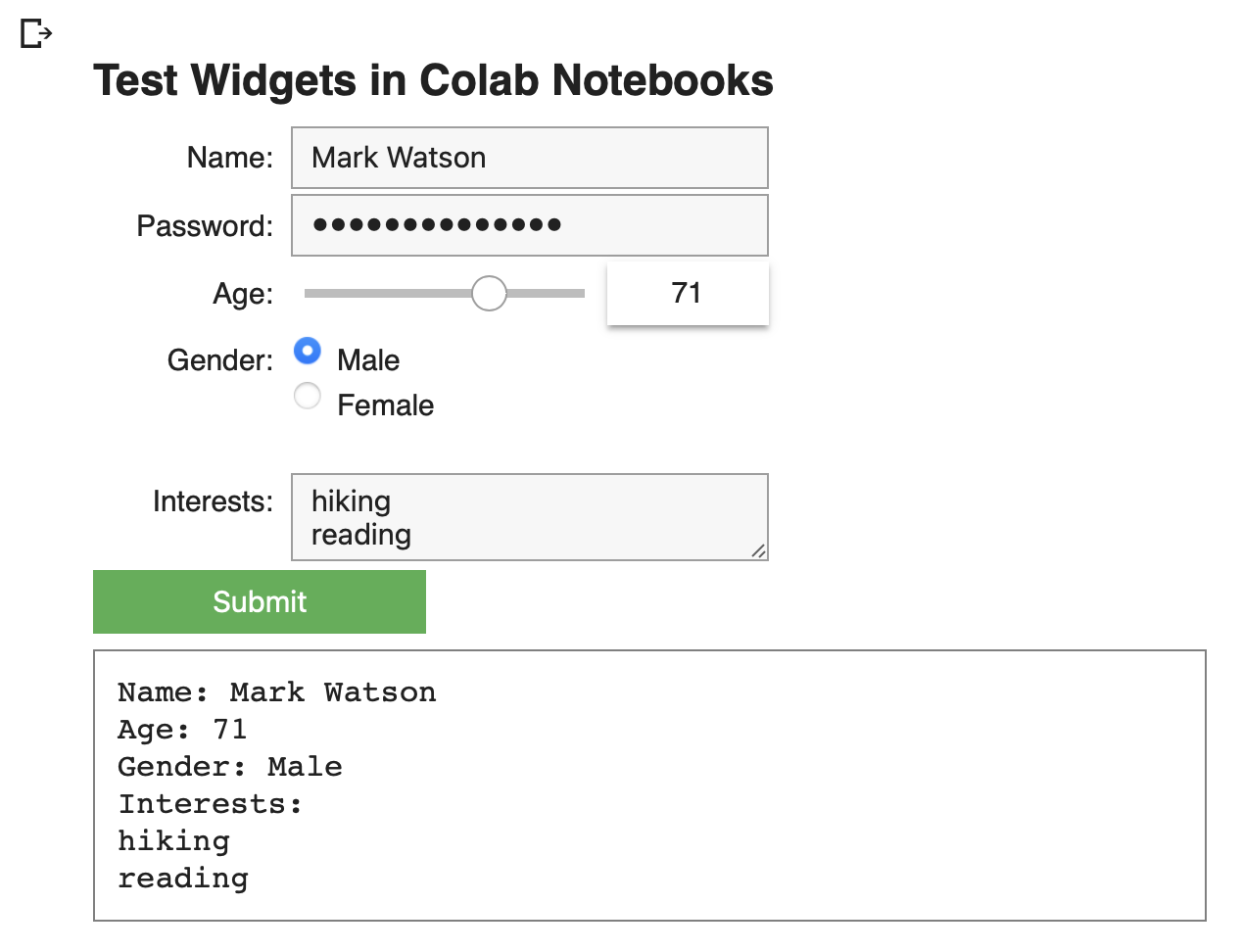
Here is a demo notebook I use for reference when adding an interactive user interface to my notebooks:
 1 !pip install --upgrade google-colab
 2 !pip install ipywidgets
 3 import ipywidgets as widgets
 4 from IPython.display import display, clear_output
 5
 6 output=widgets.Output(layout={'border':'1px solid gray',
 7                               'padding':
 8                                  '10px 10px 10px 10px',
 9                               'margin': '5px 5px 5px 2px',
10                               'width':'40%'})
11 output.layout.width = 'calc(40% + 14ex)'
12 heading = \
13   widgets.HTML(f"<h2>Test Widgets in Colab Notebooks</h2>")
14 name = widgets.Text(description='Name:')
15 password = widgets.Password(description='Password:')
16 age = widgets.IntSlider(description='Age:',
17                         min=1, max=108, value=40)
18 gender = widgets.RadioButtons(options=['Male', 'Female'], description='Gender:')
19 interests = widgets.Textarea(description='Interests:')
20 submit = widgets.Button(description='Submit',
21                         button_style='Success')
22
23 def submit_clicked(b):
24    with output:
25     clear_output()
26     print("Name:", name.value)
27     #print("Password:", password.value)
28     print("Age:", age.value)
29     print("Gender:", gender.value)
30     print("Interests:")
31     print(interests.value)
32
33 submit.on_click(submit_clicked)
34
35 display(heading, name, password, age, gender, interests, submit)
36 display(output)
The output cell looks like: