Tennis
Let’s build a simple game of single-player tennis inspired by the classic Pong. We’ll code a paddle that we can move up and down the screen with the d-pad or crank. When the ball hits the top, right, and bottom of the screen, it’ll bounce off. If it goes past our paddle and off the left side of the screen, it’ll be game over. We’ll keep track of how many hits we get. And to add a little difficulty to our game, we’ll make the ball get a bit faster over time.
Displaying the Paddle
Start off by creating a new folder called tennis with a source folder that contains source/main.lua.
Put the following into source/main.lua:
1 function playdate.update()
2   playdate.graphics.fillRect(36, 80, 12, 48)
3 end
playdate.graphics.fillRect draws a rectangle on the screen and fills it black (the default fill color). The first parameter is the x position, the second is the y position, the third is the width, and the fourth is the height. Our code says to draw a rectangle at 36 pixels in, 80 pixels down, with a width of 12 pixels and a height of 48 pixels.
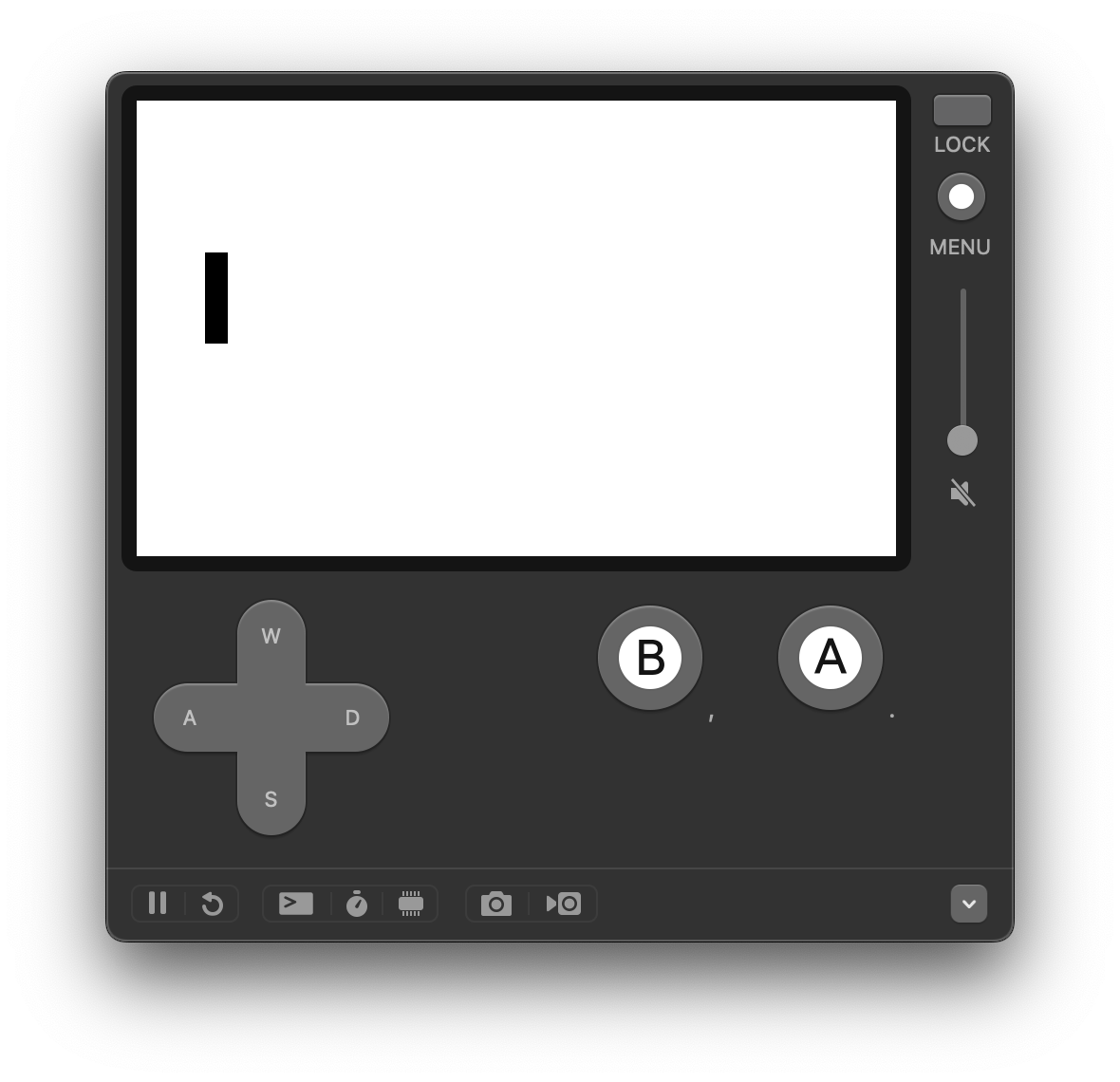
Let’s make it so we can move the paddle. This won’t be too different from moving text around the screen. But this time let’s use a table with key-value pairs to keep track of the paddle position and make our data structure clearer.
Lua is quite flexible in that it allows key-less tables, like we saw with the list of names, local names = { "Playdate", "Goku", "Bulma", "Piccolo" }. But Lua also allows us to specify keys and values to easily access and change them. We’ll see this in action, but here’s an example of the alternative way of using a table:
1 local player = {
2   name = "Oolong",
3   health = 10,
4   level = 5
5 }
The values of player can be accessed with dot syntax (player.name which returns the string "Oolong") or with bracket syntax (player["health"] which returns the number 10).
Let’s update source/main.lua to introduce a paddle table that has an x and y position:
1 local paddle = {
2   x = 36,
3   y = 80,
4 }
5
6 function playdate.update()
7   playdate.graphics.fillRect(paddle.x, paddle.y, 12, 48)
8 end
We’ve refactored our code to keep track of the paddle’s position in a table named paddle. Very convenient.
Bonus: Put the paddle’s width and height into the paddle table and reference them when drawing the paddle.
Moving the Paddle
Let’s move the paddle. We’ll start with the d-pad and then support the crank. Much like with moving the text, we’ll check for up and down input on the d-pad.
Update source/main.lua to be:
 1 local paddle = {
 2   x = 36,
 3   y = 80,
 4   s = 10,
 5 }
 6
 7 function playdate.update()
 8   if playdate.buttonIsPressed(playdate.kButtonUp) then
 9     paddle.y -= paddle.s
10   end
11
12   if playdate.buttonIsPressed(playdate.kButtonDown) then
13     paddle.y += paddle.s
14   end
15
16   playdate.graphics.clear()
17   playdate.graphics.fillRect(paddle.x, paddle.y, 12, 48)
18 end
Our expanded code moves the paddle up and down by paddle.s—a new entry in our table that represents the paddle’s speed. Since it’s defined in just one place, it’s easy to change the value to find a speed that feels right.
We also had to make sure we clear the screen every update with playdate.graphics.clear().
Did you notice that the paddle can be moved off the screen? Penalty! Out of bounds! Well, no, not really. But a bad player experience. Let’s make it so that the paddle can’t go off the Playdate’s screen.
We’ll add two new conditionals after the button checks. The first checks whether the paddle’s y position is less than or equal to 0, and if it is, sets it to 0. The second checks whether the height of the paddle plus its y position is greater than or equal to 240, which is how many pixels tall the Playdate’s screen is.
Let’s code that up in source/main.lua:
 1 local paddle = {
 2   x = 36,
 3   y = 80,
 4   s = 10,
 5   w = 12,
 6   h = 48,
 7 }
 8
 9 function playdate.update()
10   if playdate.buttonIsPressed(playdate.kButtonUp) then
11     paddle.y -= paddle.s
12   end
13
14   if playdate.buttonIsPressed(playdate.kButtonDown) then
15     paddle.y += paddle.s
16   end
17
18   if paddle.y <= 0 then
19     paddle.y = 0
20   end
21
22   if paddle.y + paddle.h >= 240 then
23     paddle.y = 240 - paddle.h
24   end
25
26   playdate.graphics.clear()
27   playdate.graphics.fillRect(paddle.x, paddle.y, paddle.w, paddle.h)
28 end
Now our paddle stops at the top and bottom of the screen. We use paddle.y + paddle.h (rather than just paddle.y) for the bottom check because paddle.y is the top of the rectangle. Similarly, paddle.x represents the left side of the rectangle, not the center.
There’s an aspect of this code that I don’t love, and it’s 240. When coding, a number that’s present without any context to its meaning is known as a magic number. It’s difficult to know what 240 means at first glance. While we know it’s the height of the Playdate’s screen, it’s not obvious. Our goal is to write code that’s easy to understand. We could make a variable, local screen_height = 240 and reference that. But we’ve got another option that’s a little more futureproof. Playdate provides an API to get the height of the display: playdate.display.getHeight().
 1 -- snip
 2 local displayHeight = playdate.display.getHeight()
 3
 4 function playdate.update()
 5   if playdate.buttonIsPressed(playdate.kButtonUp) then
 6     paddle.y -= paddle.s
 7   end
 8
 9   if playdate.buttonIsPressed(playdate.kButtonDown) then
10     paddle.y += paddle.s
11   end
12
13   if paddle.y <= 0 then
14     paddle.y = 0
15   end
16
17   if paddle.y + paddle.h >= displayHeight then
18     paddle.y = displayHeight - paddle.h
19   end
20
21   playdate.graphics.clear()
22   playdate.graphics.fillRect(paddle.x, paddle.y, paddle.w, paddle.h)
23 end
This introduces a variable displayHeight that’s set dynamically from the Playdate SDK and removes the magic number.
Let’s whip the crank out and use it to move the paddle up and down. Cranking forward will move the paddle down, while cranking backward will move it up. The Playdate SDK provides the playdate.getCrankChange() function, which returns two values: the degrees of angle change since the last time the function was called and an accelerated change value based on how fast the player is moving the crank. We’ll use the second value, the accelerated change, since it feels better.
Add the code to source/main.lua between the d-pad input checks and the boundary checks:
 1 -- snip
 2 if playdate.buttonIsPressed(playdate.kButtonUp) then
 3   paddle.y -= paddle.s
 4 end
 5
 6 if playdate.buttonIsPressed(playdate.kButtonDown) then
 7   paddle.y += paddle.s
 8 end
 9
10 local _crankChange, acceleratedCrankChange = playdate.getCrankChange()
11 paddle.y += acceleratedCrankChange
12
13 if paddle.y <= 0 then
14   paddle.y = 0
15 end
16
17 if paddle.y + paddle.h >= displayHeight then
18   paddle.y = displayHeight - paddle.h
19 end
20 -- snip
The first return value, _crankChange, is prefixed with an underscore to signify that it’s not used. Then we take the acceleratedCrankChange variable and add it to paddle.y. This works because cranking forward returns a positive value and cranking backward returns a negative value. Just what we need.
Bonus #1: Swap acceleratedCrankChange for _crankChange when adding to paddle.y and see how that feels.
Bonus #2: How would you increase or decrease the crank change to refine the paddle movement?
Displaying the Ball
Similar to how we drew a rectangle for the paddle, we’ll draw a circle to represent the ball.
At the very top of source/main.lua, we need to import the graphics core library. We’ll also set up a ball table variable for tracking the ball’s data.
 1 import "CoreLibs/graphics"
 2
 3 local paddle = {
 4   -- snip
 5 }
 6
 7 local ball = {
 8   x = 220,
 9   y = 80,
10   r = 10,
11 }
Then at the bottom of the playdate.update() function, call playdate.graphics.fillCircleAtPoint:
1 playdate.graphics.clear()
2 playdate.graphics.fillRect(paddle.x, paddle.y, paddle.w, paddle.h)
3 playdate.graphics.fillCircleAtPoint(ball.x, ball.y, ball.r)
r represents the radius of the circle in pixels.
Bonus: Adjust ball.r to find a size that seems appropriate.
Refactoring playdate.graphics
Let’s take a brief moment to refactor our calls to playdate.graphics to follow the best practices suggested by the Playdate SDK.
We’ll introduce a constant value called gfx to make our code a bit more concise. It also makes our code slightly faster. Win-win!
Update the top of source/main.lua to add the following line below the graphics import:
1 import "CoreLibs/graphics"
2
3 local gfx <const> = playdate.graphics
<const> means that the value is constant. It shouldn’t change or be reassigned.
Then in playdate.update() replace playdate.graphics with gfx:
1 gfx.clear()
2 gfx.fillRect(paddle.x, paddle.y, paddle.w, paddle.h)
3 gfx.fillCircleAtPoint(ball.x, ball.y, ball.r)
Moving the Ball
We’ve coded two moving objects already—the text from Chapter 1 and the paddle in Tennis. They respond to user input via the d-pad and crank. The ball in Tennis will move automatically. Instead of checking for player input, we’ll just modify the ball’s position in each update of the game loop.
In source/main.lua, between the paddle boundary checks and the drawing code, increase the ball’s x position by 2 pixels every loop:
1 -- snip
2 if paddle.y + paddle.h >= displayHeight then
3   paddle.y = displayHeight - paddle.h
4 end
5
6 ball.x += 2
7
8 gfx.clear()
9 -- snip
Run the game and see what happens. The ball moves to the right. Going, going, gone! It disappears off the screen. It’s still moving, deep into space. We just can’t see it.
Bonus: Refactor the code to put the ball’s speed of 2 into the ball table.
Bounce Off the Wall
Much like how we check for the top and bottom of the screen to stop moving the paddle, we’ll check to see if the ball has hit the right side of the screen. If it has, then we’ll change its direction.
 1 -- snip
 2
 3 local ball = {
 4   x = 220,
 5   y = 80,
 6   r = 10,
 7   s = 4,
 8 }
 9
10 local displayHeight = playdate.display.getHeight()
11 local displayWidth = playdate.display.getWidth()
12
13 function playdate.update()
14   -- snip
15
16   ball.x += ball.s
17
18   if ball.x + ball.r >= displayWidth then
19     ball.x = displayWidth - ball.r
20     ball.s *= -1
21   end
22
23   if ball.x <= ball.r then
24     ball.x = ball.r
25     ball.s *= -1
26   end
27
28   -- snip
29 end
Quite a few changes have been made. First, s was added to the ball table to represent its speed. Two pixels per update felt too slow, so it’s been increased to 4.
The direction is encoded in the sign of ball.s—positive means move right, negative means move left. While combining speed and direction into one variable isn’t ideal, that’s okay — it’ll change when we introduce angles.
We set a variable for displayWidth just like we did for displayHeight but call getWidth() instead. We need it for checking the ball’s boundaries.
When we change ball.x, we use ball.s instead of the magic number from the last section. And we multiply ball.s by -1 to change the direction. *= means multiply the value on the left by the value on the right and assign that new value to it. Multiplying by -1 changes the sign of the direction.
If the ball is moving right, we’re increasing its x value, so ball.s is positive. But if we want the ball to move to the left, we need to subtract ball.s from ball.x. Multiplying ball.s by -1 causes it to subtract 4 from ball.x in future loops. To make the ball move right again, multiply it by -1 to turn it positive. This sign-flipping technique is quite powerful and a regular staple of game programming.
Then we check if the ball’s x position plus its radius (r) is greater than or equal to the width of the screen. If it is, we set the ball’s position to the rightmost edge and flip the direction by multiplying ball.s by -1 so it moves to the left in the next call to playdate.update().
Similarly, for the left side of the screen, we check if ball.x is less than or equal to the ball’s radius (r). If it is, we set ball.x to ball.r and flip the direction so the ball moves to the right.
The boundary checking for the ball is slightly different from our paddle as the origin point of the circle is in the center, not the upper left. We need to factor that into our logic. Try changing if ball.x <= ball.r then to if ball.x <= 0 then and see what happens. (And then undo it because it’s not what we want moving forward.)
While it’s fun to watch the ball move back and forth, it flies right through our paddle. Let’s make it so that when the ball overlaps with the paddle, it changes direction.
Bounce Off the Paddle
To bounce the ball off the paddle, we’ll check to see if the circular ball overlaps the rectangular paddle. This is where we introduce some non-trivial math into our game. Don’t worry — I’ll break it down and explain it.
We’ll also introduce our first custom function to encapsulate the logic. Our playdate.update() function is getting a bit long and unwieldy, so by putting code into functions, we can keep it clear and focused.
 1 -- snip
 2 function playdate.update()
 3   -- snip
 4
 5   ball.x += ball.s
 6
 7   if circleOverlapsRect(ball, paddle) then
 8     ball.s *= -1
 9   end
10
11   -- snip
12 end
13
14 function circleOverlapsRect(circle, rect)
15   -- Find the closest point in the rectangle to the circle's center
16   local closestX = math.max(rect.x, math.min(circle.x, rect.x + rect.w))
17   local closestY = math.max(rect.y, math.min(circle.y, rect.y + rect.h))
18
19   -- Calculate the distance between the circle's center and the closest point
20   local distance = math.sqrt((closestX - circle.x)^2 + (closestY - circle.y)^2)
21
22   -- If the distance is less than or equal to the radius, there's overlap
23   return distance <= circle.r
24 end
Right below where we update the ball’s x position, we’ll add a conditional check using a new function: circleOverlapsRect. We pass in the ball (our circle) as the first parameter and then the paddle (our rectangle) as the second parameter. If the circle does overlap the rectangle, meaning the ball hit our paddle, we’ll flip the ball’s direction by changing the sign of its speed.
The circleOverlapsRect function takes a circle and rect as arguments. Comments starting with -- walk through the logic.
Let’s break down how we determine closestX and closestY. These calculations find the point within the rect that’s closest to the circle by comparing the center of the circle to the bounding box of the rect.
The distance formula is then used to determine the distance between the closest point in the rect and the center of the circle. If the distance is less than or equal to the circle’s radius (circle.r), then the circle is overlapping the rectangle.
Refactor into Functions
Our code in playdate.update() is getting complex and unwieldy. Let’s refactor the code we’ve got into separate functions that we call from within playdate.update(). Putting code into functions serves three key purposes:
- Functions help us reuse code rather than repeating it multiple times.
- Functions break our code down into smaller parts that are easier to understand.
- Functions self-document our code by grouping related lines under a meaningful name.
Our current source/main.lua looks like this:
 1 import "CoreLibs/graphics"
 2
 3 local gfx <const> = playdate.graphics
 4
 5 local paddle = {
 6   x = 36,
 7   y = 80,
 8   s = 10,
 9   w = 12,
10   h = 48,
11 }
12
13 local ball = {
14   x = 220,
15   y = 80,
16   r = 10,
17   s = 6,
18 }
19
20 local displayHeight = playdate.display.getHeight()
21 local displayWidth = playdate.display.getWidth()
22
23 function playdate.update()
24   if playdate.buttonIsPressed(playdate.kButtonUp) then
25     paddle.y -= paddle.s
26   end
27
28   if playdate.buttonIsPressed(playdate.kButtonDown) then
29     paddle.y += paddle.s
30   end
31
32   local _crankChange, acceleratedCrankChange = playdate.getCrankChange()
33   paddle.y += acceleratedCrankChange
34
35   if paddle.y <= 0 then
36     paddle.y = 0
37   end
38
39   if paddle.y + paddle.h >= displayHeight then
40     paddle.y = displayHeight - paddle.h
41   end
42
43   ball.x += ball.s
44
45   if ball.x + ball.r >= displayWidth then
46     ball.x = displayWidth - ball.r
47     ball.s *= -1
48   end
49
50   if ball.x <= ball.r then
51     ball.x = ball.r
52     ball.s *= -1
53   end
54
55   if circleOverlapsRect(ball, paddle) then
56     ball.s *= -1
57   end
58
59   gfx.clear()
60   gfx.fillRect(paddle.x, paddle.y, paddle.w, paddle.h)
61   gfx.fillCircleAtPoint(ball.x, ball.y, ball.r)
62 end
63
64 function circleOverlapsRect(circle, rect)
65   -- Find the closest point in the rectangle to the circle's center
66   local closestX = math.max(rect.x, math.min(circle.x, rect.x + rect.w))
67   local closestY = math.max(rect.y, math.min(circle.y, rect.y + rect.h))
68
69   -- Calculate the distance between the circle's center and the closest point
70   local distance = math.sqrt((closestX - circle.x)^2 + (closestY - circle.y)^2)
71
72   -- If the distance is less than or equal to the radius, there's overlap
73   return distance <= circle.r
74 end
I see three functions we can extract:
- Moving the paddle:
movePaddle() - Moving the ball:
moveBall() - Drawing our shapes:
draw()
Here’s what our refactored code looks like:
 1 import "CoreLibs/graphics"
 2
 3 local gfx <const> = playdate.graphics
 4
 5 local paddle = {
 6   x = 36,
 7   y = 80,
 8   s = 10,
 9   w = 12,
10   h = 48,
11 }
12
13 local ball = {
14   x = 220,
15   y = 80,
16   r = 10,
17   s = 6,
18 }
19
20 local displayHeight = playdate.display.getHeight()
21 local displayWidth = playdate.display.getWidth()
22
23 function playdate.update()
24   movePaddle()
25   moveBall()
26
27   if circleOverlapsRect(ball, paddle) then
28     ball.s *= -1
29   end
30
31   draw()
32 end
33
34 function draw()
35   gfx.clear()
36   gfx.fillRect(paddle.x, paddle.y, paddle.w, paddle.h)
37   gfx.fillCircleAtPoint(ball.x, ball.y, ball.r)
38 end
39
40 function movePaddle()
41   if playdate.buttonIsPressed(playdate.kButtonUp) then
42     paddle.y -= paddle.s
43   end
44
45   if playdate.buttonIsPressed(playdate.kButtonDown) then
46     paddle.y += paddle.s
47   end
48
49   local _crankChange, acceleratedCrankChange = playdate.getCrankChange()
50   paddle.y += acceleratedCrankChange
51
52   if paddle.y <= 0 then
53     paddle.y = 0
54   end
55
56   if paddle.y + paddle.h >= displayHeight then
57     paddle.y = displayHeight - paddle.h
58   end
59 end
60
61 function moveBall()
62   ball.x += ball.s
63
64   if ball.x + ball.r >= displayWidth then
65     ball.x = displayWidth - ball.r
66     ball.s *= -1
67   end
68
69   if ball.x <= ball.r then
70     ball.x = ball.r
71     ball.s *= -1
72   end
73 end
74
75 function circleOverlapsRect(circle, rect)
76   -- Find the closest point in the rectangle to the circle's center
77   local closestX = math.max(rect.x, math.min(circle.x, rect.x + rect.w))
78   local closestY = math.max(rect.y, math.min(circle.y, rect.y + rect.h))
79
80   -- Calculate the distance between the circle's center and the closest point
81   local distance = math.sqrt((closestX - circle.x)^2 + (closestY - circle.y)^2)
82
83   -- If the distance is less than or equal to the radius, there's overlap
84   return distance <= circle.r
85 end
All we’ve done is move our code into separate functions and then call them within playdate.update(). The code is a lot easier to reason about now.
The call to circleOverlapsRect stays in playdate.update() because it’s simple enough to leave there. It wouldn’t fit naturally into movePaddle() or moveBall() since it deals with both of them. If collision detection gets more complicated, we could extract it into its own function.
Now that our code is cleaned up a bit, let’s make the game more exciting by introducing angles so the ball bounces all over the screen.
Angles
Our ball is just moving along the x-axis, which isn’t very exciting. We want it to move all over the screen. This means, yes, more math! We need to keep track of the ball’s angle and combine it with our speed to determine its velocity.
 1 -- snip
 2
 3 local ball = {
 4   x = 220,
 5   y = 80,
 6   r = 10,
 7   s = 6,
 8   a = 195, -- degrees
 9 }
10
11 -- snip
12
13 function playdate.update()
14   movePaddle()
15   moveBall()
16
17   if circleOverlapsRect(ball, paddle) then
18     ball.a = math.random(160, 200) - ball.a
19   end
20
21   draw()
22 end
23
24 function draw()
25   -- snip
26 end
27
28 function movePaddle()
29   -- snip
30 end
31
32 function moveBall()
33   local radians = math.rad(ball.a)
34   ball.x += math.cos(radians) * ball.s
35   ball.y += math.sin(radians) * ball.s
36
37   if ball.x + ball.r >= displayWidth then
38     ball.x = displayWidth - ball.r
39     ball.a = 180 - ball.a
40   end
41
42   if ball.x <= ball.r then
43     ball.x = ball.r
44     ball.a = 180 - ball.a
45   end
46
47   if ball.y + ball.r >= displayHeight then
48     ball.y = displayHeight - ball.r
49     ball.a *= -1
50   end
51
52   if ball.y <= ball.r then
53     ball.y = ball.r
54     ball.a *= -1
55   end
56 end
57
58 function circleOverlapsRect(circle, rect)
59   -- snip
60 end
Play your game on the Playdate Simulator and upload it to your Playdate to playtest if you haven’t yet. It’s starting to get fun!
There are some major changes to how we’re handling the ball’s movement.
First, we introduce ball.a to represent the ball’s angle of movement. It’s in degrees and initially set to 195, which is to the left and slightly up. (180 would be straight to the left.) We’ll use the angle when determining how to change the x and y position of the ball based on its speed.
In playdate.update() we set ball.a to a random value between 160 and 200 degrees, minus the current ball.a. This turns the ball around and gives it a little random variance to prevent it from getting deadlocked in a straight line.
draw(), movePaddle(), and circleOverlapsRect() remain unchanged. But moveBall() gets entirely overhauled.
Let’s break down the two key parts:
1 local radians = math.rad(ball.a)
2 ball.x += math.cos(radians) * ball.s
3 ball.y += math.sin(radians) * ball.s
Since the ball is moving at an angle, both its x and y positions need to change based on that angle. Trigonometry!
We convert the ball’s angle to radians, which we need for working with the sine (math.sin()) and cosine (math.cos()) functions. We calculate the change in the x position based on the cosine of the angle times the ball’s speed. The y position is similar but we use sine instead. This formula uses the unit circle to convert an angle and a speed into a velocity.
After we change the x and y position, we check to see if the ball has collided with the top, bottom, left, and right sides of the screen. For the left and right sides along the x axis, we subtract the current ball.a from 180 to flip the horizontal movement. For the top and bottom collisions along the y axis, we multiply ball.a by -1 to keep the horizontal direction the same but change the vertical direction.
Let’s make it so the ball gets faster each time it hits the paddle. This makes the game more challenging as we get better at it.
Speeding Up the Ball
To make the ball go faster, all we need to do is increase ball.s inside our if circleOverlapsRect(ball, paddle) then block in playdate.update().
1 -- snip
2
3 if circleOverlapsRect(ball, paddle) then
4   ball.a = math.random(160, 200) - ball.a
5   ball.s += 1
6 end
7
8 -- snip
It quickly gets out of hand and the ball moves way too fast. So let’s set a max speed by adding max_s to our ball table and only incrementing ball.s while it’s below max_s.
 1 -- snip
 2
 3 local ball = {
 4   x = 220,
 5   y = 80,
 6   r = 10,
 7   s = 6,
 8   max_s = 12,
 9   a = 195, -- degrees
10 }
11
12 -- snip
13
14 function playdate.update()
15   movePaddle()
16   moveBall()
17
18   if circleOverlapsRect(ball, paddle) then
19     ball.a = math.random(160, 200) - ball.a
20
21     if ball.s < ball.max_s then
22       ball.s += 1
23     end
24   end
25
26   draw()
27 end
28
29 -- snip
There’s something really satisfying about using the crank to hit the ball around! We’re starting to get our first glimpses of the fun and joy of making games.
Score
Let’s keep track of the score and reset everything when the ball hits the left wall. We need a new variable, score, that we’ll set and draw on the screen. We’ll also save the ball’s initial position, speed, and angle so we can restore them when resetting.
 1 -- snip
 2
 3 local ball = {
 4   x = 220,
 5   y = 80,
 6   r = 10,
 7   s = 6,
 8   max_s = 12,
 9   a = 195, -- degrees
10 }
11
12 ball.initX = ball.x
13 ball.initY = ball.y
14 ball.initS = ball.s
15 ball.initA = ball.a
16
17 local score = 0
18
19 local displayHeight = playdate.display.getHeight()
20 local displayWidth = playdate.display.getWidth()
21
22 function playdate.update()
23   movePaddle()
24   moveBall()
25
26   if circleOverlapsRect(ball, paddle) then
27     ball.a = math.random(160, 200) - ball.a
28
29     score += 1
30
31     if ball.s < ball.max_s then
32       ball.s += 1
33     end
34   end
35
36   draw()
37 end
38
39 function draw()
40   -- snip
41   gfx.drawText("Score: " .. score, displayWidth - 100, 20)
42 end
43
44 function movePaddle()
45   -- snip
46 end
47
48 function moveBall()
49   -- snip
50
51   if ball.x <= ball.r then
52     resetGame()
53   end
54
55   -- snip
56 end
57
58 function resetGame()
59   score = 0
60   ball.x = ball.initX
61   ball.y = ball.initY
62   ball.s = ball.initS
63   ball.a = ball.initA
64 end
65
66 -- snip
There’s nothing too new here — just using the fundamentals we already learned, with the addition of ball.initX, ball.initY, and so on. After we create the ball table, we copy its starting values into separate entries because ball.x, ball.y, etc. are going to change throughout the game. Saving these initial values lets us easily reset the ball to its starting state.
We’re almost done with Tennis. Let’s polish it up a little bit more.
Sound Effects
Our game is feeling a bit quiet, don’t you think? The Playdate SDK offers a lot of options for playing sound effects, from samples to files to an included synth. We’ll add some simple MIDI sound effects to our game whenever the ball hits anything.
 1 -- snip
 2 local synth = playdate.sound.synth.new(playdate.sound.kWaveSine)
 3
 4 function playdate.update()
 5   movePaddle()
 6   moveBall()
 7
 8   if circleOverlapsRect(ball, paddle) then
 9     ball.a = math.random(160, 200) - ball.a
10     playSFX("C4")
11
12     score += 1
13
14     -- snip
15   end
16
17   draw()
18 end
19
20 function draw()
21   -- snip
22 end
23
24 function movePaddle()
25   -- snip
26 end
27
28 function moveBall()
29   -- snip
30
31   if ball.x + ball.r >= displayWidth then
32     playSFX("E4")
33     ball.x = displayWidth - ball.r
34     ball.a = 180 - ball.a
35   end
36
37   if ball.x <= ball.r then
38     playSFX("F3")
39     resetGame()
40   end
41
42   if ball.y + ball.r >= displayHeight then
43     playSFX("D4")
44     ball.y = displayHeight - ball.r
45     ball.a *= -1
46   end
47
48   if ball.y <= ball.r then
49     playSFX("A4")
50     ball.y = ball.r
51     ball.a *= -1
52   end
53 end
54
55 function resetGame()
56   -- snip
57 end
58
59 function playSFX(note)
60   synth:playMIDINote(note, 1, 0.25)
61 end
62
63 -- snip
We create a new synth variable using the kWaveSine constant. We use it in the new playSFX function, which takes a note and plays it through the synth for a quarter of a second. The second parameter, 1, is the volume of the sound effect. You can see that for each wall the ball hits, we play a different note. This is more pleasing than repeating the same sound over and over. The sound when the ball hits the paddle is also different.
Bonus: Similar to how we picked a random name to greet in the first chapter, create a table of music notes and randomly select one when the ball hits the paddle.
Final Code
That’s Tennis! Our version is complete, at least for now. We learned a whole lot in this chapter. We wrote our own functions, drew shapes, implemented angular velocity, created and changed plenty of variables, and made something that’s a little fun. Nice work.
Here’s the finished code for this chapter:
  1 import "CoreLibs/graphics"
  2
  3 local gfx <const> = playdate.graphics
  4
  5 local paddle = {
  6   x = 36,
  7   y = 80,
  8   s = 10,
  9   w = 12,
 10   h = 48,
 11 }
 12
 13 local ball = {
 14   x = 220,
 15   y = 80,
 16   r = 10,
 17   s = 6,
 18   max_s = 12,
 19   a = 195, -- degrees
 20 }
 21
 22 ball.initX = ball.x
 23 ball.initY = ball.y
 24 ball.initS = ball.s
 25 ball.initA = ball.a
 26
 27 local score = 0
 28
 29 local displayHeight = playdate.display.getHeight()
 30 local displayWidth = playdate.display.getWidth()
 31 local synth = playdate.sound.synth.new(playdate.sound.kWaveSine)
 32
 33 function playdate.update()
 34   movePaddle()
 35   moveBall()
 36
 37   if circleOverlapsRect(ball, paddle) then
 38     ball.a = math.random(160, 200) - ball.a
 39     playSFX("C4")
 40
 41     score += 1
 42
 43     if ball.s < ball.max_s then
 44       ball.s += 1
 45     end
 46   end
 47
 48   draw()
 49 end
 50
 51 function draw()
 52   gfx.clear()
 53   gfx.fillRect(paddle.x, paddle.y, paddle.w, paddle.h)
 54   gfx.fillCircleAtPoint(ball.x, ball.y, ball.r)
 55   gfx.drawText("Score: " .. score, displayWidth - 100, 20)
 56 end
 57
 58 function movePaddle()
 59   if playdate.buttonIsPressed(playdate.kButtonUp) then
 60     paddle.y -= paddle.s
 61   end
 62
 63   if playdate.buttonIsPressed(playdate.kButtonDown) then
 64     paddle.y += paddle.s
 65   end
 66
 67   local _crankChange, acceleratedCrankChange = playdate.getCrankChange()
 68   paddle.y += acceleratedCrankChange
 69
 70   if paddle.y <= 0 then
 71     paddle.y = 0
 72   end
 73
 74   if paddle.y + paddle.h >= displayHeight then
 75     paddle.y = displayHeight - paddle.h
 76   end
 77 end
 78
 79 function moveBall()
 80   local radians = math.rad(ball.a)
 81   ball.x += math.cos(radians) * ball.s
 82   ball.y += math.sin(radians) * ball.s
 83
 84   if ball.x + ball.r >= displayWidth then
 85     playSFX("E4")
 86     ball.x = displayWidth - ball.r
 87     ball.a = 180 - ball.a
 88   end
 89
 90   if ball.x <= ball.r then
 91     playSFX("F3")
 92     resetGame()
 93   end
 94
 95   if ball.y + ball.r >= displayHeight then
 96     playSFX("D4")
 97     ball.y = displayHeight - ball.r
 98     ball.a *= -1
 99   end
100
101   if ball.y <= ball.r then
102     playSFX("A4")
103     ball.y = ball.r
104     ball.a *= -1
105   end
106 end
107
108 function resetGame()
109   score = 0
110   ball.x = ball.initX
111   ball.y = ball.initY
112   ball.s = ball.initS
113   ball.a = ball.initA
114 end
115
116 function playSFX(note)
117   synth:playMIDINote(note, 1, 0.25)
118 end
119
120 function circleOverlapsRect(circle, rect)
121   -- Find the closest point in the rectangle to the circle's center
122   local closestX = math.max(rect.x, math.min(circle.x, rect.x + rect.w))
123   local closestY = math.max(rect.y, math.min(circle.y, rect.y + rect.h))
124
125   -- Calculate the distance between the circle's center and the closest point
126   local distance = math.sqrt((closestX - circle.x)^2 + (closestY - circle.y)^2)
127
128   -- If the distance is less than or equal to the radius, there's overlap
129   return distance <= circle.r
130 end
130 lines of code. That’s respectable for our first Playdate game. If you have someone to share your Playdate with, show them what you made!
Extra Credits
There’s a lot you could do to expand Tennis into something more fun. Here are some ideas to take it to the next level:
- Make the game two-player by introducing another paddle. Player 1 controls the left paddle with the d-pad and Player 2 controls the right paddle with the crank.
- Add multiple balls that spawn after reaching certain score thresholds!
- Add collectibles to aim for or even bricks to break.
- Add pinball-style bumpers that the ball can hit.
- Make the ball appear larger when it hits the paddle or a wall.
- Shake the paddle when it’s hit by the ball.
- There’s a small bug—sometimes the ball and paddle can get stuck on each other. How would you use the ball’s position when it hits the paddle to separate them?
- In future chapters we’ll learn about saving data. Make it so that the high score is saved between play sessions. When a new high score is reached, modify the score text to let the player know!
- Adding a mute setting would be nice!
- Rework the paddle’s movement to use acceleration and factor its current velocity into the angle at which the ball bounces (e.g., if the paddle hits the ball while the paddle is moving up, the ball should also move up and to the right).
What’s Next
Tennis was a lot to soak in. Let’s take a breather by coding up a simple little utility for our Playdate: a clock.