Introduction
Make Games for Playdate with Lua is a comprehensive guide to creating simple games for the Playdate handheld video game console. This book is perfect for beginners. You’ll code, from scratch, a bunch of small games to learn the fundamentals. We’ll use the Lua programming language to write our code. If you’ve written some code before, you’ll catch on to Lua quickly! If you haven’t coded before, don’t worry at all. Lua is great for beginners because of its simplicity and similarity to the English language.
Playdate’s simplicity and constraints make it a great learning platform. We’ll embrace its limitations in resolution, color, and input to focus on learning how to make fun games. It’s truly special to be able to write code and play it on an actual handheld game console within seconds. Playdate’s approachability and developer friendliness are unrivaled in the game development space.
Together we’ll code games from scratch, learning key concepts and increasing the complexity with each chapter.
Feedback
If you run into any issues or have any feedback, send me an email at brett@brettchalupa.com.
What to Expect
We’ll start by displaying some simple text on the screen. Then we’ll code our first game—a minimal version of tennis inspired by Pong. From there we’ll continue to code different games of increasing complexity. In the final two chapters, we’ll build a turn-based RPG.
Each chapter will contain a complete project with the code from start to finish explained.
The source code for each chapter can be viewed and downloaded on GitHub at https://github.com/brettchalupa/playdatebook.
For updated links, errata, and supplemental materials, visit the book’s webpage at https://pdbook.net.
Files on your operating system are referenced using / to separate folders. If you see a file referenced as source/player.lua, it means there should be a file named player.lua within the folder named source. Linux and macOS use / while Windows uses \ to delineate folder paths. For the sake of simplicity, the book uses / throughout.
In some of the code examples, there will be -- snip if there’s code that was removed from the example but would otherwise be in your file. It helps focus the example code and remove the clutter around what’s being explained.
1 -- snip
2
3 playdate.graphics.drawText("Hello, Playdate", 40, 40)
Don’t actually type in -- snip. It’s just to show you there was code from a previous point in the chapter that is unchanged and excluded for brevity.
Getting the Most Out of the Book
The best way to get better at programming is by writing code. The more code you write, the easier it will be to implement your ideas. It takes time to get used to thinking in code, learning the language, and understanding Playdate’s SDK.
I encourage you to do four things as you go through the book:
- Type out the code yourself. Don’t copy and paste it. You’ll learn the language better by typing it yourself, and it’ll become muscle memory.
- Experiment! It’s okay to change the code and deviate from what’s in the chapter. Make what you’re coding your own.
- Back up your code. Make copies of your code before you modify it so you have backups. When things are working well, consider zipping it up or duplicating it. Sometimes when coding you can dig yourself into a hole that’s difficult to get out of. While this book will not cover version control, if you’ve heard of Git before, it helps solve this problem by making it easy to back up and track changes to code.
- Search online to learn more. No book can contain answers to everything. An important aspect of coding games is learning how to learn—being able to search for and apply solutions to problems you’re running into. There are imperfections and room for improvement in each chapter, with suggestions for how to take the projects a step further on your own.
Getting Started
The first step is to download the Playdate SDK from the Playdate website. The Playdate SDK contains everything you need to make games for Playdate—example code, a simulator to run your games, a compiler to build your games, a manual called Inside Playdate with design guidelines, and more. The Playdate SDK supports Windows, macOS, and Linux.
The Playdate SDK is quite stable, so what’s covered in this book should (hopefully) work with newer versions. This book was written and tested against the 3.0 Playdate SDK.
Installing the SDK
How you install the SDK depends on your operating system:
macOS: Open the .pkg file you downloaded and follow the installer. It’ll install the SDK, the Playdate Simulator, and a command line tool called pdc (the Playdate Compiler) that we’ll use throughout the book to build our games. The installer takes care of everything for you.
Windows: Extract the downloaded .zip and run the Setup.exe installer inside it. This installs the SDK, the Simulator, and pdc.
Linux: Extract the downloaded .tar.gz, move the SDK folder to wherever you’d like to keep it (your home directory works fine), and then run the setup script inside it:
1 sudo ./setup.sh
This installs pdc and the Simulator.
Setting Up the Environment Variable
When you install the SDK, the installer sets an environment variable called PLAYDATE_SDK_PATH that points to where the SDK lives on your computer. An environment variable is just a named value that programs on your computer can look up—think of it like a global setting. pdc and other tools use PLAYDATE_SDK_PATH to find the SDK’s files, and we’ll use it later to set up autocomplete in our code editor.
The macOS and Windows installers set this up for you automatically. On Linux, you’ll need to add it yourself. Open your shell configuration file (~/.bashrc for Bash or ~/.zshrc for Zsh) in a text editor and add this line, replacing the path with wherever you put the SDK:
1 export PLAYDATE_SDK_PATH=/home/yourname/PlaydateSDK
Save the file and restart your terminal for it to take effect. You can verify it’s set by running:
1 echo $PLAYDATE_SDK_PATH
If it prints the path to your SDK, you’re all set.
The installer also adds the SDK’s bin folder to your system PATH, which is what lets you run pdc from any folder in your terminal. If you ever run pdc and get a “command not found” error, it means the SDK’s bin folder isn’t on your PATH. You can fix this by adding the following line to the same shell config file:
1 export PATH=$PATH:$PLAYDATE_SDK_PATH/bin
Your Code Editor
The only other thing you need to make games for Playdate is a text editor for writing code. Your text editor is different from Microsoft Word or Google Docs. It’s a plain text editor that’s specifically just for entering characters—your game’s code.
If you don’t already have a code editor, download Visual Studio Code. It’s free and available for Windows, macOS, and Linux.
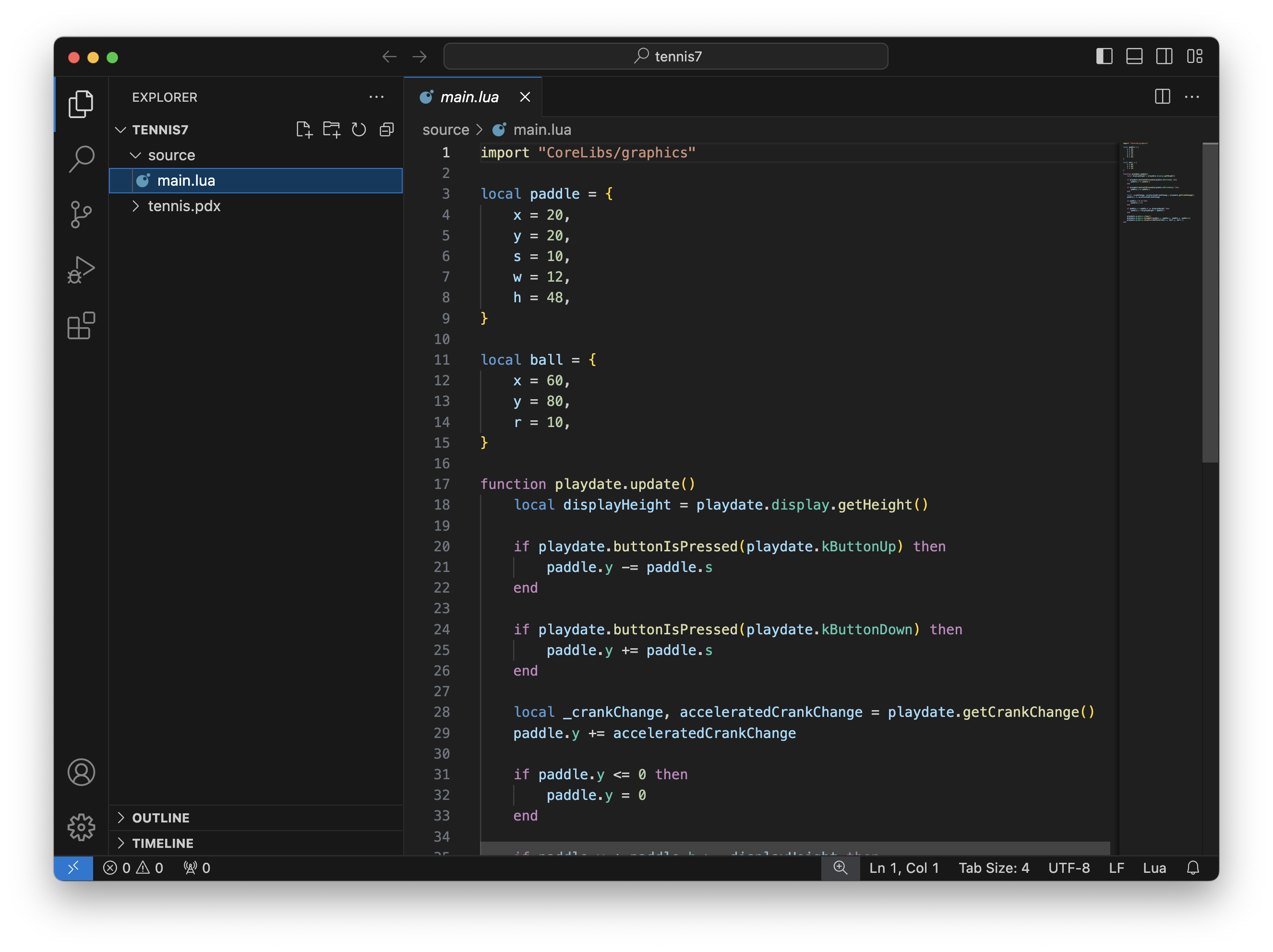
Some other popular code editors are Zed, Sublime Text, Notepad++, and Nova (made for macOS by Panic, the creators of Playdate).
Setting Up Zed for Playdate
I use the Zed editor, a free and open source text editor. If you decide to use it, you can follow these steps to set up Lua and the Playdate SDK with autocomplete.
Setting Up Visual Studio Code for Playdate
If you’re using Visual Studio Code, there’s a one-time setup that’ll make coding games for Playdate easier and give you autocomplete for Playdate’s SDK functions. When you start typing playdate.up it’ll suggest playdate.update() and so on. It’s not required, but it’s nice to have.
First, install the Lua extension by sumneko (also called LuaLS). Open Visual Studio Code, click the Extensions icon in the left sidebar (or press / ), search for “Lua”, and install the one by sumneko. This gives you syntax highlighting, error checking, and autocomplete for Lua.
Next, you need to tell the Lua extension where the Playdate SDK lives so it knows about all the Playdate functions. In your project folder, create a .vscode folder and a settings.json file inside it:
1 .vscode/
2   settings.json
Add the following to .vscode/settings.json:
1 {
2   "Lua.workspace.library": ["${env:PLAYDATE_SDK_PATH}/CoreLibs"],
3   "Lua.runtime.nonstandardSymbol": ["+=", "-=", "*=", "/="]
4 }
The first setting points the Lua extension to the Playdate SDK’s core libraries so it can provide autocomplete and documentation for Playdate functions. The second setting tells the extension that Playdate’s Lua supports shorthand operators like += and -=, which standard Lua doesn’t have. Without it, you’ll see false error squiggles in your code.
This uses the PLAYDATE_SDK_PATH environment variable we set up earlier. If for some reason autocomplete isn’t working, make sure that variable is set correctly. You can also replace ${env:PLAYDATE_SDK_PATH} with the actual path to your SDK, like "/Users/yourname/Developer/PlaydateSDK" on macOS or "C:/Users/yourname/Documents/PlaydateSDK" on Windows.
You’ll want to add a .vscode/settings.json to each new Playdate project you create. It’s a small step, but it makes a big difference when you’re writing code.
Next Steps
Because the Playdate SDK includes the Playdate Simulator, you don’t actually need the game console to make games for it. You’ll be able to test drive the SDK and experiment without spending any money. But I’d recommend buying a Playdate as you’ll want to test your game on it and play others’ games. The processor of the Playdate is much slower than your computer’s. That means if you write slow code, it may run fine on the simulator but be unplayable on the actual Playdate. You’ll want to test early and test often on your device if you’ve got one.
Once you’ve got the Playdate SDK installed, your environment variable set, and a text editor ready to go, you’re all set to start making a Playdate game!