3 Screen layout with “Box” and “Block”
3.1 Maintaining Experimental Control in an Online Setting: Layout
When a psychological experiment is conducted in the lab, the experimenter has full control over all hardware used: type of keyboard, computer, mouse, screen, etc. On the web, things are a little different. In this chapter, we discuss variations in screen and window size, which will likely vary considerably from subject to subject, unless you test them in the lab.
Nowadays, subjects may use screens that range in size from high-resolution ultra-wide monitors, to tiny mobile phone screens and even round smartwatch screens. New formats come out continually. How your experiment is viewed by each subject will vary not only due to the size of their screen, but also due to the size of the window on that screen. Even on a large screen, your experiment may still be run in a tiny window.
This presents a problem for psychological experiments, which require stimuli to be presented in specific positions with precision and accuracy. How can you be certain your stimulus layout will stay exactly the same? What happens when users scroll down or zoom in on your page? What if they are on a tablet and turn it from vertical to horizontal, which gives a quite different layout? NeuroTask has taken measures to help solve these issues.
3.2 Two Standard Layout Choices in NeuroTask: Fill and Square
To deal with the huge range of screen formats (and with variable window sizes), NeuroTask experiments use one of two types of layouts: square or fill. These layouts greatly simplify positioning stimuli on the subject’s screen. The square layout, which we will use by default throughout this book, limits the area in which your experiment is shown to the largest square that can be drawn across the window in which your experiment is being run. This offers the benefit of a constant layout, at the expense of not using all the space available. The fill layout does fill the whole window. Neither layout allows scrolling1. We will first discuss the fill and then the square layout.
The fill layout
The fill layout makes most efficient use of the display (screen or window) real-estate. An important drawback to consider is that the displays your subjects use can vary greatly, from extremely short and wide to extremely tall and narrow. It is possible to design webpages that adjust themselves to such extremes, for example, by using a framework like Twitter Bootstrap. This is the styling framework we use for the NeuroTask website and we highly recommend it. This fluidity is fantastic for webpages, but for experiments you almost always want to control where screen elements go. Therefore, for optimal control over your experiment’s display, we strongly recommend the square format. In the end, it is up to you if and when you want to use the fill format. For example, you may want to use it when showing instructions or when presenting survey questions.
The square layout
This layout automatically determines the largest square that can be drawn in a window. On a wide screen (or, rather, wide window), the square will leave areas to the left and right unused, called the background. If the screen (or window) changes, the square will automatically adapt its size. Anything drawn or shown in the square layout will always keep the same relative positions and proportions, even when resizing a window or when a tablet is turned sideways; within the square, things stay the same, relatively speaking.
3.3 Cross-Browser Layout Issues
Font size
When a subject increases the screen or window size, such that the square layout increases in size, the font should (and does) increase in size as well, to remain suitable to the display size. With a square layout, the font increases proportionally to the size of the square. With a fill layout, it is less straightforward. What makes most sense when a subject stretches a small square window to a wide band of triple the width but still the original height? We have chosen to make font size proportional to the diagonal of the window, a compromise which prevents the font from becoming uncomfortably large when a window is only large along one dimension, but which still allows a suitable font size increase when a window is made larger along both dimensions.
Zooming and Text-Sizing
Another potential problem with subjects using their own choice of browser is that, ordinarily, users can zoom in or out on webpages. On many browsers, pressing Ctrl+ makes the whole page larger. On some browsers, you can set just the text font size larger or smaller, while images and other elements on the page remain the same size. NeuroTask overrides and disables zooming and text sizing options. This guarantees, insofar as it is possible, that the screen layout of your stimuli remains as intended.
Font Type
Beyond font size, font type can be problematic for online display as well. Different browsers may show the same text in slightly different implementations of a specific font. NeuroTask’s text() function displays text in Arial font by default. We chose Arial as the default because, compared to other fonts, it is most consistently supported across different browsers and shows the least variation.
The NeuroTask framework strives to show text and other stimuli as similarly as possible on different browsers and types of hardware. This is not as easy as it may seem. For example, one browser may always show a certain font 15% larger than another browser. We strive to correct for such differences, such that only upon close inspection will you see any variation between different browsers’ renderings of a given text.
If you do not want to use Arial, it is possible to use other fonts. In fact, you can do all sorts of arbitrary styling of text (including font type, weight, color, and other aspects). This is explained in greater detail in Chapter 5 called “Style”. If you do decide to play around with text styling, bear in mind that some stylings may show considerable cross-browser variation, and that unless participants are completing your experiment in your lab, use of different browsers may be out of your control.
Centering Text and Images
In many experiments, stimuli are shown in the center of the screen (often in a large font). As it turns out, it is surprisingly cumbersome to center text (or images) both vertically and horizontally on a webpage in a way that works on all browsers. It is not rocket science, but it is also not something with which you should have to concern yourself. As such, NeuroTask has built the text() function to contain the code necessary to achieve effective cross-browser centering by default.
3.4 The Backbone of Layout in NeuroTask: Box and Block
After this fairly long introduction to the potential challenges of screen layout, you may wonder how you can make optimal use of the solutions we have developed (beyond using the defaults: square layout, Arial font, and the auto-centered text() function). The answer lies in the use of two features, Box and Block, which allow for precise relative screen layouts.
With a box, you define the layout and color scheme for your entire experiment. Most experiments only have one box and in fact use the default, predefined box called “main”, which is what we recommend. Many blocks can fit inside a box and can be used to show one stimulus in one area of the display, while simultaneously showing other things (e.g. an overarching instruction, buttons, etc.) in other areas of the display. Experiments often have many blocks. We will now discuss each of these in turn.
3.5 Box
The Pre-set Box Called “main”
A box is a large area in which you display the various components your experiment (e.g., instructions, questions, stimuli, images, etc.). As discussed in section 3.2, NeuroTask automatically presents your experiment in the largest square that can be drawn across the subject’s display. It does this by automatically creating a maximally-large, white (or rather, transparent) box with no border. In other words, by default, there is always one box already present in every NeuroTask script, called “main”. When you create a short script with no mention of boxes, your experiment is actually being displayed within “main”, the maximally-large, default box.
For most experiments, you’ll only need this single box. It is possible to create additional boxes, but we don’t recommend doing so unless you are an expert programmer. One reason for this is that many popular functions (such as input() and largeinput()) don’t layer, so subjects would not be able to click or type within the text input field if there was a transparent box on top blocking it. The only occasion to make a second box is if you insist upon making a box that fills the entire screen (but to do so, it is important to have a very strong grasp on style).
“main” is the Default for Many Box Functions
Given that a box (main) exists by default, several box methods can be called without actually specifying a box. In other words, if you don’t specify a box when doing any of the many actions that can be done to boxes, the action will be applied to main by default. For example, to add a block (detailed in the next section) within main, you could simplify the standard main.addblock(...) script to just addblock(...).
Customizing Boxes
One benefit of the fact that your scripts automatically run within a box (specifically, within main) is that it’s possible to make stylistic changes to boxes. You may specify the color of the box (i.e., the main stimulus area) and of the surrounding unused area (i.e., the background). You may also specify a margin around the stimulus area, as well as a border of a certain color and thickness. You can set the display manner of a box as square or fill, discussed in section 3.2. In order to make changes to a box that has not yet been defined, you must first declare it as a variable, like so:
var main = new Box();
But don’t do this in your script! This has already been done for you. Only declare a new Box if you really need and know what you are doing. As it stands, the box (main) would remain invisible (i.e., has no discernible border or fill color), but still functions as a specific, delineated area in which to display your experiment.
Box Color
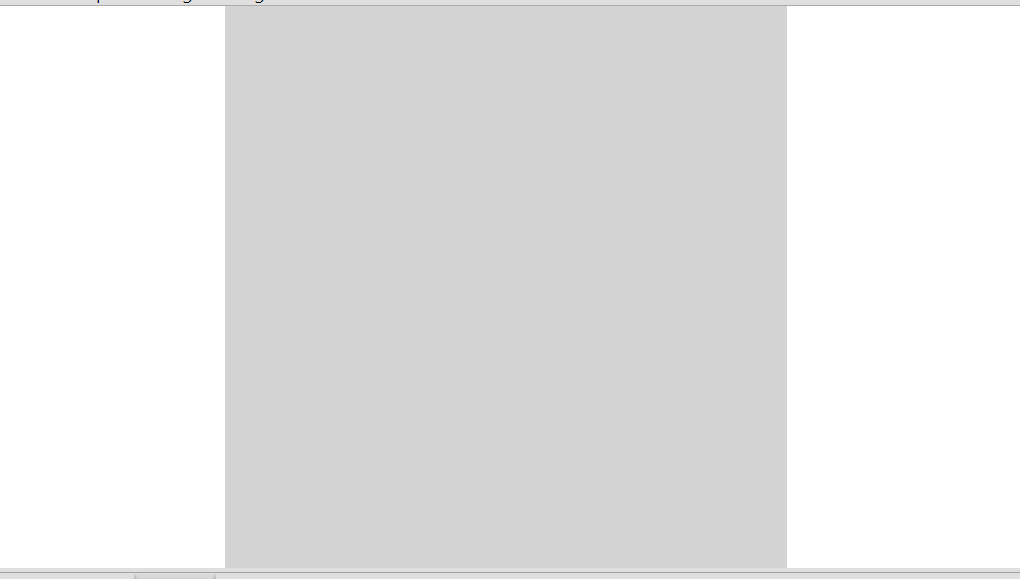
Often, you will want a box with a specific fill color, such as light grey. Colored boxes can be achieved in two main ways: by using the names of colors, or by using HEX color codes. A HEX color code is a six-character combination of letters and numbers that can specify a precise color by describing it as a combination of different amounts of red, green, and blue. If none of NeuroTask’s predefined colors are quite right for you, this is a great way to achieve your exact vision. In the chapter on Style, we discuss the various ways in which you can specify shades of colors further.
To make main light grey (rather than its default transparent color) using the color name method, you would write:
var main = new Box("lightgrey");
To make main light grey (rather than its default transparent color) using the HEX code method, you would write:
var main = new Box("#d3d3d3");
Box Borders, Backgrounds, and Fonts

You can make your box more polished by adding color to the unused background area, adding a border, adding a margin, and setting a default font style that will be used throughout your experiment unless otherwise specified. Take this example:
var main = new Box("skyblue","grey","red",
                   100,40,"orange",2);
Let’s go through the elements of this box in order. This script fragment creates a sky blue box with a grey background (i.e., unused areas outside the square box). Throughout the experiment, text will automatically appear in red font that is 100% as big as the standard font size (i.e., is the standard size). There is a 40-pixel-wide orange border. Finally, the box has a 2% margin inside which everything is set, to prevent things from “touching” the edge of the box. Having both a margin and a border can provide a nice aesthetic (as demonstrated in the grey box shown next), but if you only wish to have one, you may fill in “0” for the other.
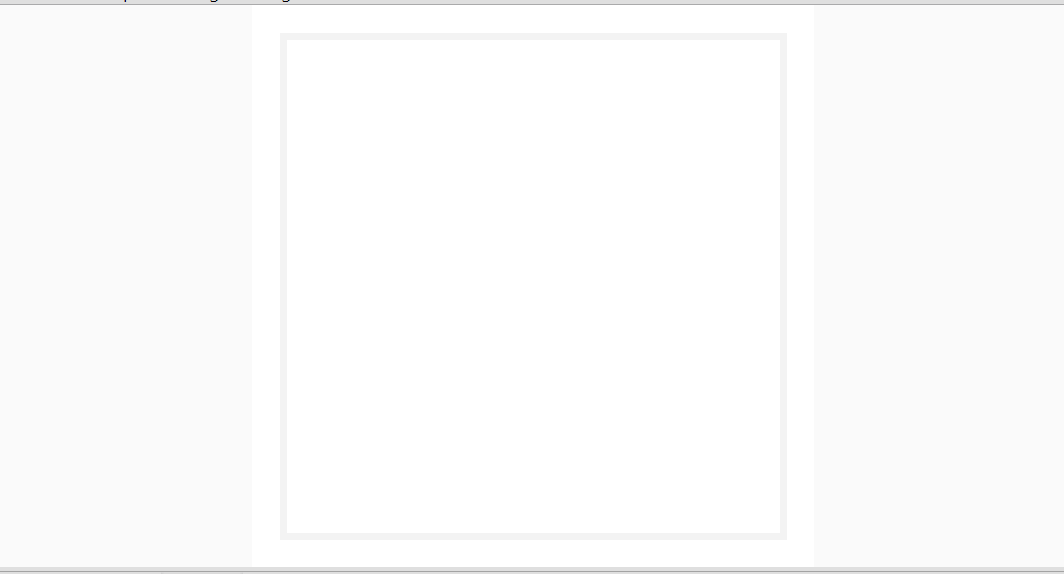
A more elegant, grey-scale box could be created with the following script fragment. Here, we see that it is possible to mix and match predetermined Javascript color names with HEX color codes to achieve a desired look. This creates a white box with a very light grey (#fafafa) background. Font color is black and font size is the standard 100%. There is a 5-pixel-wide grey (#f3f3f3) border, set inside a 5% margin.
var main = new Box("white","#fafafa","black",
                   100,5,"#f3f3f3",5);
It is common in experiments to want a subject’s entire display to appear black, except for your stimuli. In this case, we suggest making both the box and the background (unused area) black. In doing so, you can achieve total screen coverage while still using the square rather than the fill layout (and thus still benefitting from the automatic resizing that the square layout offers, described in section 3.2). This script fragment creates a black box on a black background with white font. We will come back to this layout in section 3.7 on the makebox() function. Note that in this example, we are creating a new box called “black_box” rather than altering main. This is only recommended for expert programmers. Most users would do better to make the same specifications to var main = instead, but we include this example for variety.
var black_box = new Box("black","black","white");
So, you now know about Boxes, keeping in mind that you should rarely have to declare one yourself. It is much better to alter the existing main Box with the functions given in the “Style” Chapter 5, for example, to change the background to black with a white font.
3.6 Block
Blocks can be used to organize the space within a box. For example, in many experiments (such as the Simon or Posner Task), the subject must fixate at a cross in the middle of the screen while letters are shown to the left and right of the cross. In other experiments, stimuli may be presented in any of the four quadrants of the screen or in other configurations, such as circular arrangements. To manage such locations, we have created the block: a rectangular portion of a box. You can put as many blocks in a box as you want, adding or taking them away at any time throughout your experiment.
Adding Blocks
Adding a block to your box is done with the addblock() function, which is written like this:
var b = main.addblock(10,25,80,50,
                      "yellow","Display text");
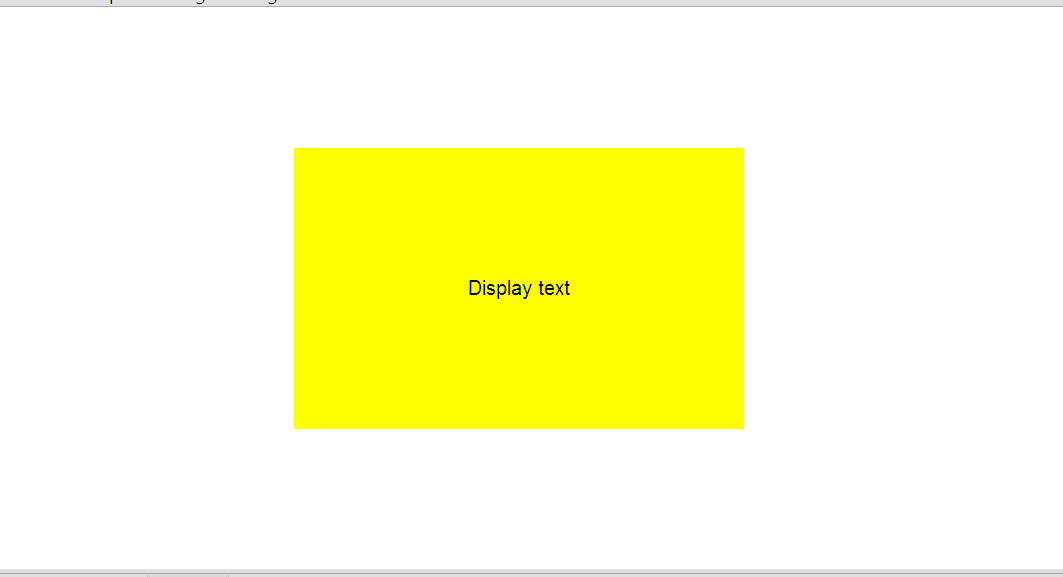
Block with textTo create this block (which we have named “b”), we first indicate which box to create it within (main). Because main is NeuroTask’s default box, this script would also work if simply written “var b = addblock(...”, however we have included the complete version so that this script may serve as customizable example. 10 indicates that the block starts 10% in from the box’s left side. 25 indicates that the block starts 25% of the way down from the box’s top edge. 80 indicates that the block then spans 80% of the box’s width (i.e., leaving another 10% to the box’s right edge). 50 indicates that the block spans 50% of the height of the box (i.e., also leaving 25% of the box’s height below it). The last two arguments are optional, and they indicate that the block should be yellow and that it should read “Display text”.
This script fragment has created a block (b) that is centered within the box main. There is an easier way to achieve a centered block that doesn’t involve doing the arithmetic to work out that an 80%-wide block should have 10% on both sides in order to be centered, or that a 50% tall block should have 25% above and below in order to be centered. The addblock() function accepts “center” instead of a number as its first two arguments. The following script fragment achieves the exact same thing as the fragment above:
var b = main.addblock("center","center",80,50,"yellow","Display text");
You may also simply specify that you want your block to directly touch any of the four box edges. NeuroTask accepts “left” and “right” for the first (default left) argument, and “top” or “bottom” for the second (default top) argument. For example, the following script fragment would create a small square block that is 10% wide and 10% high, and that is positioned in the very bottom-right corner of the box main.
x
1 var b = main.addblock("right","bottom",10,10);
Removing and Destroying Blocks
In some experiments, you may want to create a bunch of blocks (i.e., block objects), delete them, create some others, and so on. Since blocks always exist within a box, they may be created and gotten rid of using the addblock() and removeblock() functions. These functions are usually connected to the name of the box using the ‘dot’ construction, though this part can be omitted if the box in question is NeuroTask’s default box, main. In the following example, we first create a block “b” in box main, and then remove it.
var b = main.addblock("center","center",80,50,"yellow","Display text");
    // [Here you'd do something with the block, e.g., show text/an image within it]
main.removeblock(b); // Then you'd remove the block by writing this
Removing vs. Destroying
Destroying a block permanently and completely deletes it. That is, any contents (such as text, images, graphics, or video players) are deleted and their resources (notably, memory) are freed so they can be reused by your script. This is a healthy practice if you are writing a long script that involves lots of memory-heavy media.
Removing a block also permanently destroys it, unless you add an extra parameter, “true”. By adding the parameter “true”, the block is only temporarily taken off the display. This is useful if you want to reuse it later or reassign it to another box. For example, you might want it to temporarily disappear from the display in between sets of experimental trials, while you give new instructions, then have it reappear for the next set of trials. It is, of course, simpler to call back existing blocks than to recreate them (and a shorter script is, on principle, better than a longer script, both in terms of being more readable and less error-prone). To reassign a block to another box, use the pushblock() function. In the following script fragment, we are removing block b from box main and adding it to a box Q:
main.removeblock(b,true); // removes block b from main, but doesn't destroy it
Q.pushblock(b); // re-establishes block b inside box Q
A block can always be destroyed by calling the destroy() function. For example:
main.removeblock(b,true);	// b is taken out of main/off the screen, but still
				// exists off-screen and can be brought back.
// [You'd do other things here, with Block b handy if needed]
b.destroy();    		// b removed from screen AND permanently destroyed.
Example Block Layouts
In this section, we provide script fragments for two commonly-used block layouts. Feel free to use these in your scripts. Both layouts only occupy 90% of the box’s height and 90% of its width. A 5% buffer inside the box’s perimeter makes text look nicer by preventing it from touching right up against the box’s sides. These block layouts are created within the box main which, by design, covers the largest possible square that can be drawn on a subject’s display (i.e., by definition touches either the top and bottom or left and right sides of the subject’s display). As will become apparent, it is quite easy to construct a block layout that suits your needs.
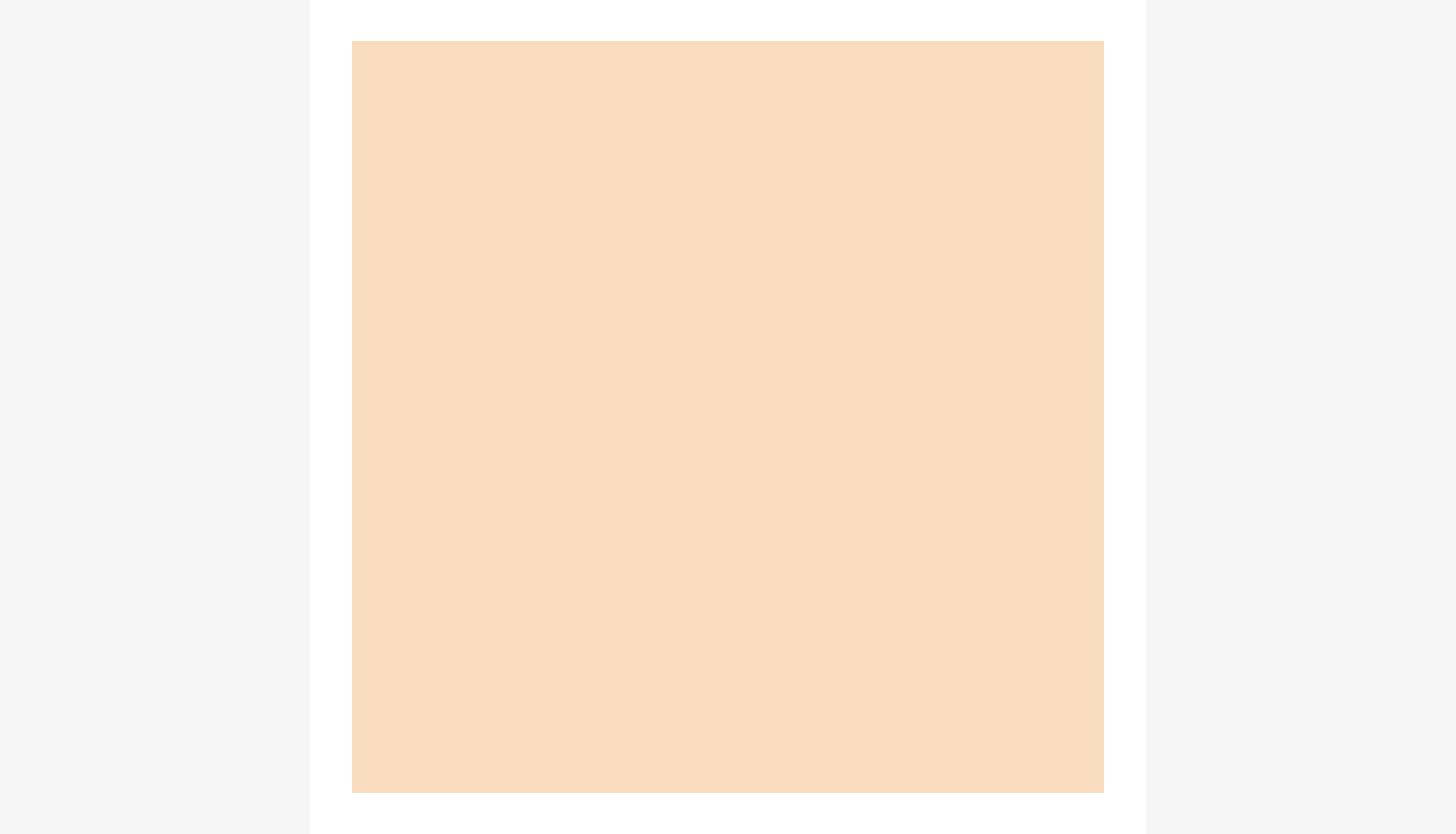
The first example layout is a single, centered, square block. It is handy for instructions, survey questions shown one at a time, and for showing images or words in the center of the screen. The script for this layout is:
var centerblock = main.addblock("center","center",90,90);
The second example layout covers the exact same space as the centered, square block, but is made up of three smaller blocks: a header, center, and footer block. This layout is handy for using the top of the screen for messages and feedback, the middle for stimuli, and the bottom for, say, a button. Note that using these numbers for the last and third-to-last parameter of each block makes our first block start 5% down from the box’s top, then divides the 90% of the box’s height that we want to utilize as follows: a quarter for the header (22.5), a half for the center (45), and a quarter for the footer (22.5).
var headerblock = main.addblock("center",5,90,22.5),
    centerblock = main.addblock("center",27.5,90,45),
    footerblock = main.addblock("center",72.5,90,22.5);
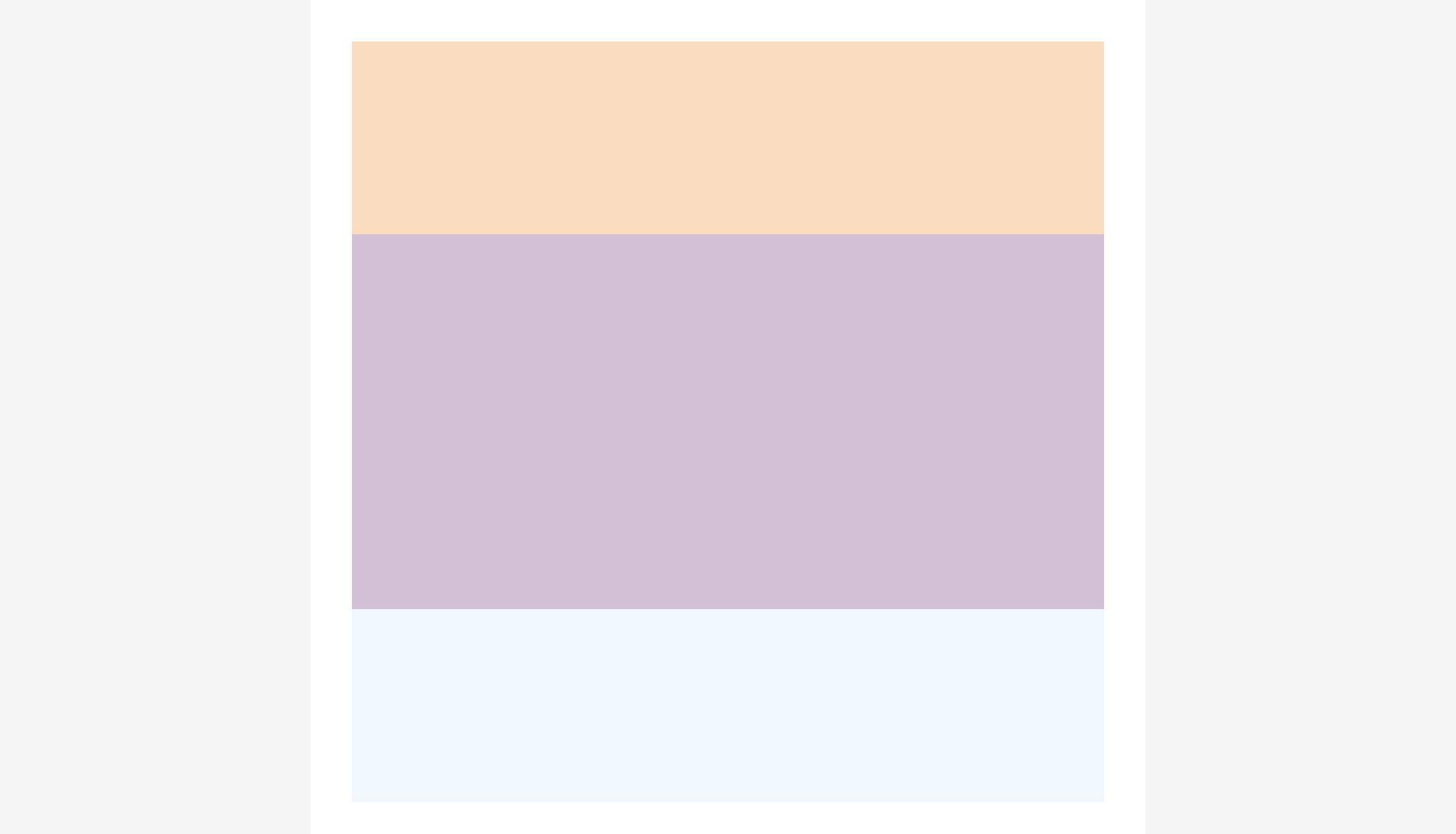
These proportions can be changed easily to fit your needs. For example, if you wanted more space in the middle with a narrower header and footer, you need only remember that the third-to-last argument indicates how far down from the top the block starts, and the last indicates how long it extends. So for a narrower header and footer, you could write “...,5,--,15”, “...,20,--,60”, and “...,80,--,15”.
Showing Text in Blocks
Once you have a block in place, you can show text within it. This is most easily done using the text() function and the dot “.” construction that we have encountered before, most recently earlier in 3.6. The following script displays text in the blocks created using the header-center-footer example layout. Notice that we do not have to create main as it is present by default:
1 var headerblock = main.addblock("center",5,90,22.5),
2     centerblock = main.addblock("center",27.5,90,45),
3     footerblock = main.addblock("center",72.5,90,22.5);
4
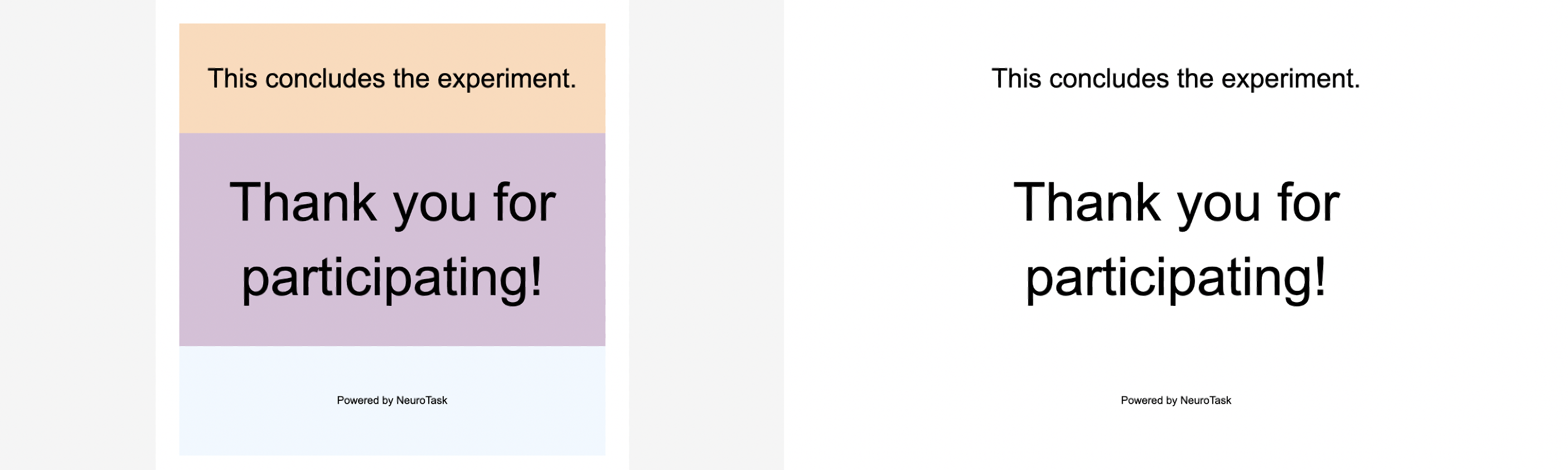
5     headerblock.text("This concludes the experiment.");
6     centerblock.text("Thank you for participating!",200);
7     footerblock.text("Powered by NeuroTask",40);
Pictured beneath, this script above displays some text in each block in standard, double, and smaller (40%-of-standard) font size, respectively. By default, everything is centered in its block, but this can be changed by altering the display style, as will be explained in the chapter on Style. The colorized image below demonstrates how the blocks within main dictate the text placement. The uncolored version is how it would appear to a subject (unless color was added to the blocks and box background).
For the web experts among you, it is important to know that you are not limited to plain text. NeuroTask accepts any type of HTML2 as text.
Showing Images in Blocks
You may also display images within blocks using the setimage() function below. Two things are important to note: 1) The preload() function, described further in section 4.4 (Preloading Images), is crucial as it prevents slow mid-experiment image loading that may potentially occur if a subject uses a slow computer, and 2) Images must be uploaded to the Files and Stimuli section of your experiment’s Quick Reference Panel, as described in section 4.2 (Image Linking and Uploading), for the setimage() function to work. Provided you had uploaded an image called “cow.png” to your script, the script fragment below would show the photo in the center of the screen (within the block “centerblock”):
var centerblock = addblock("center","center",90,90);
centerblock.setimage("cow.png");
If you have several blocks, each can contain its own image, which can be changed arbitrarily. It is not possible to combine text and images in one block, at least not with the text() and setimage() function; use separate blocks if you need to do this (e.g., an image in one block, with a word in another block below it).
3.7 Combining Box and Block: the makebox() convenience function
If you don’t want to make your own blocks or use either of our example layouts (above), NeuroTask also has a convenience function called “makebox()”. The makebox() function’s first argument specifies a block layout. It supports two options: “centered” and “threerows”. “Centered” creates one block 90% of the box’s height and width, exactly as in the example layout in the previous section. If no argument is entered, “centered” is the default. “Threerows” creates a similar layout to the example in the previous section, except that it’s blocks span 100% (not 90%) of the box’s height and width. So, instead of writing:
main.headerblock = main.addblock("center","top",100,25);
main.centerblock = main.addblock("center","center",100,50);
main.footerblock = main.addblock("center","bottom",100,25);
You could just write:
main = makebox("threerows");
To show text within the blocks created by the makebox() function, use the “dot” construction that we’ve encountered before to specify which box and block the text should be shown in. We recommend using the makebox() function to add blocks within the preset box main (as we’ve done above), rather than creating a new box (detailed in 3.5). The “centered” option’s block is called “centerblock”, and the “threerows” option’s blocks are called “headerblock”, “centerblock”, and “footerblock”. To write an instruction in the header, you would write:
main.headerblock.text("Please stay focused and respond as quickly as possible.");
This message would remain on the screen inside until such time as you cleared it. In other words, you could proceed to display an entire reaction time experiment within the centerblock, all while your reminder to stay focused and respond quickly is displayed at the top of the screen. Then, when no longer need it, you would clear your reminder by writing main.headerblock.clear();.
The makebox() function’s second argument specifies a color scheme. There are six supported options for the second argument. If no second argument is entered, “white” is the default. “White” makes the entire background white (blocks, box, and background outside the square box) and the font black. Experimenters often want to display white text on an all-black screen (blocks, box, and background), which can be achieved with the second option, “black”. The third supported option is “light” which creates the grey-on-grey layout shown in the last image in section 3.5 (captioned “White Box with #f3f3f3 Border”) with black font. We recommend using one of these first three options, which maintain the recommended square layout (explained in section 3.2). Those who want to use the fill layout can do so using the other three supported options: “wide-white”, “wide-black”, and “wide-light”. So, to show images or (white) text at the center of a completely-black screen, instead of writing:
main = new Box ('black','black','white');
var centerblock = main.addblock("center","center",90,90);
You could just write:
main = makebox('centered','black');
In the Appendix, we provide the code that supports the makebox() function, should it interest you. We may support additional layout and color schemes in the future, should there be interest.
3.8 Deleting All Contents of a Box
When you no longer want the contents of a box object (i.e., the blocks you’ve laid out within it), you can call the following script fragment. This removes and destroys all blocks and other contents, if any. The box can now be re-used and filled with new blocks using addblock().
box.clearall();
3.9 Using Blocks as Stimuli
While block layouts are traditionally used as locations to display stimuli such as text and images, they can also be used as the stimuli themselves. We will show some examples of this usage of block layouts, starting with the Corsi Block Tapping Task.
Corsi Block Tapping Task
The Corsi Block Tapping Task is a classic neuropsychological test. When done manually, the neuropsychologists lay out blocks over a table in a more or less random arrangement. They then tap select blocks in a certain order, and the subject (or patient) must replicate it, tapping the same blocks in the same order. The neuropsychologist starts with a short sequence, increasing it until the subject starts to make errors. The longest sequence before that is taken as the subject’s ‘span’, which, in most people, is five to seven blocks.
A computerized version shows blocks on the screen, which ‘light up’ in a certain sequence. In the Appendix, we present a complete script for such a task. Here, we will only study how to create such an arrangement of blocks on the screen, as follows:
1 var coords = [[10,10],[20,40],[20,80],[40,30],[45,60],
2              [60,10],[60,75],[70,50],[80,20],[85,45]],
3     i;
4
5 for (i = 0; i < coords.length; i++)
6 {
7     main.addblock(coords[i][0],coords[i][1],10,10,"lightgrey");
8 }

The variable “coords” lists pairs of numbers that will come to be the coordinate of the top, left corner of each block.
The for-loop creates the blocks. Each time the loop repeats (i), it focuses on a different pair of coordinates until it has created all ten blocks.
We use an array of arrays here: coords = [[10,10],[20,40],...]. In JavaScript you can put anything in an array, including other arrays. To get to a value in an array of arrays requires two steps: First, we specify which element we want in the overarching array, then (since that element is itself an array), we specify which element we want within it. Since Javascript numbers the elements in an array starting at 0, not 1, “coords[0][0]” equals 10, because the first zero points to the first set of coordinates, and the second zero points to the first number within that pair. Similarly, “coords[1][0]” equals 20 and “coords[1][1]” equals 40.
Therefore, when i is 0, the for-loop begins a block 10% in from the left edge of main, and 10% down from the top edge of main. The block then extends 10% over and 10% down. The last three arguments (10,10,"lightgrey") indicate that all blocks will be the same size and light grey.
Random Dot Stimuli
The same approach can also be used to generate random dot displays. These have been used by many experimenters to study memory, including by Posner and Keele (1968). In this experiment, a prototype dot configuration P was defined and various distortions P1, P2, …, Pn, were made by randomly shifting dots around. Subjects were presented with half the distortions and encouraged to remember them. They were not told the patterns were in fact all distortions of a single prototype pattern. After some time, they then viewed all distortions with the prototype intermingled; their task was to say whether they had seen a specific distortion before. The crux of this experiment was that subjects were very likely to falsely recognize the unseen prototype P as among the patterns seen earlier.
A small change in the script fragment of the Corsi task, produces a random dot display:
var coords = [[10,10],[20,40],[20,80],[40,30],[45,60],
[60,10],[60,75],[70,50],[80,20],[85,45]],
block, i;
for (i = 0; i < coords.length; i++)
{
block = main.addblock(coords[i][0],coords[i][1],10,10);
block.text("•",200);
}
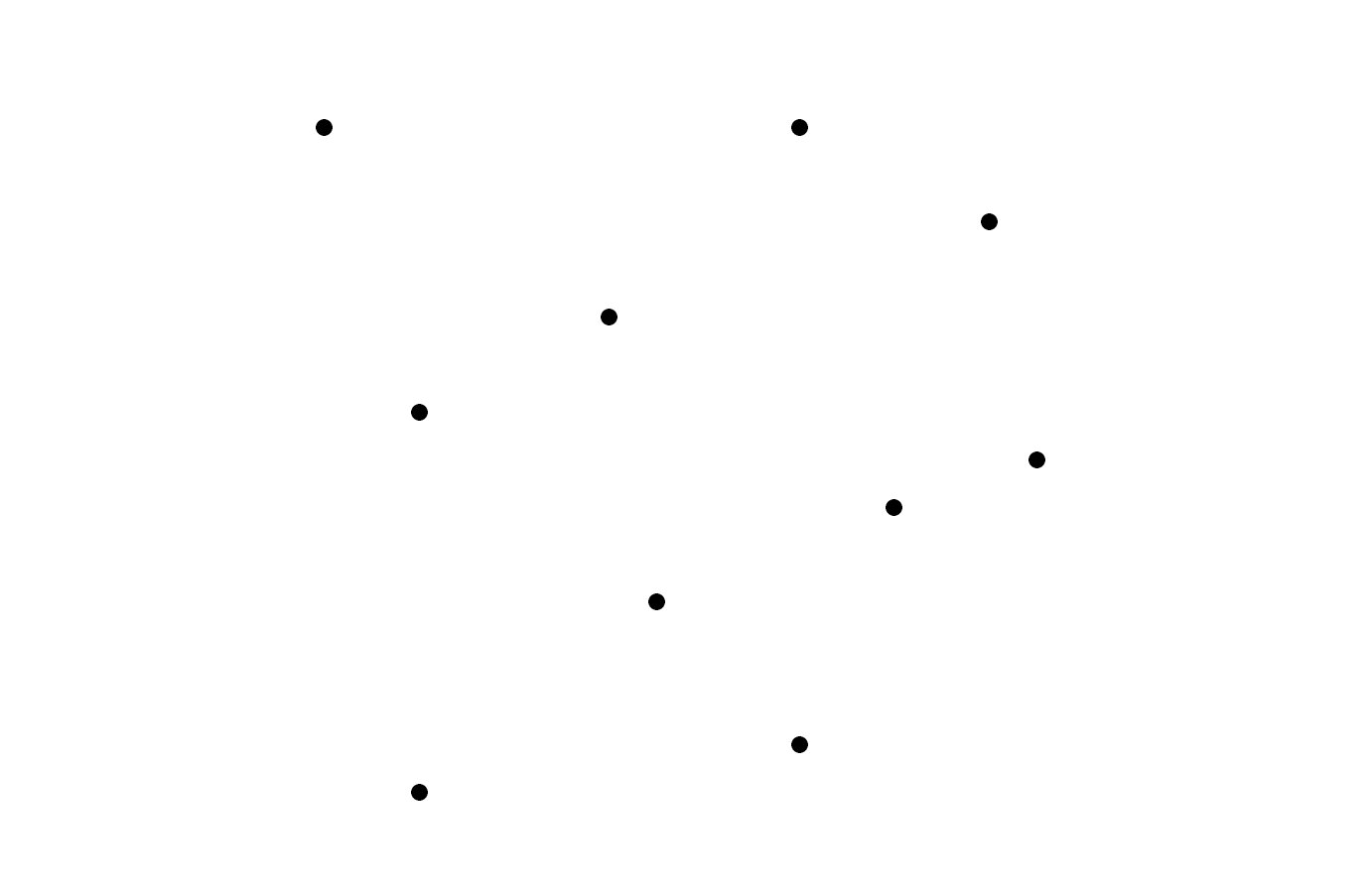
Here we see the code (•) used to display a round bullet point, •, which does not have a key on most keyboards. The code for this and for other symbols can be found online on one of many websites on HTML. You can use these so-called HTML ‘entities’ (symbols) directly in your scripts by copying either the entity name or the entity number. (You can also do a web search for HTML entities to find overview lists). We could also have used an ordinary dot in this script, “.”, but this appears as a tiny square in the Arial font, which we found less appealing than a nice round bullet.
Additional code (to distort the patterns, add a presentation phase, and add a recognition phase) would be necessary to make the whole experiment work. Here, we only cover how to create the blocks for such a task. In the Appendix, we provide the additional code, combining subject matter from the entire book into complete experiment scripts.