2 1 Introduction to vector graphics
There are two main ways to represent digital images - they can be stored as pixel images or vector images.
This book is about vector images, and more specifically how to use the Pycairo library to generate vector images. But we will start by looking at pixel images, because you can’t fully understand one without the other.
2.1 1.1 Pixel images
A pixel image is an image that is made up of pixels. You can think of a pixel as being a tiny square area of the image. Each pixel is too small to see individually, but if you zoom right in you can see them, as this illustration shows:
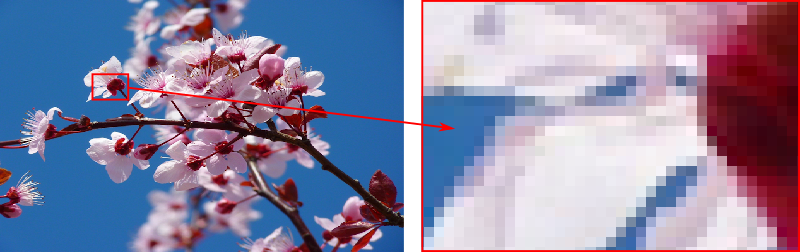
The important thing about pixels is that each one represents a square of the image that is filled with a single colour. You can’t have a pixel that is partly blue, partly red. Each of the squares in the zoomed image in completely filled with one colour. It is the combined effect of hundreds of tiny pixels that gives the illusion of a continuous image.
To store a pixel image, we simply need to store the colour value of each pixel, usually as an RGB (red, green, blue) value which typically occupies 3 bytes per pixel (1 byte per colour). Many modern cameras create images with millions, or tens of millions, of pixels, so pixel images can take a very large amount of storage space. Most common image formats, such as JPEG, PNG and GIF, employ data compression to reduce the storage requirement.
There are several alternative names for pixel images, which are more or less interchangeable:
- Pixel image - the word pixel is a shortened form of picture element, each pixel being an element of the overall image.
- Raster image - the word raster derived from the Latin for rake (rastrum). It refers to the way an image is drawn line by line, a bit like a rake being dragged over the ground.
- Bitmap image - in general a bitmap is a mapping between some kind of data and the bits in computer memory. This term was used to describe the mapping of computer memory onto pixels on the screen, which led to pixel images sometimes being called bitmap images.
2.2 1.2 Size and resolution
A key feature of a pixel image is that it has a fixed size in pixels. For example the image in the example above is 640 pixels wide and 400 pixels high.
The pixel size has an effect on the physical size of the image. The relationship between the pixel size and the physical size of the image is determined by the resolution it is printed or displayed at.
Resolution is usually expressed as the number of pixels per inch (ppi). This is sometimes called dots per inch (dpi) or even lines per inch (lpi), they all mean the same thing. Resolution can also be expressed in centimetres or millimetres rather than inches (e.g. lpmm or lpmm). We will use ppi.
For example, a typical computer monitor has a screen resolution of 90 ppi. If we display our 640 by 400 pixel image at 90 dpi, the physical size of the image on the screen will be about 7.1 by 4.4 inches (640 divided by 90, and 400 divided by 90).
Alternatively, if we printed the same image on a printer with a resolution of 300 ppi, our image would appear at a minuscule 2.1 by 1.3 inches.
The pixel size, physical size and resolution are linked by the formula above. If you choose any two of the values, the third value is fixed.
2.3 1.3 Resizing pixel images
It is possible to change the pixel size of an image, but there are costs and limitations.
You can make a pixel image smaller - for example you could take a 3000 by 2000 pixel image from a camera, and shrink it down to 600 by 400 pixels to fit on a website, or even to a 150 by 100 thumbnail image. Any image editing program such as Gimp or Photoshop will let you do that, quite successfully. The smaller image will look perfectly good. Some detail will be lost, simply because it has less pixels, but it won’t be any worse than an image that had been created at that size in the first place.
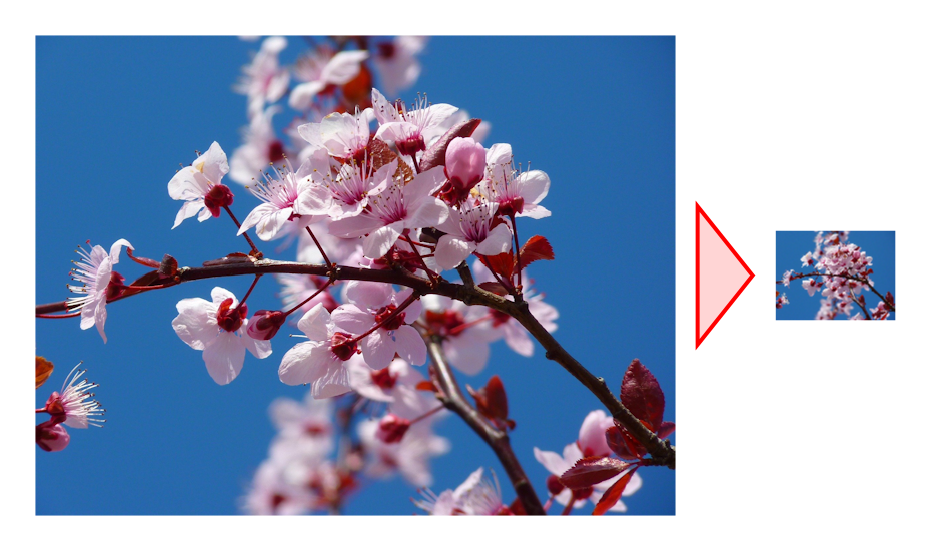
It is also possible to keep the image at its original size, and scale it down when it is displayed. On a website, for example, you can use CSS to set the size display size of an image, and if it is too large the browser will scale it automatically. The downside is that your are storing an image that is bigger (in terms of the number of bytes) than you need to. If the image is being stored on disk it will take more space than it needs to, if it is being downloaded from a website it will take longer than it needs to.
Trying to make a pixel image larger is usually less successful. A larger image contains more information than a small image. When you increase the pixel size of an image, you have no way of knowing what colour to make the extra pixels. If you wish to make the image slightly bigger, by 10% or maybe even 50%, the effect will be slight blurring. But if you try to increase the size more significantly, for example by a factor of 4, the result is a very poor quality image.
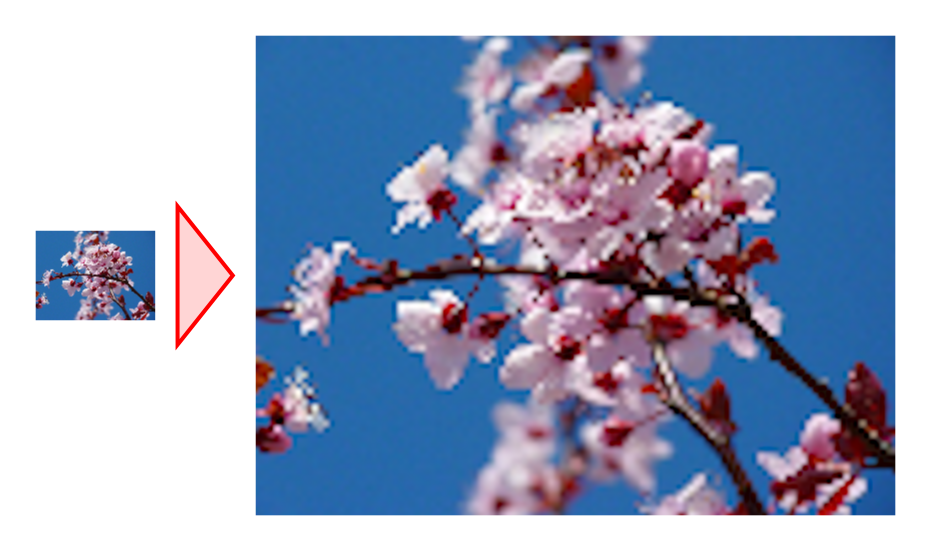
This illustrates a common problem with raster images - you need to decide the final pixel size of your image very early in the process of creating it.
2.4 1.4 Drawing on pixel images
You can draw shapes and text on pixel images. Most image editing software allows you to do that, and there are Python raster imaging libraries such as Pillow that allow you to do this is code. Painting shapes and text is simply a matter of changing the colour of the appropriate pixels:
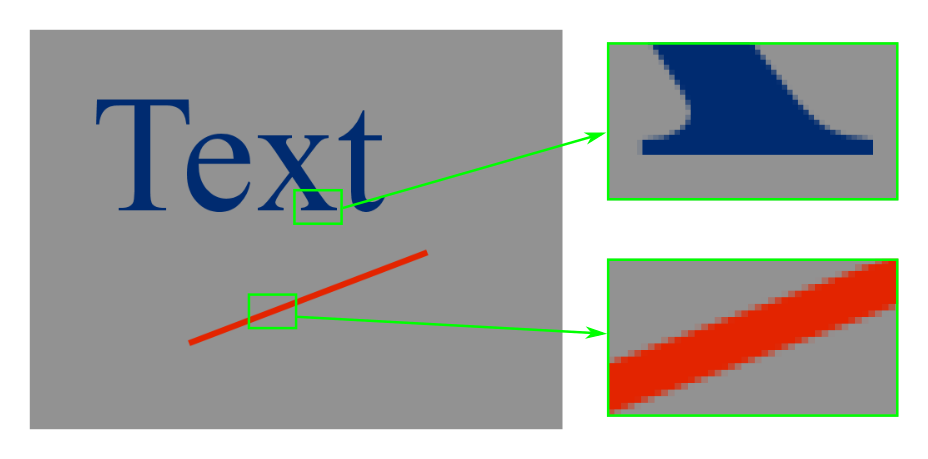
There is nothing wrong with the text or the line as they are drawn, they are perfectly good quality. As you can see from the enlarged sections, the pixels close to the edges of the text and line have pixels that are a mix of the foreground and background colours - this is called anti-aliasing and it makes the edges appear smoother.
This technique suffers from a similar problem to the one mentioned above. At the point when you draw the text or the line, you are deciding the pixel size of your image. This is then baked in to text. If you later decide you want to print your image as a poster, requiring a much larger pixel size, you would pretty much need to start again.
There is another, more subtle, problem. When you draw on an image, you are overwriting the pixels you draw on. The original pixel colour is lost, so if there was something else behind the text when you draw it, that thing is gone forever.
This means, essentially, once you have draw something, you can’t change it. You cant change the colour, the size, the font, or the position of the item, you can’t even erase it altogether, because you don’t know what was behind it before it was drawn.
Of course, many image editors have an undo feature, that allows you to undo what you just did, but that just works by keeping a temporary copy of the previous image to revert back to. As soon as you store your work as a PNG or JPEG file, the information is gone. Similarly, some packages have the idea of “layers” so that you can draw shapes an text on different layers, which can then be moved around, resized or deleted. These layers are really just separate images stored temporarily within the program, and again as soon as you save your work as an image file, the layers are merged into one, and can no longer be edited separately.
2.5 1.5 Vector graphics
Vector images take a totally different approach to storing images. Instead of storing the pixels that make up the image, a vector graphics file stores a list of instructions for how to draw the image.
Here is an example of an SVG file. SVG (Scalable Vector Graphics) is a widely used type of vector format that is based on XML. It is supported by all modern web browsers, and is the main file format used by the popular open source vector image editor Inkscape.
Don’t worry about the details, you will probably never have to edit or even look at an SVG file in real life. This is just an illustration to give you an idea of what a vector graphics file might look like:
<svg
  <g
     id="layer1"
     transform="translate(0,-572.36216)">
    <circle
       style="stroke:none;fill:#008000"
       id="path5387"
       cx="130"
       cy="802.36218"
       r="50" />
    <rect
       style="fill:#000080;stroke:none"
       id="rect5389"
       width="160"
       height="120"
       x="250"
       y="682.36218" />
    <text
       xml:space="preserve"
       style="font-style:normal;font-weight:normal;font-size:80px;line-height:125%;f\
ont-family:sans-serif;
       letter-spacing:0px;word-spacing:0px;fill:#ff0000;fill-opacity:1;stroke:none"
       x="249.375"
       y="961.22937"
       id="text5391"
       ><tspan
         id="tspan5393"
         x="249.375"
         y="961.22937">ABCD</tspan></text>
  </g>
</svg>
Here is what the image looks like:
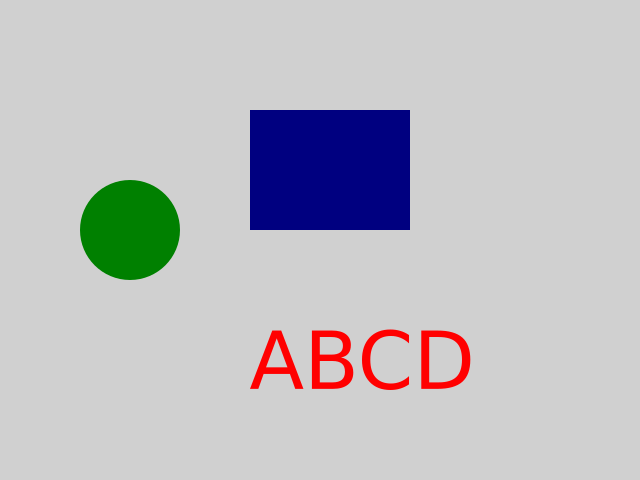
Even without understanding the format in any detail, is fairly clear that it defines a circle, a rectangle and some text. For the circle it specifies a fill colour of #008000 (which is green in hex RGB), and gives the centre and radius values. For the text, it specifies the font, spacing and fill colour to use, as well as the actual text itself.
Some initial things to notice are:
- The file is entirely text based. There are no binary pixel values, or any other form of binary data.
- The data is resolution independent. For example the size and position of the circle (given by
cx,cyandr) are simply floating point numbers. It specifies that the radius is 50 and the centre is (130, 802.36218), but depending on what units you choose this could be as big or as small as you like. - This data is a complete specification of the vector image, given this file alone you can accurately and completely draw the image.
You could, if you wished, edit this image file with a normal text editor, to change the colours and sizes of the objects, or even change the text message itself. You can’t do that easily with a pixel image of course.
2.6 1.6 Rendering
There is an aspect of vector graphics that is almost so obvious that you might miss it.
Most monitors and printers are pixel based. They cannot directly display a vector image. A vector image must be converted into a pixel image before it can be displayed or printed. This conversion is called rendering (or sometimes rasterisation).
This process is normally performed automatically by any software that supports vector formats. For example, if you open a PDF file using Adobe Acrobat or a similar product, it will automatically be rendered for display on the monitor, so you can read or edit it. If you print the PDF file, it will be rendered by software in the printer (or possibly printer drivers installed on your computer) to be printed. If you open a web page that contains an SVG file, your browser will render the SVG to display it.
In each case the software will render the image at the correct resolution for the display or printer.
2.7 1.7 Typical uses
Typical uses of vector formats are for images that contains geometric shapes - diagrams, charts, graphs, logos and so on.
Vector formats are also great for storing text images. A text page is just a page full of letters, which if you think about it are just geometric shapes. Storing this as a vector image allows the text to be rendered properly on the screen or a printer.
A vector image can contain pixel images as elements of a page. In fact, it is quite common to have pixel images within a vector image. If you are reading this book as an ebook, it will be in a vector format such as PDF, ePub or similar. but it contains pixel images. However, some of the advantages of vector formats can be lost if they contain pixel images. When creating the document have to make a reasonable guess as to how many pixels the images should contains. The images in this book are sized to look reasonable on a screen or printed page, but if for any reason you wanted to print pages from this book at poster size, you would find the images somewhat pixelated.
Some vector formats can contain certain effects such as gradients, shadows, blurring. These effects are specified mathematically in the image, and are generated at the correct level of detail when the image is rendered.
2.8 1.8 Benefits
To summarise, here are the main benefits of of vector images:
- The image format is resolution independent. It can therefore be rendered at the most suitable resolution whenever it is printed or displayed.
- You can zoom into a vector image without losing detail. For example, if a vector image contained a page of small text, you could zoom in to make a single character fill the screen, and it would still be perfectly sharp.
- Since text is usually stored as text strings, you can search and extract text from an image.
- You can edit an image - adding and removing items, changing the size and colour of items, moving an item, etc.
- You can change the message in a text item.
- Vector images file sizes are often considerably smaller than the equivalent pixel image.
2.9 1.9 Disadvantages
Vector images have a few disadvantages compared to pixel images.
2.9.1 1.9.1 Complexity of conversion
A vector image requires quite complex processing to convert it to a pixel format for display or printing. When vector formats (mainly PostScript) first became popular in the 1980s, this presented a number of problems:
- It could take a long time to render a complex image from vector to pixel format.
- The conversion software was often proprietary, and sometimes expensive.
- Bugs were quite common both in the applications that created vector images, and the software that rendered them.
Such problems used to be quite serious. These days, thanks to modern computers that are orders of magnitude more powerful, and the existence of mature, open source libraries to deal with vector images (such as Pycairo), these problems are quite rare.
2.9.2 1.9.2 Pixel image elements
As mentioned earlier, vector formats are not ideal for any page elements that are based on pixel images. It isn’t that they handle images particularly badly, but the presence of pixel images on a vector page means that you have to go back to worrying about the final intended output resolution for the image, which partly defeats the purpose of using vectors.
2.9.3 1.9.3 Fonts
A font is a file that represents a particular type face. The font file contains, in effect, a vector representation of every letter shape for that font.
Most vector formats define text features by supplying:
- The string representation of the text itself, such as “ABCD”.
- The name of the font, such as Arial.
In order to render a vector image containing text, it needs access to the original font file - that is the only way it can find out what shape to make each letter.
This can create problems if you create a vector image and send it to someone who wants to view it on a different computer. If they do not have the correct fonts installed, a different one will be selected from the fonts that are available on their system. It will hopefully have similar characteristics, but even so it will probably not look exactly the same.
It is often best to stick to fairly standard fonts that are likely to be present on most systems.
Some vector formats, such as PDF, allow you to include the font file as part of the vector image, so that any system will be able to render the file correctly. This can significantly increase the file size.
2.9.4 1.9.4 Editability
Vector files van be edited, including altering the wording of the text.
This is often very useful. In some cases, though, it is not desirable. For example, if you have a contract or agreement in PDF format, it certainly isn’t a good thing that either party could change the words without anyone being able to prove which version is the correct one.
In these cases, one solution is to digitally sign the file.
2.10 1.10 Common vector formats
Here are some of the most commonly used or well known vector graphics formats.
SVG (Scalable Vector Graphics) is an open standard for vector graphics. It was developed by the World Wide Web Consortium (W3C) mainly for the use as a web format for vector graphics. It is an XML based format that can be directly embedded in HTML.
PDF (Portable Document Format) developed by Adobe to store documents in vector format. PDF also includes extra features such as interactive fields and annotations, attachments, encryption and digital signatures.
PostScript is an older standard developed by Adobe prior to PDF. It is unusual in that, rather than being a normal file format, PostScript is actually a programming language. A PostScript document is effectively a program that executes to draw the page. This idea often caused more problems than it solved - in particular the act of printing a page involved executing some code from a potentially unknown source, which is now considered to be a rather serious security risk.
EPS (Encapsulated PostScript) is a vector format using a subset of the PostScript language to define content that is designed to form a part of larger page. It is still used, but it shares some of the potential security vulnerabilities of PostScript.
EMF (Enhanced Metafile) is a Windows vector format for storing images that can be embedded in other documents. It can also be used as a graphics language for printers. It is quite Windows specific as its structures are closely related to Windows graphics library (GDI) calls. This again is a potential source of security vulnerabilities. EMF replaces the older WMF (Windows Metafile) format.
XPS (XML Paper Specification) is an open specification developed by Microsoft. It in similar to PDF in many ways, but information is stored in an XML based format rather than the PDF dictionary structure. It provides static page descriptions, and by design it does not contain any of the PDF interactive features.
MathML (Mathematical Markup Language) is an XML based format for describing mathematical formulae. It is part of the HTML5 standard.
This is far from a comprehensive list, there are many other lesser known formats.