Chapter 3 - Installing the Demo Projects
This chapter simply walks through the process of installing the Tracktion demo songs. The demos are cool because they give you something to experiment with as you learn the basics.
Establish a Tracktion Projects Folder
It’s a good idea decide where you want to keep your Tracktion projects on your system. I keep mine together on a separate external drive I use for music projects. I store all my Tracktion projects in a folder named ‘Tracktion.’ This makes it easy to find my projects and easy to back up.
It is also reasonable to create your Tracktion folder under the Documents folder on your system. So, decide on a location and create your Tracktion folder using Finder (Mac) or File Explorer (PC).
Download the Demos
Find the demos songs, visit the Tracktion website and follow these steps:
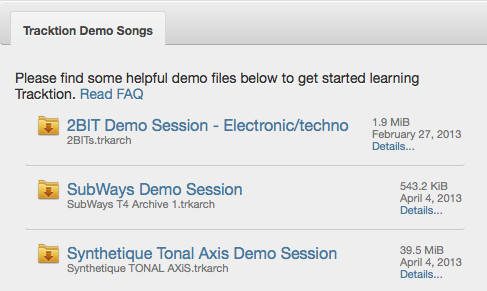
- In the website menu, select
Account > Downloads - Log in if prompted
- Scroll down and click
Demo Song.You will see the list of demo songs open up. - Click each demo song to start the download. To get them all, you need to download each one separately.
- Locate the files in your download folder.
The demo files have the file extension .trkarch which is the Tracktion archive format. It’s similar to a .zip file in the sense that it is a single file containing other files.
Unpack the Demo Archive Files
To use one of the demo projects, you need to first unpack it. Here is how:
- Double-click on the demo file. Tracktion will open and show you a dialog box asking where to put the project on your system.
- Navigate to your Tracktion projects folder and click
Open.Tracktion will unpack the project and put in the Active Projects list on the Tracktion Projects tab. - To see or play the demo, double click the edit listed in the
Editscolumn of theAll items in projectlist.
Repeat these steps for each demo project you would like to use. Once you have them all unpacked, feel free to delete the archive files that you downloaded.
Moving On
With Tracktion installed and a few demo files ready to play with, it’s time to move on to configuring your audio interface to work with Tracktion. That’s up next.