Starting Out
As computers become more involved in everything we do in society, there will be an ever greater need for people who know how to tell these computers what to do. We call these people many different names: Developer, Coder, and Programmer, among others.
Over the past few decades, a lot has changed in programming. We’re going to ignore all that and just get down to the business of programming. If you’d like to learn more about the history of programming - by all means - get a history book from the library.
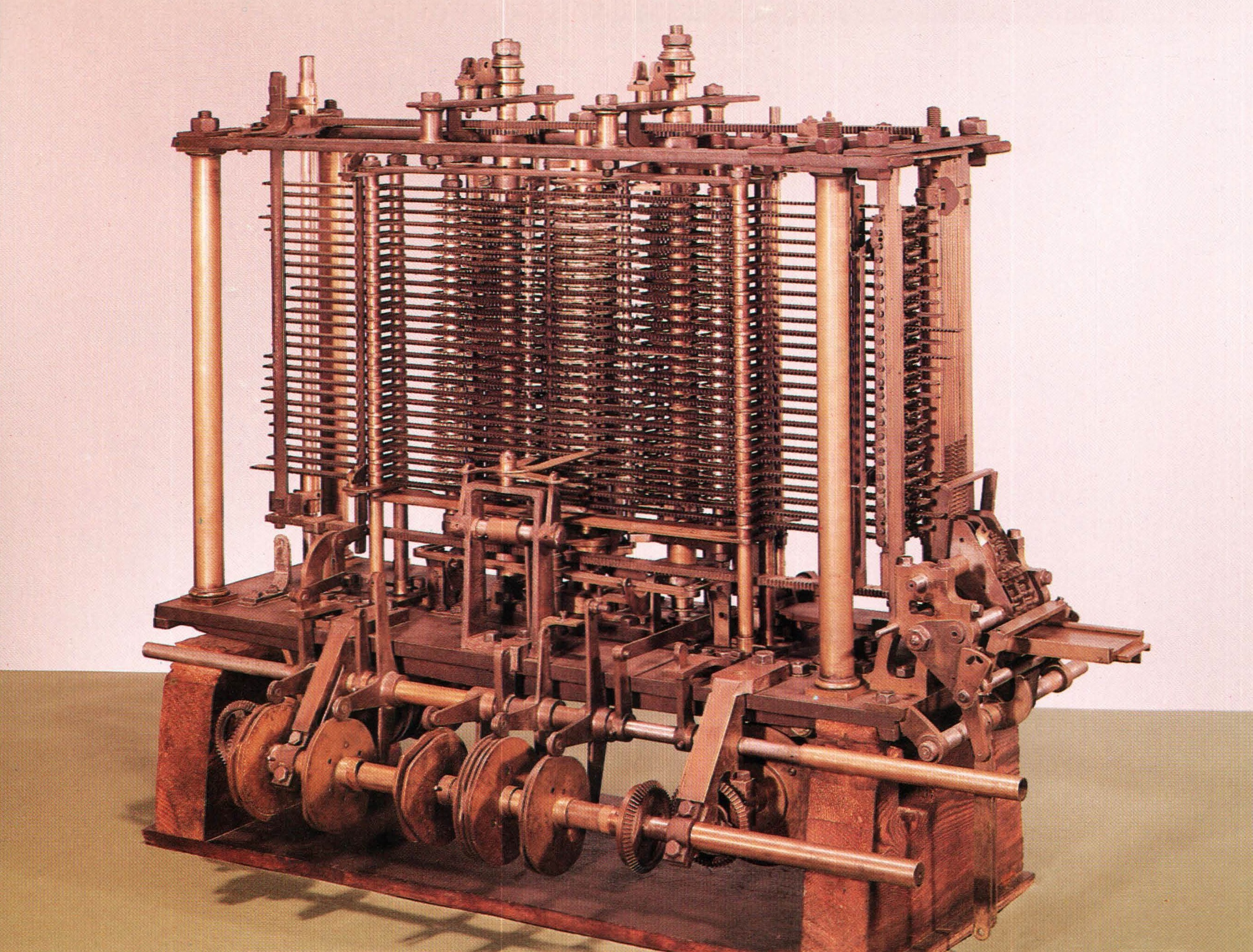
Babbage’s Analytic Engine (from http://ds.haverford.edu/bitbybit/)
1. Introduction
From my experience, learning how to program (in typical computer science classes) can be very difficult for people. The curriculum tends to be boring, abstract, and unattached to “real world” coding. Due to how fast technology progresses, they tend to teach material that is very quickly dated and out-of-touch. I believe that teaching programming could be much simpler - and I hope this book reaches that goal.
1.1 Problem Solving
Before you learn to program, the task can seem rather daunting (much like looking at the redwood tree on the cover before you climb it). However, over time you will realize that programming is really about problem solving.
On your journey towards learning to code (as in much of life), you will encounter many obstacles. You may have heard it before, but it really is true: the path to success is to try, try, and try again. People who persevere the most tend to be the most successful people.
Programming is full of trial and error. Although things will get easier over time, you’ll never be right all the time. So, much like in everything in life, you need to be patient, diligent, and curious to be successful.
1.2 This Book
This book is organized into several chapters, starting from the most basic concepts. If you already understand a concept, you can safely move ahead to the next chapter. Although this book concentrates on Java, it will also refer to other languages such as Groovy, Scala, and JavaScript so you will have a deeper understanding of concepts common to all programming languages.

|
TipsIf you see text stylized like this, it is extra information that you might find helpful. |

|
InfoText stylized this way is usually a reference to additional information for the curious reader. |

|
WarningsTexts like this are cautions for the wary reader - many have fallen on the path of computer programming. |

|
ExercisesThis is an exercise. You shouldn’t see too many of these. |
2. Software to Install
Before you begin programming, you need to install some basic tools.
2.1 Java/Groovy
For Java and Groovy you will need to install the following:
- JDK (Java Development Kit) such as JDK 8.
- IDE (Integrated Development Environment) such as NetBeans 8.
- Groovy: A dynamic language similar to Java that runs on the JVM (Java Virtual Machine).
|
|
Install Java and NetBeans 8Download and install the Java JDK 8 with NetBeans. Open NetBeans and select “File” ⇒ “New Project…” ⇒ “Java Application” |
|
|
Install GroovyGo and install Groovy. |
Trying it out
After installing Groovy, you should use it to try coding.
Open a command prompt and type groovyConsole and hit enter to begin.
|
|
In the groovyConsole, type the following and then hit |
Since most Java code is valid Groovy code, you should keep the “Groovy Console” open and use it to try out all of the examples from this book.
You can also easily try out Scala and JavaScript in the following ways:
- For JavaScript (JS), just open your web-browser and go to jsfiddle.net.
- For Scala, just type
scalain your command prompt or terminal.
2.2 Others
Once you have the above installed, you should eventually install:
- Scala: An object-oriented language built on the JVM.
- Git: A version control program.
- Maven: A modular build tool.
Go ahead and install these if you’re in the mood - I’ll wait.
2.3 Code on Github
A lot of the code from this book is available on github.com/modernprog. You can go there at any time to follow along with the book.
3. The Basics
In this chapter, we’ll cover the basic syntax of Java (and similar) languages.
3.1 Coding Terms
Source file refers to human-readable code. Binary file refers to computer-readable code (the compiled code).
In Java the source files end with “.java” and binary files end with “.class” (also called “class files”). You compile source files using a compiler which gives you binary files.
In Java the compiler is called javac, in Groovy it is groovyc, and scalac in Scala (see a trend here?).
However, some languages (such as JavaScript) don’t need to be compiled (they’re called interpreted languages).
3.2 Primitives and Reference
Primitive types in Java refer to different types of way to store numbers (which have historical but also practical significance):
- char: A single character, such as ‘A’ (the letter A).
- byte: A number from -128 to 127 (8 bits1). Typically a way to store or transmit raw data.
- short: A 16-bit signed integer. It has a maximum of around 32 thousand.
- int: A 32-bit signed integer. Its maximum is around 2 to the 31st power.
- long: A 64-bit signed integer. Maximum of 2 to the 63rd power.
- float: A 32-bit floating point number. This is a non-precise value that is using for things like simulations.
- double: Like float but with 64-bits.
- boolean: Has only two possible values:
trueandfalse(much like 1 bit).
|
|
See Java Tutorial - Data Types for more information. |
Every other type of variable in Java is a “reference” - it points to some Object in memory. You can think of this as something like an address.
3.3 Strings/Declarations
A String is a list of characters (text). It is a very useful built-in class in Java (and most languages). To define a String you simply surround some text in quotes. For example:
1 String hello = "Hello World!";
Here the variable hello is assigned the String “Hello World!”.
In Java you must put the type of the variable in the declaration.
That’s why the first word above is String.
In Groovy and JavaScript, Strings can also be surrounded by single-quotes ('hello').
Also, declaring variables is different in each language.
Groovy allows you to use the keyword def, while JavaScript and Scala use var. For example:
1   def hello = "Hello Groovy!" //groovy
2   var hello = "Hello Scala/JS!" //Scala or JS
3.4 Statements
Every statement in Java must end in a semi-colon (;). In many other languages (like Scala, Groovy, and JavaScript) the semi-colon is optional, but in Java it is necessary. Much like how periods at the end of each sentence help you understand the written word, the semi-colon helps the compiler understand the code.
By convention we usually put each statement on its own line, but this is not required as long as semi-colons are used to separate each statement.
3.5 Assignment
Assignment is an extremely important concept to understand but it can be difficult for beginners. However, once you understand it you forget how hard it was to learn.
Let’s start with a metaphor. Imagine you want to hide something valuable, like a gold coin. You put it in a safe place and write the address on a piece of paper. This paper is like a “reference” to the gold. You can pass it around and even make copies of it, but the gold remains in the same place and does not get copied. On the other hand, anyone with the reference to the gold can get to it. This is how a reference variable works.
Let’s look at an example:
1 String gold = "Au";
2 String a = gold;
3 String b = a;
4 b = "Br";
After running the above code, gold and a refer to the String “Au” while b refers to “Br”.
3.6 Class and Object
A class is the basic building block of code (in Object-Oriented languages). A class typically defines state and behavior. The following class is named “SmallClass”:
1 package com.example.mpme;
2 public class SmallClass {
3 }
Class names always start with an uppercase letter in Java. It’s common practice to use “Camel Case” to construct the names. This means instead of spaces (or anything else) to separate words, we write the first letter of each word in uppercase.
The first line is the package of the class.
A package is like a directory on the file system. In fact, in Java, the package must actually match the path to the Java source file.
So the above class would be located in the path com/example/mpme/ in the source file system.
An object is an instance of a class in memory. Since a class can have multiple values within it, an instance of a class will store those values.
|
|
Create a Class
|
Properties and Methods
Next you might want to add some properties and methods to your class. A property is a value associated with a particular object. A method is a block of code on a class.
1 package com.example.mpme;
2 public class SmallClass {
3     String name;
4     String getName() {return name;}
5     void print() {System.out.println(name);}
6 }
In the above code name is a property and getName and print are methods.
Groovy Classes
Groovy is extremely similar to Java but always defaults to public.
1 package com.example.mpme;
2 class SmallClass {
3     String name //property
4     def print() { println(name) } //method
5 }
Groovy also automatically gives you “getter” and “setter” methods for properties, so writing the getName method would have been redundant.
JavaScript prototypes
Although JavaScript has objects, it doesn’t have a the class keyword.
Instead, it uses a concept called the prototype.
For example, creating a class looks like the following:
1 function SmallClass() {}
2 SmallClass.prototype.name = "name"
3 SmallClass.prototype.print = function() { print(this.name) }
Here name is a property and print is a method.
Scala Classes
Scala has a very concise syntax which puts the properties of a class in parenthesis. For example:
1 class SmallClass(var name:String) {
2     def print = println(name)
3 }
Creating a New Object
In all four languages, creating a new object uses the new keyword.
For example:
1 sc = new SmallClass();
3.7 Comments
As a human, it is sometimes useful for you to leave notes in your source code for other humans and even for yourself later. We call these notes comments. You write comments thusly:
1 String gold = "Au"; // this is a comment
2 String a = gold; // a is now "Au"
3 String b = a; // b is now "Au"
4 b = "Br";
5 /* b is now "Br".
6    this is still a comment */
Those last two lines demonstrate multiline comments. So in summary:
- Two forward slashes denote the start of a single-line comment.
- Slash-asterisk marks the beginning of a multiple-line comment.
- Asterisk-slash marks the end of a multiple-line comment.
3.8 Summary
In this chapter we learned the basic concepts of programming:
- Compiling source files into binary files.
- How objects are instances of classes.
- Primitive types, references, and Strings.
- Variable assignment.
- How Source code comments work.