Introduction to LM Studio’s Local Inference API
Dear reader, we will start with two simple examples, one using the OpenAI AI compatibility features of LM Studio and the other using the Python lmstudio package. First, make sure you hit the green icon on the left menu area:
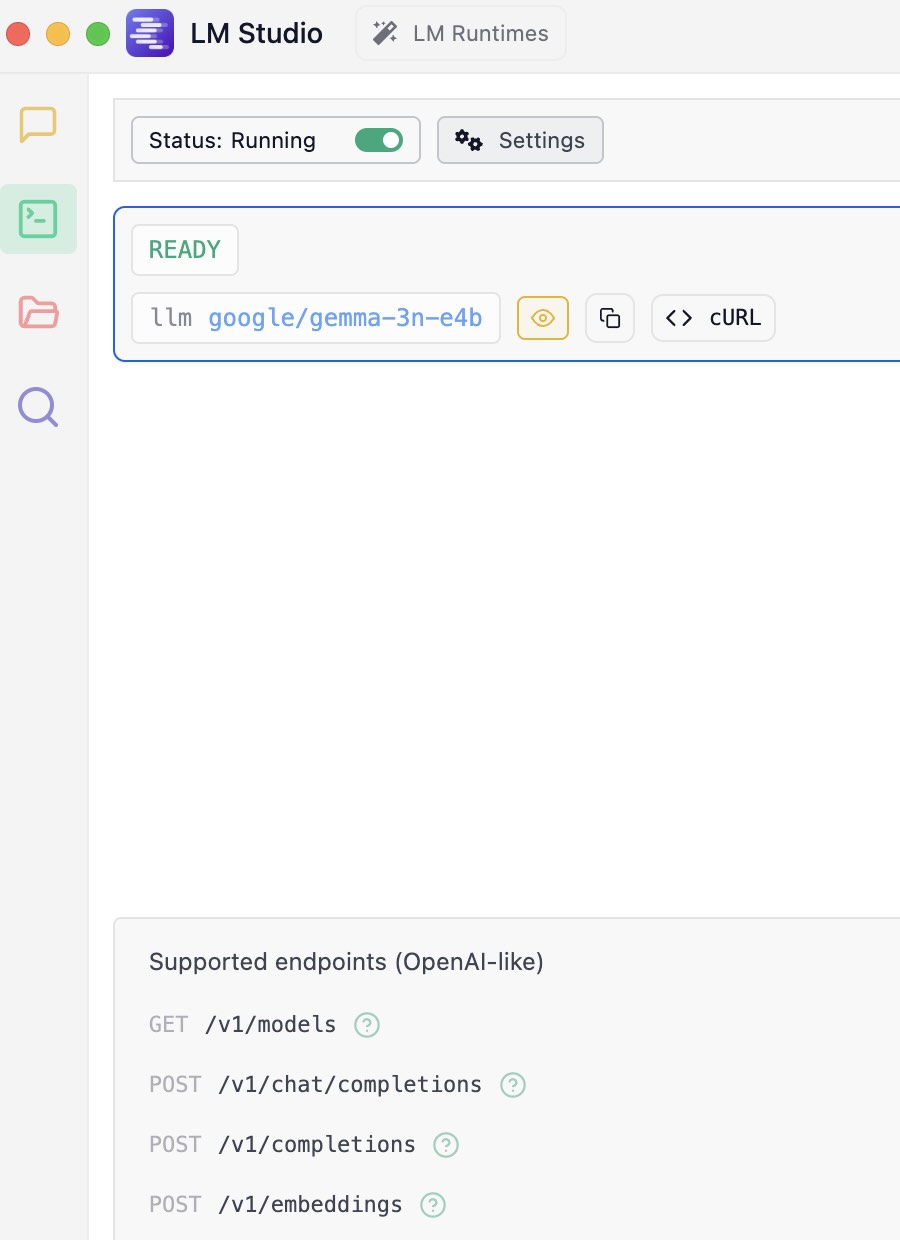
When you installed LM Studio you were asked if you wanted “developer mode” enabled. That prompt during installation can be a bit misleading. You haven’t been locked out of any features.
“Developer Mode” in LM Studio is simply a UI setting that you can toggle at any time. It’s not a permanent choice made during installation.
Here’s how to enable it:
Look at the very bottom of the LM Studio window. You will see three buttons: User, Power User, and Developer.
Just click on Developer to switch to that mode. This will expose all the advanced configuration options and developer-focused features throughout the application, including more detailed settings in the Local Server tab.
In earlier versions of LM Studio you had to select and load a model by hand in the app before you called the API. That is no longer true. LM Studio now supports JIT (Just-In-Time) model loading. When JIT is on, which is the default, the inference endpoints load the model you name in your request if it is not already in memory. You pass a model identifier and LM Studio loads it on demand.
LM Studio also exposes model management through both the REST API and the Python SDK, so you can load, unload, list, and download models from code:
POST /api/v1/loadloads a model into memoryPOST /api/v1/unloadunloads a modelGET /api/v1/listlists available modelsPOST /api/v1/downloaddownloads a new model
From the Python SDK you name the model when you create it, and JIT loads it if needed:
1 import lmstudio as lms
2 model = lms.llm("google/gemma-4-12b-qat")  # Loads if not already loaded, thanks to JIT
For the examples in this chapter I use the capable model google/gemma-4-12b-qat. With JIT loading you no longer need to load it by hand first.
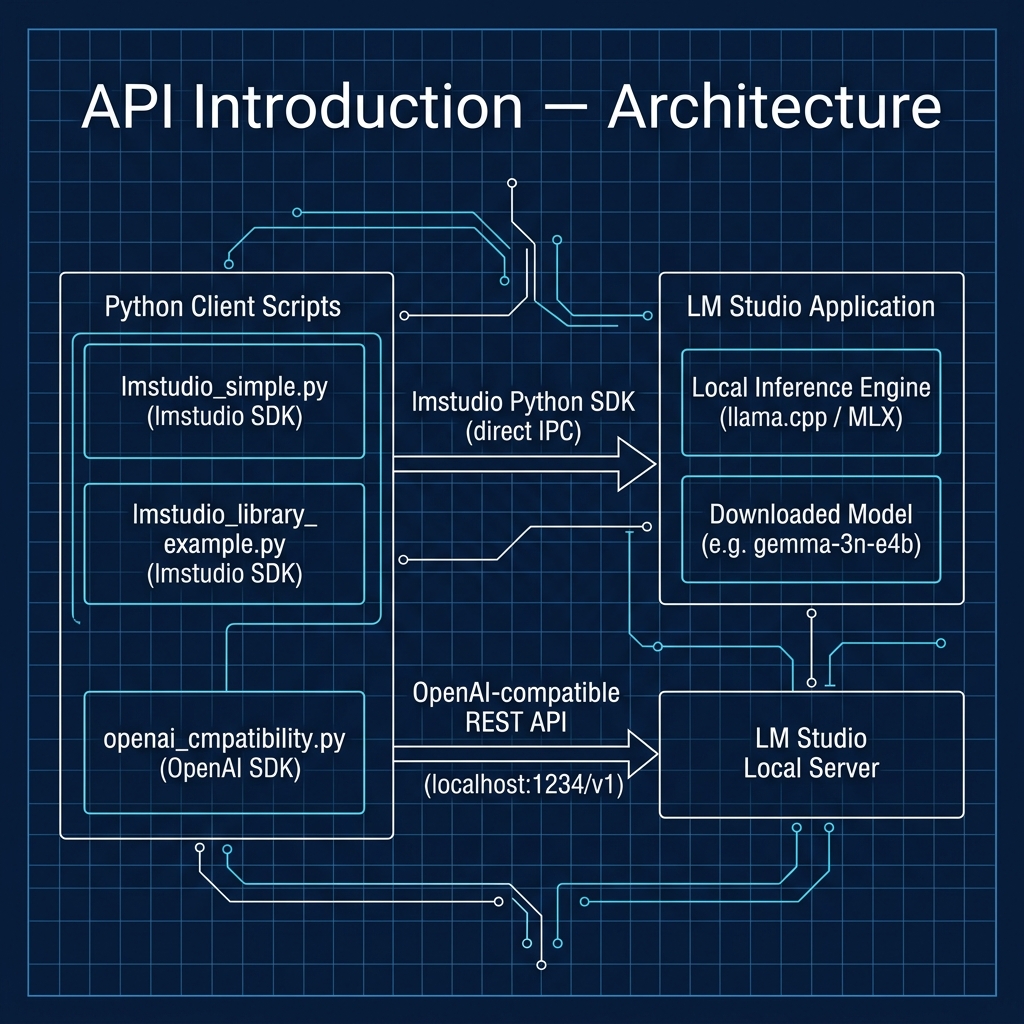
Using the Python OpenAI Compatibility APIs
You can find the Python script examples for this book in the GitHub repository https://github.com/mark-watson/LM_Studio_BOOK in the src directory. The example we now use is in the file src/api_introduction/openai_cmpatibility.py:
 1 from openai import OpenAI
 2
 3 # --- Configuration ---
 4 # Point the client to your local LM Studio server
 5 # The default base_url is "http://localhost:1234/v1"
 6 # You can leave the api_key as a placeholder; it's not required for local servers.
 7 client = OpenAI(base_url="http://localhost:1234/v1", api_key="lm-studio")
 8
 9 # --- Main Execution ---
10 def get_local_llm_response():
11     """
12     Sends a request to the local LLM and prints the response.
13     """
14     # Before running this, make sure you have:
15     # 1. Downloaded and installed LM Studio.
16     # 2. Downloaded a model from the LM Studio hub.
17     # 3. In the "Local Server" tab (the '<->' icon), selected your model
18     #    at the top and clicked "Start Server".
19
20     # The "model" parameter should be a placeholder, as the model is
21     # selected and loaded in the LM Studio UI. The server will use
22     # whichever model is currently loaded.
23     try:
24         completion = client.chat.completions.create(
25             model="local-model",  # This field is ignored by LM Studio
26                                   #but is required by the API.
27             messages=[
28                 {"role": "system", "content": "You are a helpful AI assistant."},
29                 {"role": "user", "content": "What is the capital of France?"}
30             ],
31             temperature=0.7,
32         )
33
34         # Extracting and printing the response content
35         response_message = completion.choices[0].message.content
36         print("\nResponse from local model:")
37         print(response_message)
38
39     except Exception as e:
40         print(f"\nAn error occurred:")
41         print(f"It's likely the LM Studio server is not running or the model is not loaded.")
42         print(f"Please ensure the server is active and a model is selected.")
43         print(f"Error details: {e}")
44
45
46 if __name__ == "__main__":
47     print("--- Local LLM Interaction via OpenAI Compatibility ---")
48     get_local_llm_response()
This Python script uses the official openai library to connect to a local AI model running in LM Studio, not OpenAI’s servers.
It sends the question “What is the capital of France?” to your local model and prints its response to the console. The key is the base_url=“http://localhost:1234/v1” line, which redirects the API request to the LM Studio server.
The example above passes model="local-model" as a placeholder, and the server replies with whichever model is loaded. With JIT loading enabled you can instead pass a real model identifier such as google/gemma-4-12b-qat, and LM Studio will load that model on demand before it answers.
In the next chapter we will cover “tool use” which also referred to as “function calling” (i.e., we write Python functions, configure API calls to inform a model the names and required arguments for tools/functions).
If you don’t enable LM Server’s inference API, you will see an error like:
1 $ uv run openai_cmpatibility.py
2 --- Local LLM Interaction via OpenAI Compatibility ---
3
4 An error occurred:
5 It's likely the LM Studio server is not running or the model is not loaded.
6 Please ensure the server is active and a model is selected.
7 Error details: Connection error.
Note that I use uv as a Python package manager and to run scripts. The examples also have standard Python requirements.txt files that you can alternatively use with pip and python3.
When you have the server inference running on LM Studio you should see output like this:
1 $ uv run openai_cmpatibility.py
2 --- Local LLM Interaction via OpenAI Compatibility ---
3
4 Response from local model:
5 The capital of France is **Paris**.
Using the Python lmstudio Package
Here is a simple example that assumes the server is running and a model is loaded:
1 import lmstudio as lms
2 model = lms.llm()
3 print(model.respond("Sally is 77, Bill is 32, and Alex is 44 years old. Pairwise, what are their age differences? Print results in JSON format. Be concise and only provide a correct answer, no need to think about different correct answers."))
Here is sample output:
 1 $ uv run lmstudio_simple.py
 2 <think>
 3 To determine the age differences between Sally, Bill, and Alex, I will list their ages first. Sally is 77 years old, Bill is 32 years old, and Alex is 44 years old.
 4
 5 Next, I'll calculate the age difference between each pair:
 6
 7 1. **Sally and Bill**: Subtract Bill's age from Sally's age.
 8    - 77 (Sally) - 32 (Bill) = 45 years.
 9
10 2. **Sally and Alex**: Subtract Alex's age from Sally's age.
11    - 77 (Sally) - 44 (Alex) = 33 years.
12
13 3. **Bill and Alex**: Subtract Bill's age from Alex's age.
14    - 44 (Alex) - 32 (Bill) = 12 years.
15
16 Finally, I'll format the results in JSON as specified: a key for each pair of names with their respective age difference.
17 </think>
18
19 ``json
20 {
21   "Sally and Bill": 45,
22   "Sally and Alex": 33,
23   "Bill and Alex": 12
24 }
25 ``
Here is a more complex example that demonstrates how to pass multiple messages and a custom system prompt:
 1 import lmstudio as lms
 2
 3 # --- Main Execution ---
 4 def get_llm_response_with_sdk(prompt):
 5     """
 6     Loads a model and gets a response using the lmstudio-python SDK.
 7     """
 8     # Before running this, make sure you have:
 9     # 1. Downloaded and installed LM Studio.
10     # 2. Started the LM Studio application. The SDK communicates directly
11     #    with the running application; you don't need to manually start the server.
12
13     try:
14         # Load a model by its repository ID from the Hugging Face Hub.
15         # The SDK will communicate with LM Studio to use the model.
16         # If the model isn't downloaded, LM Studio might handle that,
17         # but it's best to have it downloaded first.
18         #
19         # Replace this with the identifier of a model you have downloaded.
20         # e.g., "google/gemma-4-12b-qat"
21         print("Loading model...")
22         model = lms.llm("google/gemma-4-12b-qat")
23
24         # Send a prompt to the loaded model.
25         print("Sending prompt to the model...")
26         response = model.respond(
27           {"messages":
28             [
29                 {"role": "system", "content": "You are a helpful AI assistant."},
30                 {"role": "user", "content": prompt},
31             ]
32           }
33         )
34
35         # The 'response' object contains the full API response.
36         # The text content is in response.text
37         return response
38
39     except Exception as e:
40         print(f"\nAn error occurred:")
41         print("Please ensure the LM Studio application is running and the model identifier is correct.")
42         print(f"Error details: {e}")
43
44
45 if __name__ == "__main__":
46     print("--- Local LLM Interaction via lmstudio-python SDK ---")
47     print("\n--- Model Response ---")
48     print(get_llm_response_with_sdk("Explain the significance of the Rosetta Stone in one paragraph."))
Sample output may look like this:
1 $ uv run lmstudio_library_example.py
2 --- Local LLM Interaction via lmstudio-python SDK ---
3
4 --- Model Response ---
5 Loading model...
6 Sending prompt to the model...
7 The Rosetta Stone is a fragment of a larger stele inscribed with the same text in three scripts: hieroglyphic, demotic, and ancient Greek. Its discovery in 1799 was a pivotal moment in Egyptology because it provided the key to deciphering hieroglyphics, a writing system that had been lost for centuries. By comparing the known Greek text to the unknown Egyptian scripts, scholars like Jean-François Champollion were able to unlock the meaning of hieroglyphics, opening up a vast treasure trove of information about ancient Egyptian history, culture, and religion.  Essentially, the Rosetta Stone provided the crucial bridge for understanding a civilization's written language and allowed us to finally "read" ancient Egypt.
Three Python SDK API Styles
The lmstudio Python SDK offers three ways to talk to a model. Pick the one that fits your program.
1. Convenience API. This is what the examples above use. A single call returns a model handle:
1 import lmstudio as lms
2 model = lms.llm("google/gemma-4-12b-qat")
3 print(model.respond("What is the capital of France?"))
It is quick for scripts and interactive work.
2. Scoped Resource API. This style uses a context manager, so the SDK cleans up the connection when the block ends. Use it for production scripts where you want deterministic resource cleanup:
1 import lmstudio as lms
2
3 with lms.Client() as client:
4     model = client.llm.model("openai/gpt-oss-20b")
5     result = model.respond("What is the capital of France?")
6     print(result)
3. Asynchronous API. SDK 1.5.0 and later add an async API for programs that use structured concurrency. Reach for it when your app is already async, for example a web server that handles many requests at once.
For most of this book I use the convenience API because it keeps examples short. For production code I recommend the scoped resource API.
Streaming Responses
By default a call to respond() waits for the whole reply before it returns. You can instead stream the reply token by token, which makes a chat feel more responsive. Pass stream=True and iterate over the fragments. The full example is in src/api_introduction/streaming_example.py:
1 import lmstudio as lms
2
3 model = lms.llm("openai/gpt-oss-20b")
4 prediction = model.respond("Tell me a story", stream=True)
5 for fragment in prediction:
6     print(fragment.content, end="", flush=True)
7 print()
Structured Output
You can force a model to return JSON that matches a schema. This helps when your program needs to parse the answer. The OpenAI-compatible API accepts a Pydantic model as the response_format. The full example is in src/api_introduction/structured_output_example.py:
 1 from openai import OpenAI
 2 from pydantic import BaseModel
 3
 4 client = OpenAI(base_url="http://localhost:1234/v1", api_key="lm-studio")
 5
 6 class Person(BaseModel):
 7     name: str
 8     age: int
 9
10 completion = client.beta.chat.completions.parse(
11     model="openai/gpt-oss-20b",
12     messages=[{"role": "user", "content": "John is 30 years old."}],
13     response_format=Person,
14 )
15
16 person = completion.choices[0].message.parsed
17 print(person.name, person.age)
LM Studio checks the model’s output against the schema, so person is a typed Person object rather than free text you must parse yourself.
Embeddings
Beyond chat, LM Studio can produce embeddings, which are numeric vectors that capture the meaning of text. You use them for search, clustering, and retrieval augmented generation. Load an embedding model and call embed():
1 import lmstudio as lms
2
3 model = lms.embedding("text-embedding-nomic-embed-text-v1.5")
4 result = model.embed("Hello world")
5 print(len(result))  # length of the embedding vector
The Anthropic Compatibility API
Alongside the OpenAI-compatible endpoints, LM Studio provides an Anthropic-compatible /v1/messages endpoint. This lets you point the official Anthropic Python client at a local model. The full example is in src/api_introduction/anthropic_compat_example.py:
 1 from anthropic import Anthropic
 2
 3 client = Anthropic(
 4     base_url="http://localhost:1234",
 5     api_key="lmstudio",
 6 )
 7
 8 message = client.messages.create(
 9     max_tokens=1024,
10     messages=[{"role": "user", "content": "Hello from LM Studio"}],
11     model="ibm/granite-4-micro",
12 )
13
14 print(message.content)
This endpoint also lets you run Claude Code against a local model. Set two environment variables and start Claude Code with a local model name:
1 export ANTHROPIC_BASE_URL=http://localhost:1234
2 export ANTHROPIC_AUTH_TOKEN=lmstudio
3 claude --model openai/gpt-oss-20b
The Responses API
LM Studio also supports the OpenAI Responses API at /v1/responses, alongside the older Chat Completions API. The Responses API is OpenAI’s newer interface for building agents and tools. If your code already uses it, you point it at LM Studio the same way you point the Chat Completions client, by changing the base_url.
API Authentication
By default the local server accepts any request, which is fine on your own machine. If you expose the server on a network, turn on authentication. LM Studio 0.4.0 and later support API tokens with configurable permissions. When you enable authentication, every request must carry a valid token.
- Toggle Require Authentication in the Developer tab under Server Settings.
- Create and manage tokens in the API Tokens modal.
For REST and OpenAI-compatible calls, pass the token as a bearer token. With the OpenAI client, put it in the api_key field:
1 from openai import OpenAI
2
3 client = OpenAI(base_url="http://localhost:1234/v1", api_key="YOUR_LM_STUDIO_TOKEN")
For a raw REST call, send an Authorization: Bearer <token> header.
Idle TTL and Auto-Evict
When JIT loading brings a model into memory, you do not want it to sit there forever. LM Studio unloads a JIT-loaded model after an idle timeout, which defaults to 60 minutes. You can set the timeout per request. Here is a REST call that unloads the model after 5 minutes of inactivity:
1 import requests
2
3 requests.post("http://localhost:1234/api/v0/chat/completions", json={
4     "model": "openai/gpt-oss-20b",
5     "ttl": 300,
6     "messages": [{"role": "user", "content": "Hello"}],
7 })
You can also set a TTL when you load a model from the CLI:
1 $ lms load google/gemma-4-12b-qat --ttl 3600
Auto-Evict, on by default, unloads the previous JIT-loaded model before it loads a new one. This lets you switch models from an external app without unloading the old one by hand.
Optional Practice Problems
To help solidify your understanding of the LM Studio Local Inference API and SDK, try the following exercises:
- Dynamic Model Selection CLI: Modify the
openai_cmpatibility.pyorlmstudio_library_example.pyscript to accept a model identifier as a command-line argument (e.g., using Python’ssys.argvor theargparselibrary) instead of hardcoding it. This will make it easier to switch between models without editing code. - Token Streaming: Enhance the OpenAI compatibility script (
openai_cmpatibility.py) to stream the model’s response token-by-token usingstream=Truein the API call. Print each token to the console as it arrives, providing a more interactive chat experience. - Interactive Conversational Loop: Implement a persistent command-line chat session where the script prompts you for input in a loop, keeps track of the conversation history, and sends the accumulated history with each new query.
- Response Metrics Logger: Modify
lmstudio_library_example.pyto measure and print the time taken to load the model (usinglms.llm()) versus the time taken to get a response (usingmodel.respond()). Display these metrics cleanly at the end of the script execution.