Using Gemini to Write Python for Google Colab
I made available on the web at URI https://markwatson.com/data/wisconsin_with_header.csv a sample CSV file for cancer research. Download this file to your laptop; we will ask Colab to Analyze files with Gemini later and use this file for an example.
Prompt:
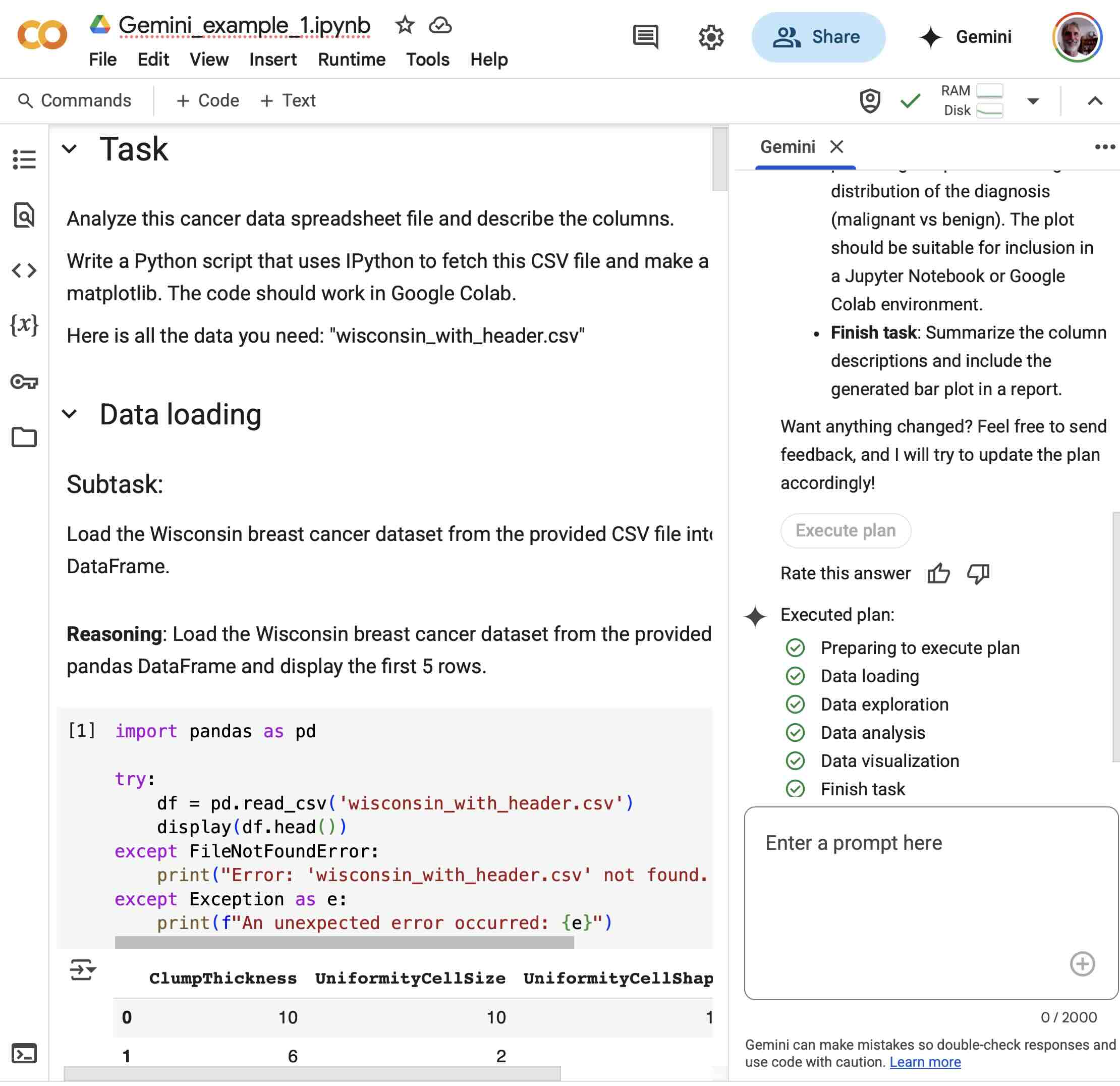
1 Analyze this cancer data spreadsheet file and describe the columns.
2
3 Write a Python script that uses IPython to fetch this CSV file and make a bar plot of it using matplotlib. The code should work in Google Colab.
I will create a new empty Colab notebook and work through an example. Here is the link to the saved notebook:
1 https://colab.research.google.com/drive/17EQ0TUCrHg3wWduBWj9KMJPc-9Lp669R?usp=sharing
The empty notebook has the button Analyze files with Gemini:
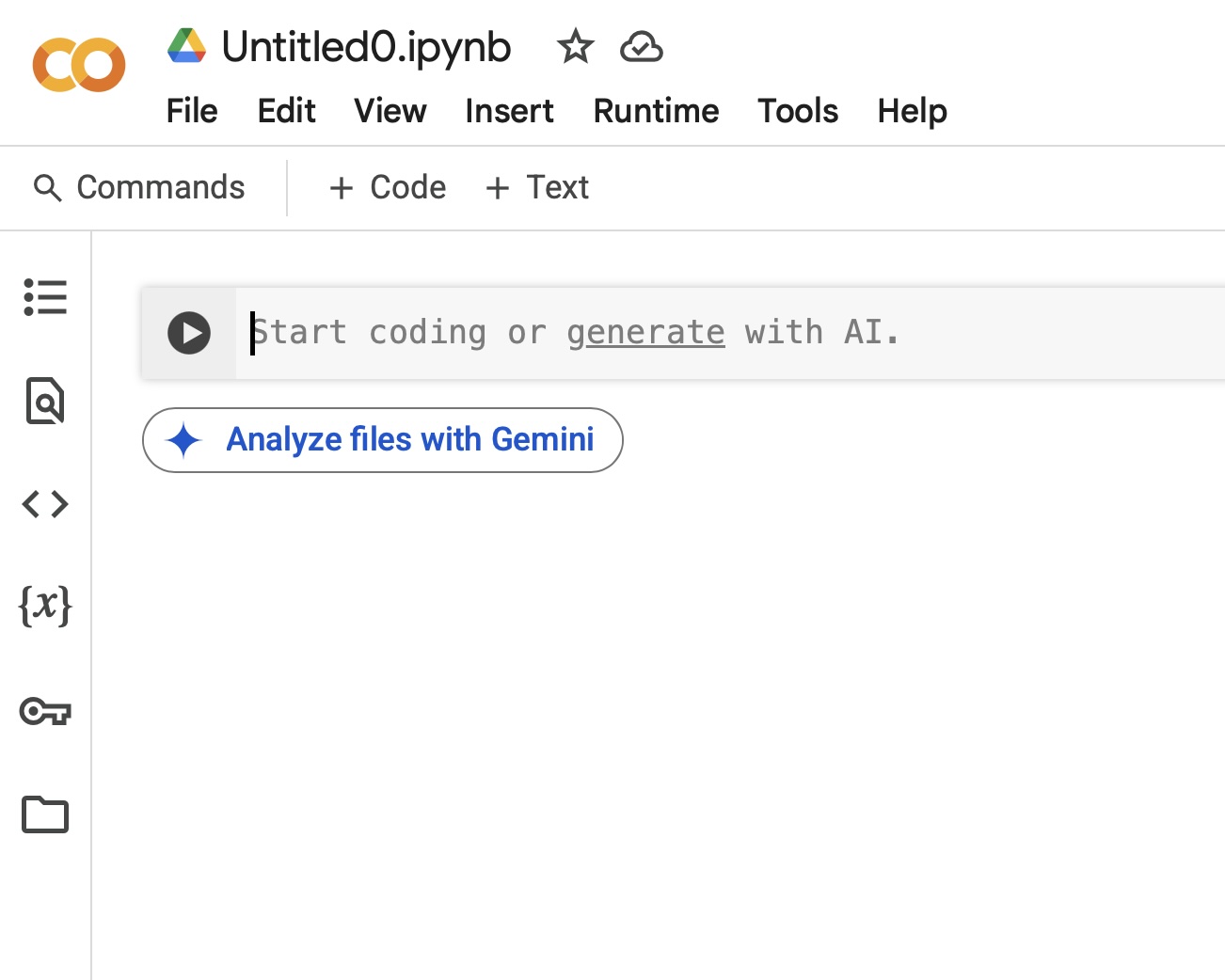
In the next screenshot I uploaded the sample CSV file and used the prompt listed above:
In the following screenshot, I have closed the Gemini window on the right side of the Colab notebook and show example output:
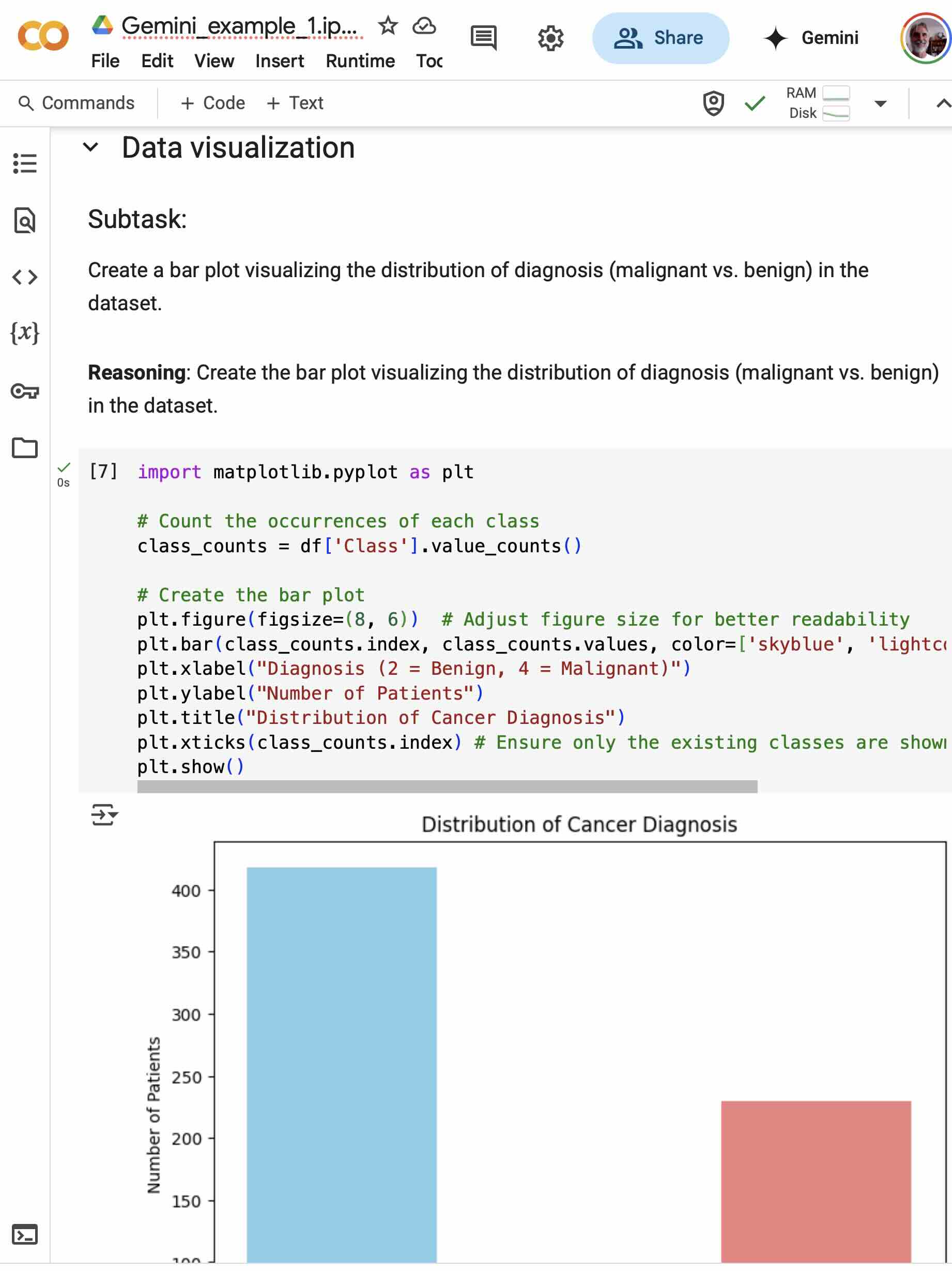
If you look at the linked Colab notebook you will notice that some of the generated analysis code terminated due to runtime errors and Gemini fixed these errors.
Wrap Up
I use Google Colab notebooks frequently in my work. The example in this chapter demonstrates having Gemini write Python code for you.