2. Locating web elements
As you might have already figured out, to drive an element on a page, we need to find it first. Selenium uses what is called locators to find and match the elements on the web page. There are 9 locators in Selenium:
| Locator | Example |
|---|---|
| ID | find_element(:id, "user") |
| Name | find_element(:name, "username") |
| Link Text | find_element(:link_text, "Login") |
find_element(:link, "Login") |
|
| Partial Link Text | find_element(:partial_link_text, "Next") |
| XPath | find_element(:xpath, "//div[@id="login"]/input") |
| Tag Name | find_element(:tag_name, "body") |
| Class Name | find_element(:class_name, "table") |
find_element(:class, "body") |
|
| CSS | find_element(:css, "#login > input[type="text"]") |
| Relative (v4) | find_element(relative: { tag_name: "img", right: elem }) |
You may use any one of them to narrow down the element you are looking for.
2.1 Start browser
Testing websites starts with a browser. The test script below launches a Chrome browser window and navigate to a site.
require 'selenium-webdriver'
driver = Selenium::WebDriver.for(:chrome)
driver.navigate.to("https://agileway.com.au/demo")
# or
driver.get("https://agileway.com.au/demo")
Use :firefox, :safari, :ie and :edge for testing in Chrome, Safari, IE and Edge respectively.
I recommend, for beginners, to close the browser window at the end of a test case.
driver.quit # or driver.close
2.2 Inspect Web Element in Browser
A simple way to find the HTML fragment for a web element: Right-click the web element in Chrome browser and select ‘Inspect’.
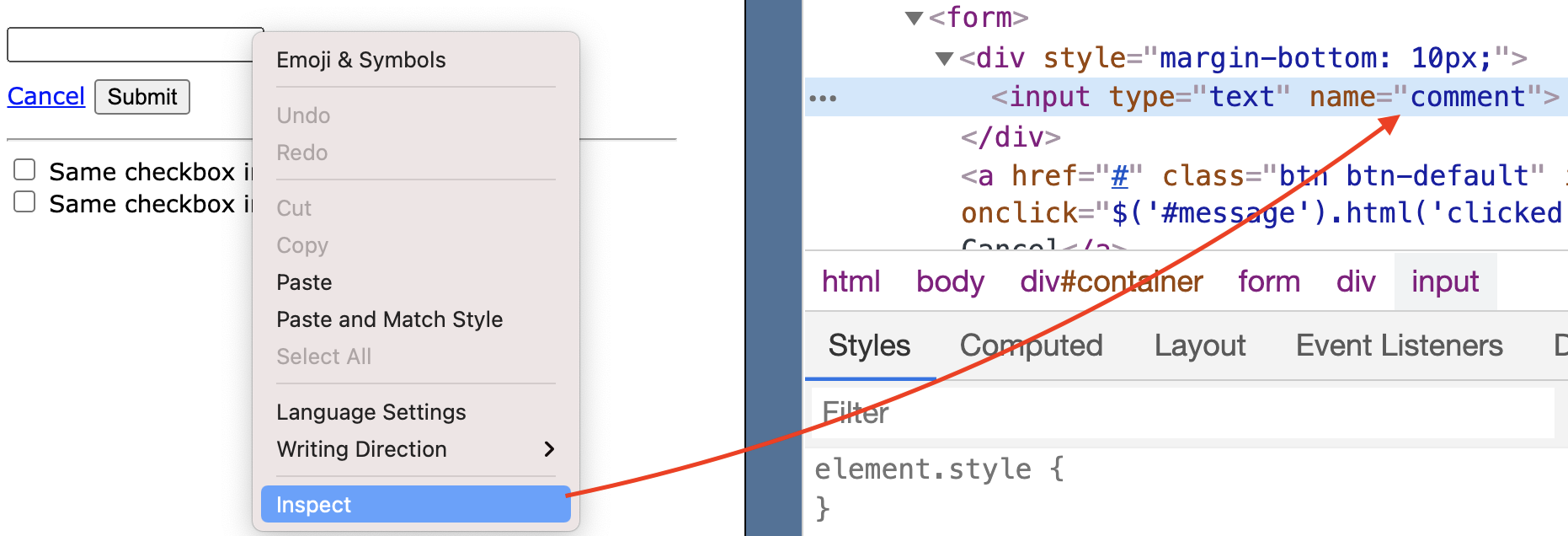
Then choose an appropriate Selenium locator based on the HTML fragment. It is not hard, even you don’t have to know HTML at all. After some trial and error (like the recipes in this book), you will get it quite quickly. For example, for the text box in the above image, name="comment" can be used to locate it.
2.3 Find element by ID
Using IDs is the easiest and probably the safest way to locate an element in HTML. If a web page is W3C HTML conformed, the IDs should be unique and identified in web controls on the page. In comparison to texts, test scripts that use IDs are less prone to application changes (e.g. developers may decide to change the label, but are less likely to change the ID).
driver.get(site_url + "/locators.html");

driver.find_element(:id, "submit_btn").click   # Button
driver.find_element(:id, "cancel_link").click  # Link
driver.find_element(:id, "username").send_keys("agileway")  # Textfield
driver.find_element(:id, "alert_div").text     # HTML Div element
2.4 Find element by Name
The name attributes are used in form controls such as text fields and radio buttons. The values of the name attributes are passed to the server when a form is submitted. In terms of the least likelihood of a change, the name attribute is probably only second to ID.
driver.find_element(:name, "comment").send_keys("Selenium Cool")
2.5 Find element by Link Text
For Hyperlinks only. Using a link’s text is probably the most direct way to click a link, as it is what we see on the page.
driver.find_element(:link_text, "Cancel").click
2.6 Find element by Partial Link Text
Selenium allows you to identify a hyperlink control with partial text. This can be quite useful when the text is dynamically generated. In other words, the text on one web page might be different on your next visit. We might be able to use the common text shared by these dynamically generated link texts to identify them.
# will click the "Cancel" link
driver.find_element(:partial_link_text, "ance").click
2.7 Find element by XPath
XPath, the XML Path Language, is a query language for selecting nodes from an XML document. When a browser renders a web page, it parses it into a DOM tree or similar. XPath can be used to refer to a certain node in the DOM tree. If this sounds a little too technical for you, don’t worry, just remember XPath is the most powerful way to find a specific web control.
# clicking the checkbox under 'div2' container
driver.find_element(:xpath, "//*[@id='div2']/input[@type='checkbox']").click
Some testers feel intimidated by the complexity of XPath. However, in practice, there is only a limited scope of XPath to master for testers.
2.8 Find element by Tag Name
There are a limited set of tag names in HTML. In other words, many elements share the same tag names on a web page. We normally don’t use the tag_name locator by itself to locate an element. We often use it with others in chained locators (see the section below). However, there is an exception.
driver.find_element(:tag, "body").text
The above test statement returns the text view of a web page. This is a very useful one as Selenium WebDriver does not have a built-in method to return the text of a web page.
2.9 Find element by Class
The class attribute of an HTML element is used for styling. It can also be used for identifying elements. Commonly, an HTML element’s class attribute has multiple values, like below.
<a href="back.html" class="btn btn-default">Cancel</a>
<input type="submit" class="btn btn-deault btn-primary">Submit</input>
You may use any one of them.
driver.find_element(:class, "btn-primary").click  # Submit button
driver.find_element(:class, "btn").click          # Cancel link

# the below will return error "Compound class names not permitted"
# driver.find_element(:class, "btn btn-deault btn-primary").click
The class locator is convenient for testing JavaScript/CSS libraries (such as TinyMCE) which typically use a set of defined class names.
# inline editing
driver.find_element(:id, "client_notes").click
sleep
driver.find_element(:class, "editable-textarea").send_keys("inline notes")
sleep 0.5
driver.find_element(:class, "editable-submit").click
2.10 Find element by CSS Selector
You may also use CSS Path to locate a web element.
driver.find_element(:css, "#div2 > input[type='checkbox']").click
However, the use of CSS selectors is generally more prone to structural changes on a web page.
2.11 Find element by Relative locators
Selenium WebDriver 4 (released in October 2021) added a new locator type: Relative. The purpose of Relative Locators is to find a specific element(s) regarding the position of another element. There was hype of relative locators (firstly introduced in Sahi Pro), however, I have my reservations for three reasons:
- The test automation attempts *(I witnessed) *using Sahi Pro, by my judgement, were all failed.
I rescued a few of them by replacing Sahi with raw Selenium WebDriver (v2 and v3).
- I don’t recall the need to use relative locators, XPath is fine.
- The proximity check (used in relative locators) does not always work as expected.
Here are the quotes from Simon Stewart’s Selenium 4 master course on TestGuild:
- “the way that proximity works, things are looked like they should be found, sometimes aren’t”
- “be aware that relative locators are very sensitive to page layout”
Here is a simple example.
start_cell = driver.find_element(id: "test_products_only_flag")
elem_label = driver.find_element(relative: { tag_name: "span", right: start_cell })
I will show more examples of using this new relative locator in Chapter 27.
2.12 Chain find_element to find child elements
For a page containing more than one element with the same attributes, like the one below, we could use XPath locator.
<div id="div1">
  <input type="checkbox" name="same" value="on"> Same checkbox in Div 1
</div>
<div id="div2">
  <input type="checkbox" name="same" value="on"> Same checkbox in Div 2
</div>
There is another way: chain find_element to find a child element.
driver.find_element(:id, "div2").find_element(:name, "same").click
2.13 Find multiple elements
As its name suggests, find_elements return a list of matched elements. Its syntax is exactly the same as find_element, i.e. can use any of 8 locators.
The test statements will find two checkboxes under div#container and click the second one.
xpath_str = "//div[@id='container']//input[@type='checkbox']"
checkbox_elems = driver.find_elements(:xpath, xpath_str)
checkbox_elems.count  # => 2
checkbox_elems[1].click
Sometimes find_element fails due to multiple matching elements on a page, which you were not aware of. find_elements will come in handy to find them out.
2.14 Locate a Web Element that disappears after Inspect
Dynamic elements are generated on the fly, and often do not exist in the static page source. The only practical way (I am aware of) is to get it by Inspecting the dynamic element directly. However, some web elements disappear after you select the ‘Inspect’ menu item (via right-click), as their focus has been lost.
There are two workarounds:
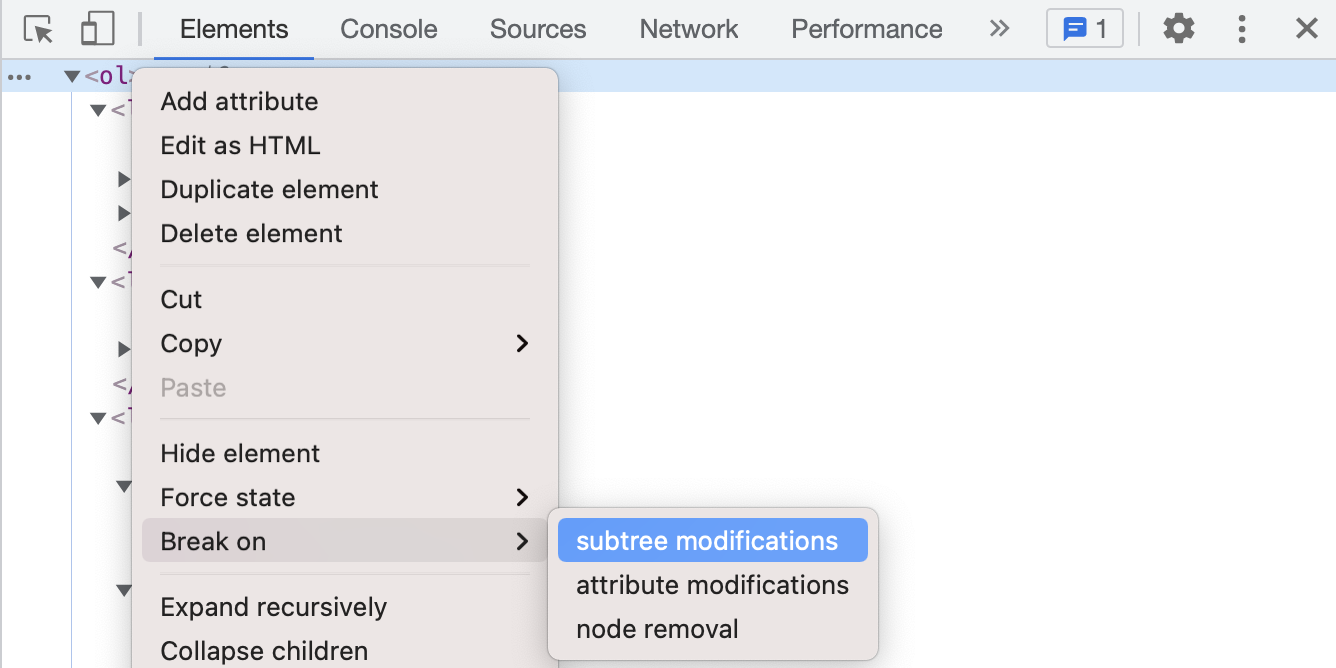
- Open Developer Tools in Chrome and select Elements tab, right-click the parent node of the element you want to inspect, in the contextual menu click on Break on > Subtree modifications.
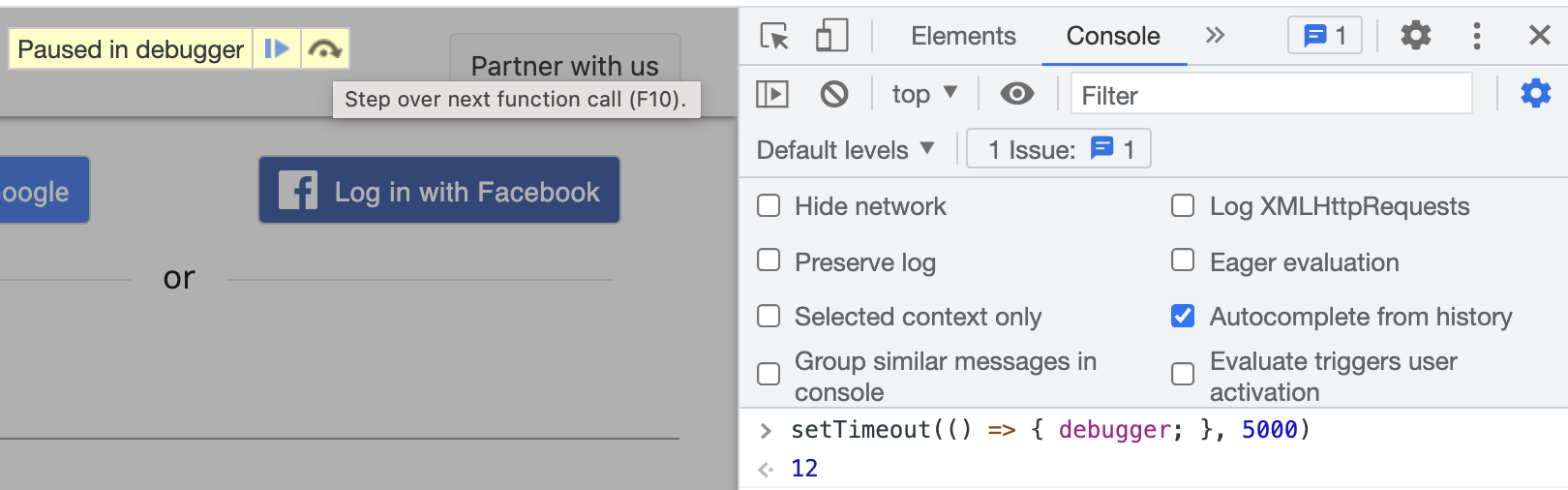
- One simple workaround (more like a hack, but it works) is, typing the below in the browser console:
setTimeout(()=>{debugger;},5000)This gives you 5 seconds to check the element source before the debugger shows up.